Suggested reading: Email Warm-Up
Automated warm-up is a feature that aims to protect your IP reputation and enhance your deliverability by providing a warm-up schedule tailored to your needs and automatically limiting the number of emails you send daily.
When warming up your IP address manually, you must prepare a warm-up schedule based on your expected volume. Each day, double-check how many emails you should send. If you make mistakes, you may need to restart the process or use a new IP. The automated warm-up feature smooths this process significantly. It provides you with a warm-up schedule that is tailored to your maximum daily volume goal. It guides you on how many emails to send each day on the panel.
You can create separate automated warm-up plans for your separate sender domains. For further details, refer to Warm-Up Planning.
Benefits of automated warm-up
Automated warm-up:
Guides you during the warm-up process.
Provides a schedule and easy tracking in the panel.
Decreases manual work and prevents mistakes that could damage your company's reputation.
Experiment (A/B) email campaigns cannot be used while the warm-up feature is on.
IP warm-up is not required for Transactional Email API or Transactional Journey Emails.
Automated warm-up tracker
After configuring your automated warm-up plans from the Warm Up Planning step under Email Setup Wizard, you can start tracking your sender domains' automated warm-ups directly from the InOne panel.
The Automated Warm-Up Tracker allows you to track the following in real time:
See which day it is and how many emails you will send that day.
The status indicators show your warm-up status: Completed, In Progress, Interrupted, Not Started.
You can view your full warm-up plan, including daily target volumes, the starting volume for that day, and the total volume by the end of the day.
Finally, you can see the emails sent on each day and when that day's volume is complete.
Additionally, you can switch between your sender domains to track each domain's warm-up progress separately.
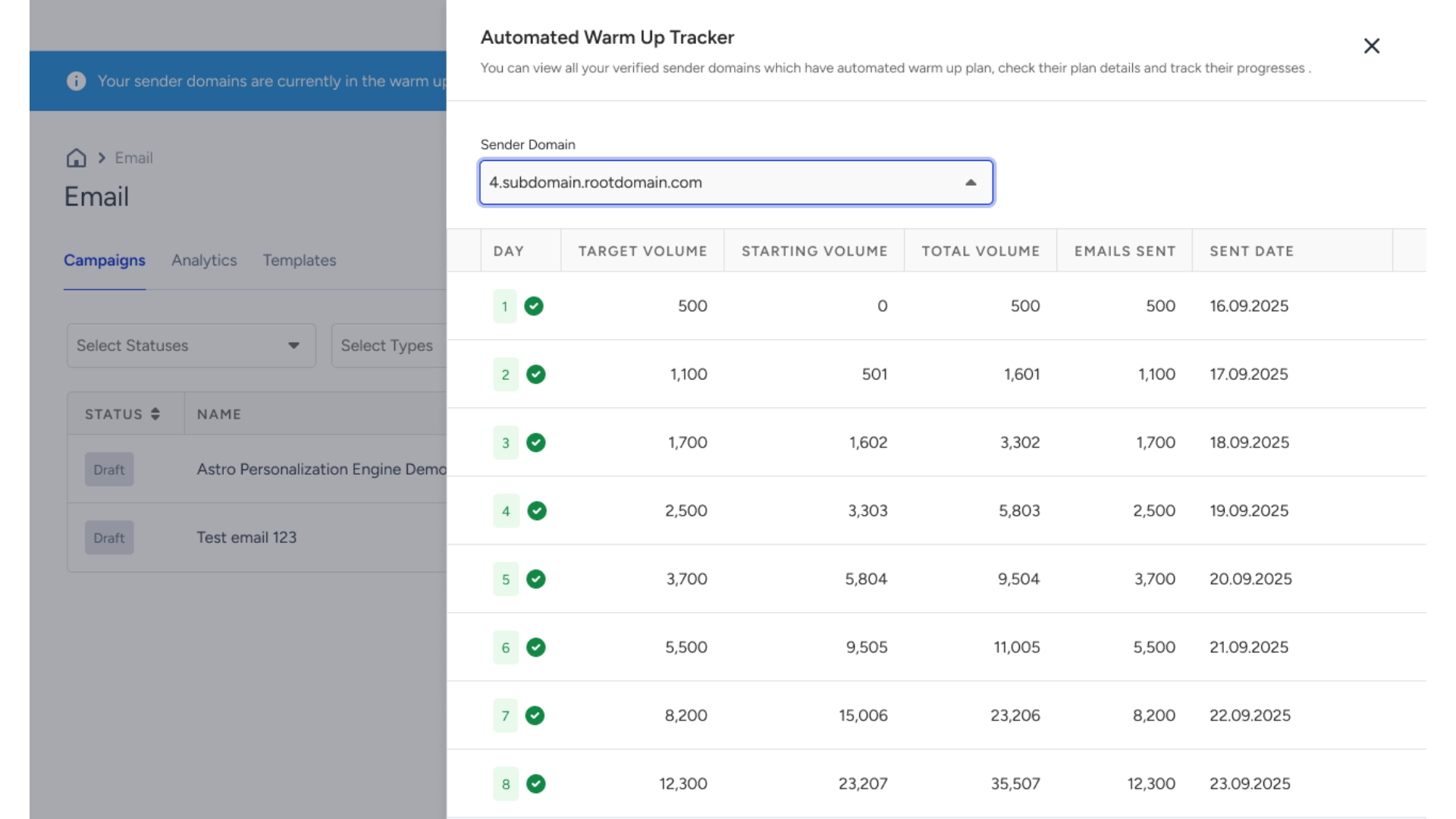
To move on to the next day of your warm-up plan, you need to send at least 90% of that day's target volume. The delivered count can fall short of the daily target by up to 10% and still advance your plan. For example, on a day with a 2,500-email target, sending 2,250 or more emails moves you to the next day. If you cannot reach this threshold, you need to repeat the same warm-up day to move on. You will see an informational prompt about your remaining daily limit on the launch step.
If you cannot reach the daily limit for that warm-up day, you can continue with the same daily quota on the next warm-up day. However, keep in mind that it is advised that you follow the automated plan on a daily streak.
Access the Automated Warm-Up Tracker
The Automated Warm-Up Tracker can be accessed throughout the Email Listing Page and on the email campaign creation steps (Recipients, Design, Launch).
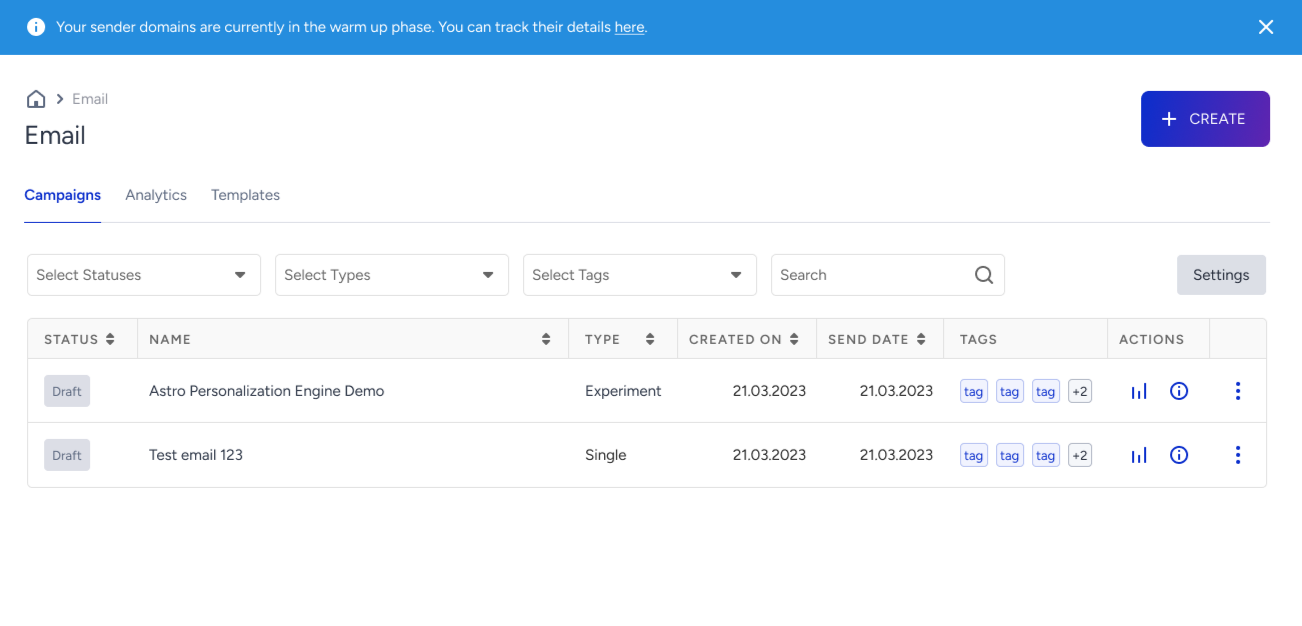
On the Email Listing Page, when you have an active (or not started) warm-up plan for any of your sender domains, you will find the ribbon at the top of the page. In the ribbon message, you can click the Here button to access the Automated Warm Up Tracker.
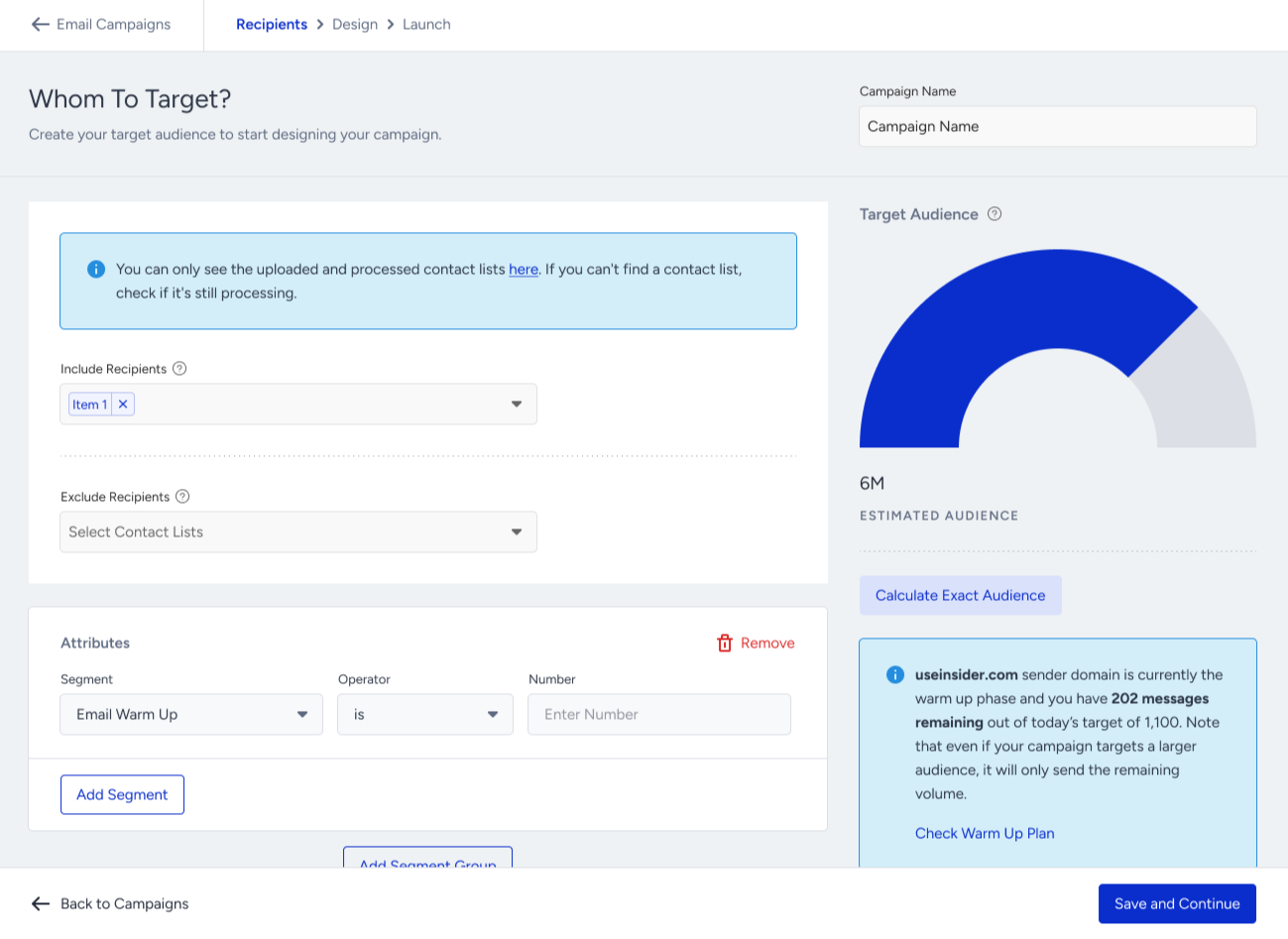
When creating an email campaign, you will see informational messages about the daily quota for the selected sender domains.
On the Recipients step, you can see the number of emails you should send during that specific day of warm-up for your default sender domain.
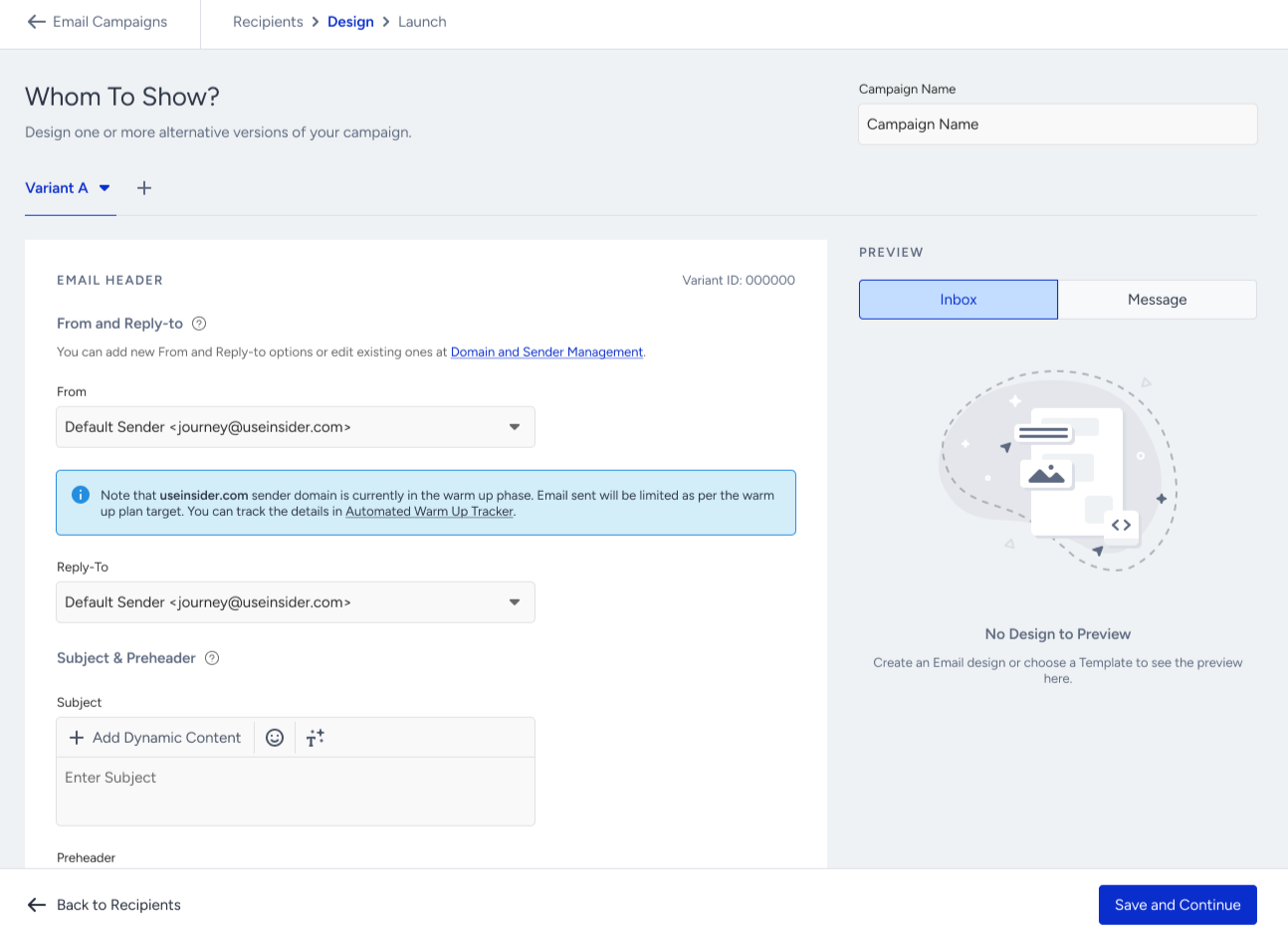
On the Design step, you will see the information message below the From Address selection; you can access the Automated Warm-Up Tracker.
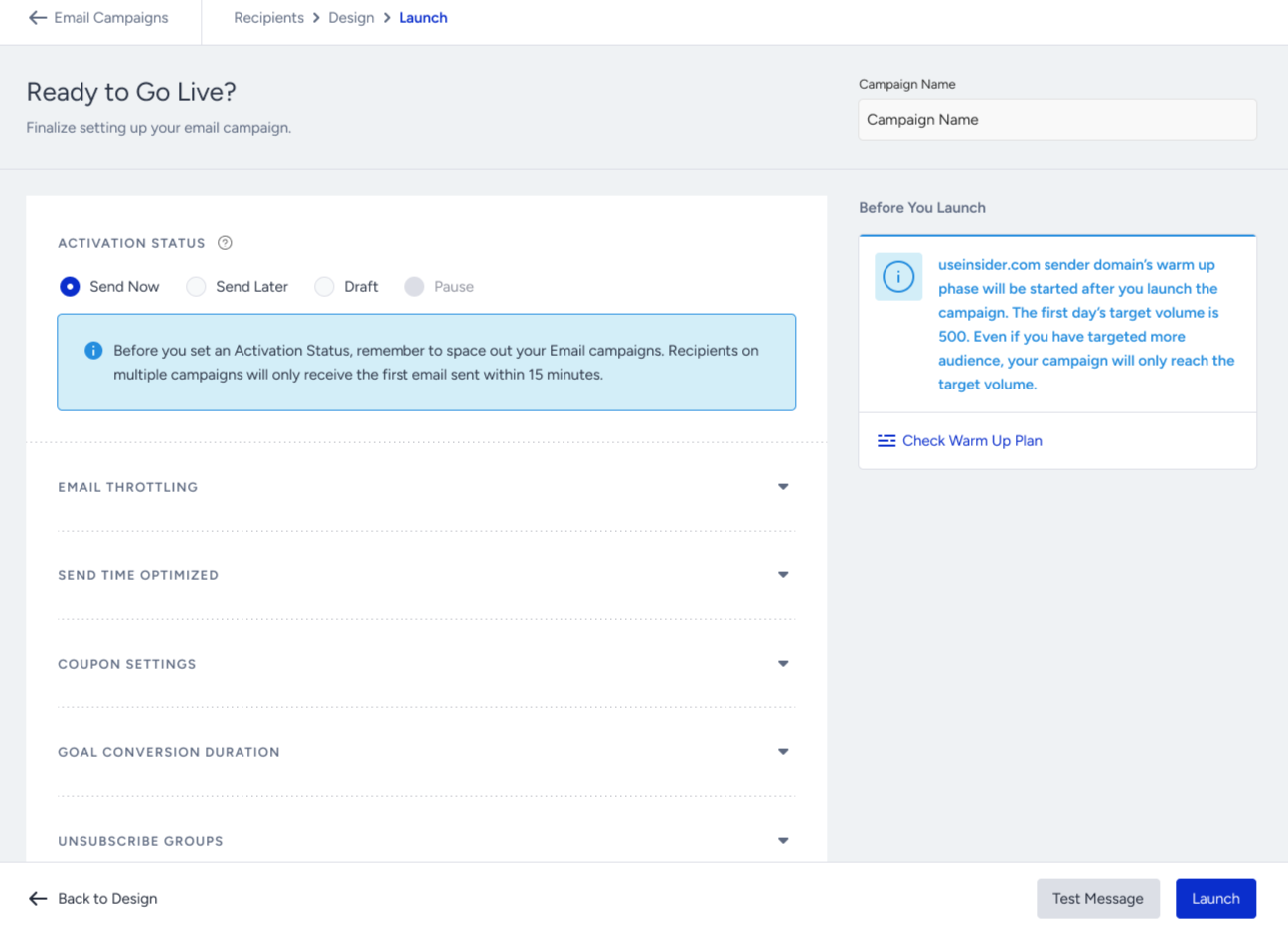
On the Launch step, before you launch your campaign, you will be reminded of the daily quota one last time before sending your email campaign. Here you will be able to access the Automated Warm Up Tracker through the Check Warm Up Plan button.
Audience Limit helps you reach the desired number of users directly from the user base when the number of selected contact lists or contact-list-based segments exceeds the daily quota reflected in the automated warm-up. This way, you don't need extra contact lists or segments to reach the desired number of contacts in the list.
For example, if you try to send a campaign with more recipients than your daily limit, you will see a notification on the launch step where the audience limit feature shows your remaining daily quota for recipients. The other recipients in the contact list will be dismissed.
If you schedule a campaign that has more recipients than your daily limit, you will see a notification on the launch step where the audience limit feature displays your daily quota remaining for your recipients. The other recipients in the contact list will be dismissed.