This article walks you through setting up a Call an Agent element in an Architect journey and putting its output to work. To learn what the element does first, see Call an Agent. The steps below use one example throughout: a churn-risk journey that classifies each user as High, Medium, or Low risk.
This feature requires AI credits. Call an Agent is available in all standard (non-transactional) Architect journeys.
In this article:
Set up Call an Agent
The element has one configuration area, Agent Configuration, with two sections: Instructions and Outputs. The steps below show each field filled in for the churn-risk journey.
Step 1: Add the element to the canvas
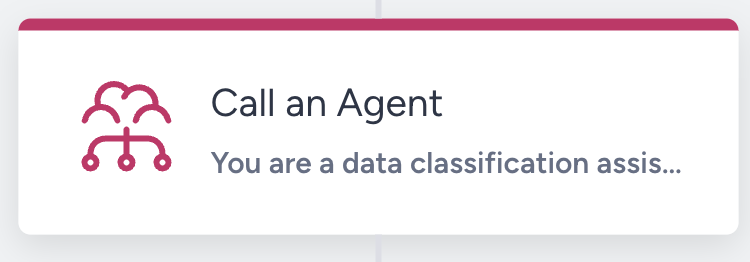
Click the Add (+) button on the canvas to open the Select Flow Element menu. Call an Agent appears as its own top-level option, alongside Wait, Channel, Action, Check, A/B Split, and Next Best Channel. Click Call an Agent to add it to your journey flow.
Once placed, the element shows its icon, name, and a preview of the instructions.
Step 2: Start from a template (optional)
Agent Templates let you save and reuse AI configurations. When the element opens, you can load a default template, load a custom template you saved earlier, or configure the element from scratch. Templates pre-fill the Instructions, the Output Group Name, and the Outputs, and you can edit anything after loading.
To browse templates, click Select Template at the top right of Agent Configuration.
Default templates
Default templates are prebuilt by Insider One and are read-only. You can load one and edit the copy in your element, but you cannot modify the source template. The following default templates ship at launch:
Template | What it does |
|---|---|
Cart Recovery Prioritization | Prioritizes cart abandoners for recovery outreach based on cart value, purchase history, and email engagement. |
Post-Purchase Follow-up Classifier | Determines the right follow-up action after a purchase based on browsing behavior, cart activity, and engagement signals. |
Win-Back Angle Classification | Selects a win-back email angle and generates a personalized subject line based on purchase history and browsing context. |
If you are configuring Call an Agent for the first time, start with a default template that matches your use case. It gives you a tested starting point.
Custom templates
Custom templates are configurations you save yourself. After you finish the setup, click Save Agent in the bottom bar to open the Save Agent drawer. Enter an agent name up to 40 characters and an agent description up to 200 characters, then click Save Agent again to store the configuration.
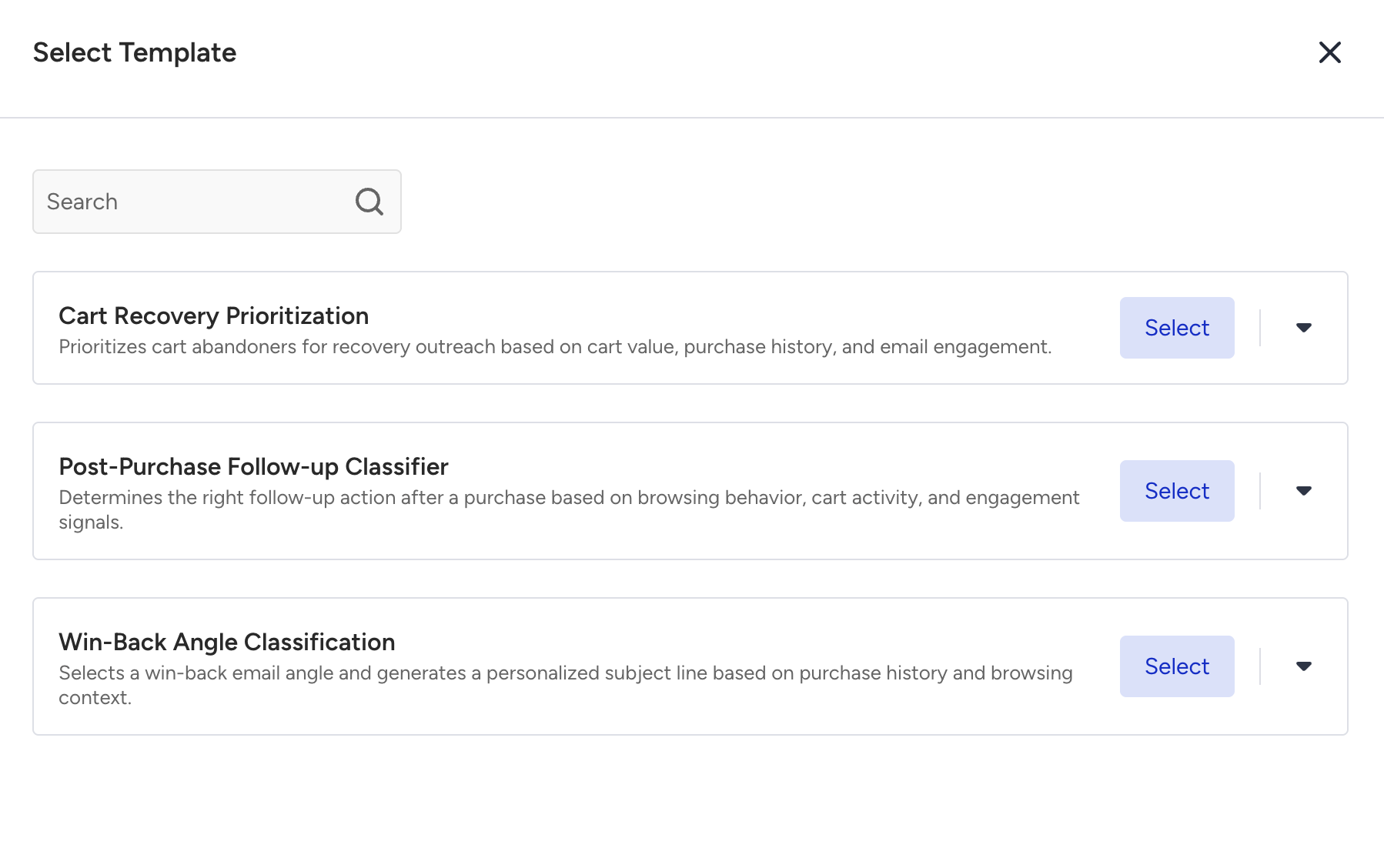
Your saved templates appear in the Select Template drawer for any future journey, and you can delete them from there when you no longer need them.
Applying a template copies its configuration into the element at that moment. Later changes to the template do not affect elements already configured from it, and deleting a template does not affect elements created from it.
Step 3: Write the instructions
In the Instructions field, type what you want the AI to do in plain language. Be specific about the answer you expect back.
Click Add Dynamic Content inside the field to reference the user's data. Each reference resolves to a single value for that user at runtime, and Insider One sends only the fields you reference to the AI.
The Add Dynamic Content picker groups everything you can insert: attributes, event parameters, expressions, aggregates, product catalog attributes, lookup tables, and more. For the full, current list and how each type behaves, see Dynamic Content in Journeys. Two points are specific to Call an Agent:
Each reference resolves to a single value for that user at runtime. You cannot pull a historical list of past events, such as the user's last three purchases. You can reference only the user's most recent event parameter (or a constant event).
To have the AI reason over a count, a rate, or an average, reference a pre-computed Expression or Aggregate. For example, returns in the last 90 days. The element does not work it out from raw event history.
For the churn example, the instruction reads as follows. Insert the bracketed values with Add Dynamic Content. Do not type them as words, because each one resolves to that user's real data at runtime.
This user just returned an item. Their last order was [days_since_last_order]
days ago, they have made [returns_last_90_days] returns in the past 90 days,
and their email open rate over the past 30 days is [email_open_rate_30d].

Based on this data, classify the user's churn risk as High, Medium, or Low.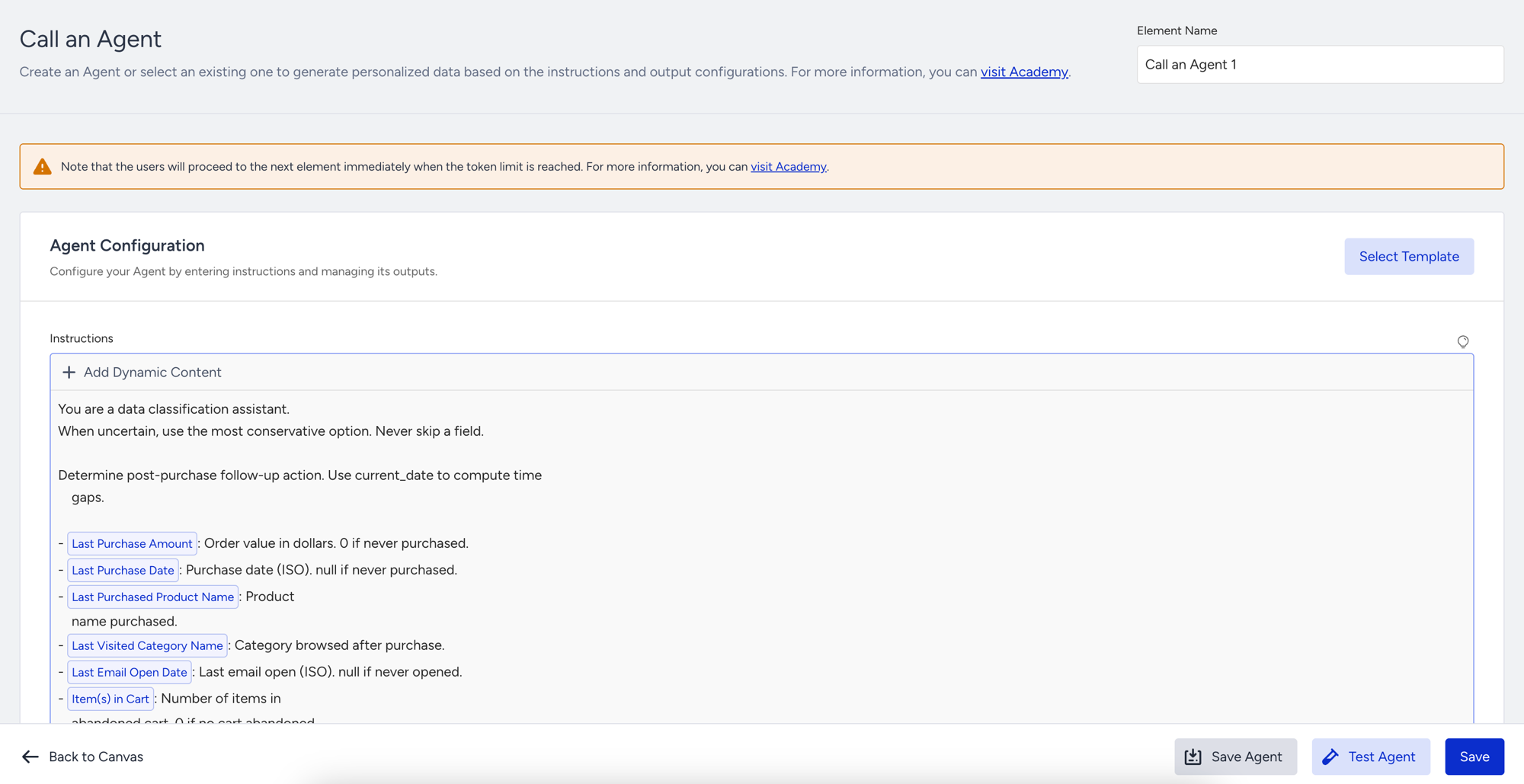
The instructions are the AI's task definition. The clearer and more specific you are about what to return and in what format, the more consistent the output. Each dynamic content reference can carry an optional fallback value for users who are missing that attribute.
The Instructions field is limited to 8,000 characters. Keep instructions focused on one task. If you need several AI outputs, use separate Call an Agent elements in sequence.
Do not include PII (personally identifiable information) such as an email address or phone number unless your instructions require it and your compliance posture allows it.
Step 4: Define the outputs
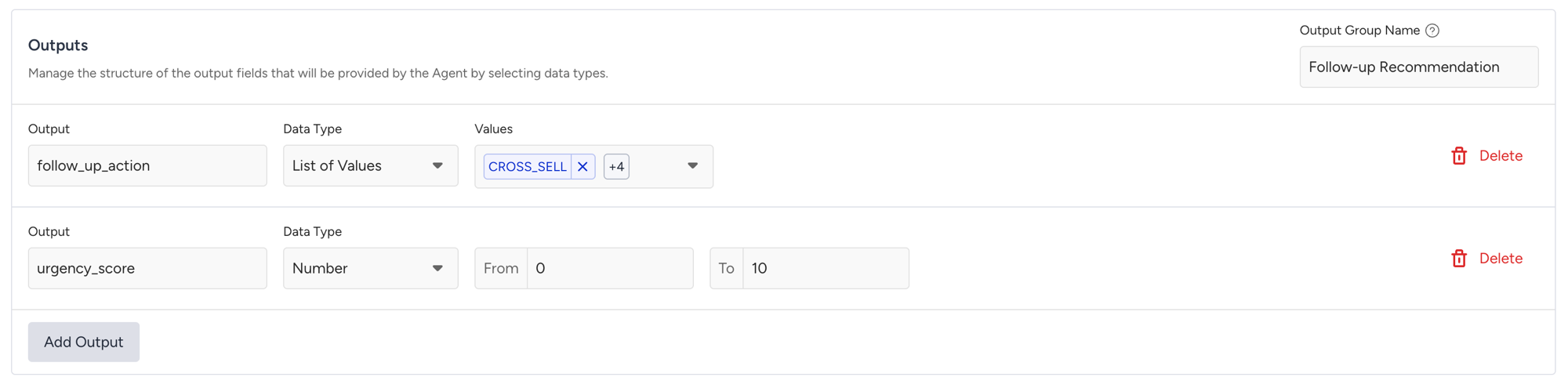
In the Outputs section, you declare the structured answer the AI must return. Set the following fields:
Output Group Name: The label for this agent's outputs, shown in the UI and used when you reference them downstream.
Output: The key you use to reference the value, for example churn_risk or urgency_score.
Data Type: One of the following:
String: A text label or generated copy
Number: A score or count, with optional From and To bounds
Boolean: Yes/No or True/False
List of Values: A closed list of allowed values you define. The AI must return one of them.
For the churn example, define one output group named Churn Classification with a single List of Values output:
Output Group Name | Output (key) | Data Type | Values |
|---|---|---|---|
Churn Classification | churn_risk | List of Values | High, Medium, Low |
Click Add Output to add more fields. Insider One validates the AI's response against this schema before it writes the response to the journey. A response that does not match (wrong type, missing field, value outside the list, or number out of range) is logged as a failure. The user then proceeds without an output value.
Output keys must be unique across all Call an Agent elements in the journey. Keys must start with a letter and can contain only letters, digits, and underscores. The agent_ prefix is reserved.
For List of Values, define every acceptable value before you save. The maximum is 50 values, each up to 255 characters. Insider One treats any AI response outside the set as a failure.
Step 5: Test, then save
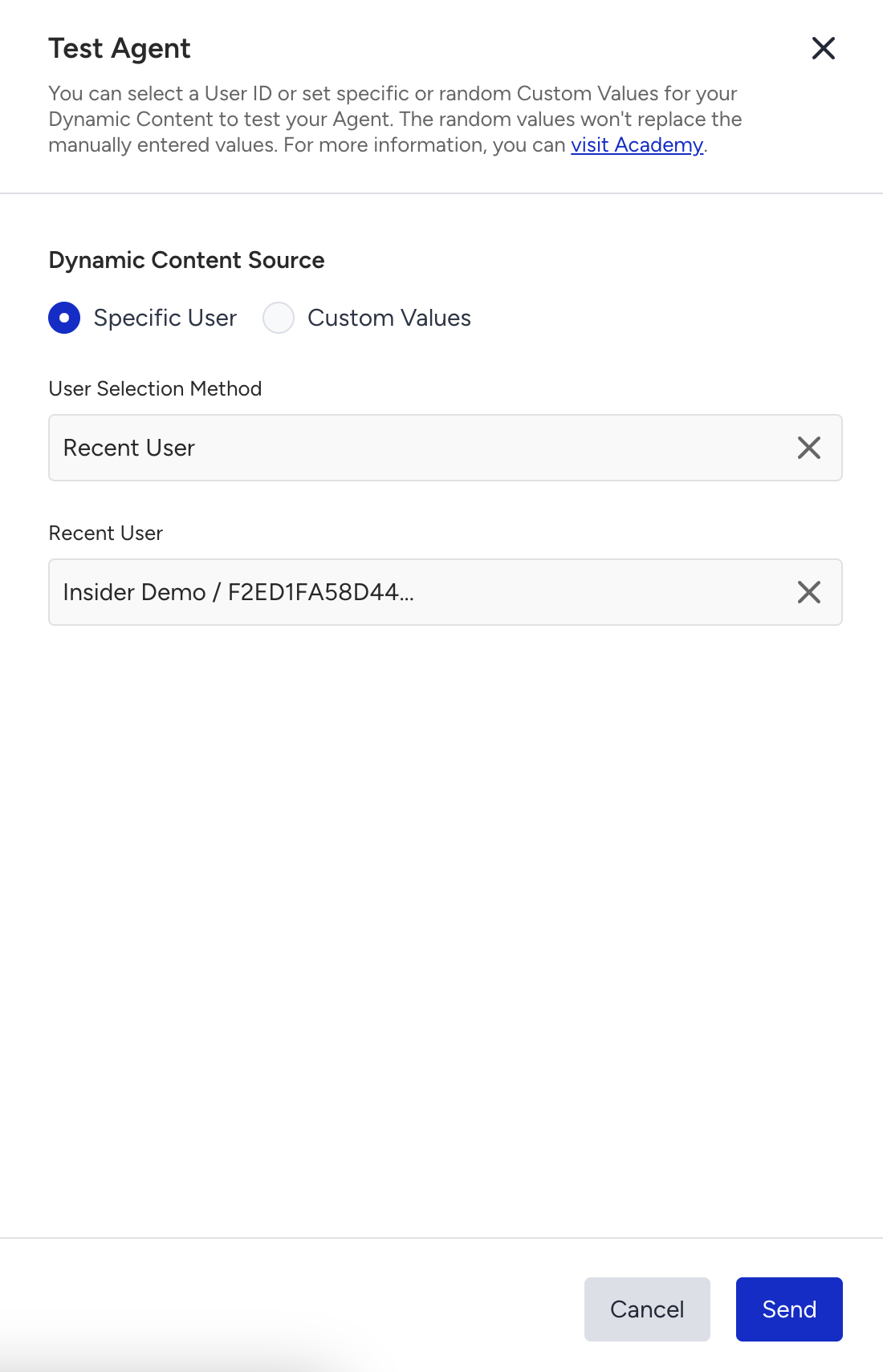
Click Test Agent in the bottom bar to validate your setup. The button is clickable once you fill in the instructions and outputs. Testing supports two modes:
Specific User: Pick a real user by User ID or from the recent users list. The agent runs against that user's actual data.
Custom Values: Supply a value for each dynamic content reference manually, or click Use Random Values to auto-fill sample data for inputs you have not filled in.
The result shows the resolved instructions (with the data substituted) and the value the AI returned for each output. If the usage limit blocks the test, the test panel shows a distinct error, so you can tell a quota block from a configuration problem. Test runs do not affect user data and are not recorded in analytics.
To rename the element, edit Element Name in the top right corner of the configuration screen. Click Save to save the configuration to the journey, or click Save Agent to also store it as a reusable custom template.
The configuration page has no autosaving. Click Save before you navigate away. Autosave applies only on the main canvas.
Behavior on failure
You do not configure failure behavior. The system handles it automatically.
Usage limit reached
The user passes through to the next element with no AI call. Insider One counts this as Skipped in the live statistics.
AI call fails
A timeout, schema violation, invalid response, or value outside the allowed list counts as a failure. The user proceeds with no output value, and Insider One counts the execution as Failed in the live statistics.
To handle both cases cleanly, configure a default path in your downstream Check Response element.
The AI call times out after 30 seconds. Insider One retries retryable failures (rate limits, server errors, and infrastructure issues) with backoff. It does not retry non-retryable failures, such as schema violations.
Use the output in your journey
The churn element now returns a churn_risk value for each user. The following sections show how to put that value to work in the rest of the journey.
Route with the Check Response element
Add a Check Response element right after Call an Agent.
Set the source to Agent Response and select your output variable (churn_risk).
Configure a condition for each path.
Churn example: Call an Agent (churn_risk) → Check Response (High → win-back email with a 20% offer, Medium → standard re-engagement push, Low → exit). One AI step replaces a multi-branch decision tree, and you control exactly what happens on each path.
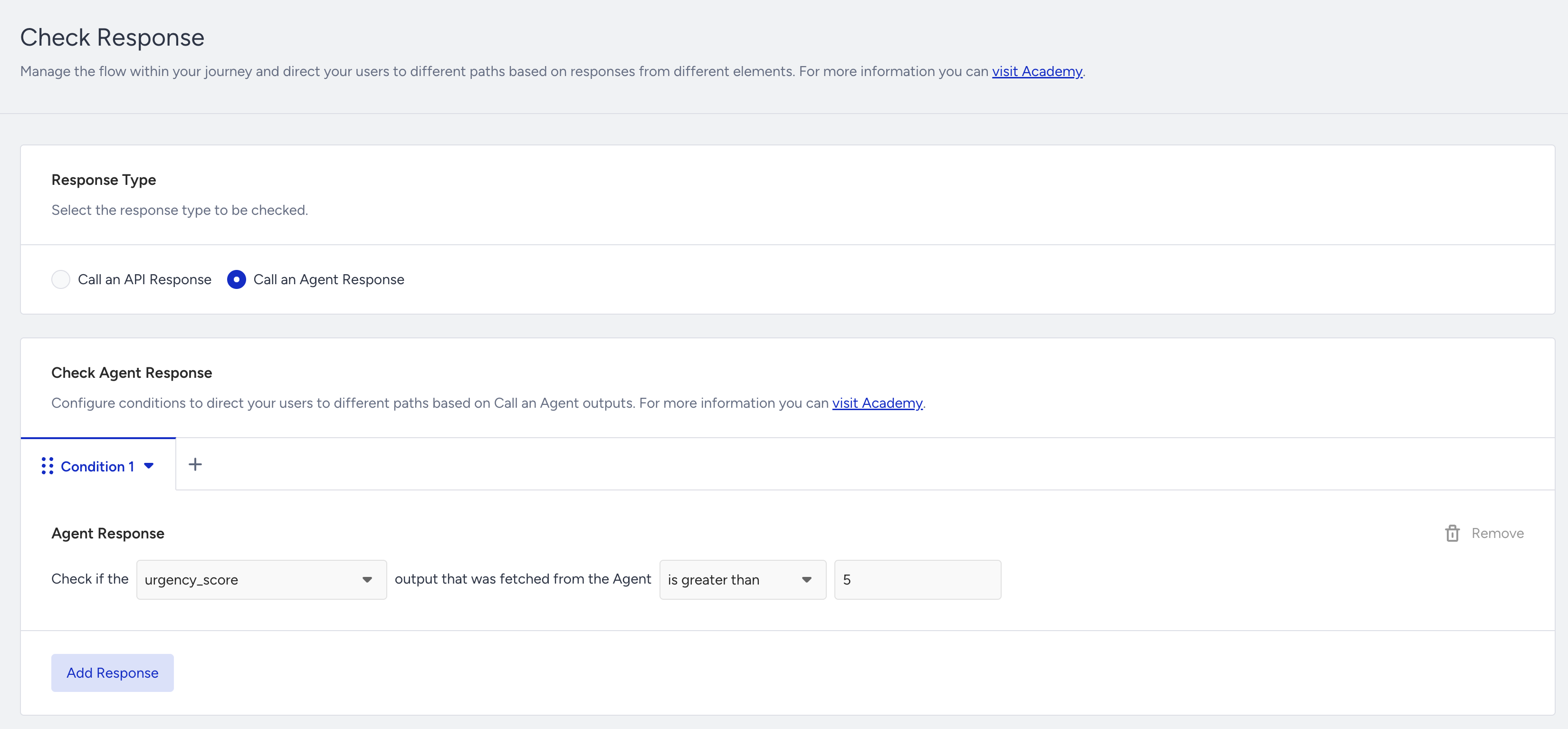
Always include a default path so users without an output value (see Behavior on failure) do not stall in the journey.
Personalize message content
Insert agent outputs into any message element with dynamic content. They appear under a dedicated Agentic Outputs category in the picker, and they work across Email, SMS, Web Push, App Push, and WhatsApp.
For example, an email subject line set to "Your account update: {{agent_sentiment_label}}" inserts each user's classification at send time.
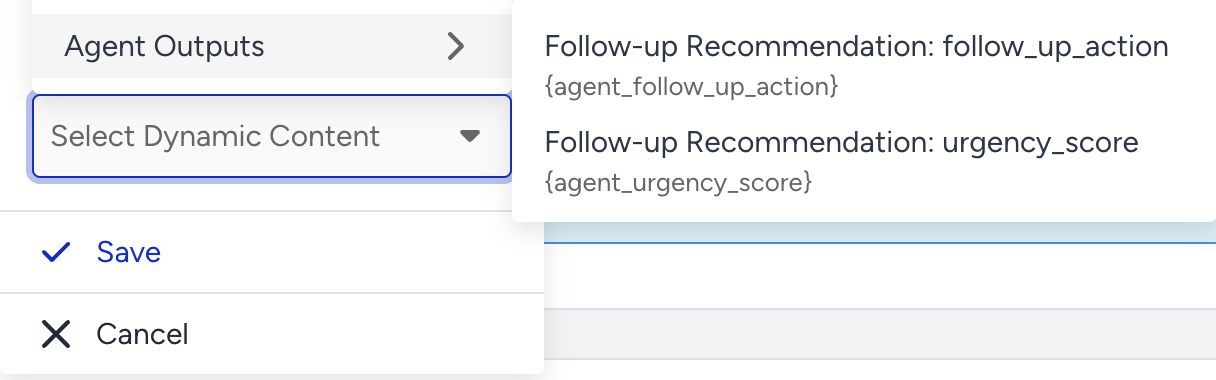
If the output has no value at send time, the dynamic content renders empty. Set a fallback value in the dynamic content configuration to avoid blank fields.
Save the output to the user profile
By default, the churn output is journey-scoped. To keep it beyond the journey, add an Update User Attribute element directly after Call an Agent and write the output value to a profile attribute. From that point, the AI's answer behaves like any other user attribute. You can use it in the following ways:
As a segment condition to build audiences based on AI classifications
As a personalization token in future journeys and campaigns
As a condition in Check elements in other journeys
As an input to a future Call an Agent element
Insider One saves the output value the AI returned (for the churn example, the churn_risk label) to the attribute you choose, at the moment the user passes through the Update User Attribute step. To save the output:
Configure your Call an Agent element and note the output key (churn_risk).
Add an Update User Attribute element immediately after it.
Click Add Attribute and select an existing attribute, or create a new custom one (for example, ai_churn_risk_label).
In the value field, open the dynamic content picker and choose churn_risk from the Agentic Outputs category.
Save the element.
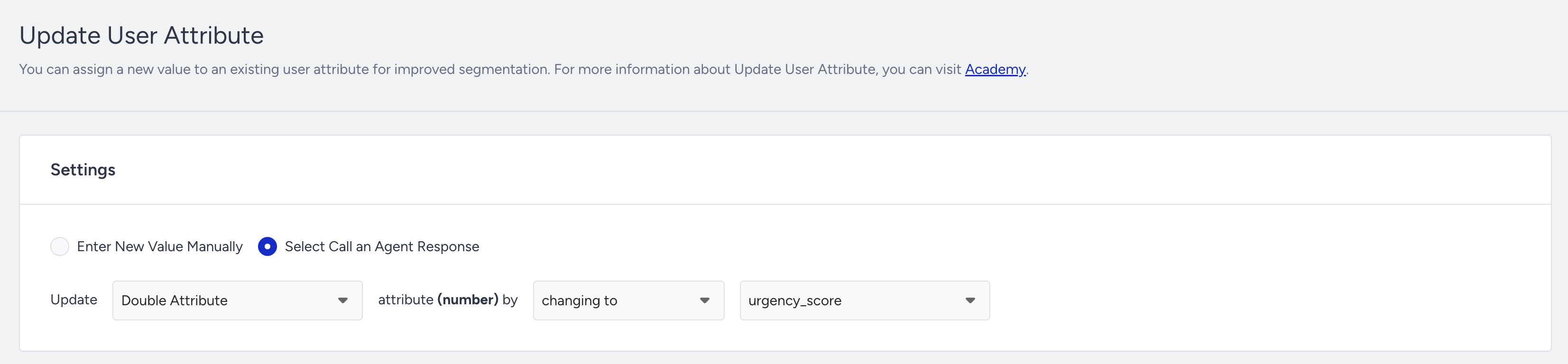
If the Call an Agent step failed and no value is available, the attribute is set to an empty value. Add a Check Response element before Update User Attribute if you need to guard against this.
Use a dedicated custom attribute for AI-generated values rather than overwriting an existing one. This keeps AI-derived values easy to distinguish.
When to persist vs. keep journey-scoped
Keep journey-scoped | Save to user profile |
|---|---|
The output is used only within this journey for routing or copy. | You want to reuse the AI result in future journeys or campaigns. |
The output reflects only the user's current moment and changes often. | The output is a stable classification that evolves slowly (for example, customer tier or persona label). |
You are generating copy specific to this send. | You want to build segments or audiences based on the AI output. |