Contact the Insider One team to activate this feature for your account.
Control Group in Architect enables you to allocate a percentage of your audience that will not be targeted with any journey. This helps you analyze the overall impact of your marketing efforts in Architect over a period of time.
This article aims to explain the following concepts:
How does the control group work?
With Control Group, you can allocate a percentage of your audience and set it as the Control Group. Once set, control group users will not receive any messages from journeys.
Your Control Group setting, also called a global control group or holdout, impacts all Architect journeys, as users in the control group are no longer eligible for journeys.
Architect randomly select a range of users, and assigns them to the control group. The control group users are randomly selected to represent your user base.
If a user gets chosen to be in the control group; they remain in the control group.
Control group users can still receive messages from other campaigns. For example, if a control group user is eligible for a cart abandonment journey, the user will not enter the journey and, therefore, will not receive messages from it. However, depending on their eligibility, they will receive any campaign from any product outside of a journey.
Control group setup
To enable the control group:
Navigate to Architect > Settings > Control Group.
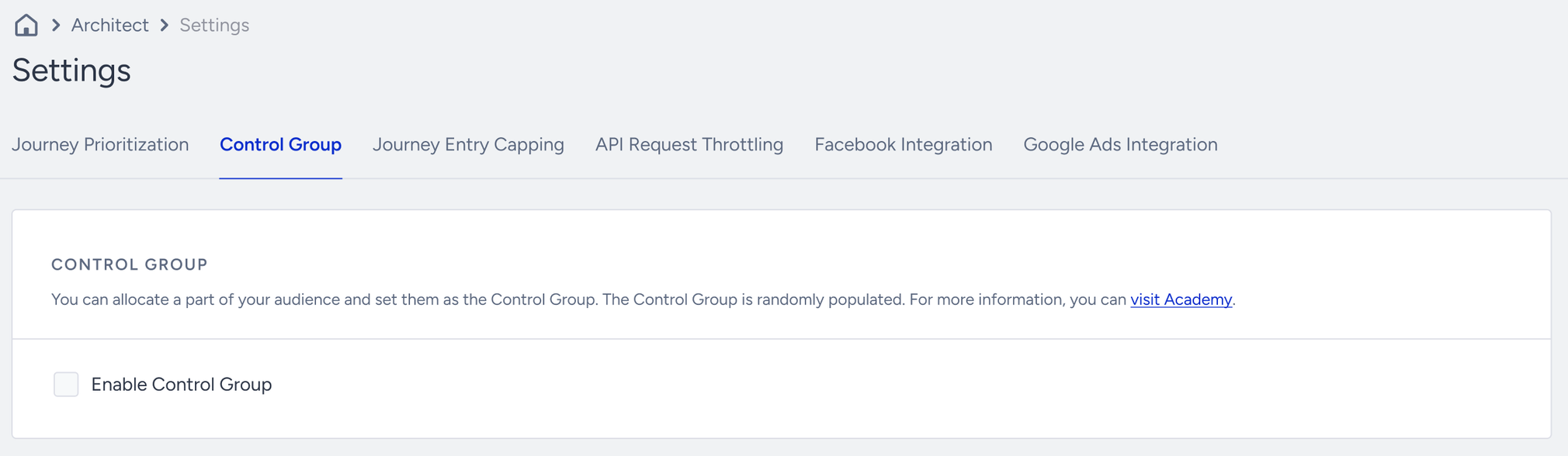
Check the "Enable Control Group" box, set a percentage for your control group, and click the Save button.
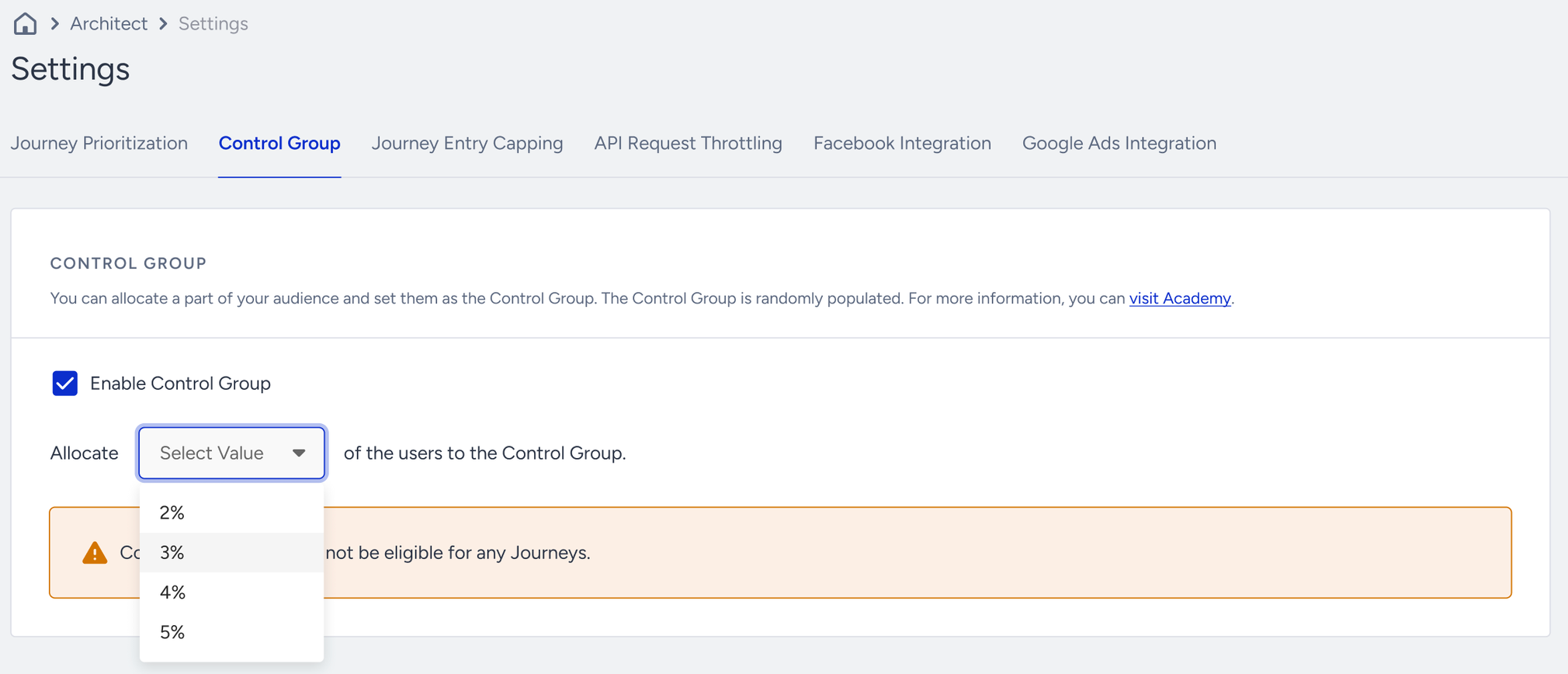
After its initial setup, the Control Group automatically adjusts its size to maintain a consistent proportion relative to your audience. This means that as your audience expands, the Control Group will also increase in size, ensuring it remains a constant percentage of your total audience.
Once you save your control group, Architect allocates a randomly selected group of your users with the chosen percentage of your audience. Control Group users will not be targeted with any journeys.
Update the control group allocation
You can update your control group allocation anytime through Architect > Settings > Control Group. As you update the control group allocation, Architect selects a broader or narrower percentage of your users to be assigned as control group users.
If you select a wider percentage of your audience, Architect only assigns new users to remain proportionate. For example, if you increased the percentage from 2% to 3%, your previous control group users will stay as control group users, while more users are assigned to remain proportionate to the audience percentage.
If you select a narrower percentage of your audience, keep in mind that some users will no longer be control group users and will be eligible for journeys immediately.
We do not recommend frequent updates to the control group allocation for valid analytics results. Before updating the control group, we recommend exporting the report in case you need to analyze your control group users later. When you update the control group, your analytics results will be lost. You cannot restore the group, and you cannot identify users in the respective group.
Disable the control group
You can disable your control group anytime through Architect > Settings > Control Group. As you disable the Control Group, control group users will be eligible for journeys immediately.
Once you disable your control group, users will immediately be eligible to receive messages from journeys. The control group users are then no longer excluded from journeys.
When you disable your control group, your Control Group Analytics will be lost and cannot be recovered.
After disabling your Control Group, you can save a new one following the same steps. When you enter a percentage and save it, Architect will allocate a new randomly selected group of users. If you enter the same percentage as before, Architect still allocates a new group of users for your control group.
Disabling your control group in a short-term period is not recommended, as the results may not represent the control group users. Control group results are more meaningful in the long term. Before disabling the control group, we recommend you export the report in case you need to analyze your control group users later. When you update the control group, your analytics results will be lost. The group cannot be restored, or the users in the respective group cannot be identified.
Exclude your accounts
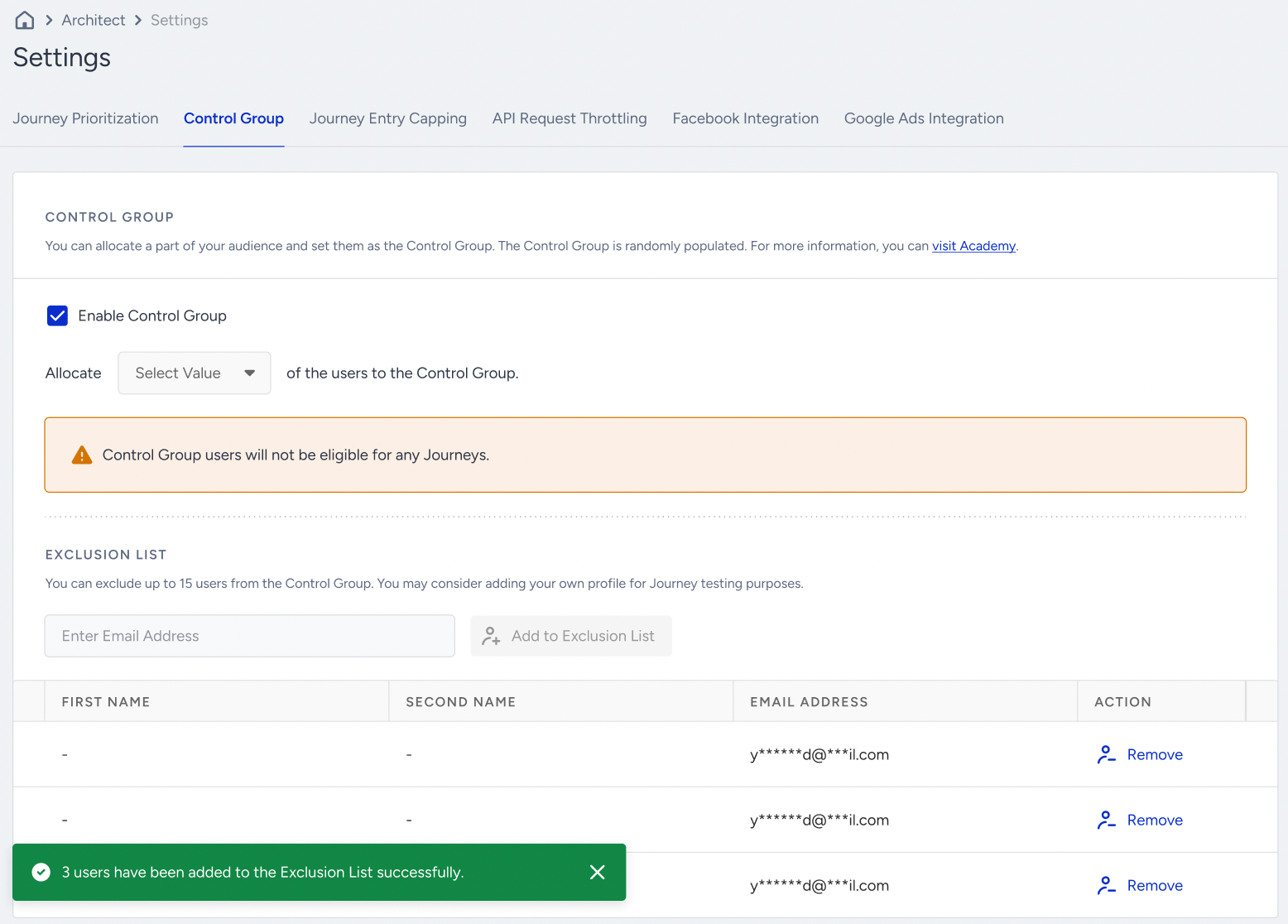
You can exclude 15 users from the control group allocation. As Architect selects a range of users randomly, exclude your accounts to avoid issues with testing or entering journeys.
You can update your Exclusion List anytime through Architect > Settings > Control Group.
Analytics & Reporting
Once you enable the control group, it takes 1 month for Architect to allocate the control group users in your audience. After the initial allocation is completed, you can navigate to Architect > Analytics to see control group metrics.
Below you can see the formulas for the metrics displayed above.
Metric | Definition | Formula |
|---|---|---|
Incremental Conversions | The conversion difference between the sample test group users and the Control Group | Total Conversions for Sample Test Group - Total Conversions for Control Group |
Incremental Conversions Rate | The percentage of the Incremental Conversions to the Total Conversions of the sample test group | Incremental Conversions / (Total Conversions for Sample Test Group) |
Conversions per User | The average number of conversions made by users | Total Conversions / Number of Users |
Number of Users | The number of users in each group | - |
Total Conversions | The total conversions made by each group | - |
FAQ
Q: Can control group users receive messages from Architect journeys?
A: No, users assigned to the control group cannot receive any messages from Architect journeys. Once assigned to the control group, control group users are not eligible for any journey in Architect.
Q: Can control group users receive messages from campaigns launched on single channels (e.g. App Push)?
A: Yes, control group users are only excluded from journeys for now. If a control group user is eligible for an App Push campaign launched on the App Push single channel, the user will receive the App Push message from this campaign.
Q: Can I update the allocation percentage of control group users?
A: Yes, the control group allocation percentage can be updated. You can set a narrower or a larger percentage for your control group users.
Q: Can I compare users' analytics results of custom goals?
A: No, you cannot. Architect Control Group does not support custom goal comparison.
Q: Do control group users have an attribution window?
A: No, they do not have an attribution window, as control group users do not receive any messages or view your campaigns.
Q: What does a negative uplift or incremental metric mean for the journeys?
A: Control Group helps analyze and optimize the overall impact of your marketing efforts within Architect over a time period. This incremental, holdout-based measurement is sometimes called measuring incrementality. When you encounter a negative metric in your Control Group metrics, you can take several actions to maximize the impact of your marketing efforts:
Analyze the data: Carefully review the data and metrics associated with the journey. Look into KPIs such as conversion rates, engagement, or any other relevant metrics to understand where the negative impact is coming from.
Evaluate your journeys: Assess the design and content of the journey. Consider factors such as messaging, timing, messaging frequency, and the overall user experience. Make sure there are no elements that might be causing user disengagement or dissatisfaction.
Optimize your messages: Assess the content and format of your messages within the journey. Poor performance could be attributed to ineffective communication. Experiment with different messaging styles, calls-to-action, or visual elements to enhance engagement. A/B testing variations can provide insights into what resonates best with your audience.
Your journey might be active for a short time: Negative metrics can be influenced by a short-lived campaign. Consider extending the duration of your journey to allow for a more comprehensive assessment of user engagement over time.
Small number of users entering your journey: For incremental and uplift metrics to be representative of your user base, the journey should have enough users to compare against the control group users. You may check your results after there are enough test users in your journey.
You might not be targeting the correct segment: Negative metrics may arise if your journey is not effectively targeting the intended audience. Review and refine your segmentation to ensure it aligns with the characteristics and behaviors of your desired segment.
Seasonal Impact: Seasonal variations can significantly impact user behavior. Due to seasonal factors, your control group might be performing better than usual.
Q: Can I filter the date range on the analytics page to compare my journeys against the control group within a specific period?
A: Yes, you can filter the date range on the analytics page. Control group metrics show the calculation for the filtered date range.
Q: When I first enable the control group, what happens to users who are in progress in Active, Test, Dry Run, or Sunset journeys?
A: During the allocation of control group users, if a user is in progress in Active, Test, Dry Run, or Sunset journeys, the user first completes the journey. After the user completes the journey, the Architect assigns the user to a control group. Then, the user will not be eligible for any Architect journey.
Q: Can I export the control group metrics on the analytics page?
A: Yes, you can export control group metrics on the Analytics page.
Q: Can I export control group users on the User Profiles page?
A: Yes, you can export users in the control group.
Glossary
Control group: A group of randomly selected users kept separate and unaffected by changes in the tested campaign variables.
Incremental conversions: The conversion difference between the users and the Control Group.
Incremental conversions rate: The percentage of the Incremental Conversions to the Total Conversions of the sample test group.
Conversions per user: Average number of conversions made by users.
Random allocation: Random allocation refers to the process of assigning participants or subjects in a study or experiment to different groups or conditions in a random manner. It's a method used to ensure that each individual has an equal chance of being assigned to any of the groups being compared. This randomness helps minimize bias and ensures that the groups being compared are similar at the start of the experiment, making the results more reliable and reducing the likelihood that any observed effects are due to pre-existing differences between the groups.