The Image Library is a collection of ready-to-use images you can add to an image element without uploading your own file. It is one of the two tabs in the Add Image dialog. The other tab, Image Upload, is for adding your own image from a file or a source URL.
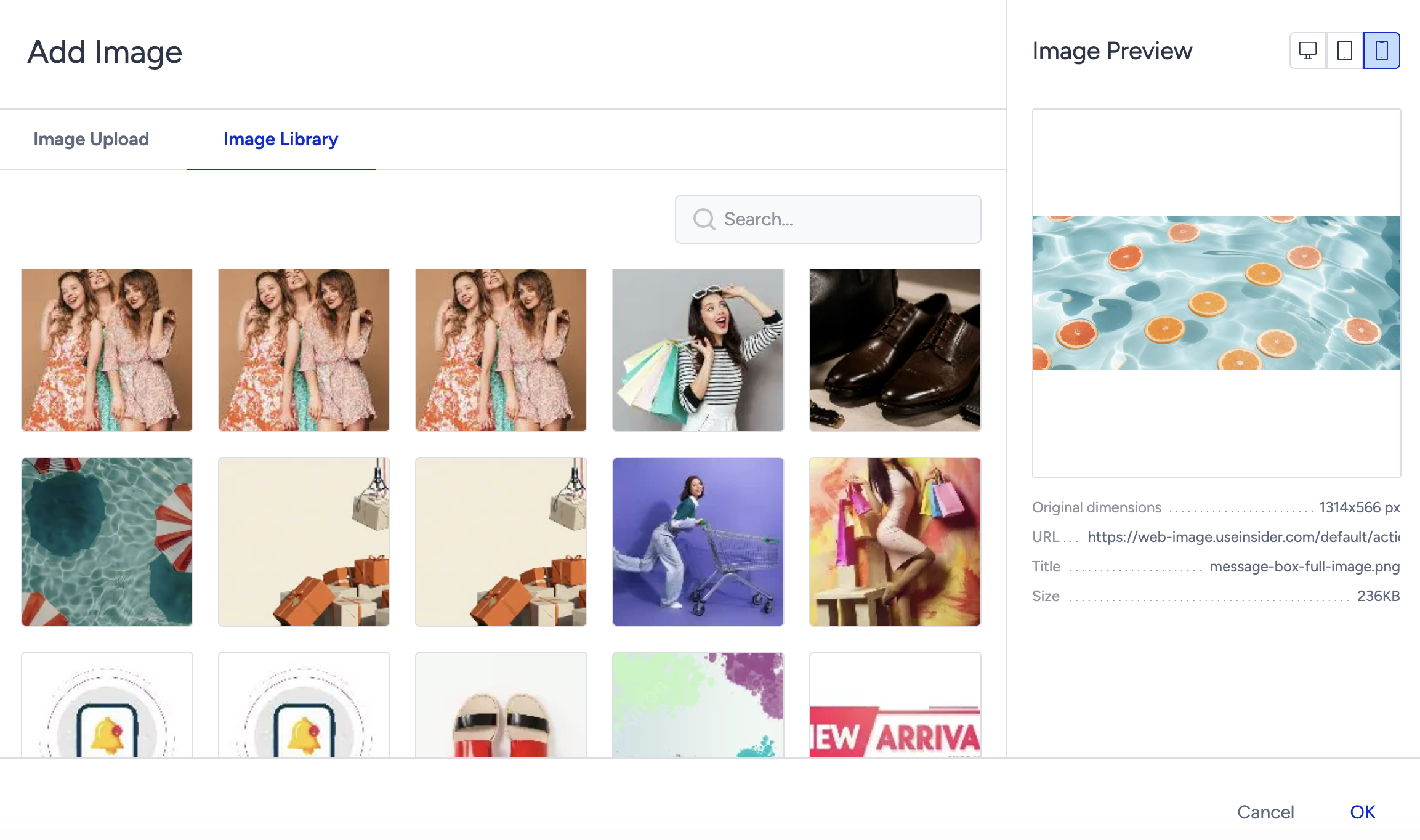
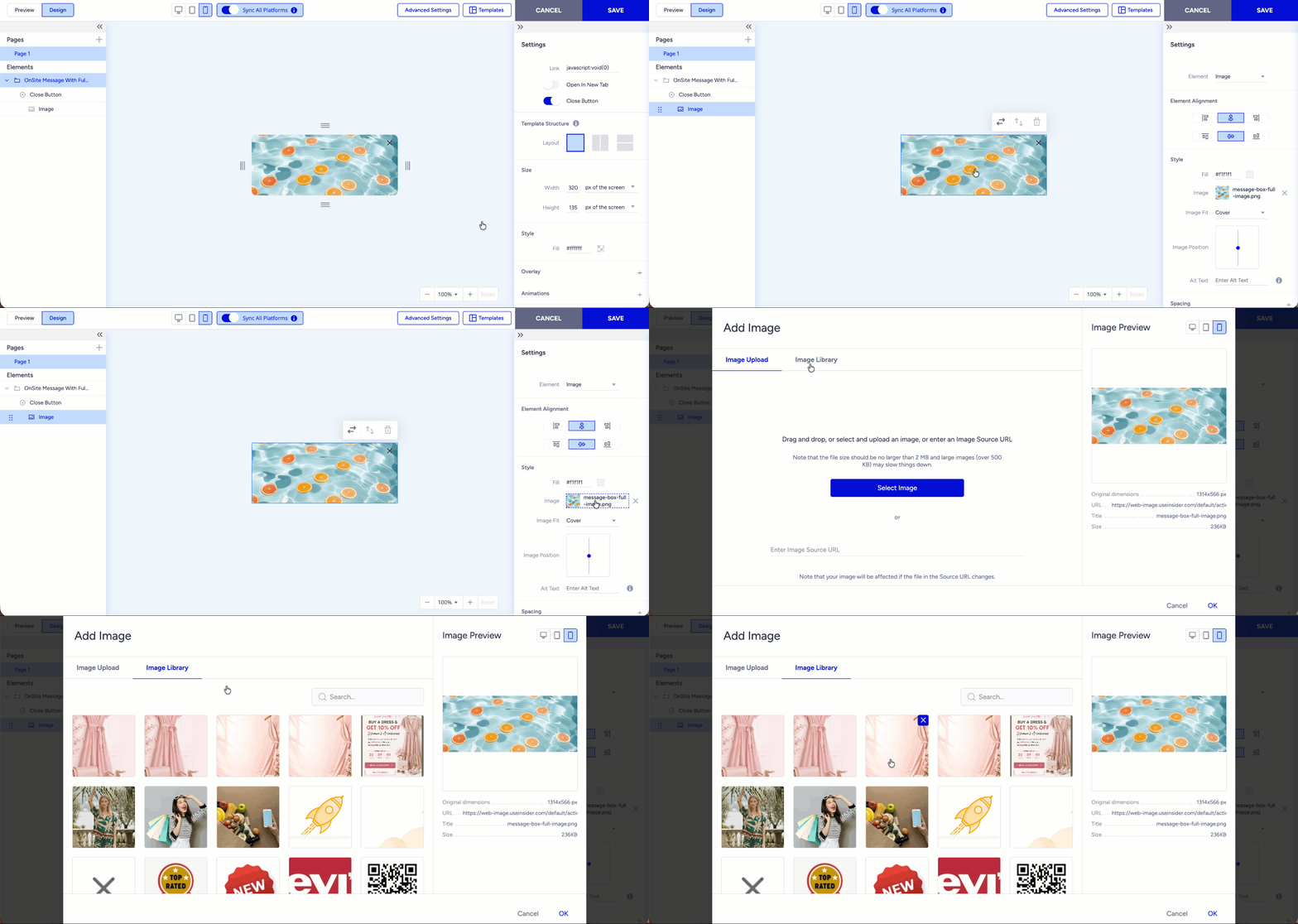
Open the Image Library
In the Action Builder, select the image element you want to fill.
In the Style section of the Settings panel, click the Image field to open the Add Image dialog.
Select the Image Library tab.
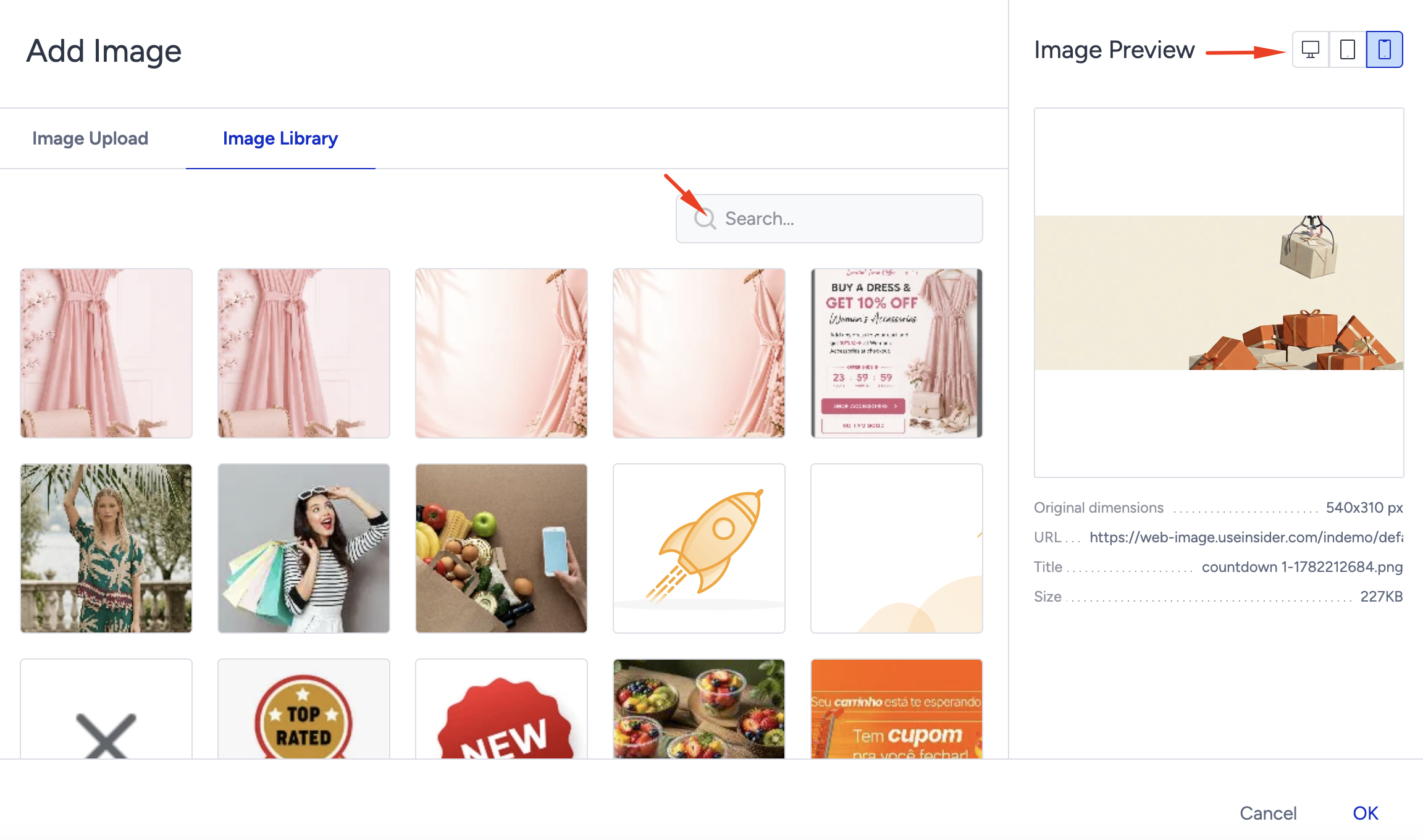
Find an image
Enter a keyword in the Search box to filter the library.
Browse the grid to see the available images.
Click any image to load it into the Image Preview panel on the right.
Click OK to add the selected image to the element.
Check the image details
The Image Preview panel shows the selected image before you add it. What it contains depends on where the image is going.
For a layout background image:
The panel previews the image, lets you control how it fills the background, and lists its file details:
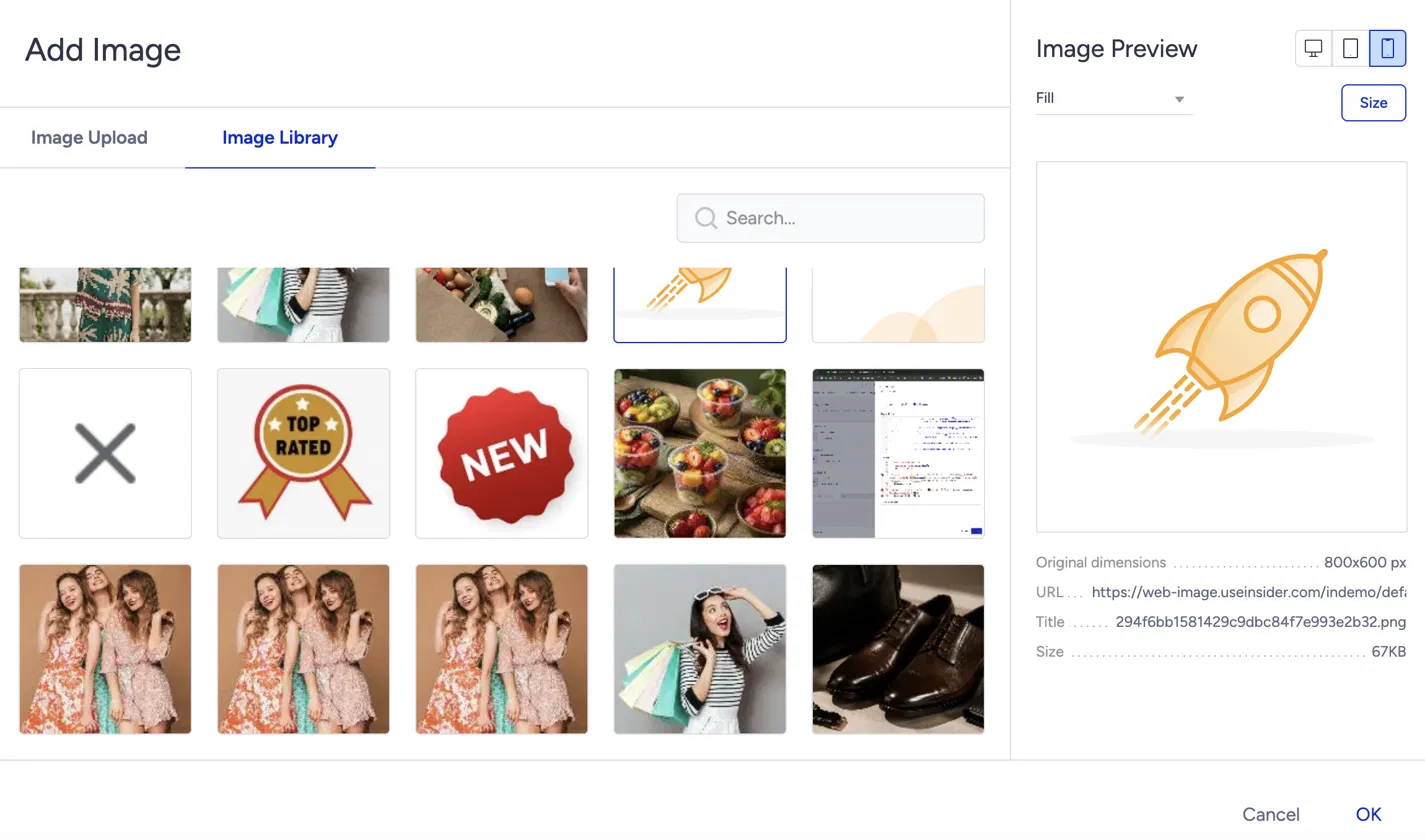
Device preview: Switch between desktop, tablet, and mobile using the icons at the top right, to see how the image renders on each.
Sizing mode: Use the dropdown at the top left to control how the image fills the layout:
Fill: scales the image to cover the whole area, cropping any overflow.
Center: places the image at its own size in the center, without scaling.
Fit: scales the image so the whole image is visible, without cropping.
Stretch: stretches the image to fill the area exactly, which can distort its proportions.
Size: Click Size to view or set the image dimensions.
For an image element:
The panel previews the image and lists only its file details. You set sizing for an image element separately, in the element's Style settings (Fill, Image Fit, and Image Position), not in this modal.
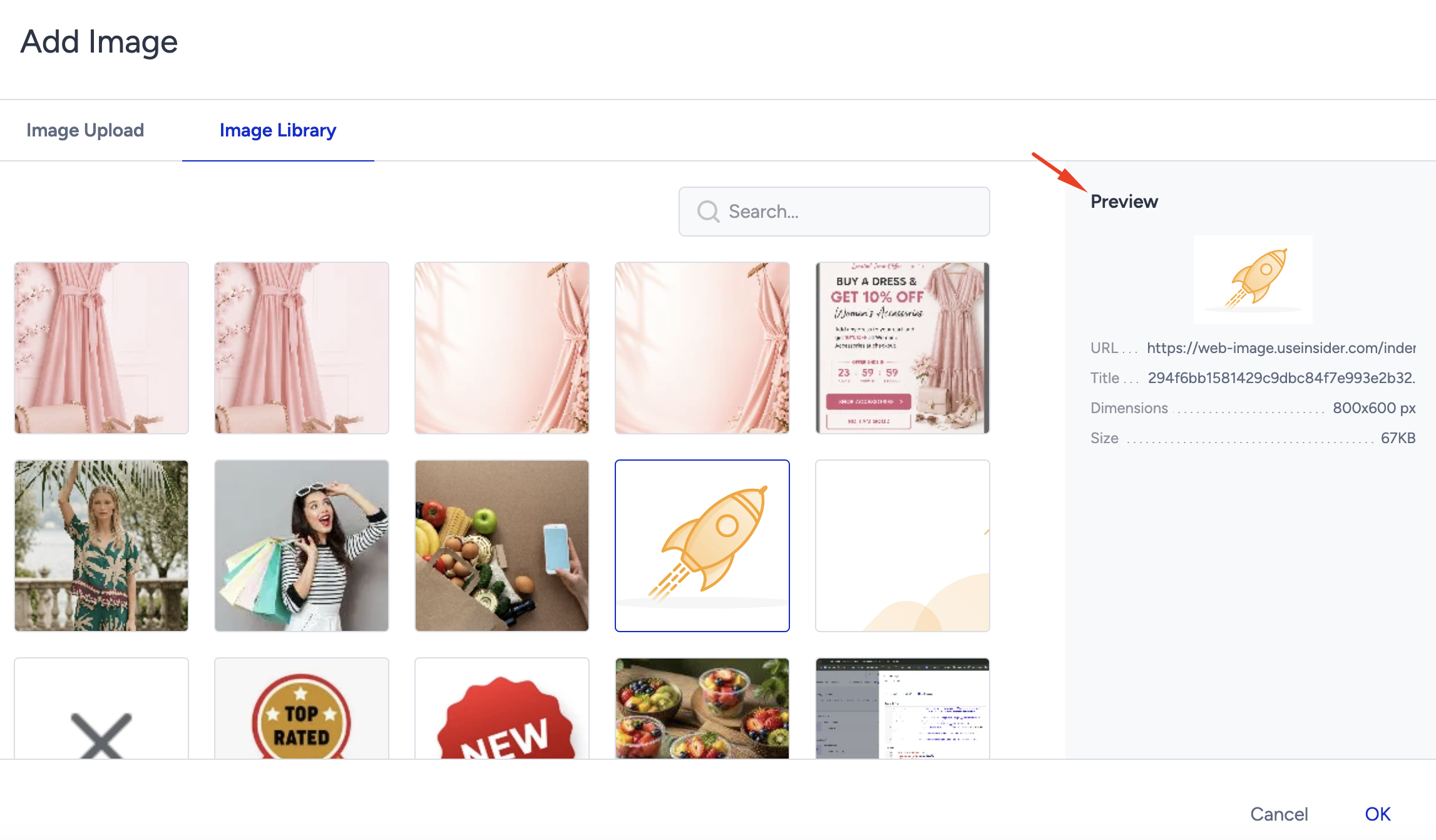
File details. In both cases, the panel lists:
Original dimensions: The image's native width and height in pixels, for example, 1314x566 px.
URL: The address from which the image is served.
Title: The image file name.
Size: The file size, for example, 236 KB.
To maintain fast page load times and help protect SEO, all Web products limit image files (including GIFs) to 500 KB or smaller.
Adjust the image after adding
After you add an image element, you can refine it in the Settings panel:
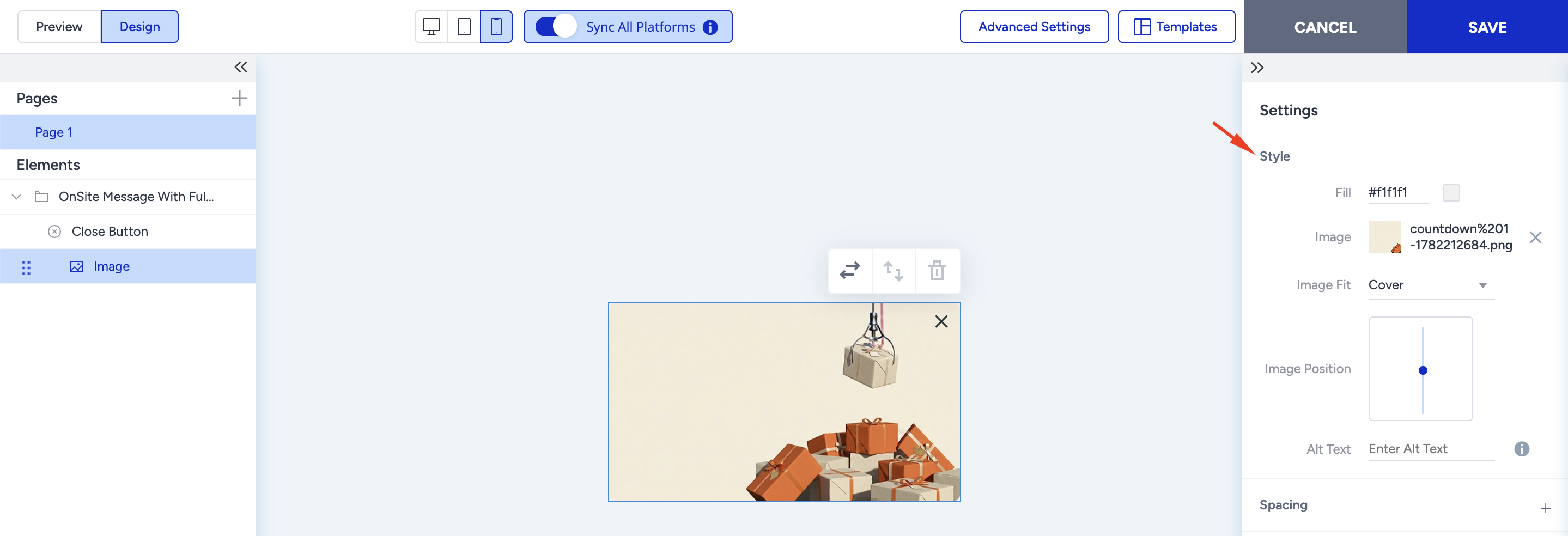
Fill: The background color behind the image.
Image Fit: How the image fills its frame, for example, Cover.
Image Position: The vertical position of the image within its frame.
Alt Text: A text description of the image. Set this so the image is accessible to screen readers and to assistants that read the page.