UTM parameters are tags you can append to a URL to track the effectiveness of your Web Push campaigns in Google Analytics. When a user clicks the notification, the tagged URL is tracked if your website has the Google Analytics tracking code properly installed.
Parameter | Description | Example | Required? |
|---|---|---|---|
utm_source | Identifies the source of your traffic( e.g., search engine, web push notification, or other referrals) | utm_source=``` | Yes |
utm_medium | Identifies the medium where the link was used (e.g., email, CPC, or another method of sharing) | utm_medium=``` | Yes |
utm_campaign | Identifies a strategic campaign (e.g., product launch, new feature, partnership, etc.) or a specific promotion (e.g., a sale, a giveaway, etc.) | utm_campaign=``` | Yes |
utm_term | Suggested for paid search to identify keywords for your ad. You can skip this for Google AdWords if you have connected your AdWords and Analytics accounts. | Let’s say you are running a Google Adwords campaign for your non-profit WordPress theme. You would have specific keywords picked up for your campaign. | No |
utm_content | Suggested for additional details for A/B testing and content-targeted ads. | utm_content=cta-top-banner, utm_content=cta-sidebar, utm_content=cta-bottom etc. | No |
Insider One supports UTM tracking on both the main notification body and CTA buttons. The image below shows the UTM settings for the main notification element: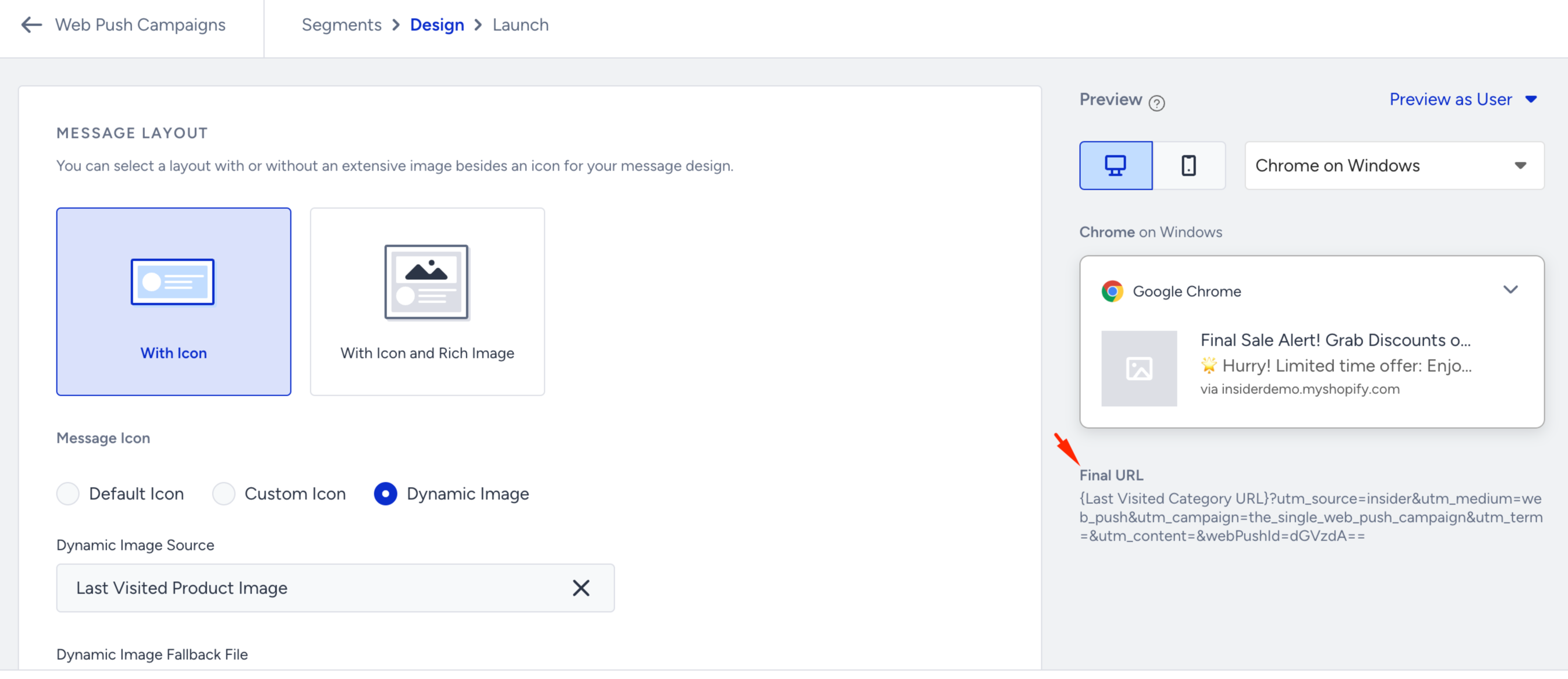
How do UTM Settings work?
When you enable UTM settings, you can define parameters directly in the campaign setup.
The final tagged URL will be displayed below the field as a live preview.
If you manually add UTM parameters to your link, the system ignores the ones in the UTM Settings section. Ensure your custom links are correctly formatted.
Use final destination URLs to avoid redirects that may strip UTM parameters.
If you enable UTM settings, after you type UTM parameters in the settings section, you can see the final URL snippet added at the end of the URL you type above.
How can I verify that the UTM parameters for Web Push are working correctly?
To ensure UTM parameters are working correctly:
Copy the final tagged URL and paste it into your browser.
If UTM parameters appear and remain in the address bar after the page loads, the tracking is working.
If the parameters disappear, they're likely being stripped and won't be tracked in Google Analytics.
You can also open your browser’s Developer Console and inspect the GA cookie to confirm whether UTM data is being captured.
Why don't UTM parameters for Web Push work?
The most common reason is that UTM parameters are stripped due to the URL redirect. If you tag your campaigns, use the final destination URL, not the URL that will be redirected. If you experience issues with server-side 301 or 302 redirects, you can also modify your server settings. Ask your web developer to configure your server to pass all the tracking parameters. Other common reasons could include the following:
You may not have included the required UTM parameters in your URL.
You might not have GA properly installed on the website.
You could have configured filters that prevent this traffic from affecting your data.
Are Web Push UTM parameters case-sensitive?
Yes. UTM parameters are case-sensitive, and inconsistent capitalization can cause fragmentation in your GA data. As a best practice, use lowercase when manually tagging to maintain clean and unified data.
How can I view the performance of UTM campaigns?
To monitor the performance of UTM codes in Google Analytics 4 (GA4), follow these steps:
Go to your Google Analytics account to navigate to Reports > Acquisition > Traffic Acquisition. This report displays user engagement metrics by source, medium, and campaign UTM parameters.
To see specific details, select by source, medium, or campaign from the dropdown menu.
You can also use the search bar above to specify what you want. For example, if you type "Insider," you will filter the traffic from the Insider One source.(1).png)
If you encounter discrepancies or missing revenue data in your InOne panel, please create a support ticket. The Insider One team will investigate and assist with your analytics setup.