In this step, test your approved SMS setup before the country is marked Completed. Your registration is already approved and can no longer be edited at this stage, so testing verifies that your setup works as expected rather than changing your application.
Transactional and Promotional messages are tested separately because they are sent differently.
Your registration is already approved at this stage. If a test fails, you do not need to resubmit the registration. Use the testing guidance below to identify and resolve the issue.
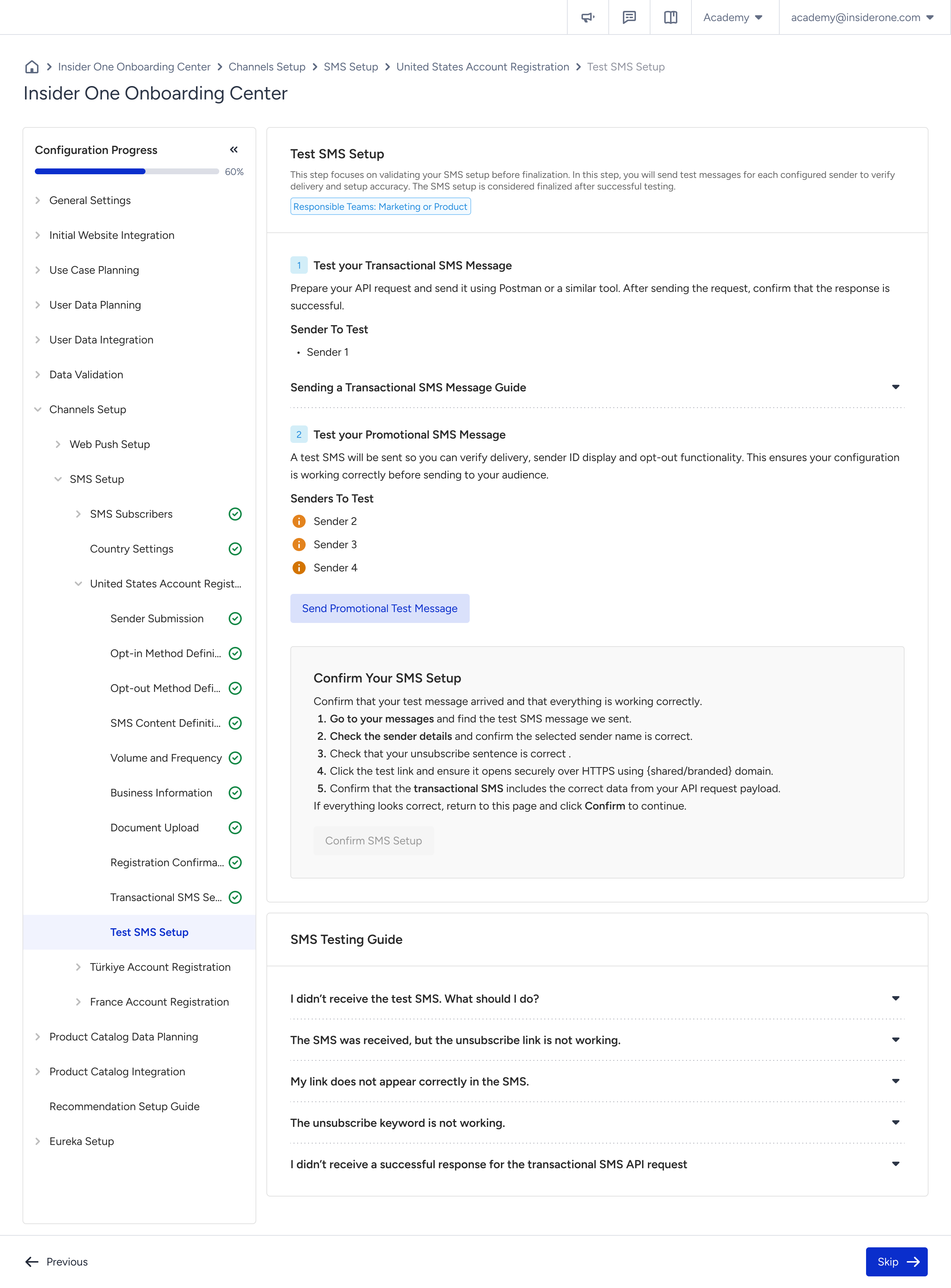
1. Test your Transactional message
Transactional messages are triggered by your own systems, so you do not send this test from the panel.
Prepare the API request and send it with Postman or a similar tool. Then, confirm that the request returns a successful response. The page shows the sender you need to test and provides a guide for building the request.
You need a developer to complete this test, so make sure the integration is ready before you start this step.
2. Test your Promotional message
Promotional test messages are sent directly from the panel. The page lists each Promotional sender that you need to test.
Click Send Promotional Test Message and verify the following on a real mobile device:
The message is delivered.
The correct sender ID is displayed.
The opt-out method works as expected.
Use a real phone number on the mobile network you actually target. Mobile operators can filter virtual numbers and VoIP services differently, so a successful test on one of these services does not confirm that your customers will receive the message successfully.
Confirm your SMS setup
After the test messages arrive, review the checklist on the page before clicking Confirm SMS Setup:
Find the test message in your inbox.
Check the sender details and confirm that the displayed sender name matches the sender you registered.
Check that the unsubscribe sentence is correct.
Open the test link and confirm that it loads securely over HTTPS on the expected domain.
For Transactional SMS, confirm that the message contains the correct data from your API request payload.
Review the message as your customer will see it rather than checking only whether it was delivered. This helps you identify an incorrect sender name, broken link, or opt-out instruction that does not match your configuration before completing the setup.
SMS Testing Guide
The testing guide on the page adapts to your configuration and provides a shortcut to the setup step you need to review. Use the following guidance if a test does not work as expected.
I did not receive the test SMS. What should I do?
Verify that the phone number is in E.164 format, for example
+14155550100.Confirm that the number is not opted out.
Make sure the country code is correct.
Check whether the mobile carrier blocks the number.
Make sure the sender registration for the country is approved.
After checking the configuration, send the test SMS again. If the issue continues, contact your Customer Onboarding Manager.
Review Sender Submission if you need to check the sender configuration.
The SMS was received, but the unsubscribe link is not working.
Make sure the unsubscribe link option is enabled in your Opt-out Method Definition.
Verify that the unsubscribe URL is valid and accessible.
Confirm that the link format is correct in the SMS content.
After updating your configuration, send the test SMS again.
Review Opt-out Method Definition if you need to update the unsubscribe configuration.
The branded domain or shortened link does not appear in the SMS.
Confirm that you selected the correct domain type in the SMS Content Definition step.
Make sure the message contains a valid URL.
Review SMS Content Definition if you need to check the domain or URL configuration.
The unsubscribe keyword is not working.
Confirm that the unsubscribe keyword is defined correctly, for example
STOP.Verify that the unsubscribe number is correct.
Make sure the keyword format matches your configured settings.
After updating your configuration, test the keyword again by sending it to the sender number.
Review the Opt-out Method Definition if you need to update the keyword configuration.
I did not receive a successful response for the Transactional SMS API request.
Check the response before retrying the request. The following errors are the ones you are most likely to encounter:
Error | What it means | What to do |
|---|---|---|
1023 Transactional messaging is disabled | The Transactional SMS product is not enabled for your account. | Enable it from Settings > Products in your panel. |
1000 Invalid JSON content | The request body format is incorrect. | Make sure the callback value is provided as a string rather than an object. For example, |
401 Unauthorized | The request has an authentication issue. | Verify that the |
After reviewing and updating your configuration, send the test request again. If the issue continues, review your Transactional SMS Setup.
If a test fails
Your registration is already approved and locked at this stage, so a failed test does not require you to submit the registration again.
Follow the SMS Testing Guide above first. If the issue continues, contact your Insider One contact and provide the sender name, the phone number you tested, and the time the message was sent so the issue can be investigated as a delivery issue.
Next step
After you click Confirm SMS Setup, the country status becomes Completed and the button on Country Settings changes to Create SMS Campaign.
You also need at least one segment before you can launch a campaign.