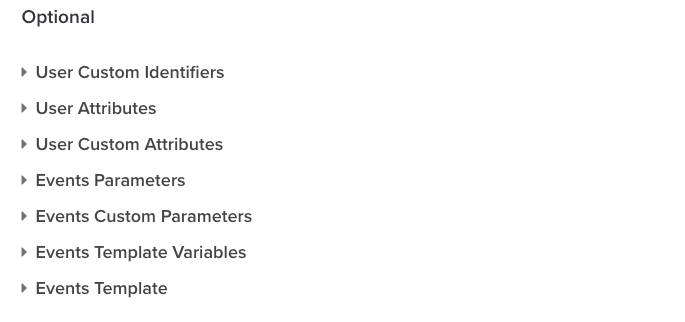
You cannot make any changes to External Platform Integrations without having either an Administrator or an Editor with PII access in InOne. Refer to User Roles for further information.
You can establish Insider One as a native event connect in the Tealium ecosystem and send data from your website and apps to Insider One. With this integration, you can enable Insider One to collect any event.
You can refer to the Insider One Connector Setup Guide for further information.
This integration guide provides answers to the following questions:
Use Cases
Sending your website and app data from Tealium to Insider One helps you leverage a range of use cases:
Triggering Journeys
You can track user behavior (e.g., cart abandonment, purchase, etc.) to trigger journeys with Insider One’s Architect product and target users across channels (e.g., website, web push, email, etc.).
Personalizing User Experience
You can leverage the comprehensive user information (e.g., name, age, viewed products, items added to cart, interest categories, etc.) passed from Tealium to deliver personalized user experiences and messaging.
Configure Insider One as an Event Connector on Tealium
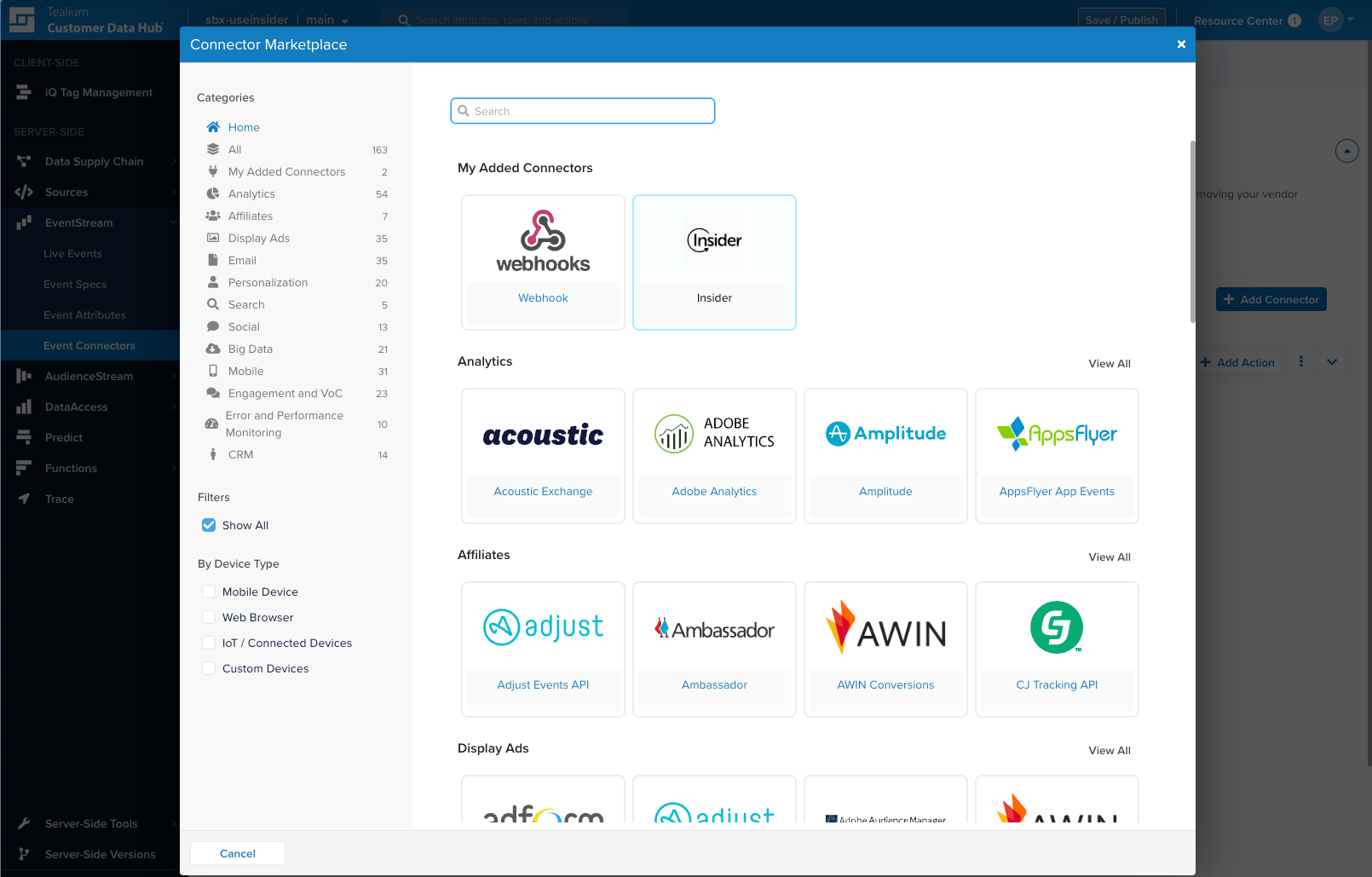
Log in to your Tealium account to find Insider in the Connector marketplace under Event Connectors.
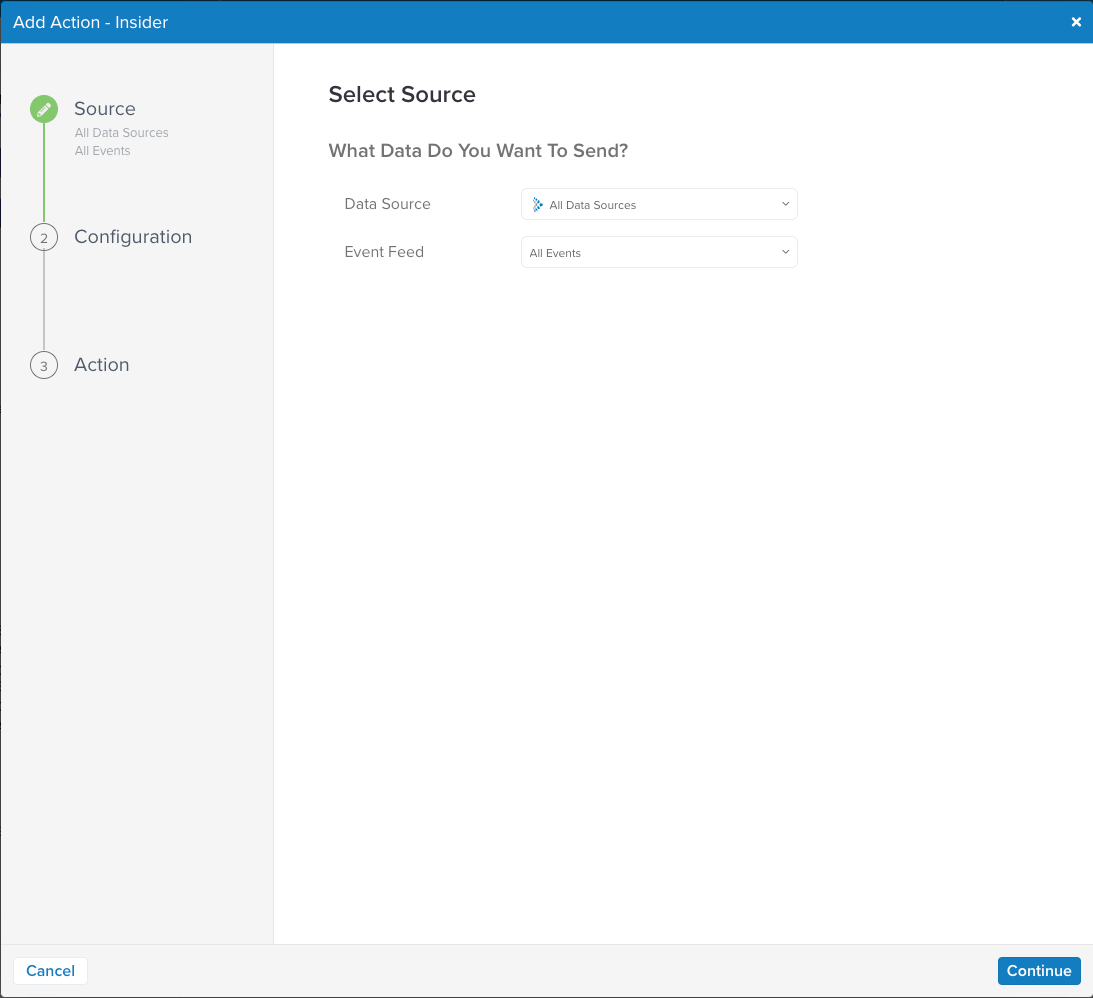
Select your Data Source as the source from which you want Insider One to get data, and select events that need to be sent to Insider One. Then, click the Continue button to proceed.
On the configuration page, click the Add Connector button to configure Insider One as your connector for your Event stream.
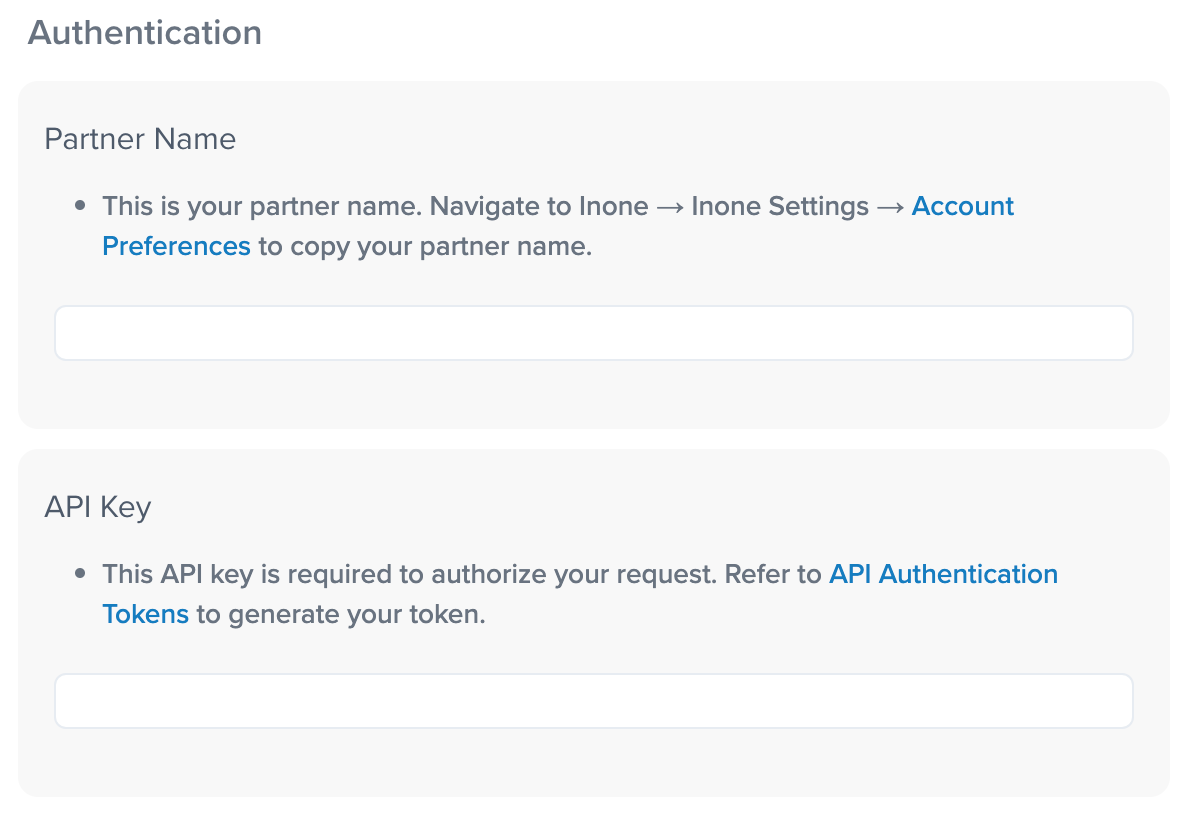
To find the Partner Name and API Key, navigate to Insider One's InOne panel > Components > External Integrations.
Select the Tealium platform.
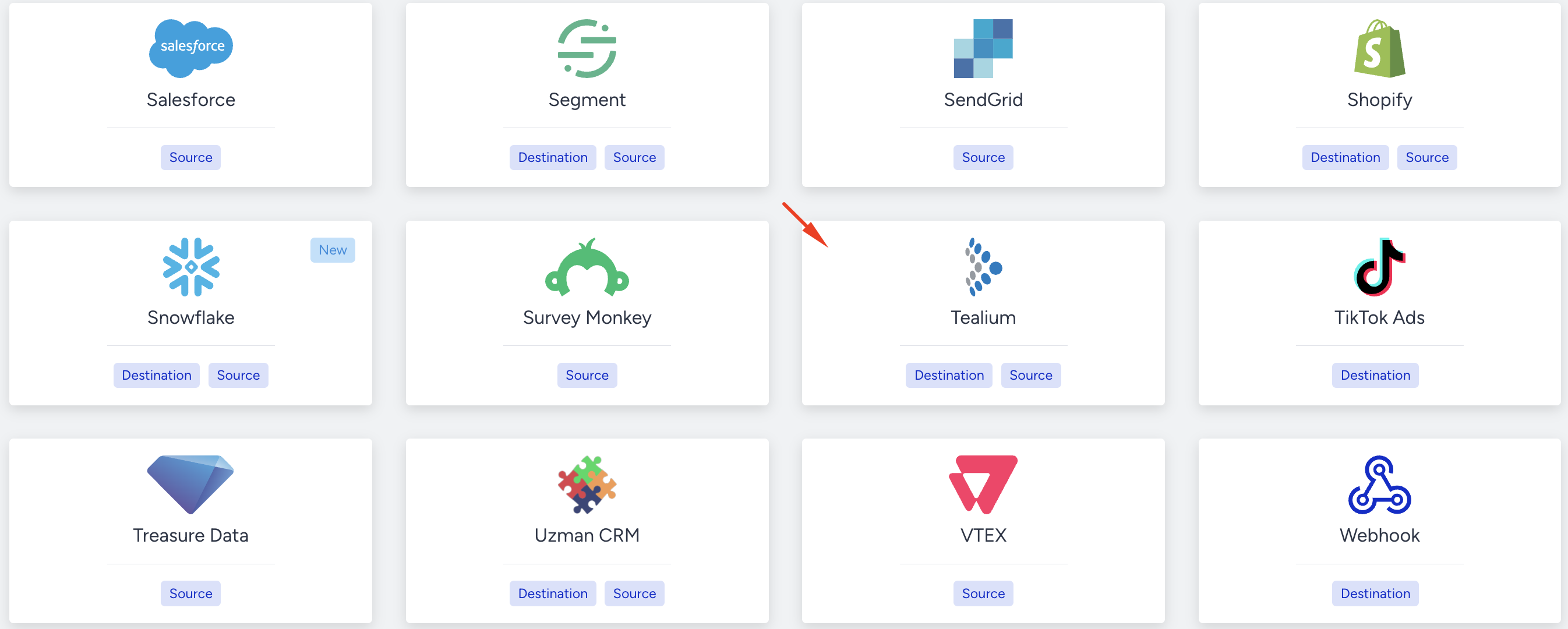
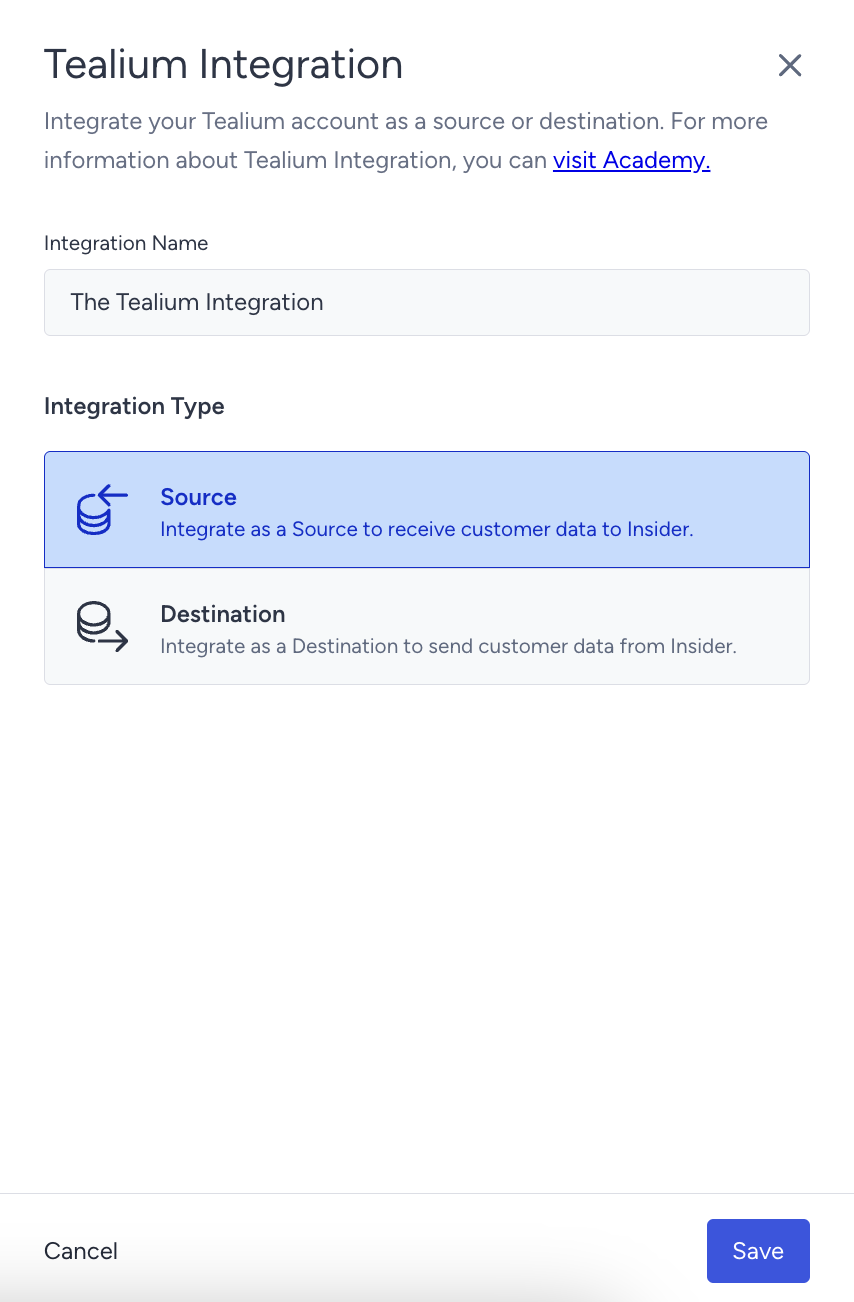
Give a name to your integration, select Source as the integration type, and click the Save button.
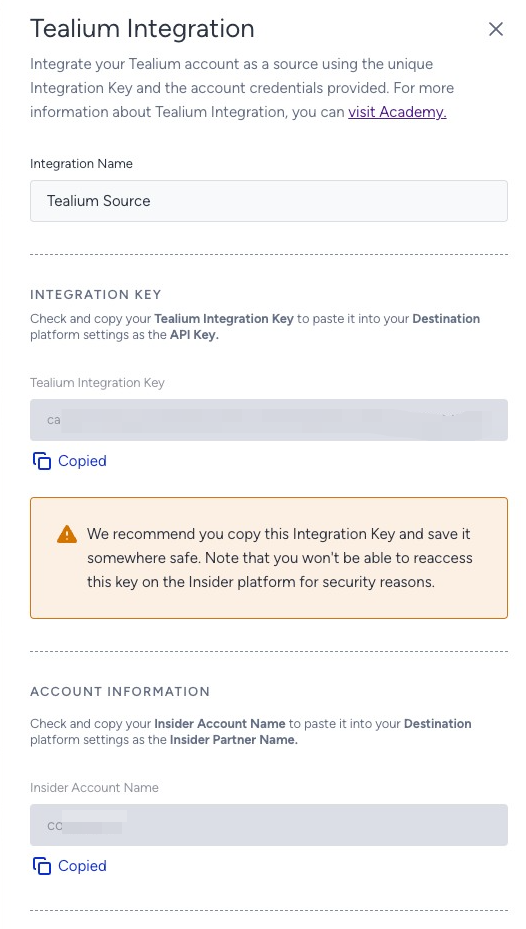
Copy the Tealium Integration Key and Insider One Account Name, and click the Save button.
After you copy the information, go back to your Tealium account, paste those values, and click the Continue button.
On the Action page, you must select the actions based on your use case.
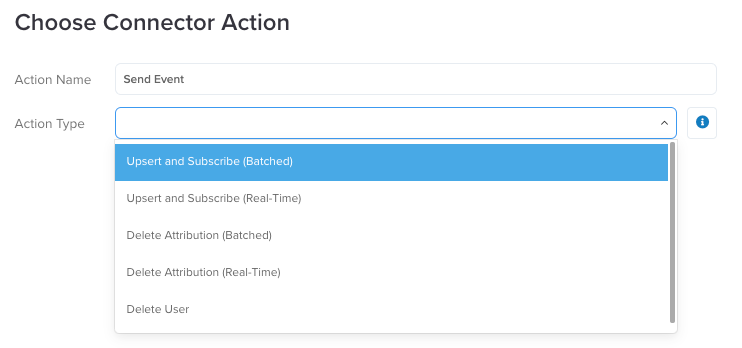
Action Name
Use Case (Purpose)
Upsert and Subscribe (Batched)
When a user performs an event, updates an attribute, or enters an Audience.
Upsert and Subscribe (Real-Time)
When a user performs an event, updates an attribute, or enters an Audience.
Delete Attribution (Batched)
When a user's attribute value needs to be removed or a user exits from an Audience.
Delete Attribution (Real-Time)
When a user's attribute value needs to be removed or a user exits from an Audience.
Delete User
When a user requests to be deleted from your database.
Batch Limits
The Upsert and Subscribe (Batched) and Delete Attribution (Batched) actions use batched requests for high-volume data transfers to the vendor. Batch requests are queued and are sent when one of the following thresholds is met:
Maximum number of requests: 1000
Maximum time since oldest request: 10 minutes
Maximum size of requests: 5 MB
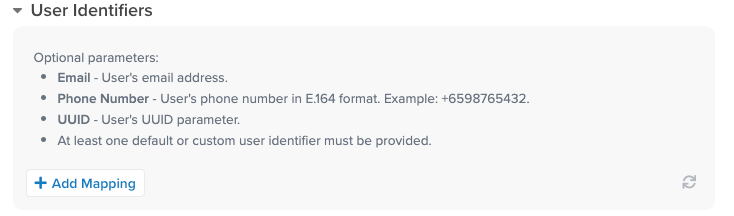
Select your User Identifier to be sent to Insider One.
The selected Identifier should be selected as Identifier on the Insider One Identity Resolution page in order for your integration to work properly.
Select the events, event parameters, and attributes that you want to send to Insider One and click the Finish button.