You cannot make any changes to External Platform Integrations without having either an Administrator or an Editor with PII access in InOne. Refer to User Roles for further information.
Hightouch seamlessly connects your data warehouse with different business tools, making it easy to use your customer data across multiple platforms. With its simple interface and powerful features, Hightouch helps marketing teams create precise audience segments for personalized campaigns.
Essentially, Hightouch acts as a bridge, allowing you to share insights from your data warehouse with various tools efficiently.
In this guide, you will find answers to the following questions:
How does Hightouch integration help?
Using Hightouch to transfer customer data to Insider One enables you to run targeted marketing campaigns efficiently and effectively. Whether targeting specific groups, re-engaging inactive customers, or offering personalized recommendations, Hightouch helps you maximize your marketing efforts.
What are the supported syncing modes?
Type | Description | Supported Sync Modes |
|---|---|---|
Users | Sync data from any source to Insider users | Upsert, Update, Insert |
Events | Sync data from any source to Insider events | Insert |
Segments | Sync data from any source to Insider segments | Add, Remove |
Subscriptions | Sync data from any source to Insider subscriptions | Upsert |
How do you connect Hightouch to Insider One?
To connect Hightouch to Insider One on your Hightouch account,
Navigate to the Destinations overview page and click the Add destination button.
Select Insider and click Continue. You can then authenticate Hightouch to Insider One.
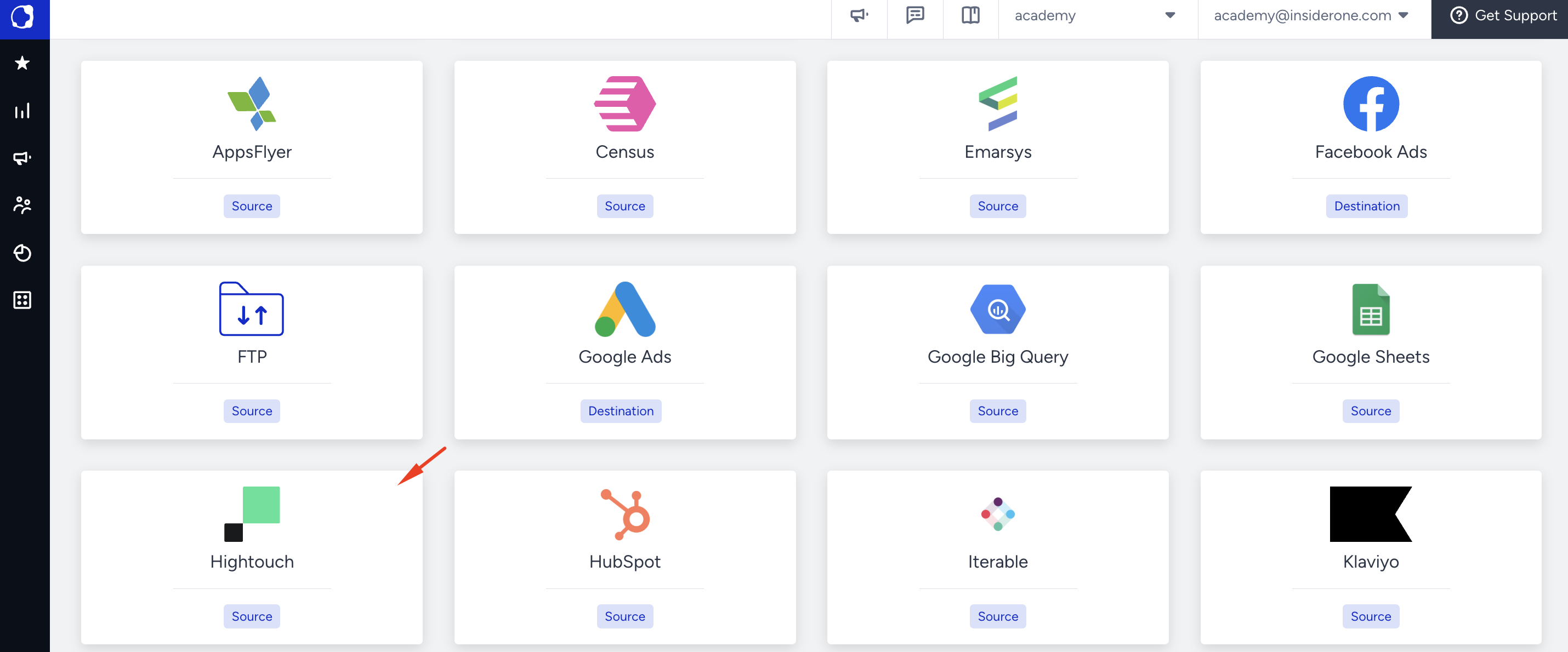
Go to Insider One External Integrations and select Hightouch.
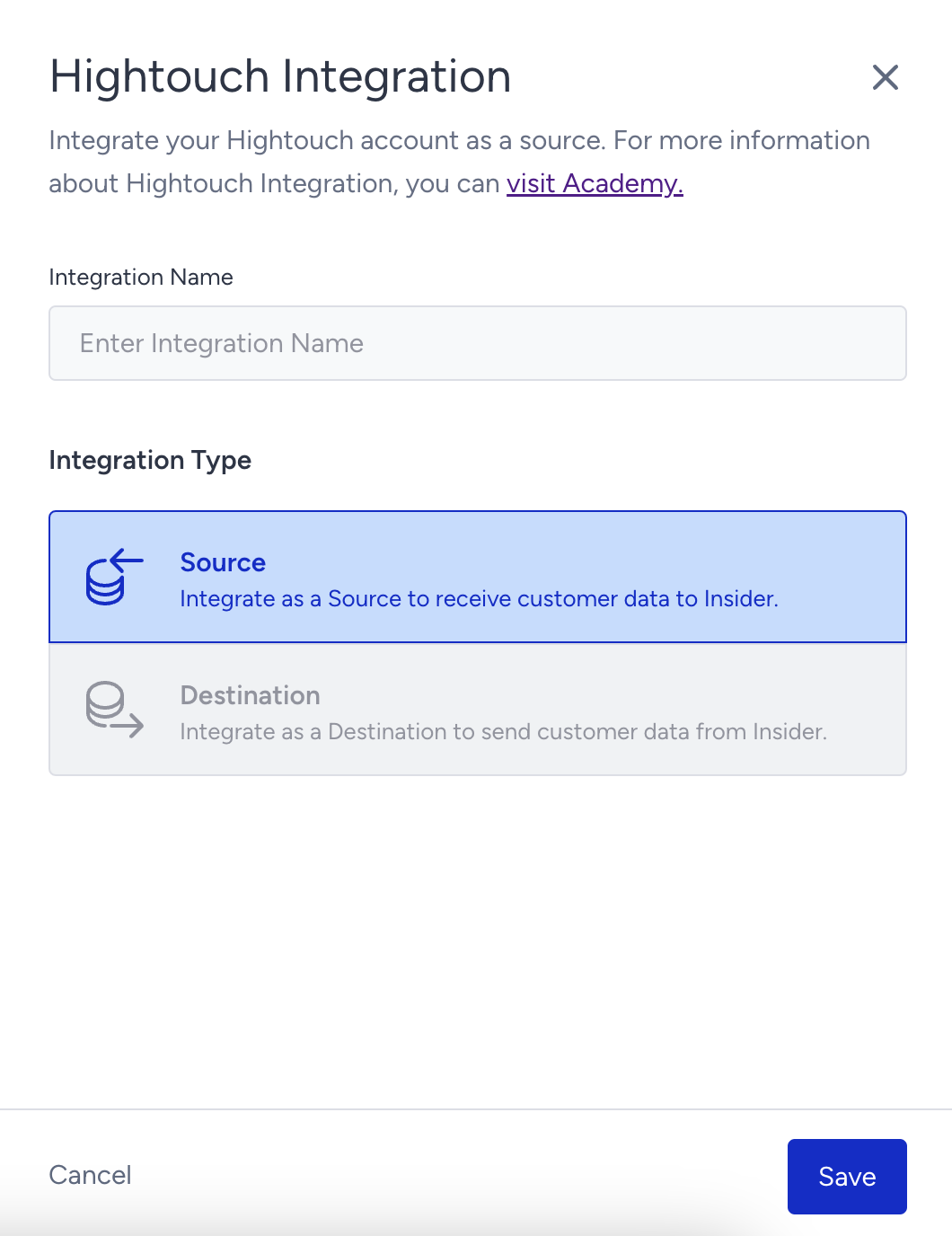
Enter the Integration Name and click the Save button.
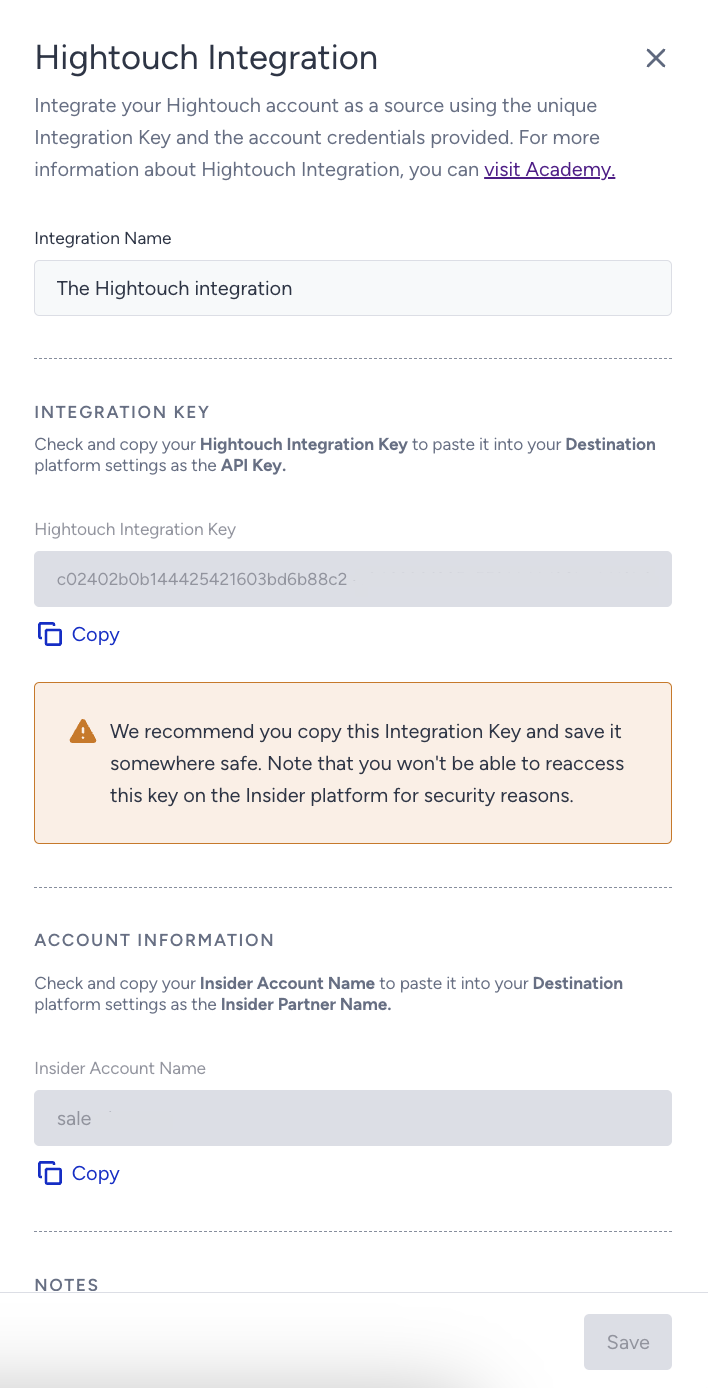
Copy the Hightouch Integration Key and Insider One Account Name and click the Save button.
Go to Hightouch and enter the following required fields:
Partner name: Insider One Account Name
Request Token: Hightouch Integration Key
How do you set up the sync configuration?
Once you've set up your Insider One destination and have a model to pull data from, you can set up your sync configuration to begin syncing data. To set up data syncing with Insider One:
Navigate to the Syncs overview page.
Click the Add sync button to initiate the setup process.
Choose the appropriate model and select the Insider One destination you want to sync with.
Syncing users
You can sync data from any source to Insider One users.
Record matching
To match rows from your model with users in Insider One, you need to select a model column and its corresponding Insider One field. You can match based on any of the following fields:
Email
Phone number
UUID
In Insert mode, Insider One automatically generates an identifier for every new record synced, so you do not need to match an existing record.
Field mapping
Hightouch allows you to sync user fields through field mapping. You can map data from any of your model columns to default and custom user fields. If you send data for a custom field that does not exist, Hightouch automatically adds the field. Ensure your model columns' data types match the data types of the fields you want to sync to.
Delete behavior
The delete behavior you select determines what action to take when a row is no longer present in the query results of your model. You have the following options:
Do nothing: Keeps the user in Insider One with all its synced fields.
Clear: Clears all the mapped fields, but keeps the user in Insider One.
Syncing events
You can sync data from any source to Insider One events.
To ensure syncs send each event, your event model must use a truly unique primary key. Refer to the Event syncs for more information.
Record matching
You can match rows from your model to events in Insider using any column in your model and any field in Insider. Make sure that the data types of the model column and Insider field you select match. Refer to the Record matching for more details.
Field mapping
Hightouch allows you to sync event properties through field mapping.
Syncing segments
You can sync data from any source to Insider One segments.
List field
It is the name of the array field that has already been created in Insider One's InOne panel. This field will contain a list of segments the user belongs to.
Segment name
It is the name of the segment that the sync will handle subscriptions for. This segment name will be added to or removed from the list field entered above as users' subscription statuses change.
Record matching
To match rows from your model to segments in Insider One, you need to select a model column and the corresponding Insider One field. You can match on any of the following Insider One fields:
Phone number
UUID
Field Mapping
Hightouch enables you to synchronize segment fields through field mapping. You can map data from any of your model columns to the default segment fields. Ensure that the data types of your model columns match the data types of the fields you want to sync to.
Syncing subscriptions
You can sync data from any source to Insider One subscriptions.
Record matching
To match rows from your model to subscriptions in Insider One, you need to select a model column and the corresponding Insider One field. You can match on any of the following Insider One fields:
Email
Phone
Field mapping
Hightouch allows you to sync subscription fields through field mapping. You can map data from any of your model columns to the default subscription fields. Ensure that the data types of your model columns match the data types of the fields you want to synchronize with.