You cannot make any changes to External Platform Integrations without having either an Administrator or an Editor with PII access in InOne. Refer to User Roles for further information.
This integration helps you sync the cohorts that you create on Amplitude to Insider One and deliver personalized experiences and messages to your targeted users.
The cohorts that you sync to Insider One will be stored as attributes on Insider One. To do this integration, complete the following steps:
Configure Insider One as a Destination
To configure Insider One as a source on your Amplitude account:
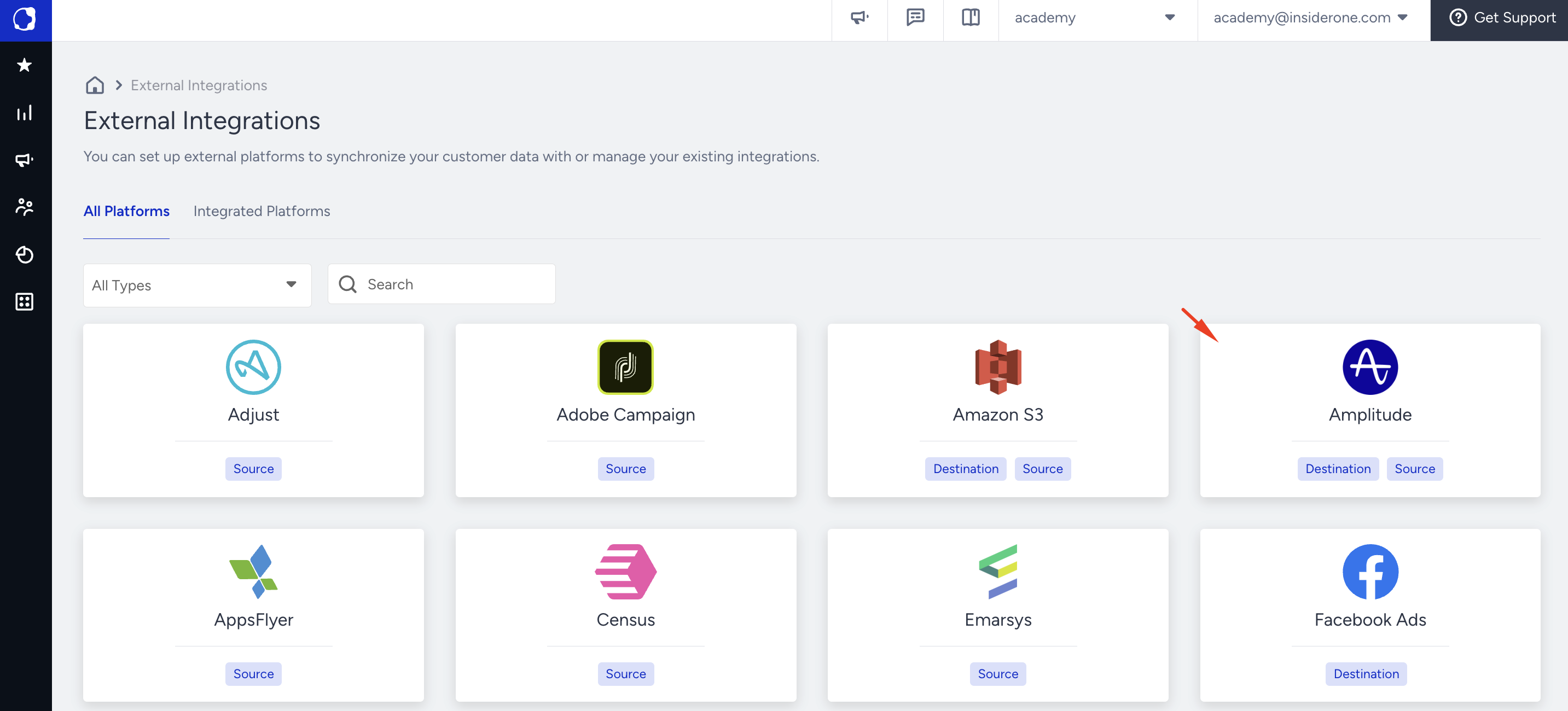
Navigate to Components > Integrations > External Integrations on the Insider One's InOne panel.
Select the Amplitude platform.
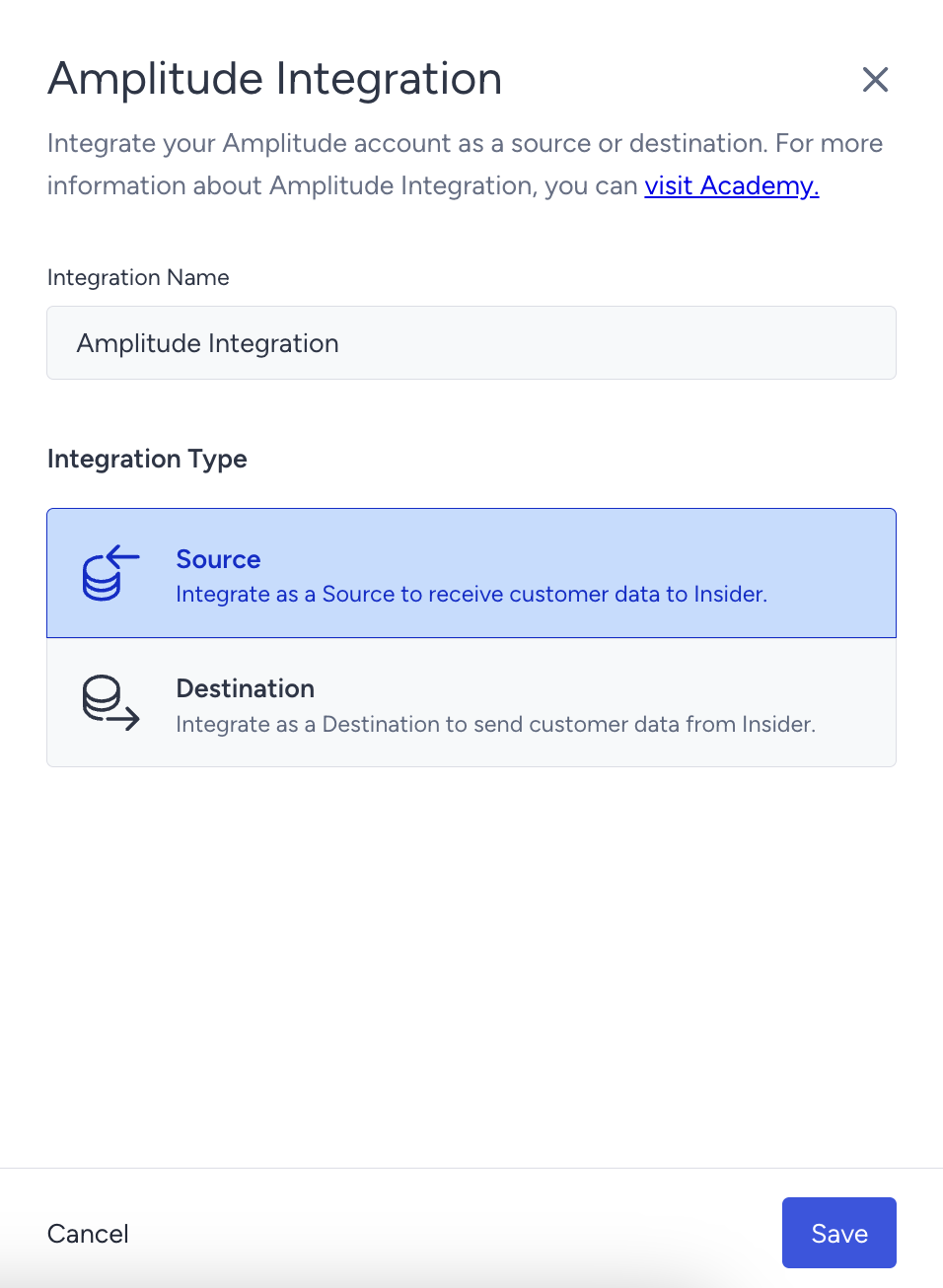
Give a name to your integration, select Source as the integration type, and click the Save button.
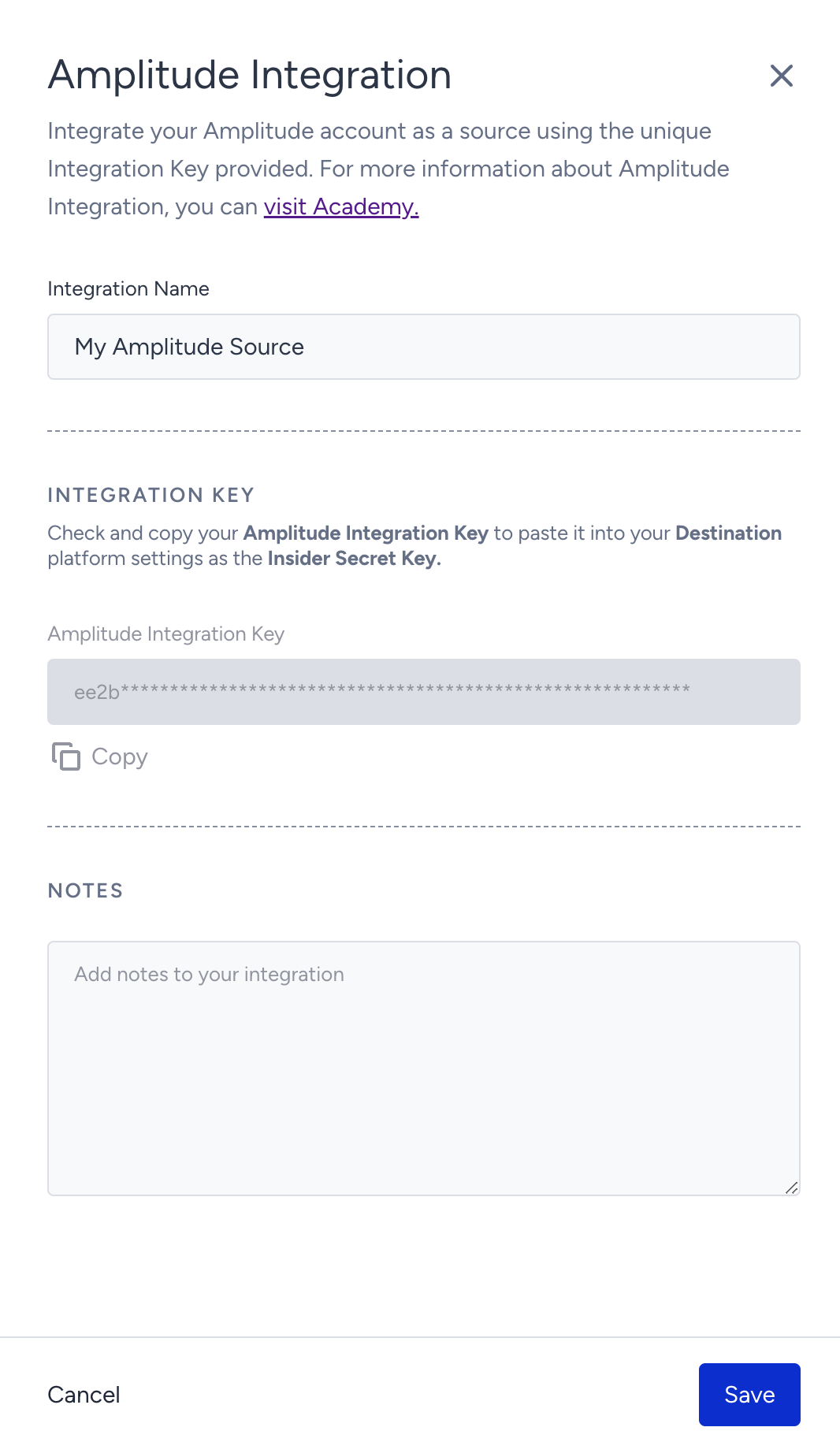
Copy the Amplitude Integration Key and click the Save button.
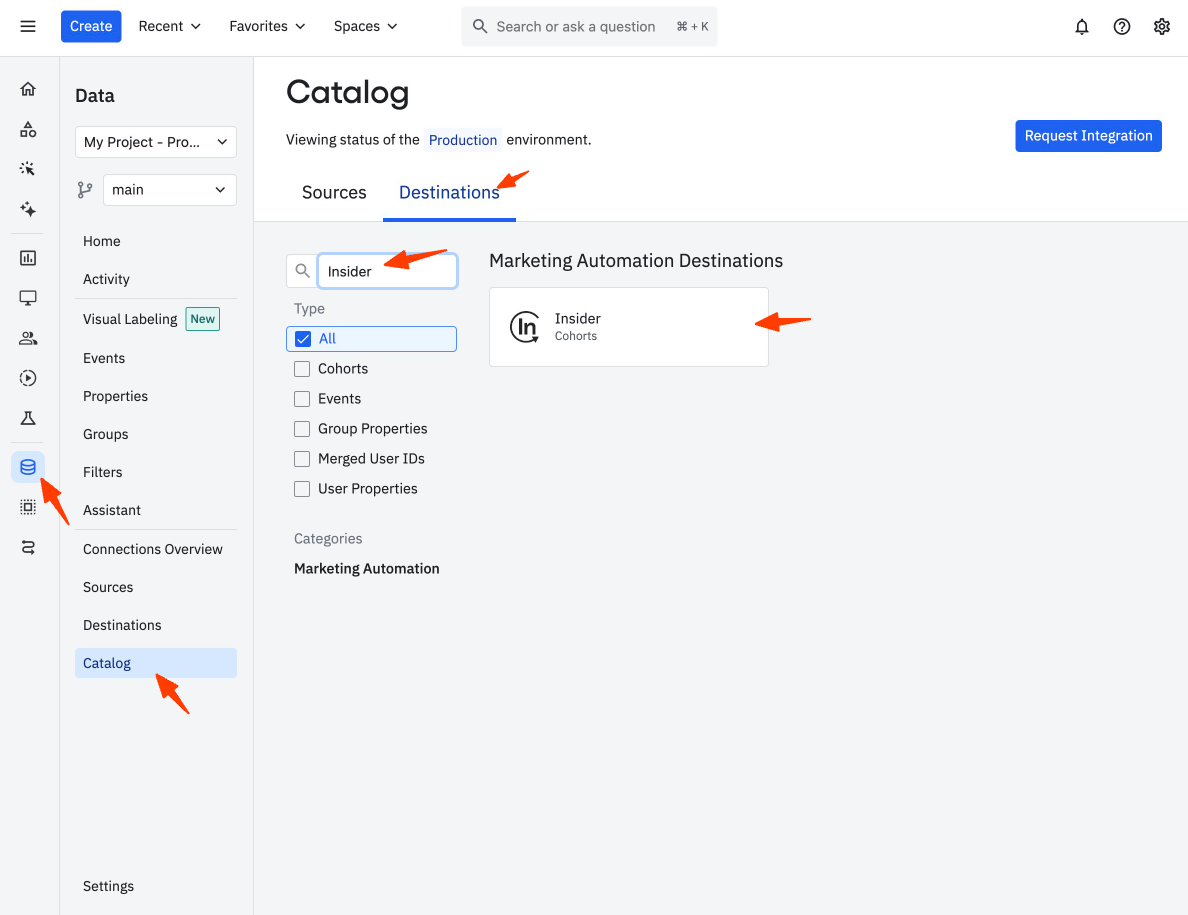
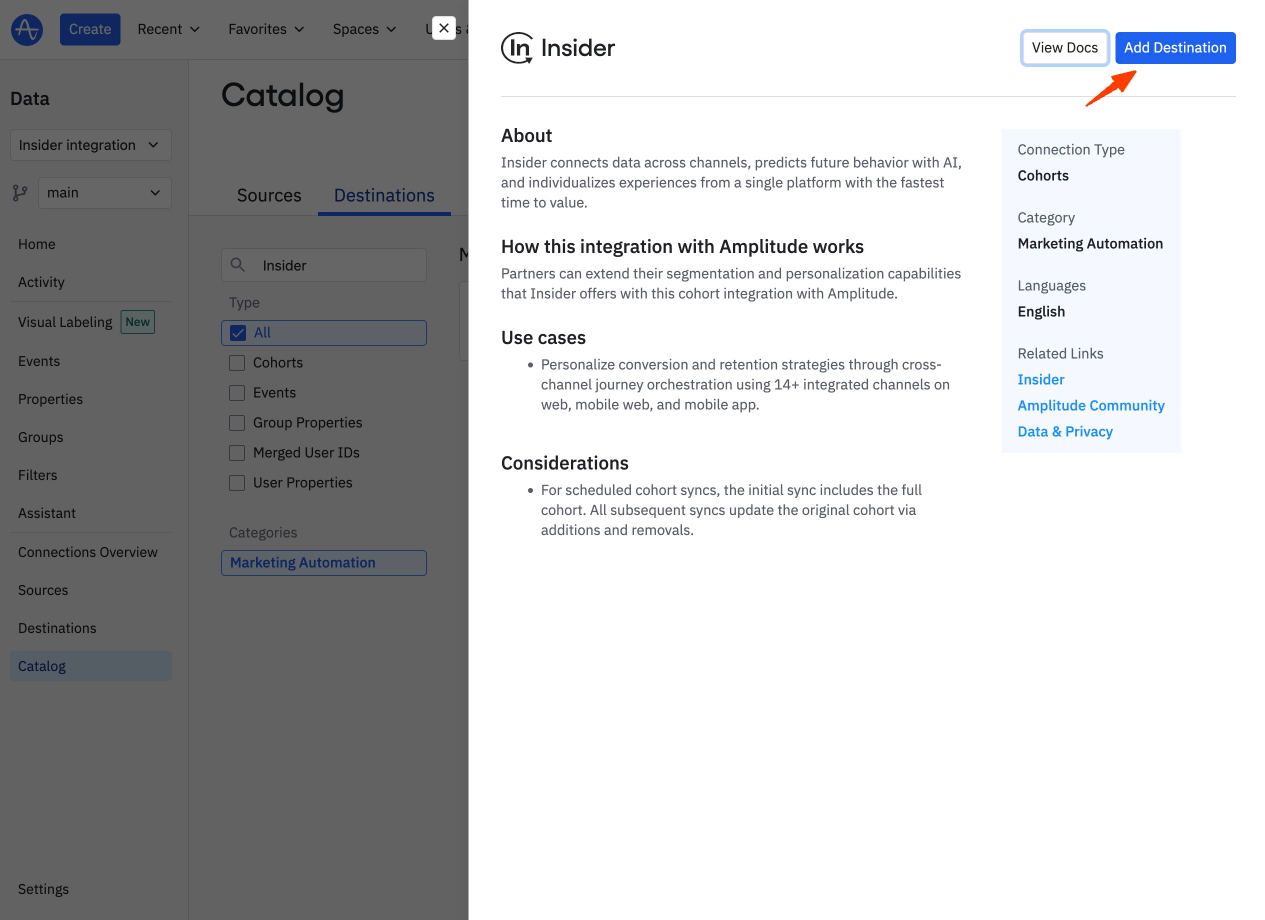
Go to your Amplitude Data and navigate to Catalog > Destinations. Search for Insider and select the Insider from the list.
Click the Add Destination button to add Insider.
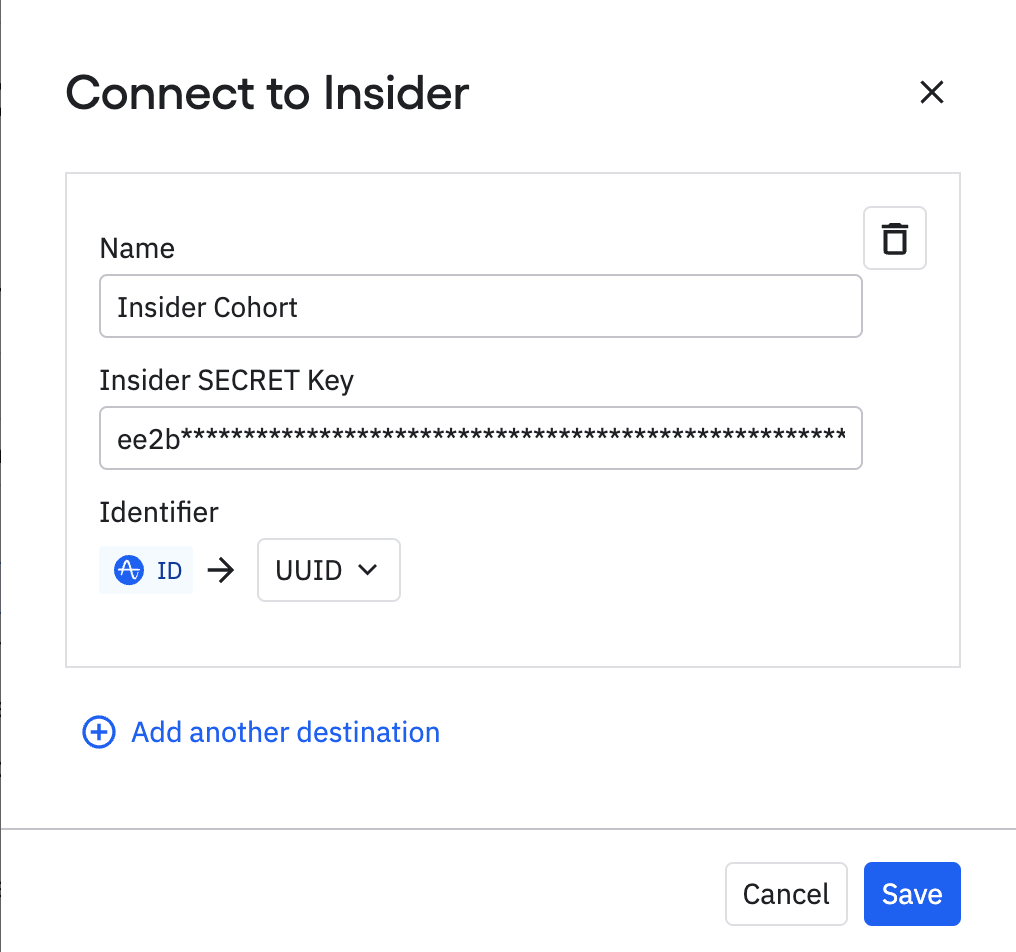
Enter a name and the Insider API key. Map an Amplitude property to an Insider property. When finished, click the Save button.
Send a cohort to Insider One
After you've connected Insider One and Amplitude, you can send an Amplitude cohort.
Open the cohort you want to export in your Amplitude account. Click Sync, and choose Insider.
Choose the API target.
Select the sync cadence.
Save your work.
Use Amplitude Cohorts on Insider One's InOne panel
Once you sync your cohorts to Insider One, you can use them to segment your users.
1. Create a campaign where you can use the Standard Segments.
2. Select Attributes as your segment.
3. Select the Amplitude Cohort attribute that is displayed in the segment dropdown and the respective value.

Once you launch your campaign, it will target the users in your Amplitude cohort.