The Service Level Analysis report in MindBehind Live evaluates whether agents meet the target first response time when responding to customers. It highlights the success rate of initial responses based on the predefined SLA threshold.
To analyze SLA performance, you first need to configure SLA policies. These policies define response time targets and form the basis of all SLA metrics. Once set up, the SLA Analytics page helps admins track performance with visual reports, filters, and exportable data.
SLA Policies
In the Company Management page, you will see the SLA Policies tab. Under this tab, you can configure and manage Service Level Agreements (SLAs) tailored to your organization's needs.
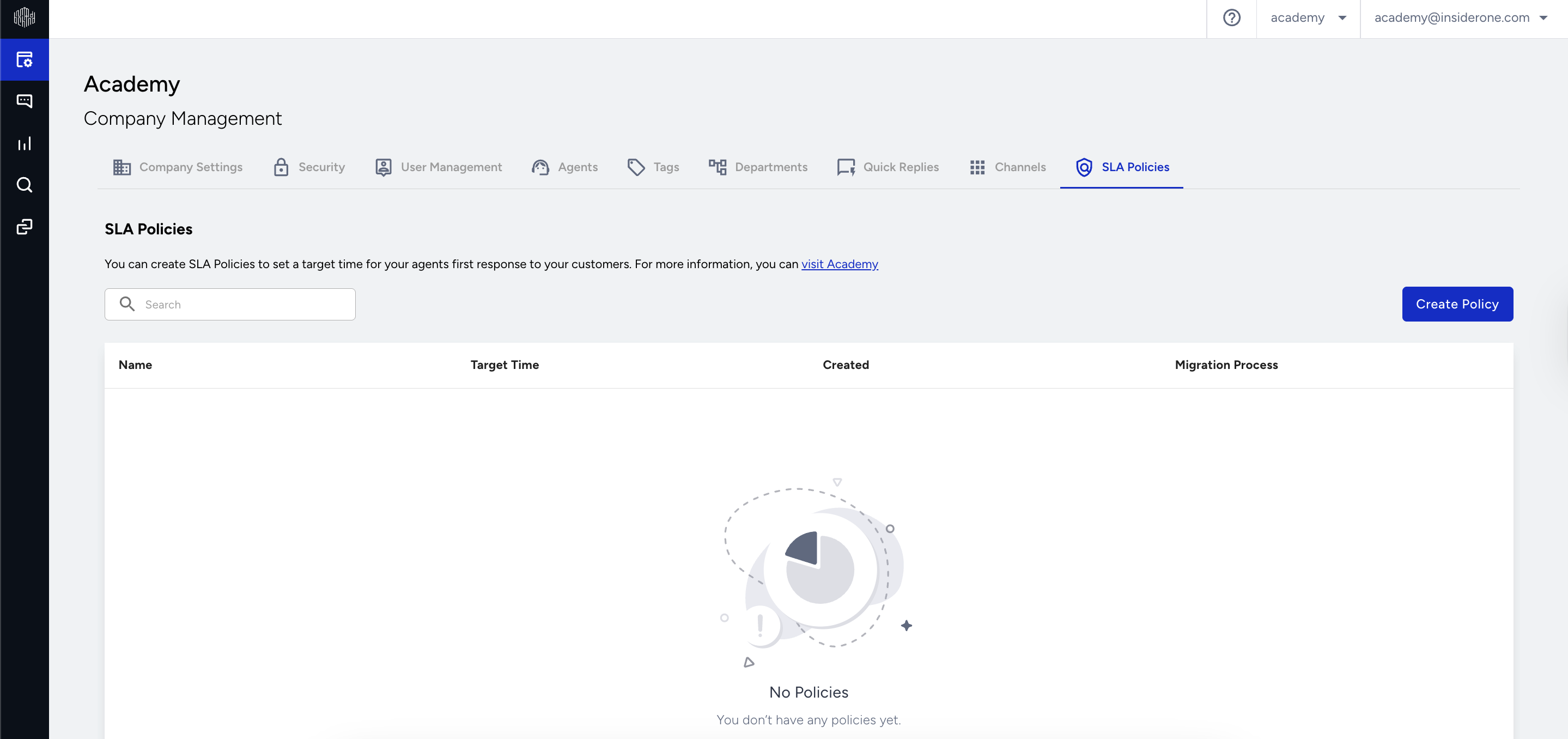
Create a New SLA Policy
1. To create new policies, click the Create Policy button. Once clicked, a pop-up window appears where you must fill in the following fields:
Policy Name: Required. Must be unique.
Duration: Required. Can be set in seconds, minutes, or hours. The minimum duration is 5 seconds, and the maximum duration is 86400 seconds, which is 1440 minutes and 24 hours.
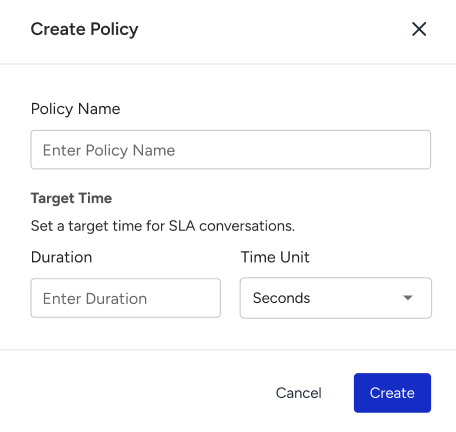
2. Once you fill in the required fields, click Create to submit the policy.
View and Manage Policies
Once a policy is created, it appears in the SLA Policies table with the following columns: Name, Target Time, Created (Date), and Migration Progress.
Migration starts automatically, and a progress bar indicates its status.
- You can create multiple policies even if existing ones are still migrating.
- Policies are migrated one at a time.
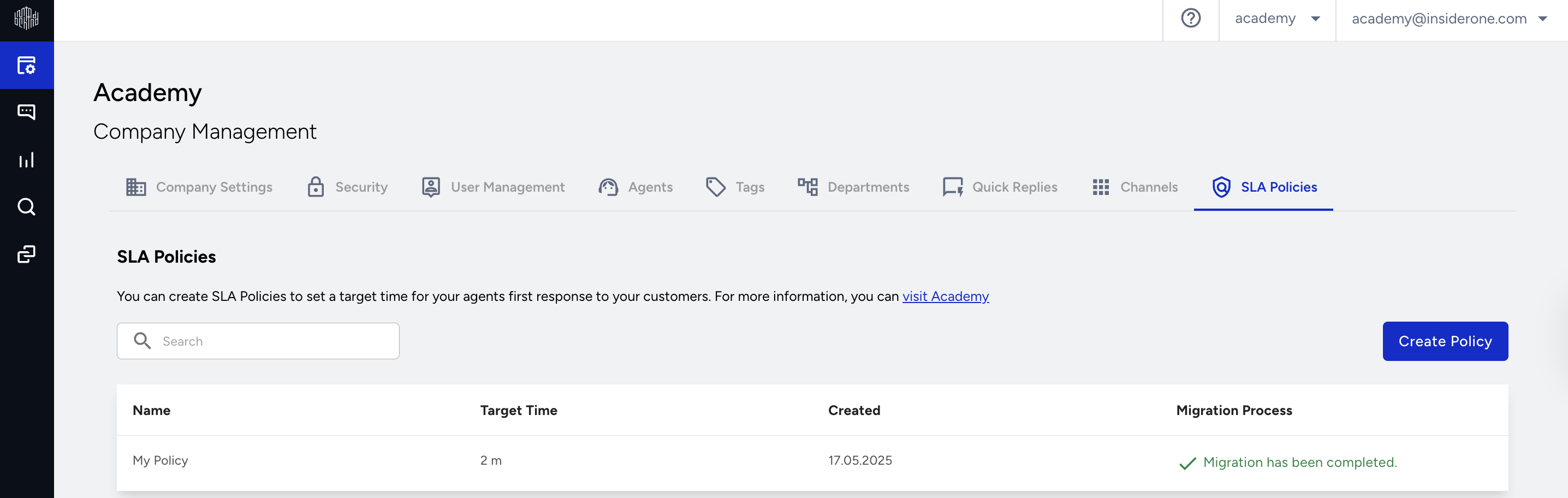
You can create up to 10 SLA policies. Once this limit is reached, the Create Policy button will be disabled.
SLA Analytics
The SLA Analytics page offers visual insights and detailed performance breakdowns based on configured SLA policies. It is available to administrators and department admins.
Navigate to Analytics> Service Level Analysis.
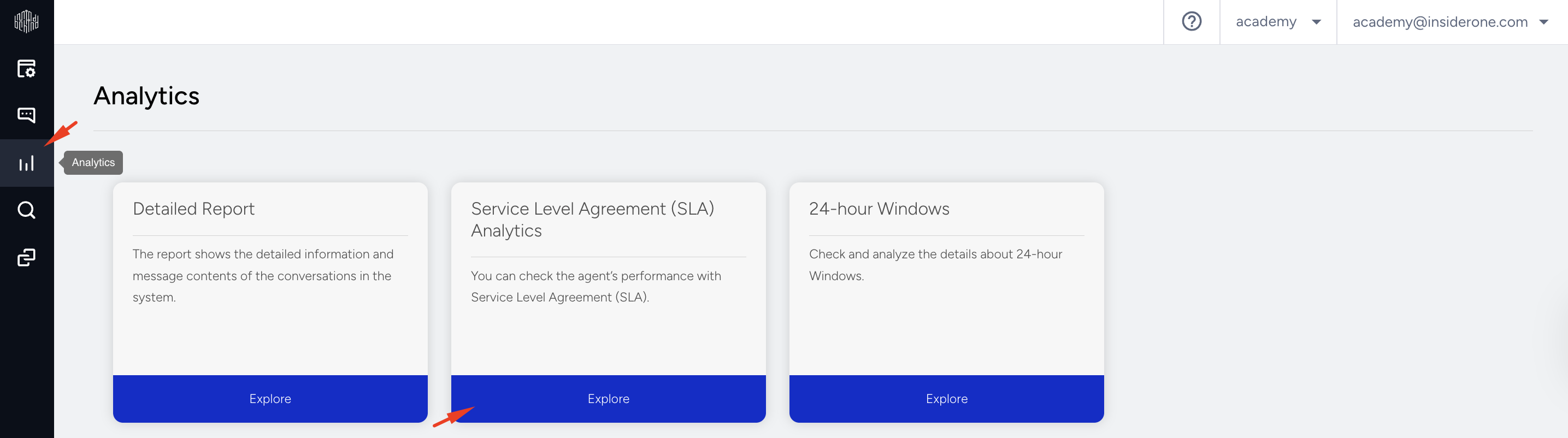
Here, you can:
Select a date range
Choose a pre-configured SLA policy
Use the Filters Drawer for advanced filtering options
SLA Analytics Filters
You can fine-tune your data visualization using the filter drawer. Filters are grouped as follows: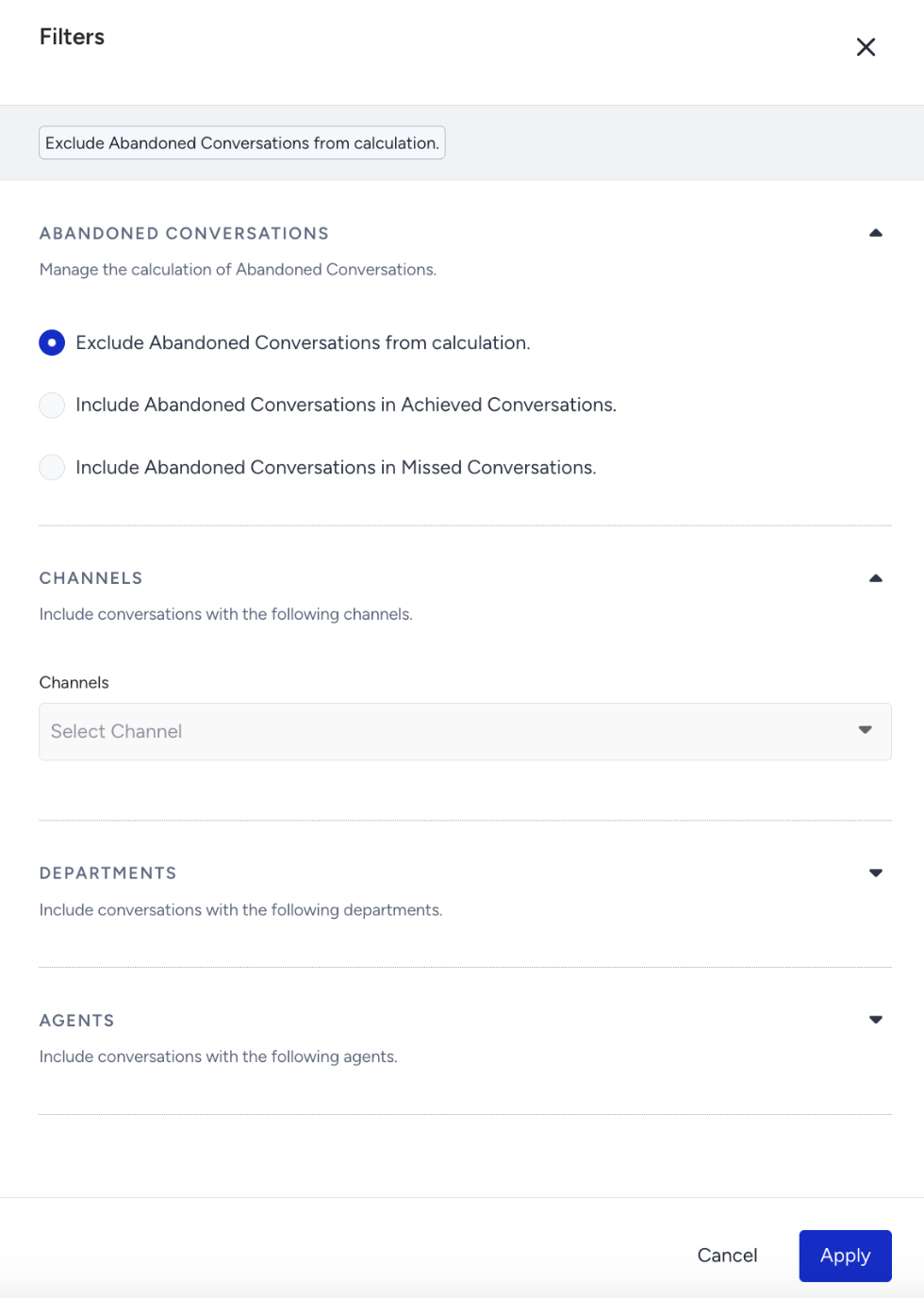
Abandoned Conversations Calculation: Defines how abandoned conversations are treated in SLA reporting. Options:
Exclude abandoned conversations
Include them as achieved conversations
Include them as missed conversations
Channels: Filter reports by selected communication channels.
Departments: Narrow results based on specific departments.
Agents: View SLA performance per individual agent.
Charts and Metrics
The following metrics and visualizations provide insights into SLA performance, agent efficiency, and conversation outcomes.
Top Metrics
This section displays key performance indicators related to SLA conversations:
SLA Conversations: The total number of conversations with an active SLA policy.
Achieved Conversations: The number of SLA conversations successfully responded to within the target time.
Missed Conversations: SLA conversations that weren’t responded to within the target time.
Achieved SLA Rate: The percentage of achieved conversations relative to all SLA conversations.
Abandoned Conversations: Conversations customers leave before an agent responds—either while waiting after chatbot transfer, or after assignment but before the agent replies within the target time.
Missed Conversations Performance Chart
This chart displays missed conversations broken down by department or channel.
Breakdown Options: By Department or By Channel
Display Limit: Up to 14 departments or channels can be shown. Once 14 are selected, additional options will be disabled.
Agent Performance Table
This chart displays a list of agents with their SLA-related metrics.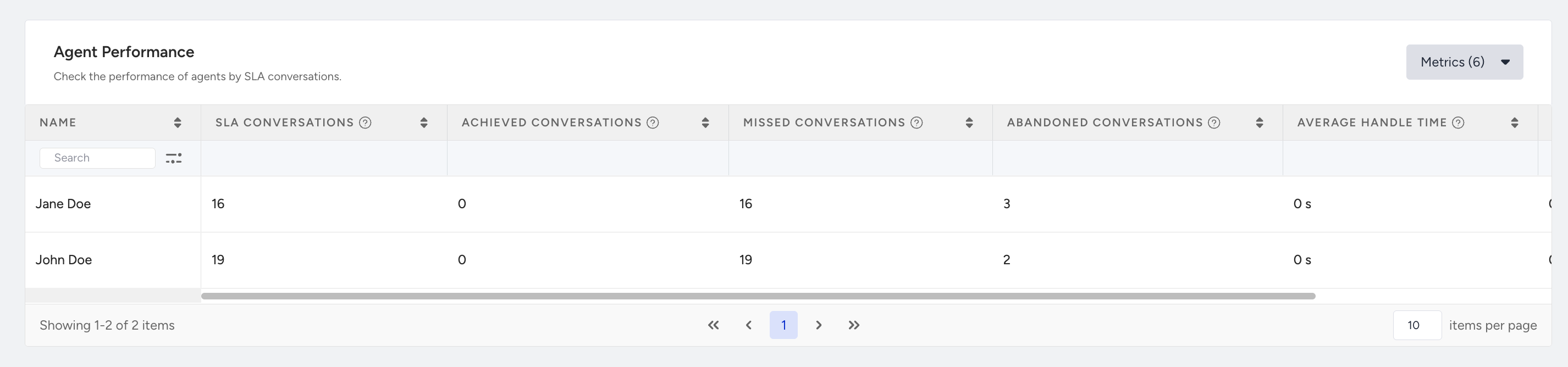
In the default view, you can see:
All agents in the company
Agents listed alphabetically (A to Z)
Up to 10 agents per page
If no filters are applied, the list includes every agent across all departments and channels.
When filters (departments, channels, or agents) are applied, the table updates to show only the agents matching the selected criteria.
The table contains the following columns:
SLA Conversations
Achieved Conversations
Missed Conversations
Abandoned Conversations, which count:
Conversations abandoned while waiting for agent assignment after chatbot transfer
Conversations abandoned after the assignment but before the agent responds within the target time
Average Handle Time (AHT): The average time an agent spends on assigned conversations
Average First Response Time: The average time it takes for an agent to send the initial response
Export the Report
Click the Export button to export the SLA report. It will be emailed to your email address. You will see a sheet with three pages: Summary, Conversation List, and Agent Performance Table. This section provides an overview of the selected data and filters during export.
Summary
In the Summary sheet, you will see the following details:
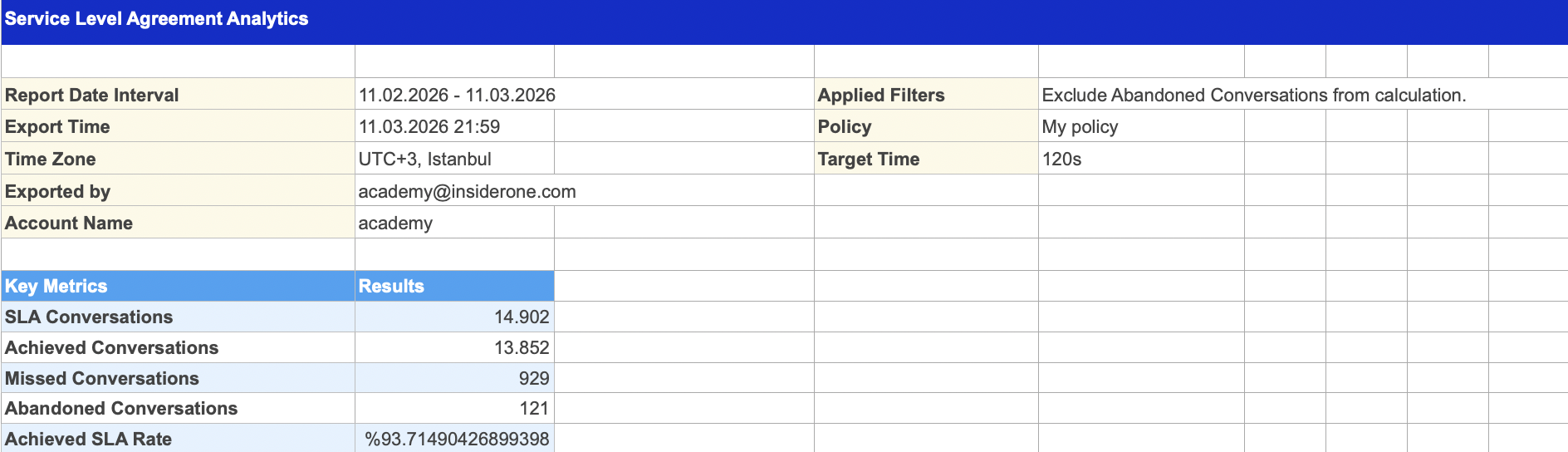
Report Date Interval: The selected time range for the report
Export Time: Timestamp of when the export was triggered
Time Zone: The Time zone in which the report was generated
Exported By: Name or email of the user who triggered the export
Account Name: The account or organization name
Key Metrics:
Conversations with SLA
Achieved Conversations
Missed Conversations
Achieved SLA Rate
Abandoned Conversations
Applied Filters: All selected filters from the filter drawer (e.g., agents, channels, departments, abandoned conversation logic)
Target Time: The duration configured in the selected SLA policy
Policy: The name of the selected SLA policy
Conversation List
This sheet lists every conversation in the SLA analytics based on the selected filters and date range.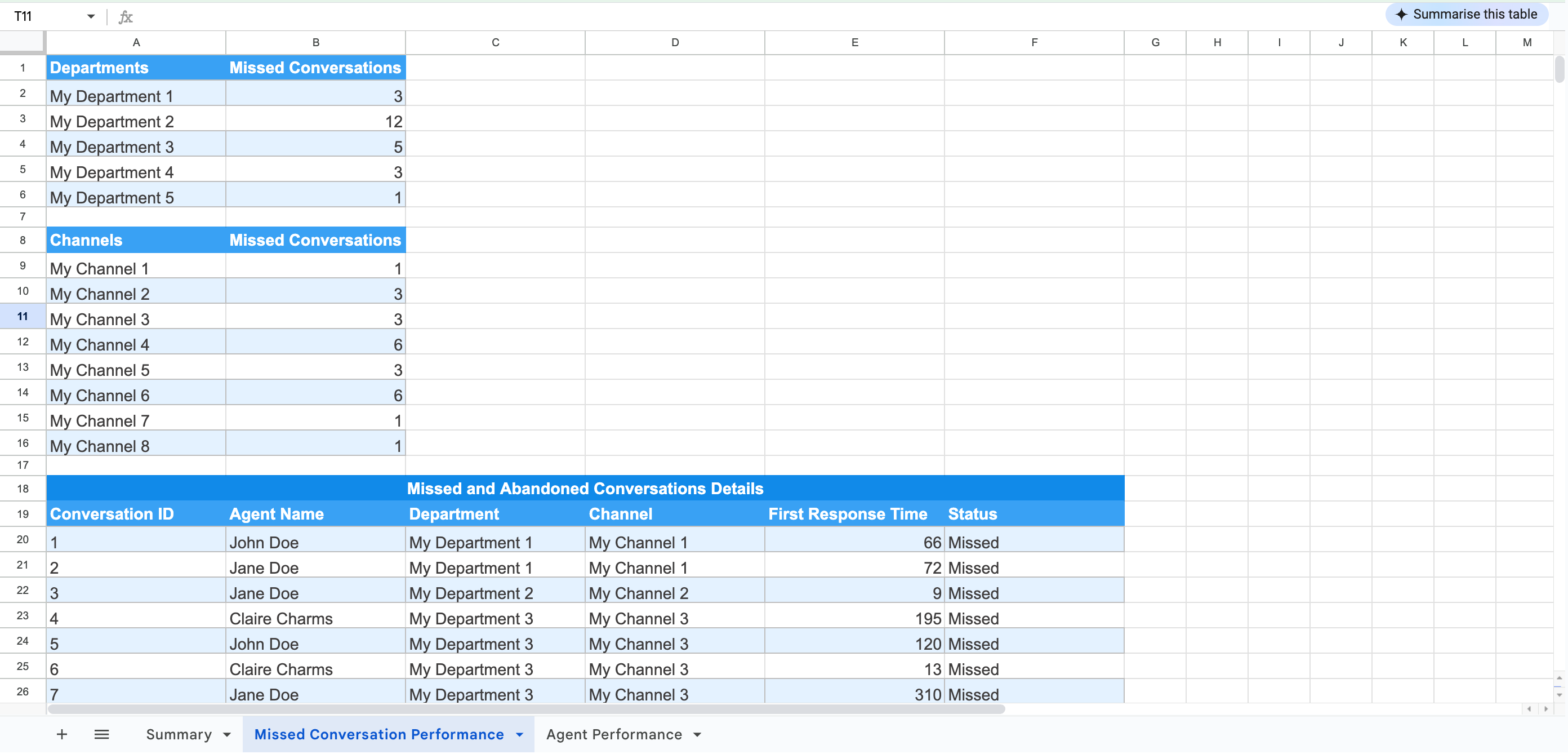
This list includes:
Conversation ID: Unique identifier for the conversation
Agent Name: Name of the agent assigned to the conversation
Department Name: Department involved in the conversation
Channel Name: Source channel of the conversation (e.g., WhatsApp, Webchat)
First Response Duration: Time between the client’s first message and the agent’s first response
Success Situation: SLA outcome: Achieved, Missed, or Abandoned
Agent Performance Table
This sheet includes agent-level performance metrics that match what is shown on the Agent Performance table of the SLA Analytics page.

The table includes the following columns:
Agent Name
SLA Conversations
Achieved Conversations
Missed Conversations
Abandoned Conversations
Average Handle Time
Average First Response Time
- The exported report reflects exactly what you see on the page, including filters or visual limitations (e.g., top 14 departments/channels).
- Filters and metrics are exported as-is based on your current selections.