Suggested reading: Integrate Code Station
Vertex AI, a machine learning platform from Google Cloud, facilitates the building, training, and deployment of machine learning models at scale. When integrated with Code Station, Vertex AI offers several key advantages, including:
- Context window,
- Document analysis,
- Multimodal capabilities,
- Language support,
- Integration with apps,
- Data analysis,
- Personalised AI,
- Conversational AI,
- API and developer features.
Adding a new ready-made template to Code Station enables access to all Vertex AI services when this module is incorporated into the map within the MindBehind flow.
This guide provides answers to these questions:
- What are the requirements for using the Vertex AI template?
- How can I use the Vertex AI Template?
- What are the limitations of using the Vertex AI template?
Requirements
Before integrating the Vertex AI template in the Code Station module, ensure that all the requirements below are met. Once completed, follow the steps for Vertex AI integration.
- Go to Google Cloud IAM and Admin menu and create a user with specific access. You can select the "Vertex AI Viewer" option. You can read Google Cloud's Vertex AI Access Control documentation for further details on the access types.
- To create a service account, go to Google Cloud IAM and the Admin menu. You can refer to the Google Cloud's Service Account documentation for further details.
- Click the "Manage Keys" option in the Actions menu for the newly created service and click the "Add a New Key" button.
%20-%20Insider%20-%201%20new%20item%20-%20Slack%202024-10-21%2013-26-27(1).png)
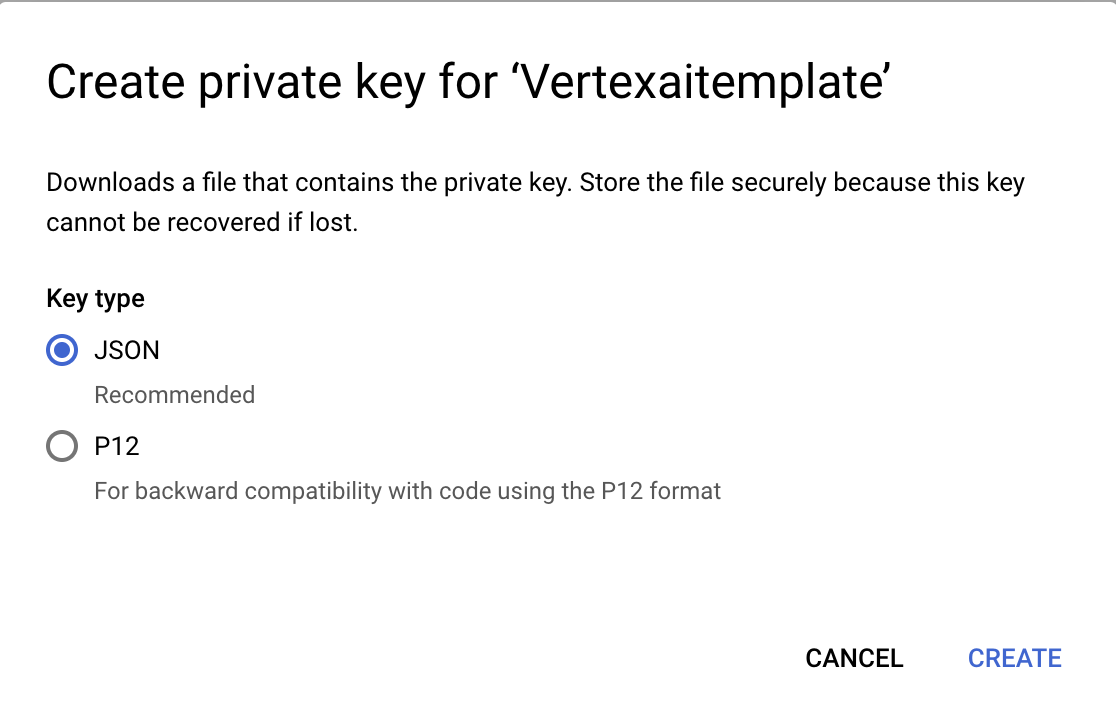
- Select the "JSON" format for your new key type and click the Create button. It will be automatically downloaded to your computer.
How to use the Vertex AI template
After you meet all the requirements above, follow the steps below to create your Vertex AI template:
- Navigate to Companies> Your Company> Code Station. Click the Secret Manager button.

- Click the Add Secret button.

- Enter a name for your Vertex AI template and select the Custom option from the dropdown list of Property Type.
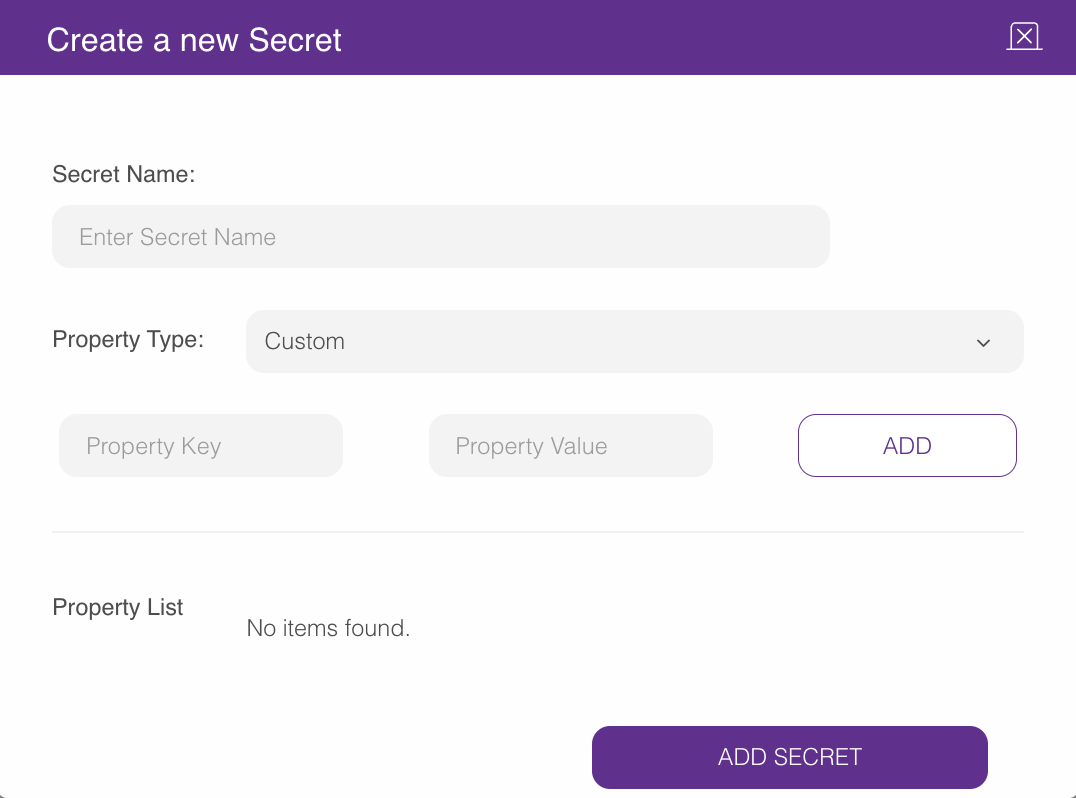
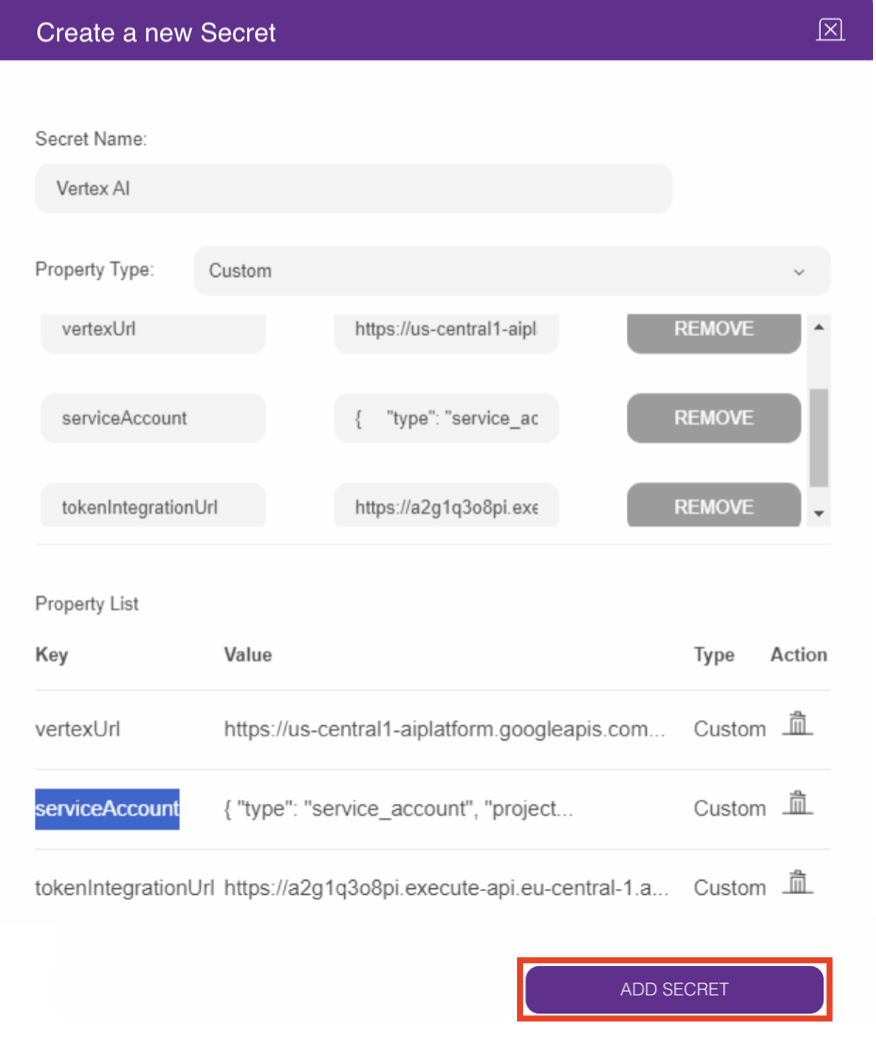
- Add the information in the table below as your property keys and values:
Property Key Property Value vertexUrl https://us-central1-aiplatform.googleapis.com/v1/projects/mb-prod-279015/locations/europe-west3/publishers/google/models/gemini-1.5-pro-preview-0409:streamGenerateContent serviceAccount Open the JSON file that you have downloaded and copy and paste the code in the value field. tokenIntegrationUrl https://a2g1q3o8pi.execute-api.eu-central-1.amazonaws.com/Prod/get-token - After filling in this information, click the Add Secret button.
- Go back to the Code Station page on the Company Management and click the Add Code Block button.

- Click the Select button for the Create from Template option.
.png)
- Click the Select button for the Vertex template.
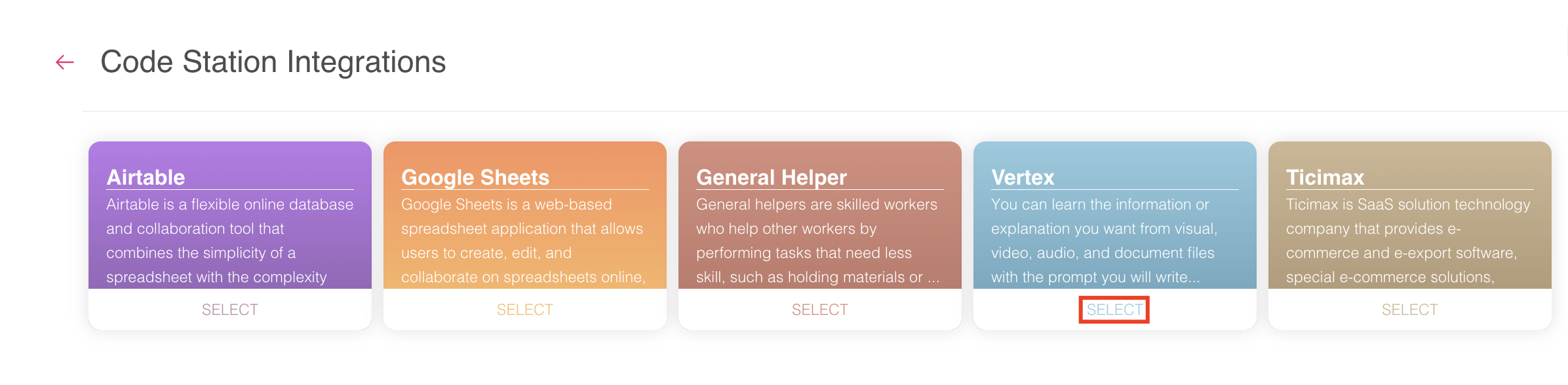
- Enter a name for your template, select the template from the dropdown list and the secret that you have created before. Click the Add Code Block button.
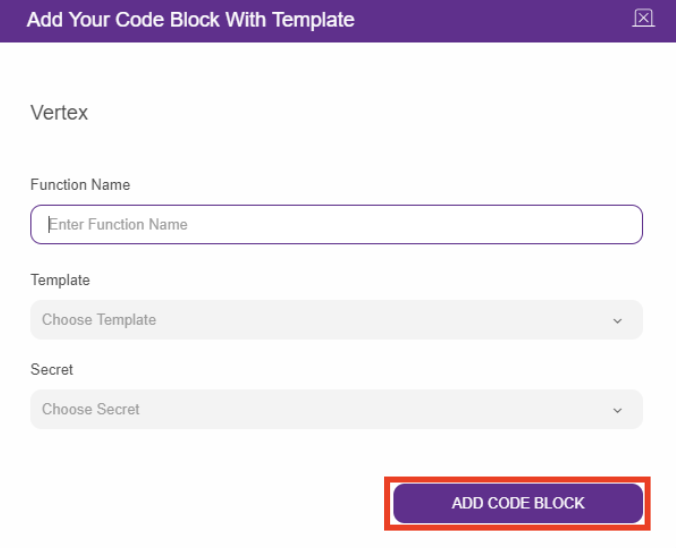 Now, you can use your template in your maps.
 - After you prepare the flow and add the code module, you need to identify two parameters:
- #file: It will be received from the Input Action when you upload a file.
- #question: It will also be received from the Input Action when you ask a question related to the #file. #answer parameter is added automatically to receive an answer from Vertex AI, and it is in the text format.
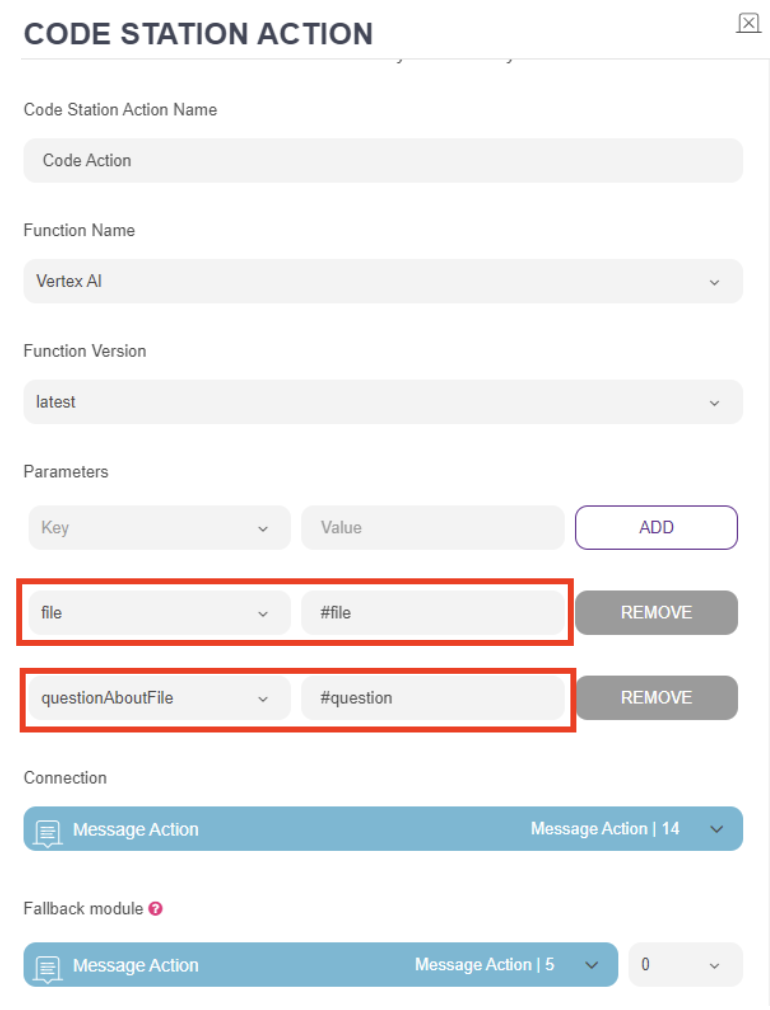
The diagram below provides a high-level summary of the generative AI workflow.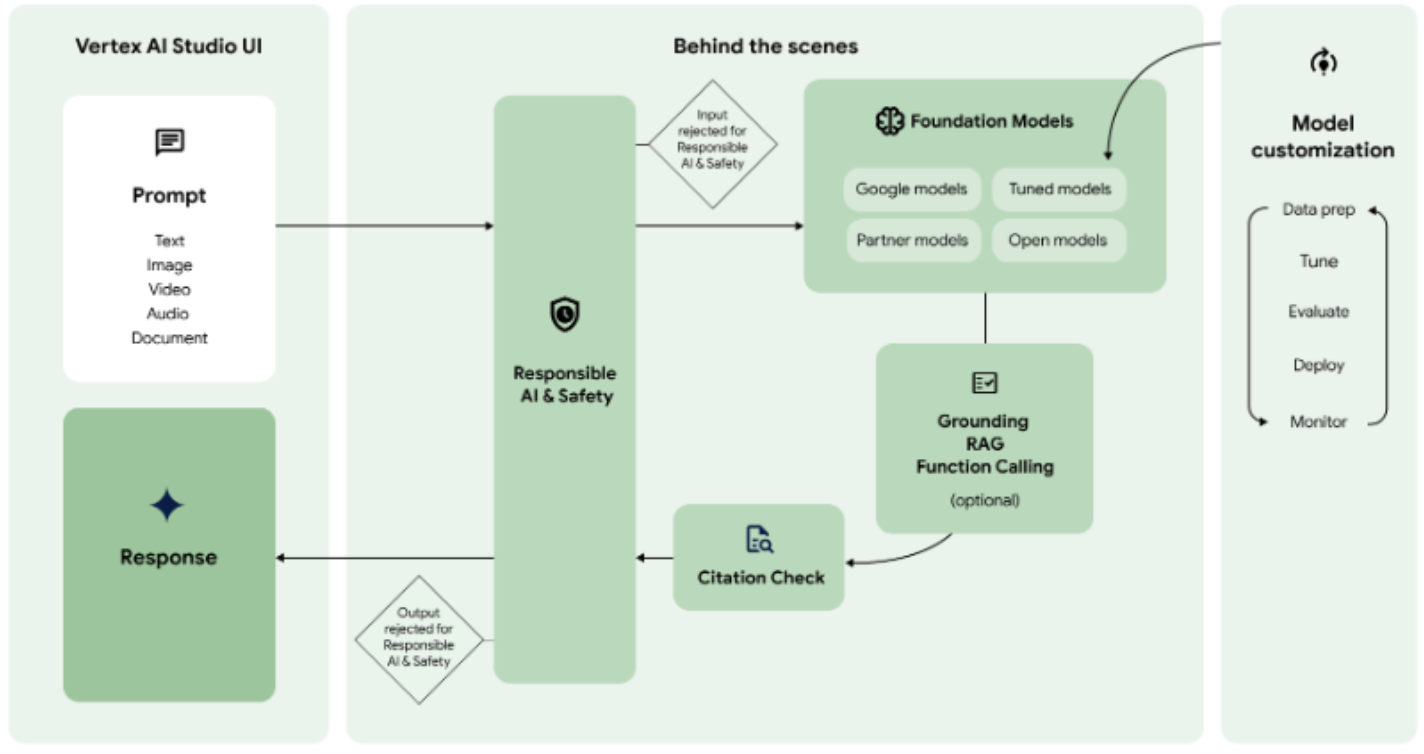
Limitations
You can check the relevant limitations in the table below when using the Vertex AI template in your flows.
| Content | Maximum Size | Supported Formats | Resolution Limit | Maximum Length |
|---|---|---|---|---|
| Images | 10 MB | JPEG, PNG, BMP, TIFF | No resolution limit. | |
| Videos | 100 MB | MP4, MOV, AVI | No resolution limit. | 10 minutes |
| Audio | 100 MB | MP3, WAV, OGG | 10 minutes | |
| Files | 100 MB | PDF, DOCX, TXT, ZIP |
- A maximum of 5 images, videos, audio files, or files can be sent in a single API request.
- The total size of all files cannot exceed 1 GB.
- The API does not accept inappropriate or copyrighted content.