Link branding, also known as using your own domain for email links, allows you to customize URLs to match your brand instead of using generic link shorteners. This process usually involves using your domain name for the links.
Link branding aims to:
Make your links look professional and consistent with your brand to enhance brand recognition
Make your links look trustworthy to increase trust for users to click on them
Boost click-through rates and overall marketing performance to improve marketing effectiveness
This article explains how the link branding setup process works and the following steps to complete the setup process:
To start the link branding setup, select Use Custom Branded Link in the Branded Link Management step.
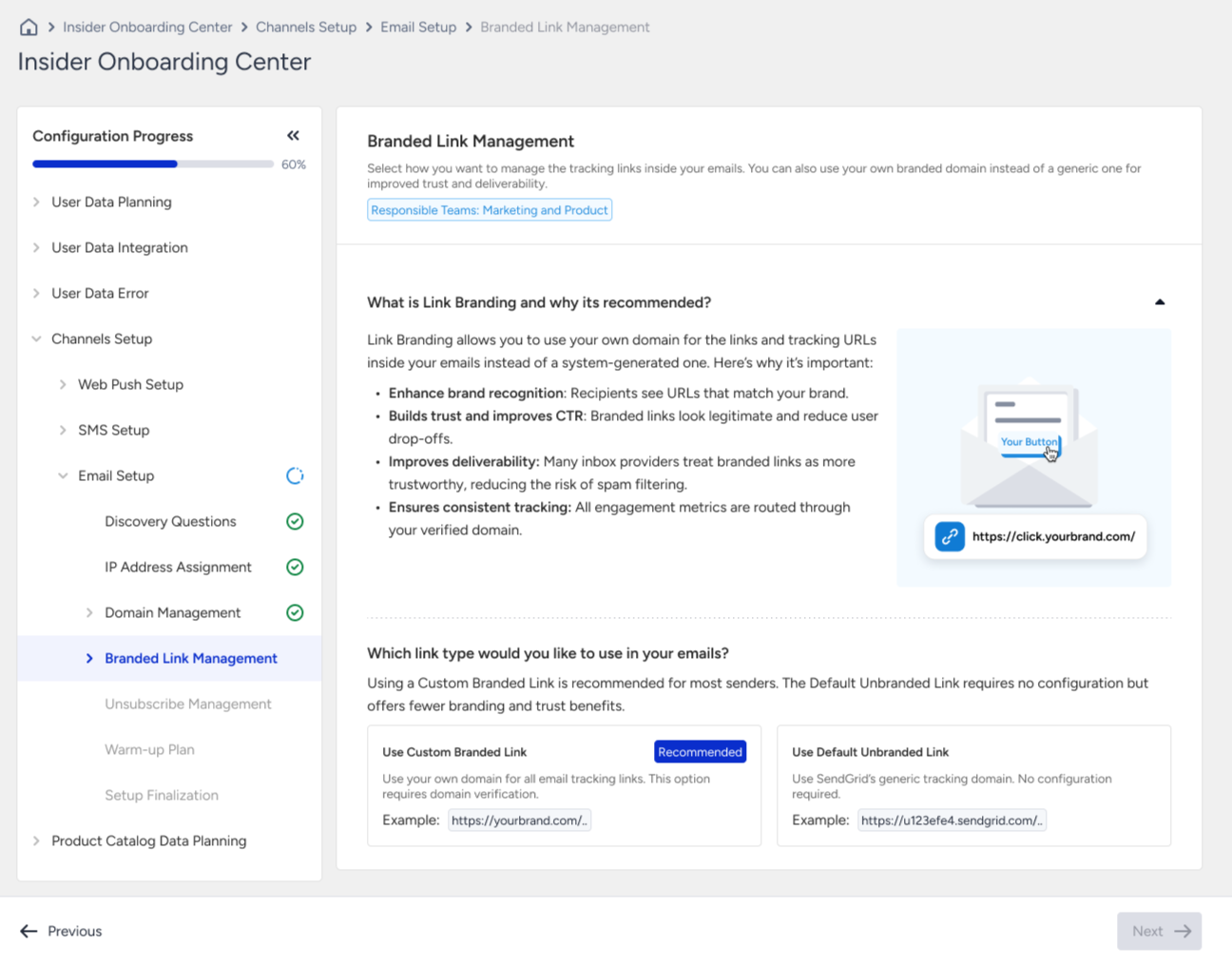
Custom branded link (link branding)
Use your own domain for all email tracking links. Example: https://click.yourbrand.com/Default unbranded link
Use SendGrid’s generic tracking domain. Example: https://u123efe4.sendgrid.com/
1. Add branded link
In the first step of Branded Link Management, define your branded domain and the custom subdomain you want to add to your branded link.
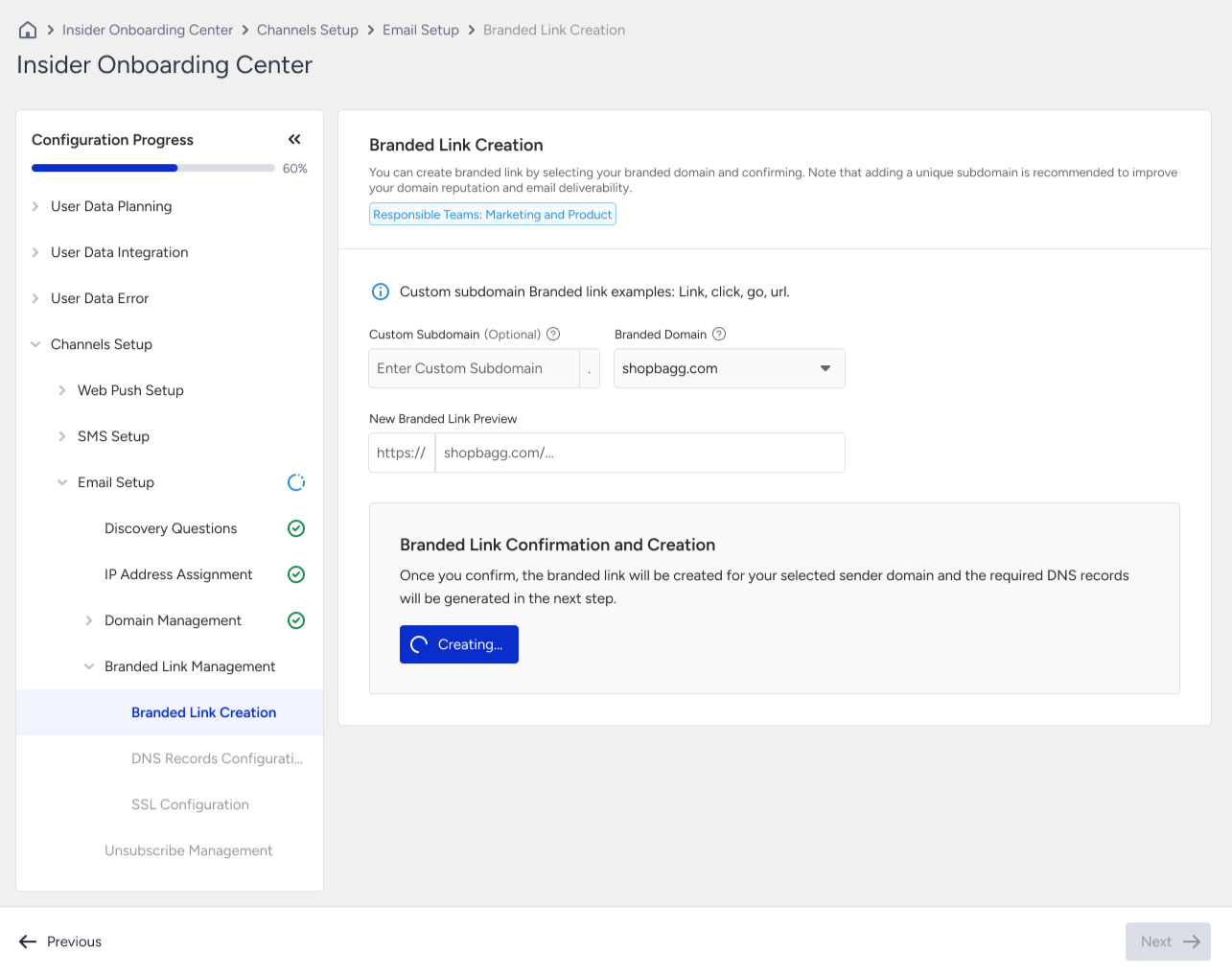
To create your branded link:
Select the domain you want to use in your branded link.
Add your custom subdomain (optional).
Click the Confirm and Create button.
If you do not add a custom subdomain to your branded link, SendGrid will assign a subdomain value.
Once you confirm and create your branded link, you cannot change the created link.
2. Configure DNS records
The second step of link branding setup is to configure the DNS records for your branded domain. DNS records are used to prove that you own the domain you want to use for link branding. By adding the DNS records provided in this step, you authorize Insider One to generate and serve tracking links on behalf of your domain.
Type | Host | Value |
|---|---|---|
CNAME | yourdomain.com | sendgrid.net |
CNAME | url123.your-domain.com | 24584.sendgrid.net |
If your branded link domain points directly to sendgrid.net (no CDN, proxy, or API Gateway) and your DNS is hosted on Cloudflare, set the Proxy status of this CNAME record to DNS only. A proxied record puts Cloudflare in front of the domain, which makes it a CDN setup, and its caching rules then apply to your tracking links.
Suggested reading: Automatic DNS Records Configuration
3. SSL configuration
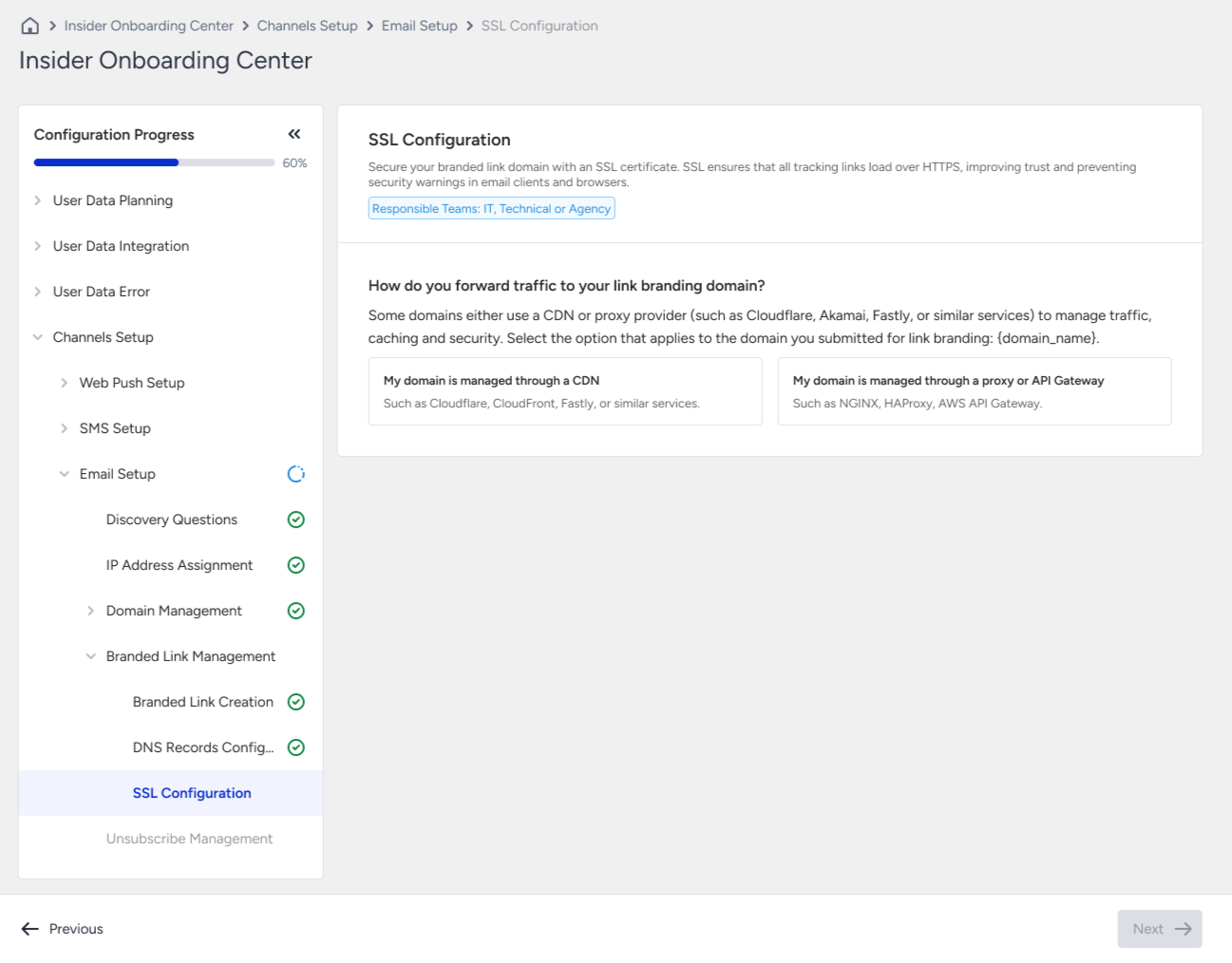
In the SSL Configuration step, you will secure your branded link domain with an SSL certificate. SSL ensures that all tracking links load over HTTPS, improving trust and preventing security warnings in email clients and browsers.
If your CNAME points directly to sendgrid.net with no CDN, proxy, or API Gateway in between, SendGrid handles SSL automatically, and your link branding setup is complete after step 2. The SSL configuration below applies only if your branded link domain is behind a CDN, proxy, or API Gateway.
Some domains either use a CDN or proxy provider (such as Cloudflare, Akamai, Fastly, or similar services) to manage traffic, caching, and security. While configuring SSL for your branded link, you need to select how you manage your domain routing:
The domain is managed through a CDN.
The domain is managed through a proxy or an API Gateway.
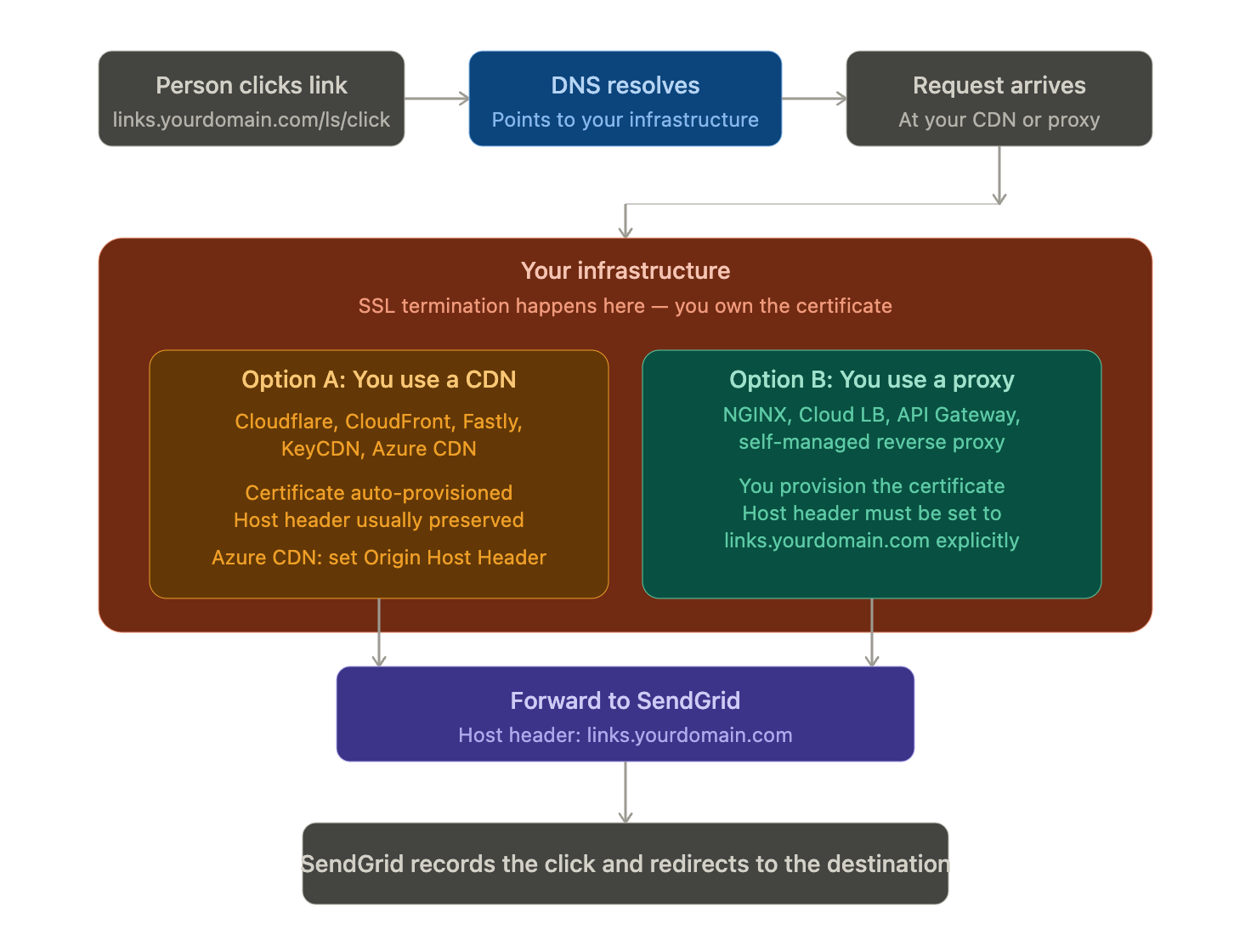
The diagram below shows a case where SSL termination occurs on a customer-managed infrastructure, not in SendGrid. The Host header must carry the branded domain when forwarding to sendgrid.net.
If your domain is managed through a CDN
1. Check your SSL certificate
Your SSL must cover the exact branded link you plan to use. You can meet this requirement in two ways:
Using a wildcard certificate (e.g., *.yourdomain.com) for single-level subdomains
Using a specific certificate issued directly for your branded link domain
If your certificate does not cover the branded link domain, you must purchase it or generate a new certificate that includes this domain. You can follow the documentation for some common providers:
2. Forward all requests to SendGrid
Configure your CDN to forward all traffic from your branded link to sendgrid.net. If you use Azure CDN, set your branded domain as the Origin Host Header in your CDN profile.
You can follow the documents for some common providers:
3. Update your DNS record
Update the CNAME record and its respective CNAME value in your DNS host provider for your branded link domain. Once configured, return to this page and click the Check SSL button to complete your SSL setup check.
Type | Host | Value |
|---|---|---|
CNAME | http://url123.yourdomain.com | URL to your CDN |
Make sure not to validate the DNS record more than once. If you change the CNAME record and attempt a second validation, it will fail, and authentication will stop working.
If your domain is managed through a proxy or API Gateway
1. Check your SSL certificate
Your SSL must cover the exact branded link you plan to use. You can meet this requirement in two ways:
Using a wildcard certificate (e.g., *.yourdomain.com) for single-level subdomains
Using a specific certificate issued directly for your branded link domain
If your certificate does not cover the branded link domain, you must purchase it or generate a new certificate that includes this domain. You can follow the documentation for some common providers:
2. Forward all requests to SendGrid
Configure your proxy/API Gateway to forward all traffic from your branded link to sendgrid.net.
If you're using a Proxy, follow SendGrid’s custom SSL proxy steps.
For an API Gateway, forward the request to sendgrid.net and use your branded domain as the HTTP host header.
You can also refer to NGINX.
For Google Cloud Platform setups, see the Advanced: Google Cloud Setup for Link Branding SSL guide.
3. Update your DNS record
Update the CNAME record and its respective CNAME value in your DNS host provider for your branded link domain. Once configured, return to this page and click the Check SSL button to complete your SSL setup check.
Type | Host | Value |
|---|---|---|
CNAME | http://url123.yourdomain.com | URL to your Proxy or API Gateway |
Make sure not to validate the DNS record more than once. If you change the CNAME record and attempt a second validation, it will fail, and authentication will stop working.
Disable caching for your branded link domain
Every tracking link in an email uses the same path (/ls/click) and differs only in its query string. If a CDN, proxy, or API Gateway in front of your branded link domain caches responses, or ignores the query string when caching, it returns the first cached redirect for every later click. As a result, all links in the email open the same page.
Turn caching off for the branded link hostname and forward the full query string and the Host header to sendgrid.net.
Cloudflare: Create a Cache Rule with Hostname equal to your branded link domain (e.g., url123.yourdomain.com) and set Cache eligibility to Bypass cache. Make sure no other Page Rule or Cache Rule applies to this hostname if it caches everything, overrides the Edge TTL, or ignores the query string.
CloudFront: Set the cache policy of the distribution to CachingDisabled and forward all query strings and the Host header.
KeyCDN: Turn off Ignore Query String in the pull zone settings.
Other CDNs, proxies, and API Gateways: Do not cache requests for the branded link hostname, and pass every request to sendgrid.net with its full query string.
Verify SSL setup
After configuring SSL for either CDN, Proxy, or API Gateway, you will need to verify your SSL setup. Below, you will see the Check SSL Setup section as Pending. To verify your setup, click the Check SSL button.
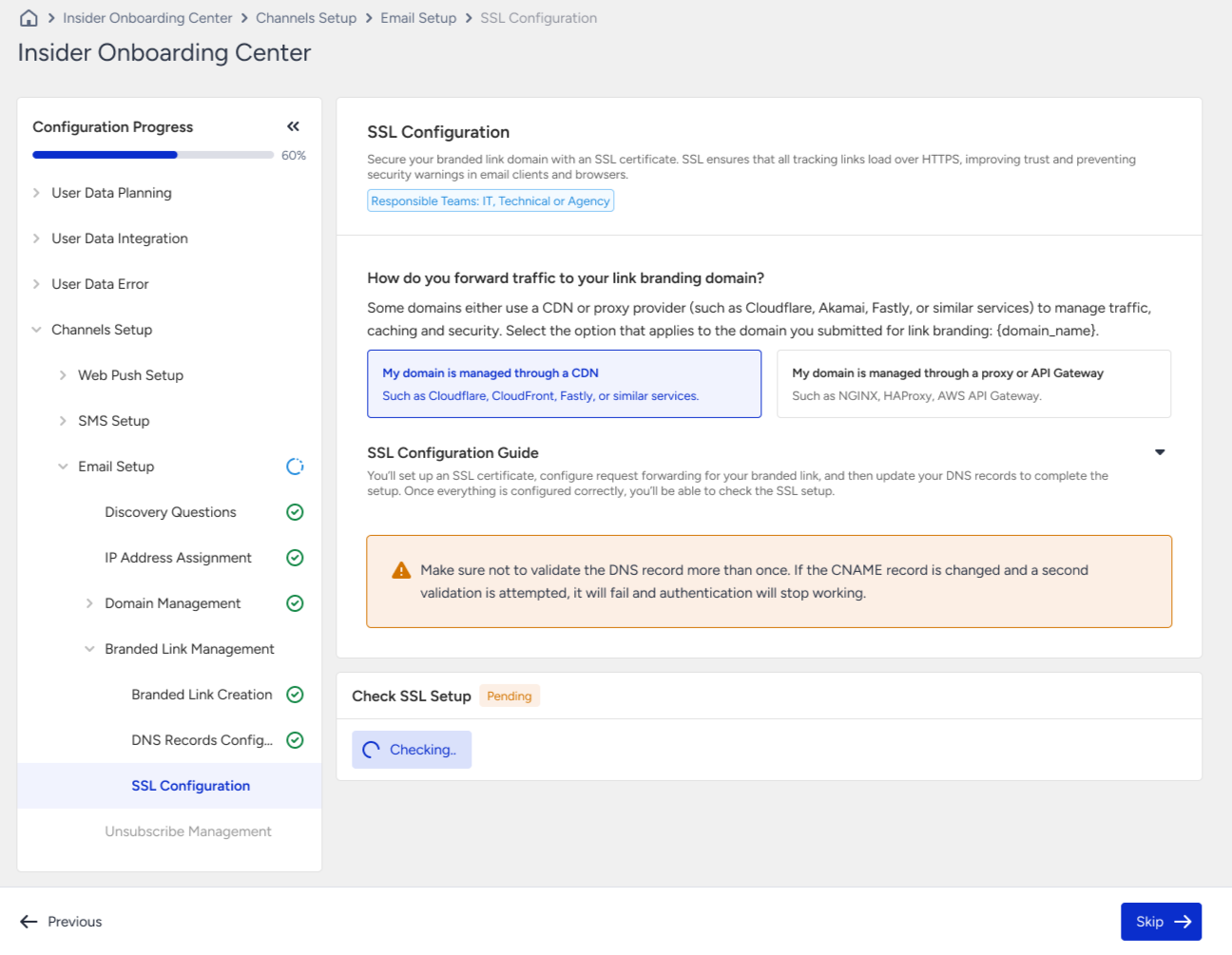
If verified, your link branding setup is complete. If the verification fails, you can contact the Insider One team for support.
If you want to manually test your SSL setup, you can run the following command:
openssl s_client -showcerts -connect url{rand-id}.{yourdomain}.com:443
// or
openssl s_client -showcerts -connect {subdomain}.{yourdomain}.com:443
You will receive a public certificate as a response with the following:
(1)(1).png)
Once you verify everything on your end, you can contact the Insider One team for verification. Once Insider One verifies the setup, your next email will include your custom domain in the links instead of sendgrid.net.