You cannot make any changes to External Platform Integrations without having either an Administrator or an Editor with PII access in InOne. Refer to User Roles for further information.
The FTP/SFTP integration allows InOne to automatically pull CSV or TSV files from your file server and sync the data into user profiles and behavioral events via FTP or SFTP. Once configured, the integration runs on a cron schedule, so you don't need manual uploads or API integration.
Data flows in one direction, from your FTP server to InOne. InOne does not write back to your server unless you enable Move After Processing to archive processed files.
Capabilities
The system supports the following capabilities:
Protocols: FTP (plain text), FTPS (TLS-encrypted), SFTP (SSH)
File formats: CSV and TSV, configurable delimiter
File sources: Single file path or entire directory
Data points: User identifiers, profile attributes, events, and parameters
Scheduling: Configurable from InOne
Requirements
Before opening the setup wizard in InOne, gather the following information from your infrastructure or IT team.
Field | Description / Example |
|---|---|
Server hostname or IP | ftp.acme.com or 192.168.1.10 |
Protocol | FTP, FTPS, or SFTP |
Port | 21 for FTP/FTPS · 22 for SFTP (leave blank for defaults) |
Username | Your FTP login username |
Password | Your FTP login password |
SSH Private Key (SFTP only) | PEM-encoded private key, optional alternative to password |
SSH Passphrase (SFTP only) | Only required if the SSH key itself is passphrase-protected |
File path | /exports/users.csv or /exports/ for a directory |
FTPS self-signed certificates: If your FTPS server uses a self-signed TLS certificate, disable certificate verification during setup. Confirm this requirement with your IT team Requirements.
Protocol Reference
The integration supports three protocols. Choose the one that matches your server configuration.
Protocol | Transport | Default Port | When to use |
|---|---|---|---|
FTP | Plain TCP, no encryption | 21 | Use only within internal networks. Do not use FTP over the public internet, as credentials and data are transmitted in plain text. |
FTPS | FTP + TLS encryption | 21 | Use as a secure alternative to FTP. Uses the same port and command set. Requires a valid TLS certificate (or disable verification for self-signed certificates). |
SFTP | SSH, separate from FTP/FTPS | 22 | The most secure option. Supports password or SSH key authentication. Recommended for file transfers over the public internet. |
SFTP ≠ FTPS: Despite similar names, these are entirely different protocols. SFTP runs over SSH (port 22). FTPS runs over TLS on top of FTP (port 21). Make sure you select the one your server actually supports.
Set up FTP/SFTP integration in InOne
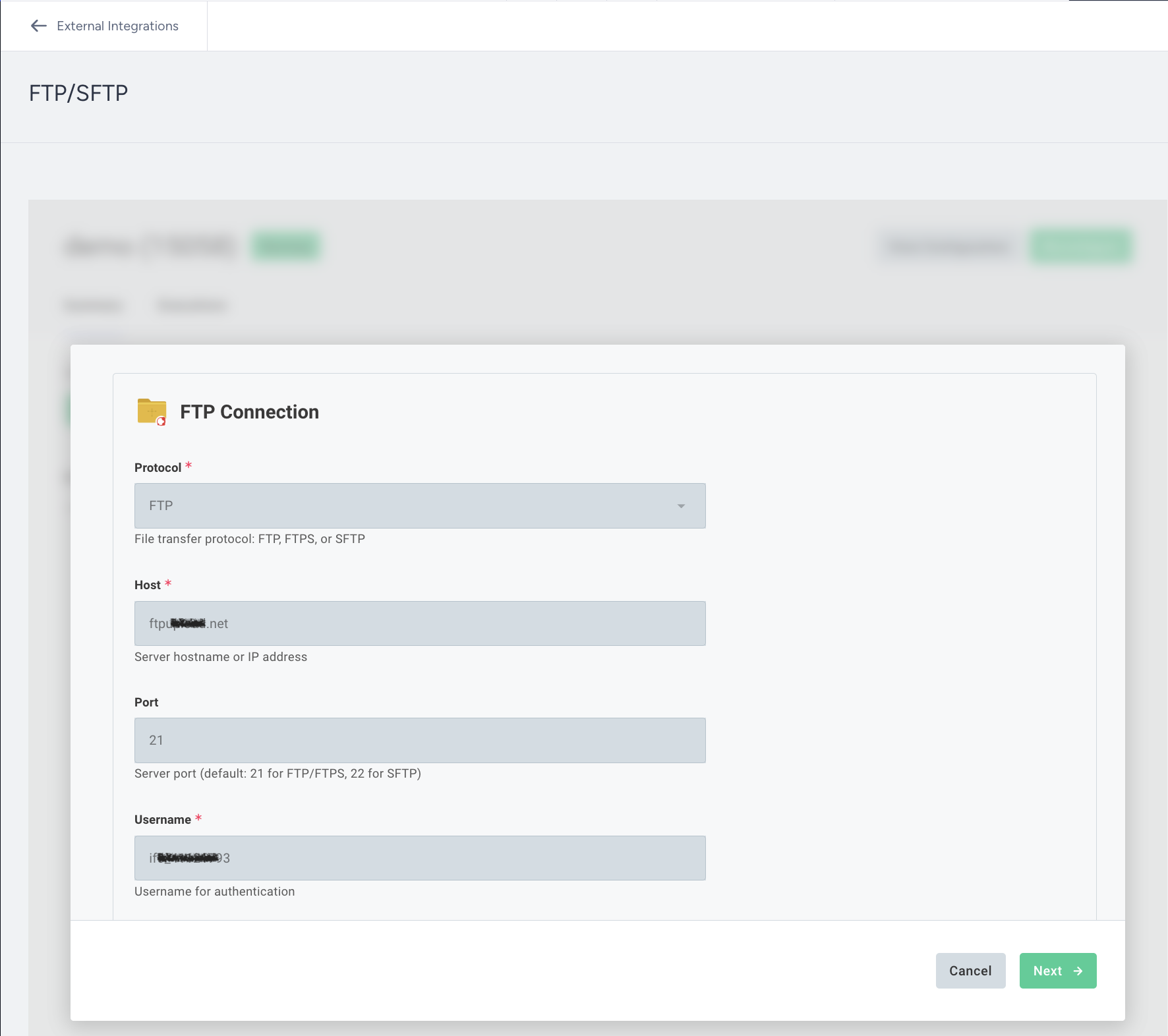
Use the steps below to configure your FTP/SFTP connection and start importing data into InOne.
Step 1: Create a new external integration
Navigate to InOne > Components > Integrations > External Integrations.
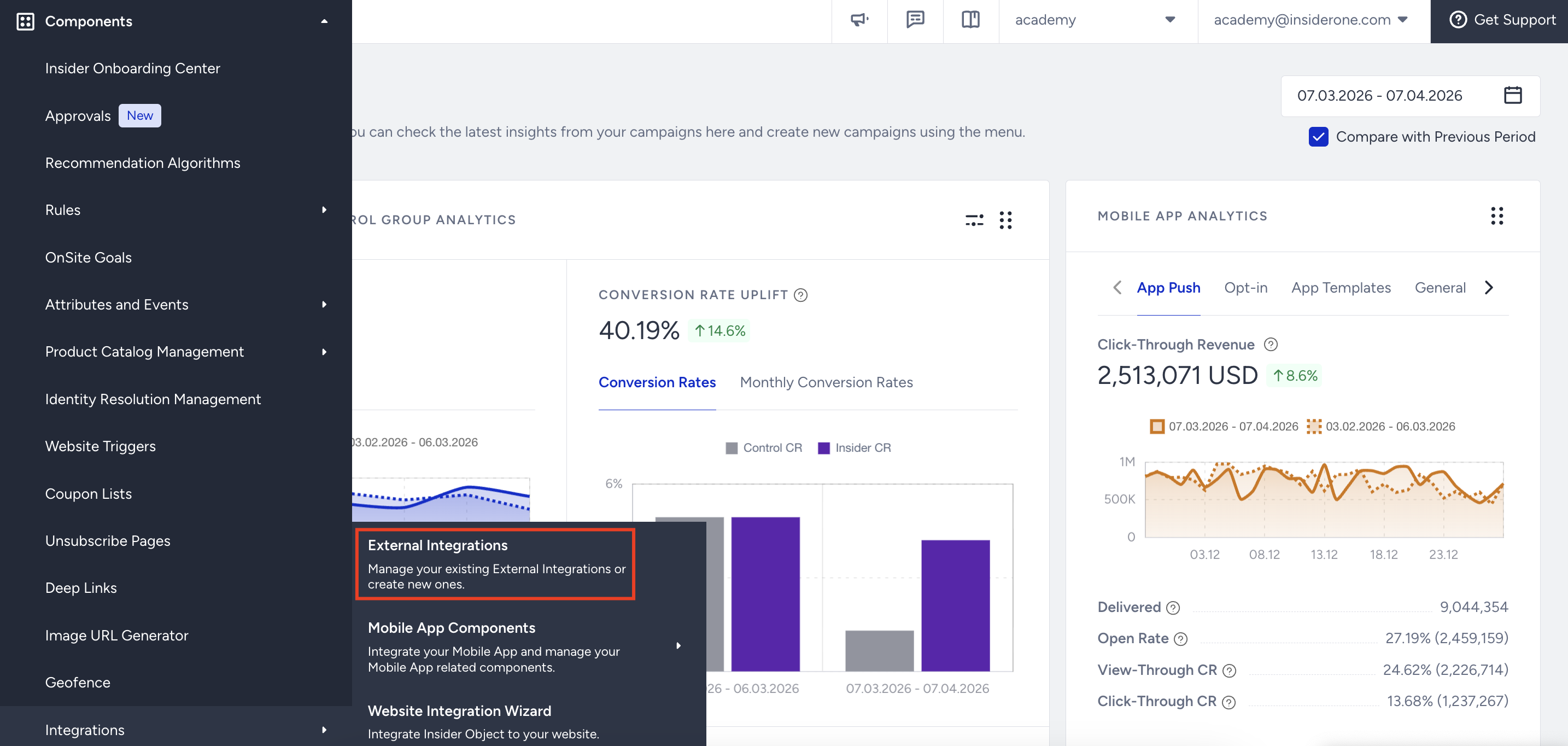
Select FTP/SFTP to open the setup wizard.
Enter a unique name for your integration, select Source as your integration type, and click Save.
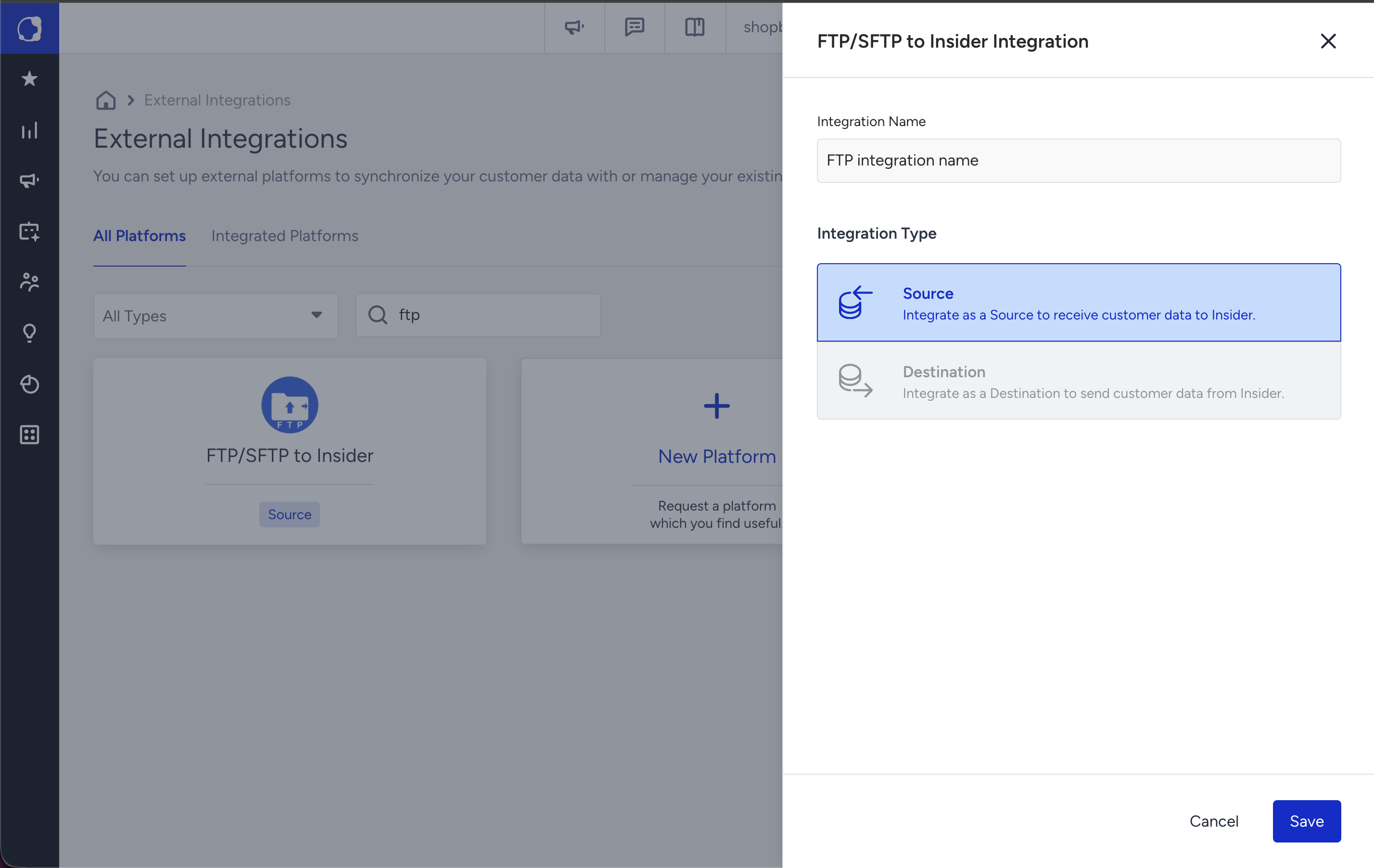
Source type means that the integration is one-direction and will only send data to Insider, not send and receive.
Step 2: FTP connection and credentials
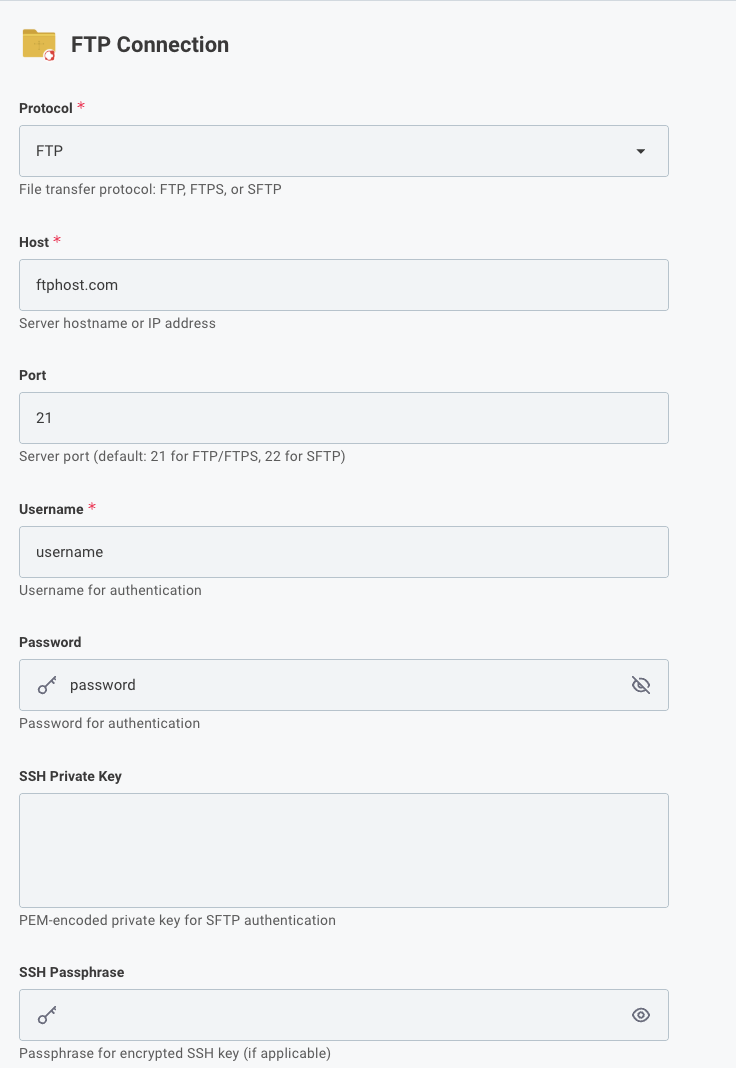
The first page of the wizard establishes the connection to your server. All credentials are encrypted at rest and in transit.
Field | Description |
|---|---|
Protocol (required) | Select FTP, FTPS, or SFTP. Your selection determines which fields are displayed. SSH fields apply only to SFTP. |
Host (required) | Enter the hostname or IP address of your FTP server. Do not include a protocol prefix. Example: ftp.company.com (not ftp://ftp.company.com). |
Port | Leave blank to use the default port for the selected protocol (21 for FTP/FTPS, 22 for SFTP). Enter a value only if your server uses a non-standard port. |
Username (required) | Enter the username used to authenticate with the FTP server, provided by your server administrator. |
Password | Enter the password for FTP, FTPS, or password-based SFTP. Not required when using an SSH private key. Stored in encrypted form. |
SSH Private Key (SFTP only) | Paste the full PEM-encoded private key, including the -----BEGIN and -----END header lines. This field is available only when Protocol is set to SFTP. |
SSH Passphrase (SFTP only) | Enter the passphrase if your SSH private key is protected. Leave blank if the key does not have a passphrase. |
Verify TLS Certificate | Controls whether the client validates the server’s SSL/TLS certificate during the secure connection handshake. When enabled (recommended), the certificate must be valid, trusted, and not expired. When disabled, the connection proceeds even if the certificate is self-signed, expired, or untrusted. Use only for internal or staging environments. |
Click Next to proceed. InOne will attempt to connect to the server. If the connection fails, an error banner appears; verify the hostname, port, and credentials before retrying.
Never share FTP credentials in plain text (e.g. email or Slack). Always enter them directly into the InOne wizard — they are encrypted before being stored.
Step 3: File settings
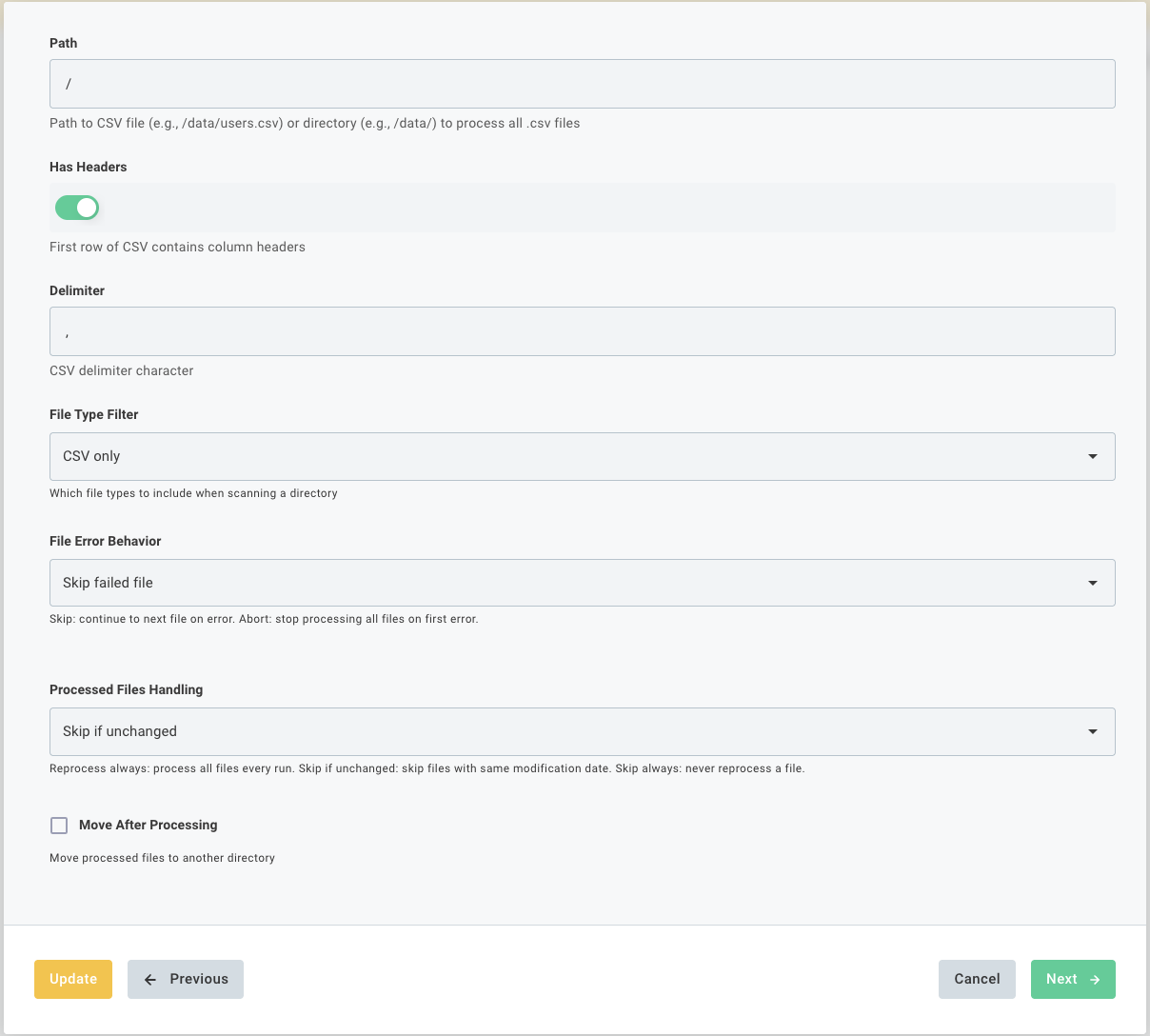
Configure which files to read, how to parse them, and how to handle them after processing.
Path
Enter the path to a single file or a directory on the server.
Path format | What happens |
|---|---|
/data/users.csv | Reads and processes only that specific file. |
/exports/ | Scans the directory and processes all files matching the file type filter. Directory scanning is not recursive, so subdirectories are ignored. |
File Parsing Options
Configure how your files are interpreted during processing.
Option | Description |
|---|---|
Has Headers | Enabled by default. Keep this enabled if the first row of your CSV contains column names (for example, email or first_name). These names are used in the next step for field mapping. Disable this option only if your file does not include a header row. In that case, you will define column names manually in Step 3. |
Delimiter | Comma (,) is selected by default. This defines the character used to separate values in each row. Common options include comma (,) for CSV, tab for TSV, semicolon (;) for some regional CSV formats, and pipe (|) for pipe-separated files. |
Important: Ensure that all files in the selected directory use the same format (CSV or TSV), delimiter, and column structure. The integration reads the first file and expects all subsequent files to follow the same structure. Differences in format or separators may cause processing errors or incomplete data mapping.
File Handling Settings
Configure how files are selected and how errors are handled during processing.
Setting | Description |
|---|---|
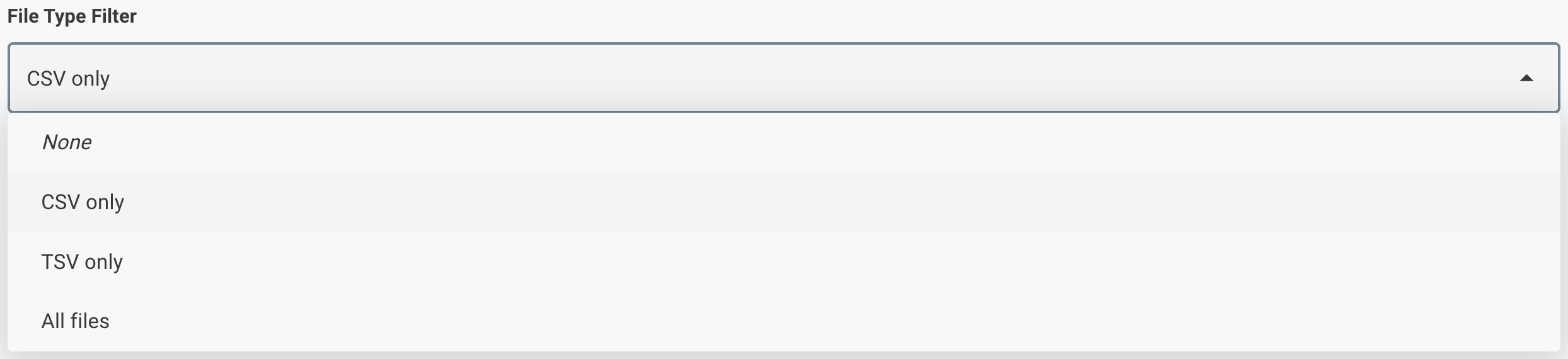
File Type Filter | Default: CSV only is selected by default. Controls which file types are included when scanning a directory. Options include CSV only, TSV only, or All files. Select the All files option only if you intentionally store multiple file formats in the same directory. |
File Error Behavior | Default: Skip failed file is selected by default. When set to Skip, the integration logs the error and continues with the next file. This is recommended for most production scenarios. Abort: Processing stops immediately, and the run is marked as failed. Use this option when all files must be processed successfully. |

Post-Processing Settings
Configure how processed files are handled after each run.
Setting | Description |
|---|---|
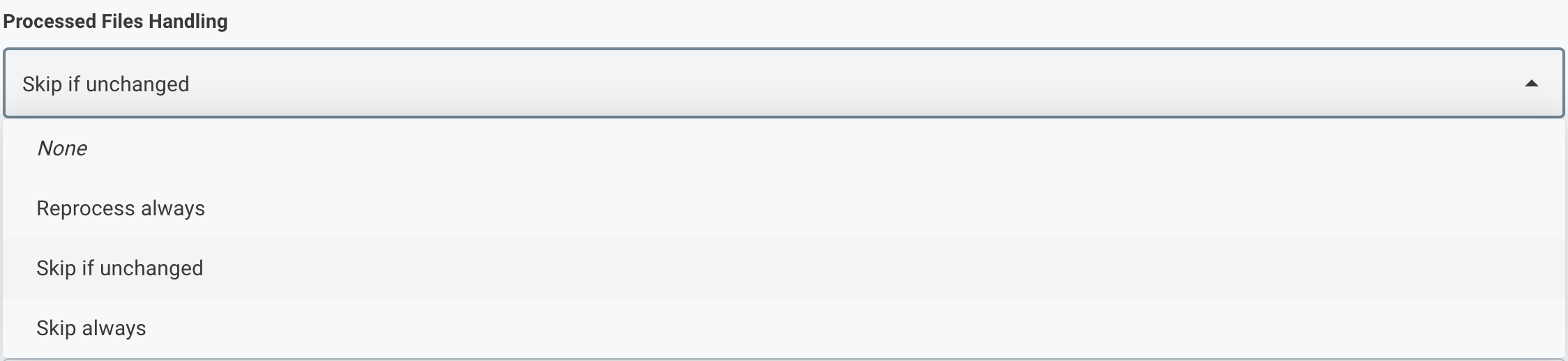
Processed Files Handling | Skip if unchanged (default): Compares the file’s last modified timestamp and skips the file if it has not changed since the last run. Reprocess always: Imports the file on every run. Skip always: Once a file is processed, it is not processed again. |
Move After Processing | Disabled by default. When enabled, successfully processed files are moved to another directory on your server. This is useful for archiving or signaling that a file has been processed. When enabled, a Move To Path field appears. Enter the destination directory (for example, /htdocs/processed). The directory is created automatically if it does not exist. The FTP user must have write and rename permissions on both directories. |

File tracking state (which files have been processed and when) is stored per integration instance. If you delete and recreate the integration, all files will be treated as new on the first run.
Step 4: Column Names
InOne connects to your server and reads the first few rows of the file to detect its structure. This step shows you the columns it found and lets you review or rename them.
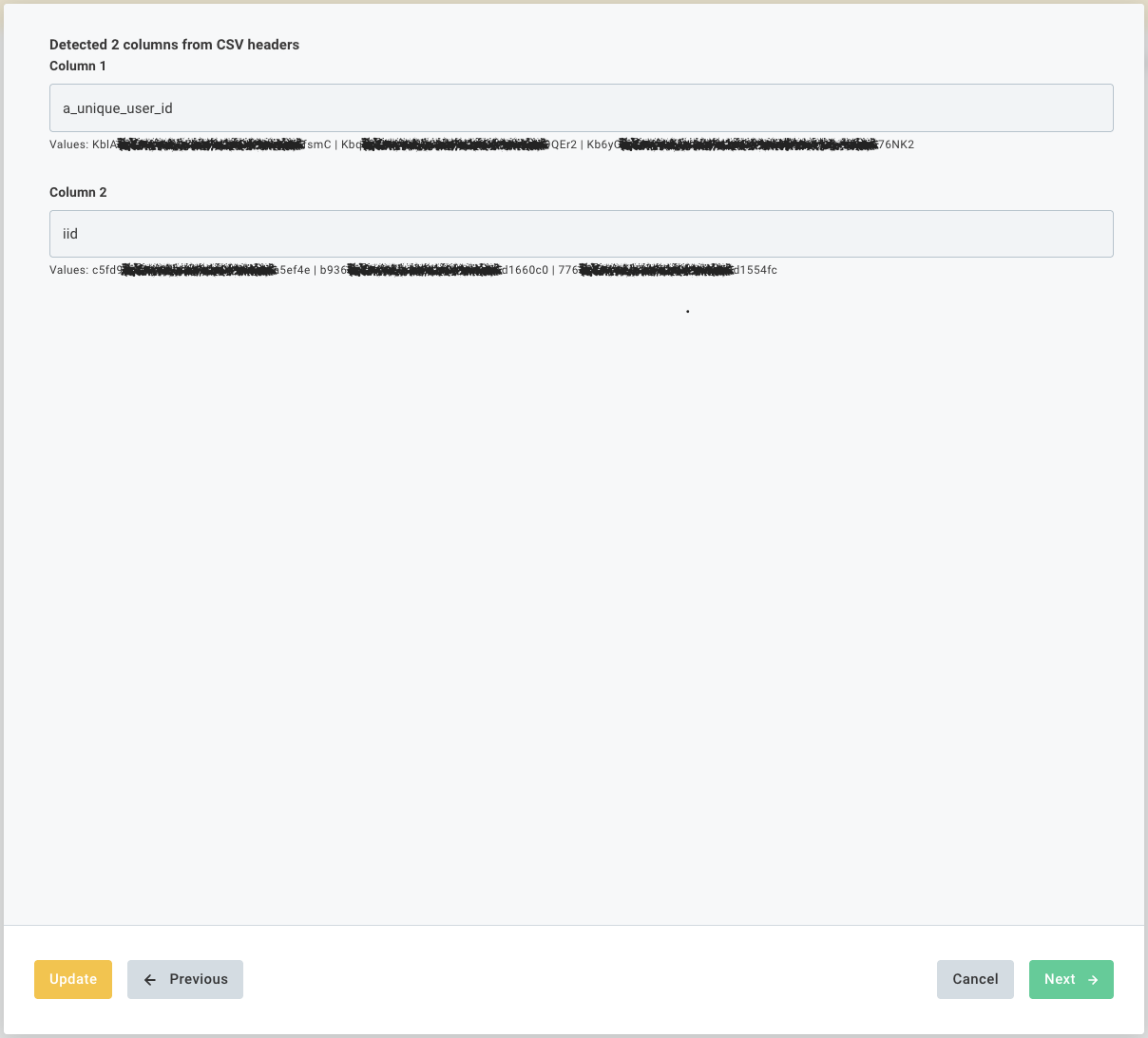
If “Has Headers” was enabled in Step 3, the column names from your header row are pre-filled. If not, columns appear as Column 1, Column 2, and so on. You must enter meaningful names before continuing. These names are used in all mapping steps.
Sample values from your file are displayed under each field so you can verify the correct column.
This step establishes a live connection to your FTP server. If the connection fails, click Previous and check your connection settings and file path.
If you previously configured this integration and the file format has changed, a Reset banner appears at the top of the page. Use it to clear existing mappings and start again.
Step 5: Identifier Mapping
Identifiers determine which user each CSV row belongs to. You must configure at least one identifier mapping. InOne matches the value in the selected column with its user database using the chosen identifier type.
For example (as shown in the image below):
UUID→a_unique_user_idShopify ID→id
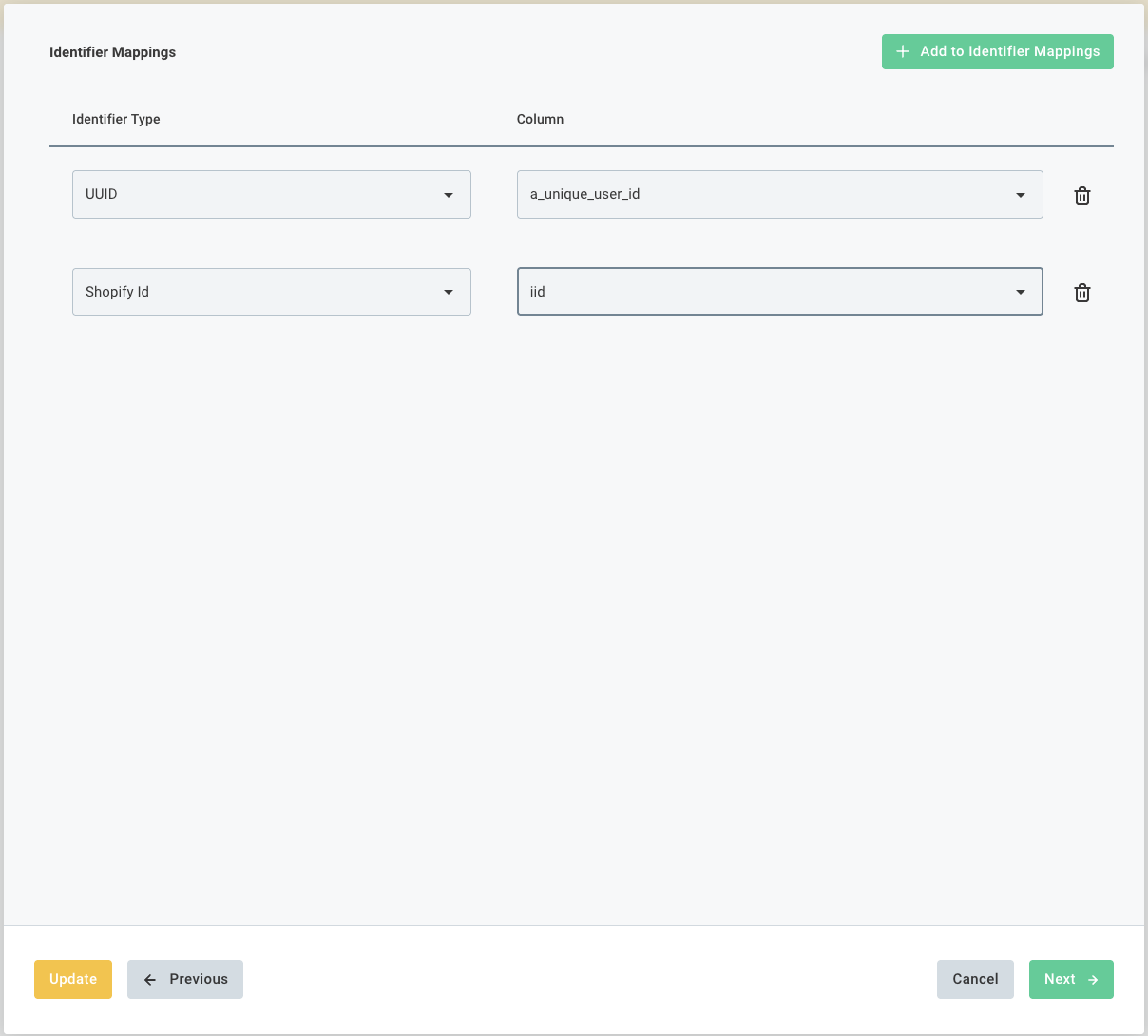
For each mapping, select an Identifier Type (InOne field) and the corresponding column from your CSV. Click +Add to Identifier Mappings to add more rows.
At least one identifier is required. Records that do not contain a value in any mapped identifier column are skipped and will not appear in InOne.
Step 6: Attribute Mapping
Attributes are profile properties stored on a user record in InOne (e.g., first name, city, loyalty tier, opt-in status). This step has two sections:
Column Mappings
Maps a CSV column to an InOne user attribute. The value read from the file for each row is applied to the matched user profile. Click +Add to Column Mappings, then select the Attribute (InOne side) and the Column (CSV side).
Fixed Value Mappings
Sets an InOne attribute to the same static value for every record in the file, regardless of what the file contains. Click +Add to Fixed Value Mappings, select the attribute, and type the static value.
Common use case: Set a data_source attribute to "FTP Upload" on every imported user, making it easy to filter or segment by data origin later.
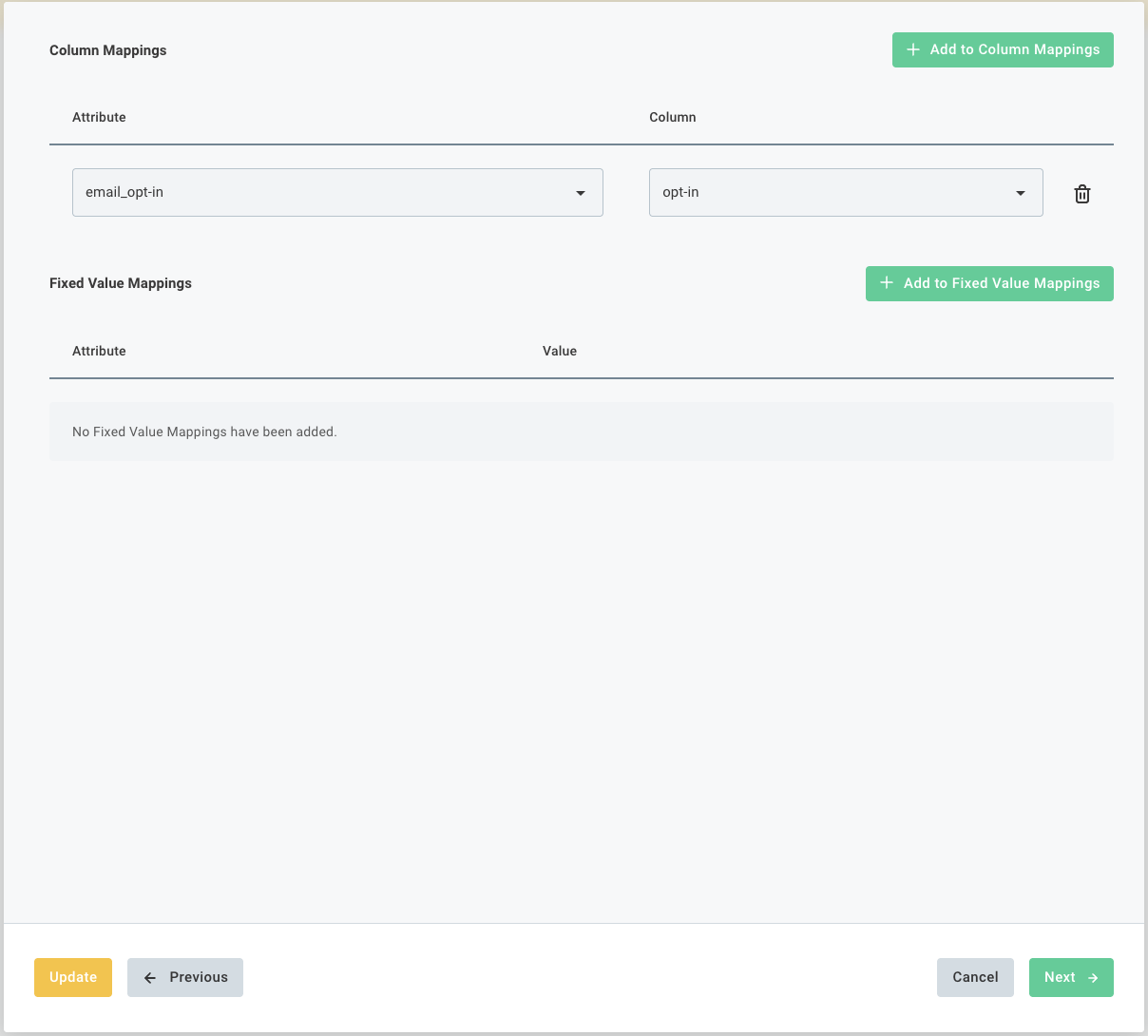
If the required attribute does not exist in InOne, navigate to Components > Attributes and Events to create it. Then, return to your integration and select the new attribute in the mapping table.
Important: Ensure that all files in the selected directory use the same format (CSV or TSV), delimiter, and column structure. The integration reads the first file and expects all subsequent files to follow the same structure. Differences in format or separators may cause processing errors or incomplete field mapping.
Step 7: Event Mapping (Optional)
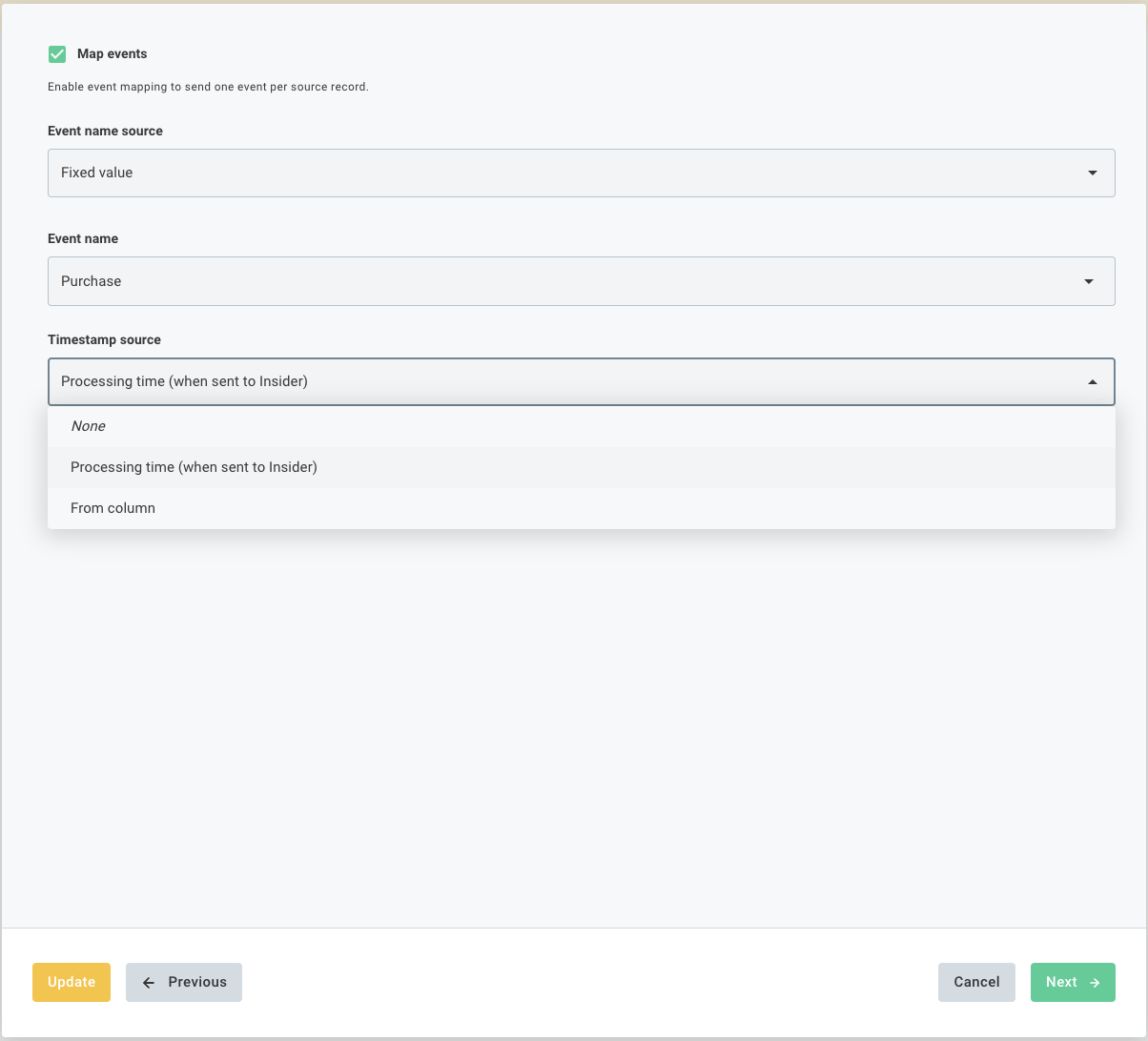
Events represent user actions or interactions (for example, purchase, page_view, subscription). This step is optional. Enable it only if your CSV file contains event data. One event is sent per source record.
Field | Description |
|---|---|
Map events | Enables event sending. When disabled, all other fields on this page are hidden, and no events are sent. Only user profile data is upserted. |
Event name source | Fixed value: Each row triggers the same event type. From column: The event name is read from a CSV column. Use this option when the file contains multiple event types in the same column (for example, purchase, refund, wishlist_add). |
Event name | Available when the “Fixed value” is selected. Select an existing InOne event or enter a custom event name. |
Timestamp source | Processing time: Uses the time when the integration runs. Use this if the file does not include a timestamp column. From column: Reads the timestamp from a column in the file. Use this for historical imports where the event time is already available. |
Step 8: Event Parameters (Optional)
Event parameters add structured metadata to each event, such as product_id, order_value, or currency for a purchase event. This step is available only when event mapping is enabled in Step 7.
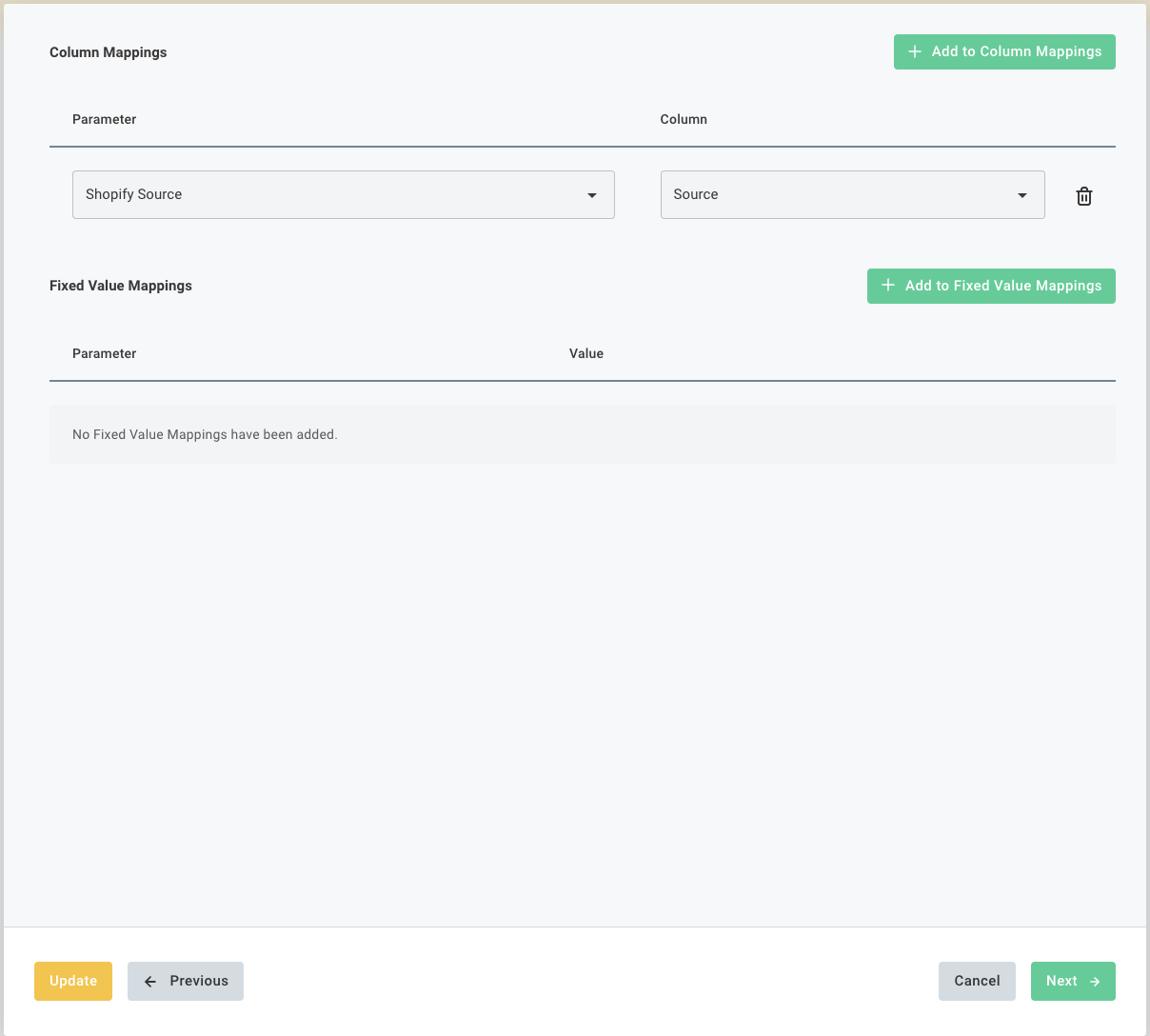
This step includes two sub-sections, similar to attribute mapping:
Column Mappings: Reads the parameter value from a CSV column for each row. In the example above, the Shopify Source event parameter is populated from the Source column.
Fixed Value Mappings: Applies the same parameter value to every event. For example, set the currency to USD for all purchase events in the file.
Step 9: Additional Settings & Schedule
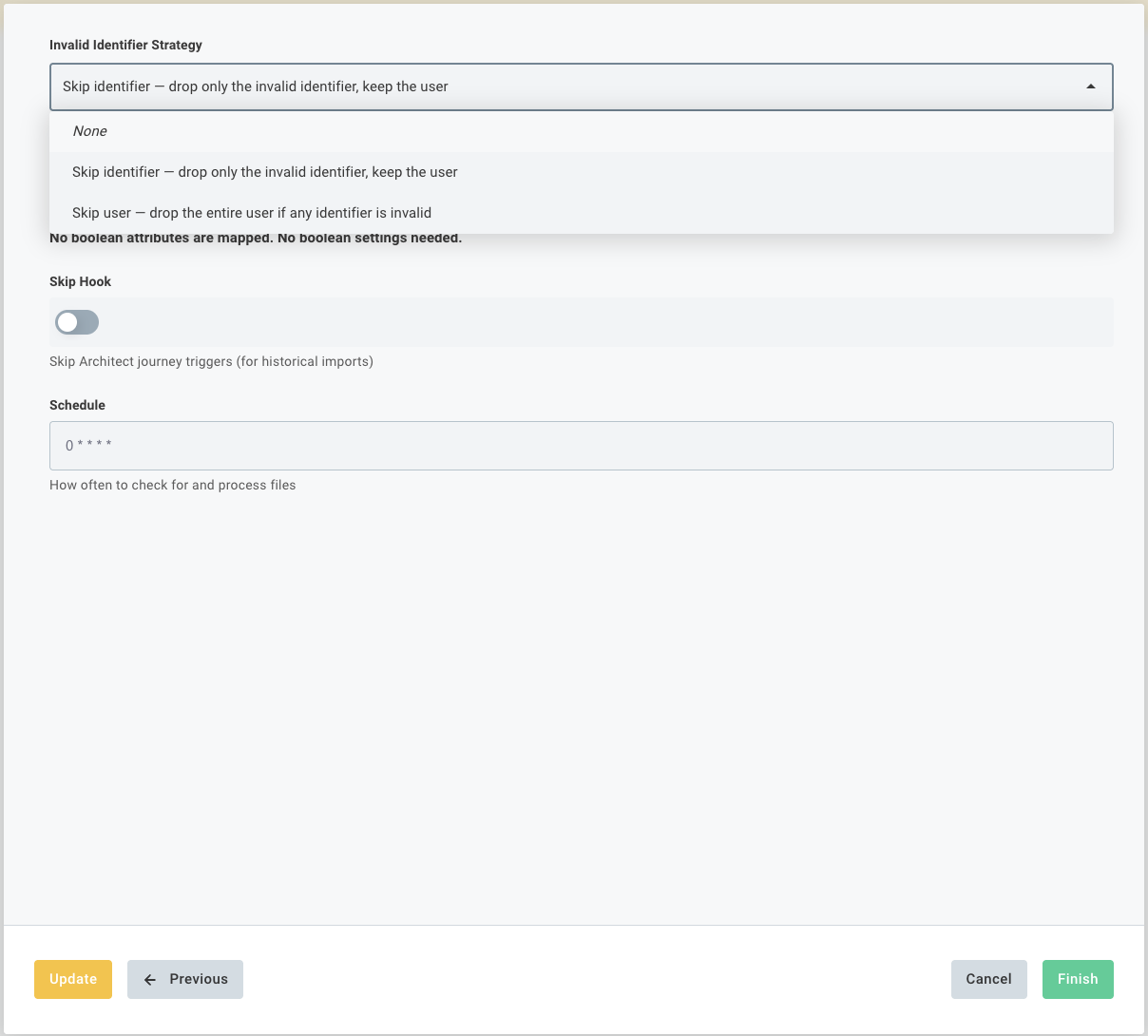
The final configuration page controls data validation rules, journey trigger behavior, and the polling schedule.
Setting | Description |
|---|---|
Invalid Identifier Strategy | Controls how records with invalid identifiers are handled (for example, a malformed email or a phone number without a country code). Skip identifier (default): The invalid identifier is ignored, and the record is upserted using any other valid identifiers. Skip user: If any identifier is invalid, the entire record is dropped. None: No validation is performed. |
Skip Hook | Disabled by default. When enabled, the integration does not trigger Architect journey automations for users upserted during this run. Enable this for historical data imports where you do not want users to receive onboarding or trigger-based messages. |
Schedule
Controls how often InOne polls your FTP server for new or changed files. Click the Schedule to open the schedule picker.
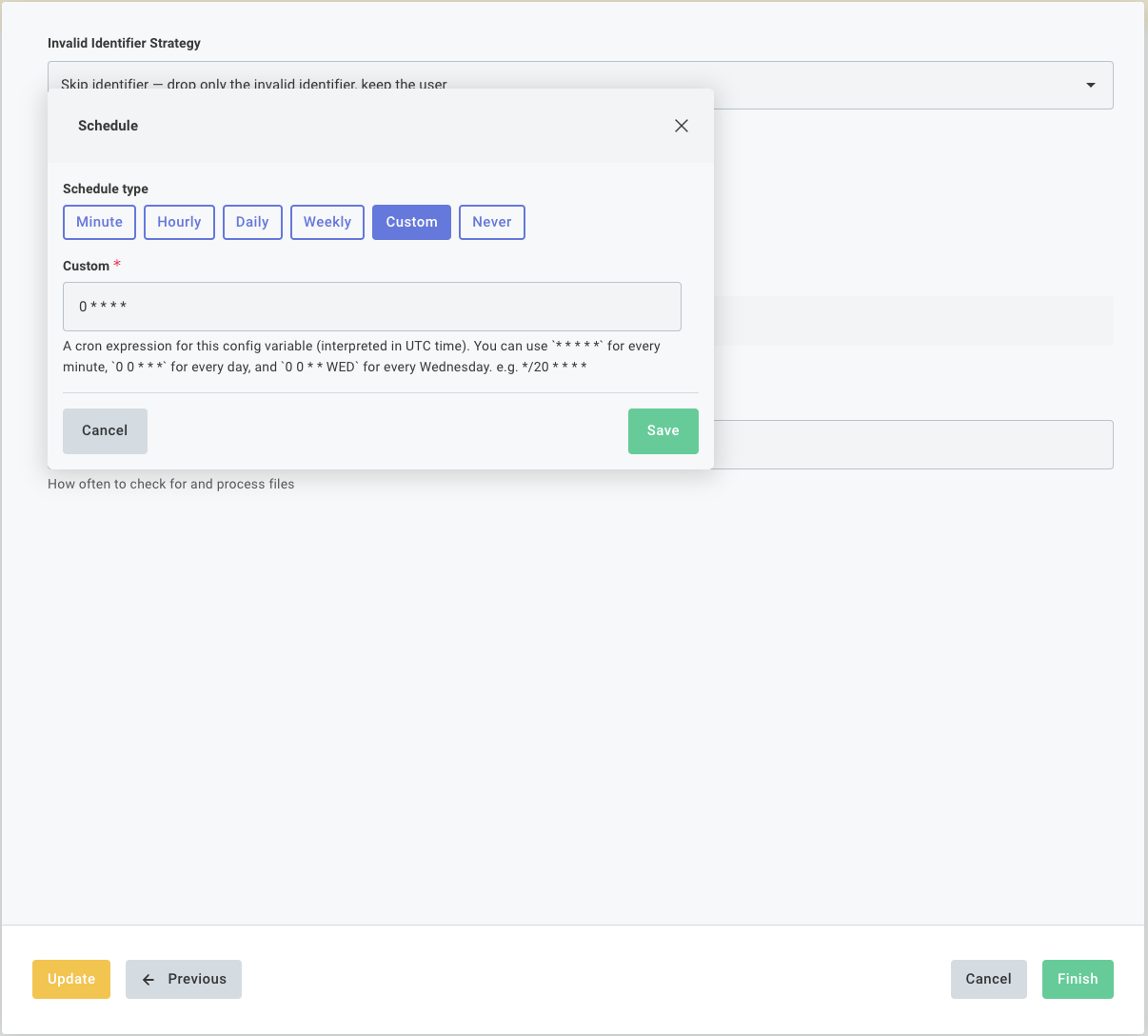
The schedule uses standard cron syntax and is interpreted in UTC.
Expression | Meaning |
|---|---|
0 * * * * | Every hour (default) |
0 6 * * * | Once a day at 06:00 UTC |
0 */4 * * * | Every 4 hours |
30 9 * * 1-5 | Weekdays at 09:30 UTC |
*/20 * * * * | Every 20 minutes |
All schedule times are in UTC. For example, to run at 09:00 Turkey time (UTC+3), use the cron expression 0 6 * * *.
Click Finish to save and activate the integration.
Integration Status & Reconfiguring
After completing the wizard, the integration detail page shows its current status and version.
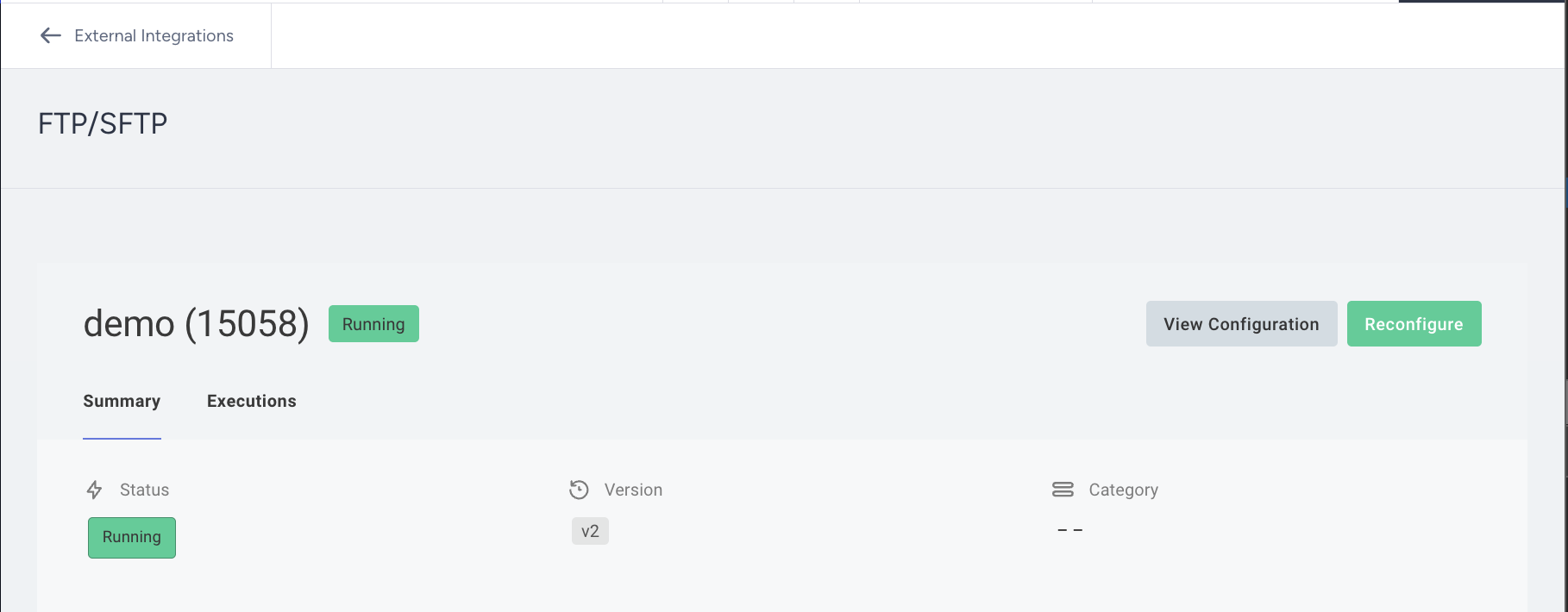
The Summary tab shows status, version, and category.
The Executions tab lists every past run with file counts, row counts, and error details.
To update settings, click Reconfigure. This reopens the wizard with all existing values pre-filled.
Click View Configuration to review the setup in read-only mode.
CSV File Requirements and Limits
Required
Files must be UTF-8 encoded. BOM (byte order mark) is supported.
Each row must contain the same number of columns.
If Has Headers is enabled, the header row must be the first row of the file.
Map at least one column as a user identifier with a non-empty value in each row.
Values must be separated by a consistent delimiter that matches the one configured in Step 2.
Important: Prepare phone numbers before import
Format phone numbers in your source CSV file according to E.164 before importing them. Include the plus sign (+) and the correct country code, and check the entire phone number column for missing or incorrectly formatted values.
Do not assume that the import process will add missing country codes or correct incorrectly formatted phone numbers. Validate and correct these values in your source system before placing the file on the FTP/SFTP server.
Recommended
Wrap text values that contain the delimiter in double quotes, for example, "Smith, John".
Use ISO 8601 format for dates and timestamps, for example, 2024-06-15 or 2024-06-15T14:30:00Z.
Avoid special characters in column header names. Use letters, numbers, and underscores only.
Keep files under 500 MB for best performance. Larger files are supported up to 2 GB.
Sample file:
Use Cases
The FTP/SFTP integration is typically used for two broad scenarios.
User Profile Sync
A weekly or daily export of your user database (CRM, ERP, subscriber list) is dropped on the FTP server. The integration picks it up, matches users by email or phone, and updates attributes like loyalty tier, city, opt-in status, and subscription plan in InOne, without any API work.
Example: your database team writes a nightly file to /exports/users.csv. InOne reads it every morning at 06:00 UTC and keeps all user profiles in sync automatically.
Behavioral Event Import
An offline or batch transaction file (e.g., a CSV of purchases, refunds, or app events from a data warehouse) is placed on the FTP server. The integration reads each row and fires the corresponding event in InOne, enabling segmentation and journey triggers based on historical or near-real-time behavior.
For example, A CSV of last month's purchases is placed on the server. Each row sends a purchase event to InOne with the order value, product ID, and currency as event parameters.
Both use cases can be combined in a single integration instance; attributes and events are mapped in separate steps of the same wizard. Multiple directories require separate integration instances; directory scanning is not recursive.
Troubleshooting
Symptom | What to check |
|---|---|
Connection step fails | Verify hostname, port, username, and password. For SFTP, confirm the key or password is correct, and the server allows connections from InOne's IP range. For FTPS, try disabling Verify TLS Certificate if using a self-signed certificate. |
The Column Names page shows no columns | Check that the path is correct and that the file exists on the server. Ensure the file is a valid CSV or TSV and not empty. Verify the configured delimiter matches the file's actual delimiter. |
Files are not being picked up on schedule | Check the Processed Files Handling setting. If set to Skip if unchanged, files with no modification changes are skipped. Update the file or switch to Reprocess always. |
High number of failed records | Review the identifier mapping and check the source file for missing or incorrectly formatted identifiers, such as malformed email addresses or phone numbers without country codes. Ensure phone numbers follow E.164 format, including the leading plus sign (+) and the correct country code. Correct invalid values in the source file before importing it again. |
Boolean values are not being parsed | Navigate to Additional Settings and verify the Boolean format matches your file. If your file uses values such as Y/N or active/inactive, select Custom and define the exact true and false values. |
Move After Processing fails | The FTP user must have write and rename permissions on both the source and destination directories. Verify permissions with your IT team. |
Architect journeys triggered on historical import | Enable the Skip Hook setting in Additional Settings. This prevents Architect journey triggers for users upserted during the run. |
Frequently Asked Questions
Can I process multiple files in one run?
Yes. Set the path to a directory (e.g.,/exports/) and the integration will process all files in that directory matching the configured File Type Filter. Directory scanning is not recursive. Only files directly inside the configured path are included.
Will re-uploading the same file create duplicate data in InOne?
For user profile data, no. The InOne Upsert API is idempotent. Resending the same user record updates the profile rather than creating a duplicate.
For events, yes. Events are not deduplicated by default. Avoid resending the same event file unless you intend to record those events again.
My file has no header row. Is that supported?
Yes. Disable Has Headers in Step 3, then assign names to each column on the Column Names page (Step 4). These names are used for all mapping steps that follow.
Can I use an SSH key instead of a password for SFTP?
Yes. In Step 2, leave the Password field blank and paste the full contents of your PEM-encoded private key into the SSH Private Key field. If the key is passphrase-protected, also enter the SSH Passphrase.
What happens if a file is partially processed and the execution times out?
The integration automatically resumes from where it left off in the next execution. Progress is saved after each batch of 1,000 rows, so no data is duplicated or lost.
Does the FTP/SFTP integration create First-Party Segments?
No. The FTP/SFTP integration imports user attributes and events but does not automatically create First-Party Segments.
To segment imported users, first create a custom attribute under InOne > Components > Attributes and Events. The custom attribute must exist before you configure the FTP/SFTP import so that you can select it during attribute mapping.
For example, to group imported users by membership tier:
Create a string custom attribute named
membership_tierunder InOne > Components > Attributes and Events.Add a
membership_tiercolumn to your CSV or TSV file.email,membership_tier user1@example.com,gold user2@example.com,silverIn the FTP/SFTP integration wizard, map
emailas the user identifier.In Step 6: Attribute Mapping, map the
membership_tierfile column to themembership_tiercustom attribute.Complete the setup and import the file.
Create a Dynamic Segment with a rule such as membership_tier equals gold.
This creates a Dynamic Segment based on the imported attribute; it does not create a First-Party Segment. To create a First-Party Segment directly, use the First-Party Segments API.
Does the integration support subdirectories?
No. Directory scanning is not recursive. To handle files in multiple directories, create a separate integration instance for each path.
How do I know how many records were successfully sent?
Each execution produces a summary log accessible on the Executions tab of the integration detail page. It shows the number of files found, files processed, total rows, successful upserts, and failed upserts.
What is the difference between FTPS and SFTP?
FTPS is FTP with TLS encryption added on top. It still uses port 21 and the same command set as FTP. SFTP is an entirely different protocol built on SSH. It runs on port 22 and supports both password and public-key authentication. Despite the similar names, they are not compatible with each other.