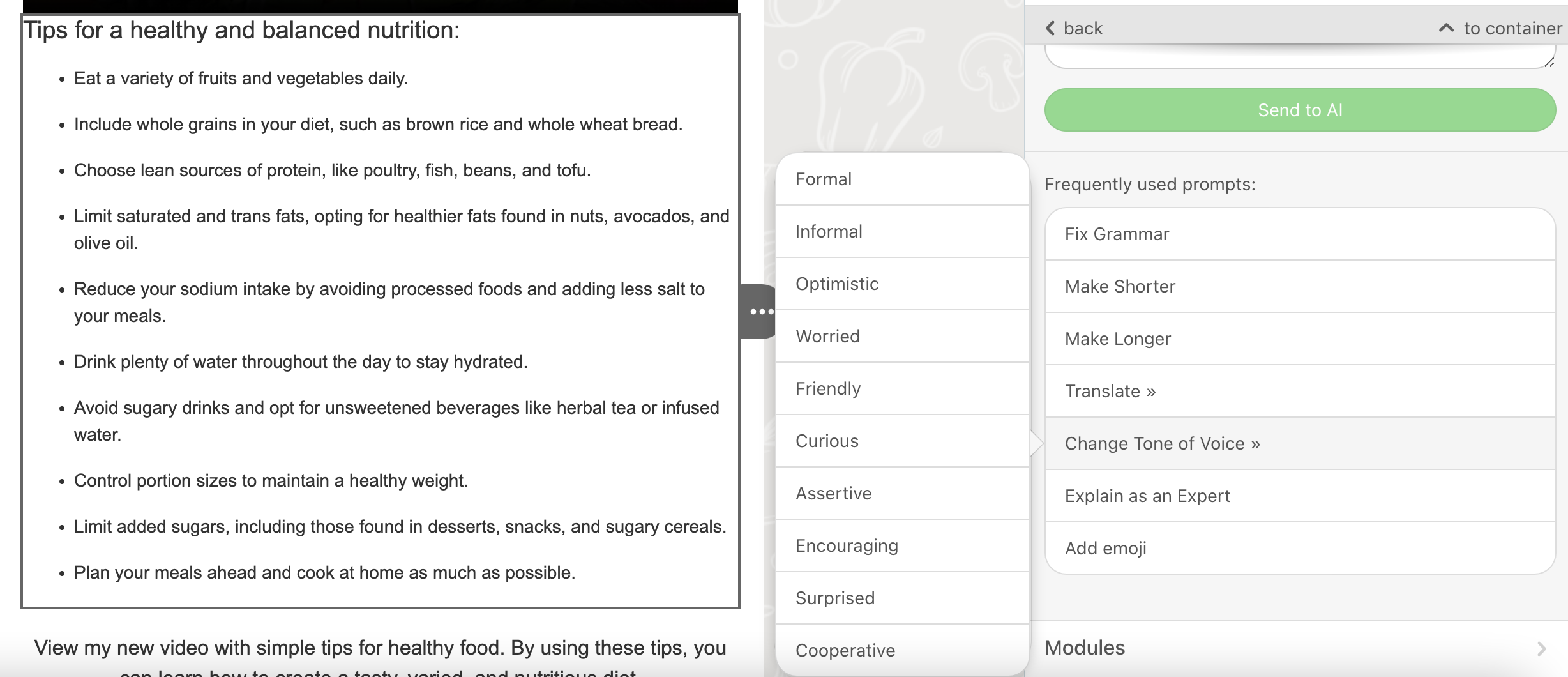
Once you add a text block to your email design, you can:
Add copy to your emails with Drag & Drop Editor
1. Drop the 1-column structure into your HTML email template.
2. Pull a Text block into it or click the text button in this structure.
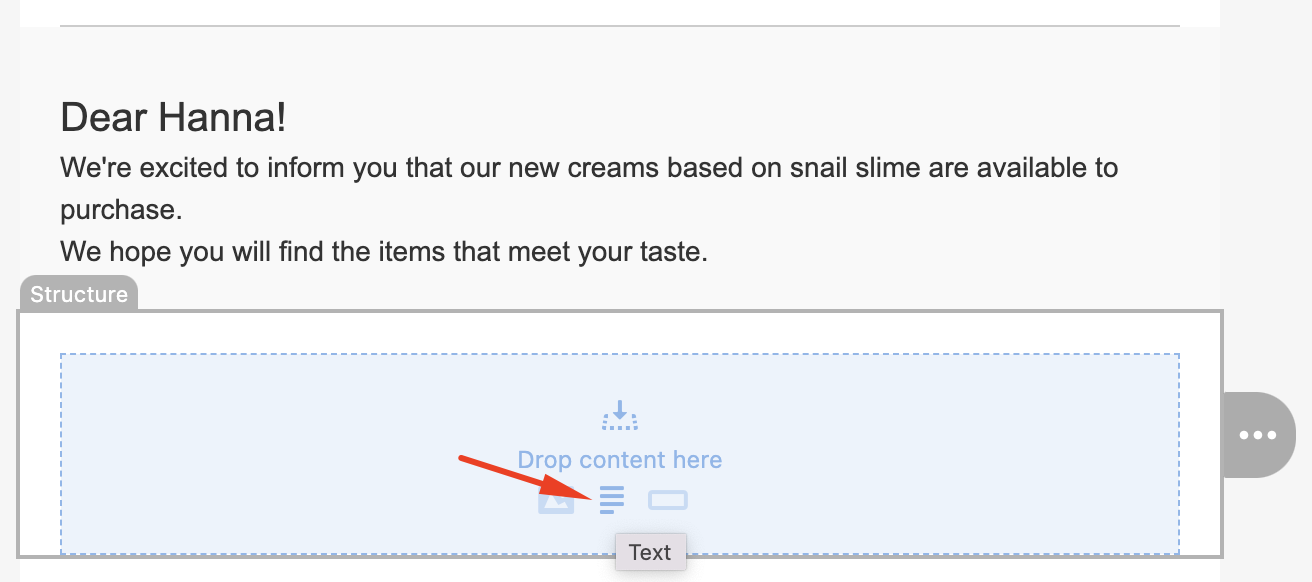
3. Enter your greetings.
4. Double-click the text.
5. Set headings where necessary.
6. Enter your text in the next line.
7. Highlight it.
8. Set alignments.
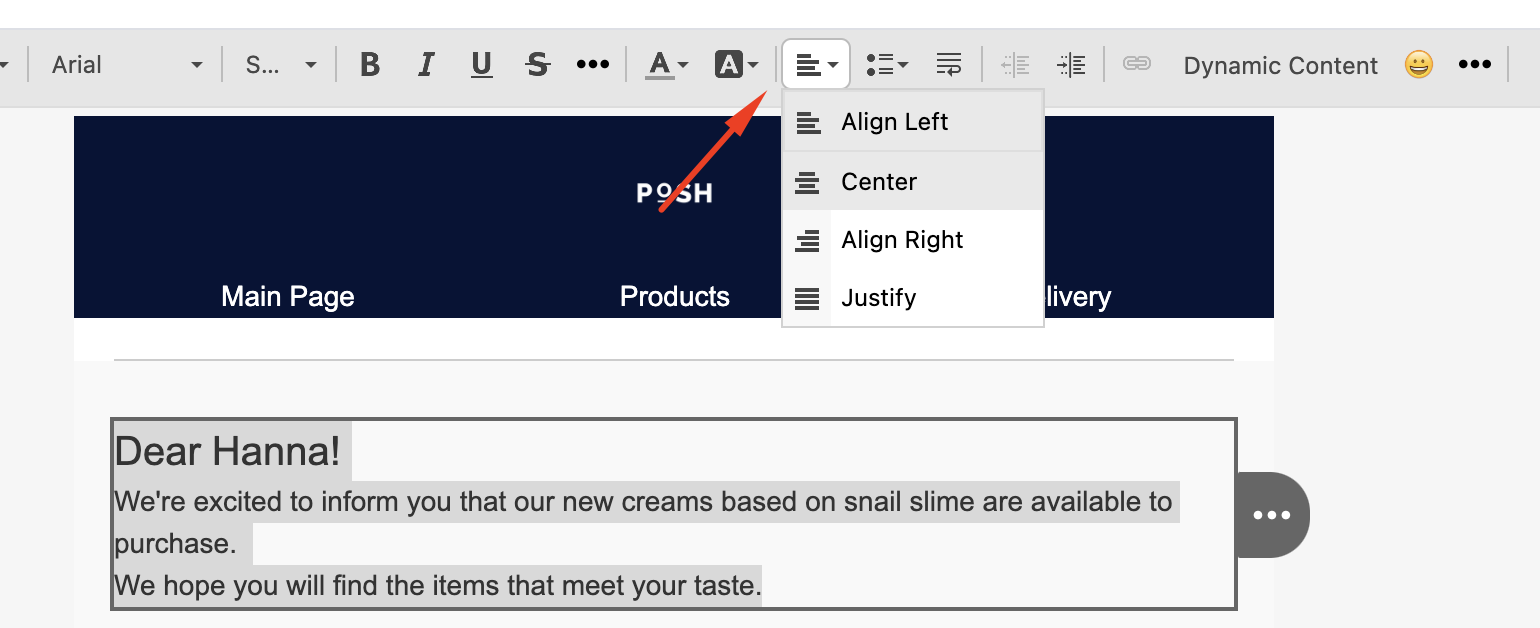
9. Add links where necessary
Add links to text with Drag & Drop Editor
1. Highlight a necessary word/words.
2. In the settings panel on top, click the Link icon.
3. In the settings panel on the left/right, the system will ask you to paste your URL and again remind you which word the link is connected with.
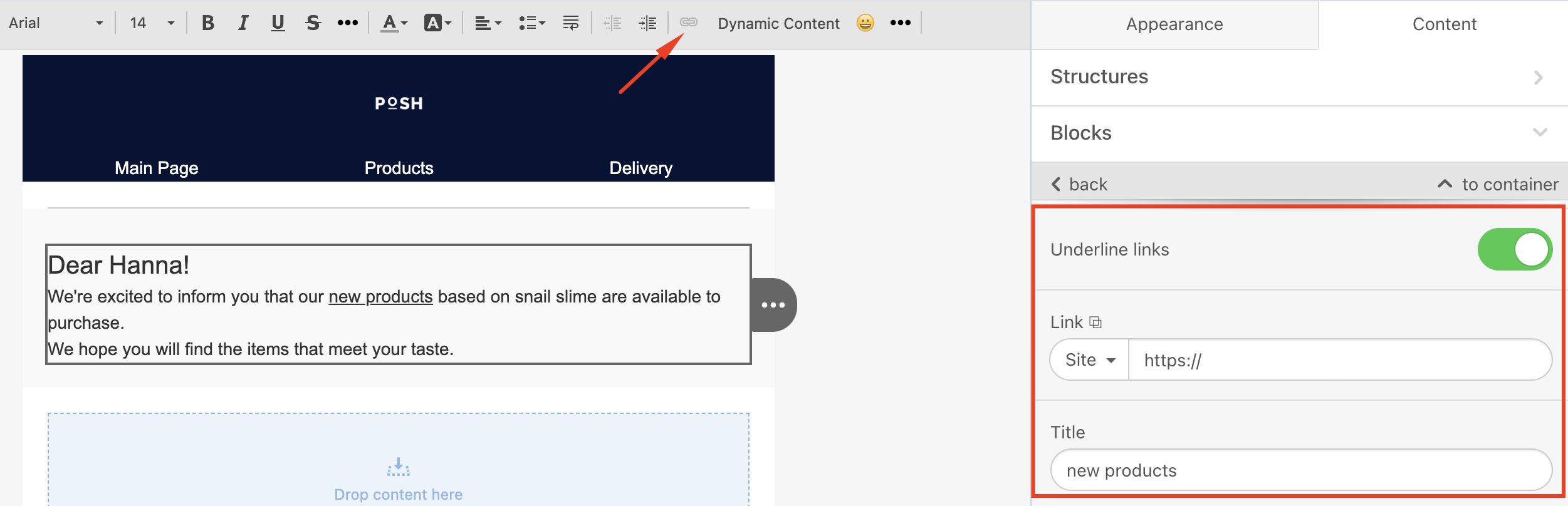
4. Underline the links in your emails if you need to.
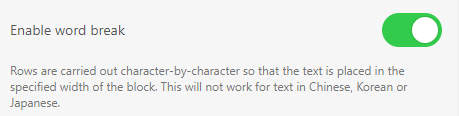
Use Artificial Intelligence (AI) assistant for text blocks
A text generator is a tool that uses advanced algorithms and AI to expand a short seed of text into a full-length piece. These tools capture all the essential points of the seed text and create a complete and expanded version for you to use. It's a convenient way to generate high-quality content with minimal effort.
AI text generators can save you a lot of time and effort, as they eliminate the need to laboriously search for and replace words or phrases to adapt your text to your requirements.
To start using the AI text generator in your text blocks:
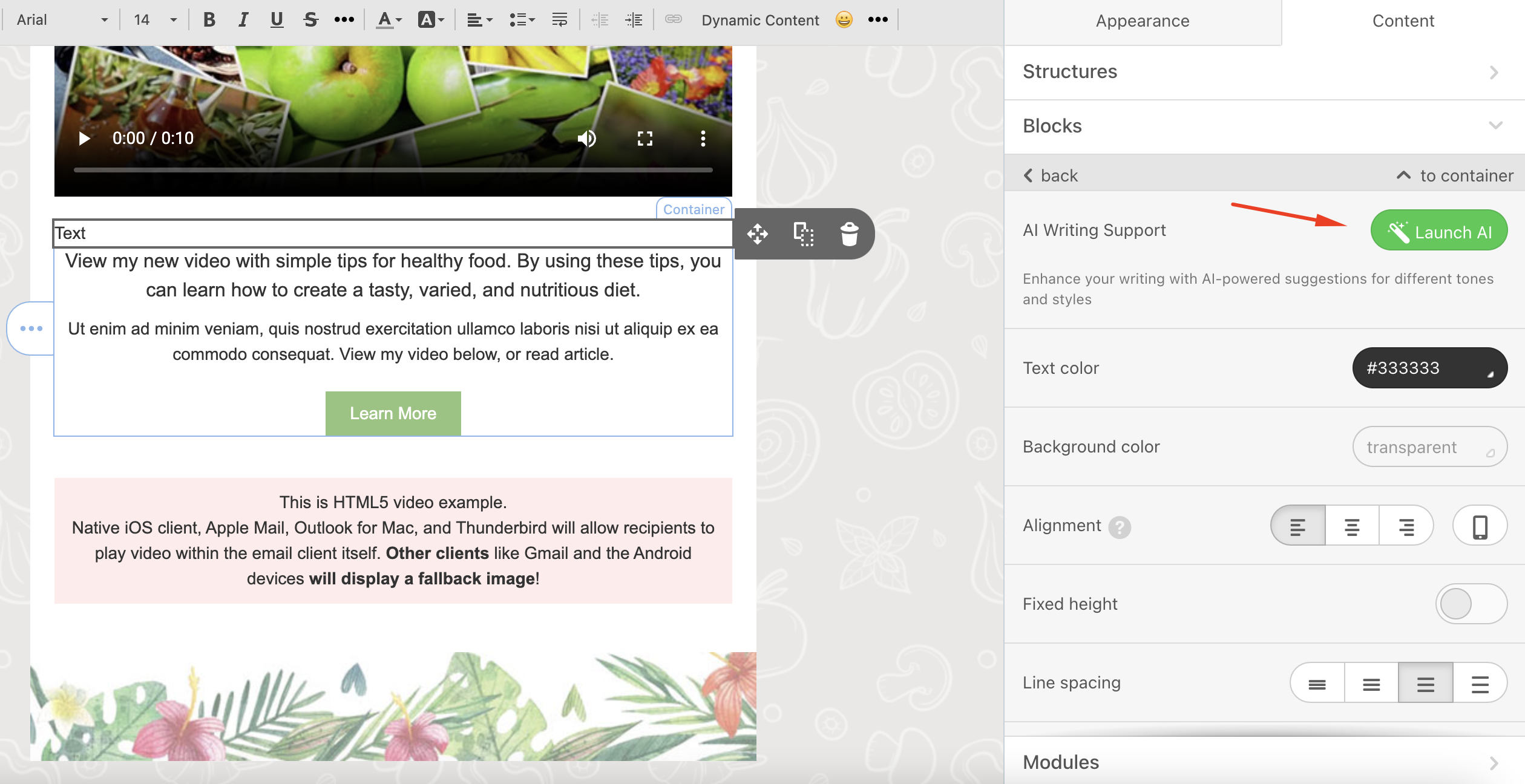
1. Drop a text block into your email template, write keywords or sentences, and hit the Launch AI button.
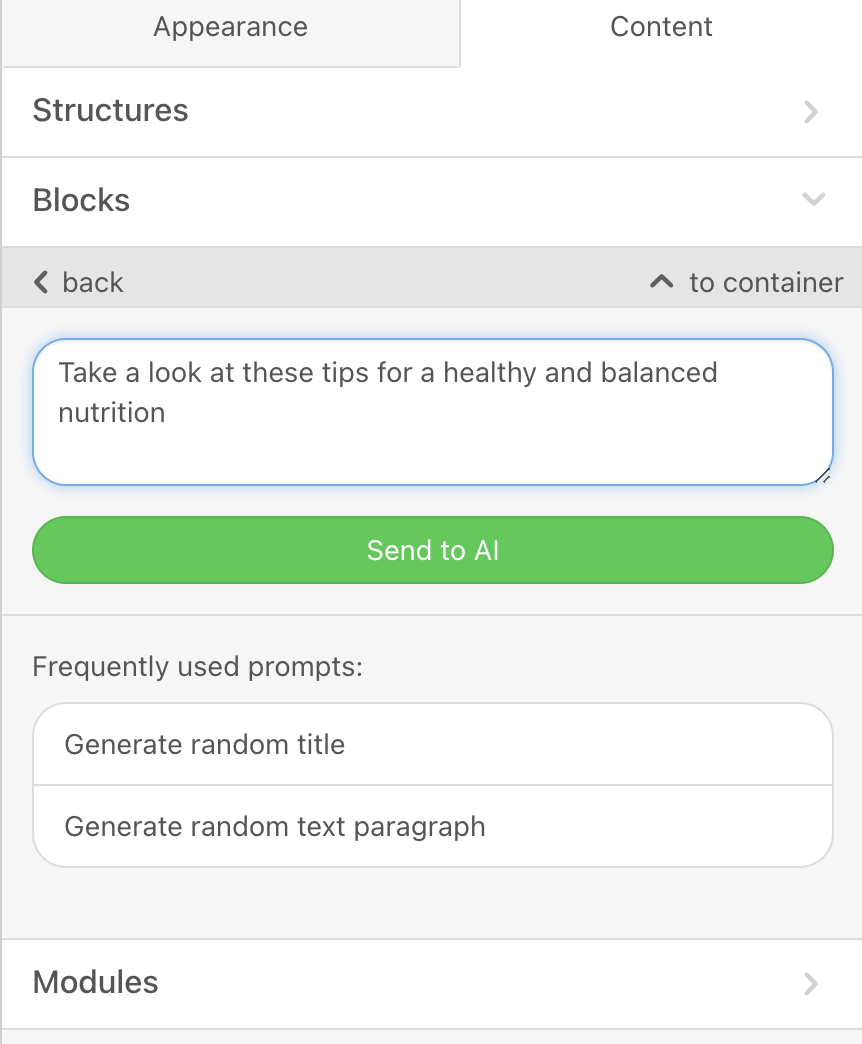
2. When the AI text generator is enabled, you can define your suggestions for improving the text via AI. Click the Send to AI button.
3. You can use the frequently used prompts listed below the button to take the following actions:
- Fix grammar in your text,
- Make text shorter or longer,
- Explain it as an expert,
- Add an emoji to the text.
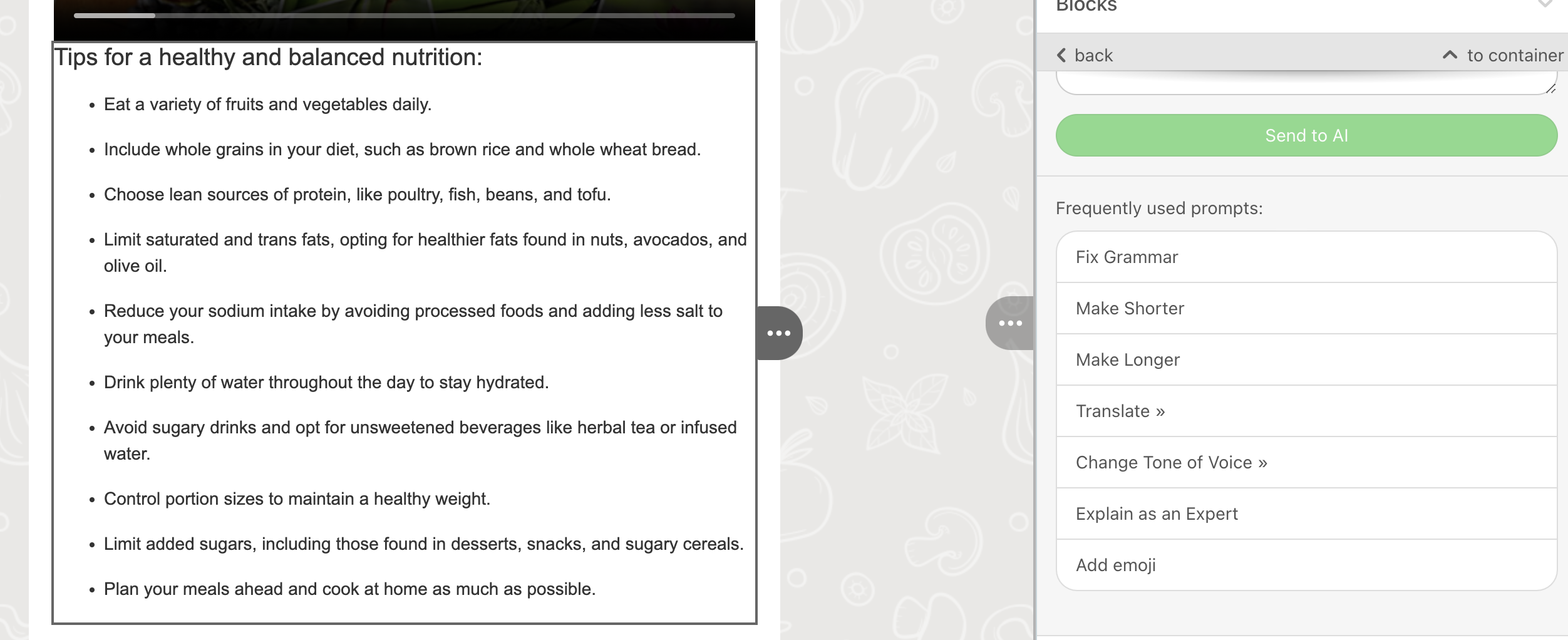
You can translate text into the list of supported languages.
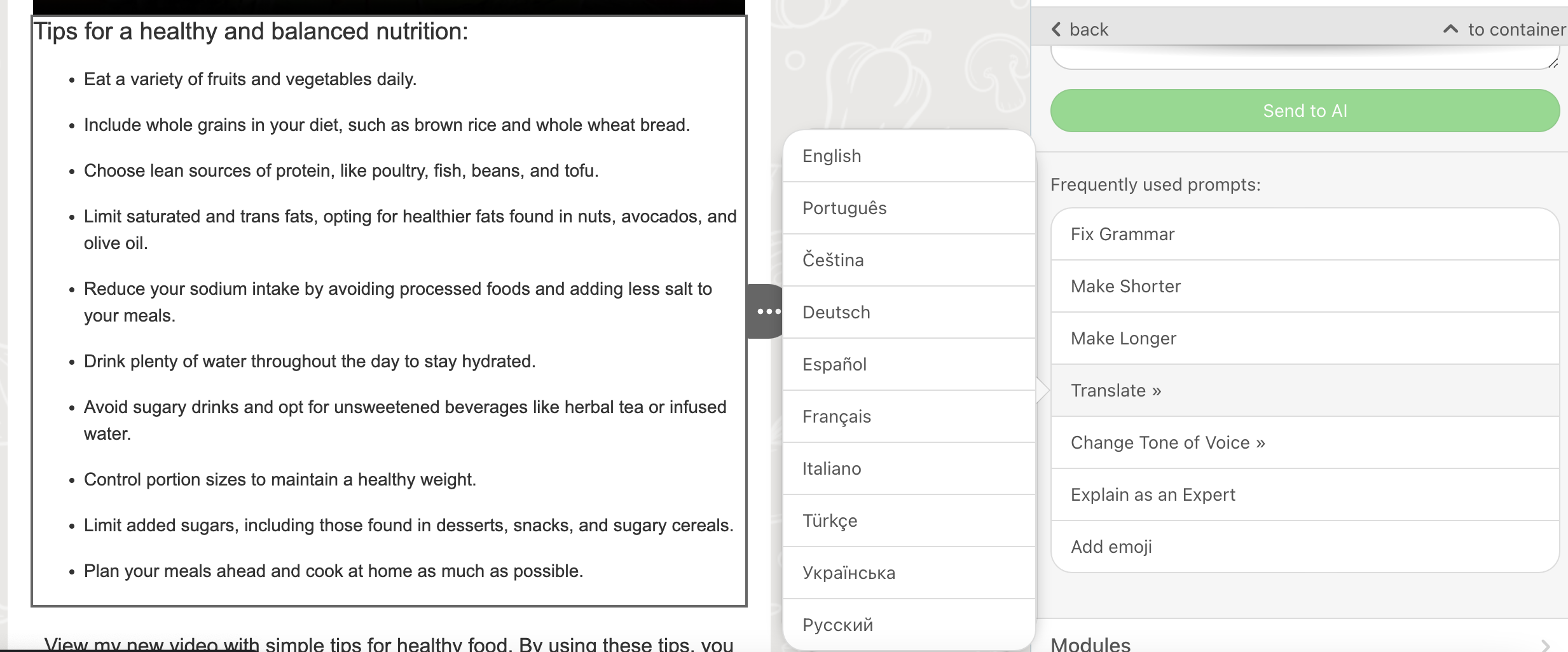
You can also change the tone of voice in which the text should be written.