This guide explains how to add a Line channel. You should fulfill the prerequisites before setting up your bot.
Prerequisites
Before publishing the bot on your Line channel, follow the steps below.
Refer to Line's guidance to set up the Line channel.
1. Log in to the Line Developers dashboard. 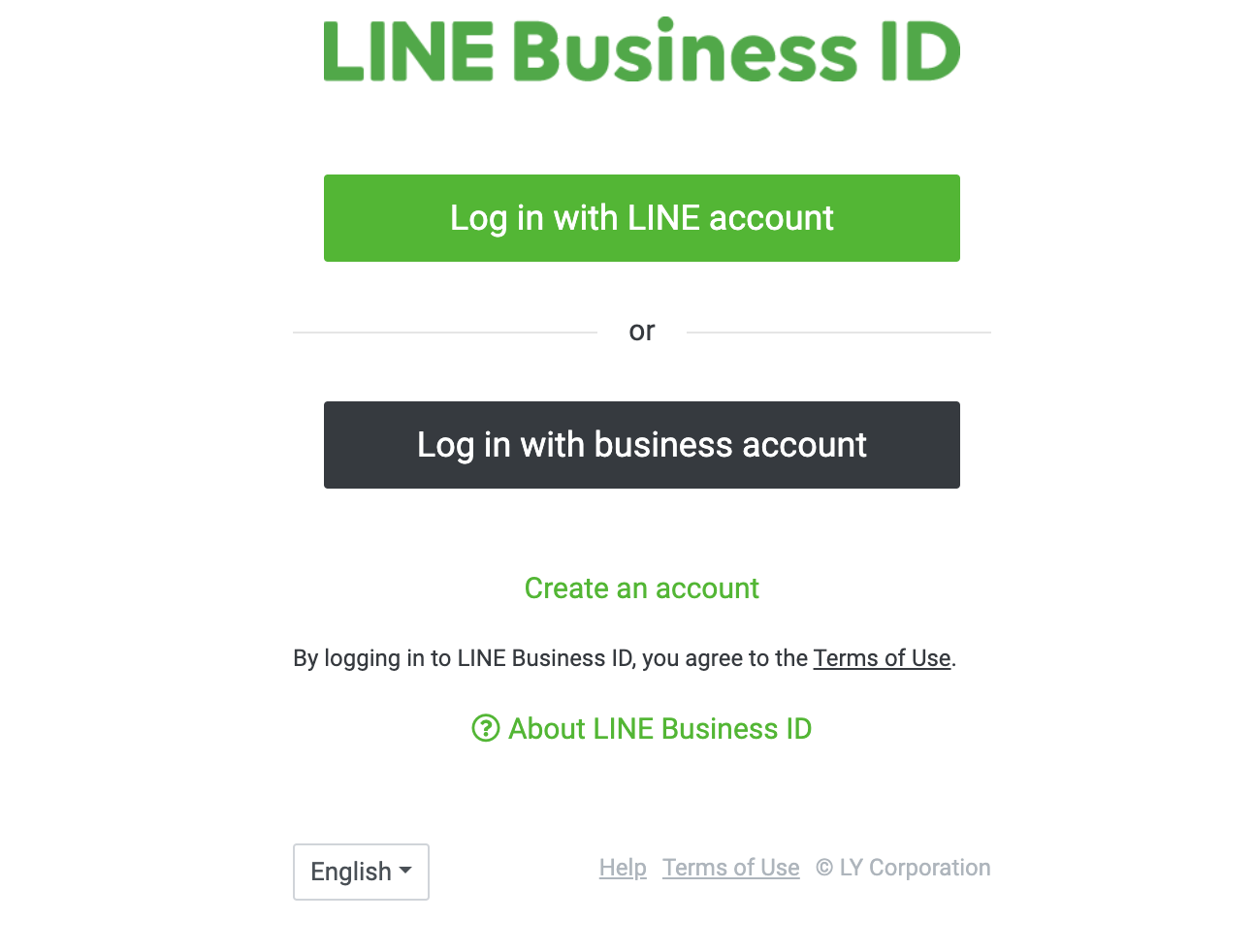
2. Select the Line channel you created on your Line business account after successfully logging in. 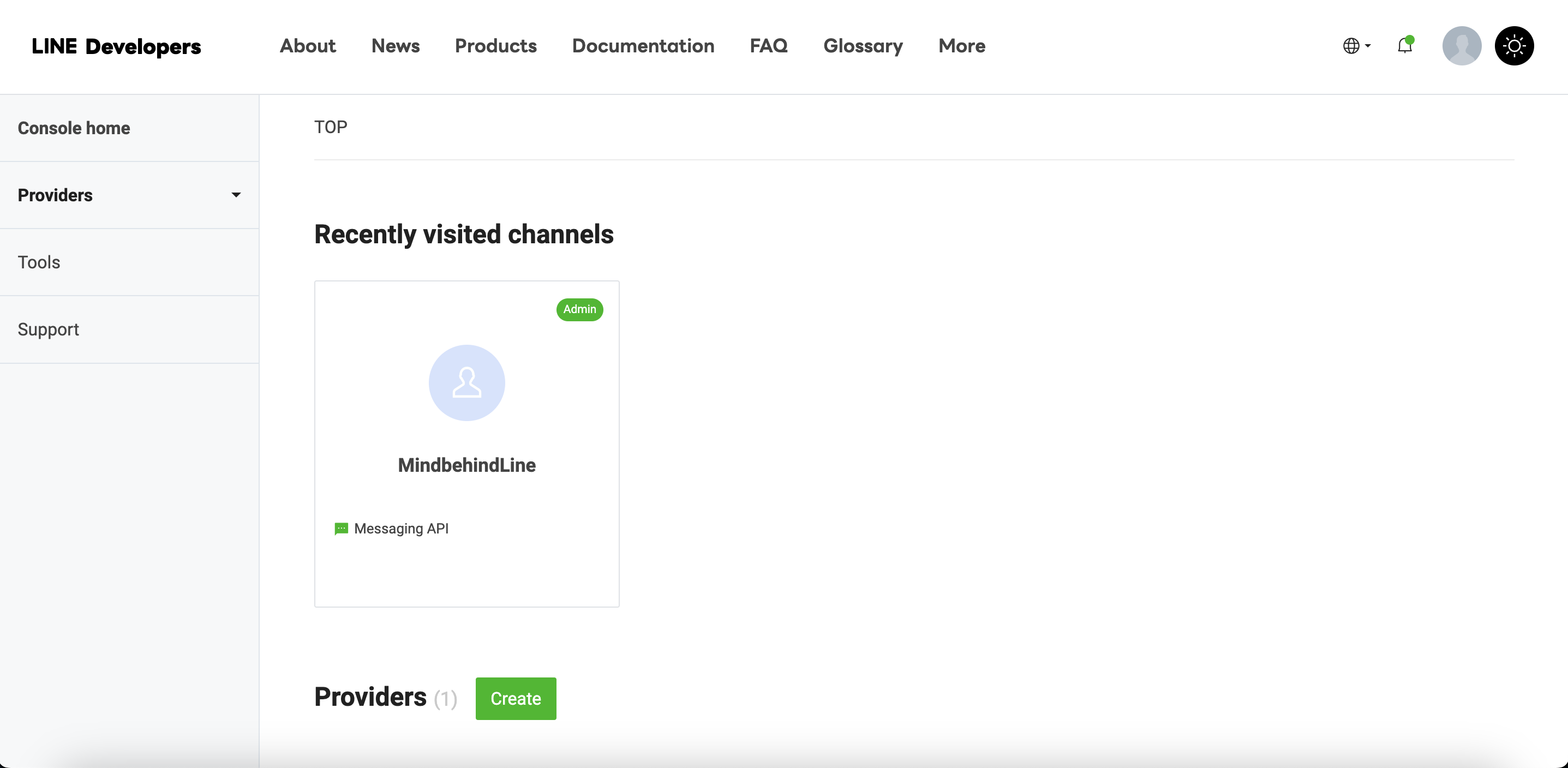
3. Select the channel from this window. 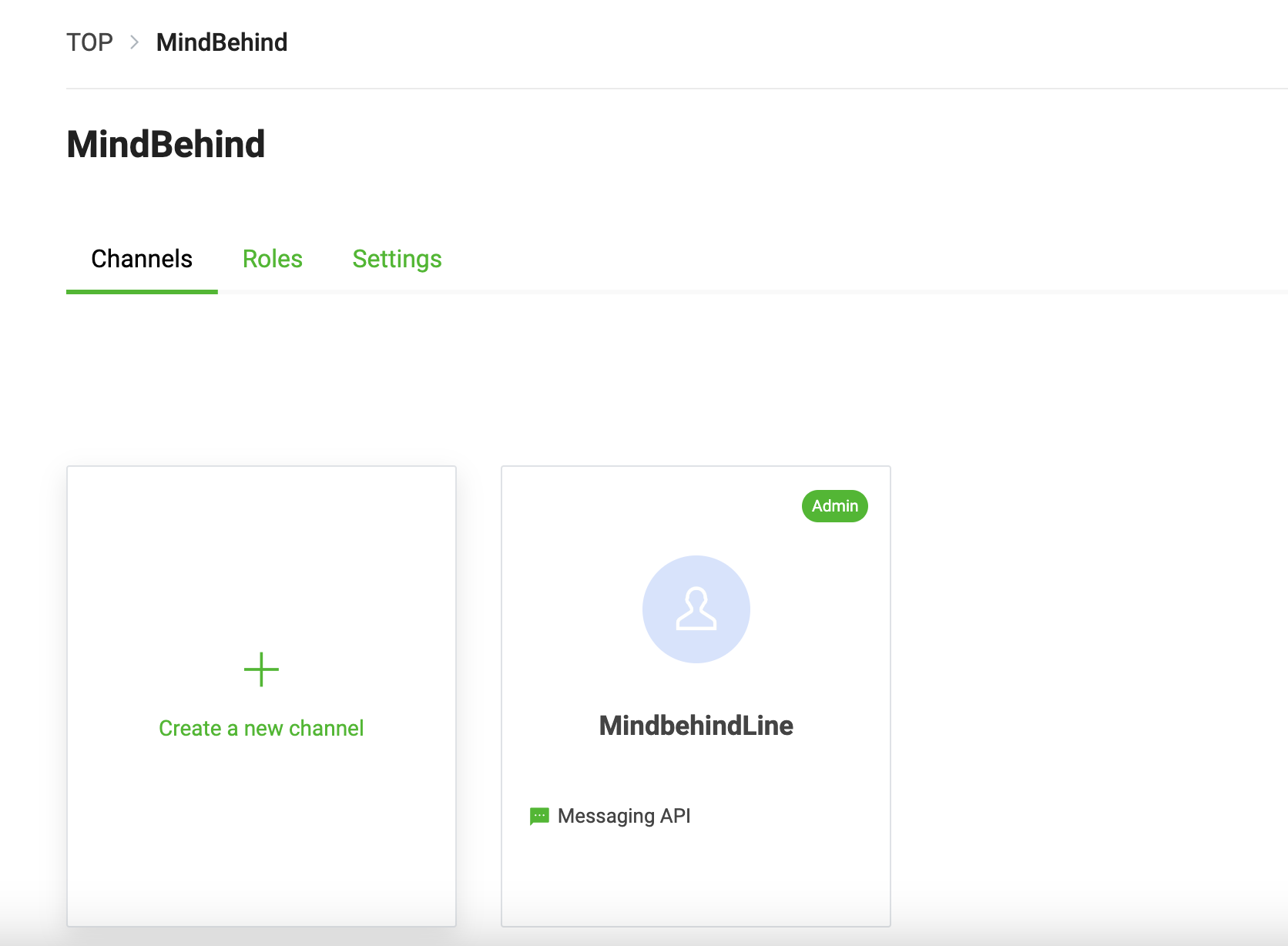
4. Go to the Basic Settings page and scroll down to the bottom of the page. Note down the "channel secret". 
5. Click on the Messaging API tab. 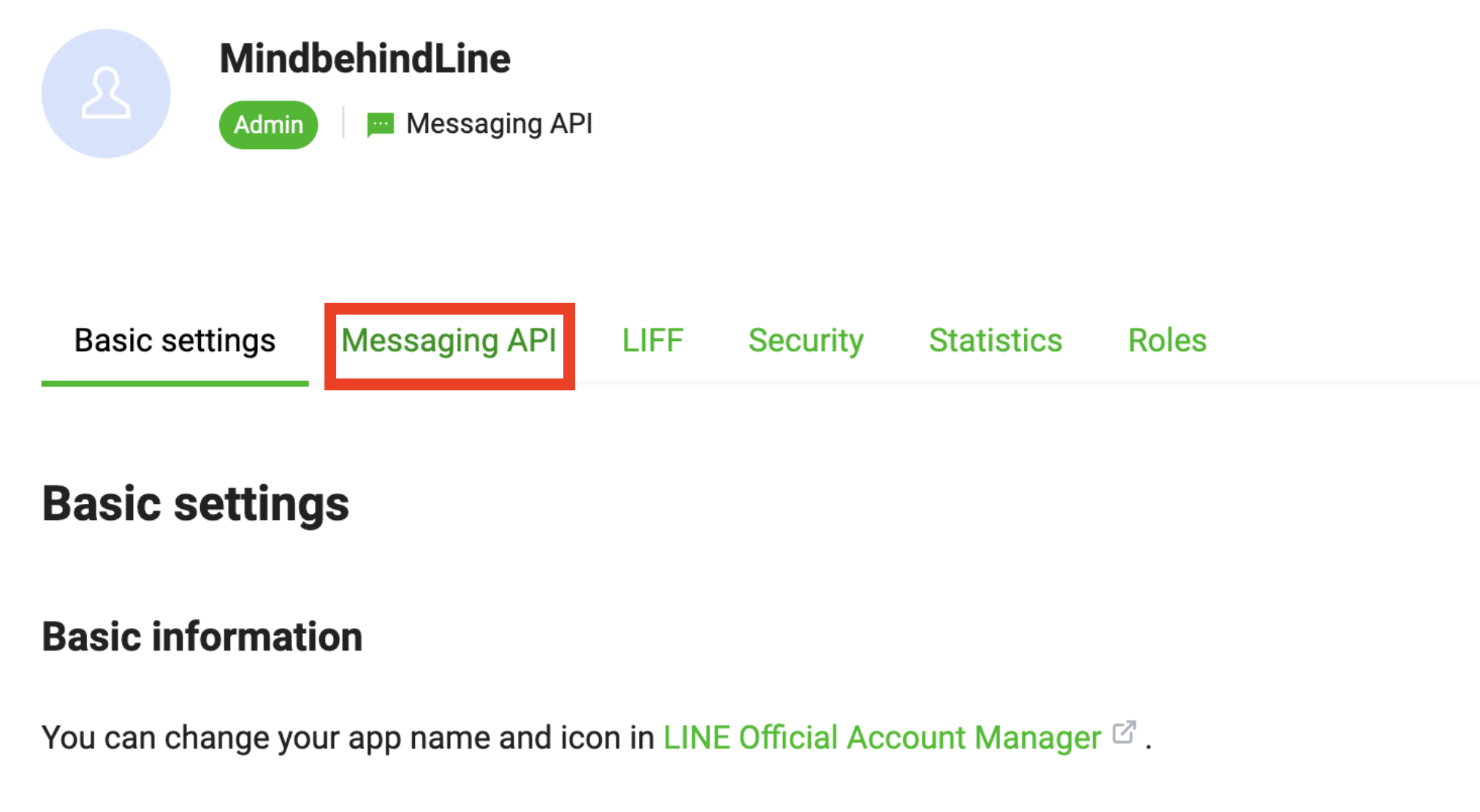
6. When you scroll down in this window, you will find the "Channel access token".
7. After having all the relevant values, go to the Webhook settings. 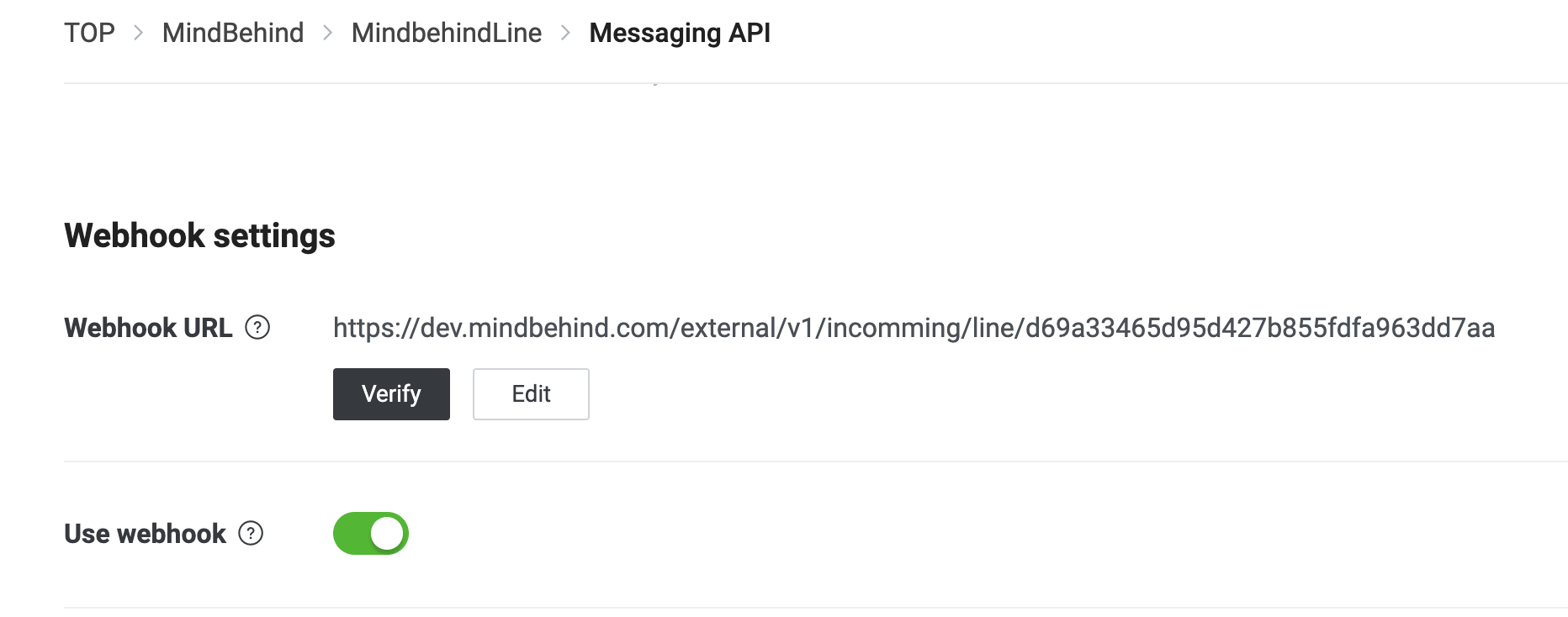
8. Turn on the "Use webhook" feature.
9. Set up the webhook as "https://app.mindbehind.com/external/v1/incomming/line/{channelSecret}".
After completing all the steps above, you will finalize the prerequisites for setting up a Line channel. You can continue with publishing a MindBehind bot onto the channel.
Set up your bot
1. Go to the MindBehind platform.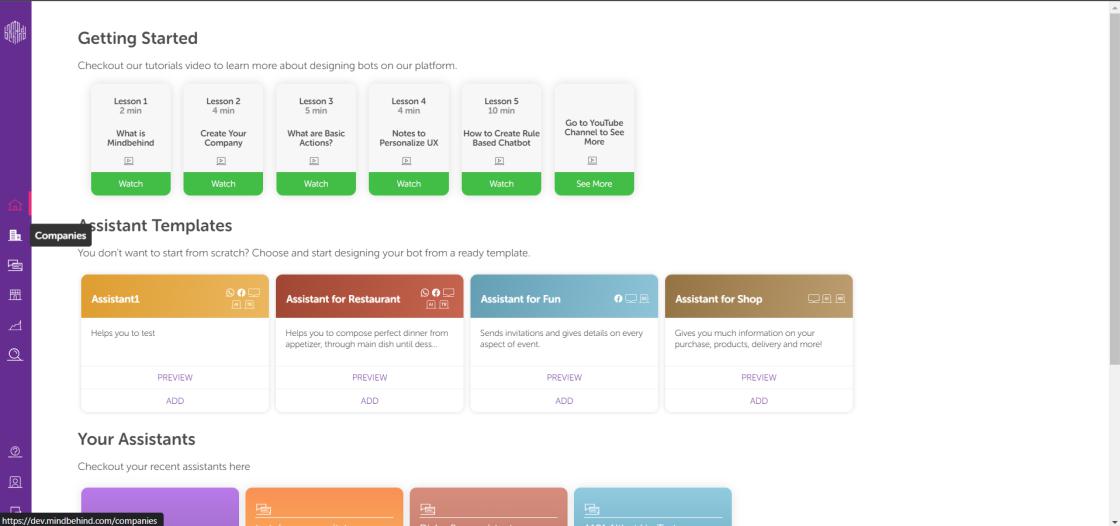 2. Click the “Companies” on the left side of the screen.
3. Choose the Company that you have created and want to assign the bot to.
4. Click on the Channels tab and click the Connect button for "Line".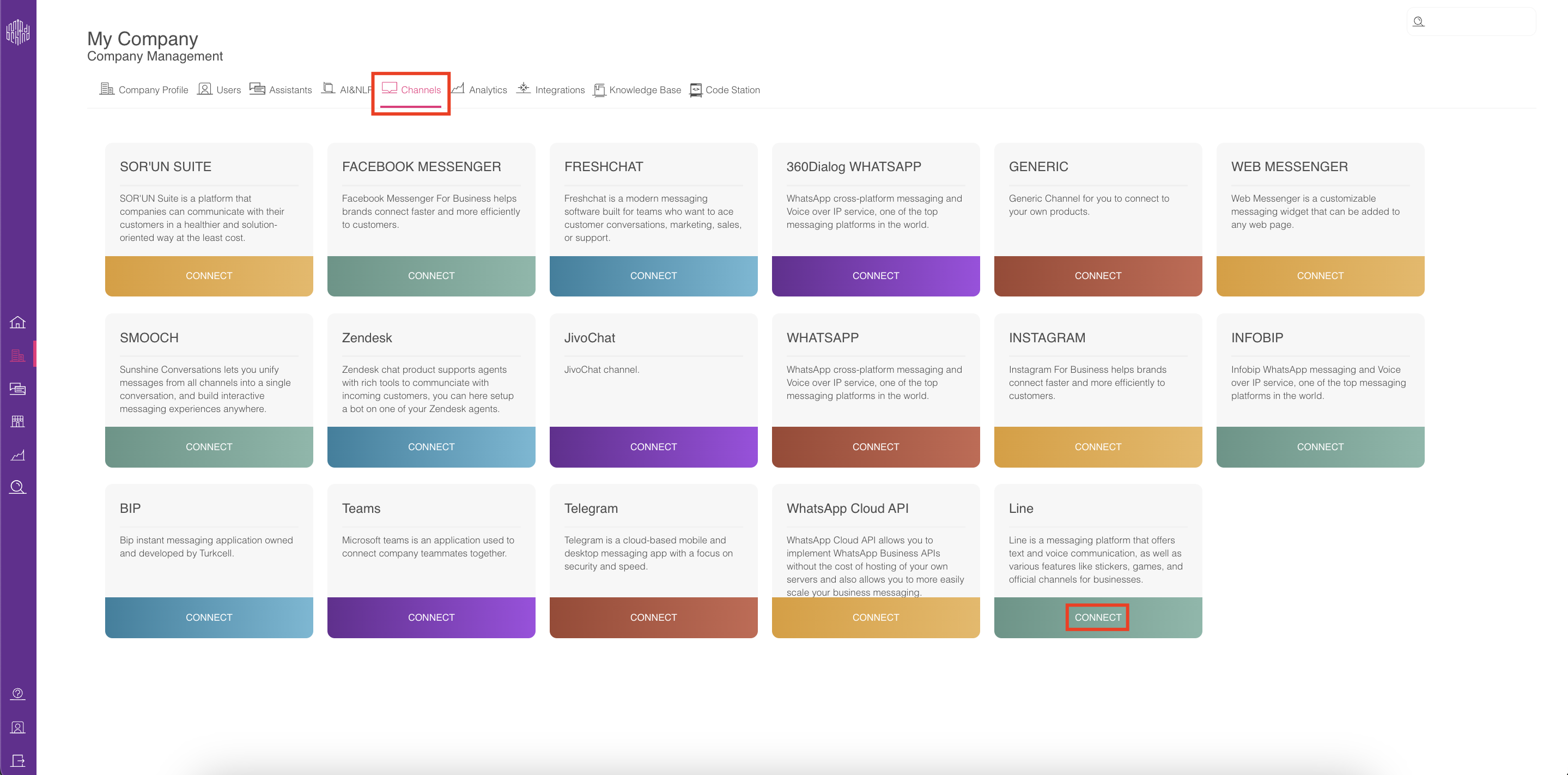
5. Enter a name for the Line channel you have created.
6. Enter the Channel Secret and Channel Access Token.
7. After filling in all the values, click the Connect button. 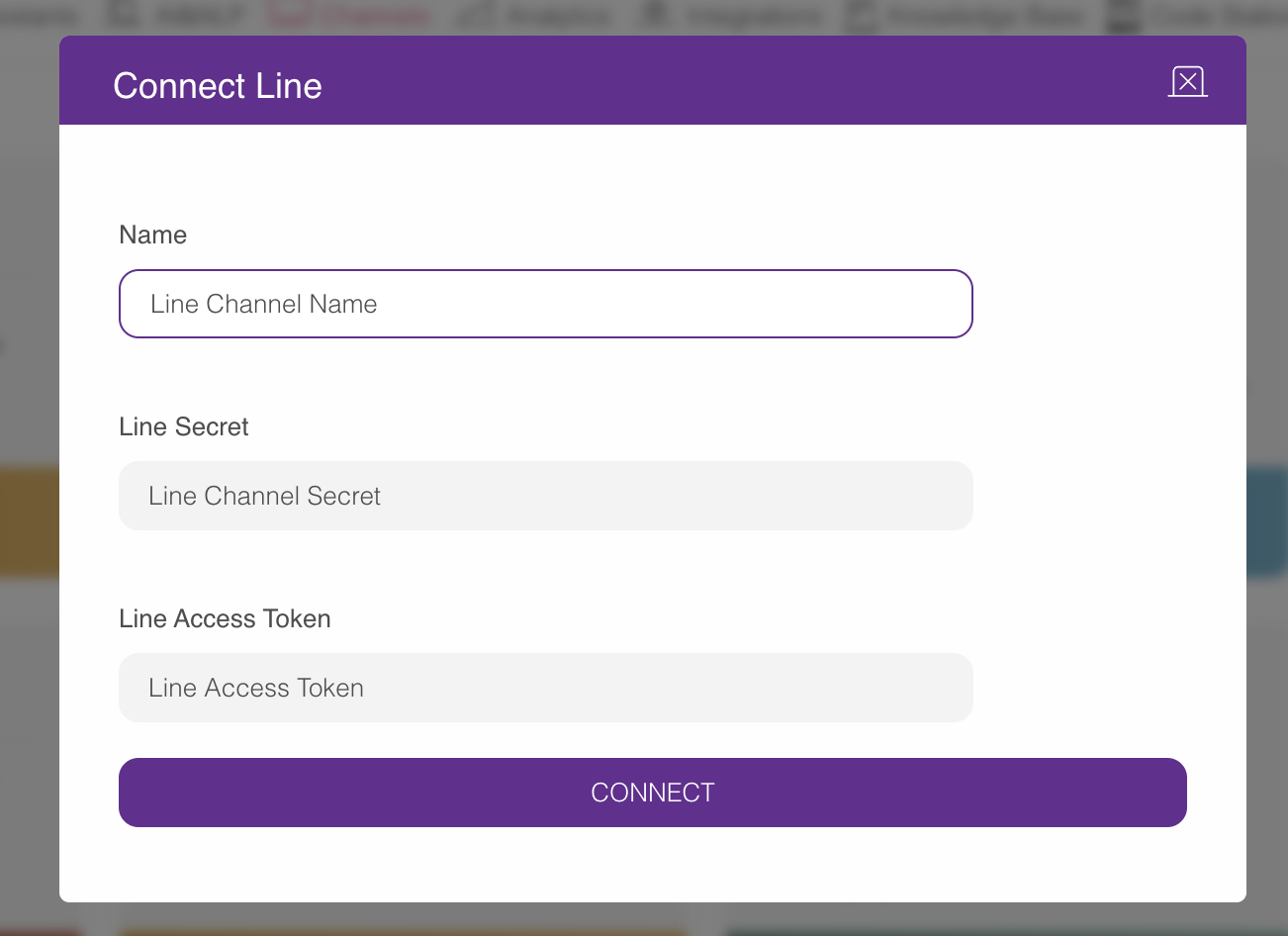 8. After creating the channel, go to the Assistant from the company window (refer to step 3). If you do not have an Assistant, create one and then open the Assistant.
9. Click the Publish button on the top right.
10. You can see the pages that you added in the Channels section.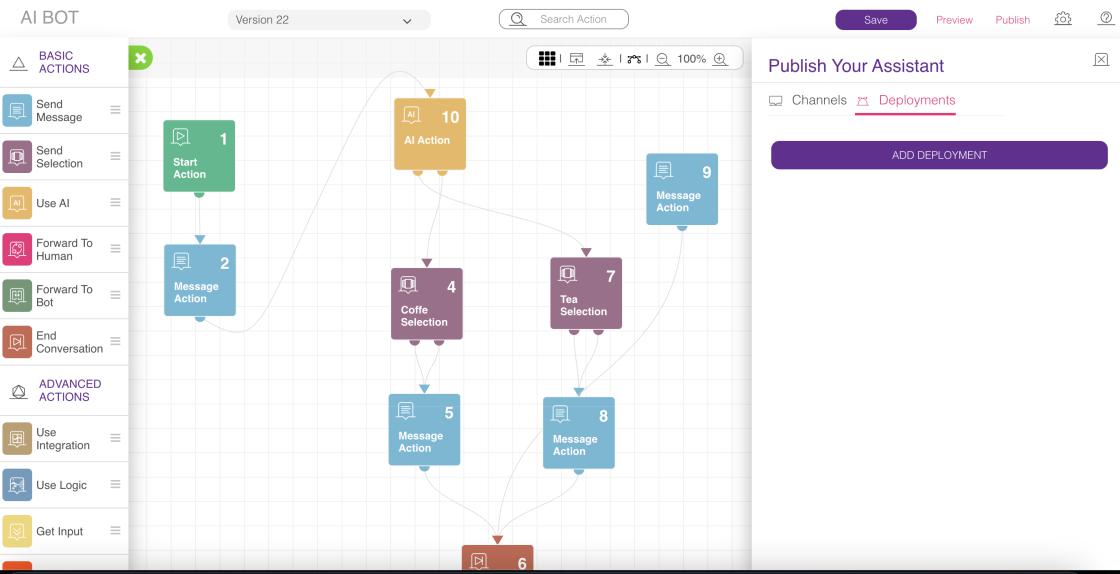
11. Click the Deployments tab and click the Add deployment button.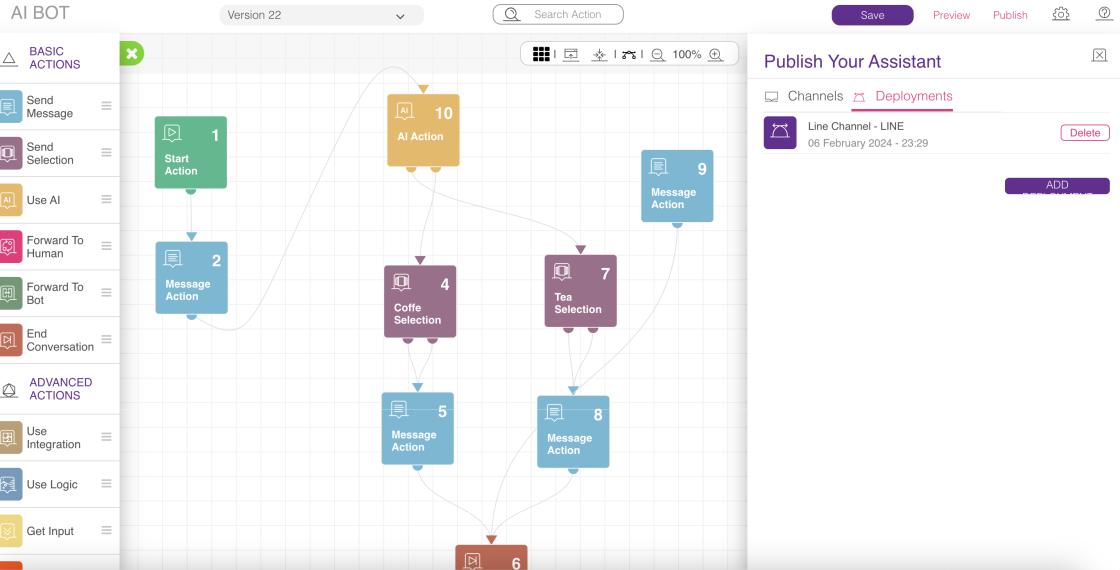
12. Select your channel.
13. Select the assistant version and click the Publish button.
Congratulations! Your bot is running on your Line account.