This guide walks you through configuring CodeStation to work with Google Sheets. After completing your Google setup, you will create your CodeStation template, add your service account credentials, and implement the Google Sheets code block in your bot flow.
The steps below show how to use Google Sheets as a dynamic backend within CodeStation.
Step 1: CodeStation Template Setup
After adding your service account credentials, you can create your code block, select a Google Sheets template, and bind it to your secret.
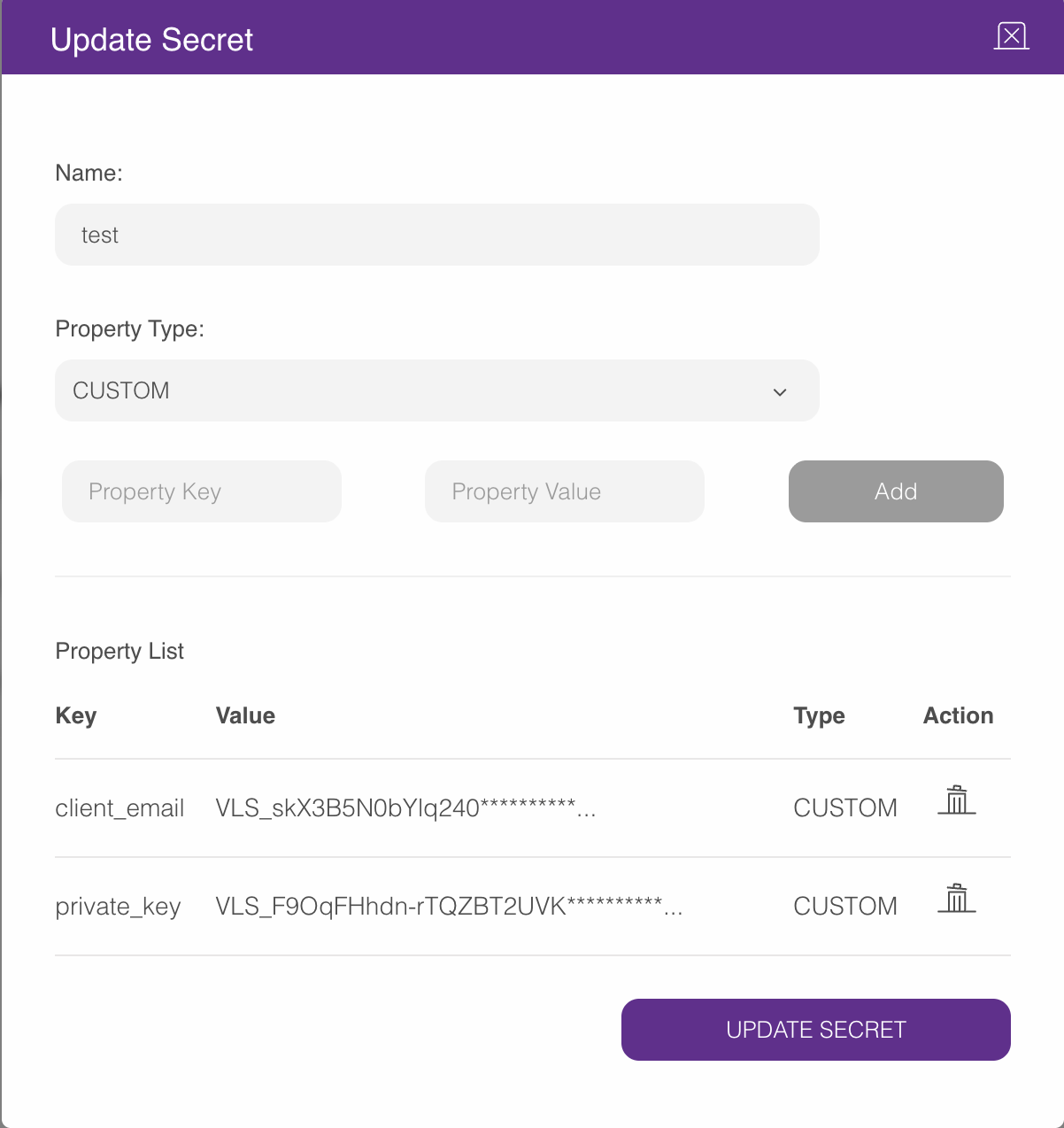
To set up the Secret Manager,
Navigate to the Company Management > Code Station tab.
Add the required fields from your Service Account JSON file into Secret Manager. (created previously in the Google Sheets Template Integration: Environment & Credentials Setup) to Secret Manager.

You must extract and add the following fields from your Service Account JSON file:

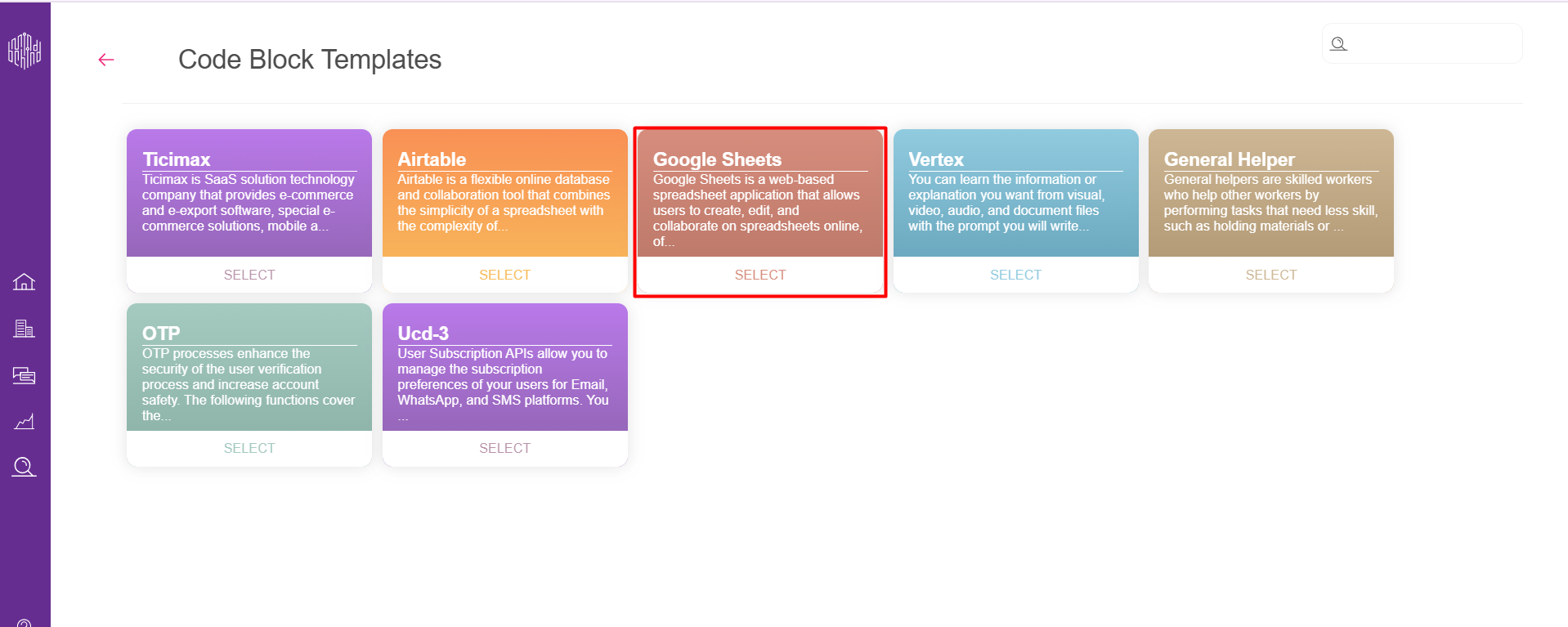
Click the Add Code Block button.

Select the Google Sheets template.
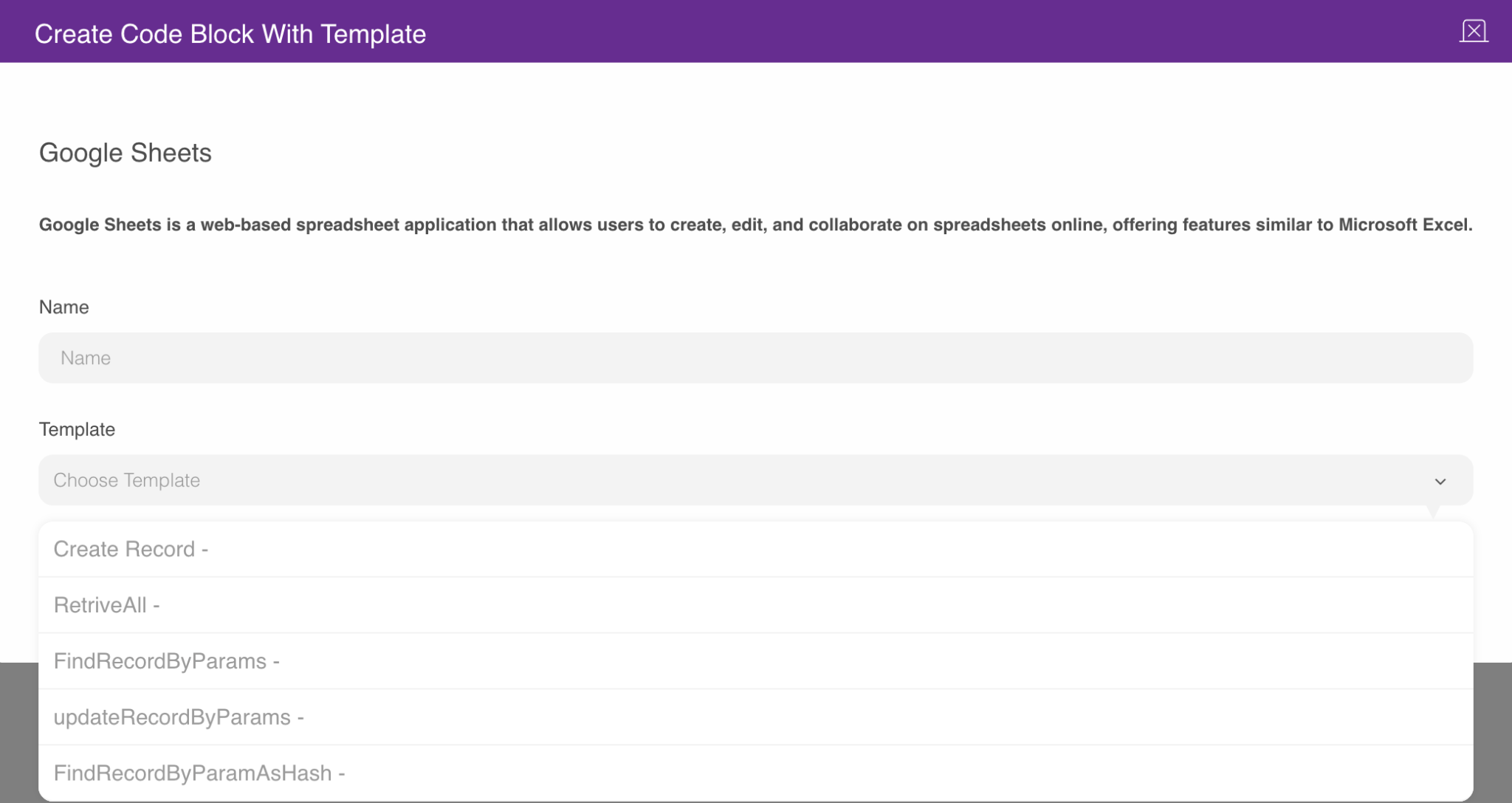
Select the Create from template option.

In the dropdown, you will see 5 template options. You can check these template types in the Code Block Templates based on your use case.
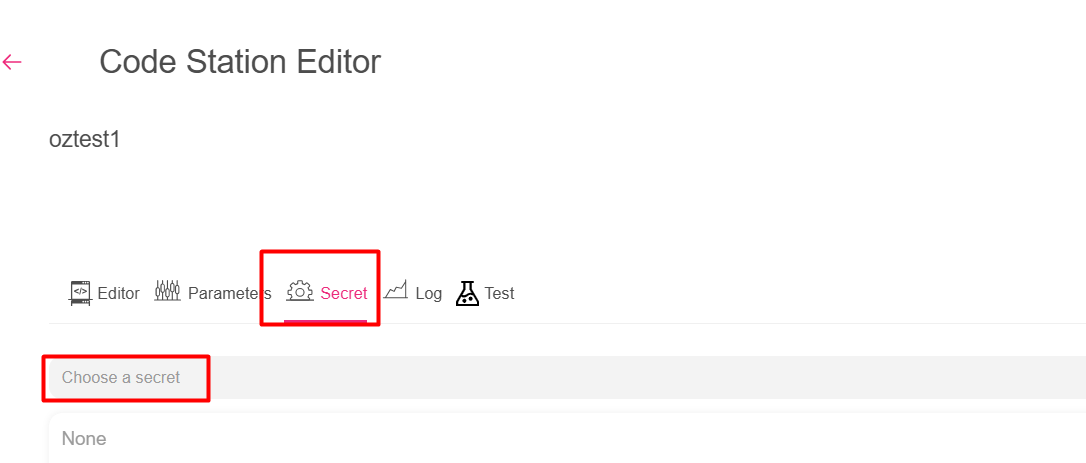
Now, you will connect the secret to the template. Secret binding works the same for all templates.
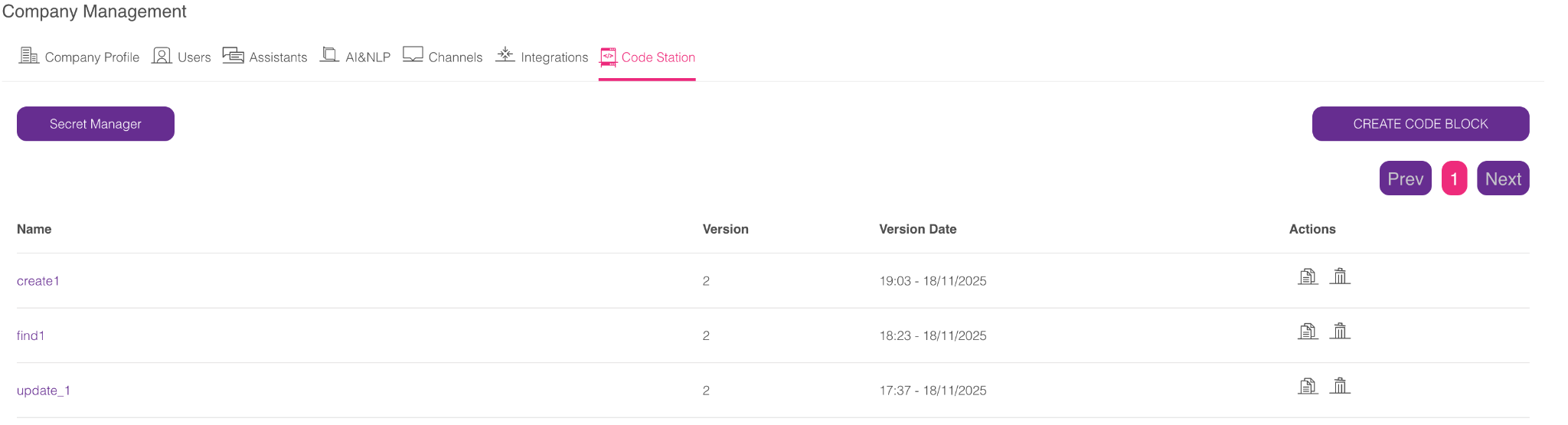
When you create your code block template, you will see it under your code station tab. Click your desired template and connect your secret.
Step 2: Code Block Templates
CodeStation offers multiple Google Sheets templates. Select the one that matches the operation you need.
Create Record
This template allows you to create new records in your Google Sheet.
Let's suppose you want to use the Create Record method:
You need to get input from the end user, and your input parameter should look like this:
sheet_create_<key>
If your column name is "Name", it should be formatted as
sheet_create_Name.If your column name is "Number", it should be formatted as
sheet_create_Number.
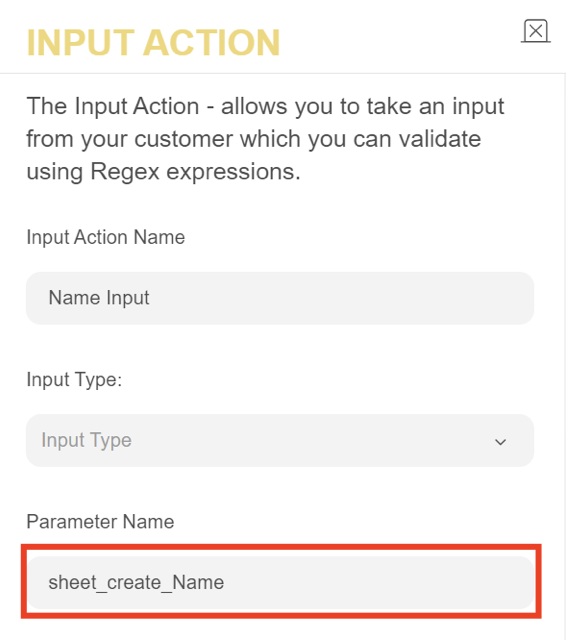
You should fill in the Parameter Name of your Input Action as follows:
Since the Code Action's output is
isCreated, use Logic Action to check whether the operation was successful. In this case, you should fill in the fields in the Logic Action module as shown in the image below: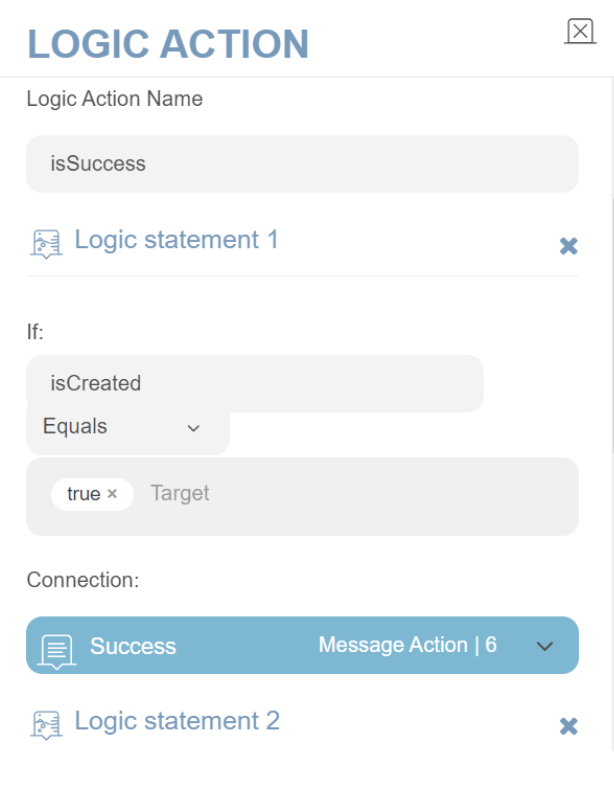
RetriveAll
The RetrieveAll method returns all rows in your Google Sheet as an array of objects. Each object includes key–value pairs where the keys match your column titles and the values match the corresponding cell values.
For example, if your sheet contains the columns ID, Name, Department, Email, Phone, and City, the output will include an object for each row with these fields and their values. This structured JSON format makes the data easy to use in backend systems.
To send the retrieved data to your backend, run the RetrieveAll template in CodeStation and add an Integration Action. Set the request method to POST, and the full JSON response will be sent automatically to the endpoint you specify.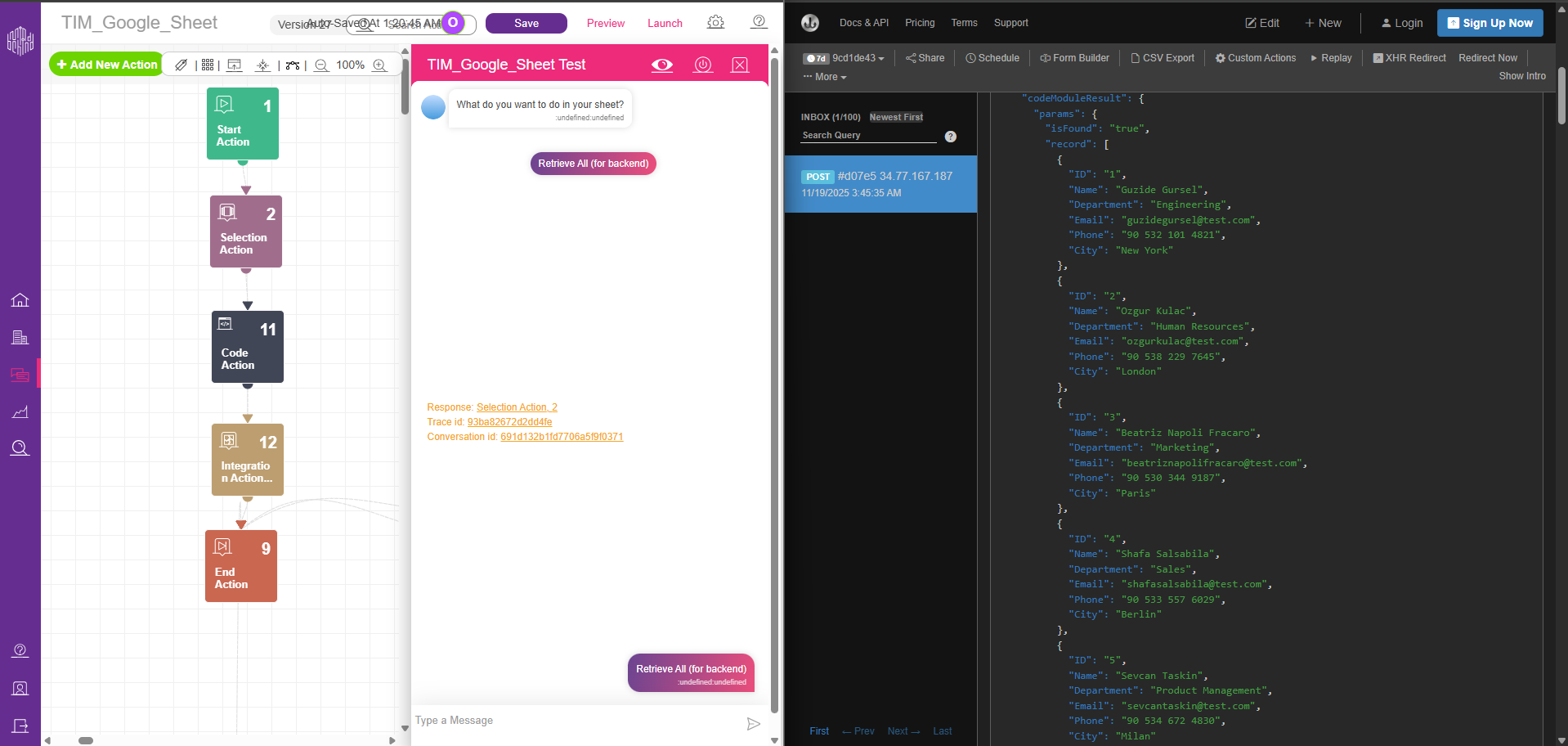
FindRecordByParams
This template allows you to check your data in your Google Sheet.
Let's say you want to use the FindRecordByParams method:
You need to get input from the end user, and your input parameter should look like this:
sheet_search_<key>.
If your title is "Name", it should be formatted as
sheet_search_Name.If your title is "Number", it should be formatted as
sheet_search_Number.
You should fill in the Parameter Name of your Input Action as follows:
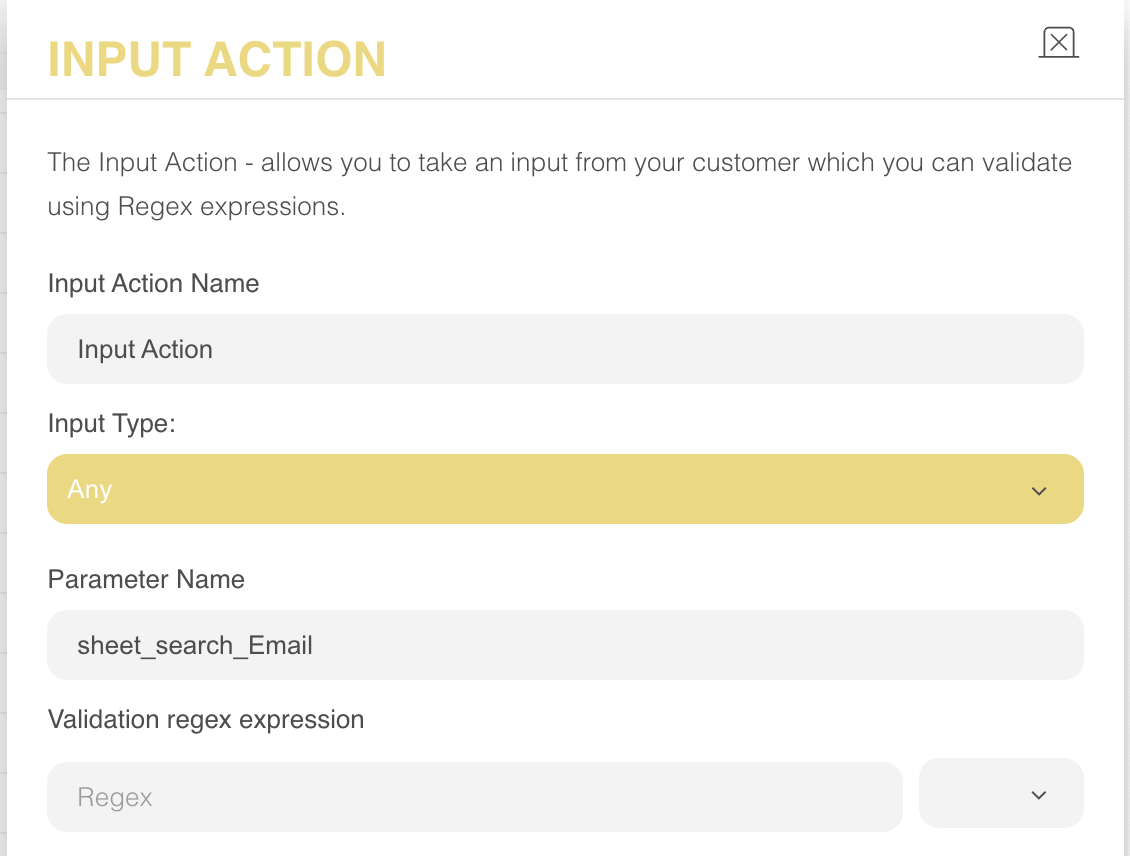
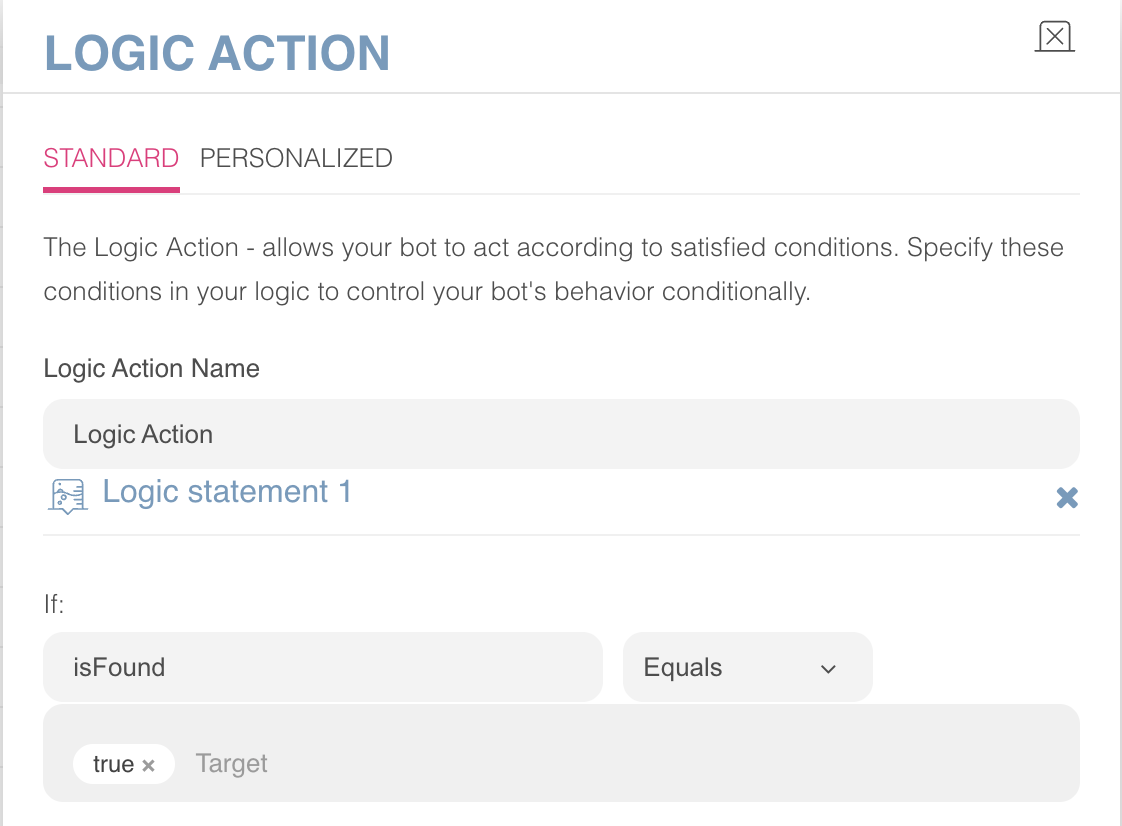
Since the Code Action's output is
isFound, use Logic Action to check whether the operation was successful. In this case, you should fill in the fields in the Logic Action module as follows:
updateRecordByParams
This template allows you to update your existing records to your Google Sheet
Let's say you want to use the updateRecordByParams method.
You need to get some input from the end-user, and your input parameter should look like this:
sheet_update_<key>
If your column name is "Name", it should be formatted as
sheet_update_Name.If your column name is "Number", it should be formatted as
sheet_update_Number.
You should fill in the Parameter Name of your Input Action as follows:
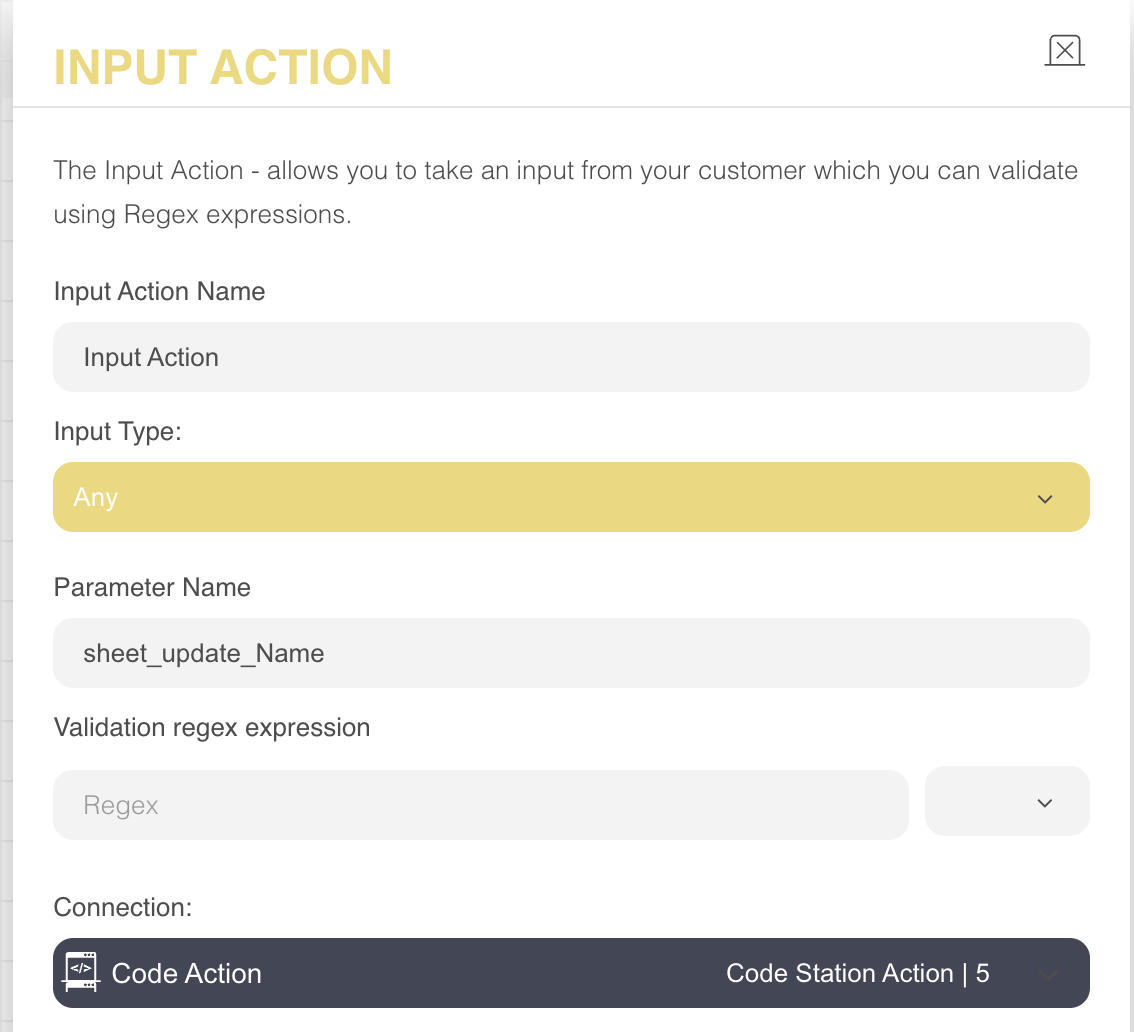
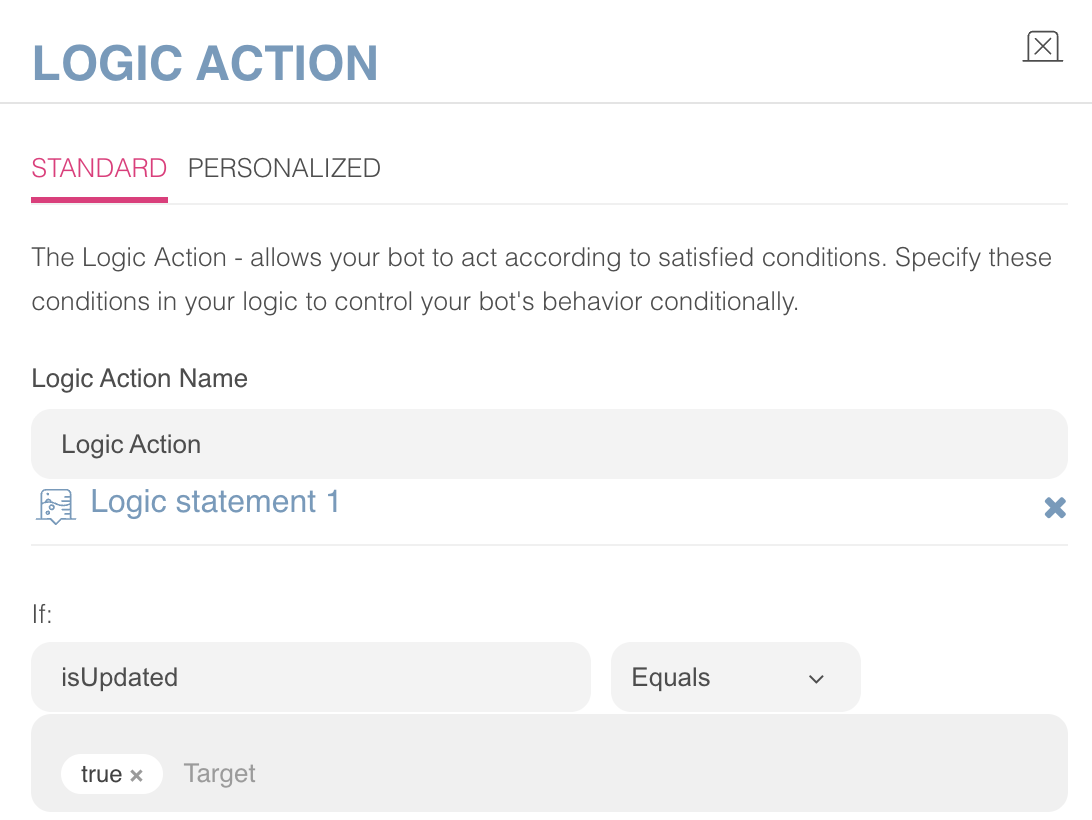
Since the Code Action's output is "isCreated", use Logic Action to check whether the operation was successful. In this case, you should fill in the fields in the Logic Action module as follows:
FindRecordByParamsAsHash
Let's say you want to use the FindRecordByParamsAsHash method:
You need to get input from the end user, and your input parameter should look like this:
sheet_search_<key>.
If your column name is "Name", it should be formatted as
sheet_search_Name.If your column name is "Number", it should be formatted as
sheet_search_Number.
You should fill in the Parameter Name of your Input Action as follows:
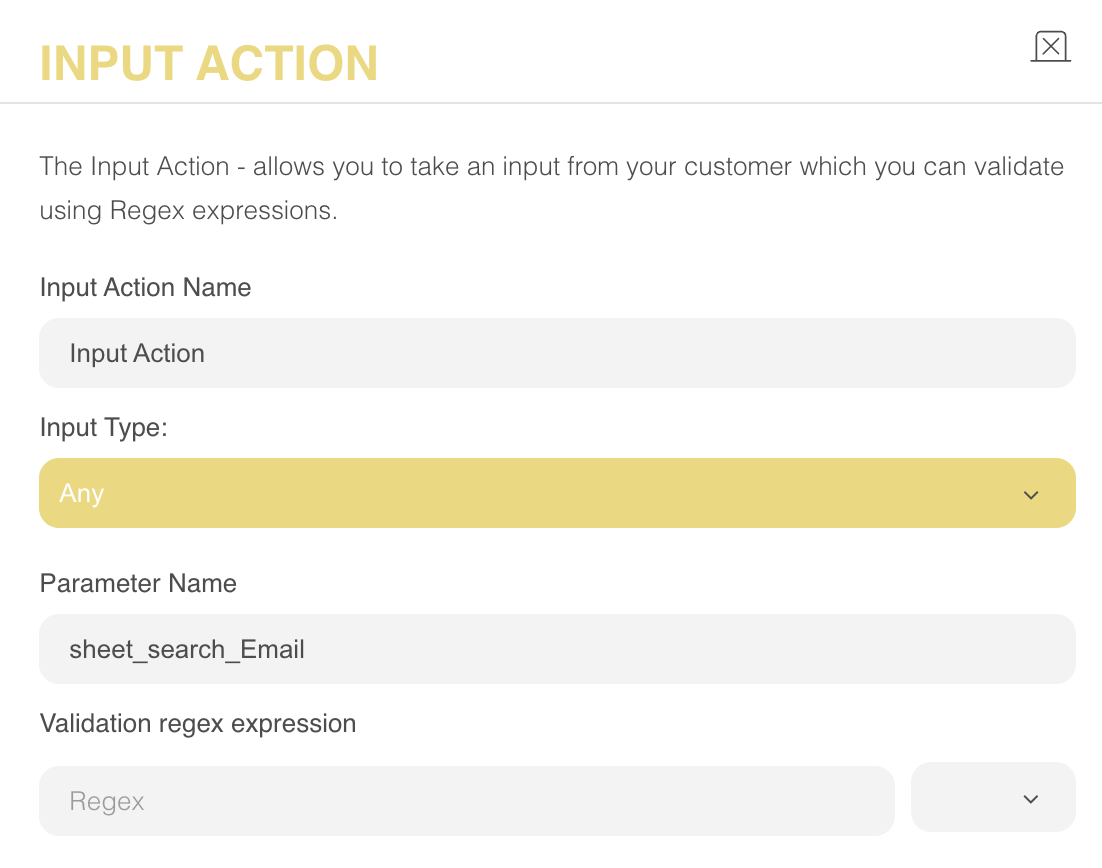
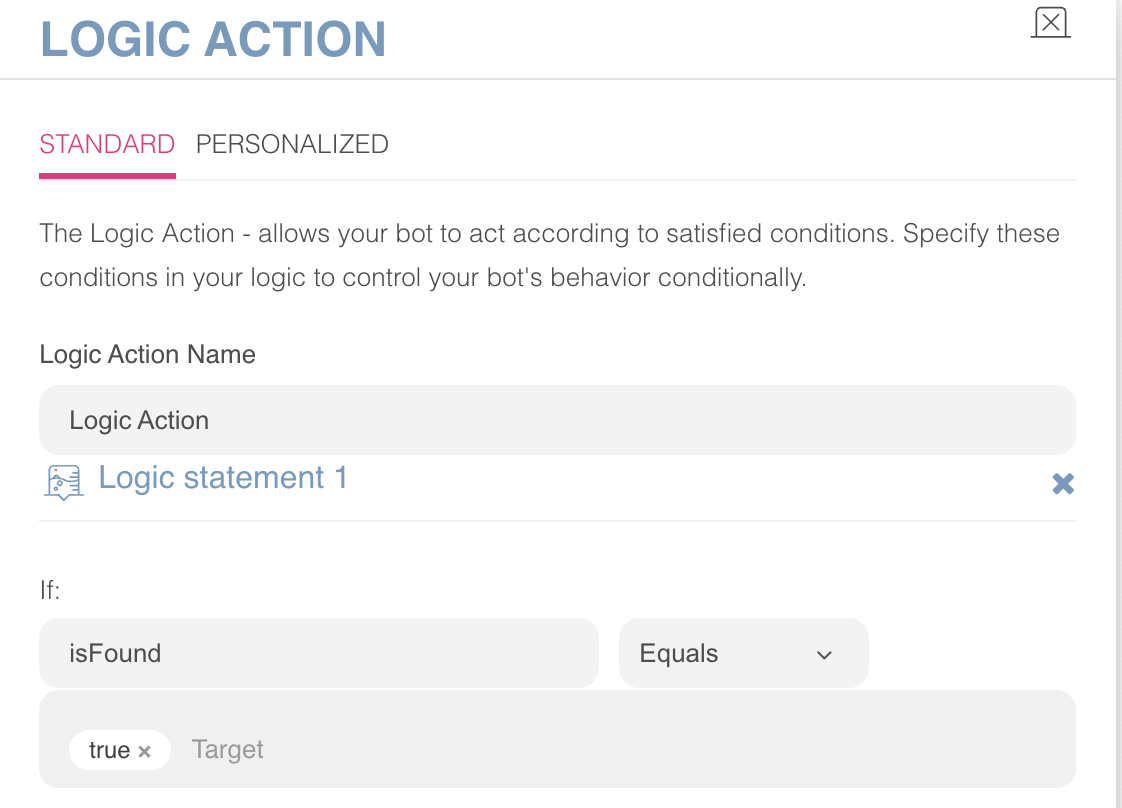
Since the Code Action's output is
isFound, use Logic Action to check whether the operation was successful. In this case, you should fill in the fields in the Logic Action module as follows:
Example Scenario
The example flow below includes two CodeStation blocks: FindRecordByParams and updateRecordByParams.
This scenario shows that you will check whether the user exists in the sheet, and later update one of the columns. 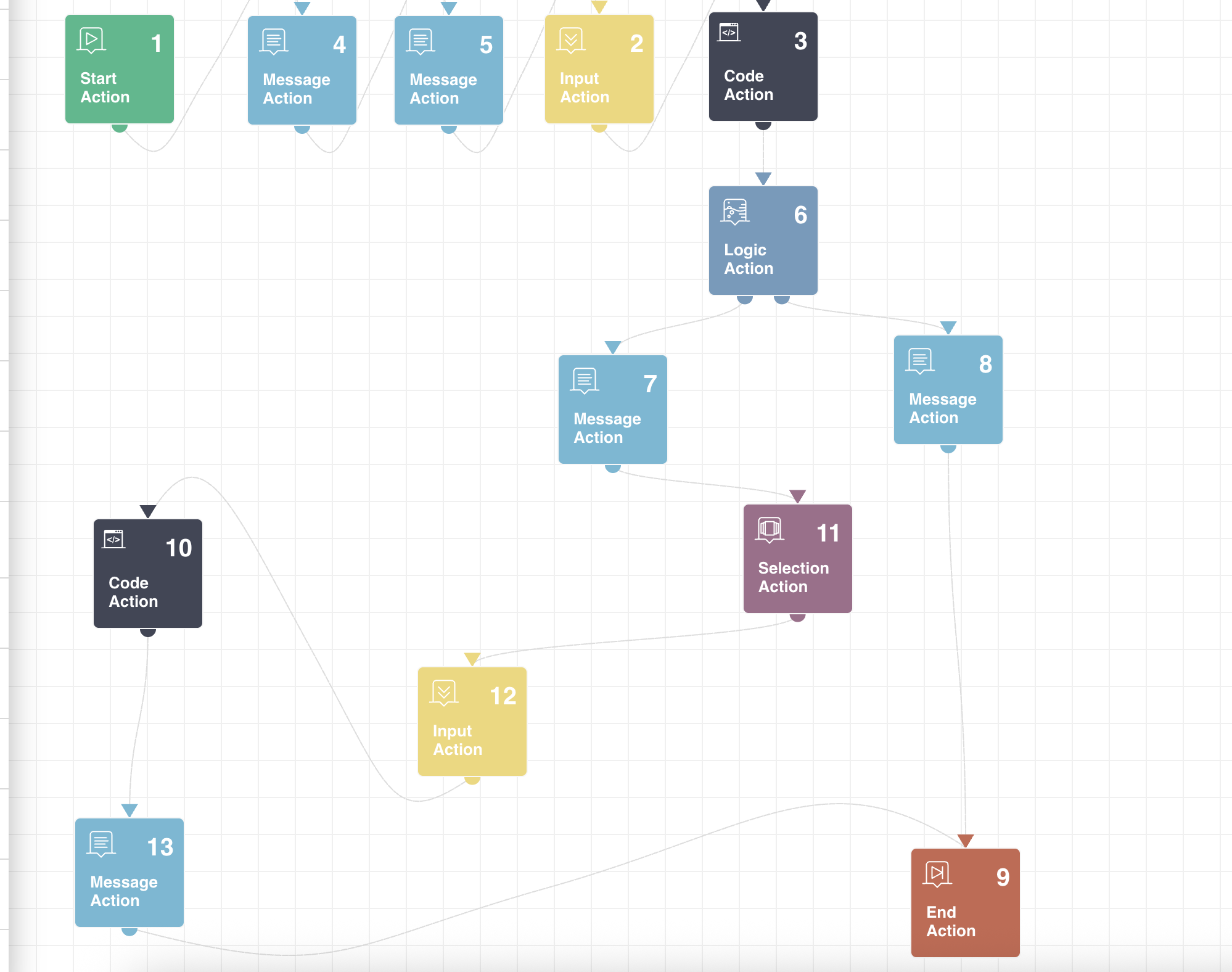
2 code stations were used here: FindRecordByParams and updateRecordByParams.
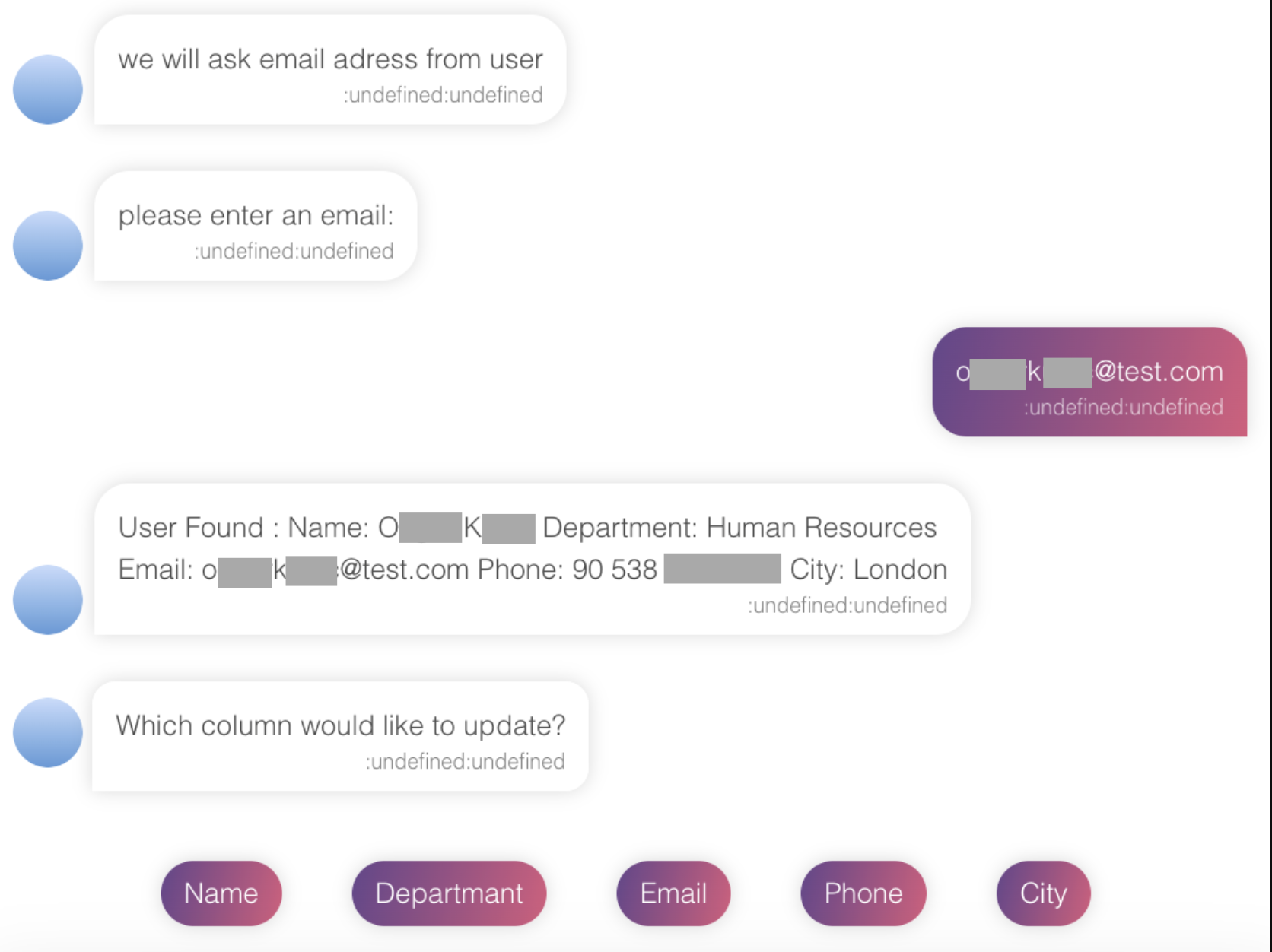
You should check whether the user exists using the email address, since it is unique; it can also be a phone number.
With Selection Action, the bot asks which column we would like to update. In this case, we will update the user’s name.
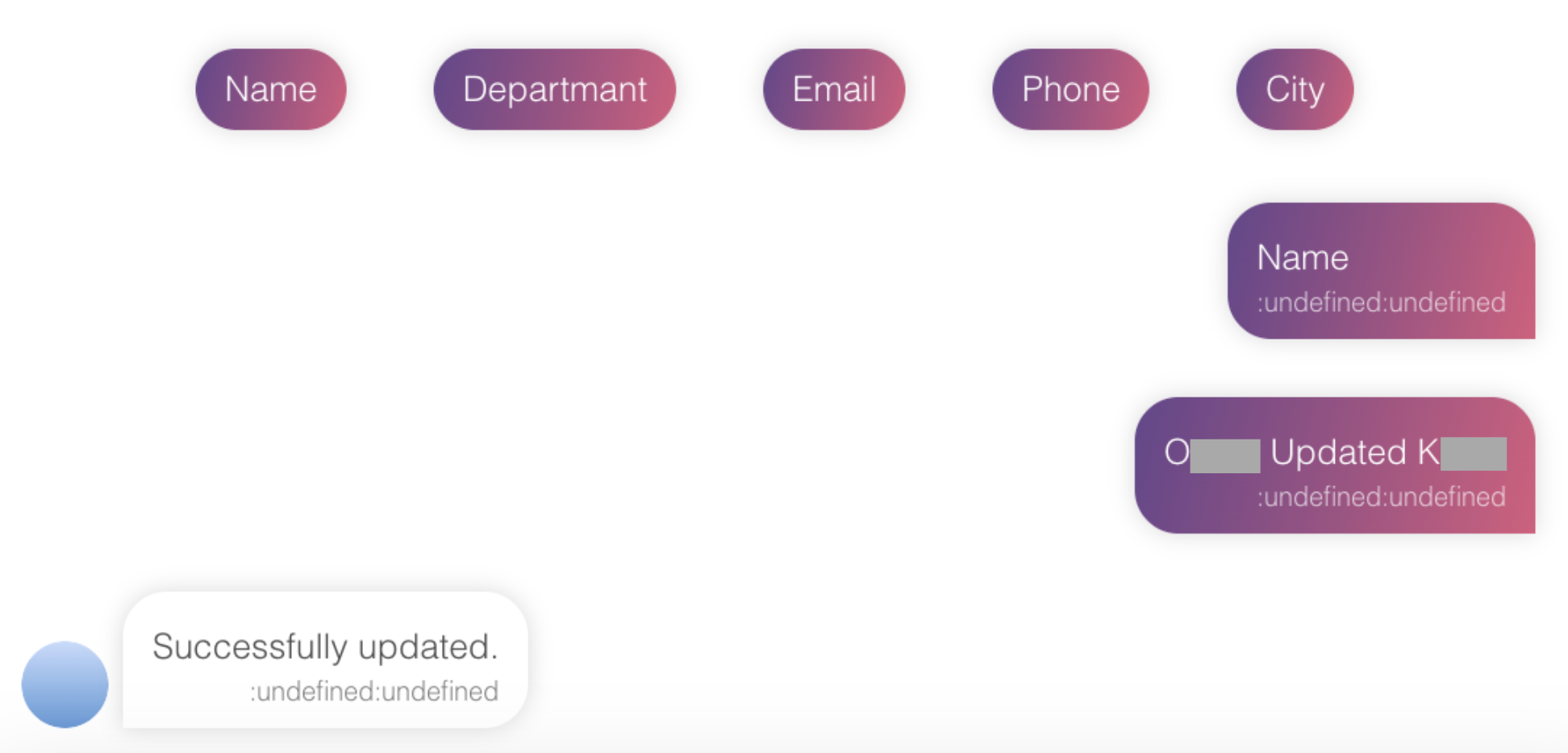
CodeStation lets you update a specific column in a selected row of your Google Sheet. This enables quick, real-time modifications based on user input.
Limitations
Per-user limits (default)
You can see the limits for each limit type below. These apply per user, per project, per minute.
Limit Type | Value |
|---|---|
Read requests | Approximately 300 requests per minute |
Write requests | Approximately 60 requests per minute |
Total requests | Approximately 500 requests per minute |
Per-project limits
Google also applies global limits across your whole Google Cloud project.
Limit Type | Value |
|---|---|
Requests per 100 seconds per project | 100 requests |
Requests per 100 seconds per user | 60 requests |