Suggested reading: Integrate Code Station
This page explains the required Google-side preparation before integrating Google Sheets with MindBehind CodeStation.
You will create your Google Cloud project, generate a service account key, and grant the necessary access permissions to your sheet.
These steps ensure secure authentication and prevent permission-related errors. After completing them, you can continue with Google Sheets Template Integration: CodeStation Configuration and Usage.
Requirements
If you don’t already have a Google Cloud project, you must create one before enabling APIs or generating service account keys.
If you already have an existing project, you may skip this section and continue directly with the next step.
To create a Google Cloud Project (required before setting up credentials), follow the steps below.
Step 1: Go to the Google Cloud Console
Navigate to Google Cloud Console.
Make sure you are logged into your Google account.
Step 2: Open the Project Selector
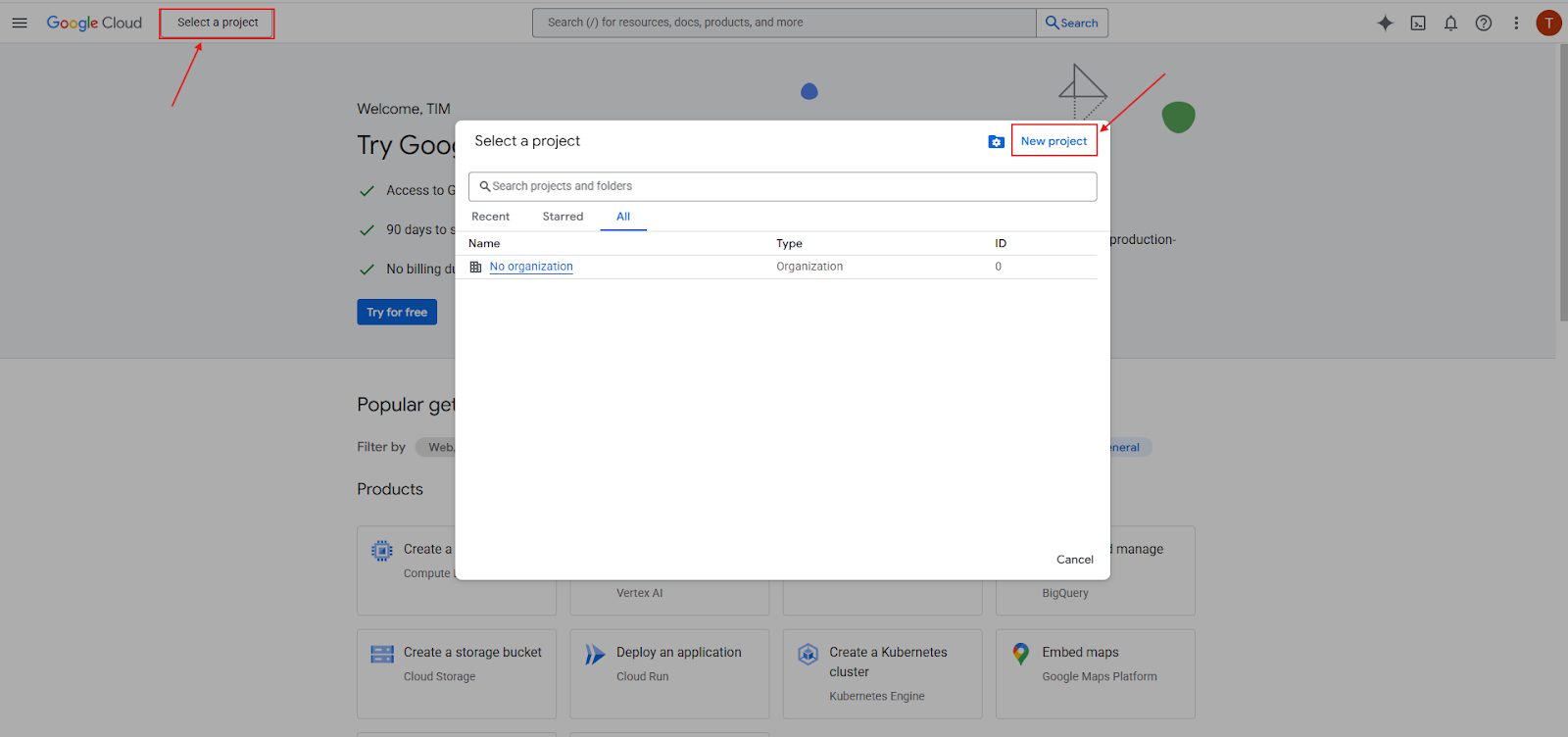
At the top of the page, next to the Google Cloud logo, click Select a project.
If the button says “No project,” it means you currently have no projects created.
In the project selection pop-up, click the New Project button. You will be redirected to the project creation page.
Step 3: Enter a Project Name
Choose a descriptive project name, for example:
google-sheet-integrationgoogle-sheets-automation
This name is for your organization only and will not affect API behavior.
Step 4: Select an Organization and Location (Optional)
If you use a workspace account, select Organization and Location/Folder.
If you use a personal Google account, these options will not appear. Google Cloud will automatically assign the defaults.
Step 5: Create your project
Click the Create button. Google will now start creating your project. This may take a few seconds.
After the project is created, a notification will appear: “Your project has been created”.
Click Select Project to switch into it.
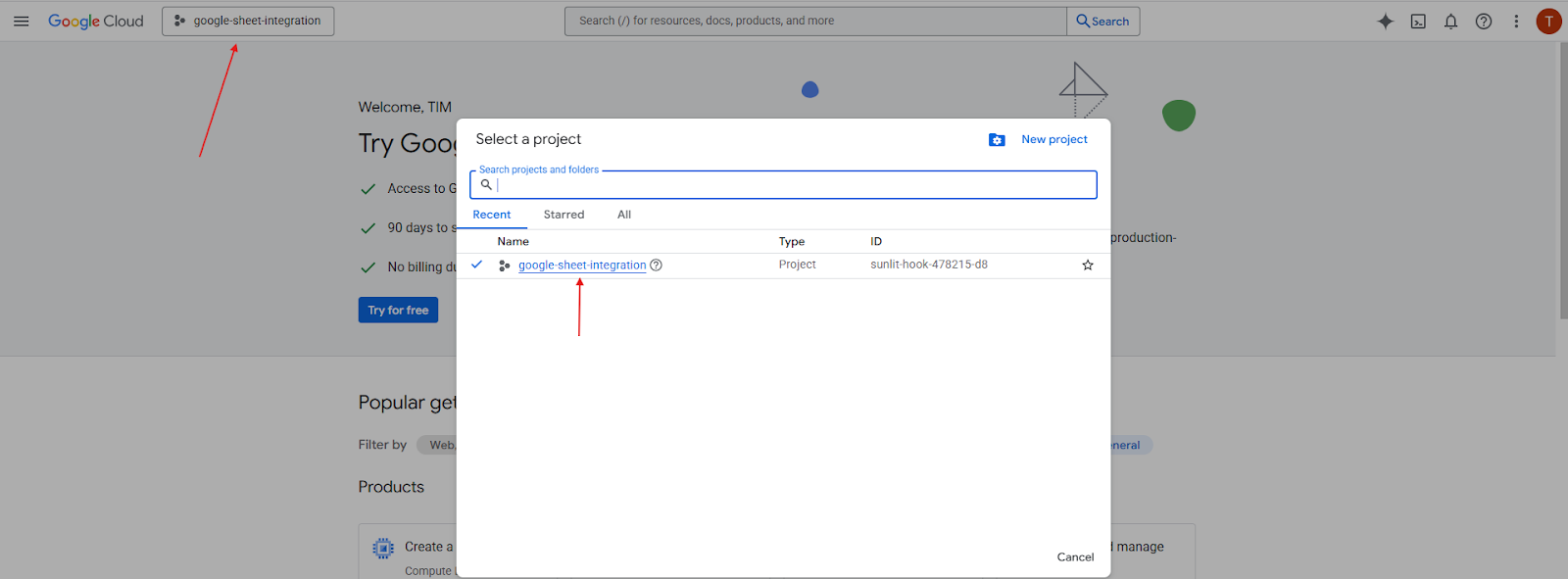
Before continuing with API setup, ensure that:
The project name you created is visible in the header
The project ID is correct
Obtain a Google Service Account Private Key
In this section, you will learn how to create a Service Account in Google Cloud and generate the private key required for MindBehind Code Station Google Sheets integration.
To obtain a Google Service Account Private Key,
Navigate to Google Cloud Console. Make sure you are logged in with your Google account.
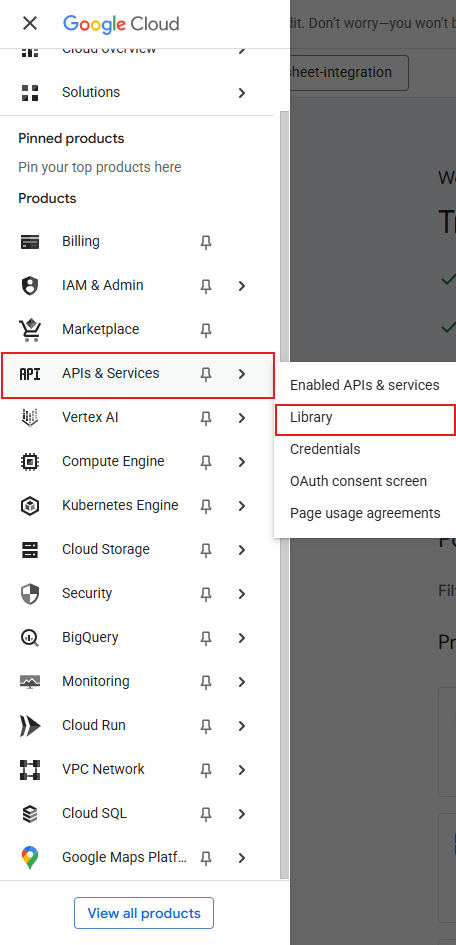
Click the Navigation Menu on the left.
Select APIs & Services > Library.
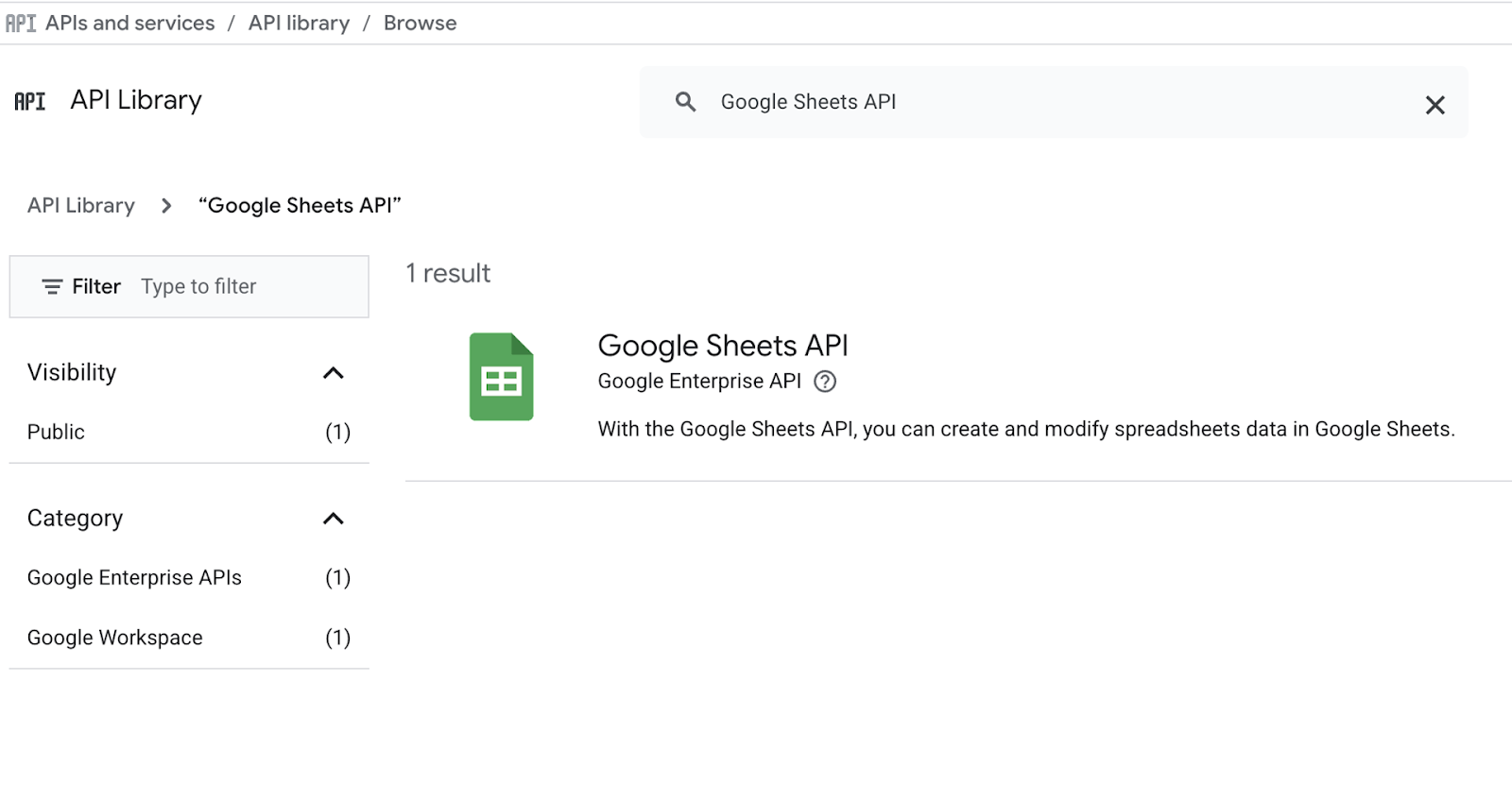
Use the search bar at the top and type “Google Sheets API”. Select this API from the results.
After enabling the API, Google will automatically redirect you. Click Credentials on the left menu. This is where you can manage the authentication keys and service accounts.
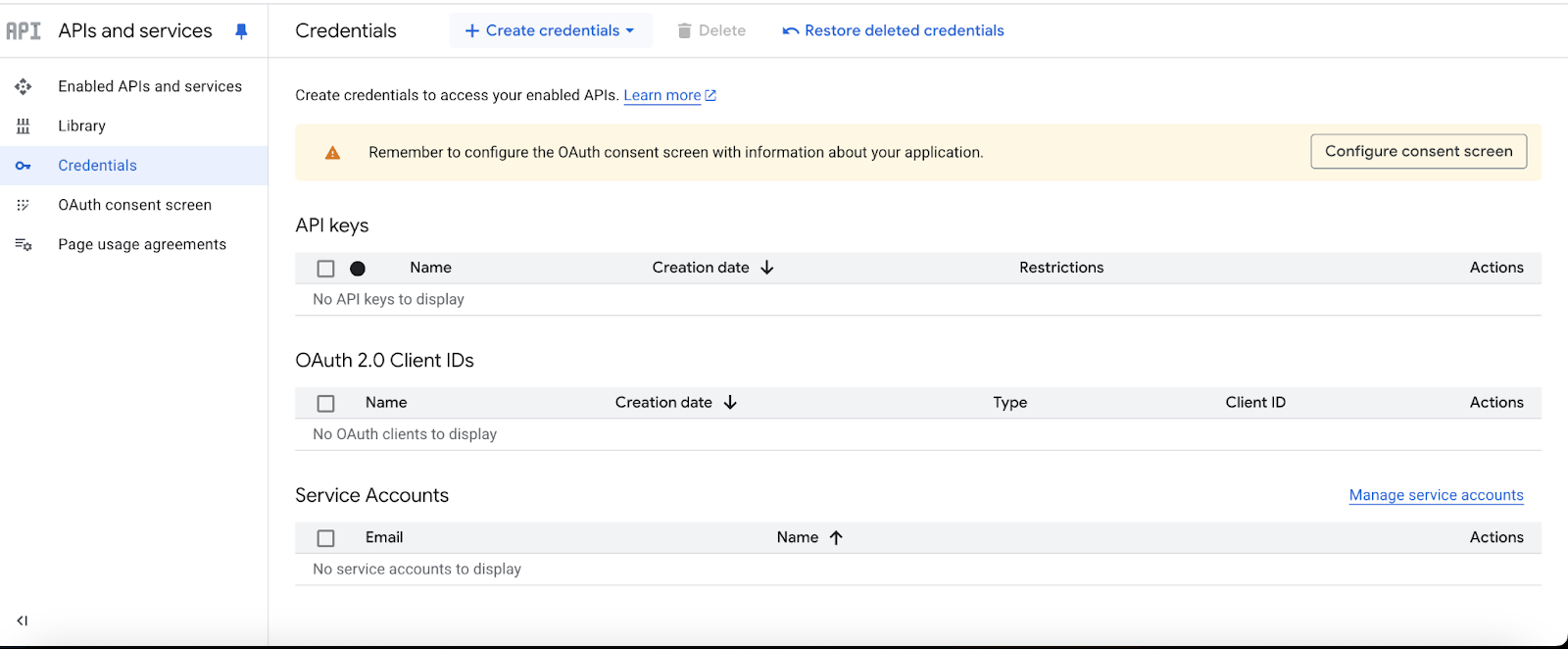
A service account is a programmatic account used to access Google Sheets on behalf of your integration. To create a service account, click +Create Credentials. Select Service Account from the dropdown menu.
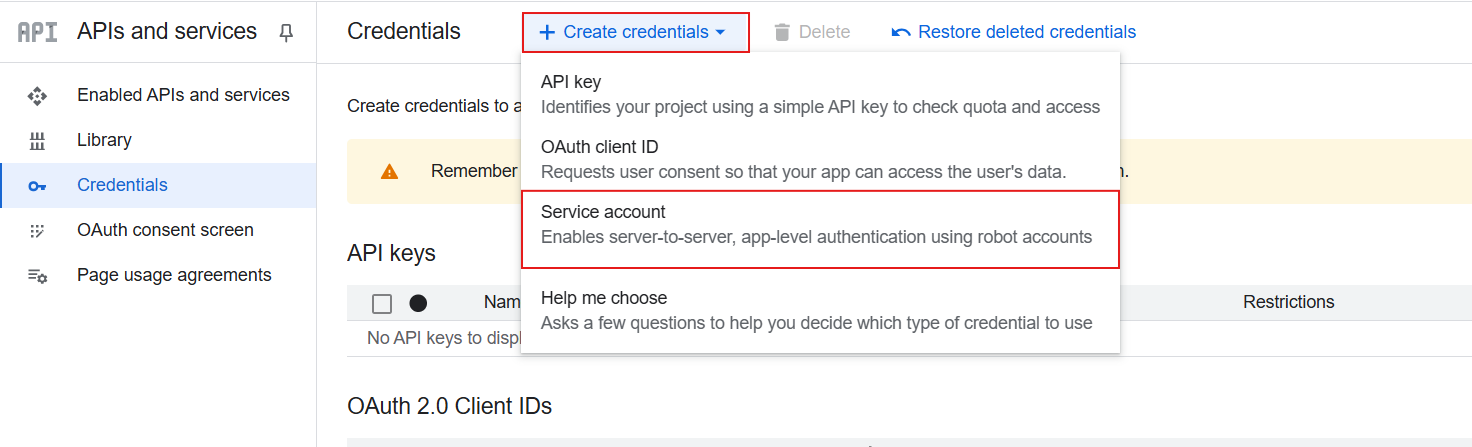
You must fill in the Service account name field. When you enter the name, Google will automatically generate a Service account ID, which will be used to create the final service account email address. For example, if you enter the name
mindbehind-sheets-access, Google might generate an ID like:mindbehind-sheets-access-123. The final service account email will be:mindbehind-sheets-access-123@your-project.iam.gserviceaccount.com.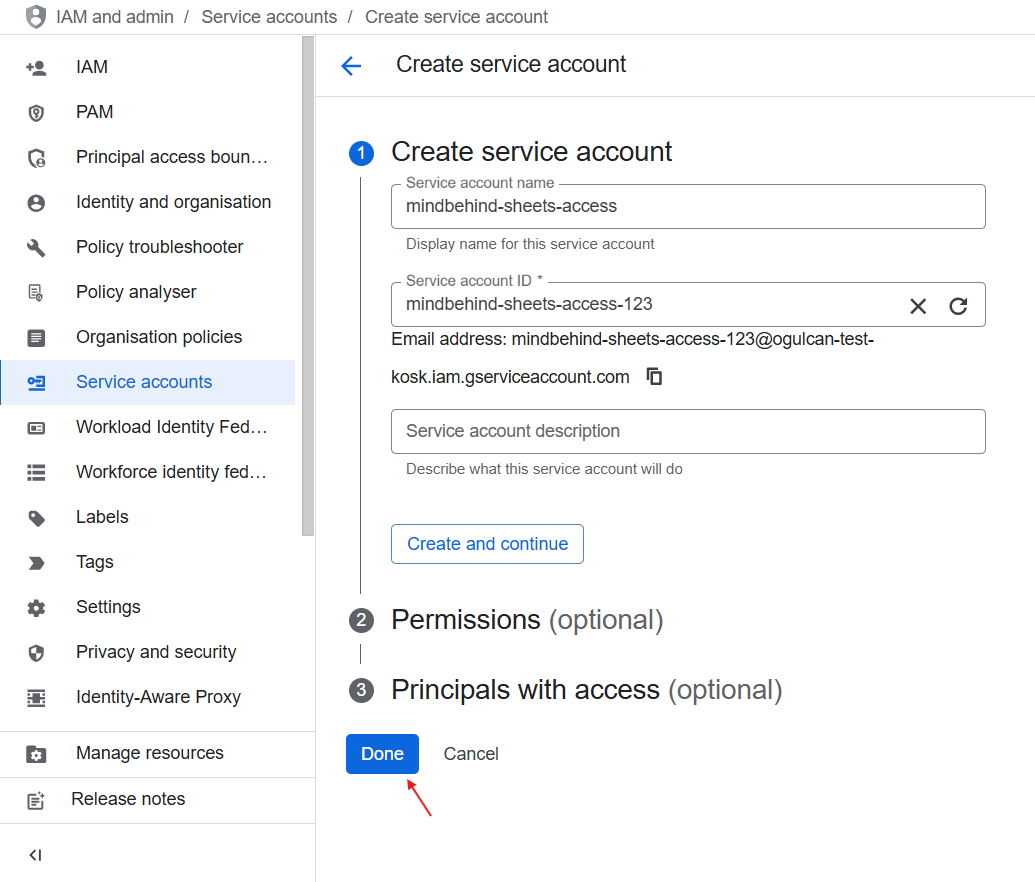
After entering the name, click Done.
After creation, refresh the page or return to the Credentials page. You will now see your newly created service account listed.
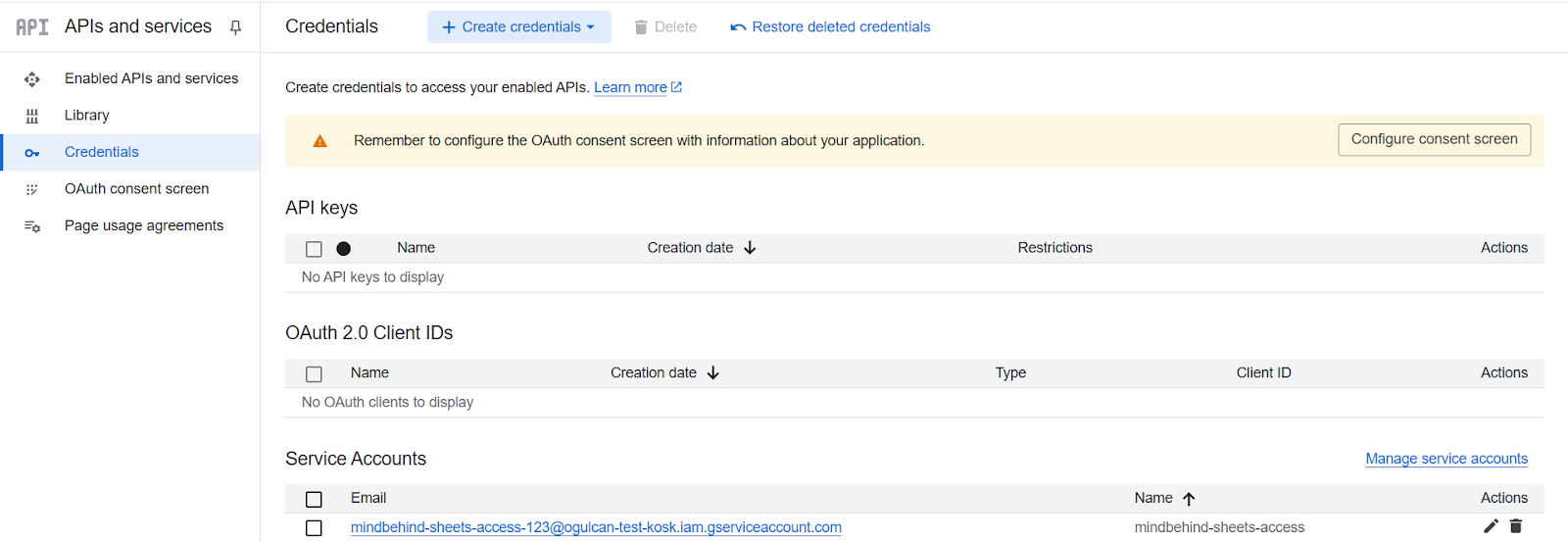
Under the Service Accounts section, find and click the service account email. For example:
mindbehind-sheets-access-123@your-project.iam.gserviceaccount.com. Click the email to open the full details page.Go to the Keys tab at the top of the service account details page. This is where you create the private key used for authentication.
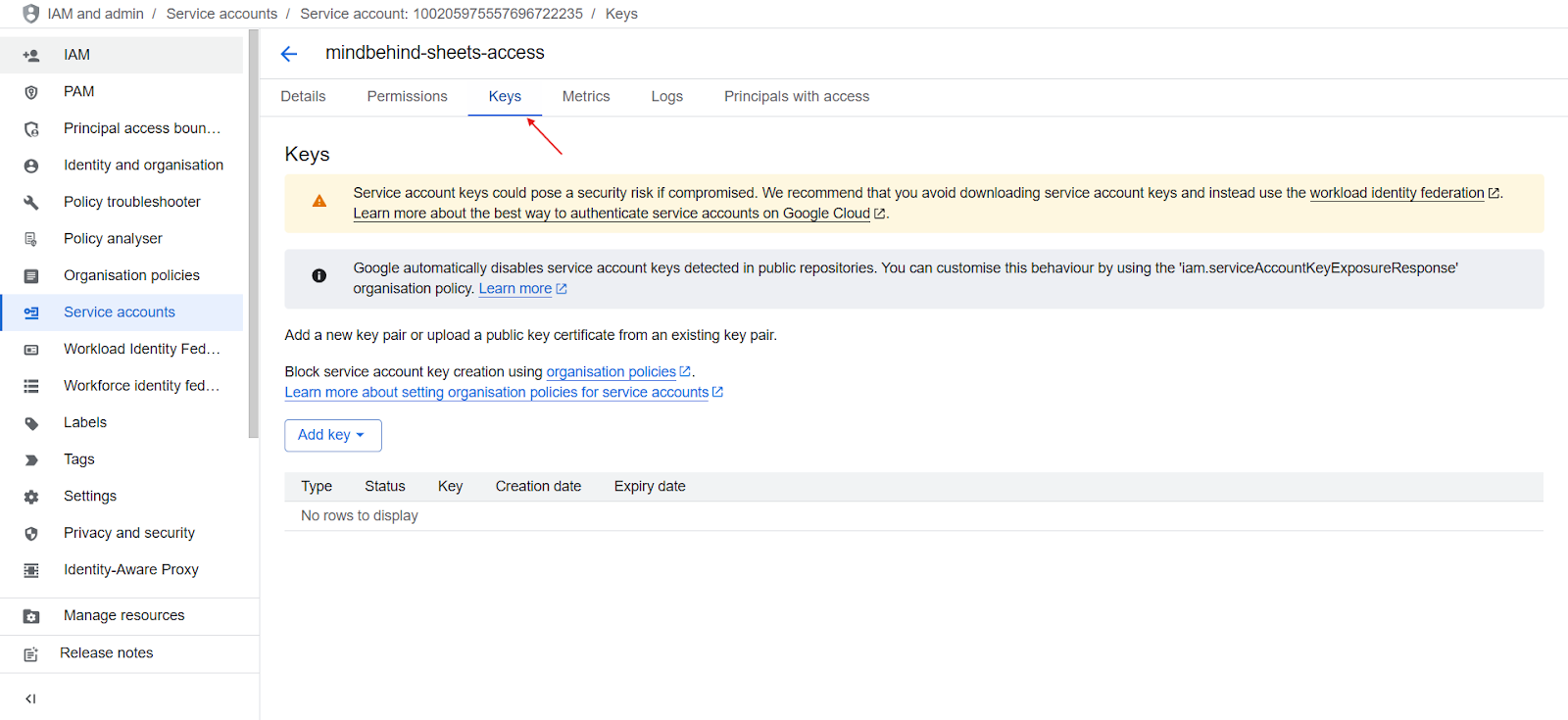
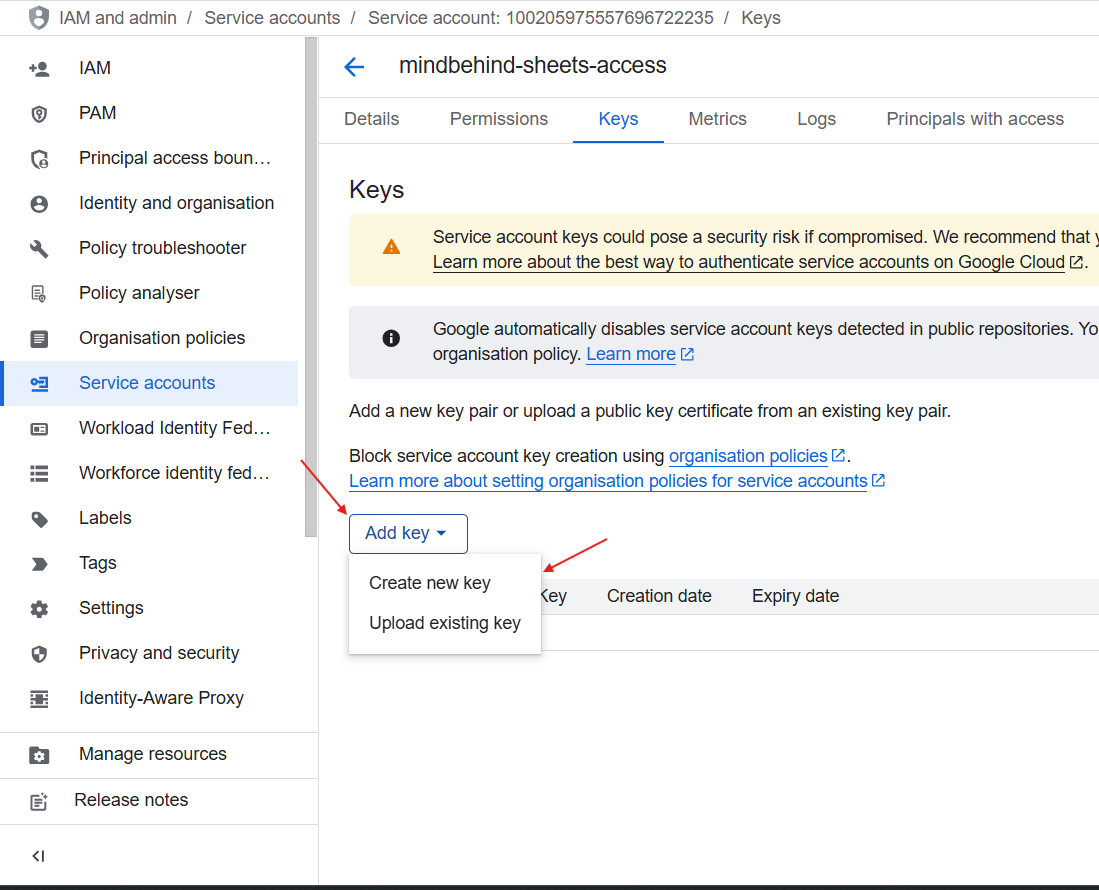
To create a new key, click Add Key and select Create New Key.
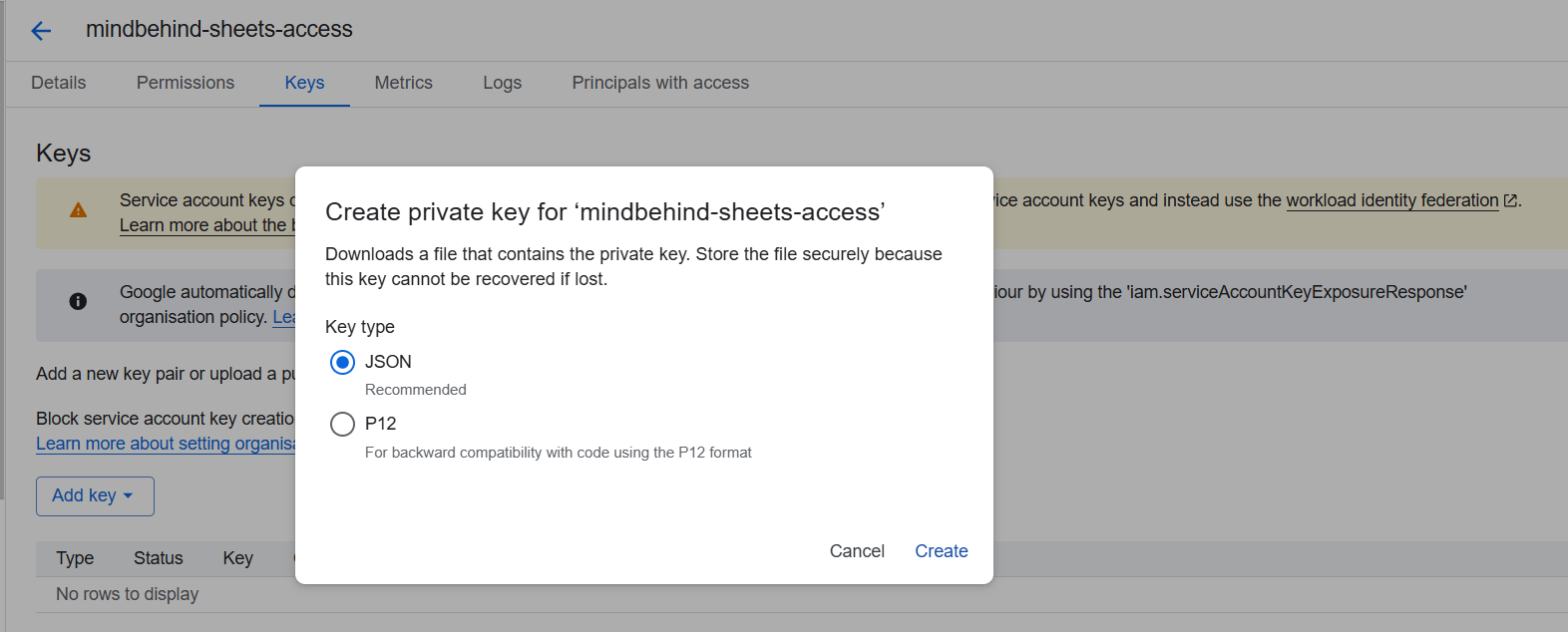
Select the JSON option and click Create to proceed.
A
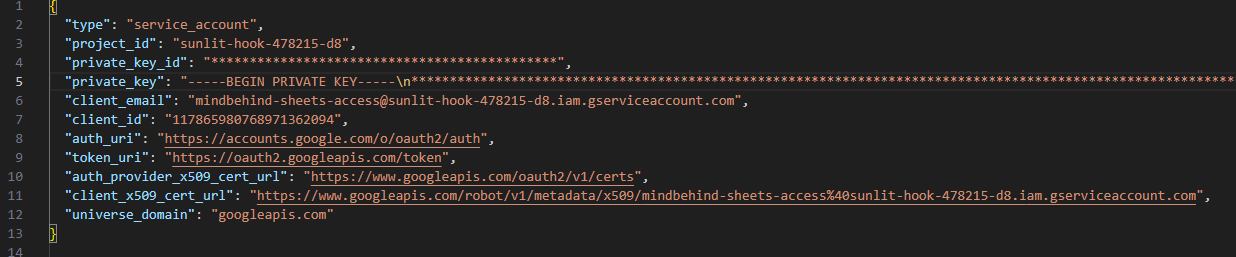
.jsonfile will automatically download to your computer. The downloaded file contains your service account credentials. You will specifically need:-
client_email-
private_keyThese values are used inside the MindBehind CodeStation template. For example, you can refer to the image below:
IMPORTANT:
Google Cloud only allows you to download the private key once. If you lose this JSON file:
You cannot recover the same key again.
You must delete the old key and create a new one following the same process.
Keep your private key secure and don’t share it publicly. Anyone who has this key can access your Google Sheets.
What if you lose the JSON file?
If you lose or delete the JSON file, Google doesn’t allow you to view the same private key again. However, you can generate a new key:
Go to the same Service Account.
Open the Keys tab.
Click Add Key > Create New Key.
Download the new JSON file.
After generating a new key, remember that you should:
Replace the key inside MindBehind with the new one.
Delete the old key for security reasons.
Grant Access to your Google Sheet
Before using the Google Sheets template inside CodeStation, you must give the service account permission to access the spreadsheet. This step is required for both reading and writing operations.
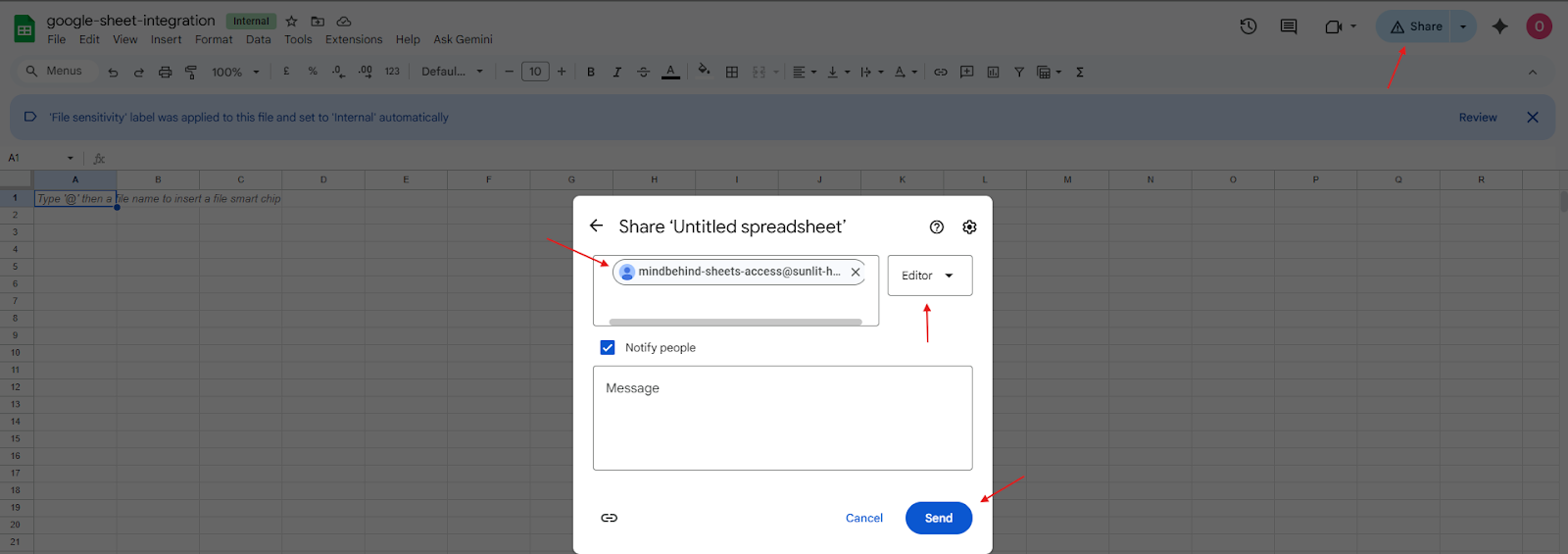
Go to the spreadsheet you want to use and click the Share button in the top-right corner.
Open the JSON file you downloaded in the previous step and copy the value of
client_email.Paste this email into the Add people field in the Share window.
To grant Editor access, set the permission level to Editor, then click Share or Done to save the changes.
If the permission is applied successfully, the service account email will appear under People with access, confirming it can now read and write to your Google Sheet.
After completing these steps, you can proceed with Google Sheets Template Integration: CodeStation Configuration and Usage.