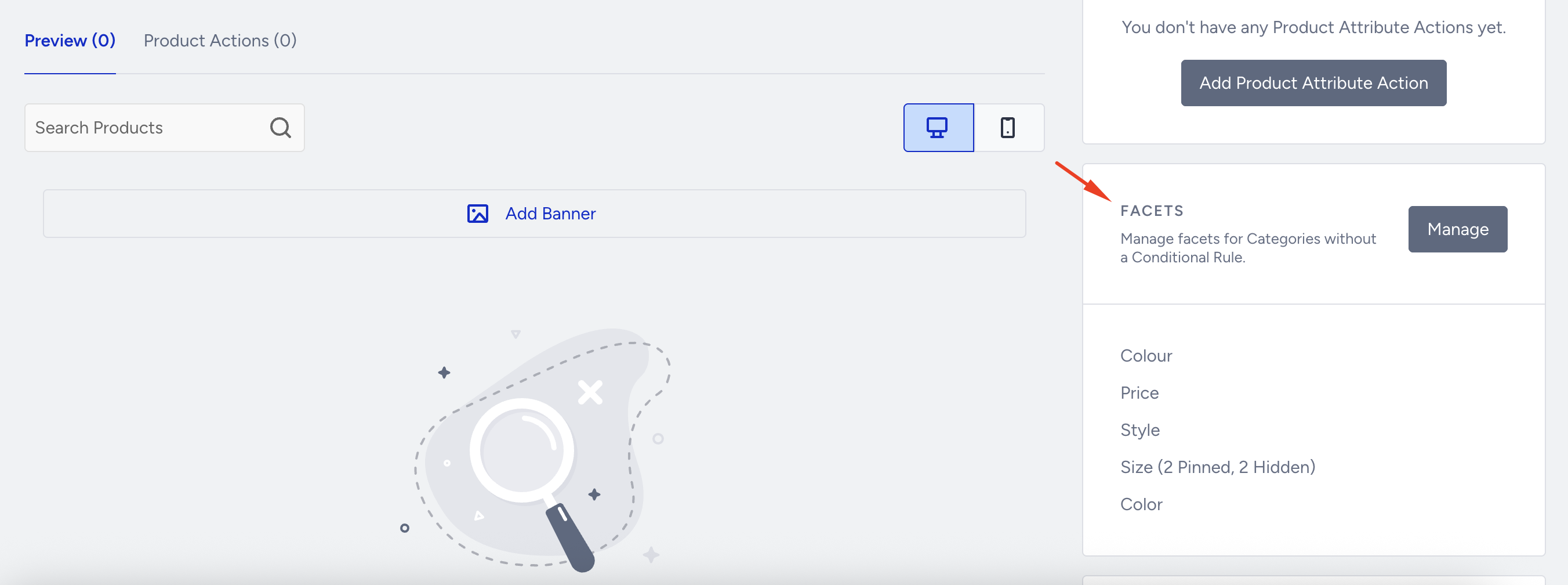
Facet Merchandising is a powerful feature that allows you to customize the filtering experience on both search results and category pages. It gives you control over which facets are displayed, their order, and how facet values are presented, ensuring a clean, relevant, and consistent experience across desktop and mobile.
This article covers the answers to the following questions:
Use Cases
You can use Facet Merchandising on both search results and category pages:
Facet Configuration on Search Results
Display the most relevant facets, such as Size and Brand, at the top of the filter panel when users search for “shoes,” improving both relevance and usability.
Hide less relevant filters, such as Material, when users search for digital products to reduce clutter and simplify the filtering experience.
Facet Configuration on Category Pages
Adjust the facet order on the Winter Jackets category page to highlight filters like Insulation Type and Waterproof during the winter season.
Hide off-season or unused facets—such as Sleeve Length—from the Swimwear category page to maintain a clean and relevant filtering experience.
Facet Value Customization
Reorder size values (e.g., XS → S → M → L → XL) under the Size facet to match customer expectations and improve conversions.
Display color values in a custom sequence (e.g., Black, White, Blue, Red) based on popularity or campaign design.
Hide irrelevant values—such as Short Sleeve under the Sleeve Length facet on the Winter Coats category page—when they appear due to a few edge-case SKUs.
Preview and Testing
Preview the facet layout on both desktop and mobile before publishing changes to ensure it displays correctly across devices.
Validate how global and conditional facet rules interact by testing their impact in real time through the preview panel.
Things to Keep in Mind
Global facet settings apply universally unless overridden by conditional rules. Conditional rules are context-specific (based on search terms or categories) and apply only when their trigger conditions are met.
Changes are reflected in real time across both preview and live environments.
Mobile and desktop previews are available separately.
Only one Global Rule can be active at a time.
Facet and value reordering is enabled via drag-and-drop.
The preview reflects query/category triggers; if no trigger is matched, it remains empty.
Any facet values not pinned will follow the default sorting logic set in Eureka Settings—either alphabetically or by item count.
Functionalities
These features let you control how facets and their values are displayed, ordered, and previewed, delivering a cleaner, more relevant filtering experience.
Facet Ordering
Reorder facets using drag-and-drop.
Access a modal with a searchable table showing facet names and actions (Hide / Delete).
Use the Save and Cancel buttons to confirm or discard changes.
Ordering applies to both global and conditional rules.
Conditional facet orders override global ones.
Facet Hiding
Hide irrelevant facets using the Hide or Delete button in the modal.
Hidden facets are removed from both the preview and the end-user view.
Facet Value Ordering
Customize the display order of values within a facet (e.g., XS → S → M → L → XL).
Reorder values via drag-and-drop within each facet.
Apply ordering globally or conditionally.
Use the searchable list of facet values inside the modal to locate specific entries.
Facet Preview
View a live preview of facets for both desktop and mobile.
Changes are reflected immediately in the preview pane.
The preview updates dynamically as selections change.
Rule Types: Global vs Conditional
Global Rule
Applies to all queries and categories by default.
Can be overridden by Conditional Rules.
Conditional Rule
Specific to a search query or category.
Takes precedence over global configurations.
Allows facet ordering, hiding, and value reordering tailored to the context.
Create a rule for Facet Merchandising
You can create Merchandising rules as Conditional Rules or Global Rules.
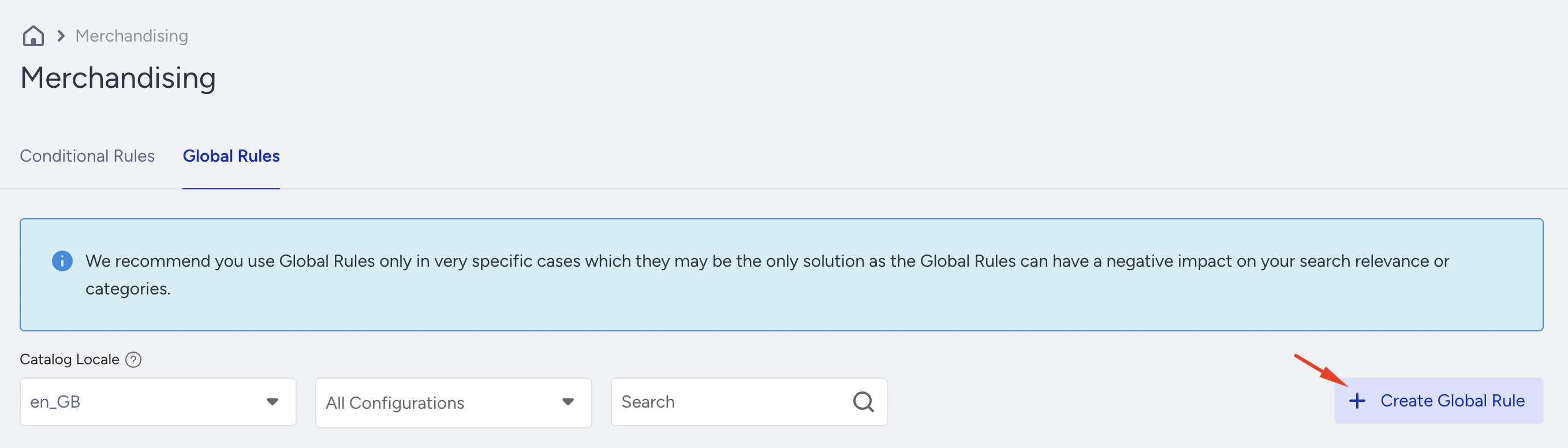
To create a global category-based rule, go to the Global Rules tab and click on Create Global Rule.
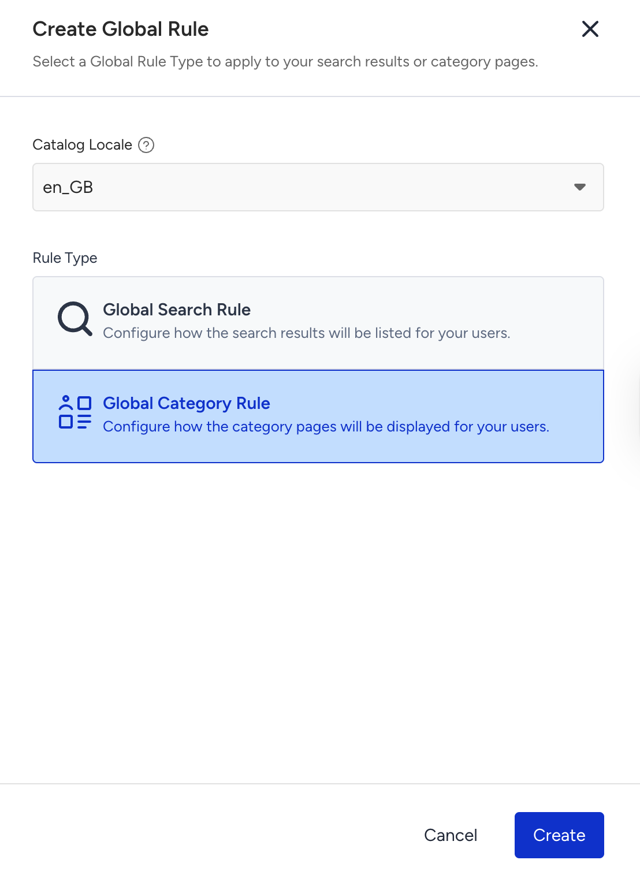
Select the Catalog Locale, then the Global Category Rule to navigate to the rule creation/preview page.
In the Facets section, click the Manage button to open the Facet Configuration Modal (for conditional rules, first triggers should be set).
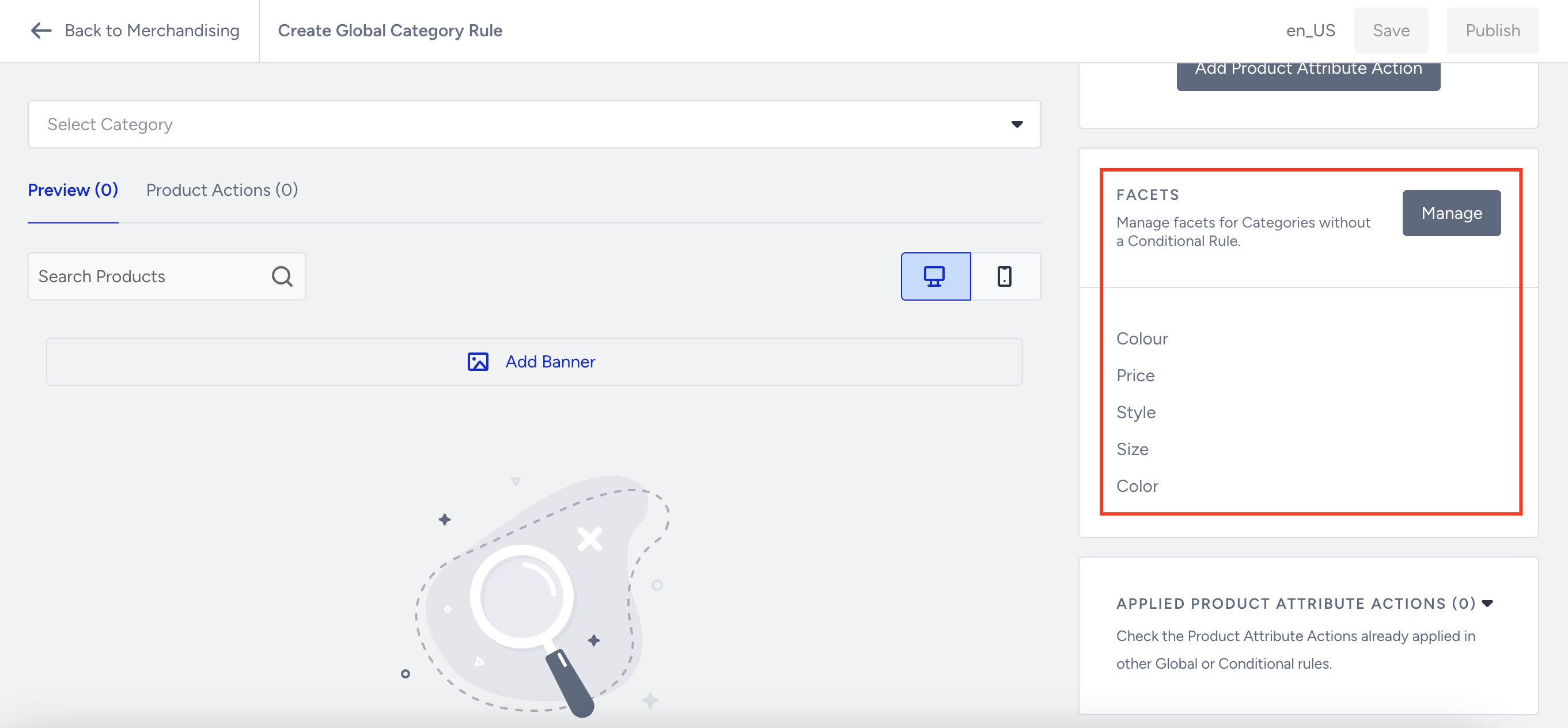
You can reorder facets using drag-and-drop to define the desired order.
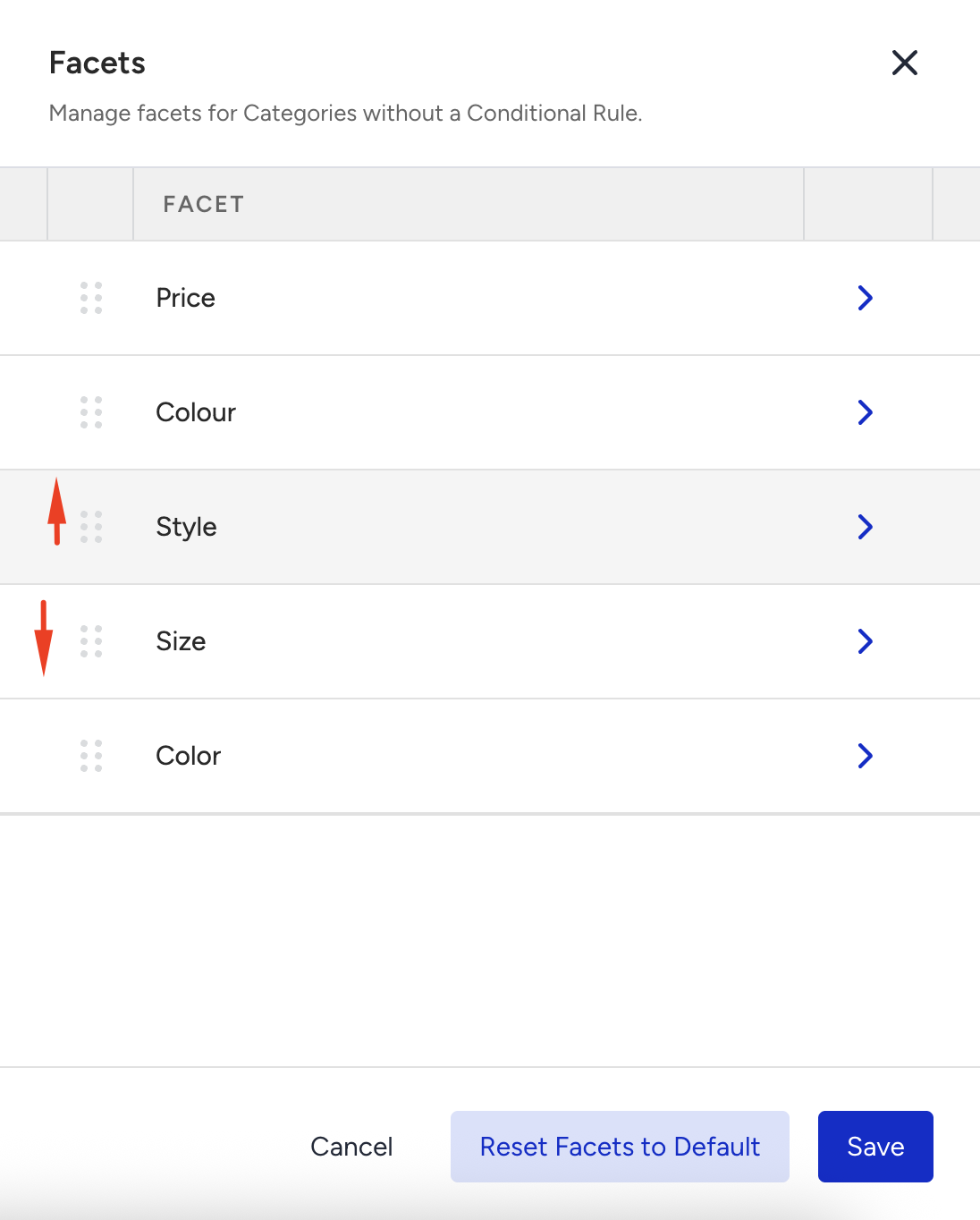
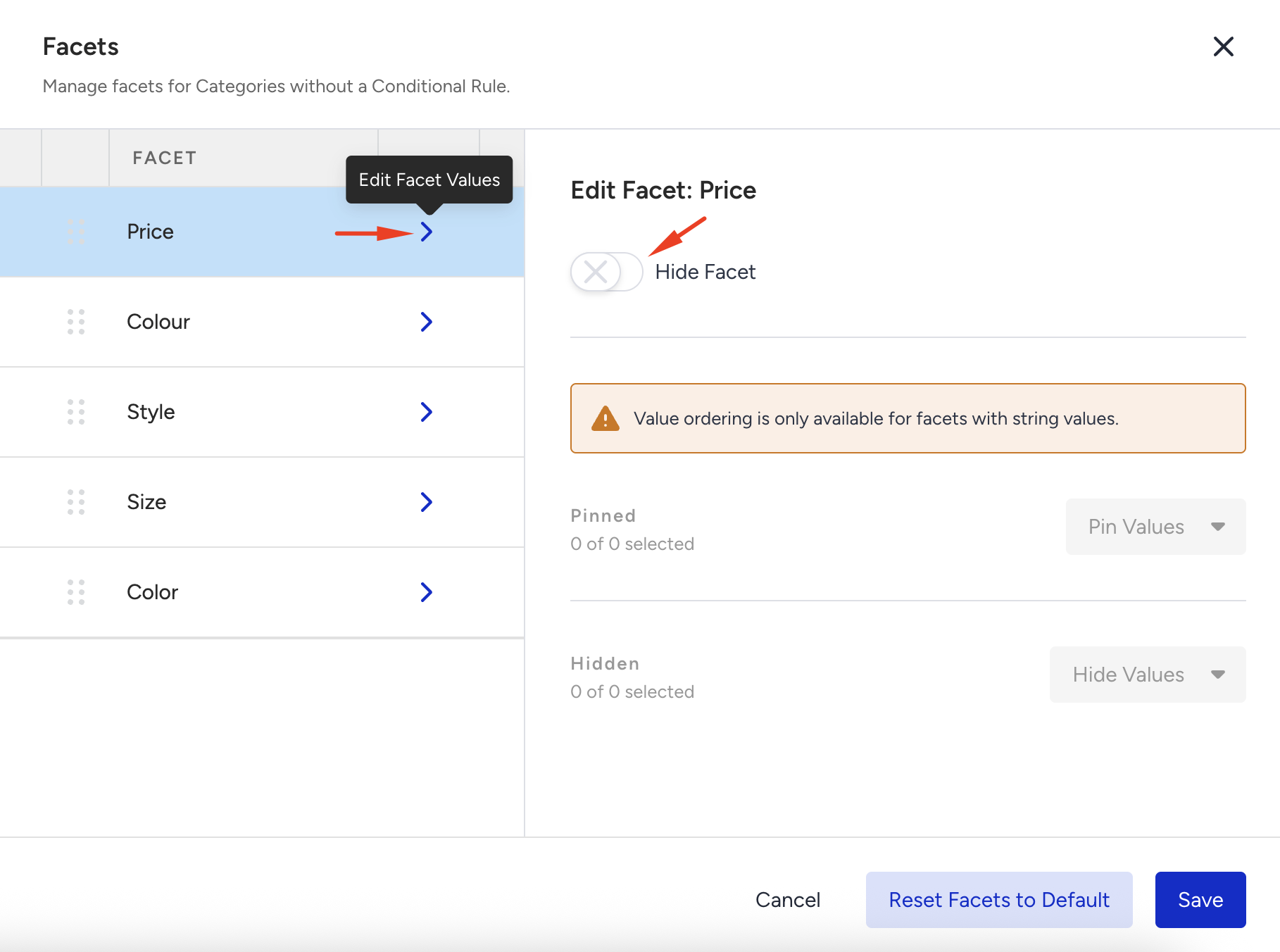
To hide a facet from view, click it to open its settings, then enable the Hide Facet toggle.
To view all available values, click on a facet to access Facet Value Ordering. In the expanded modal, open the Pin Values dropdown.
Value ordering is only available for facets with string values.
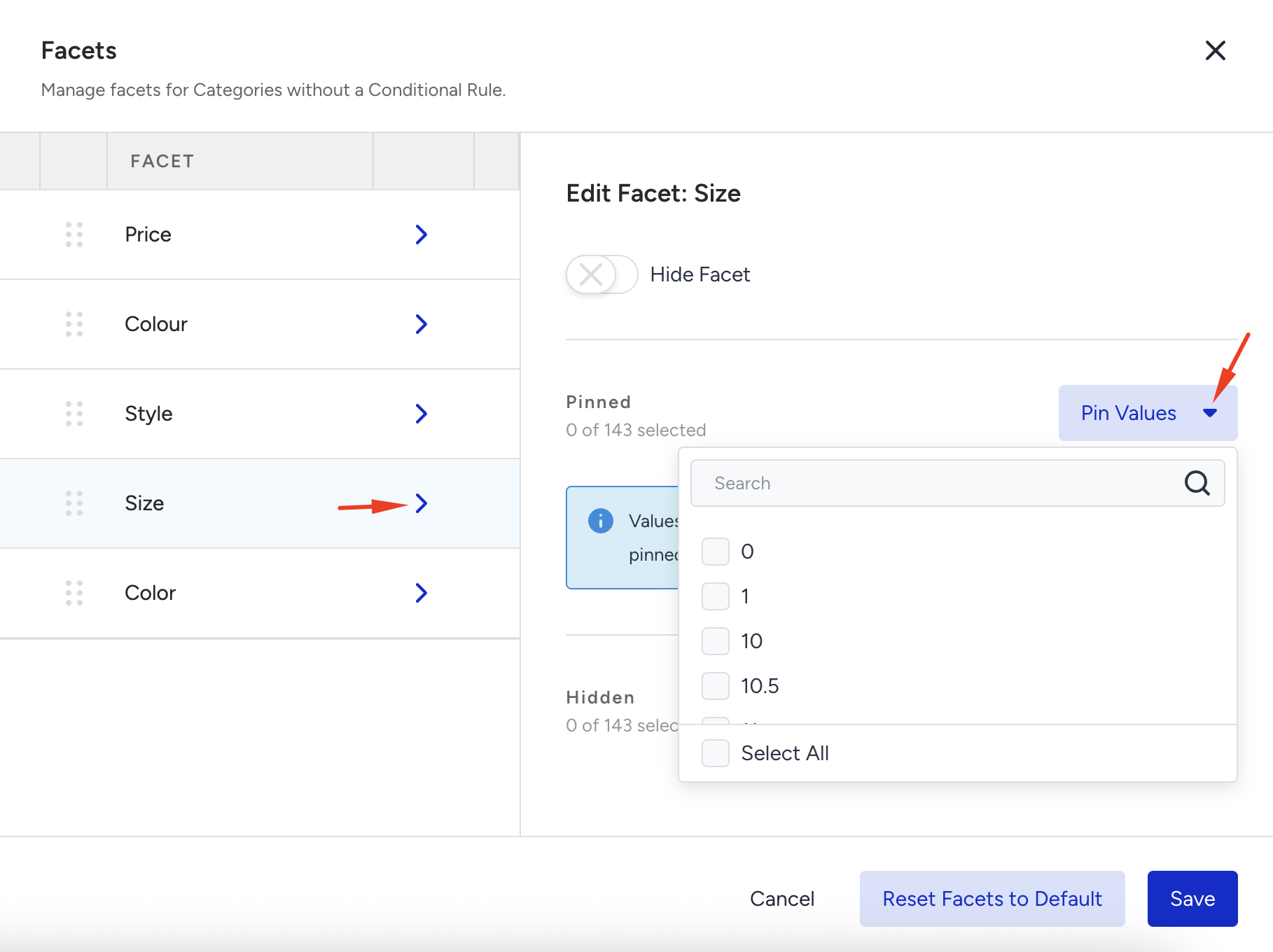
Select the values to reorder. These selected values appear under the Pinned section, where you can arrange them via drag-and-drop.
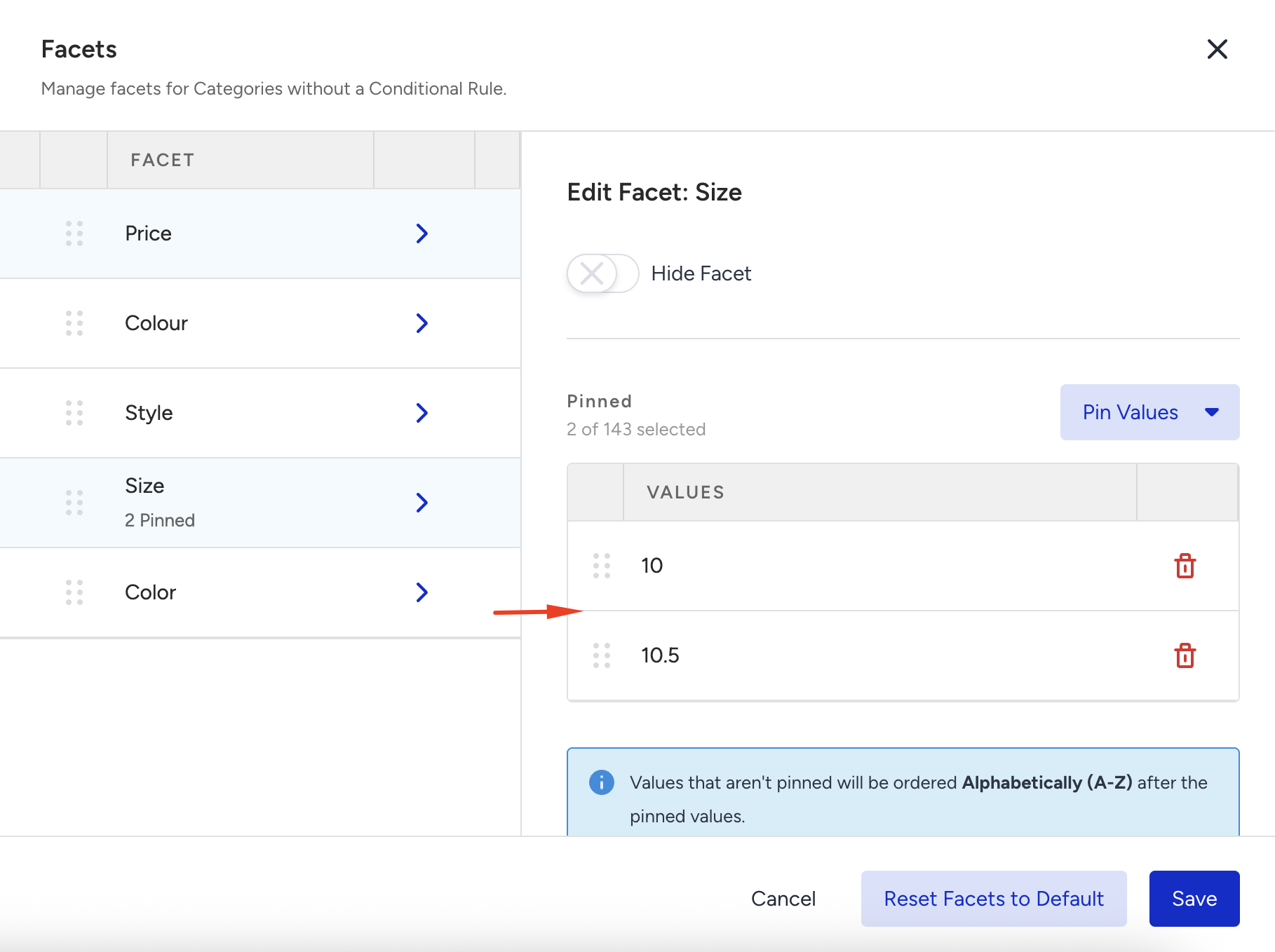
To remove a pinned value, click the Delete icon next to it.
Unpinned values will follow the default sort method defined in Eureka Settings (e.g., Alphabetical or Number of Items).
To hide specific values, click Hide Values to view the list of available facet values, then select the ones you want to hide from the dropdown.
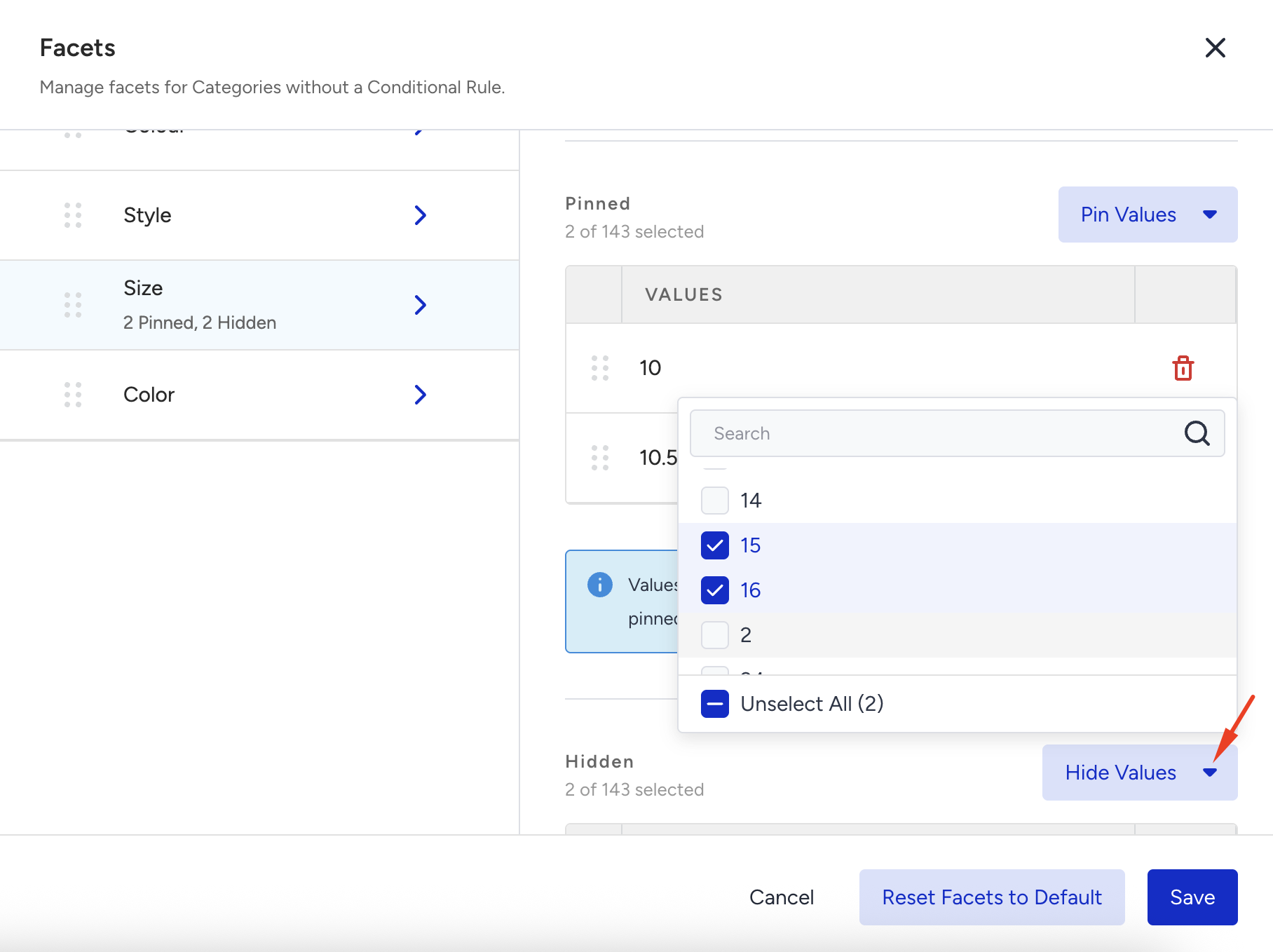
Once selected, these values are listed under the Hidden section and will no longer appear as facet values.
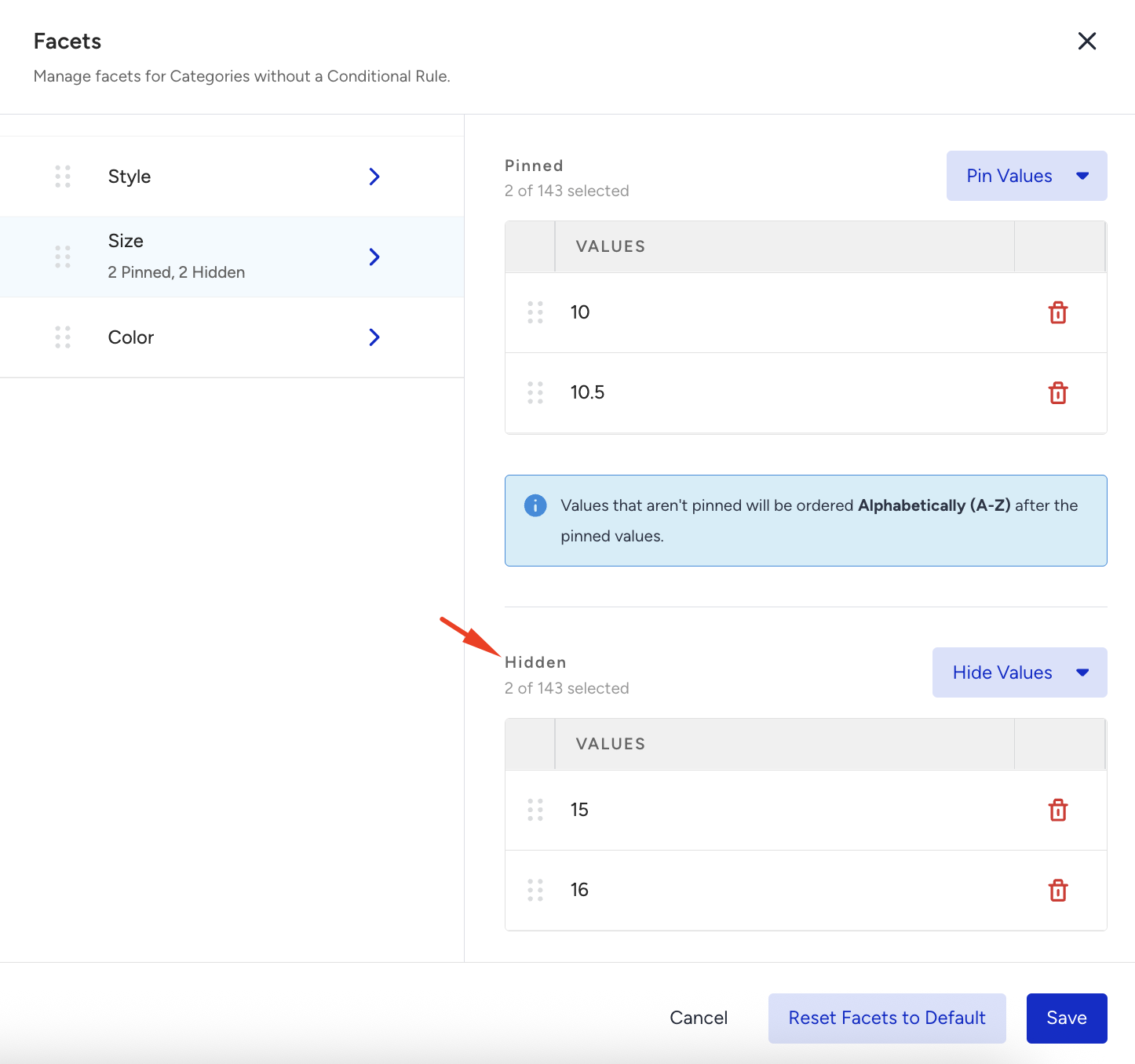
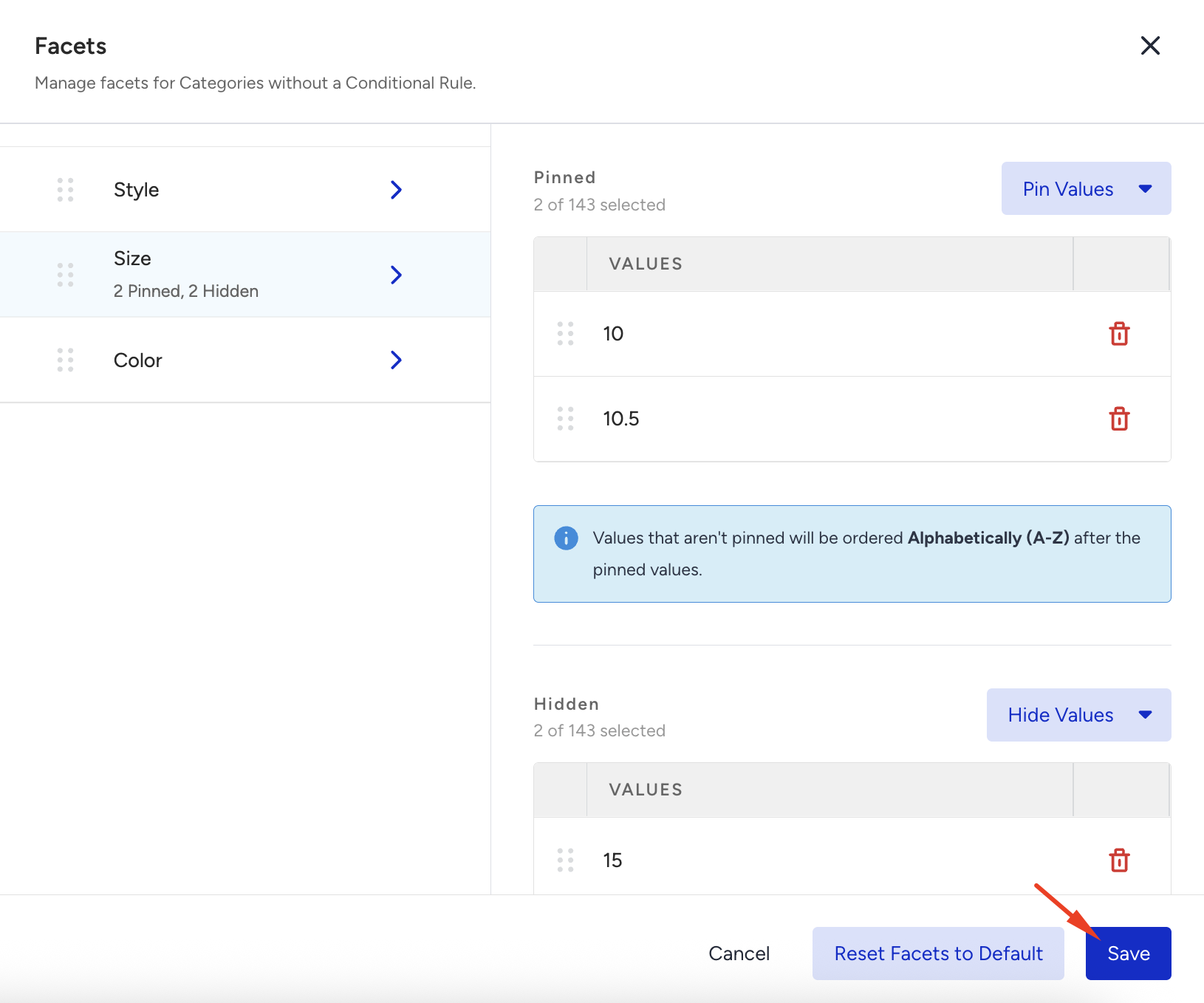
After completing the changes, click Save to apply the configuration.
The Facet Preview section updates in real time to show how the facet changes will appear on desktop and mobile category pages.