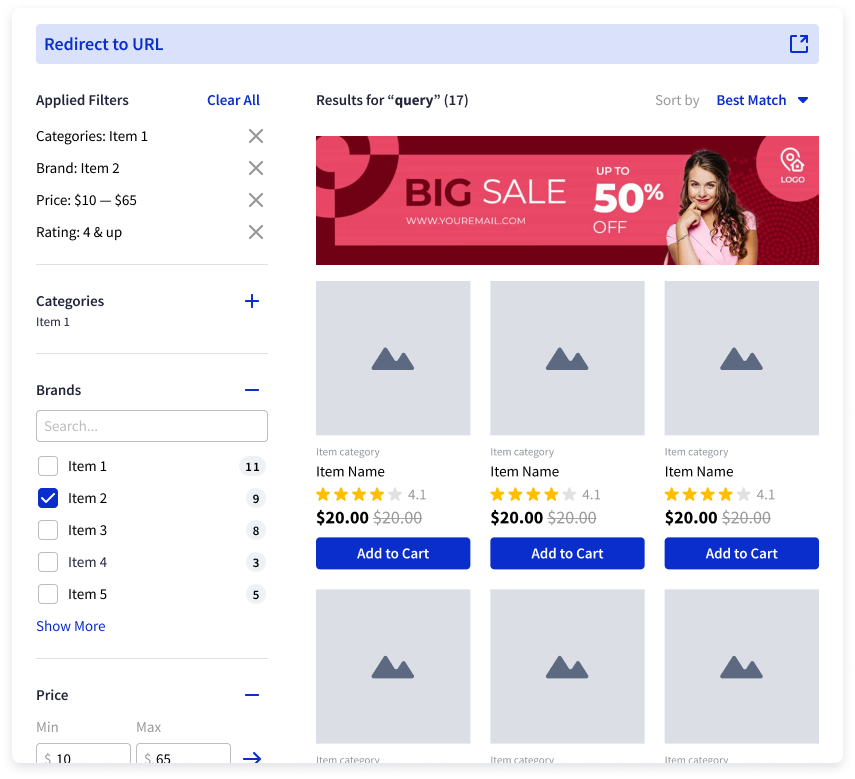
Banner Merchandising is a flexible and powerful way to display promotional banners in search results and category pages, driving engagement and aligning with specific marketing campaigns.
This article covers the answers to the following questions:
Use Cases
You can use Banner Merchandising both on Search Results and Category pages:
Banner on Search Results
Using the Banner Merchandising,
You can display a banner showcasing the latest sneaker collection at the top of the search results when users search for the term “sneakers.”
You can display a banner on top of the search results that showcases the recent campaign image and directs users to the campaign’s URL for every search result.
Banner on Category Pages
Using the Banner Merchandising,
You can display a banner with an image of a recent marathon event on top of the “Sportswear” category page when users visit that category.
You can display a promotional banner highlighting the ongoing storewide discount at the top of all category pages to increase user engagement and sales.
Create a Merchandising Rule with a Banner
To create a Merchandising Rule with a banner,
Navigate to Search and Merchandising > Merchandising Rules.
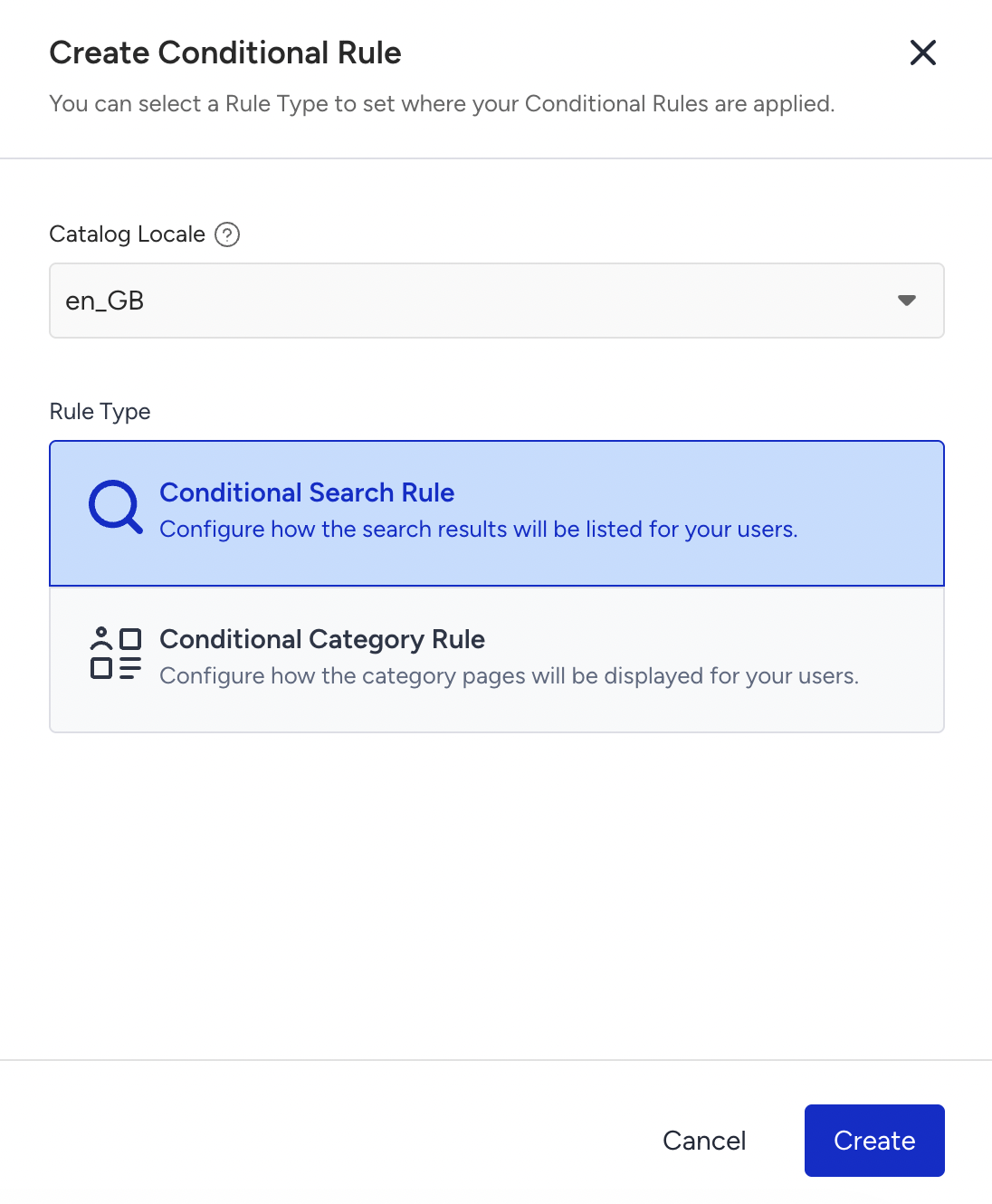
Click the Create Conditional Rule button on the listing page.

You can add a banner as a Conditional Search Rule or Global Rule. Select the Catalog Locale and rule type, and click the Create button to proceed.
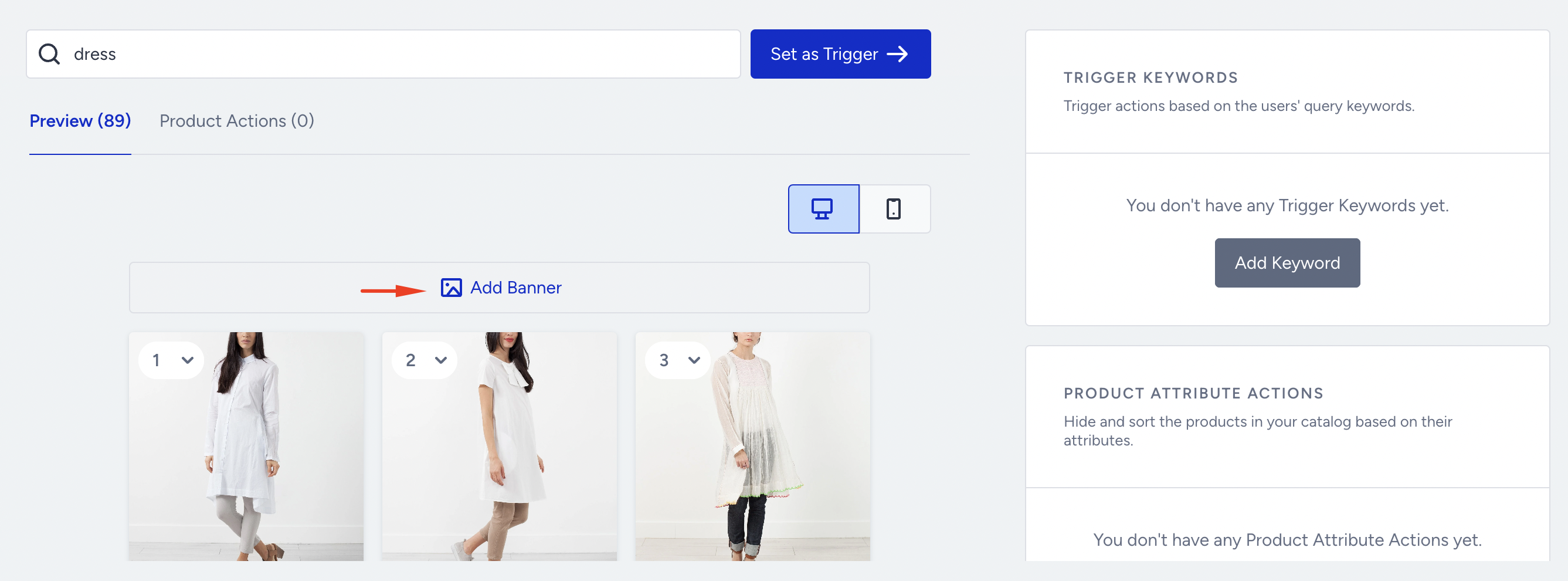
Enter the trigger keyword(s) and click the Add Banner button.
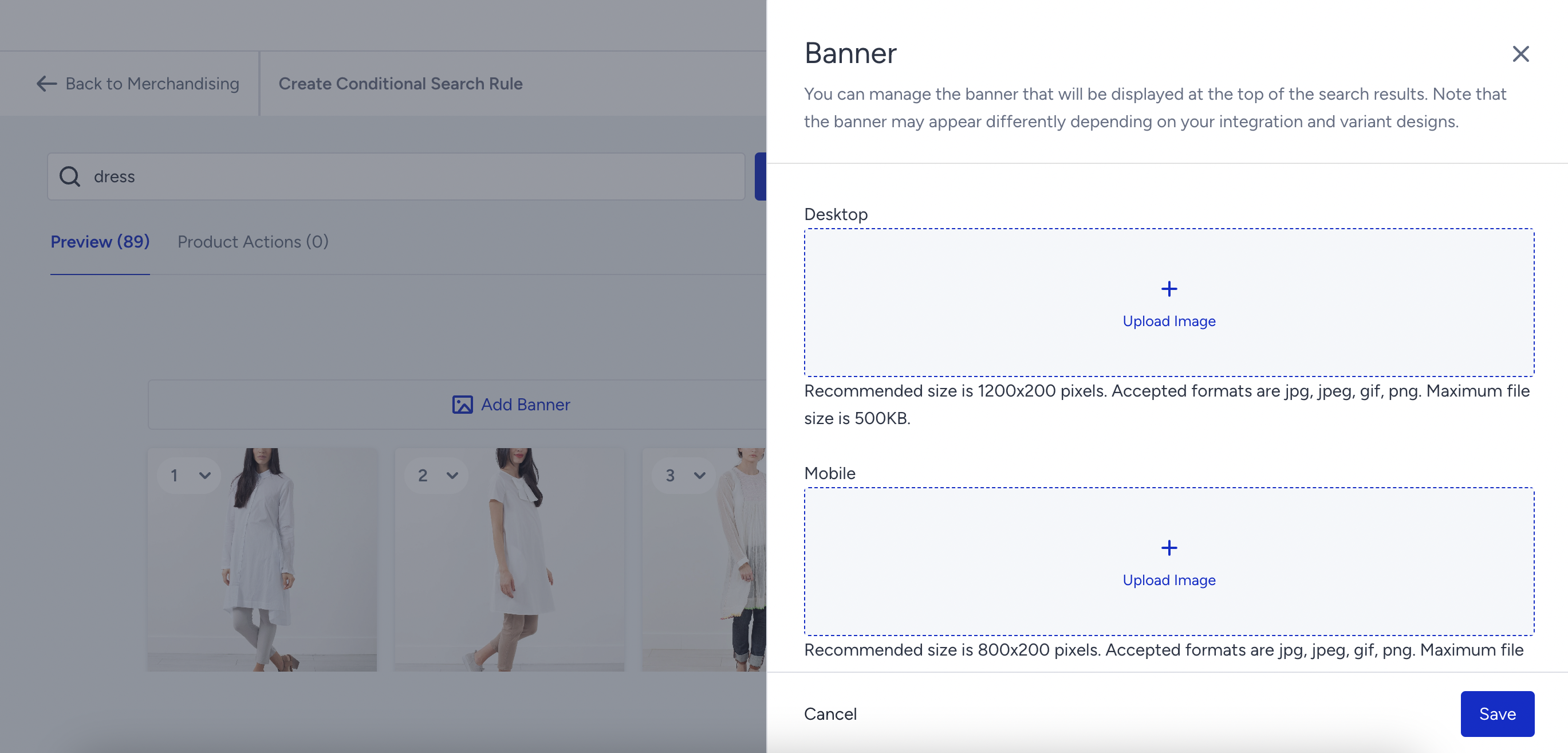
Click +Upload Image in the relevant section to upload banners for desktop, mobile, or both. After uploading the images, click the Save button.
Check the previews, then click Save to save the rule. If you haven’t activated Eureka Strategies for your account, click Publish to activate it.
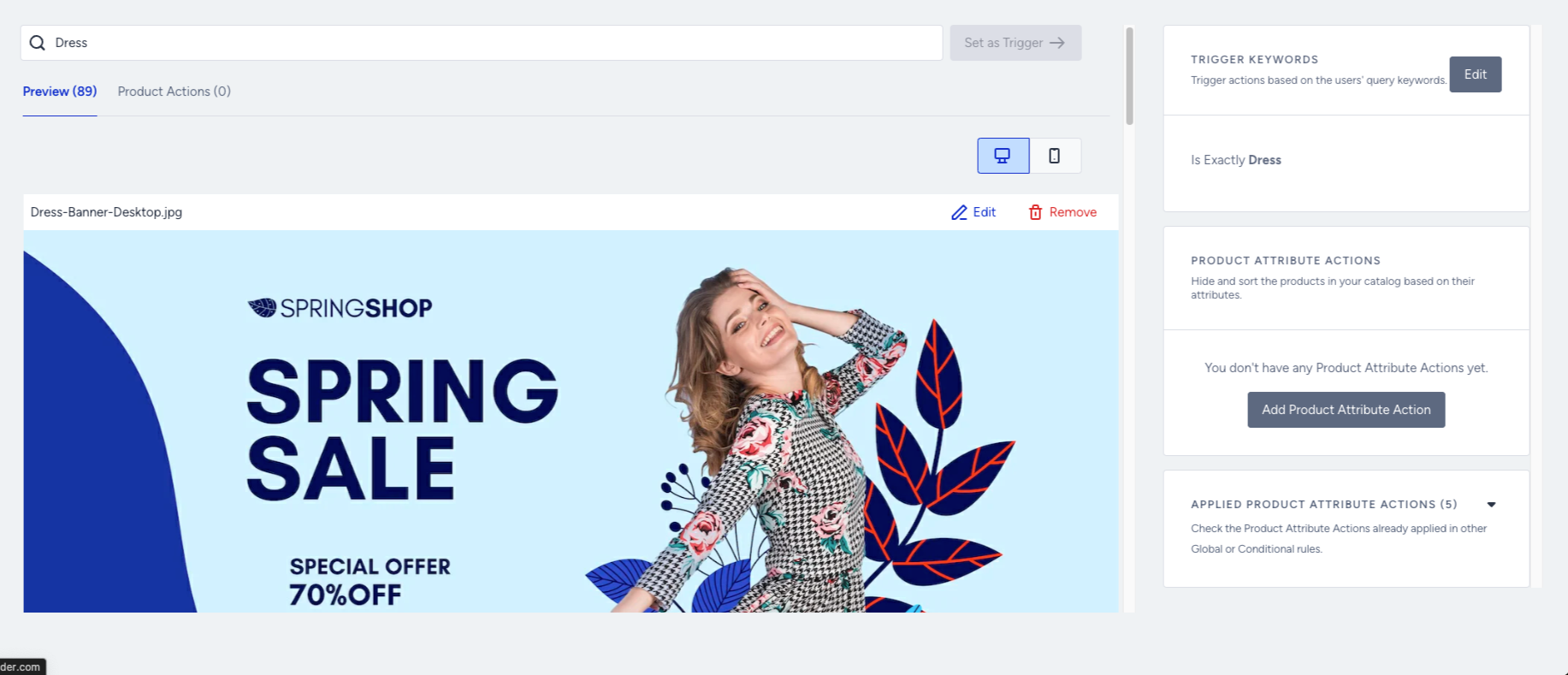
If you haven’t activated Eureka Strategies for your account, you can observe it on the listing page once you save the rule.
If Eureka Strategies is enabled for your account, select one or more strategies to associate the created merchandising rule with them.
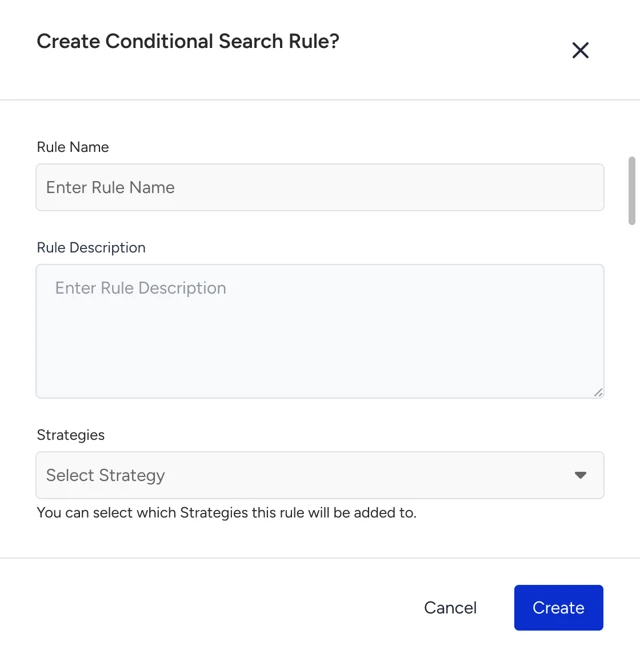
Notes on creating a Merchandising Rule with a Banner
You need to upload two banners of different sizes for mobile and web use. The banner will not be displayed if a platform is missing. For example, if you only upload a desktop banner, mobile will not have a banner.
More than one trigger can be connected to a single banner for trigger-based banners.
The accepted formats for banner images are JPEG, JPG, GIF, and PNG.
Only one Global Search and one Global Conditional banner can be active at a time.
If both conditional and global banners exist, the conditional banner will be displayed when the trigger matches the rules' trigger.
Change or Remove a Banner
Click the Edit button against the relevant rule to edit or remove a banner. The Banner column indicates whether a rule includes a banner.
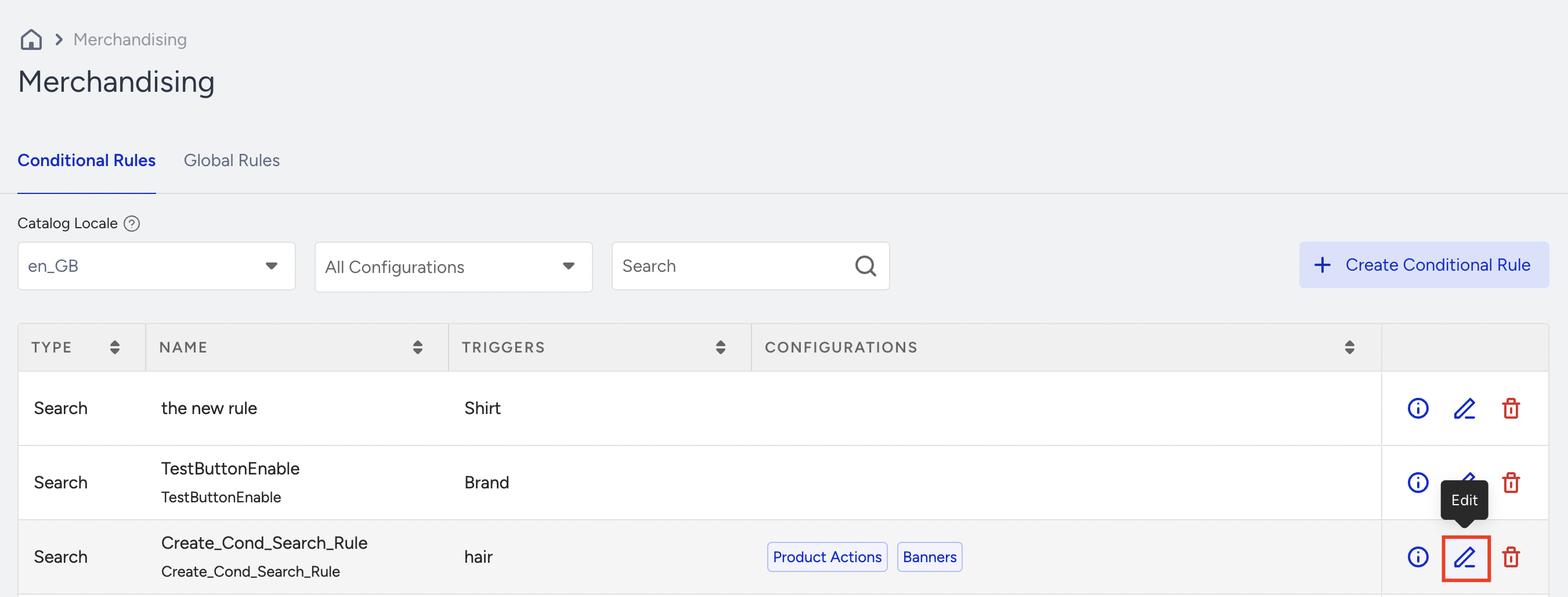
When you hover over the banner, the Edit and Remove options appear.
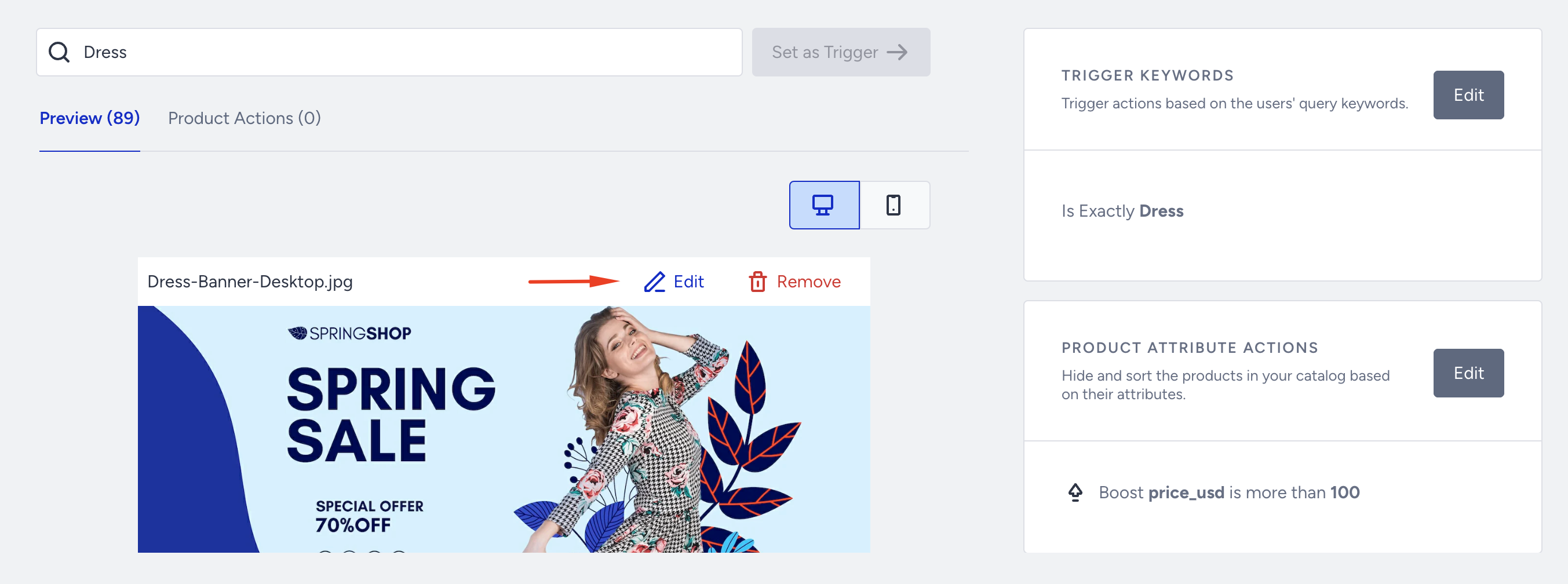
You can modify or remove banners and update the URL when you click the Edit button.
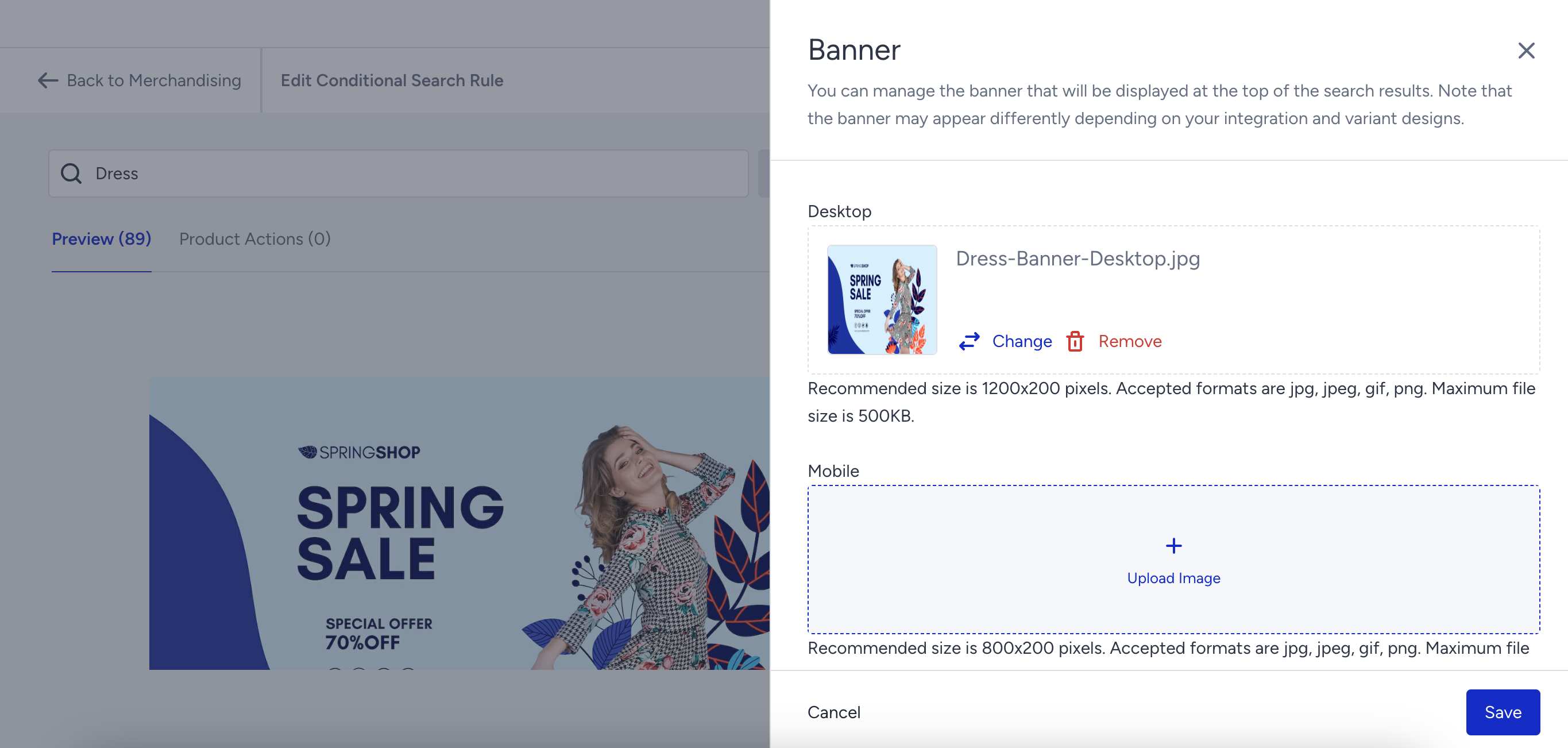
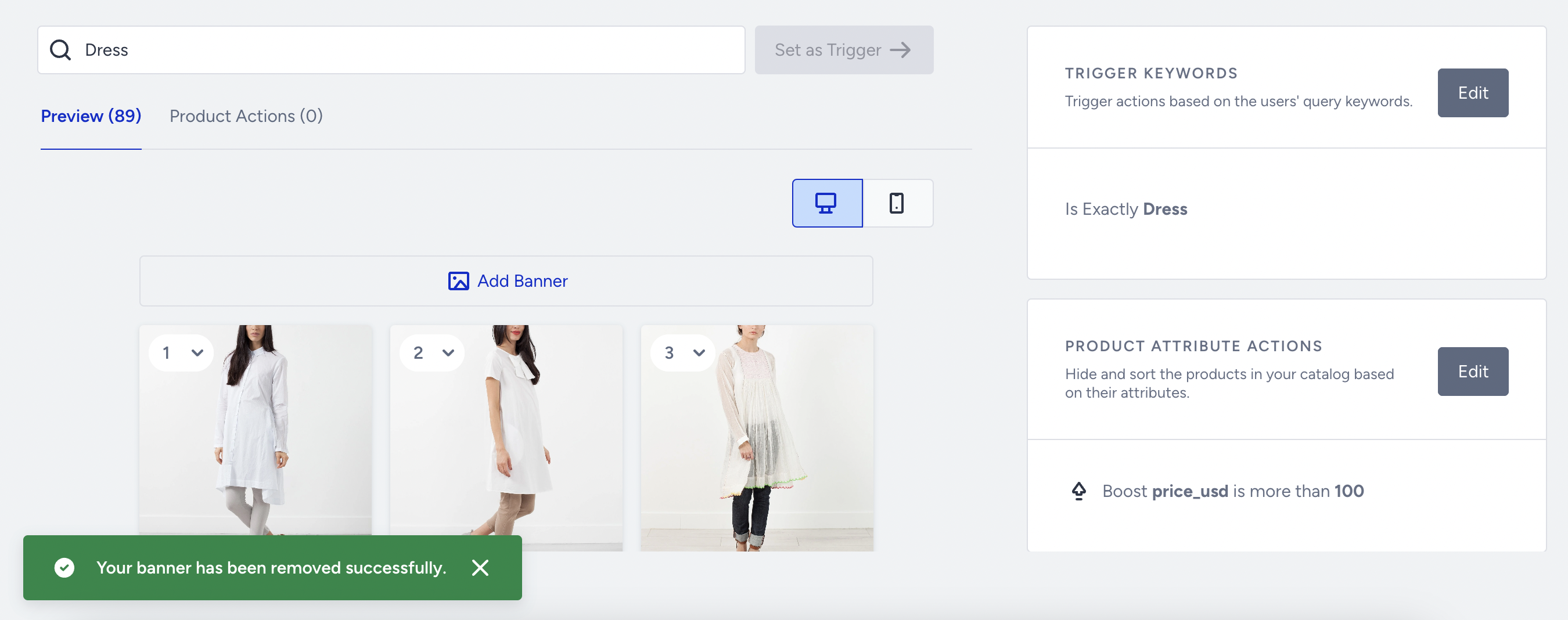
If you click the Remove button, the banner for the selected platform (desktop or mobile) is deleted.
Change the Design of a Banner
To change the design of a banner,
Navigate to Discover > Eureka and click on the campaign.
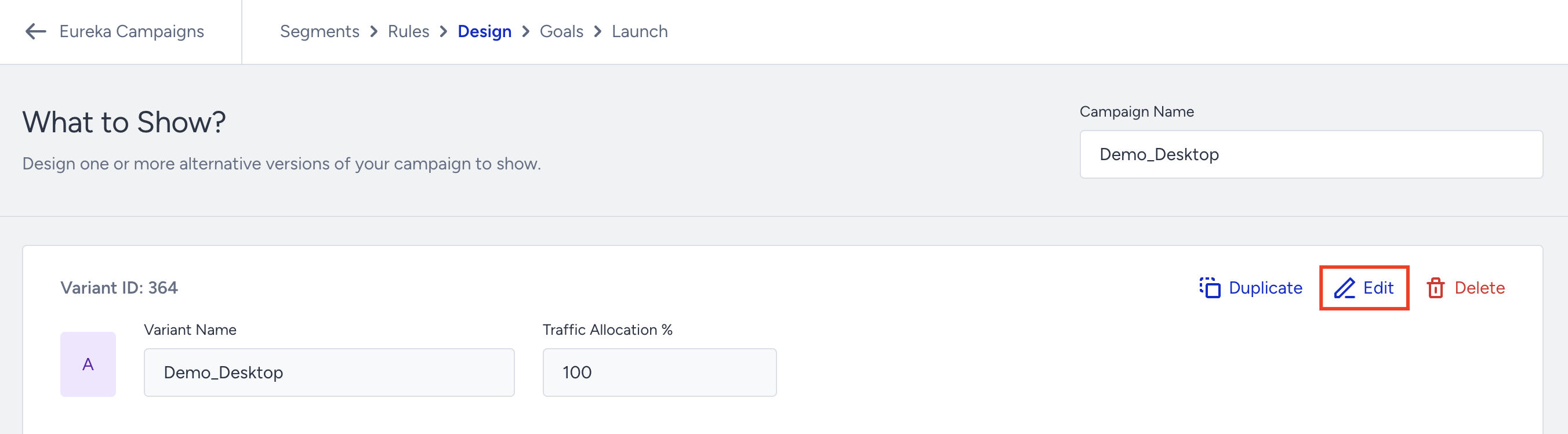
On the Design step of your campaign, click the Edit option.
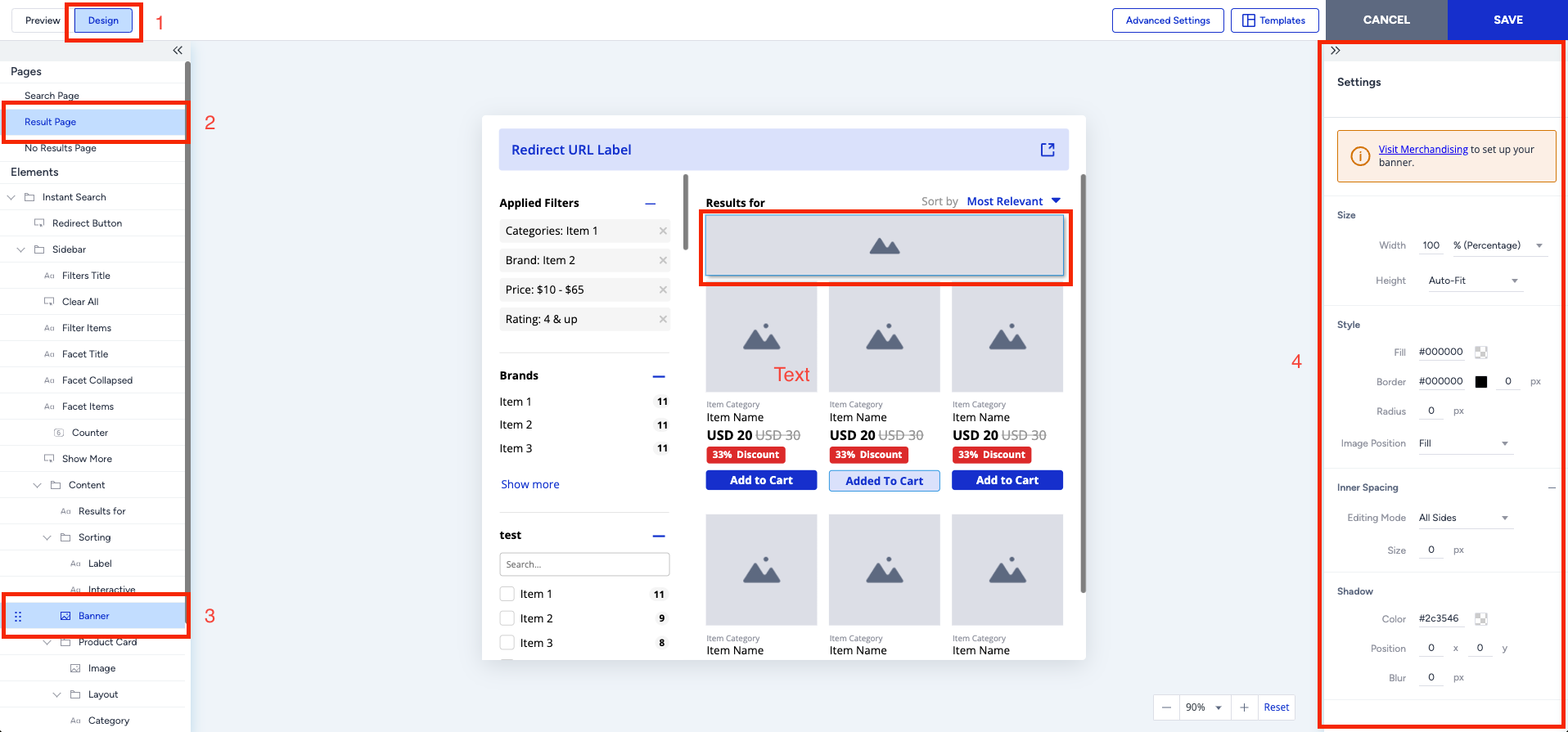
On the campaign design page, go to the Result Page, select the Banner element, and make the necessary adjustments to the banner design under the Settings. You can configure all banner-related settings, such as size, style, spacing, etc., here.
After finalizing the changes, switch to the Preview page to see how the design looks. Then, save it.