On ecommerce websites, subpages may differ from the standard pages, such as the home, category, listing, product detail, cart, or checkout success page. They are typically used for specific brand store pages, knowledge base pages for onboarding processes or features, and influencer or specialized marketing pages. Users usually reach these pages through advertisements or the search bar. For example, you can redirect your users to category, brand, contact us, customer service, shipment information, service hours, or any other blog pages. You can map specific search terms or phrases to the page links using URL Redirects to make this possible.
In this article, you can find answers to the following questions:
Add URL Redirects
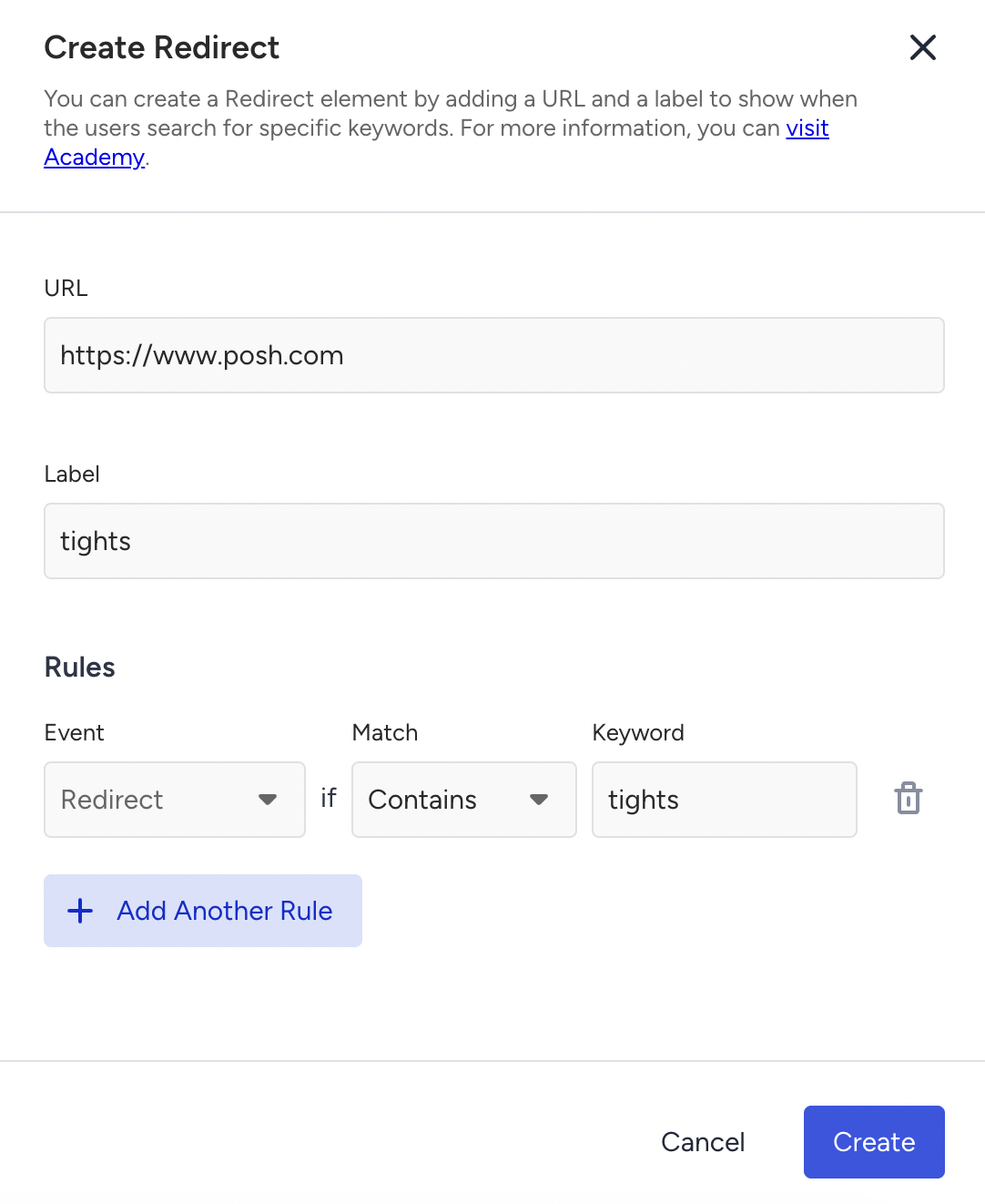
On the Eureka listing page, click Settings > Redirects.
Click the Add Redirect button to create a new URL redirect.
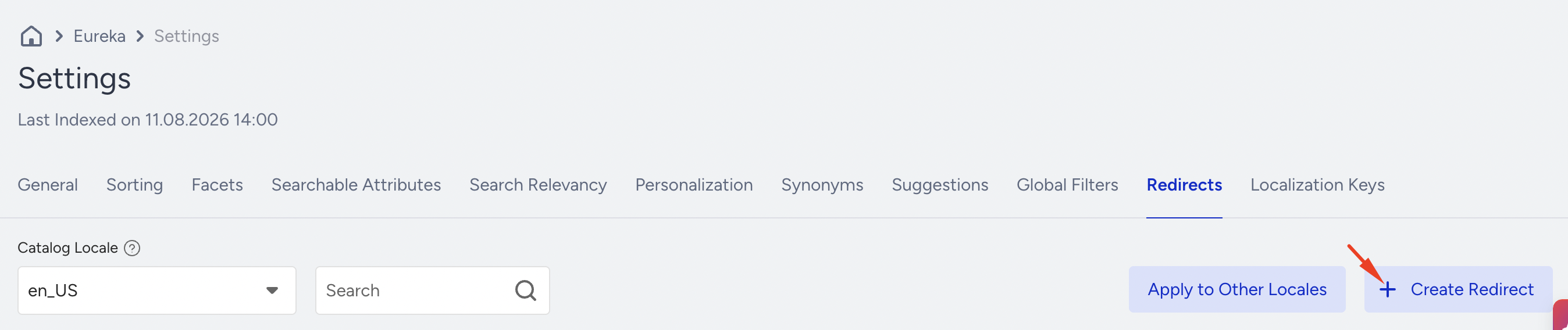
Detail the URL, Label, and Rules to manage redirection events. Click the Add button, and it will be listed among the other redirects.
URL: The destination to be redirected to when the specified keyword rules are matched. (e.g., brand, category, contact us, FAQ pages, etc.)
Label: The name for the destination to be shown on the pop-up, making URL Redirects more customer-friendly.
Rules: Add rules to identify the user’s intent and redirect accordingly. Rules include Event, Match, and Keyword criteria.
Event Types: Redirect occurs when a keyword match is met. The specified URL is shown on the customized search pop-up with the defined label. You can use No Redirect events to hide the Redirect on the pop-up when a certain keyword match is met.
Let’s say you have a brand called “My Brand,” which includes products from several categories, like shoes and bags. There is a sale in “My Brand“ for shoes, and you want to redirect your users to a specific listing page, “mystore.com/mybrand/shoes“. You can use the rule “Redirect” if the search term contains “My Brand”. But when users search for “My Brand bags”, they will see the redirect rule for shoes. To prevent this, you can add the No Redirect rule if the search term contains “My Brand bags.”Match Types: When you select the exact match type, the Eureka engine looks for exact matches. It is used for specific terms. When you choose the "contains" match type, "Redirect" is displayed in the pop-up if the keyword is found in the search term. It is used for search phrases.
Keywords, also known as search terms, are the most crucial aspect of identifying users' intent. Eureka Engine compares keywords with users' search queries. In addition, keywords are not case-sensitive.
Adjust URL Redirects
Consider your existing URL Redirects. You need to update them to improve the user experience. For example, you already have the redirect rule for “customer service“ → http://mystore.com/customer-service. Then, you check the No Results analytics and find that users couldn’t find any results for the "helpline.” Therefore, you might need to update the URL redirect rules to include the query “helpline.”
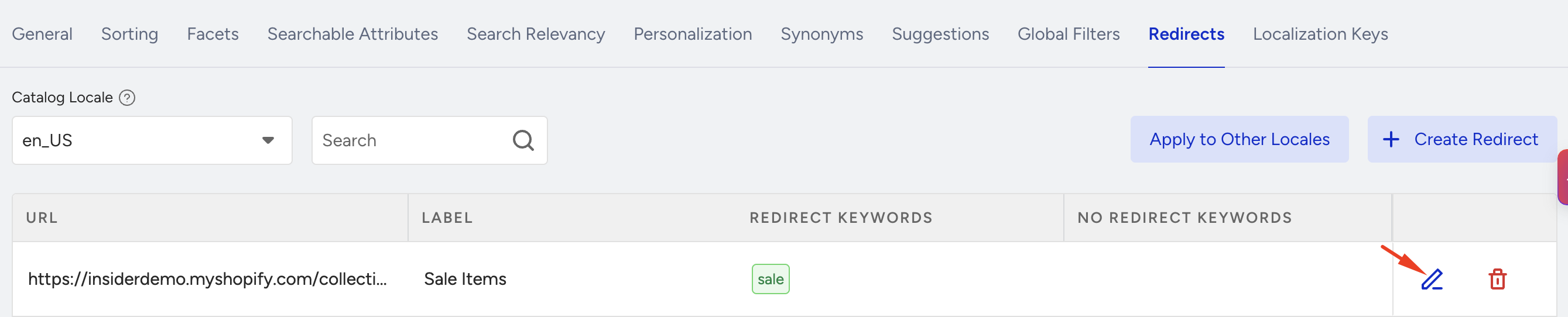
To edit it, go to the Eureka listing page and click Settings > Redirects. Click the Edit icon next to the URL Redirect you want to change.
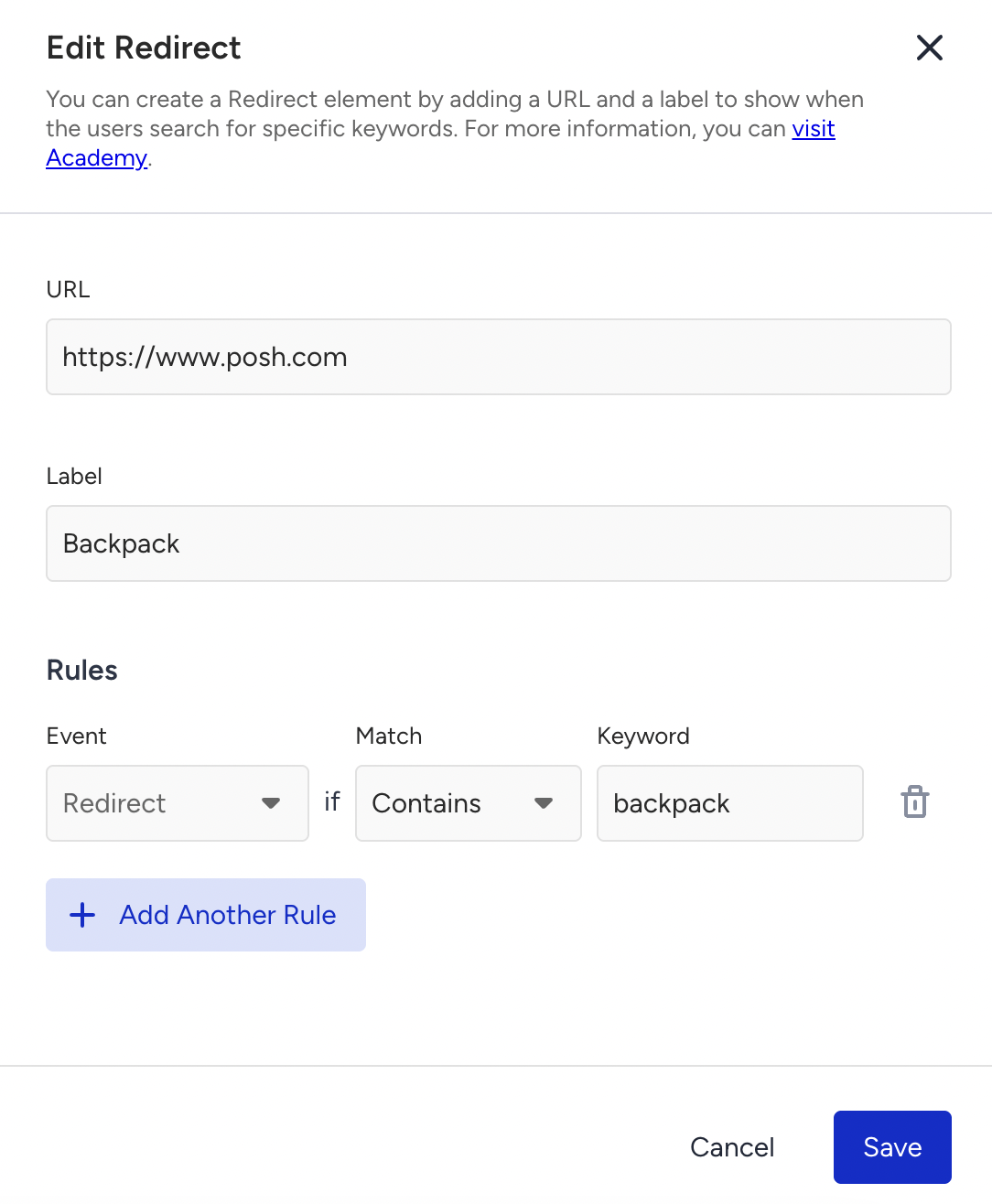
Make the necessary changes and click the Save button.
If you want to remove a campaign page from the URL redirects because the campaign is no longer active, click the Delete icon against it on the listing page.

How users see the URL Redirects
When the defined rules for the user’s search term are met, users will see the link at the top of the pop-up. They will be redirected to the specified page when they click on that card.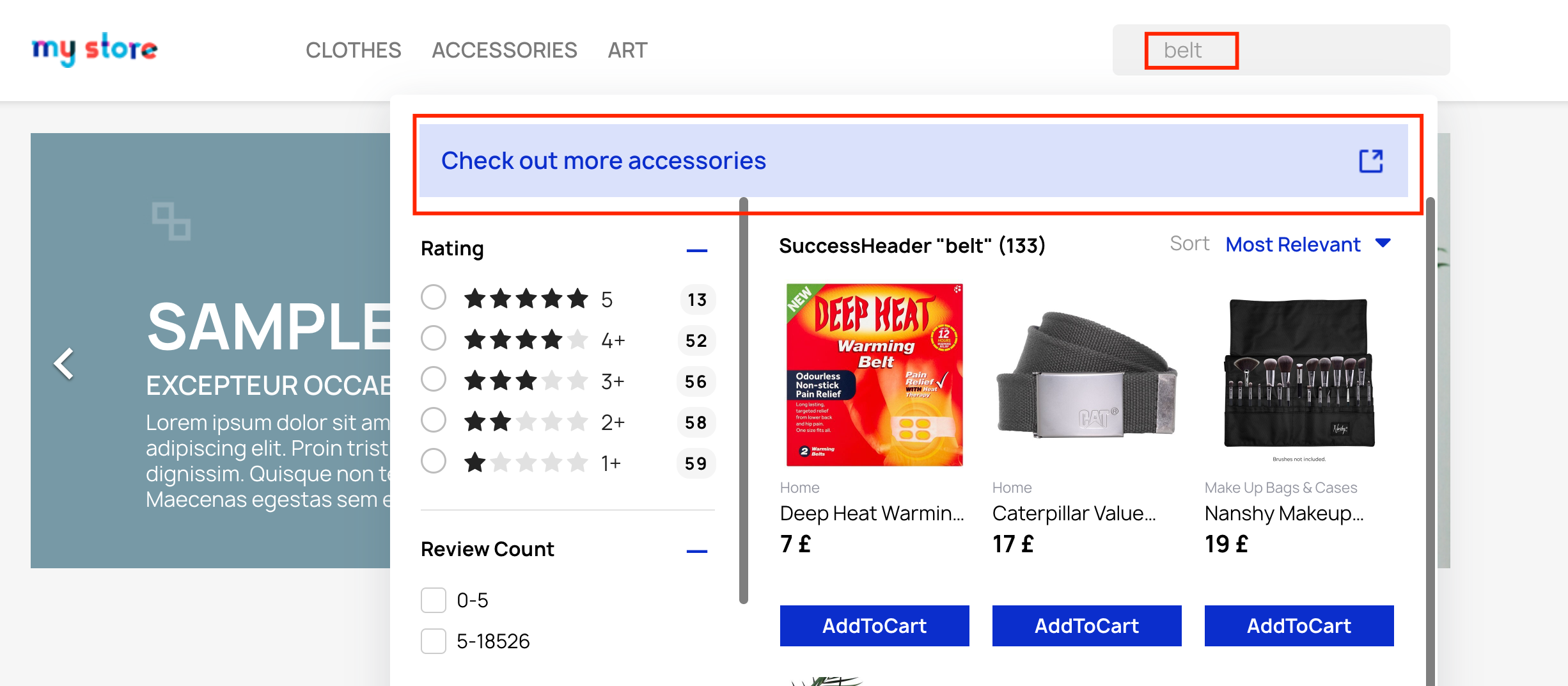
Example Scenario
You put the following rules to redirect to products on sale from Brand X → Sneakers on URL https://eurekabeststore.com/en/brandx-sneakers-sale.
Event Type | Match Type | Rule |
|---|---|---|
Redirect | Exact | Brand X sale |
Redirect | Contains | Brand X sneakers |
No Redirect | Exact | Brand Y sneakers |
No Redirect | Contains | pants, socks, underwear |
Results for the specific search terms would seem like this:
User's Search Term | No Redirect & Exact Match | Redirect & Exact Match | No Redirect & Contains | Redirect & Contains | Is the Link shown? |
|---|---|---|---|---|---|
Brand X | x | x | x | ✓ | Yes |
Brand X pants | x | x | ✓ | ✓ | No |
Brand X sale | x | ✓ | x | x | Yes |
Brand Z sale | x | x | x | x | No |
Brand Y sneakers | ✓ | x | x | ✓ | No |
Limitations
The URL should be less than 1000 characters.
Each keyword should be less than 50 characters.
Keywords should consist of alphanumeric characters.
Redirects are displayed in a pop-up after catalog indexing is complete.
Clicks on URL Redirection Banners displayed within the Eureka pop-up are not logged. However, if you have integrated the Eureka Search API into your website and are using the API to manage the front end, you can log URL redirect interactions through your own tracking system.