Product attributes, also known as the data fields in your product catalog feed, are structured fields that describe each item in your catalog. They define product properties such as name, price, category, availability, image URL, and any custom fields your catalog includes, and Insider One uses them for filtering, ranking, and personalization across campaigns and search.
Each product in your Product Catalog consists of multiple attributes, such as name, price, category, and brand. Some attributes are required for Insider One to function correctly, while others are optional but valuable for improving accuracy, relevance, and personalization.
For example, in an online clothing store, attributes like size, color, and gender help surface relevant variants and alternatives. In a content-based platform, attributes such as item_update_date ensure users see the most recent content first.
Why Product Attributes matter
Insider One uses product attributes to determine what to show, when to show it, and to whom. Well-structured and complete attributes enable the platform to:
Deliver relevant recommendations, such as suggesting similar products by category or brand
Filter results accurately, including excluding out-of-stock or expired items
Personalize experiences by highlighting products that match user interests and past behavior
The higher the quality of your product data, the more precise, effective, and engaging your recommendations and campaigns will be.
Types of Product Attributes
Insider One supports two main types of product attributes:
Default Product Attributes
Default product attributes are predefined fields that Insider One automatically recognizes and processes. They include common attributes such as item_id, name, url, and image_url. Depending on your Product Catalog Feed Type, some default attributes are mandatory, while others are optional but strongly recommended.
Custom Product Attributes
Custom product attributes are defined by you based on your specific business needs. Examples include season, material_type, theme, or delivery_type. You can create these attributes in the Insider One’s InOne platform and include them in your catalog to support richer personalization, targeting, and filtering.
Default Product Attributes
Default Product Attributes are predefined fields that Insider One uses to understand, process, and display your catalog data correctly. They define the structure of your Product Catalog and ensure that each item can be properly recognized, categorized, and connected to recommendation and personalization logic.
Default attributes represent the standard set of fields available across all catalog types. Required attributes, on the other hand, are the minimum set of default attributes that must be provided for Insider One to process your catalog, and they vary based on the selected Product Catalog Feed Type.
In other words:
Default attributes define what the system can read and interpret.
Required attributes define the minimum data the system must receive for your specific feed type.
For example:
In a Stock–Revenue Based feed, attributes such as price, in_stock, and original_price are required because pricing and availability directly influence recommendations and filtering.
In a Published-Time Based feed, item_update_date is required because content recency determines relevance.
Below is a detailed list of default product attributes, including their object types and feed management compatibility:
Parameter | Object Type | Description | Character Limit | Requirement | Examples | Available Feed Management Type |
|---|---|---|---|---|---|---|
item_id | String | Unique item ID | 128 | Required | "item_id": "3110" | All |
name | String | Item name | 512 | Required | "name": "DK Pant" | All |
locale | String | Unique locale identifier | 64 | Required | "locale": "en_US" | All |
image_url | String | URL of the image. It must start with http:// or https:// | 512 | Required | "image_url": "https://my.com | All |
url | String | URL of the product | 512 | Required | "URL": "https://posh.useinsider.com/dk-pant.html" | All |
in_stock | Number | It only takes binary values. | "0" or "1" | Required | "in_stock": 0 | Only in Stock-Revenue Based & Availability Based |
price | Number | String key and any type of value | N/A | Required → Stock Revenue Based Optional → Availability Based | "price": {"USD": 599.9} | All |
original_price | Number | String key and any type of value | N/A | Required → Stock Revenue Based Optional → Availability Based | "original_price": {"USD": 699.9} | All |
discount | Object | Discount is auto-calculated from the price and the original price as a percentage | N/A | Optional | "discount": {"USD": 9.99} | All |
item_update_date | String | It takes date time (YYYY-MM-DD HH:MM:SS). It is used for publisher customers to filter the last two days of content. | 512 | Required | 2020-08-07 12:25:09 | Only in Published-Time Based |
item_start_date | String | It takes date time (YYYY-MM-DD HH:MM:SS). It is used for events websites to get the event start date. | 512 | Required | 2020-08-07 12:25:09 | Only in Start-End-Time Based |
item_end_date | String | It takes date time (YYYY-MM-DD HH:MM:SS). It’s used for events websites to get event end dates. | 512 | Required | 2020-08-07 12:25:09 | Only in Start-End-Time Based |
category | Array[String] | List of category names in a List of String model. | 1024 | Optional - Mandatory for algorithms that require category data | "category": ["Furniture","Sofa", "Chair"] | All |
group_code | String | The field is used to group product variants. | 512 | Optional | - | All |
sku | String | Stock-keeping unit | 512 | Optional | "sku": "123123" | All |
color | String | Color of the product | 512 | Optional | "color": "Gray" | All |
description | String | Description of the product | 1024 | Optional | "description": "Example description" | All |
brand | String | Brand of the product | 512 | Optional | "brand": "Posh Street" | All |
size | String | Size of the product | 512 | Optional | "size": "L" | All |
rating | Number | Rating of the product | 512 | Optional | "rating": "6" | All |
stock_count | Number | Stock count of the product | Min 1 , Max 10 | Optional | "stock_count": "1" | All |
product_type | String | Specifies the product type information | 512 | Optional | - | All |
gender | String | - | 512 | Optional | "gender": "female" | All |
omnibus_price | Number | - | N/A | Optional | "omnibus_price" : {"USD": 9.99} | All |
omnibus_discount | Number | - | N/A | Optional | "omnibus_discount" : {"USD": 9.99} | All |
multipack | String | Specifies a multipack item | 512 | Optional | - | All |
tags | Array[String] | List of tags of the product in a List of String model. | 4096 | Optional | "tags" : ["Furniture","Sofa","Chair"] | All |
Custom Product Attributes
While Default Product Attributes cover the essential product information, Custom Product Attributes allow you to define additional details that are specific to your business. These attributes help you enrich your Product Catalog with data that supports your unique goals, use cases, and recommendation logic.
Custom attributes are created within the Insider One’s InOne platform and can be included in your product feed once they are defined.
Why Custom Product Attributes are important
Custom Product Attributes make your catalog more expressive and flexible. They enable you to:
Represent unique product characteristics such as material_type or delivery_type
Improve personalization by tailoring recommendations to user preferences, for example, by highlighting eco_friendly products
Add advanced filtering options to recommendation widgets, such as season, theme, or event_type
By using custom product attributes effectively, you can create more relevant, targeted, and engaging product experiences across all Insider One channels.
Examples of Custom Product Attributes
Attribute | Description | Example |
|---|---|---|
material_type | Type of material used | "material_type": "Leather" |
theme | Product theme, such as holiday or sports | "theme": "Summer Sale" |
delivery_type | Delivery option for the product | "delivery_type": "Express" |
collection | Product collection name | "collection": "Spring Collection 2024" |
eco_friendly | Marks if the product is sustainable | "eco_friendly": "True" |
season | Intended season of use | "season": "Winter" |
How to create Custom Product Attributes
To create a Custom Product Attribute,
Navigate to Components > Product Catalog Management > Product Attributes.
Switch to the Custom Product Attributes tab and click the Create button to add a custom attribute.

Choose a name and type (e.g., text, number, date).
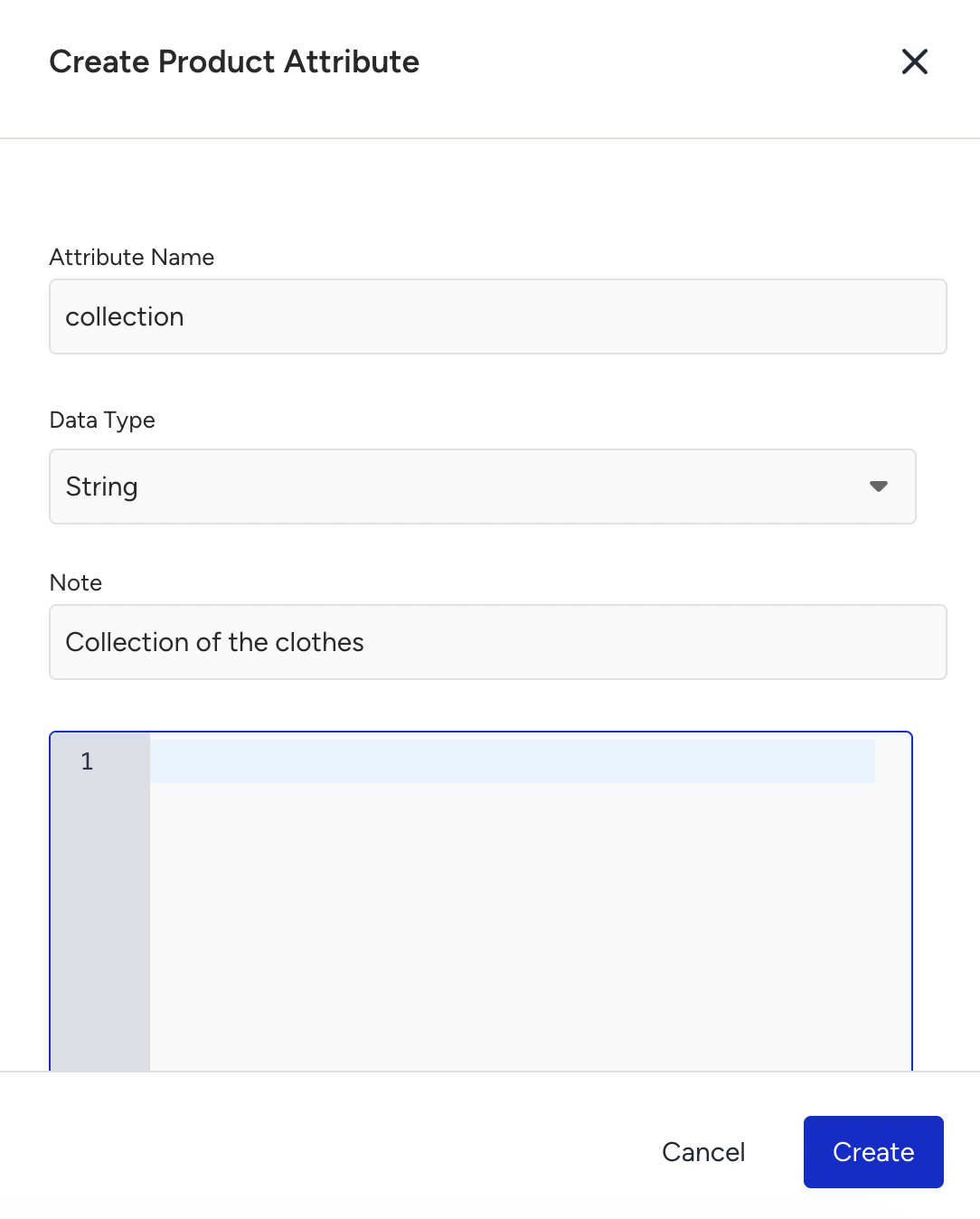
If you use the Clickstream integration method or Smart Recommender dynamic filters, JavaScript code extracts data from the website or data layer.
Assign to Products: After creating your custom attribute, you can start using it in the relevant products in your Product Catalog.
Use Cases for Custom Product Attributes
Here are some specific examples of how custom product attributes can improve your recommendation system:
Fashion Ecommerce: Use custom attributes such as material_type (e.g., leather, cotton) and size_range (e.g., XS, XL) to provide highly targeted recommendations tailored to specific customer preferences.
Event Listing Websites: Add event_type (e.g., concert, sports) and location (e.g., New York, London) to better recommend time- and location-specific events to users.
Eco-conscious Brands: Use a custom attribute, such as eco_friendly, to filter the recommendation engine to show only products made with sustainable materials or produced using ethical practices.
Custom Attribute Guidelines
If a custom product attribute is no longer in use, you can make it passive from the Catalog Manager page.
The total number of custom product attributes (both active and passive) you can create is 250.
To keep your catalog structure consistent and help Insider One interpret your data accurately, always use a default attribute if one already exists for the information you want to include instead of creating a new custom attribute for the same purpose.
Smart Recommender Related Product Attributes Settings
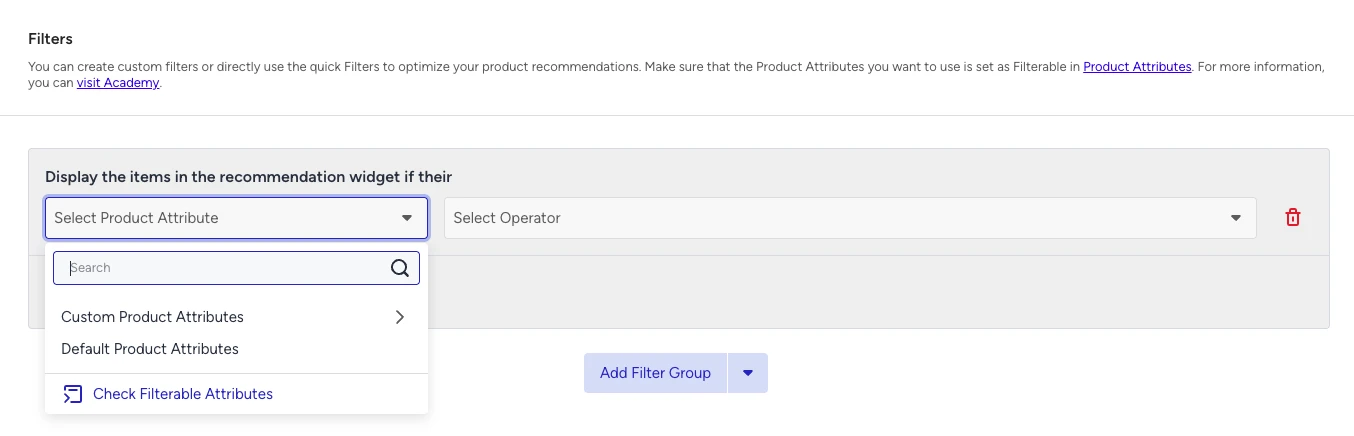
The Filterable toggle lets you use Product Attributes in your recommendation strategy filters. To filter your Recommendation Strategies by a Product Attribute, you need to enable the Filterable toggle for that attribute.
The Affinity Modeling toggle lets you track and analyze your users’ tendencies towards specific Product Attributes, allowing you to modify your recommendation sorting based on their personal preferences. The Product Attributes selected for Affinity Modeling will be used to re-order the recommendations based on the user’s affinities when you enable the “Enhance Recommendations Based on Attribute Affinity” toggle in your Recommendation Strategy.
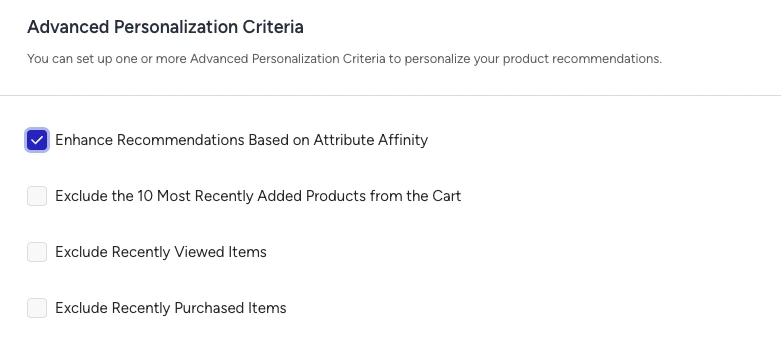
You can only select up to five Product Attributes to be used in Affinity Modeling.
Eureka Related Product Attributes Settings
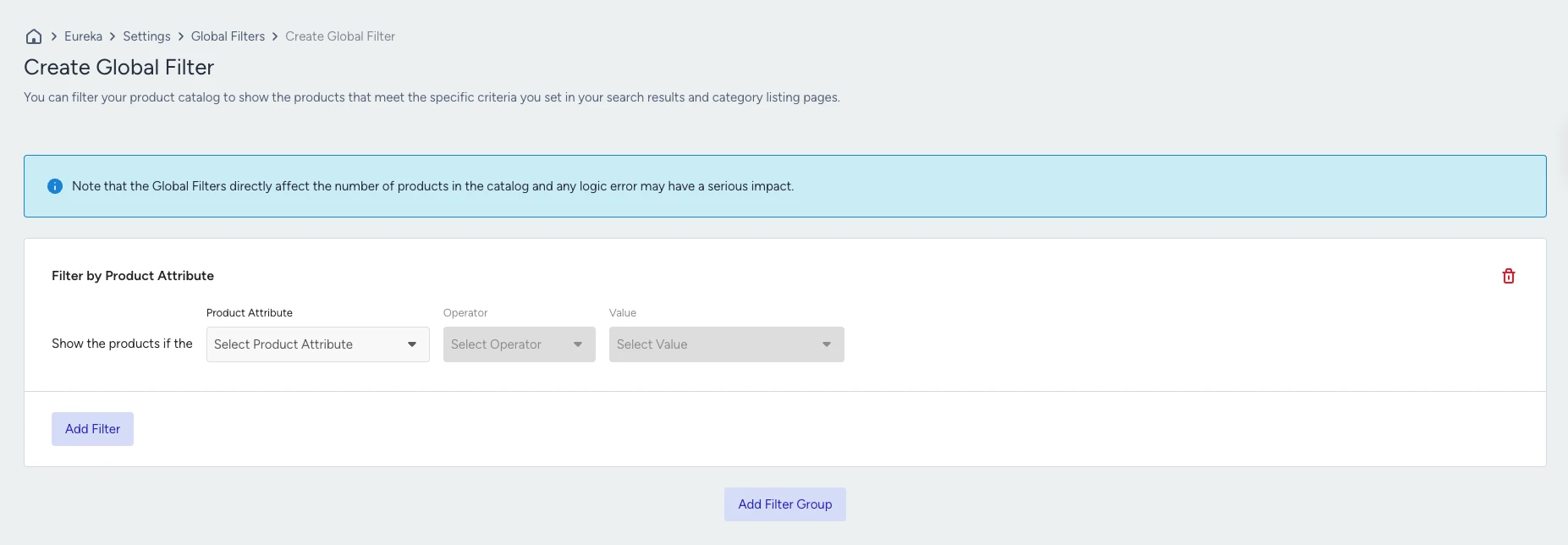
The Global Filters toggle lets you use the Product Attributes in Global Filters Settings.
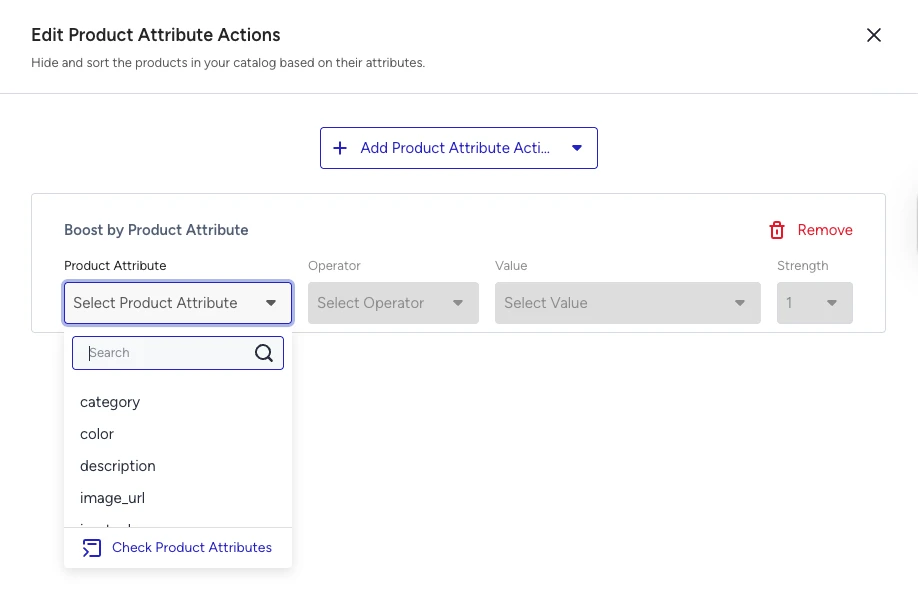
The Merchandising toggle lets you use the Product Attributes in Merchandising Rules while defining Product Attribute actions.
Notes on Product Attributes
To ensure smooth catalog integration and accurate recommendation performance, make sure your product attributes follow these rules and best practices:
For all required attributes, inputs are invalid if they are 'undefined', 'unknown', 'null', or an empty string.
For all custom product attributes, inputs are accepted if they are ‘null’, but the attribute is not updated, and a warning is returned.
Each string field can contain up to 512 characters unless otherwise specified.
item_id can contain up to 128 characters.
locale can contain up to 64 characters.
description can contain up to 1024 characters.
category can contain up to 1024 characters.
tags can contain up to 4096 characters.
Products that remain out of stock and receive no product update for 90 days are automatically removed from the catalog. The default expiration period can be configured for specific accounts; it is not a self-service setting. A successfully updated product can be added to the catalog again.
For array attributes such as category or tags, the total length of the entire array must stay within the character limits. For example, if your category value is [“Woman“, “Clothes“, “Tops“], the combined length of these values is 16 characters, and it stays within the allowed limit.
These rules maintain catalog integrity, prevent data parsing issues, and ensure that Insider One performs optimally with accurate, well-structured data.