Your Product Catalog is the primary source that Insider One uses to understand every item you want to display, search for, recommend, or promote. It defines how products are identified, grouped, and presented across all channels. A well-structured catalog enables Insider One to recommend the right products to the right users while keeping your data clean, consistent, and easy to manage.
You can also refer to the video below to learn how to track your Product Catalog:
If this video does not load in your region, you can watch it on our YouTube Channel.
To ensure your Product Catalog is set up correctly from the beginning, follow the steps below before starting the integration process:
Step 1: Identify what type of products you sell
Start by defining your product type.
Every business has its own product structure. For example, a retailer may sell items such as t-shirts and jeans, while a travel company may offer accommodation options. For a retailer, important product details include categories, colors, sizes, and materials. For a travel company, key attributes might include accommodation type, included services, and available date ranges.
These details are known as product attributes. They are stored in your Product Catalog and used to personalize recommendations, search results, and campaign content.
Once you have defined what you sell, select the appropriate Product Catalog Feed Type that aligns with your business model. The feed type determines which core attributes Insider expects in your catalog.
Insider One supports four Product Catalog Feed Types:
Stock–Revenue Based Feed: For ecommerce businesses and marketplaces that sell physical products and track inventory levels and pricing.
Availability-Based Feed: For items that are either available or unavailable, where pricing may not be relevant.
Published-Time Based Feed: For publishers or content platforms that rely on time-based visibility, such as blogs or news sites.
Start–End-Time Based Feed: For travel, event, or ticketing platforms where products depend on time-bound availability.
Action: Review the Product Catalog Feed Types article to confirm which feed type best fits your product structure before proceeding with integration.
Step 2: Define what kind of information your products have
After selecting your Product Catalog Feed Type, list all product attributes to include in your catalog. These attributes enable Insider to correctly display, filter, and personalize your product content across channels.
You will use product attributes to:
Display product details in recommendation widgets
Filter search results using product facets
Personalize recommendations based on user interests
Filter recommendations to match the product a user is currently viewing
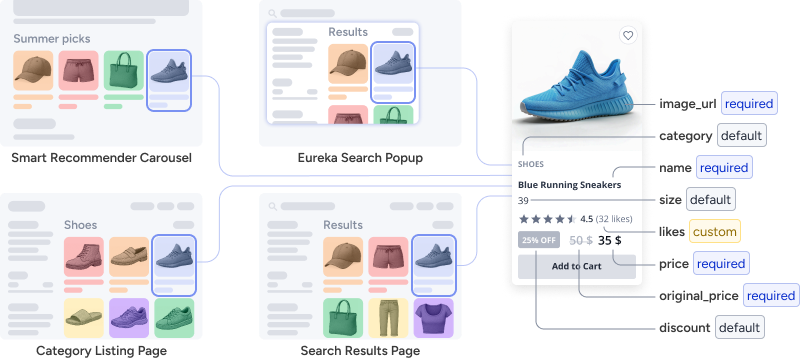
Each Feed Type includes a set of default product attributes that Insider One uses to understand your products. In addition to these defaults, you can define custom product attributes to capture extra details that enhance personalization and targeting.
For example, a stock–revenue based feed includes standard attributes such as product name, category, and price. A clothing brand may also add custom attributes, such as material or season, to deliver more relevant recommendations and campaigns.
Action: Review the default attributes for your selected Feed Type and create a list of any custom attributes you will need to support your use cases and personalization goals.
Step 3: Decide how to identify your products
Each product in your catalog must have a unique identifier so Insider One can recognize and process it correctly. Insider One uses the item_id attribute to uniquely identify each product.
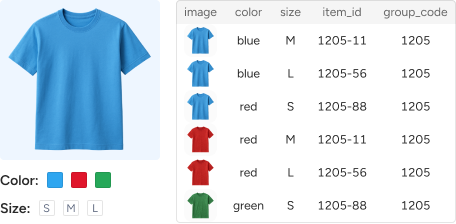
If your products have variants, such as different colors or sizes, assign the same groupcode attribute to all variants of the same parent product. This allows Insider One to understand which items belong to the same product group.
Action: Assign one unique item_id per product and one shared groupcode for all variants of that product.
Step 4: Decide how to structure product categories
If your catalog includes category information, decide whether categories should be stored as flat or hierarchical.
Use flat categories when categories function as tags or labels and do not represent parent–child relationships. Examples include promotional or descriptive labels such as “20% Off” or “Summer Season Specials”.
Use hierarchical categories when category values represent a clear taxonomy with parent–child relationships, such as “Women > Clothes > Tops”. Hierarchical structures enable richer filtering, navigation, and personalization.
When to choose Flat Categories
Categories are used as promotional or descriptive tags
Multiple unrelated labels are applied to the same product
Category values are treated as independent facets
When to choose Hierarchical Categories
Categories represent a product taxonomy with parent–child relationships
Category paths are used for browsing, breadcrumbs, or category-level recommendations.
If the category array for a product exceeds 1,024 characters, store categories as flat to avoid issues related to length limits.
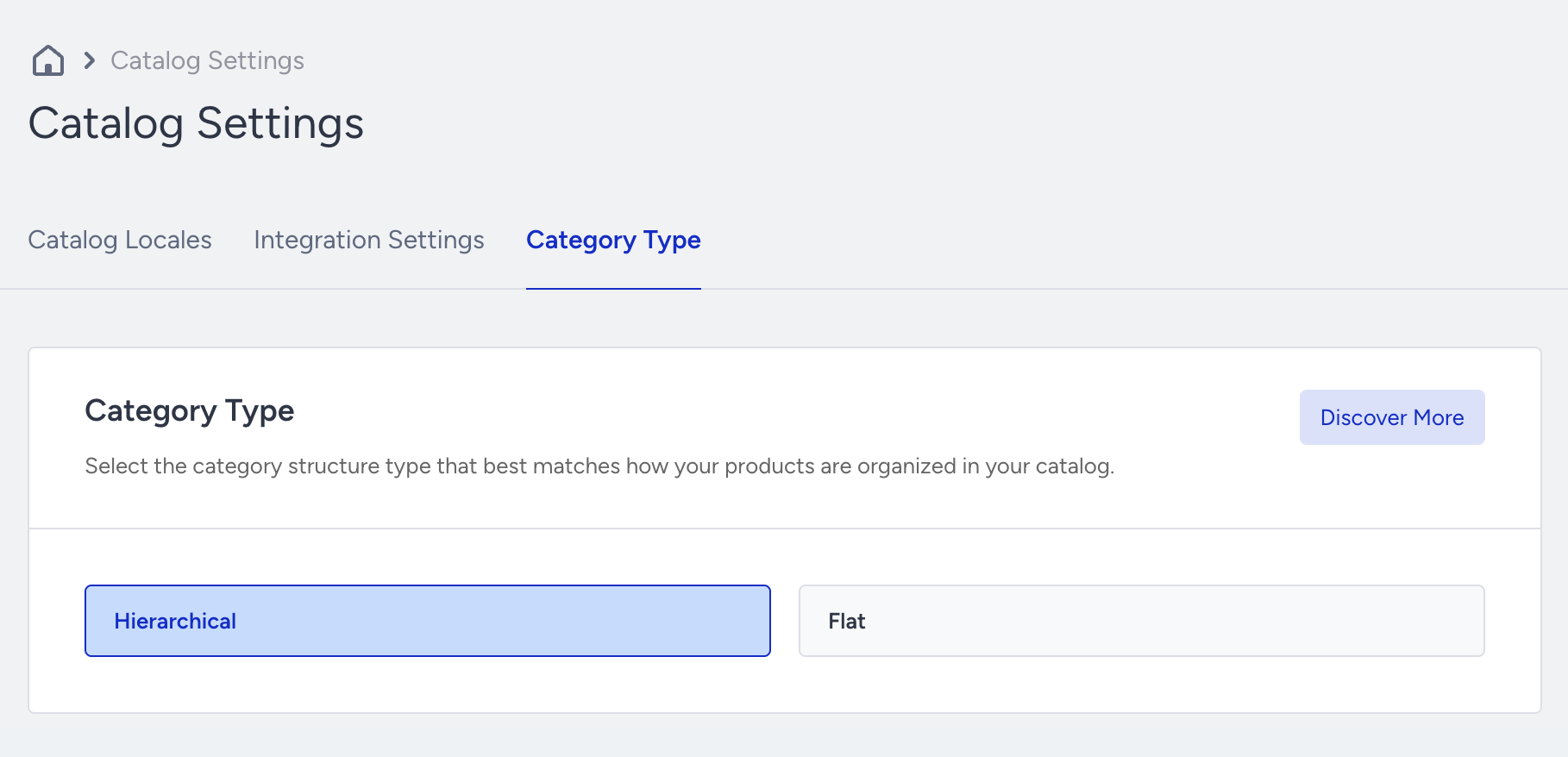
Action: Review how your category data is currently used on your site and in your catalog. Then, from Components > Product Catalog Management > Catalog Settings, select either Flat or Hierarchical under the Category Type tab based on your needs.
Step 5: Define the countries you operate in
Once your product details are defined, specify the countries in which your business operates. This ensures your Product Catalog is aligned with the correct country and language settings, allowing product information to be properly localized.
For example, if your website supports multiple languages, you must create separate locales for each language so product information remains accurate across all versions of your site.
Insider One uses ISO-standard locales that combine a language code and a country code, such as en_US or en_GB.
Action: List all locales in which you operate using the ISO locale format.
Step 6: Structure how you manage stock information
Displaying out-of-stock items can negatively impact the user experience, so it is important to manage stock information accurately. If your business operates multiple warehouses or fulfillment locations, define how stock data will be stored for each location.
For example, a business may operate only in the United States but manage inventory from warehouses in New York and Seattle. Although the country and language are the same, each warehouse may have different stock levels. To support this, you can create separate stores under a single locale, such as en_US:NewYork and en_US:Seattle, to track inventory by location.
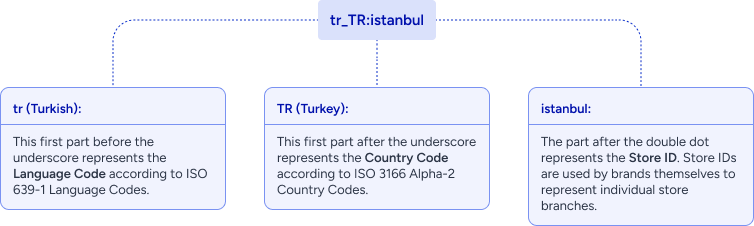
Action: Map your stock management structure and define how each store will be represented under your locales.
Step 7: Set your currencies
If your business operates across multiple markets, ensure your Product Catalog supports multiple currencies. This allows Insider One to display accurate pricing across all channels based on the user’s region.
Action: List all currencies your business uses and confirm that your catalog includes the necessary currency fields.