This guide aims to explain how to use Commerce Manager. In this guide, you will find answers to the following questions:
Prerequisites
If your Facebook Business Page is new, make sure that it is verified.
Refer to How to Create a Facebook Business Manager (FBM) for further details.
1. Set your page settings. Make sure that a minimum of 10/13 of the page settings are completed.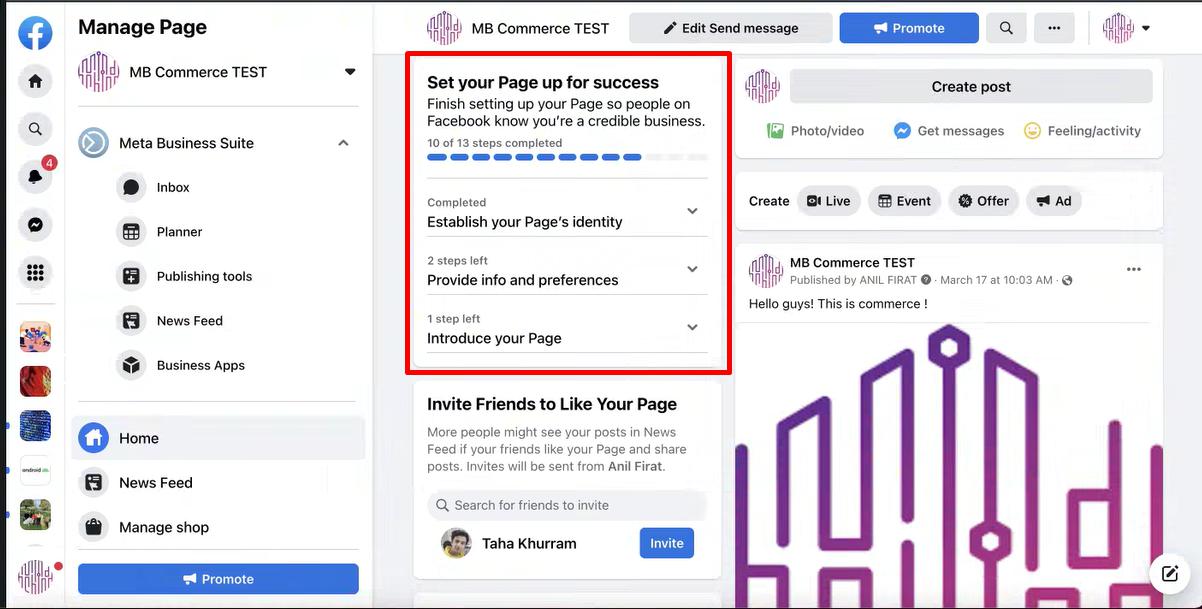
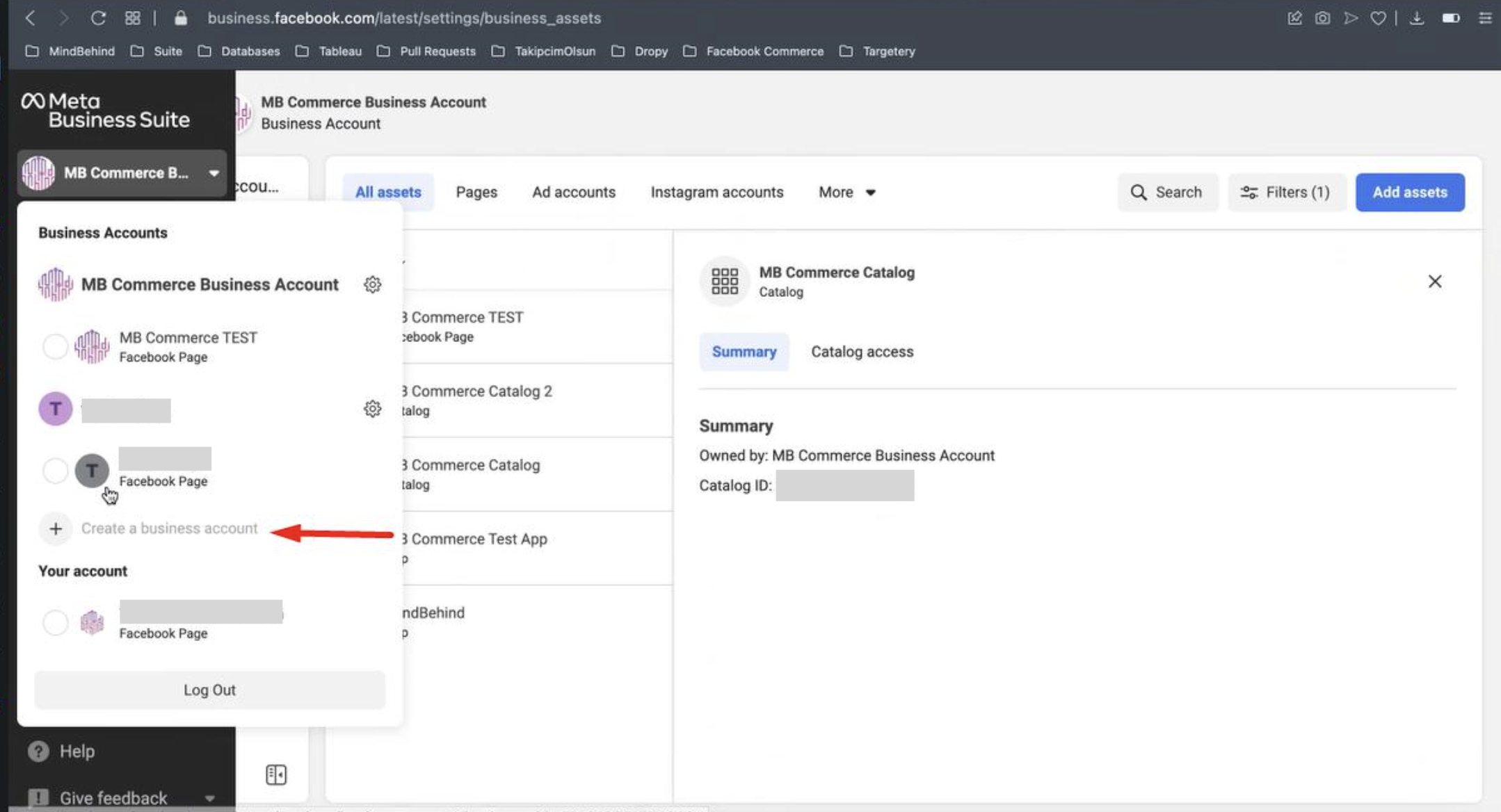
2. Go to “Meta Business Suite” and select Business Account. If you do not have any, please create a business account.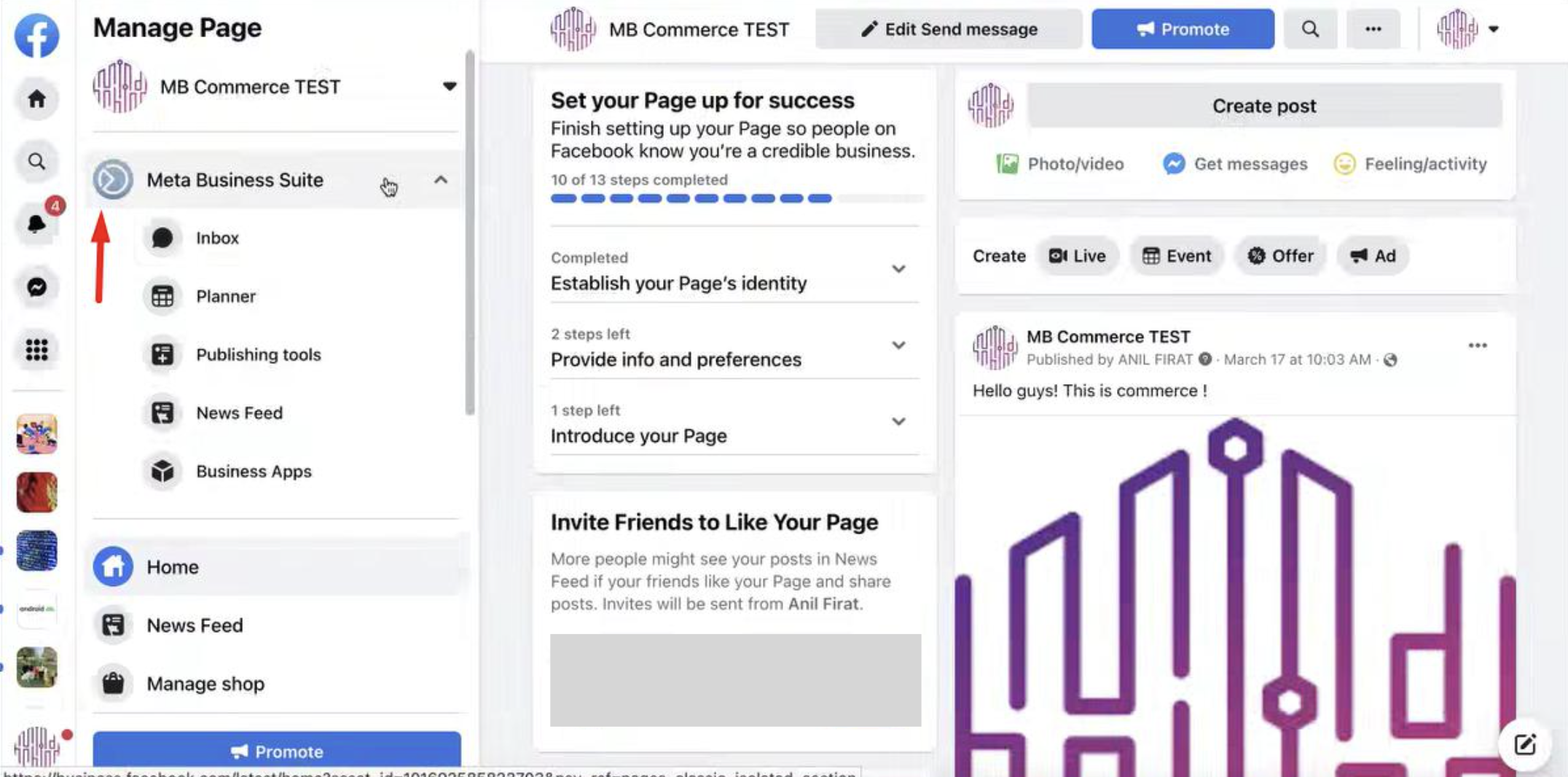 3. After you reach the Meta Business Suite, you will see the Business Manager. Click the Create a Business Account button.
 4. Click the Settings button on the left menu on Meta Business Suite.
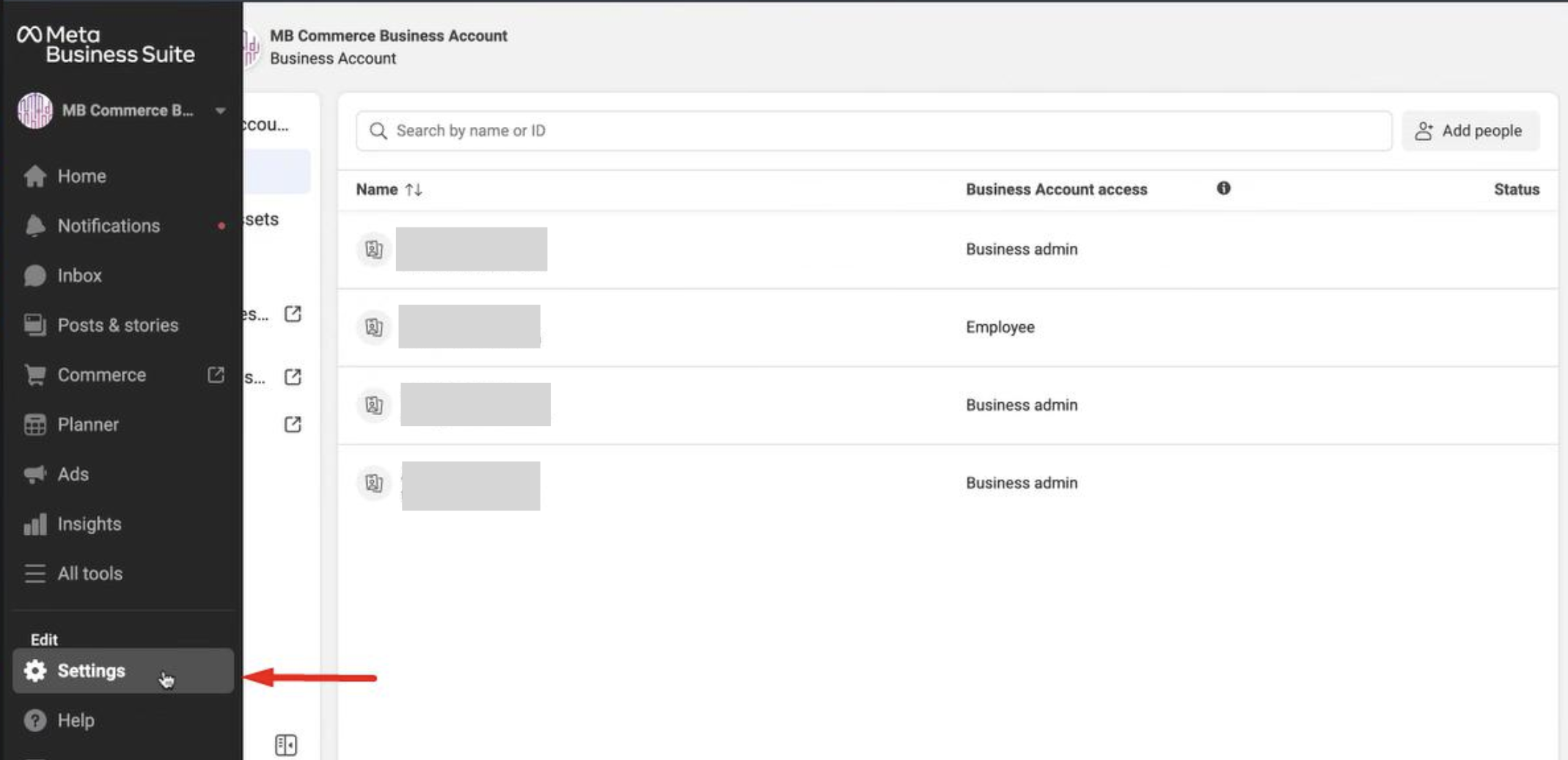 5. If you want to add a new person to your Business Account, go to the Add People tab. On this page, you can add users with different roles such as admin or employee.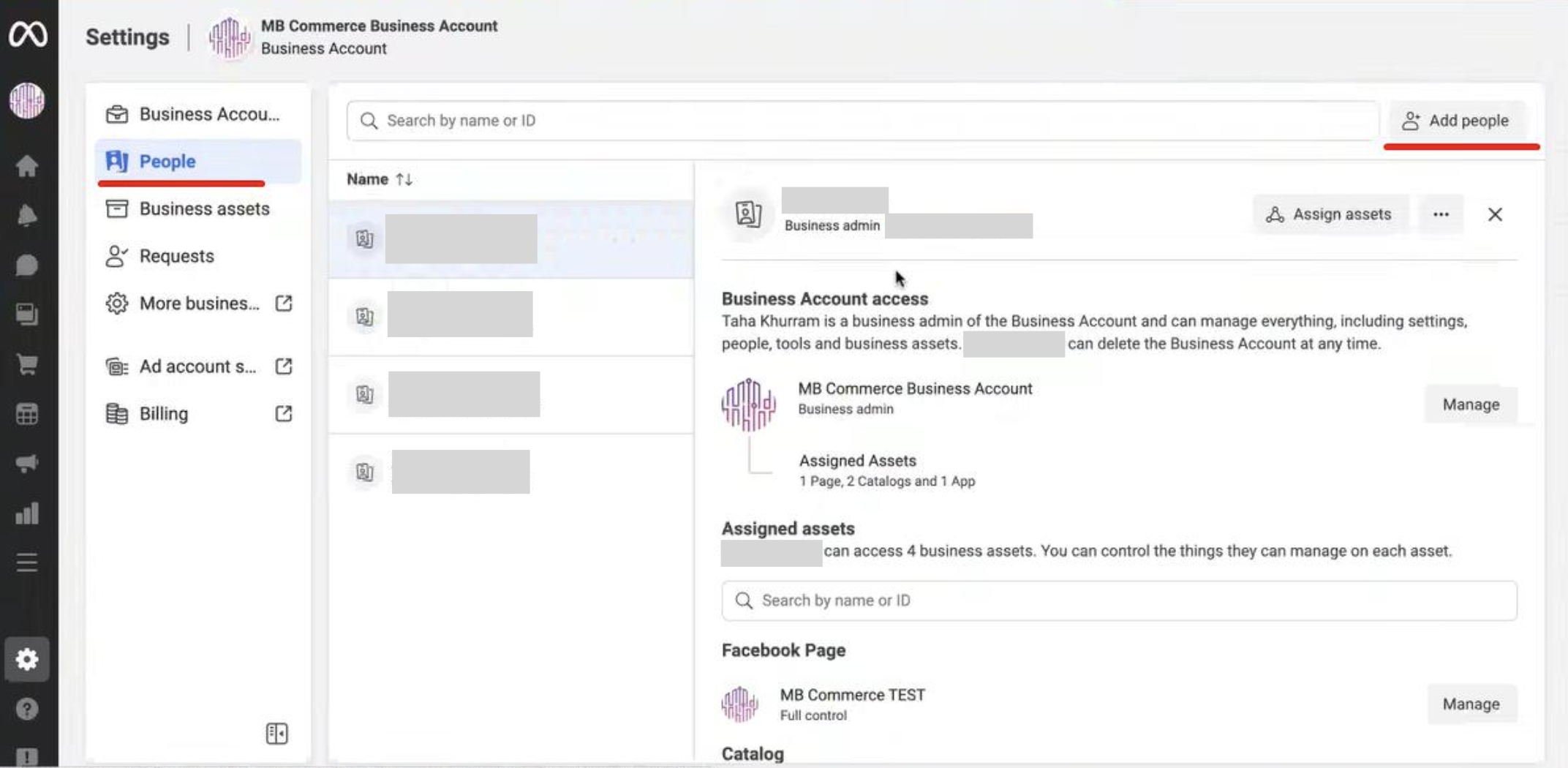
You can also assign assets to the people you have added to your Facebook Page or Catalog.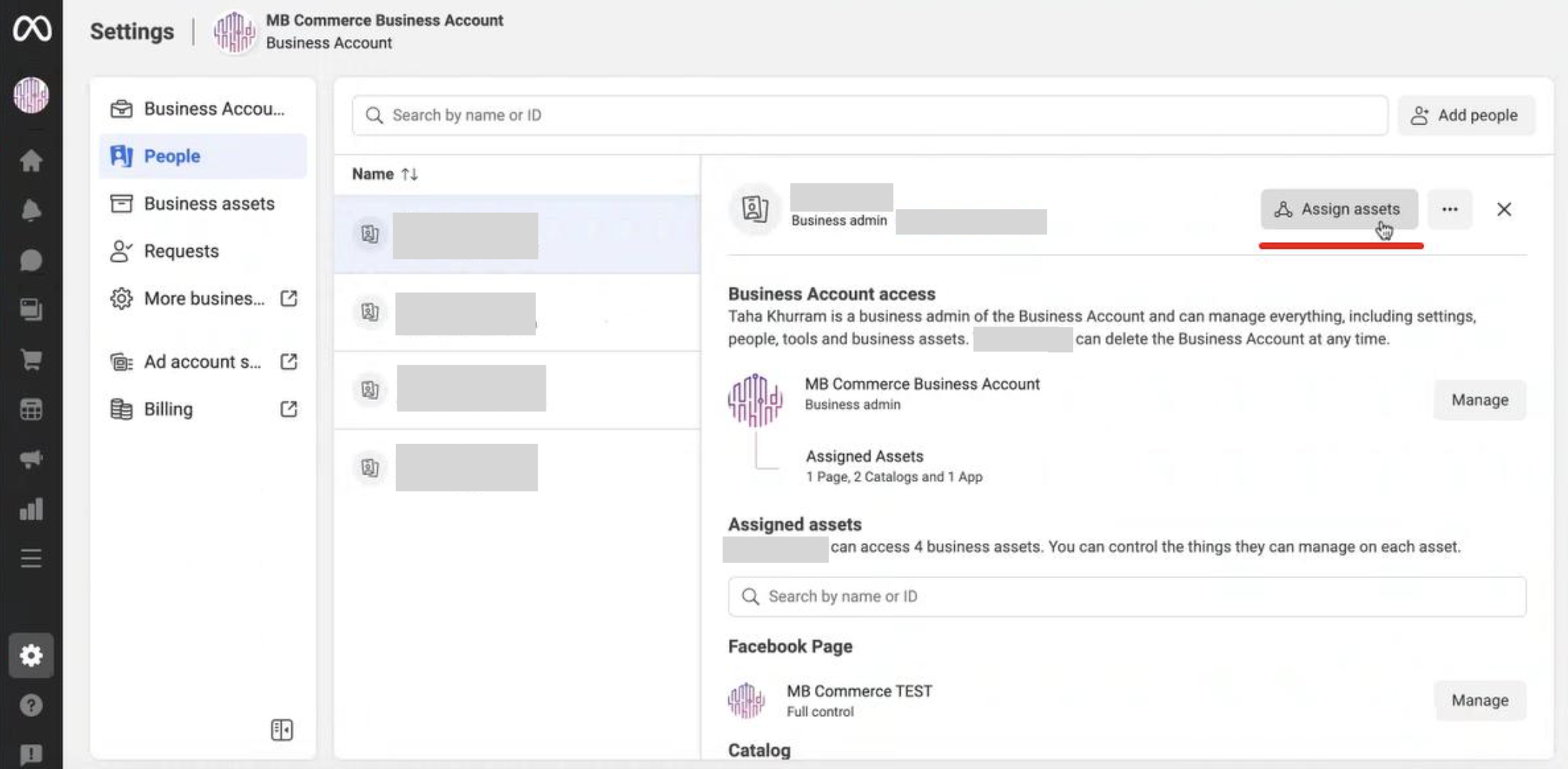
Set up a catalog on Facebook
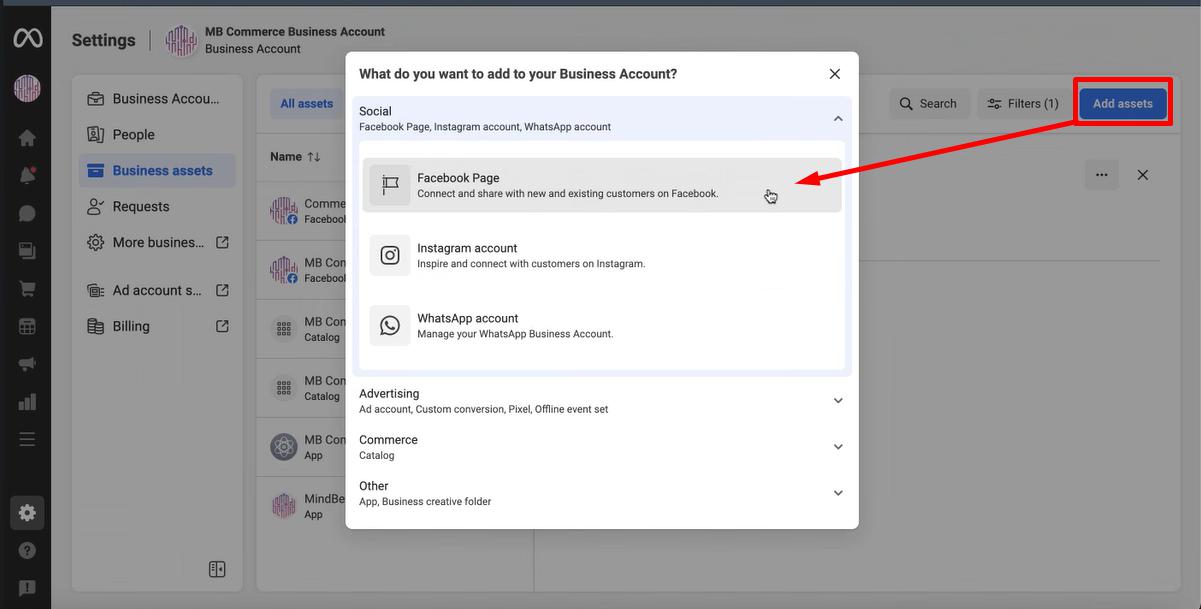
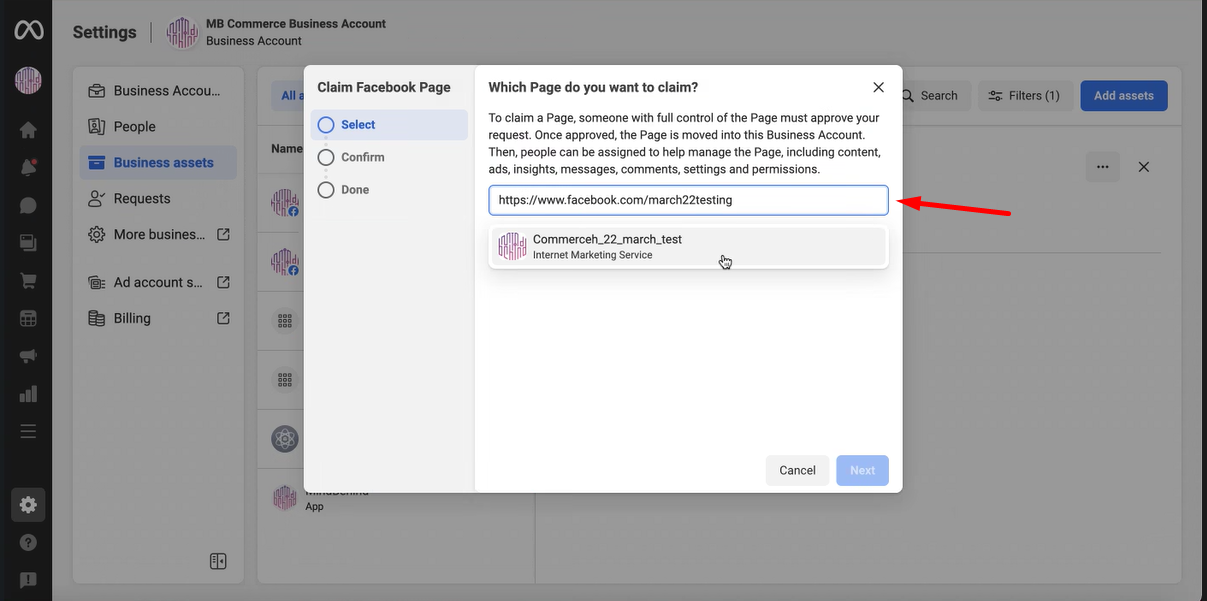
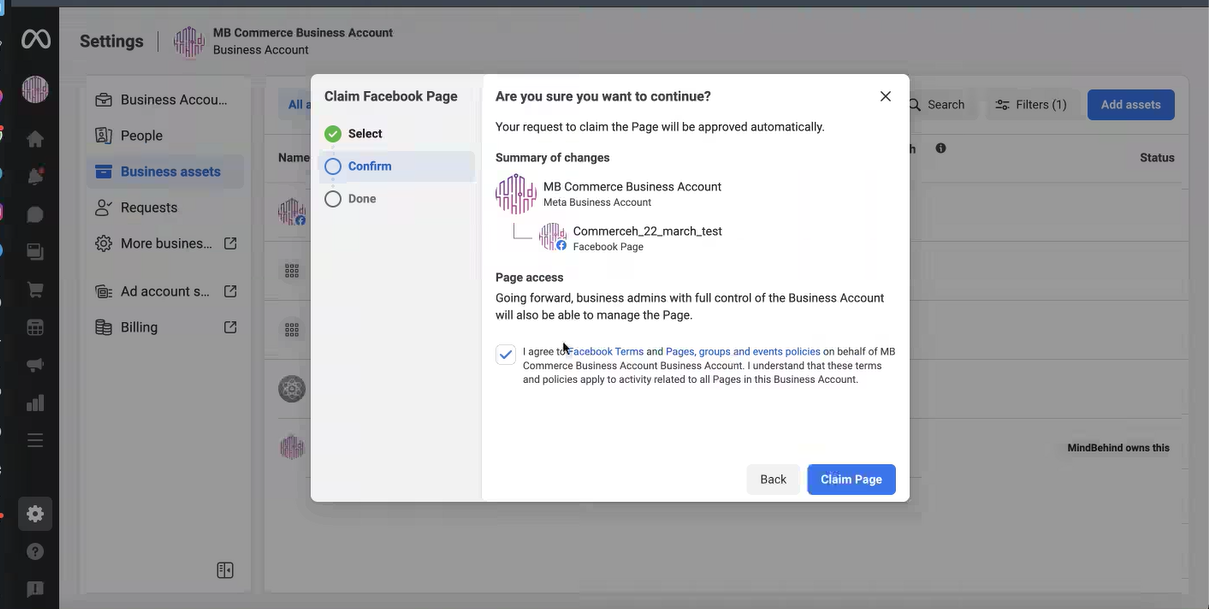
Go to the Business Assets, click the Add Asset button, and click Facebook Page.
Click the "Claim an Existing Facebook Page" option.
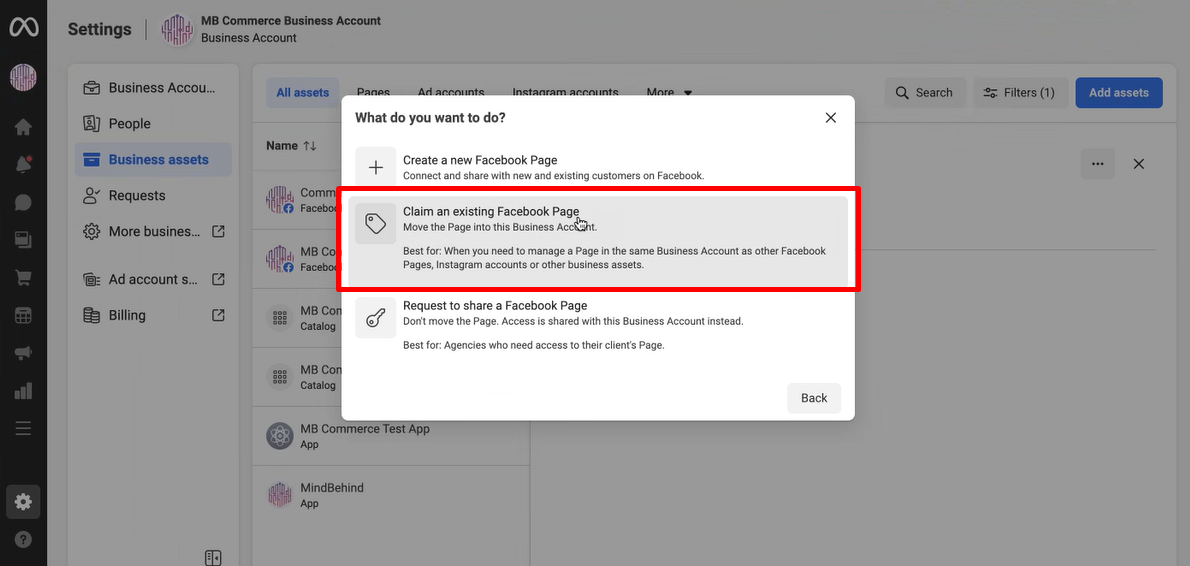
Provide a link to your Facebook page that you want to add.
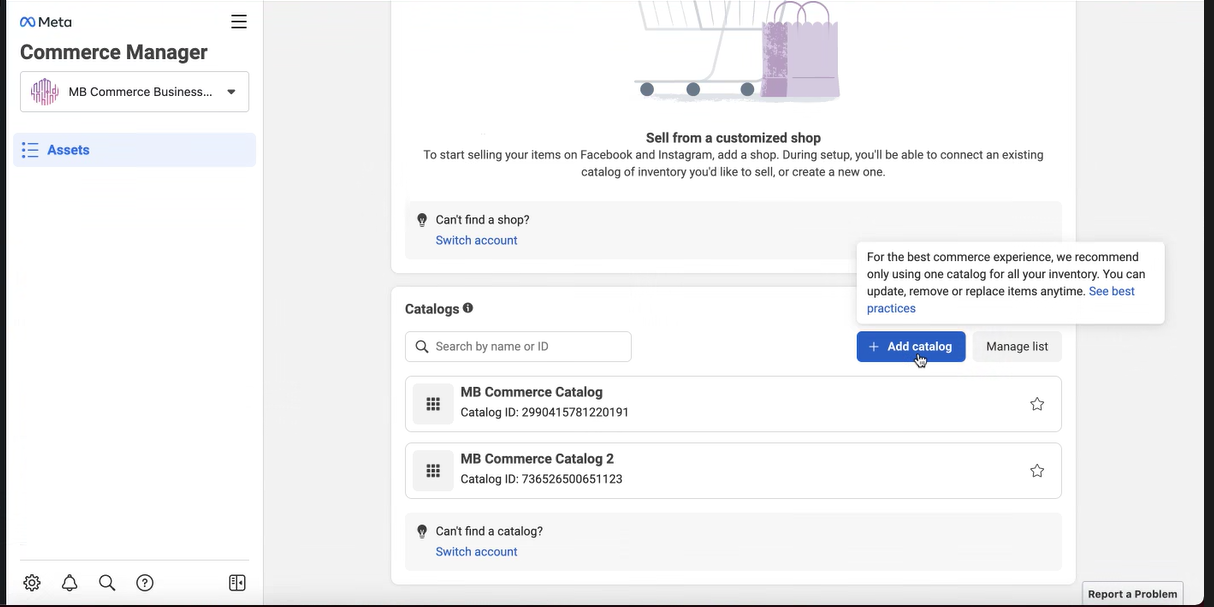
To create a catalog for Commerce, select the Commerce tab on the left menu.
If you do not have a catalog yet, refer to Facebook's documentation about how to add a catalog in commerce.
Make sure that your catalog is displayed on this page.
After adding the catalog and the items on it, go back to the Business Assets page to add assets to the catalog of your business account.
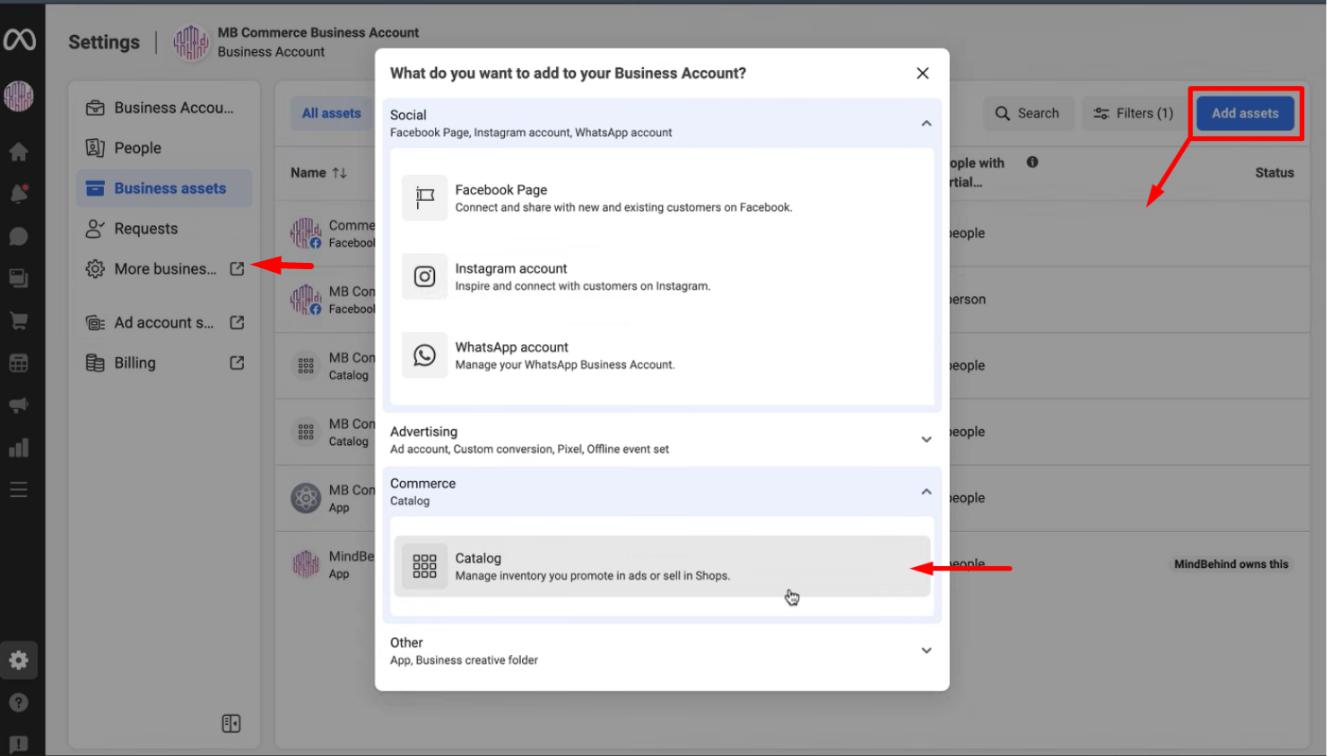
To go to Business Manager, click the More Business Settings button on the left side menu. Click on the WhatsApp Accounts. Click the Settings tab and click on the WhatsApp Manager button.
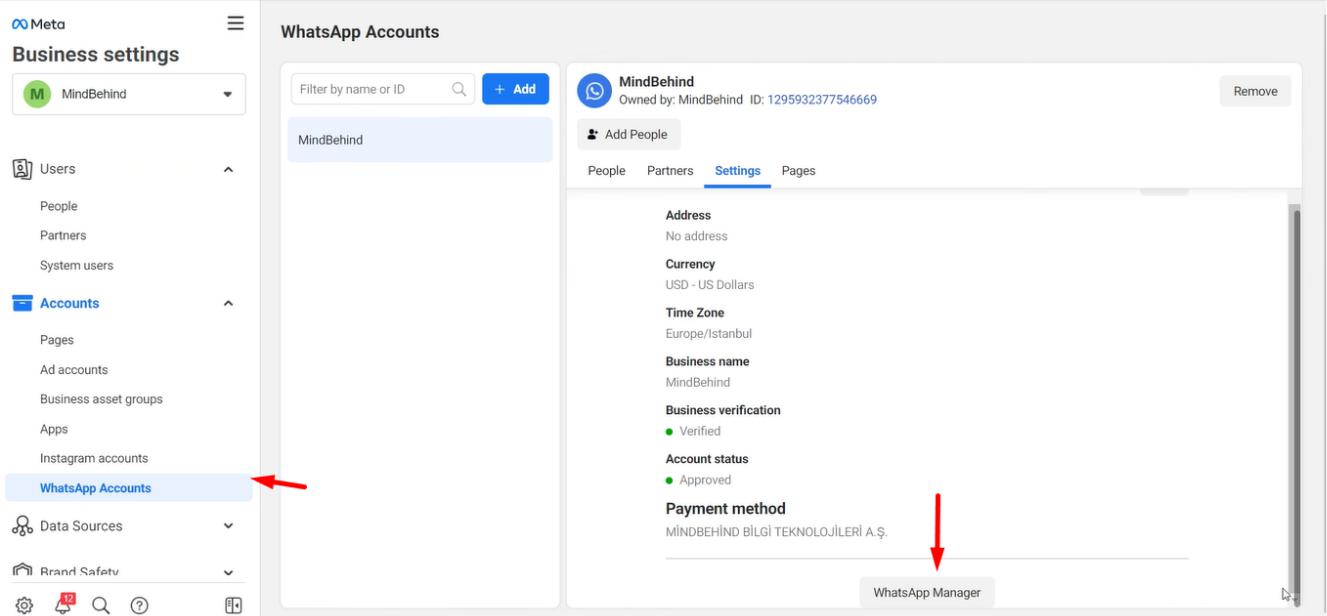
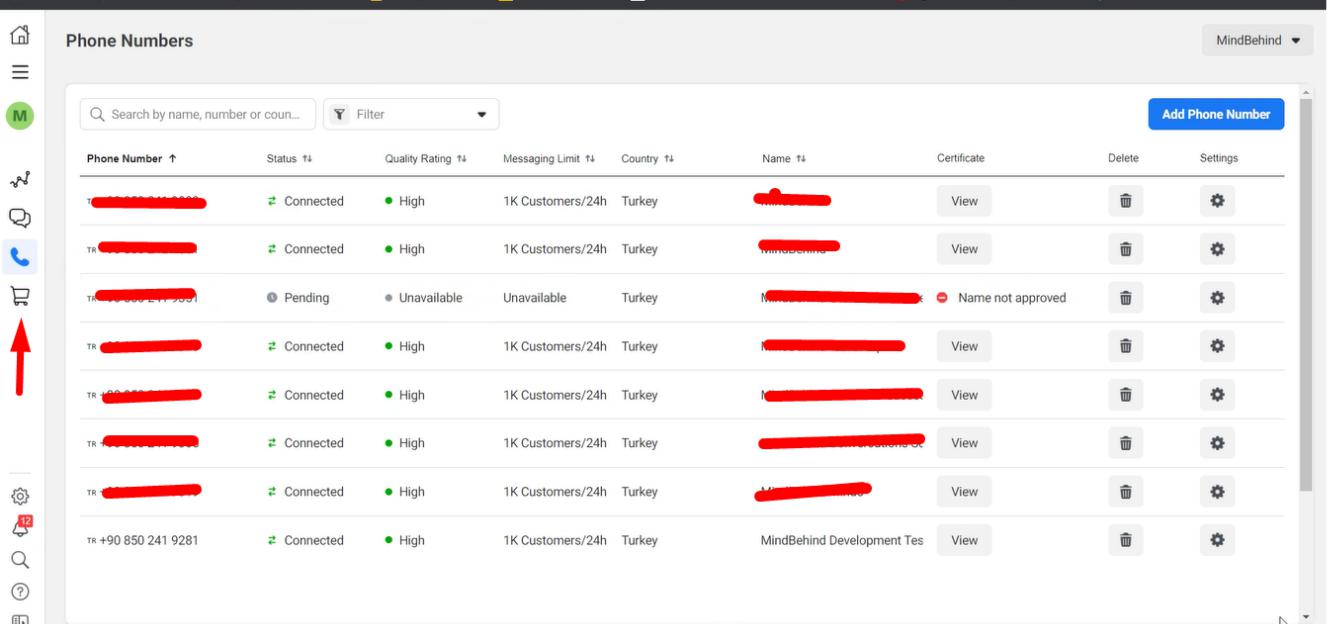
You will see the WhatsApp Business Account on this page. Go to the Catalog button on the left side menu.
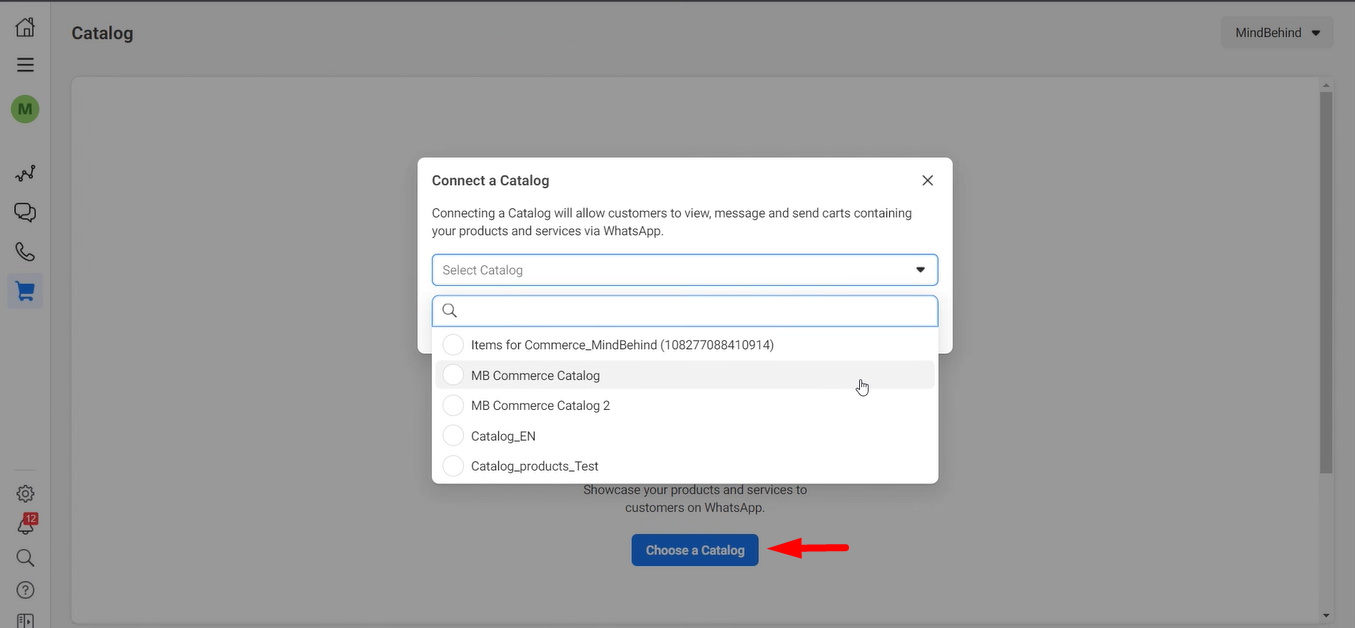
Click the Choose a Catalog button and select the required catalog from here.
Click on the Connect Catalog button after your selection.
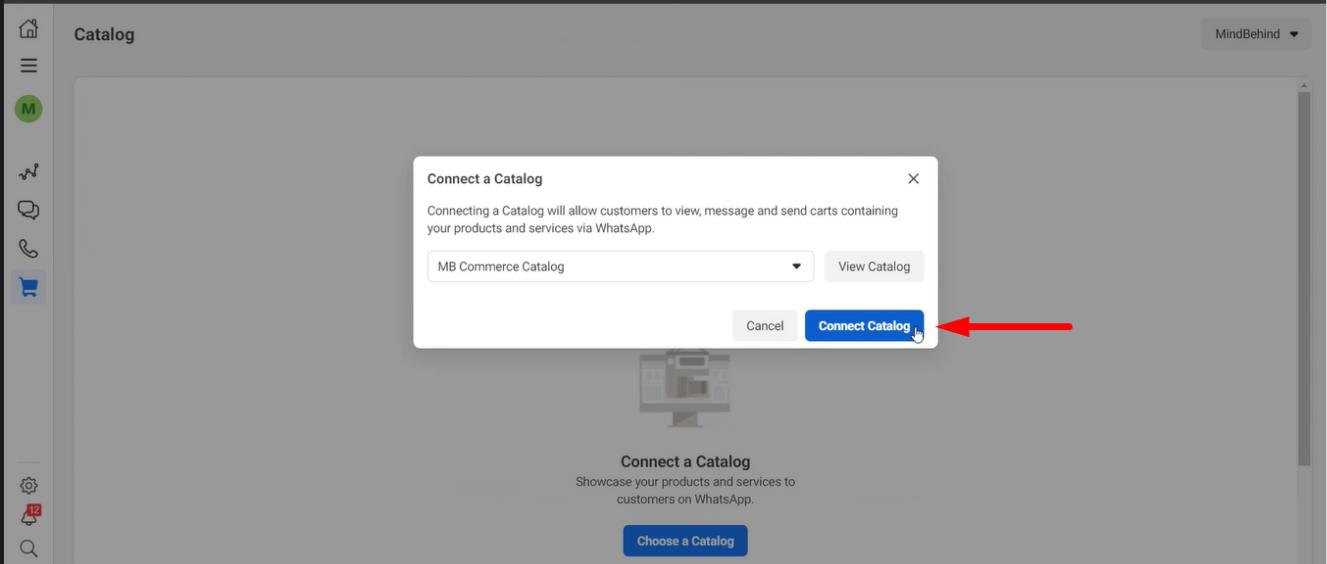 10. Now you can view the Catalog with the connected WhatsApp Business Number.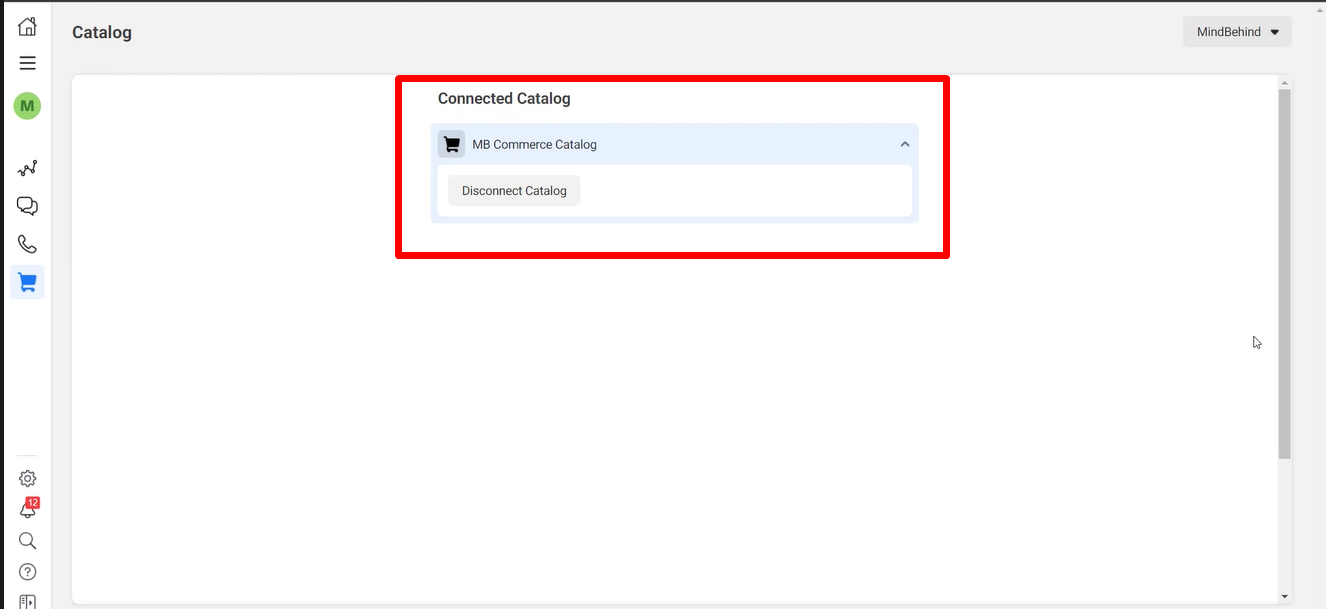
Connect to MindBehind
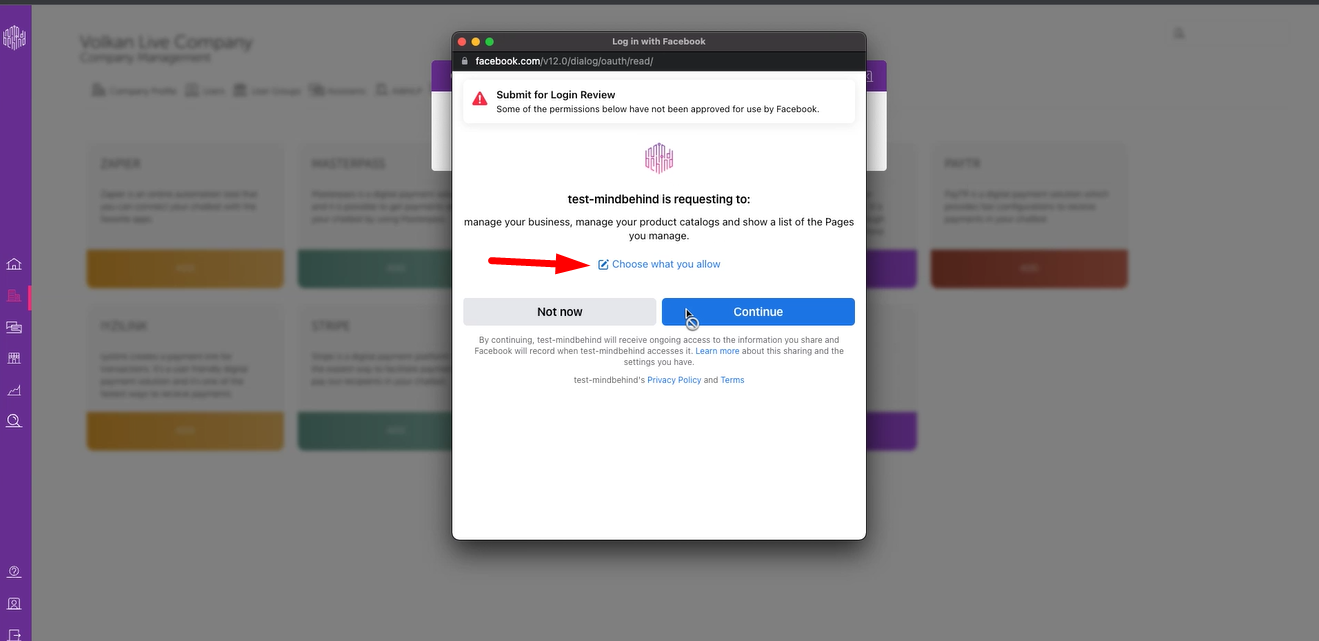
1. Go to MindBehind and select the Companies icon on the left menu. On your company page, click the Integration tab and click the Add button in the Commerce Manager integration.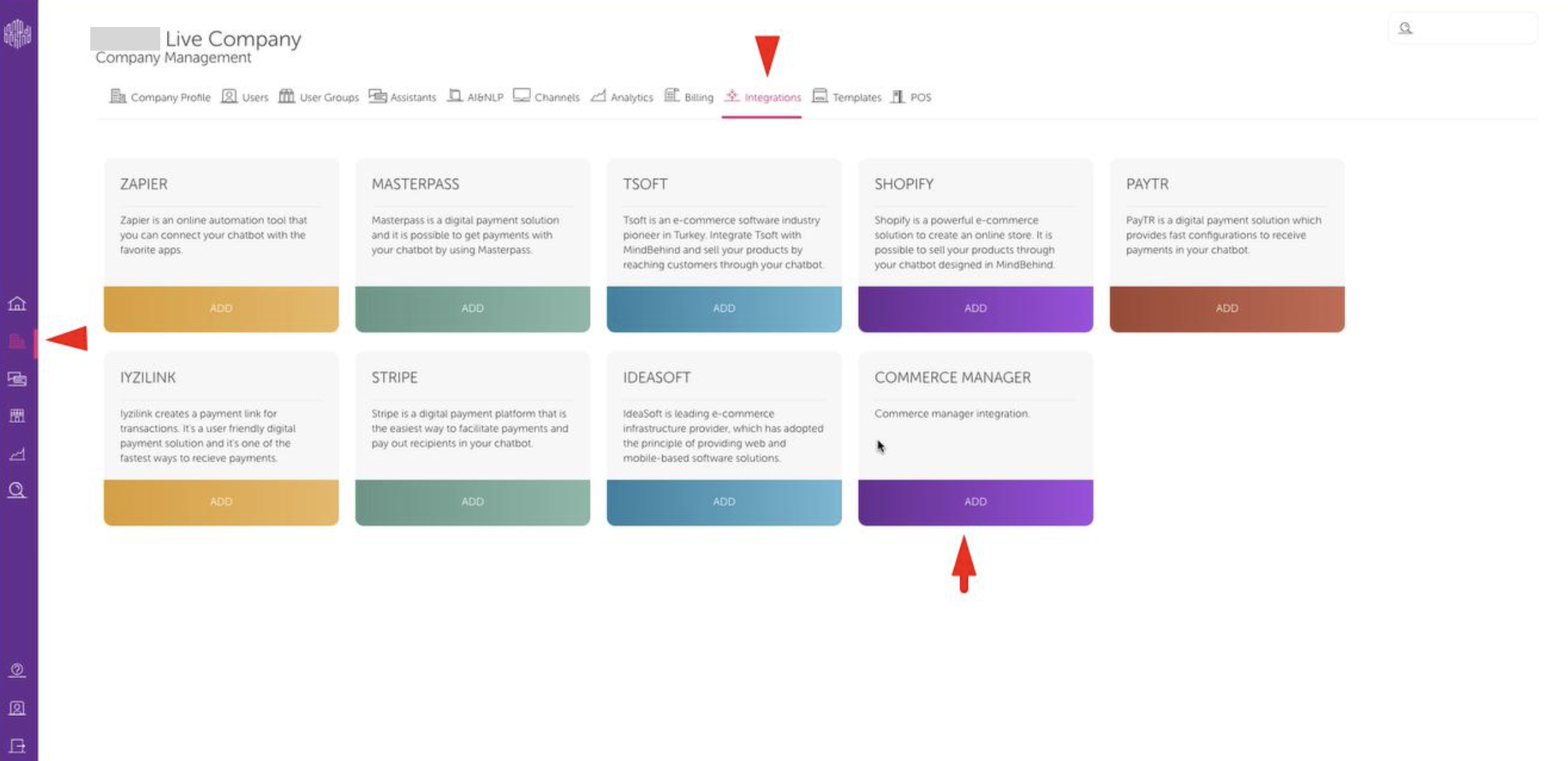 2. Log in to Facebook.
 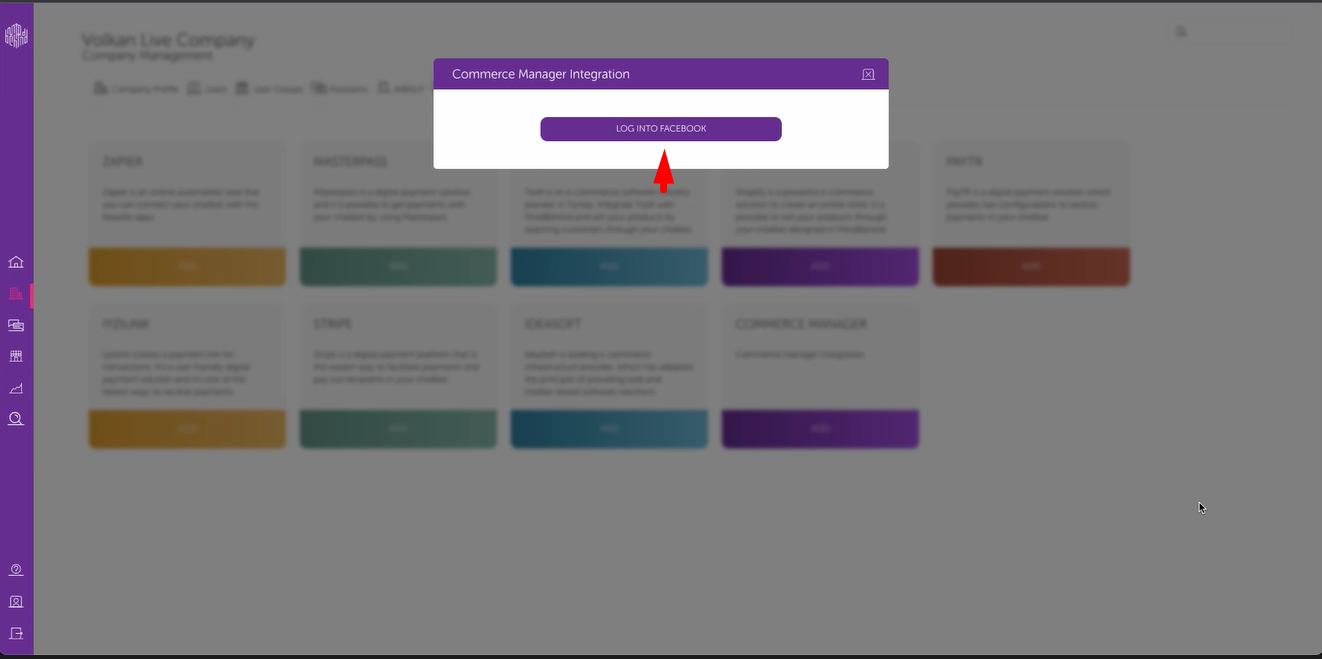 3. Click on the Continue button.
 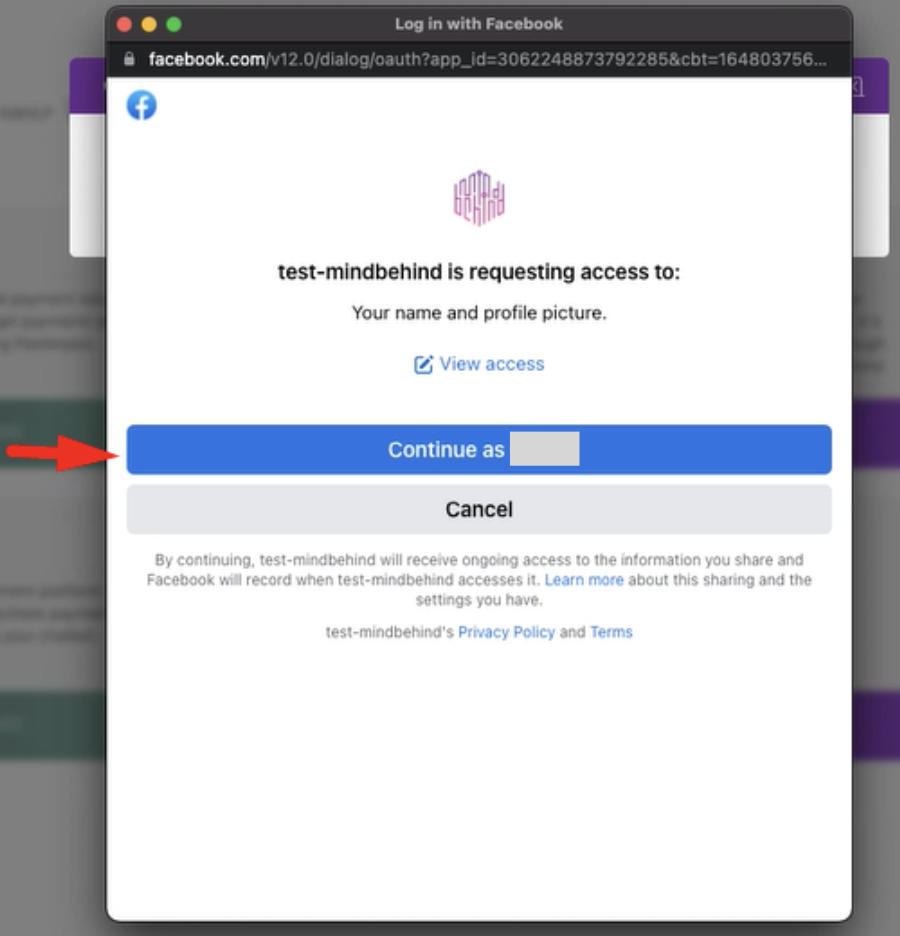 4. Click the Choose what you allow button.
  5. Select the related Business Manager and select the related page on that screen. Click the Continue button.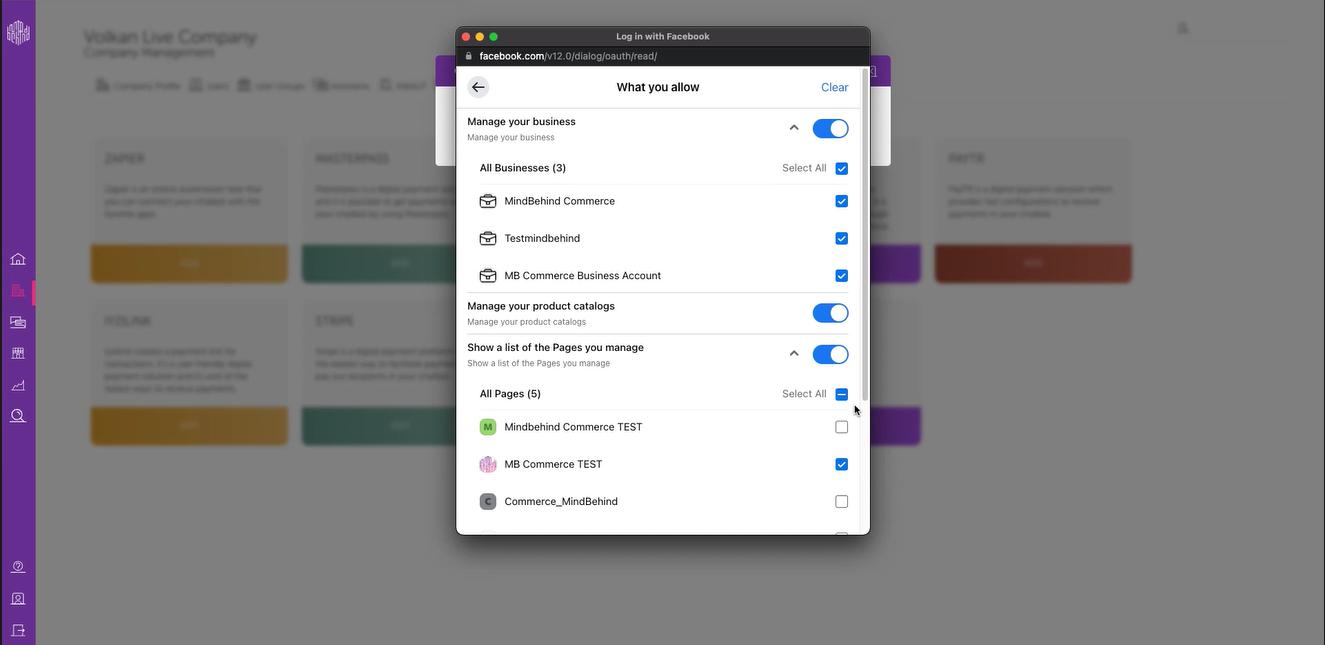
6. You will see a pop-up screen. Select the page and click the Save button.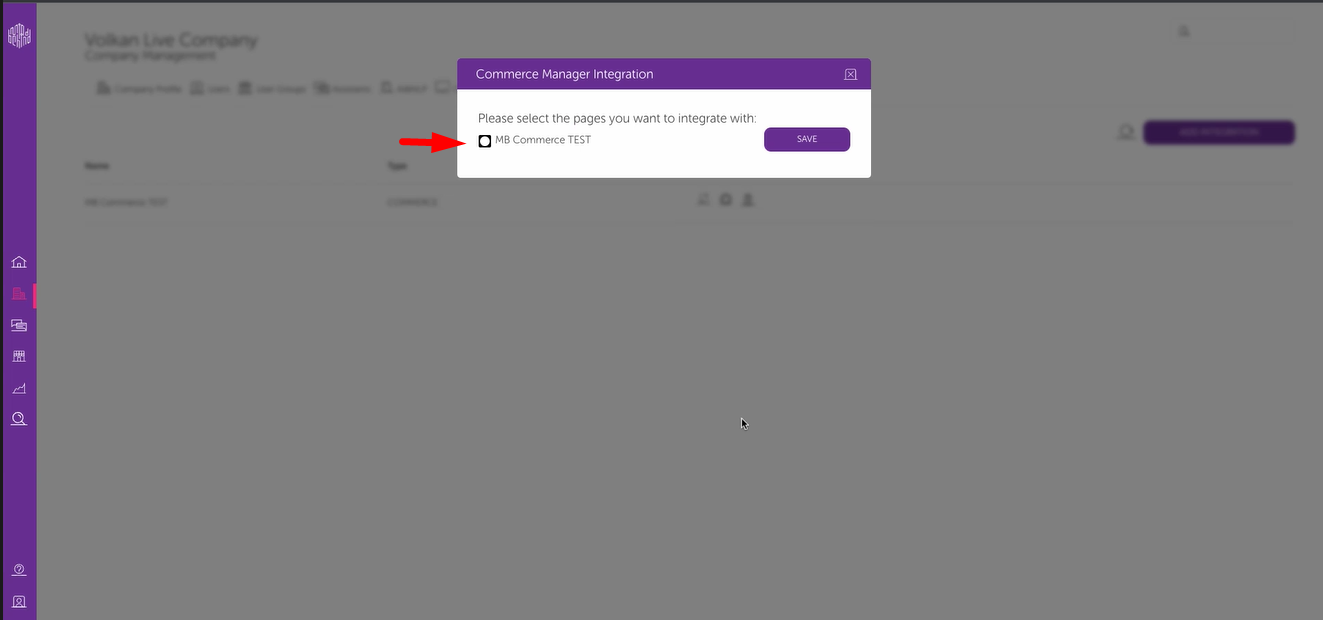 Congratulations! It is all done. You connected your Commerce Manager to MindBehind!
 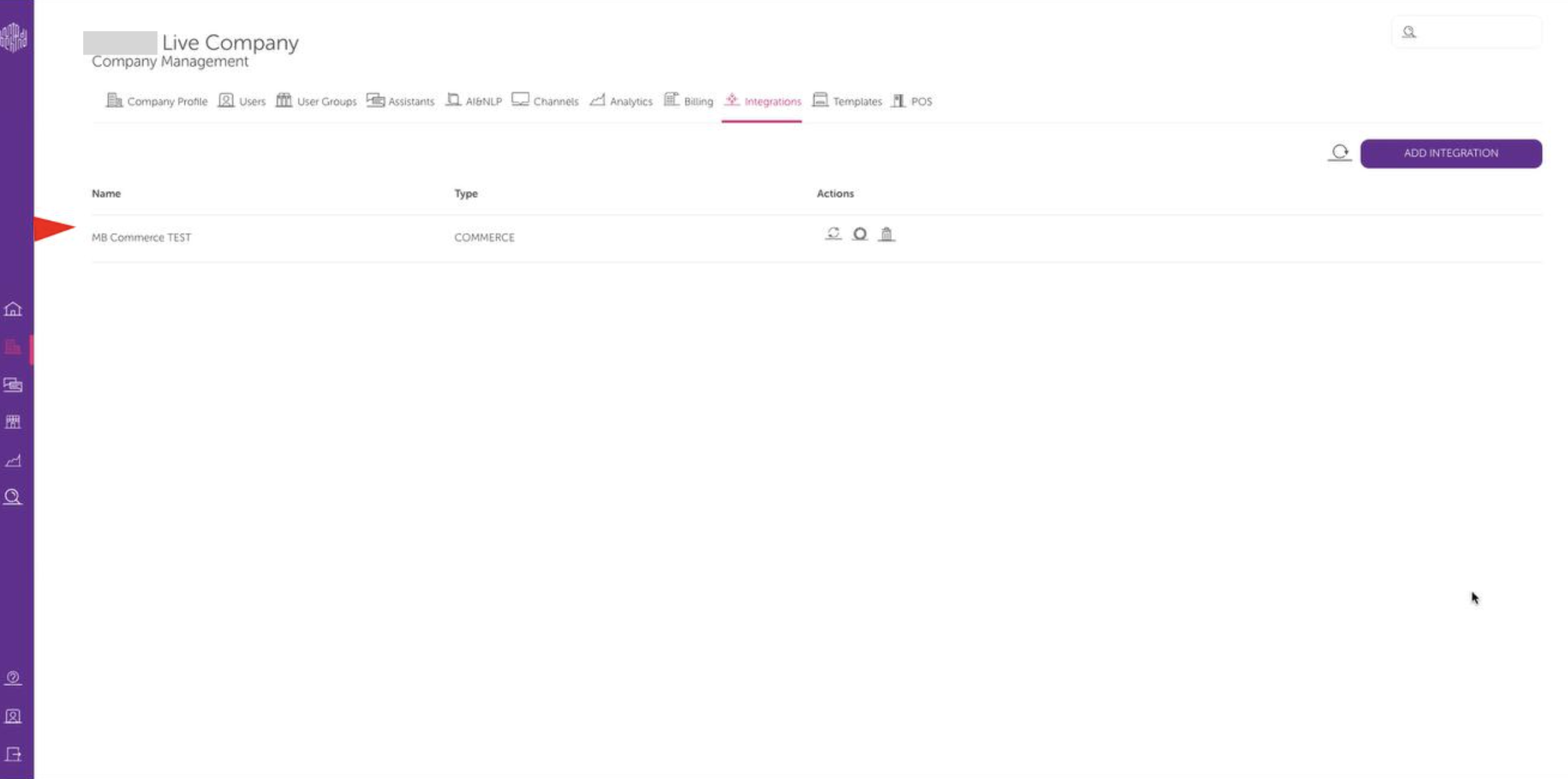 You can use the Reconnect button to troubleshoot connection issues between the META catalog and the MindBehind product. If, for any reason, the connection between the META catalog and the MindBehind product is lost and products cannot be displayed, you must use the Reconnect button to log in to your META account and re-establish the connection. This is the most common solution for unknown issues or when tokens used on the META side expire.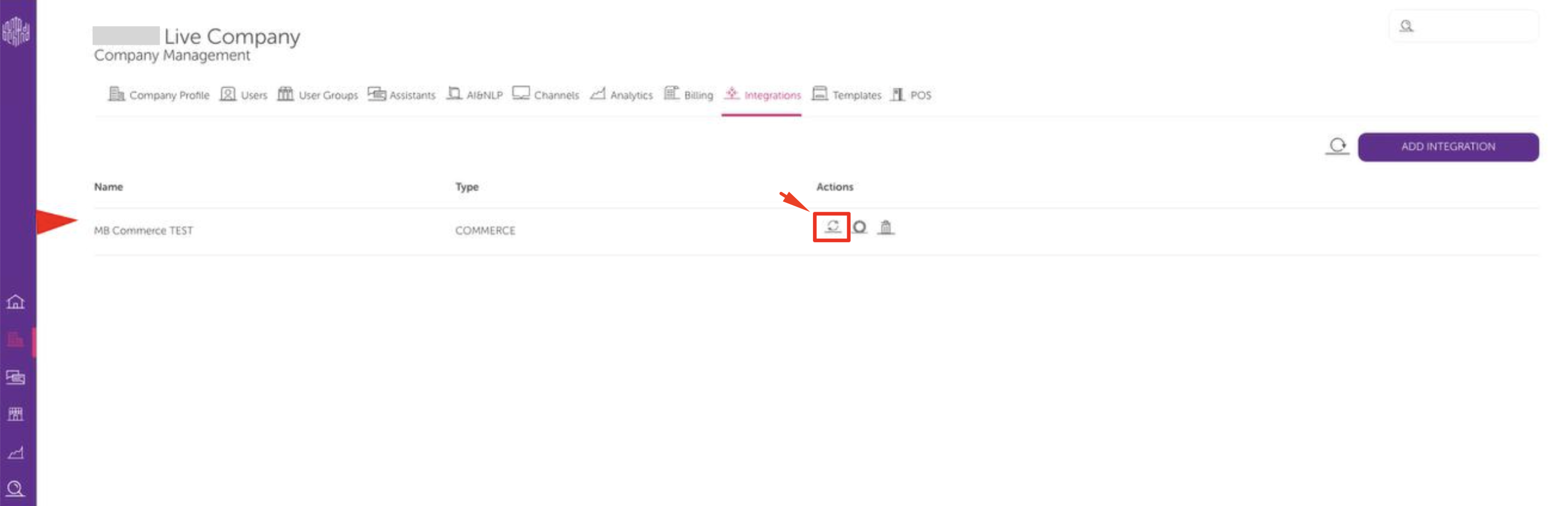
Create a chatbot and publish on WhatsApp
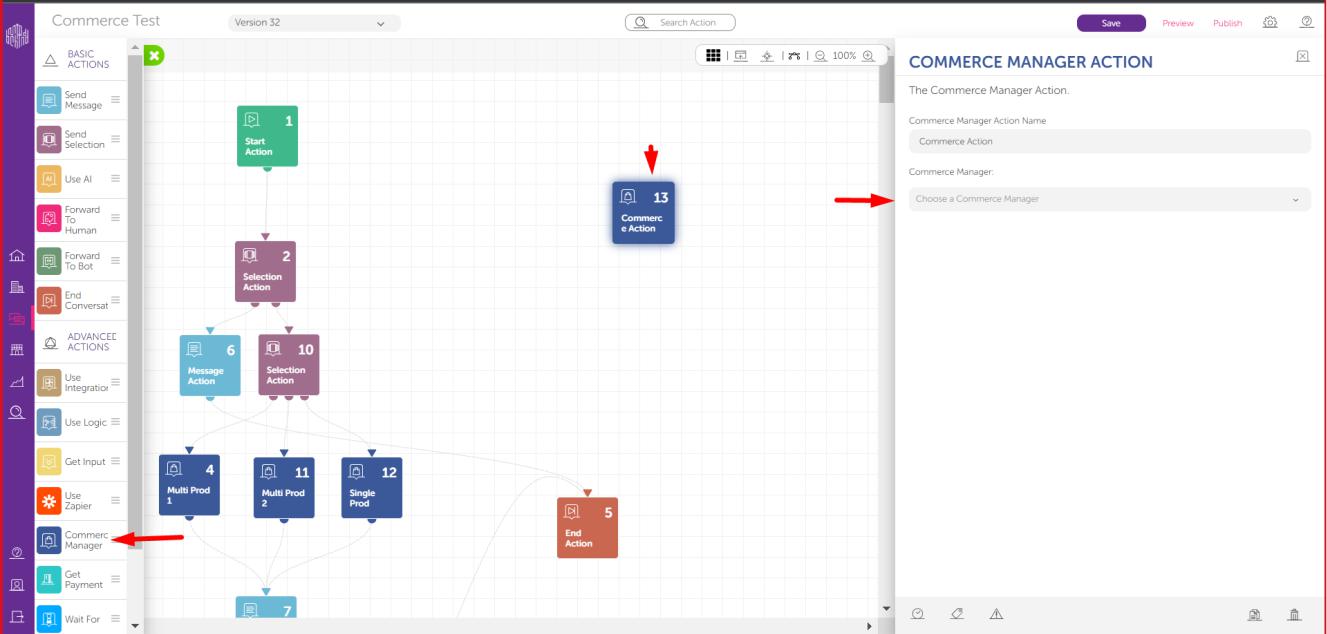
1. Go to MindBehind and click on the Companies tab on the left bar. Go to the Assistants tab and select an assistant or create a new assistant.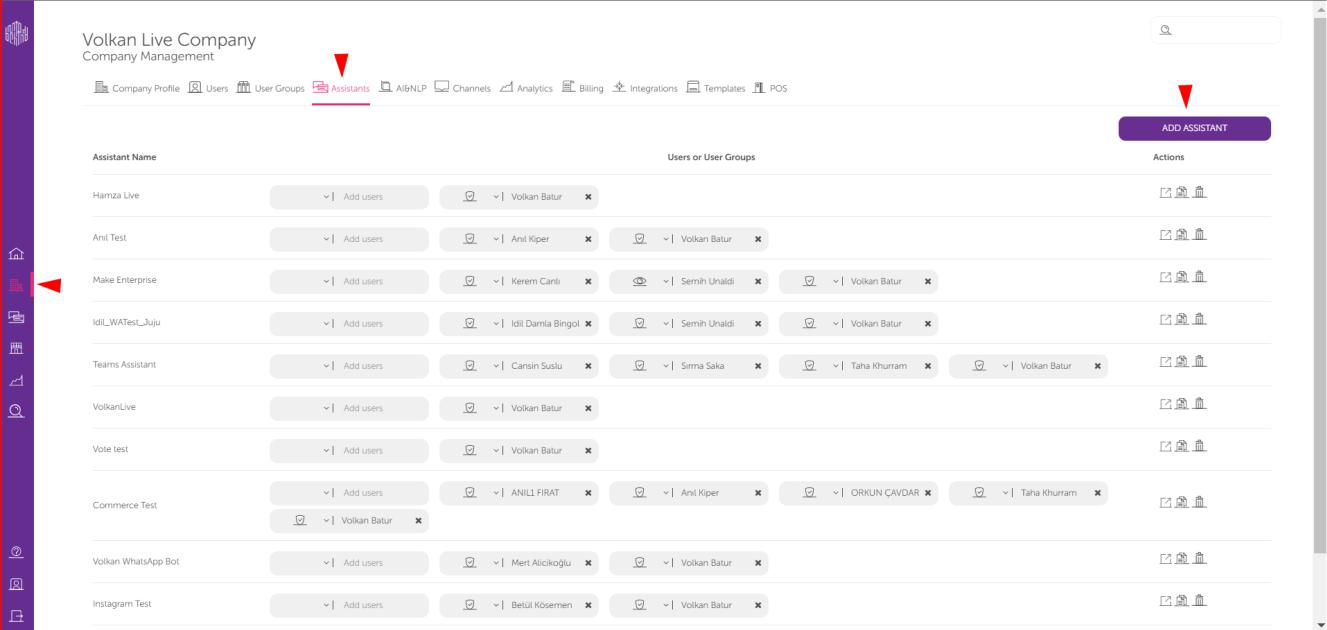 2. On your assistant's page, select the Commerce Action module. After clicking on the module, you can select the Commerce Manager.
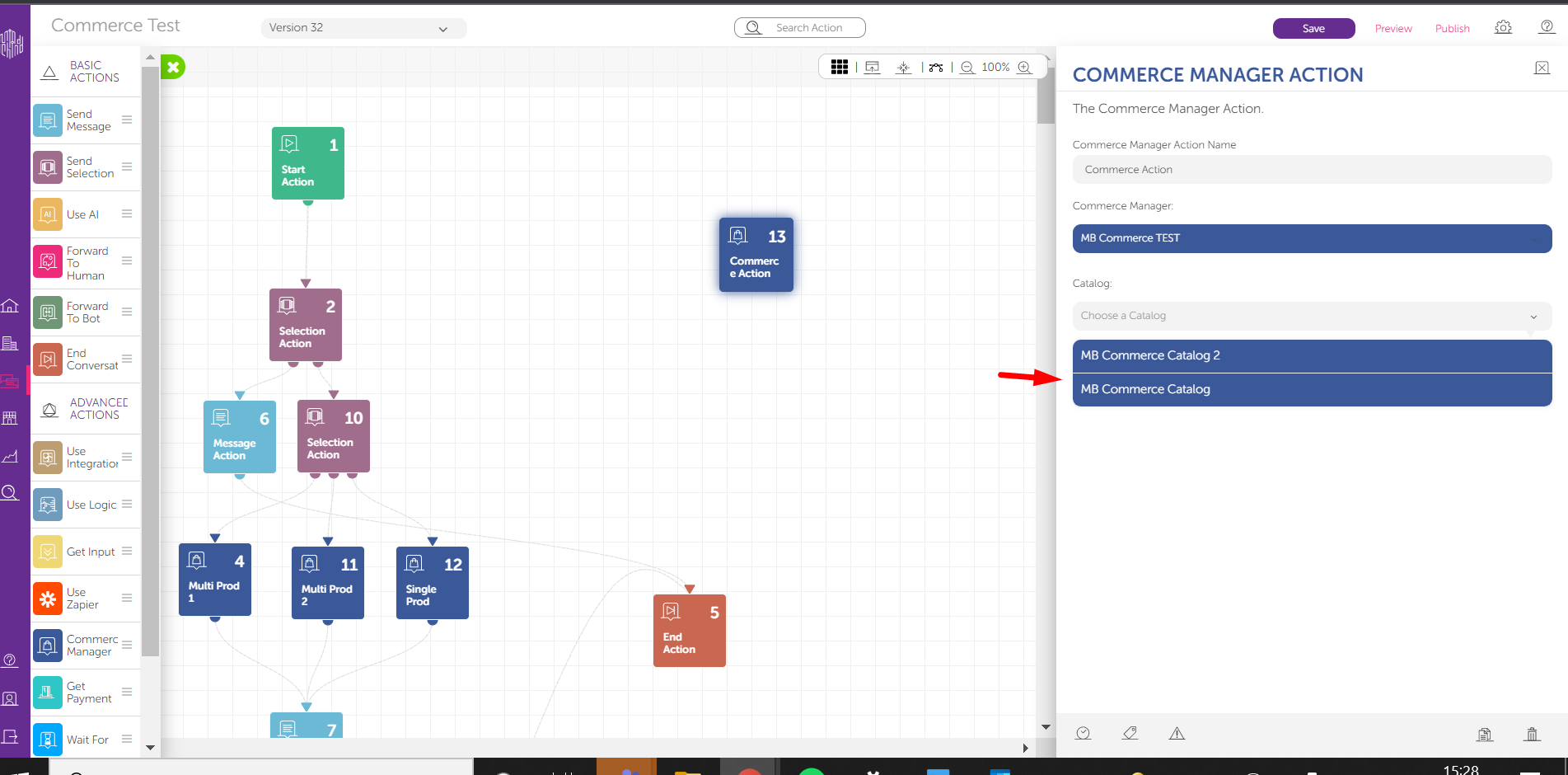
 3. Select a catalog.
  4. After selecting the catalog, you will see the module parameters. You can fill in the details. For limitations, please look at the end of this document.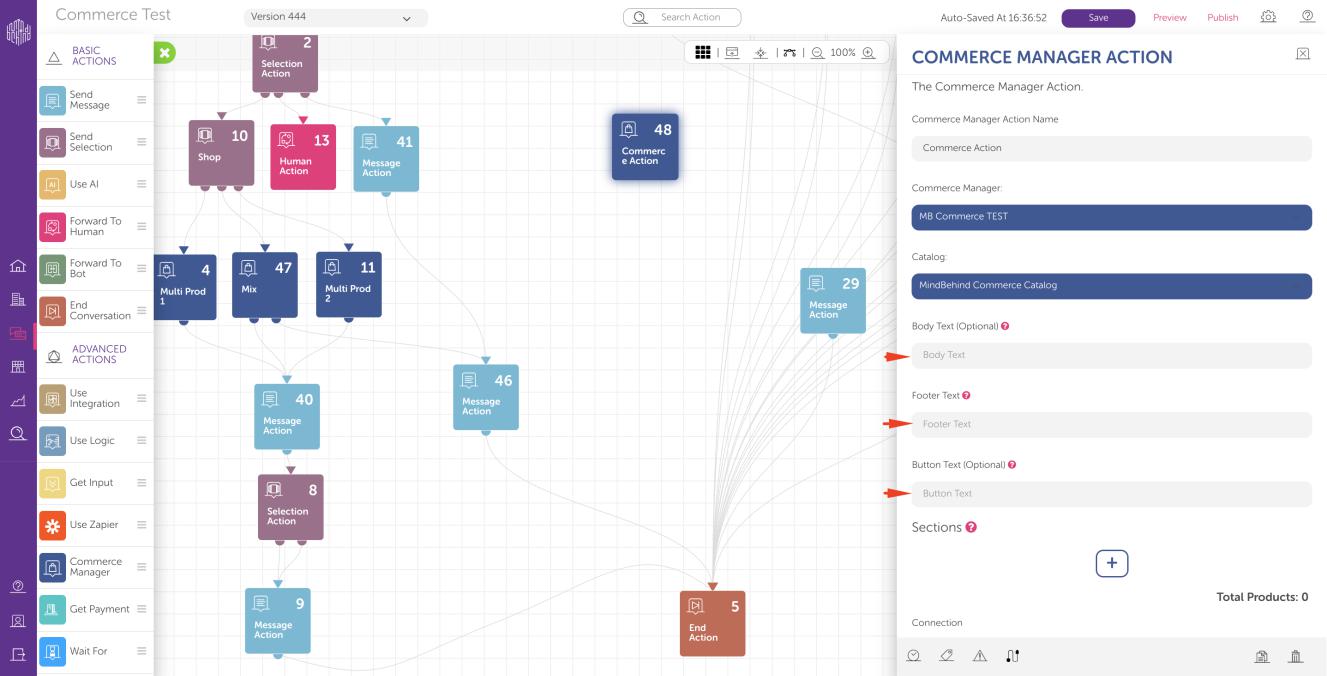
If you send a multi-product message, you should fill in the header text after the selection of products.
5. After filling in the required information, click the plus (+) button to add a new section.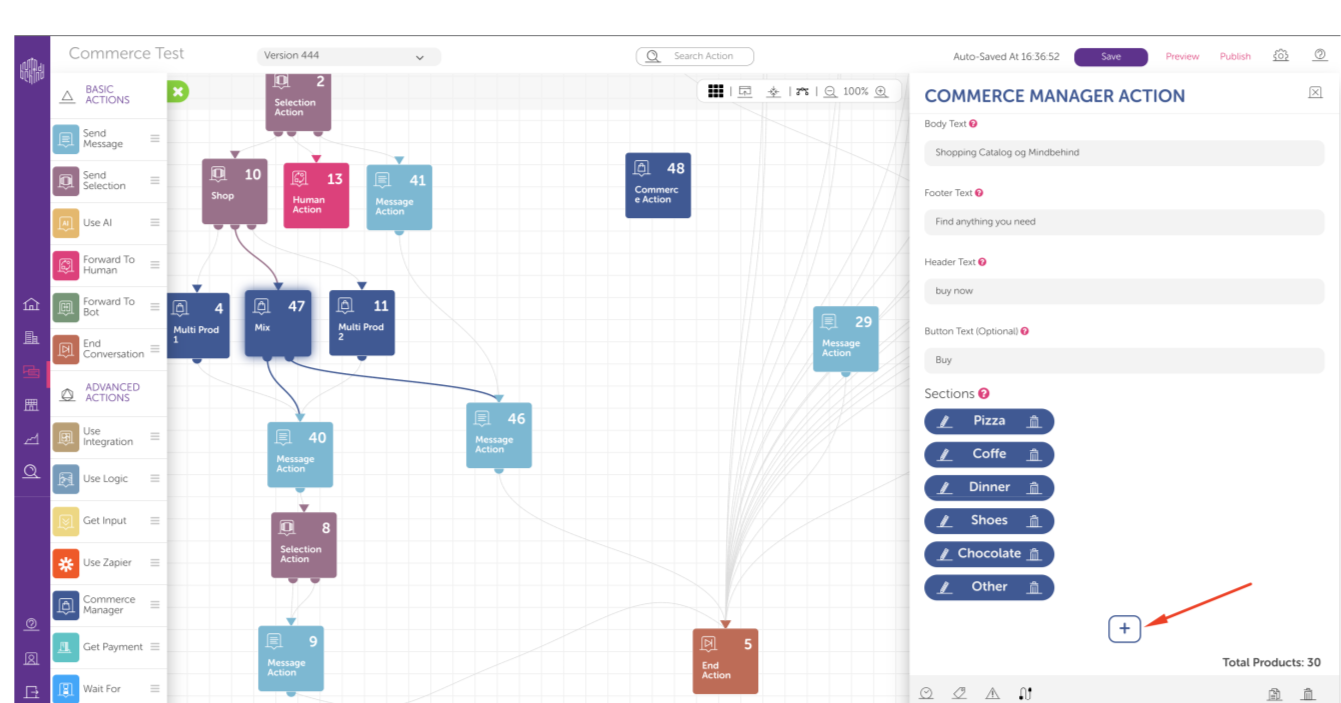
6. After selecting the section, you will see the Section Title field and the Products below. Enter the section title. From the product list, you can choose one or multiple products here. For restrictions, you can refer to the limitations at the end of the documentation.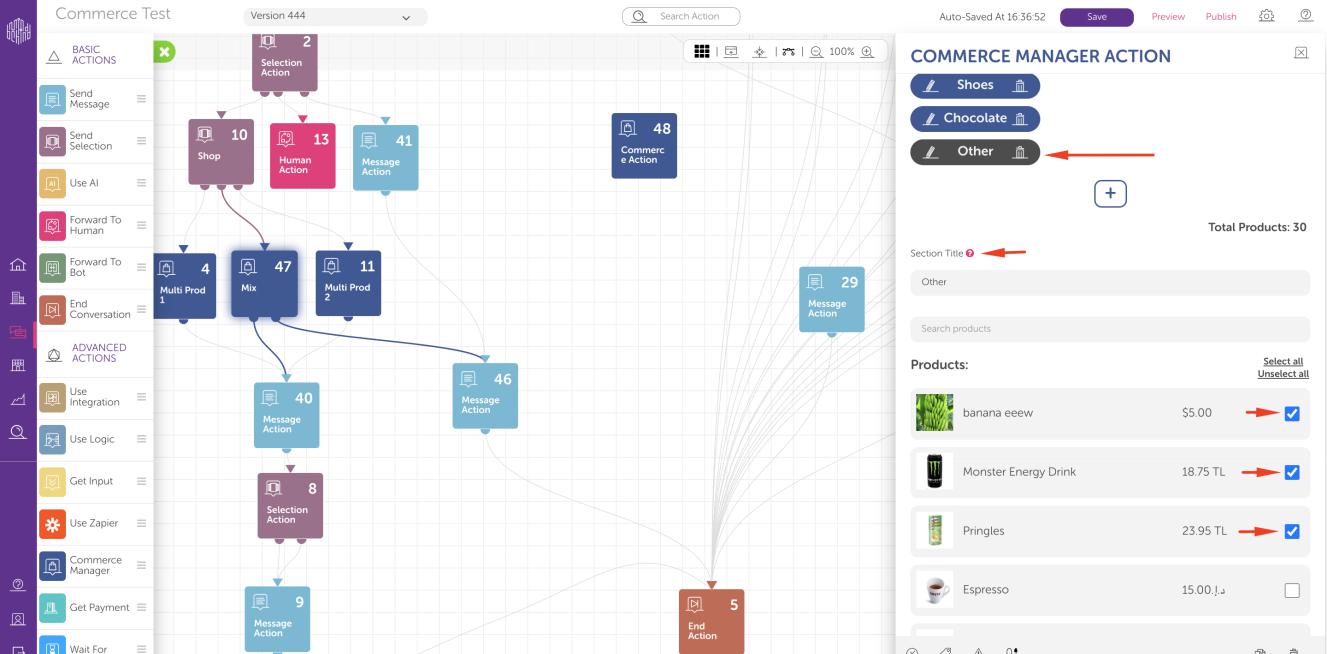
In the CommerceAction, a maximum of 1000 products in the catalog can be fetched.
7. Select the connection at the end to continue the bot flow. Also, select the fallback module for a better conversation experience.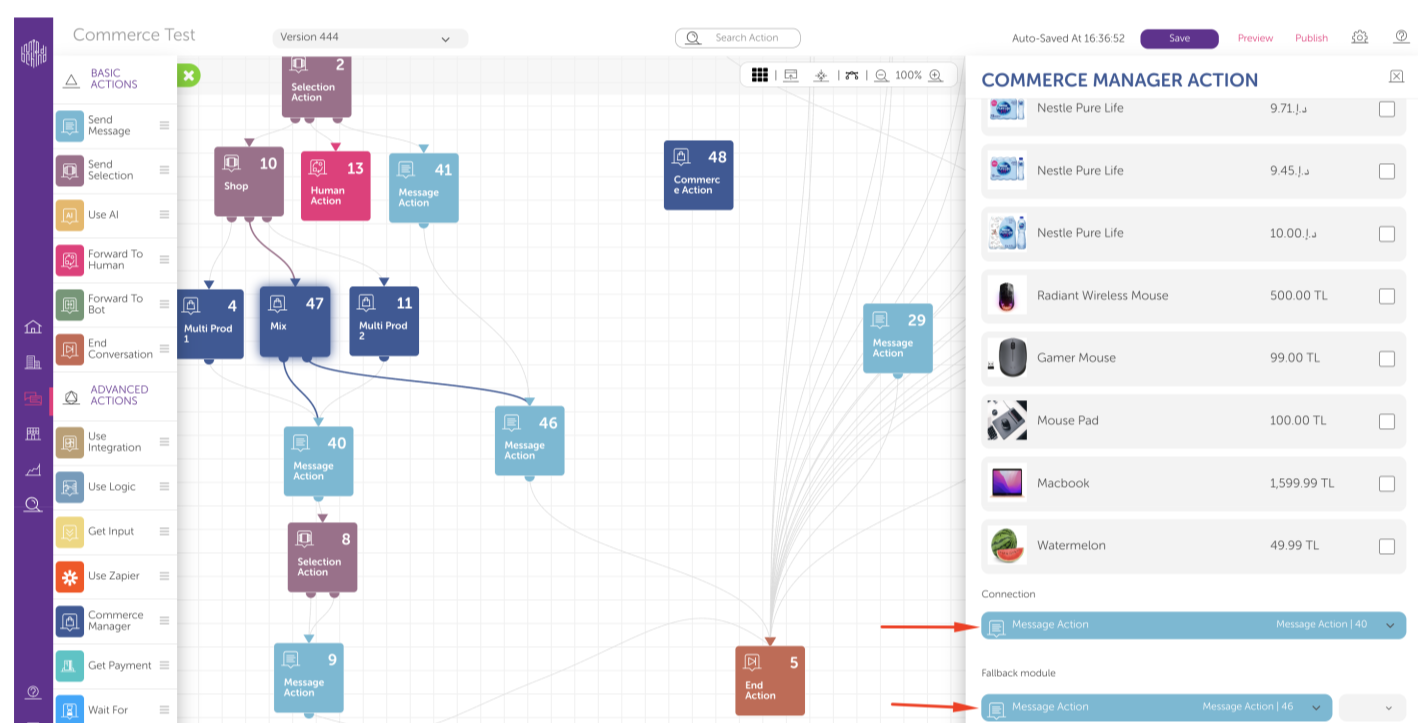
8. After you are done with the design and ready to publish your bot on WhatsApp, click the Publish button, select your WhatsApp Channel, and click the Publish button.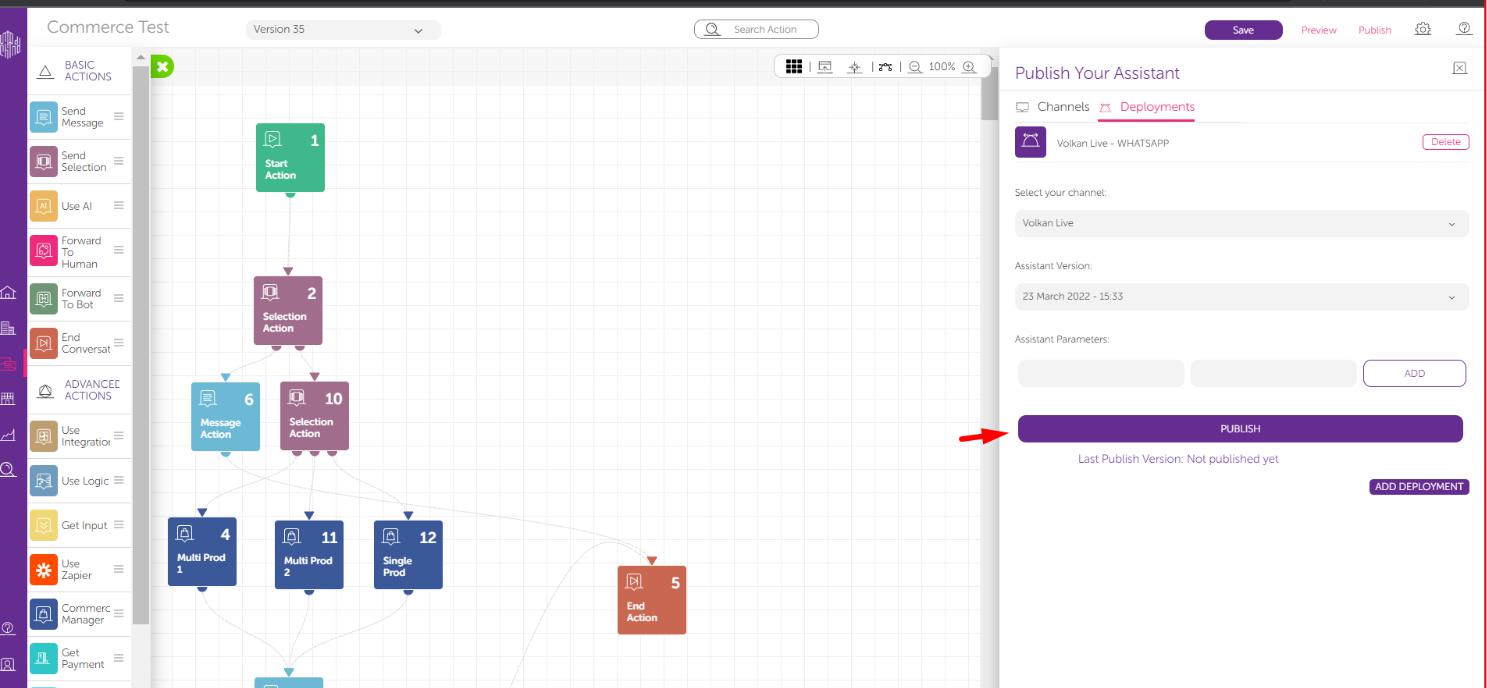
It is all done! You published your Commerce chatbot on WhatsApp.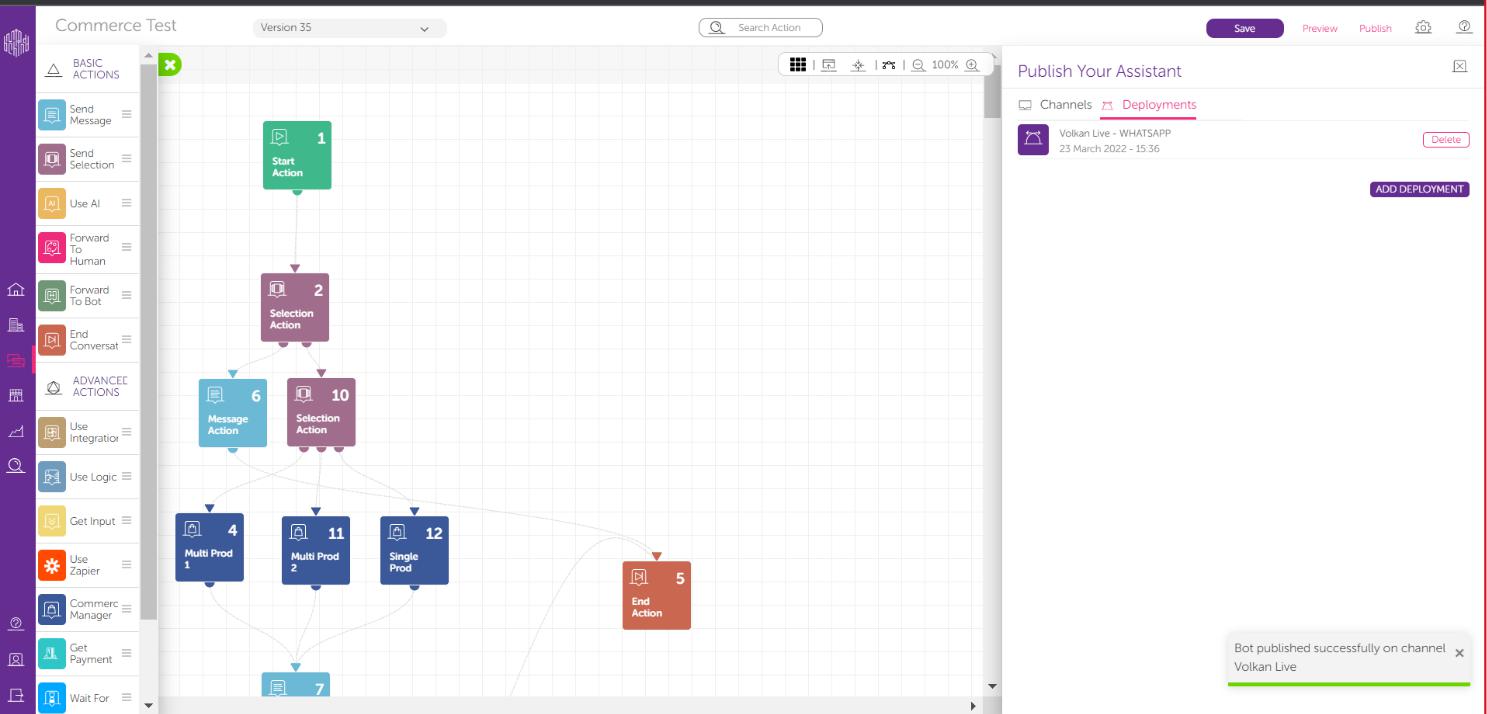
Limitations for Commerce Manager
Field limitations
Body text is required for multi-products and optional for a single product. It should be less than 1024 characters.
Footer text is required and should be less than 60 characters.
Header text is required for multi-products and should be less than 60 characters.
Button text is optional and should be less than 20 characters. The default is View for the single product and View items for multi-product.
Section limitations
Title text is required for every section.
A minimum of 1 and a maximum of 10 sections can be created per module.
Each section should have at least 1 and at max 10 products, with a maximum of 30 products total across all sections.