Facebook Conversion API (CAPI) allows businesses to send web and offline event data (like purchases or sign-ups) directly to Facebook’s servers. It offers server-side tracking and ensures more accurate data when browser tracking (like cookies) is limited due to privacy measures or restrictions. It also complements Facebook Pixel.
To use the Facebook Conversion API,
- Go to your Event Manager page on Facebook.
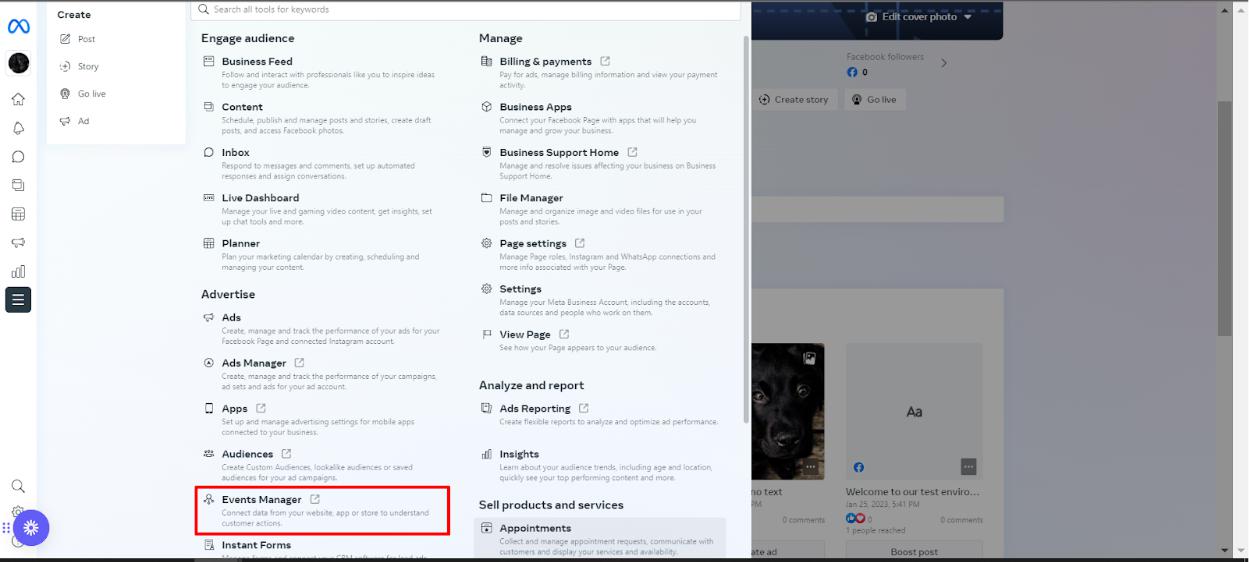
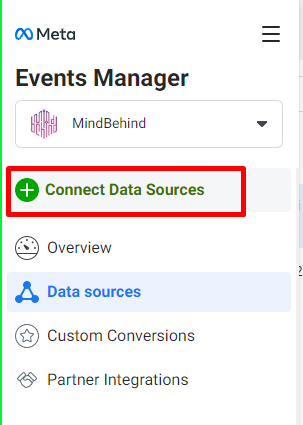
- Select the Connect Data Sources option.
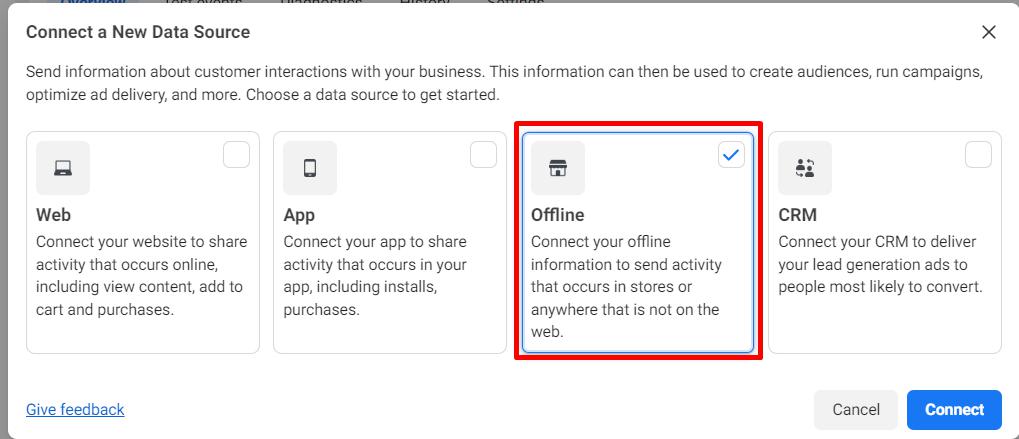
- Select the Offline option from the pop-up that opens and click the Connect button.
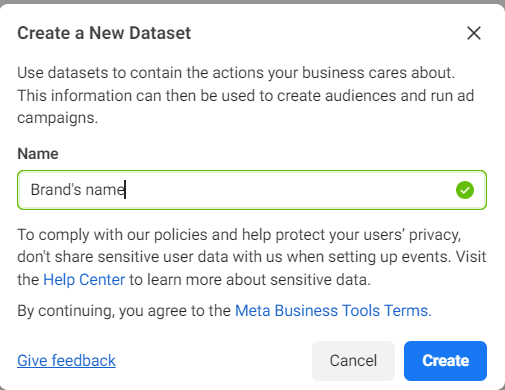
- Enter the pixel’s name that you want and click the Create button.
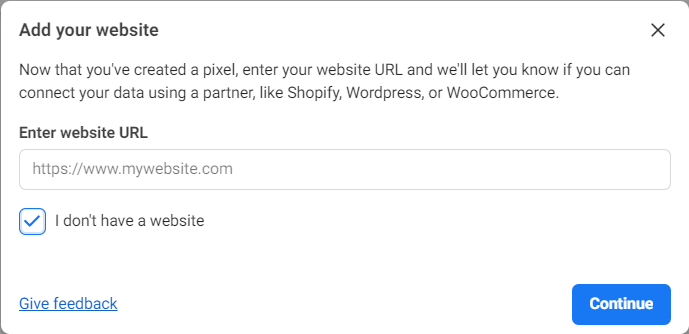
- Check the “I don’t have a website” box and click the Continue button.
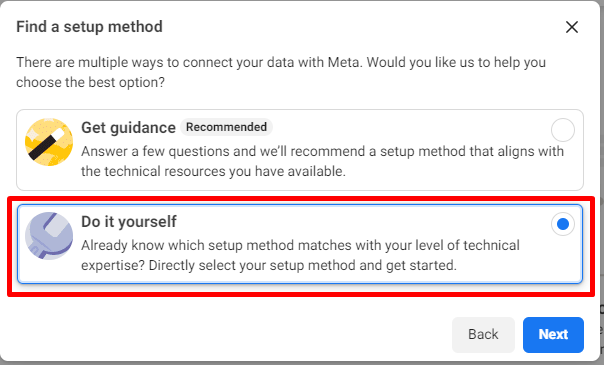
- Select the Do it yourself option and click the Next button.
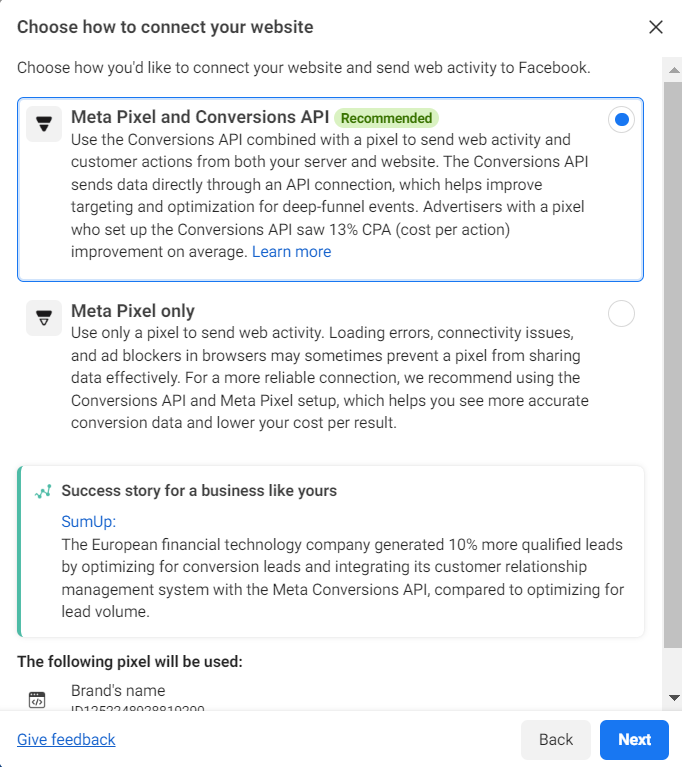
- Select the Meta Pixel and Conversions API option and click the Next button.
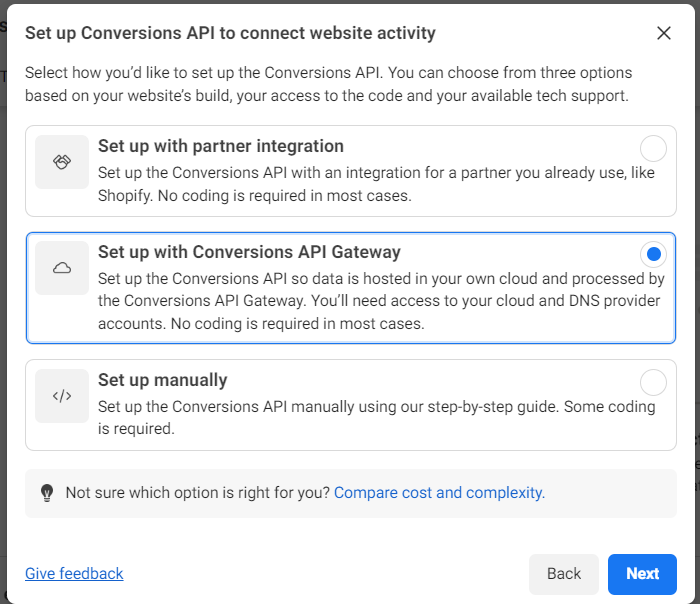
- Select the Set up with Conversions API Gateway option and click the Next button.
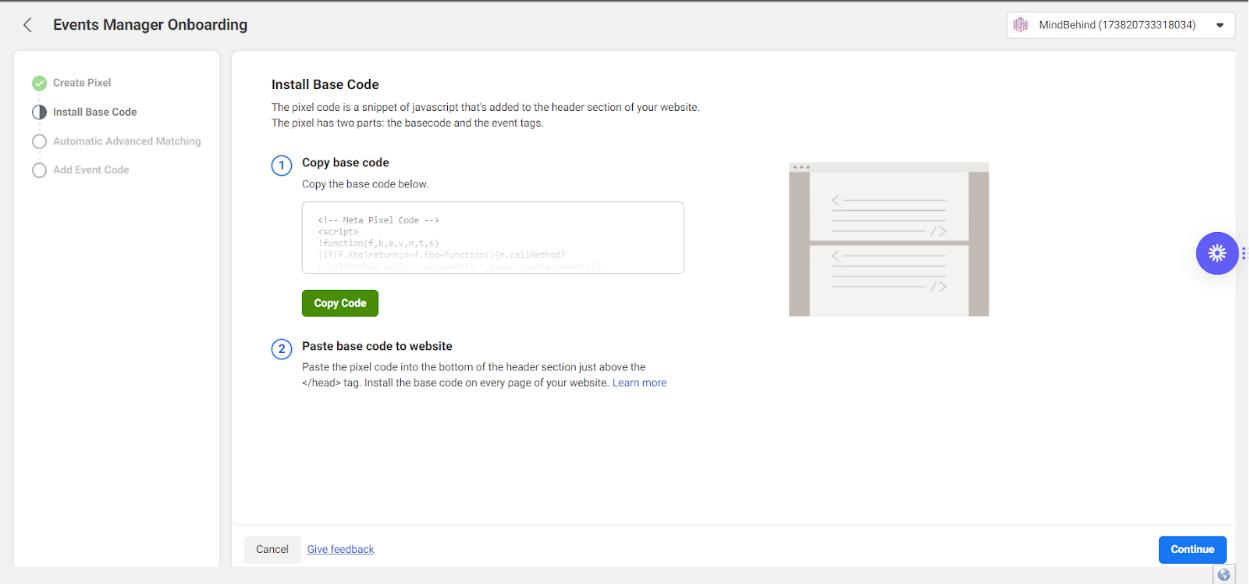
- Click the Copy Code button and click the Continue button.
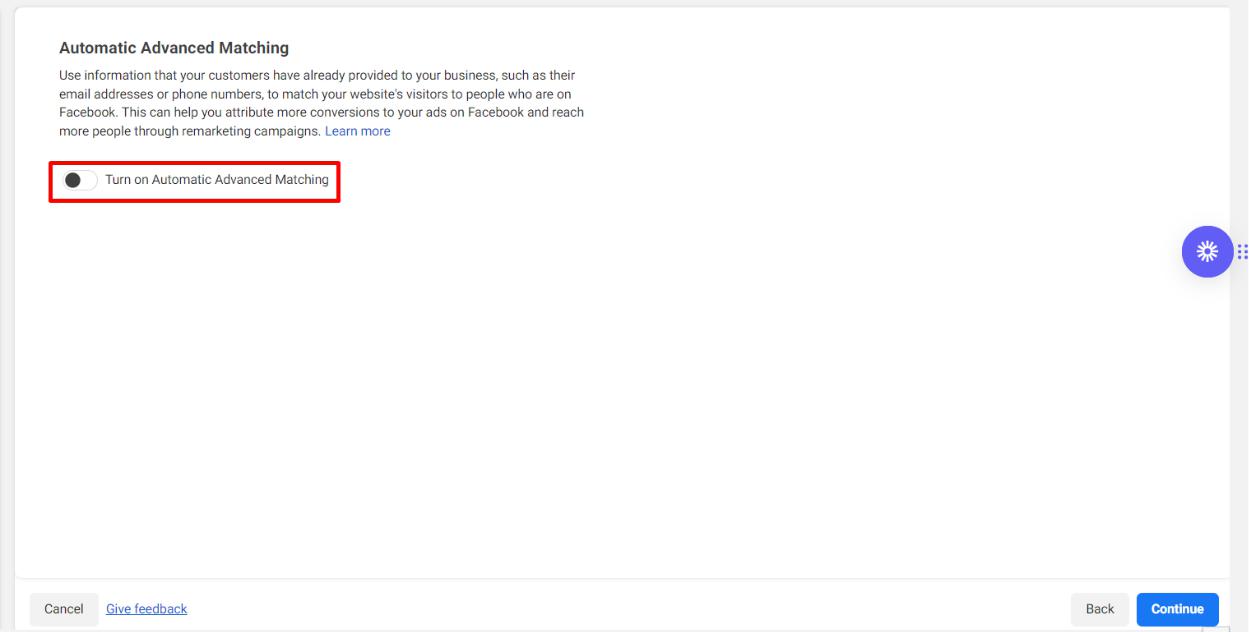
- Do not enable the Automatic Advanced Matching toggle and click the Continue button.
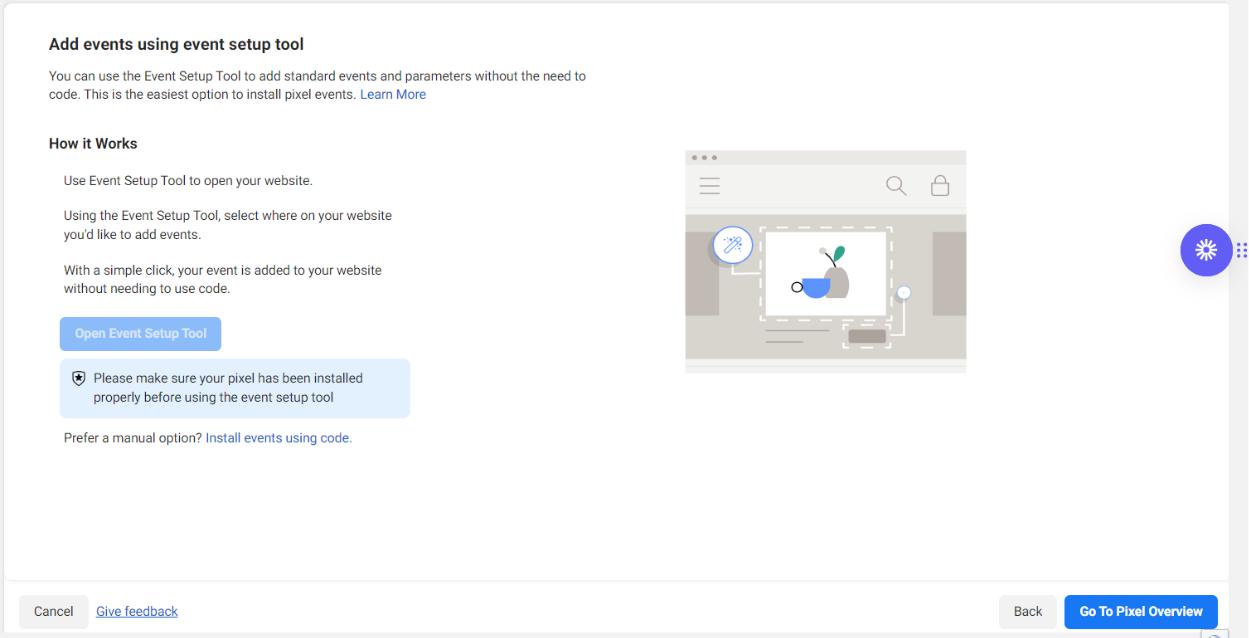
- Click the Go to Pixel Overview button.
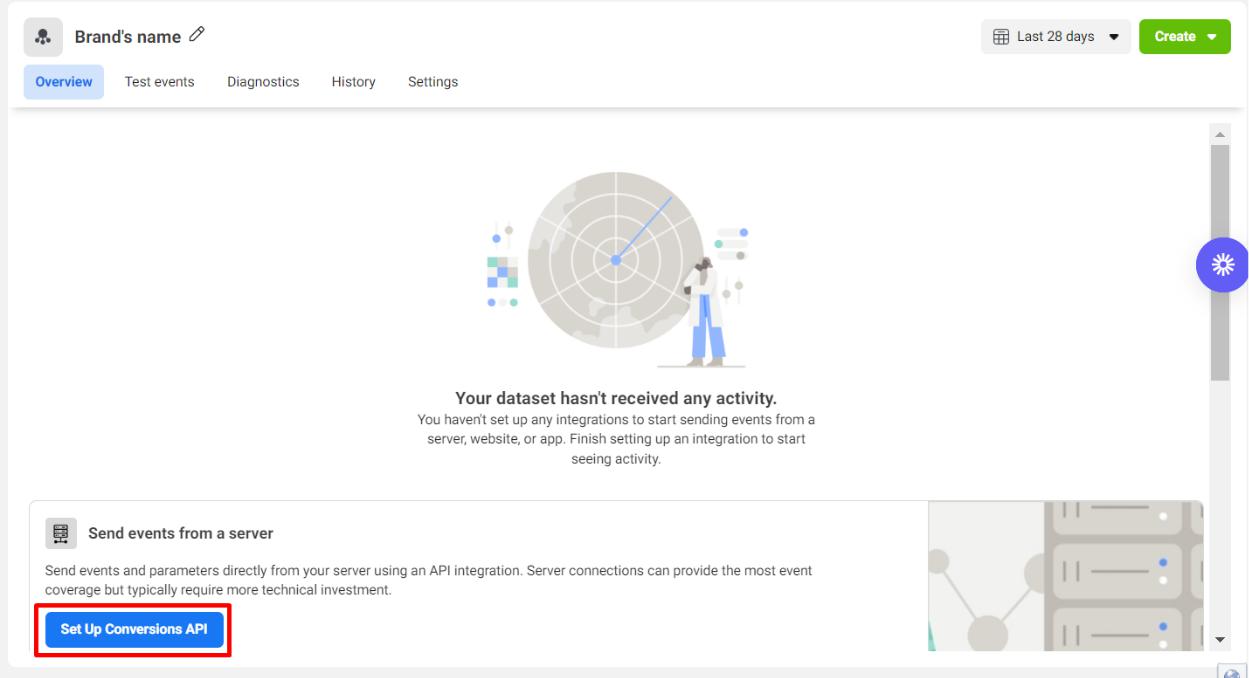
- On the page that opens, select the Pixel you created and click the Set Up Conversion API button.
- Click the Continue button on the Overview page.

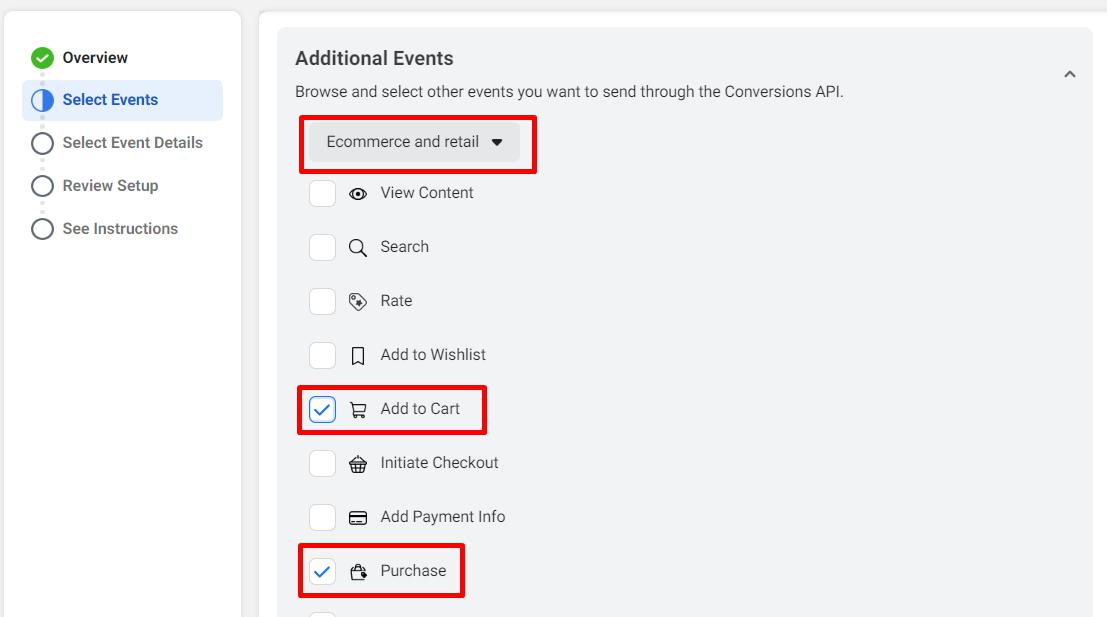
- Select the Add to Cart and Purchase options at this step and continue.
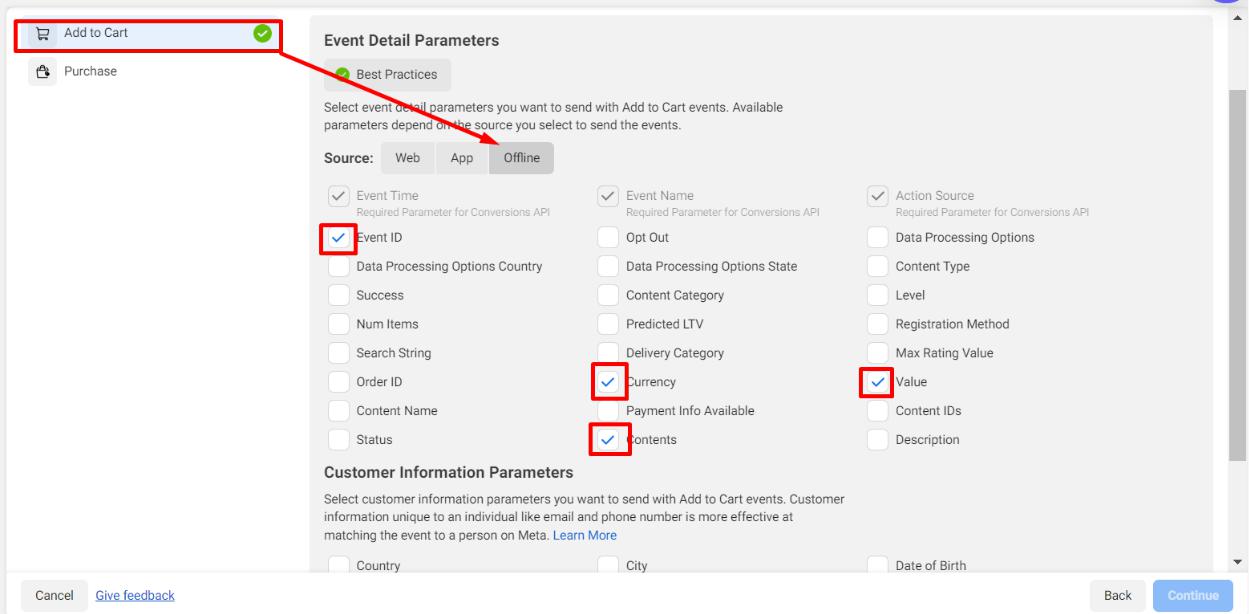
- For Add to cart and Purchase, click the Offline tab for the Source and tick the Event ID, Currency, Value, Contents, Phone, and Email checkboxes.
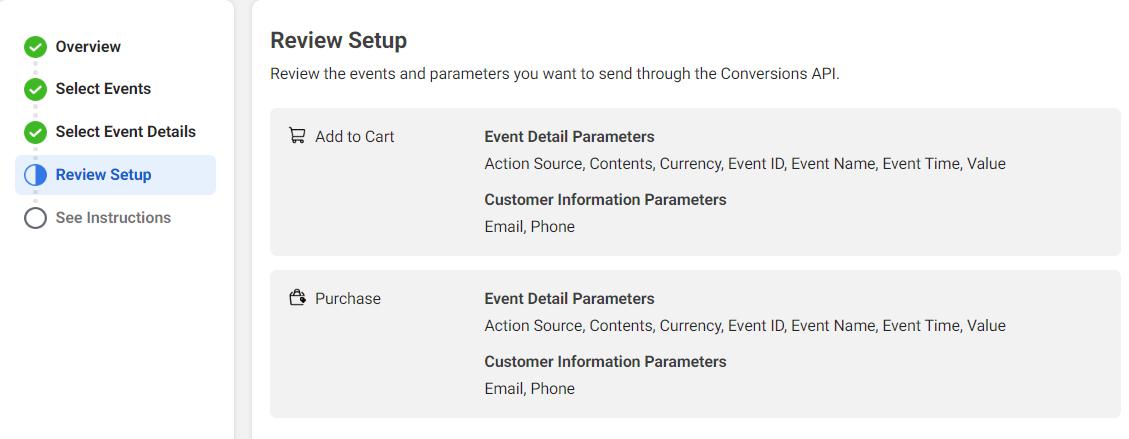
- Check your setup; it should look like the image below, and click the Confirm Setup button.
- Navigate to the See Instructions page and click the Finish button.
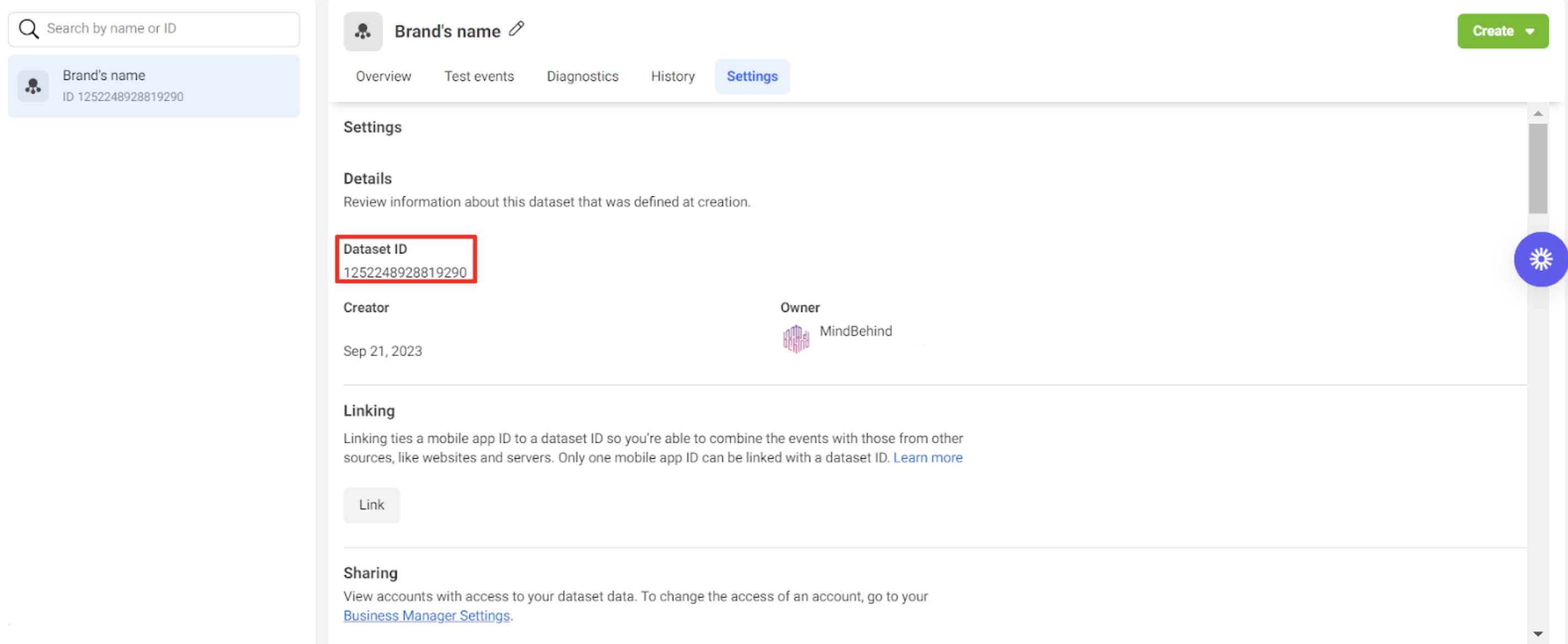
- Select your created pixel and go to the Settings menu.
- Copy your Dataset ID and paste it into a notepad.
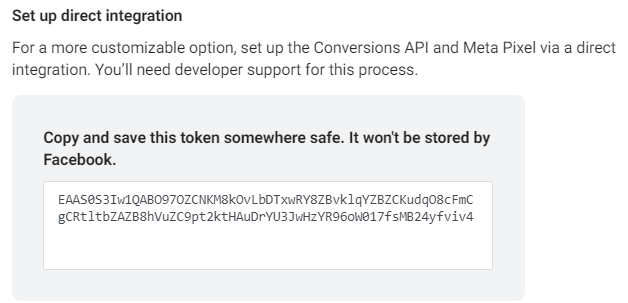
- Scroll down, click the Generate access token option under the Set up direct integration heading, and copy and paste this token into a notepad.
19. Go to the MindBehind Company > Integrations menu.
- Go to Add Integration and select the Facebook API option.
- Paste the Pixel ID and Access Token into the corresponding fields and click Add Integration.