Maintaining a healthy product catalog is essential for ensuring that your recommendations are accurate, up-to-date, and relevant. A healthy catalog means that your users will receive personalized and appropriate product recommendations based on accurate data, including the most current product availability, pricing, and other attributes.
Insider One gives you two tools for this. The Integration Health Center tells you whether your catalog integration is working and what to fix when it is not. The Catalog Manager lets you review and manage the products in your catalog.
Why is catalog health important?
Catalog health directly impacts the effectiveness of Insider One campaigns and recommendations. A healthy catalog ensures:
High data quality
Clean, accurate, and validated product data allows Insider systems to function reliably.
Better user experience
Users are more likely to engage with recommendations that reflect real-time availability, pricing, and product details.
Relevant recommendations
Complete and validated data enables Smart Recommender to deliver more precise and personalized product suggestions.
Catalog Integration Health Auditor
The Catalog Integration Health Auditor checks your catalog integration and reports every problem it finds in plain language, with guidance on how to fix each one. In the panel, you reach it on the Integration Health Center page.
Catalog integrations can fail quietly. A feed URL stops responding, a required attribute is missing, or product events arrive with a locale not configured for your account. The Integration Health Center shows you these problems directly, so you do not have to discover them from your own reporting.
To open the Integration Health Center,
Navigate to Product Catalog Management > Catalog Settings.
Click Integration Health Center.
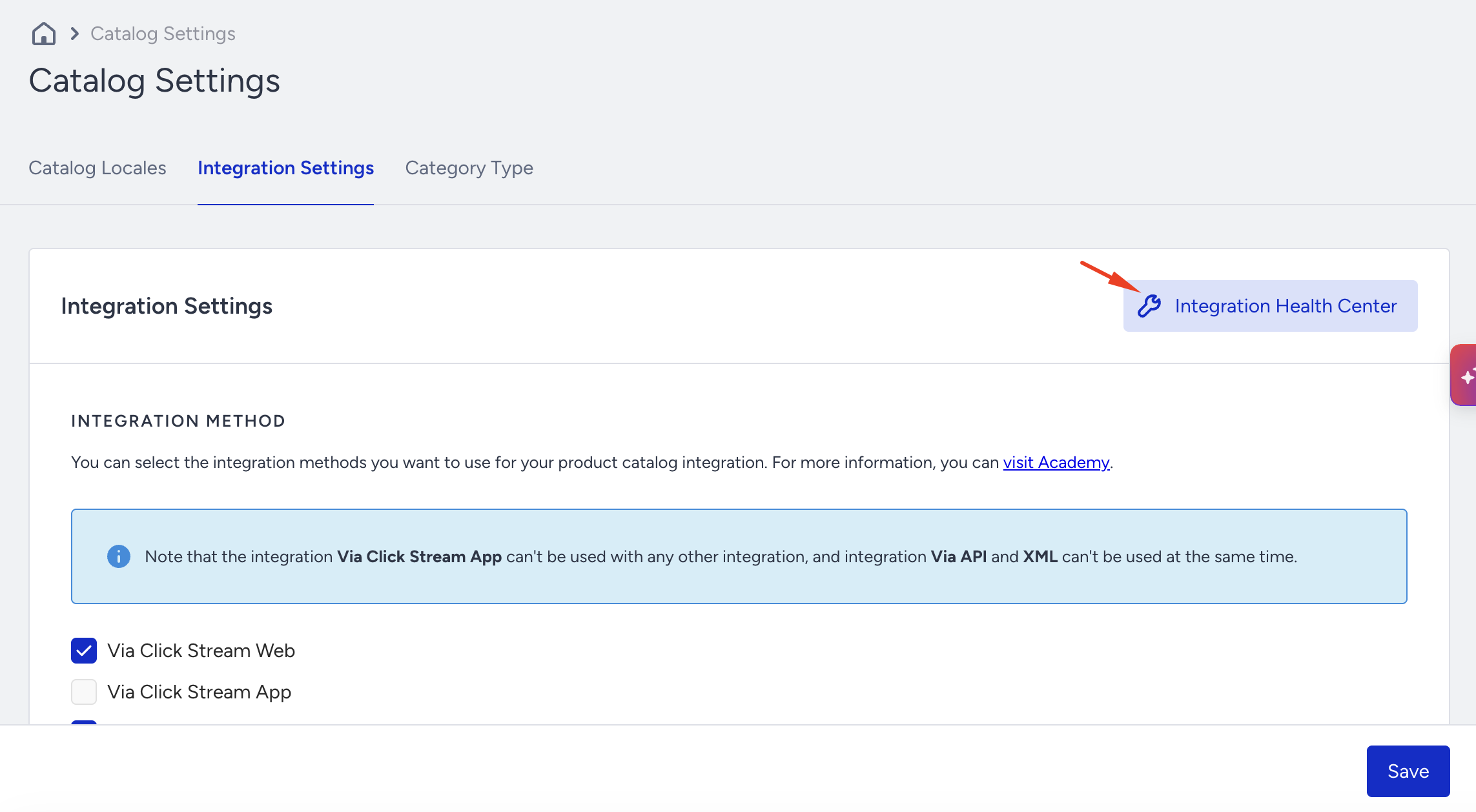
You can also access it from the Integration Issues Detected banner on the Catalog Settings page when your integration has issues. Click Fix in Integration Health Center on that banner.
Choose an integration method
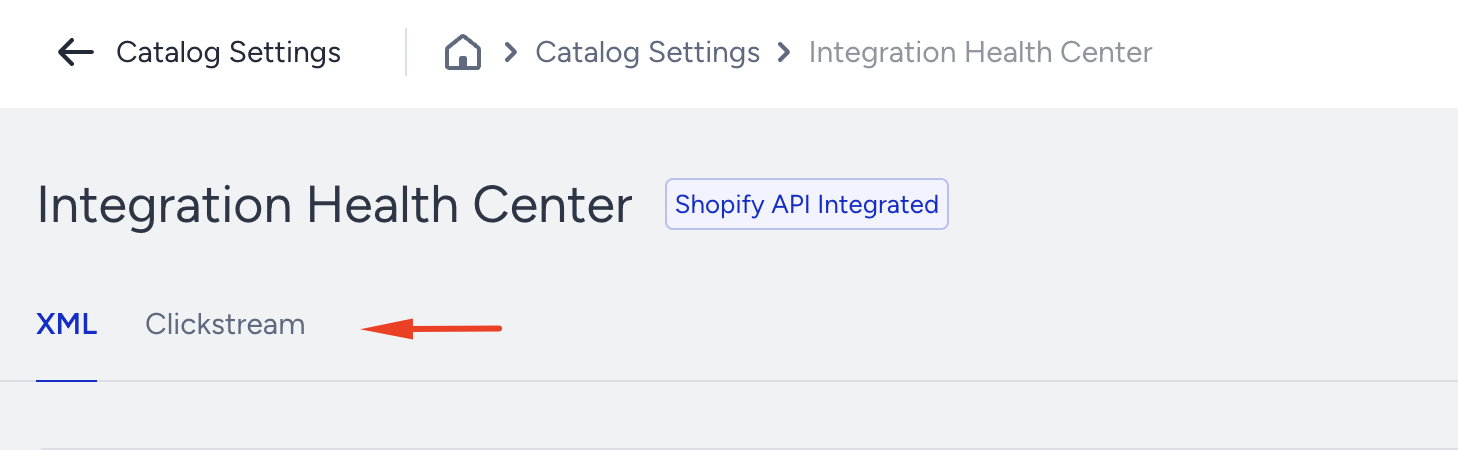
The Integration Health Center shows a tab for each catalog integration method you use. If you integrate your catalog only via XML, you will see the XML tab. If you use more than one method, you will see a tab for each one. Select the tab for the method you want to check, and that tab reports only on that method.
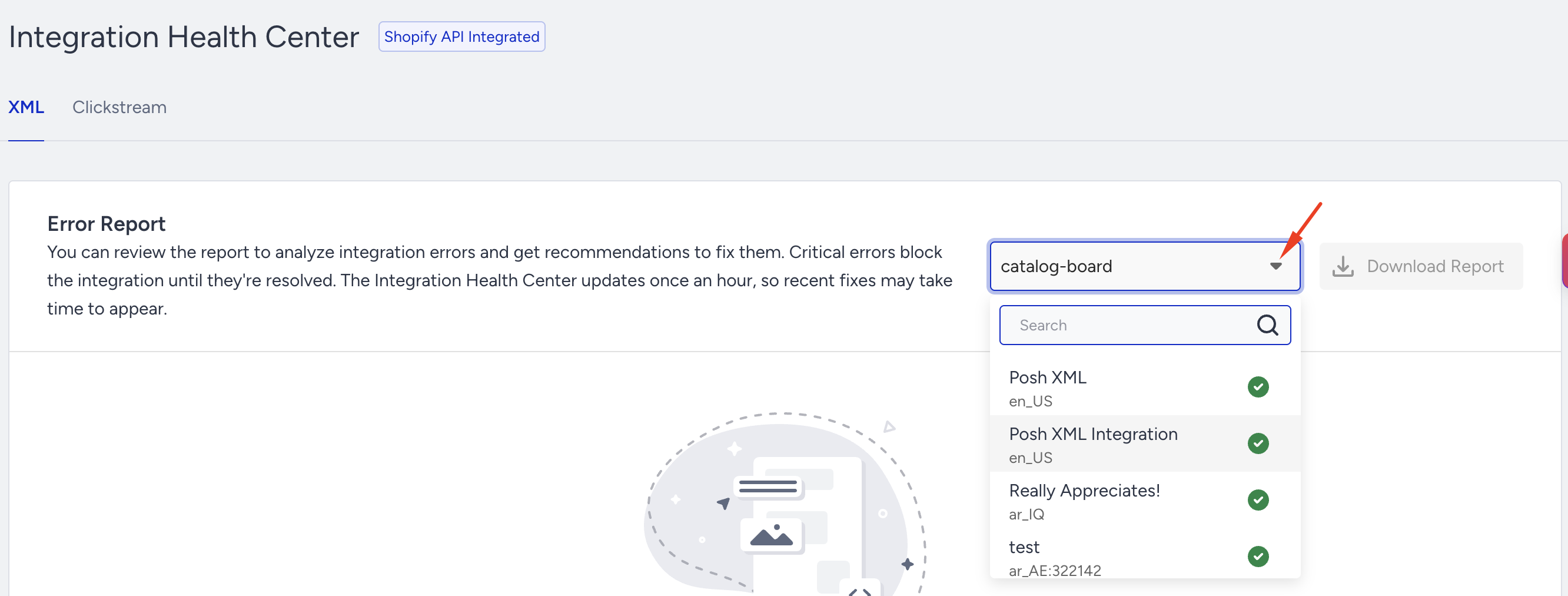
If you use XML with more than one feed, select the feed you want to review from the feed list at the top of the Error Report. The list shows the status of each feed, so you can see which ones need attention before you open them.
Read the Error Report
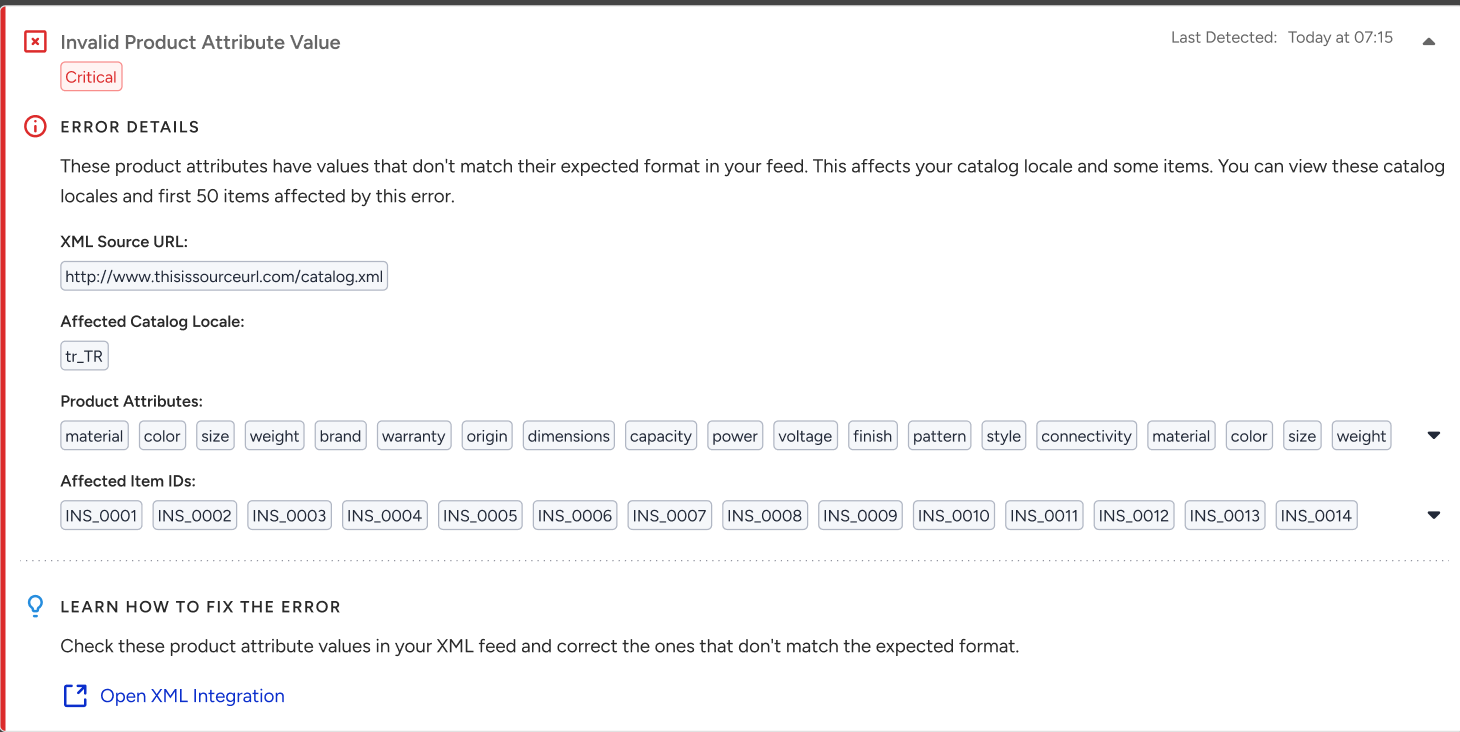
The Error Report lists the problems detected for the selected integration method. Each row is an error card you can expand. The error report shows up to 50 products per integration method.
An expanded error card shows:
The error name: A plain-language title that says what went wrong.
Last Detected: The time the problem was last seen. This field indicates whether a problem is still occurring.
Error Details: An explanation of the problem.
Learn How to Fix the Error: The steps to resolve it. Where a fix lives on another page, the card includes a button that takes you there, such as Open Catalog Settings, Open Integration Settings, Open XML Integration, or Read the Guide.
Errors are marked by severity. Critical errors block the integration until they are resolved. Warnings do not block the integration, but they reduce the quality of your catalog data and should still be fixed.
To work through a long report:
Use the Error Type filter to show only the error types you care about, or leave it on All Error Types.
Use Search by Error Name to find a specific error.
Use Expand All and Collapse All to open or close every card at once.
The Last updated on timestamp above the report tells you when the data was last refreshed.
Check whether your fix worked
Fixing a problem does not remove its card from the Error Report. The card stays, and its Last Detected time stops moving forward.
Use the Last Detected time to tell the two apart:
A recent Last Detected time means the problem is still happening.
A Last Detected time that keeps getting older means the problem is no longer being detected, so your fix worked.
The Integration Health Center updates once an hour, so allow up to an hour after a fix before the Last Detected time stops advancing.
Download the report
Click Download Report to download the full error details as a ZIP file. The ZIP contains a separate CSV file for each error type, listing the affected products so you can correct them in your source data.
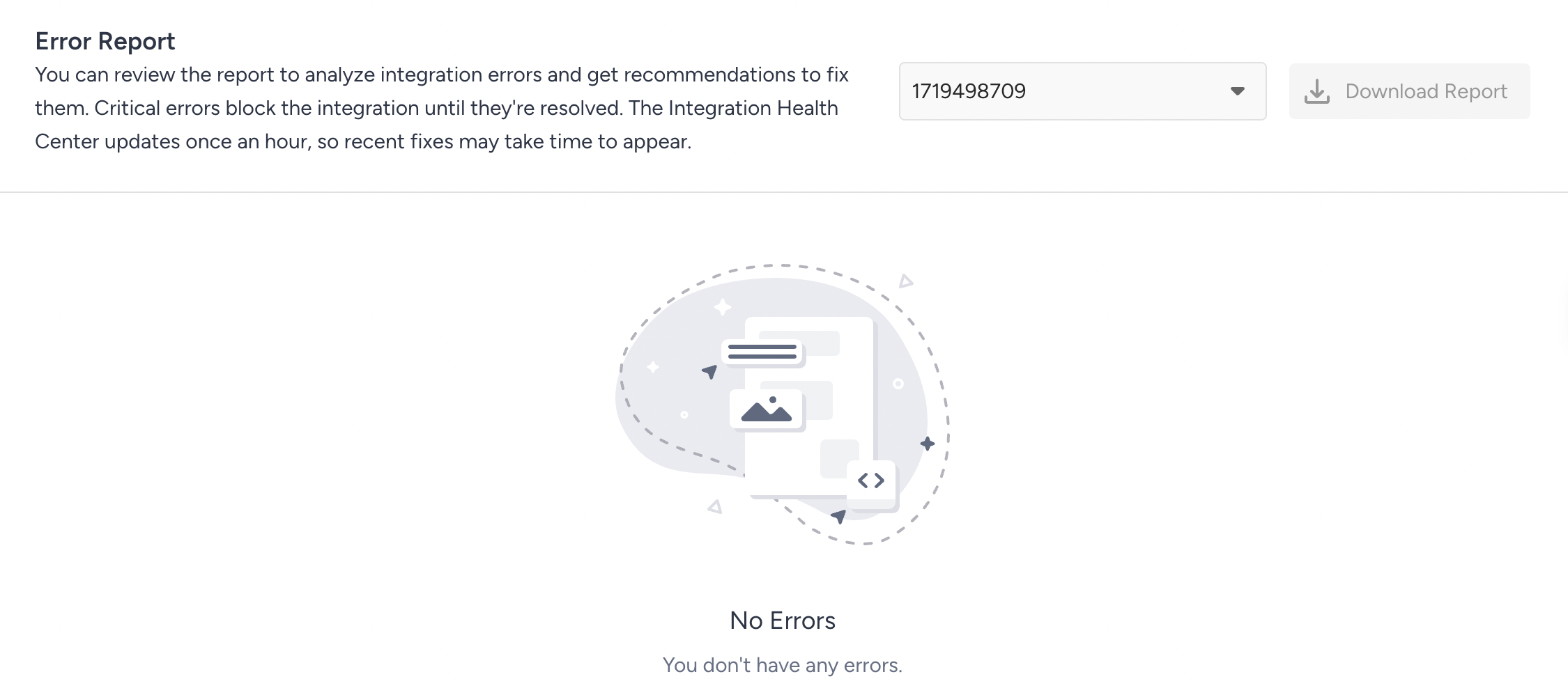
Download Report is available when the selected integration method has at least one error.
XML integration status
On the XML tab, a banner tells you the state of the integration when it needs attention:
XML Integration Validation Failed: Your XML integration could not be validated. Fix the critical errors, then select Validate Now to try again.
XML Integration Not Active: Your XML integration is not yet active. Select Activate Now to activate it.
When the report shows no problems, you see a No Errors state confirming that no errors were found for that integration method.
Monitor your catalog contents in Catalog Manager
The Integration Health Center tells you whether your integration is working. Catalog Manager shows you what is in your catalog once the products arrive.
Catalog Health overview
The Catalog Health Dashboard provides a high-level snapshot of your catalog’s current state. Key metrics include:
Total Products: Total number of products in the catalog
In-Stock Products: Products currently marked as available
Out-of-Stock Products: Products marked as unavailable
Passive Products: Products that are inactive and excluded from recommendations

This overview allows you to quickly identify potential issues and assess overall catalog health.
Filter products
You can analyze your catalog in more detail by applying filters based on locale and store, currency, and time range.
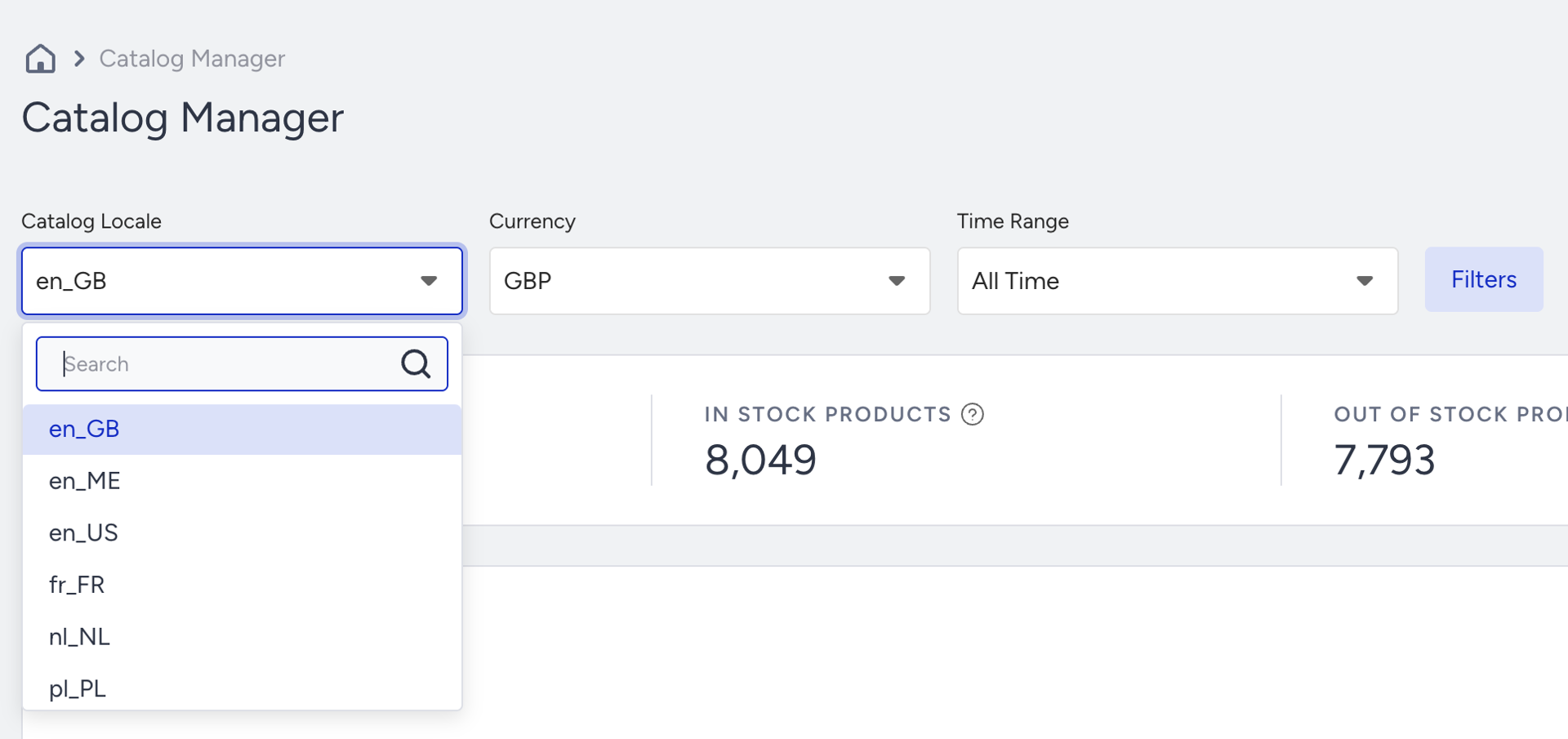
Additional filters allow you to segment products by:
Category: Filter products by category.
Brand: Select products from particular brands.
Stock Status: Easily filter products by in-stock or out-of-stock status.
Tags and Other Attributes: Apply filters based on specific product tags or custom attributes to better understand product performance.

These filtering capabilities help you audit specific product segments, identify inconsistencies, and verify that updates are applied correctly.
Manage product status
You can activate or deactivate products directly in the Catalog Manager:
Active Products: Products marked as Active are eligible for use in recommendations and campaigns.
Passive Products: Products marked as Passive are excluded from campaigns, giving you control over which items are visible.
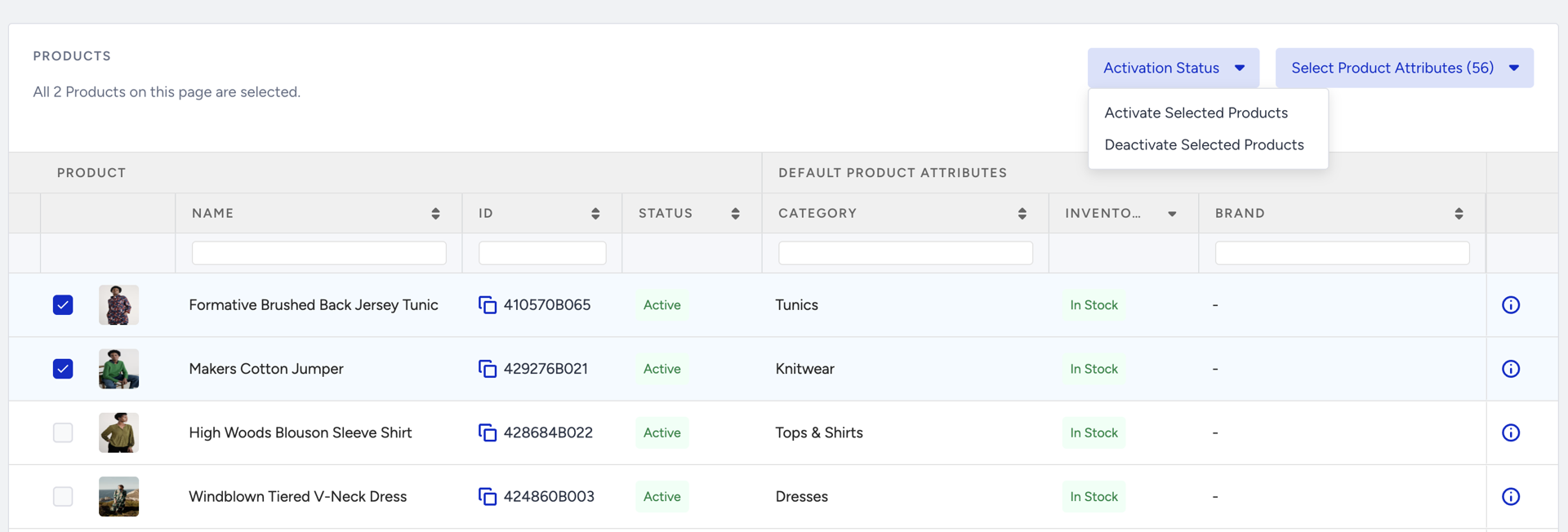
This functionality ensures that only relevant, approved, and up-to-date products are presented to users.
Final notes on Catalog Health
Regularly checking the health of your product catalog is essential to maintaining the accuracy and relevance of your product recommendations.
Use the Integration Health Center to review detected integration issues, and Catalog Manager to inspect the values stored for individual products.
After changing your XML feed, wait for the next successful scheduled synchronization. Then check the affected products in Catalog Manager and review the integration’s Error Report.
The Integration Health Center refreshes once an hour. Resolved issues remain in the Error Report, so check each issue’s Last Detected timestamp to see whether it is still being detected.