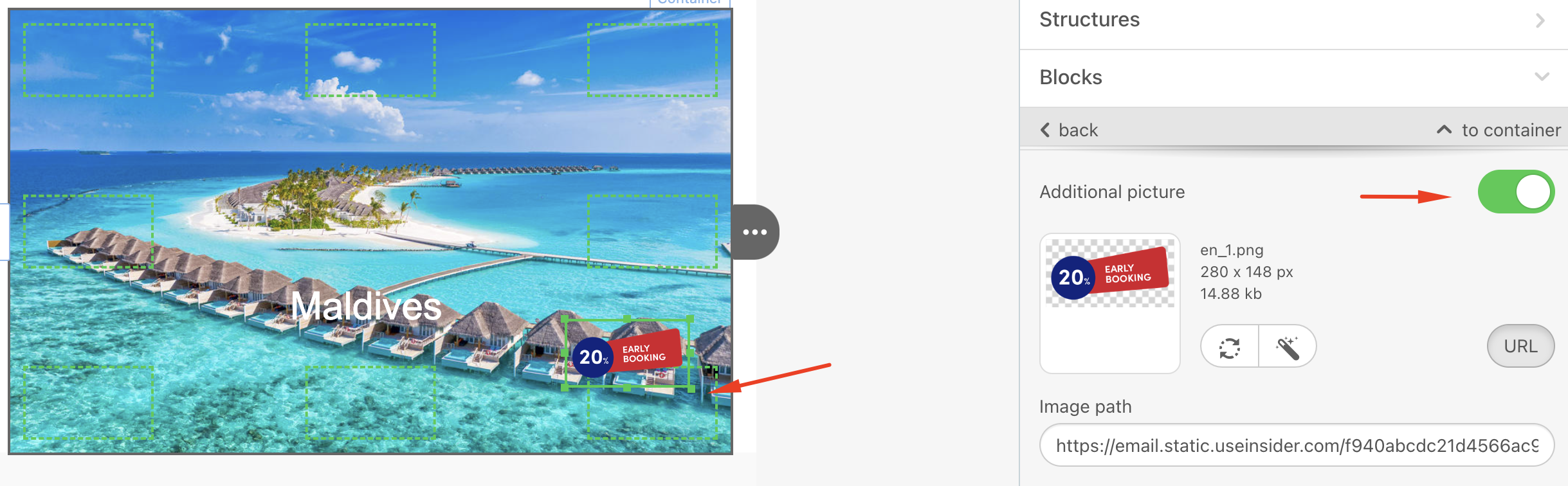
It is said that a banner is the face of your emails. Hence, you need to work thoroughly on it.
An ideal banner has an image that evokes emotions in your target audience, along with complimentary copy over this particular image.

How to build an email banner with Drag & Drop Editor
1. Drag a 1-column structure into your HTML email template.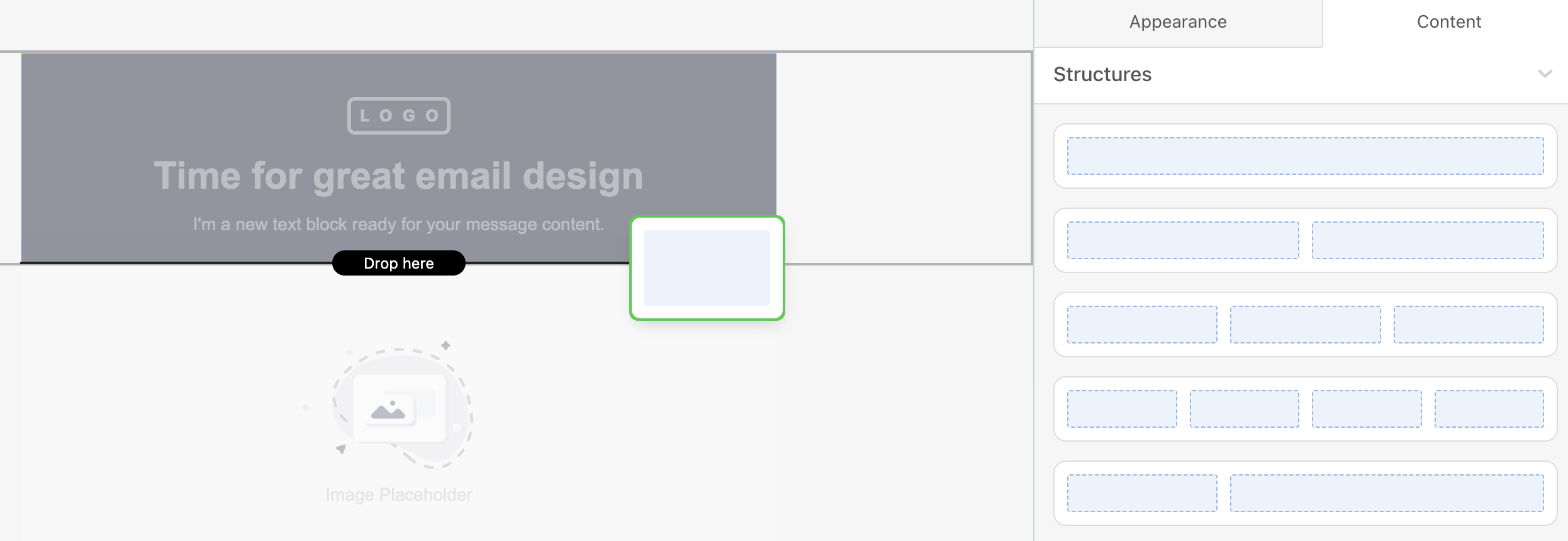
2. Pull the Banner block into this structure.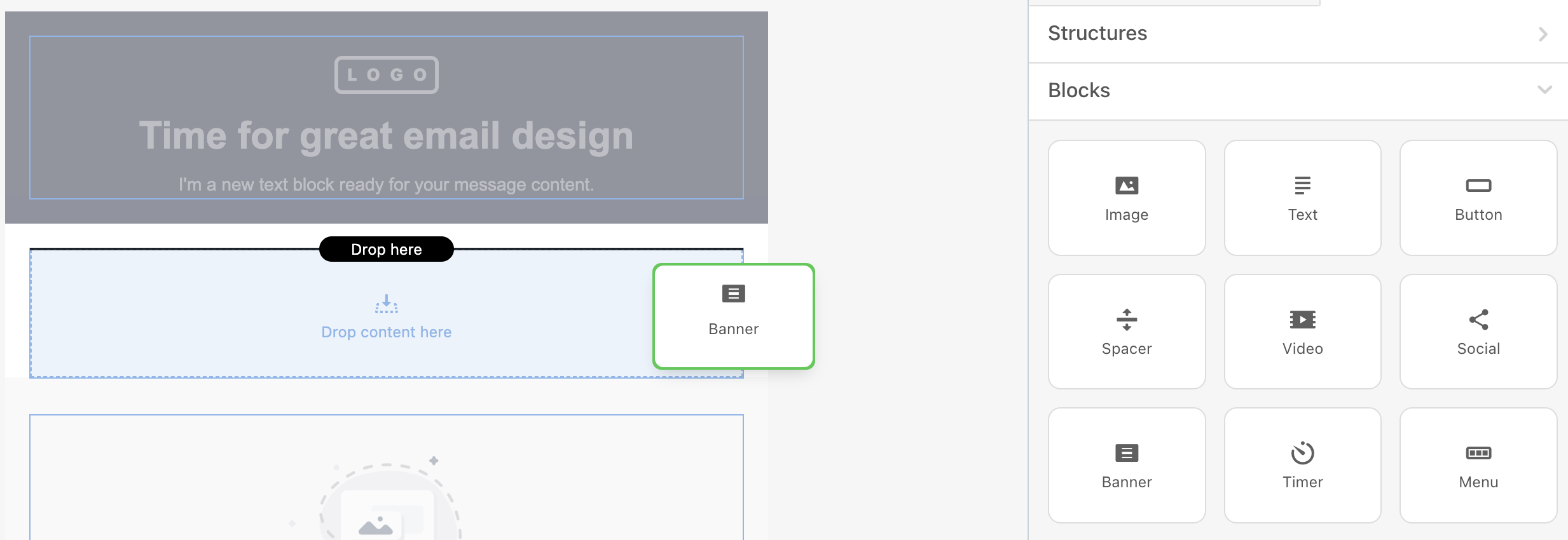
3. Click this block in the template to activate the settings panel.
4. Upload the image you want to use.
5. In the settings panel, the system will suggest that you crop the image if needed.
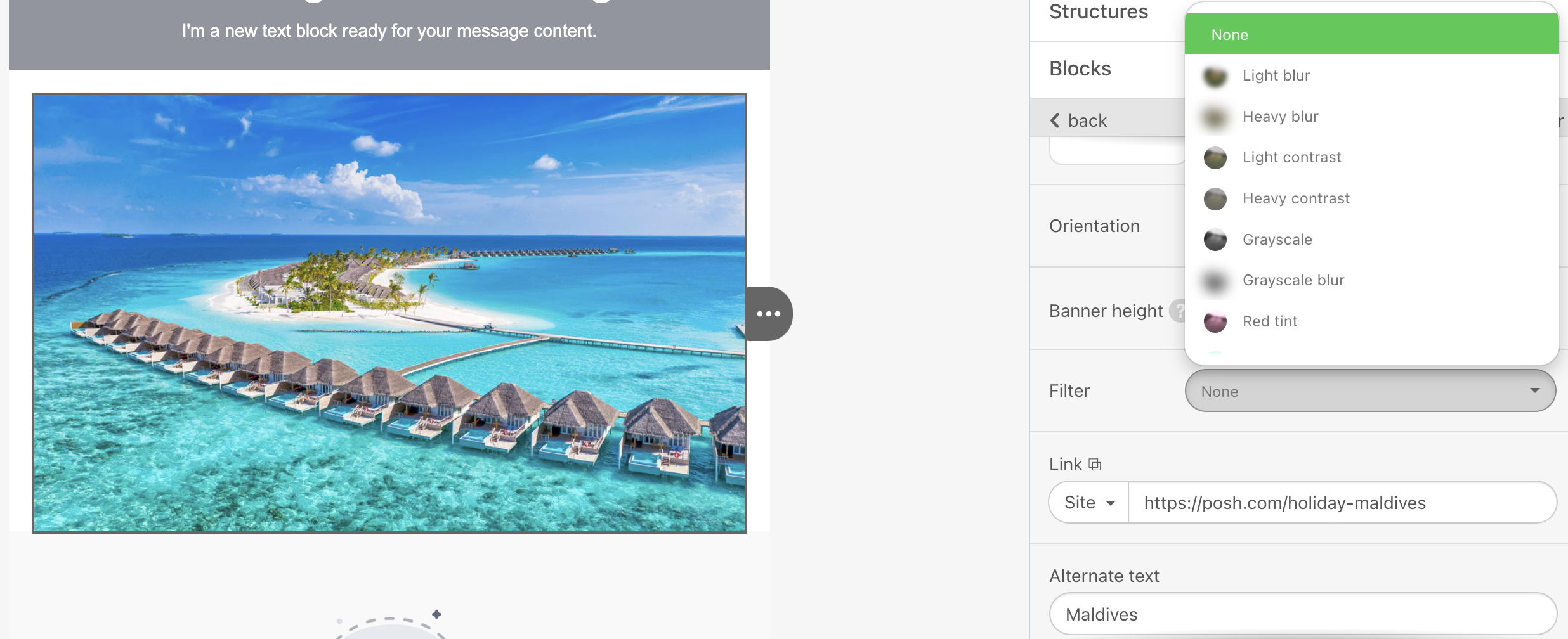
6. Set image orientation. It can be vertical, square and horizontal. The latter is the most popular one.
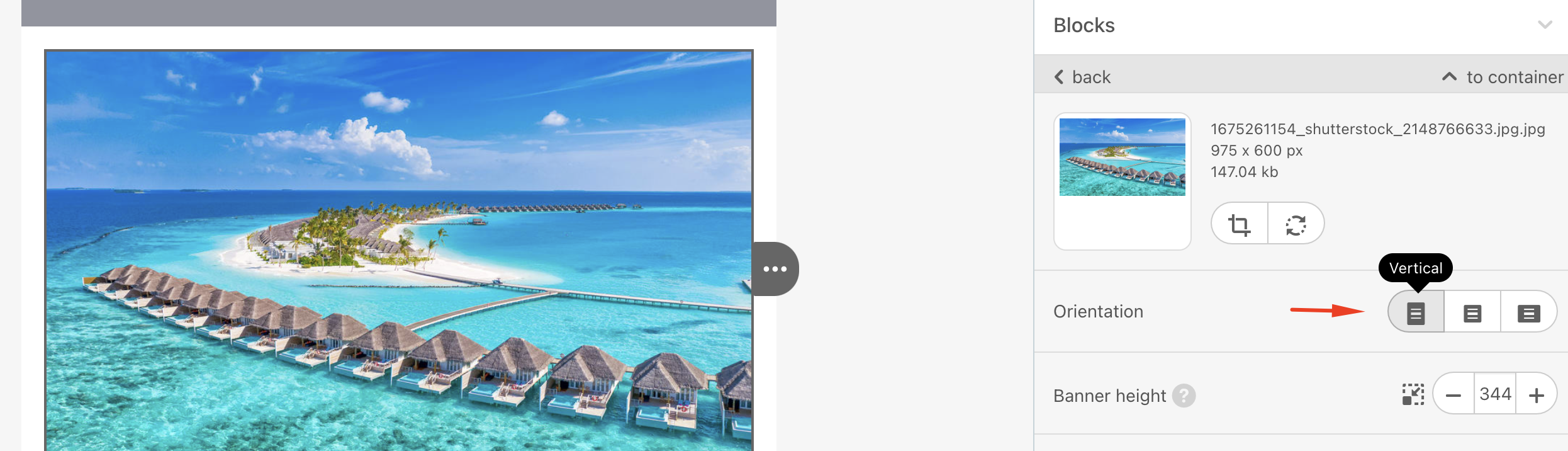
7. Apply filters if needed. Add the site URL to redirect users to upon clicking on it. Enter an alt text that will be displayed to the recipients in case the image cannot be displayed.
How to customize email banners
You can add a copy on your banner, or add an additional image on top of it.
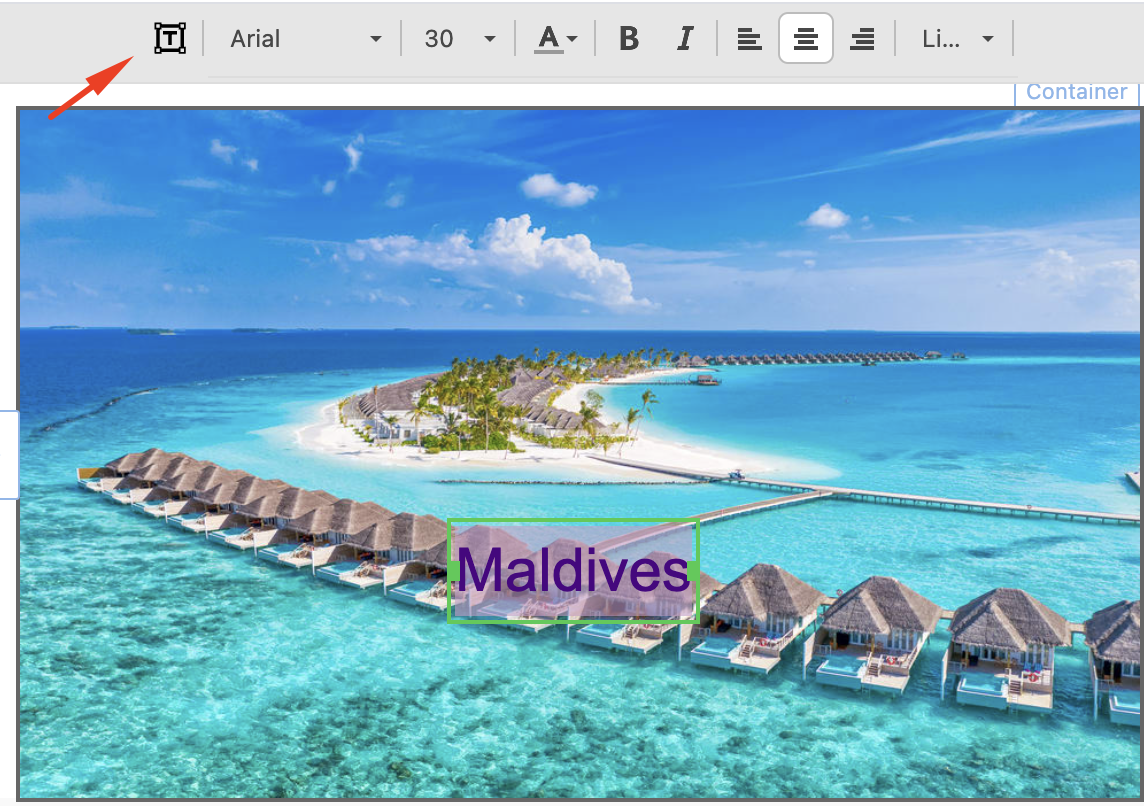
1. If you want to place any copy over the banner image, click the T button on the settings panel above. Now you’ll see the Caption inscription on the banner to replace with your copy. Set font size, font color, and the font type using the settings panel.
2. To add an additional image, toggle the Additional picture option on. It can be anything you like, such as a sticker, frame, logo, or background to make your copy more noticeable. You can place text over it.