You can add social networking or social media icons in menus, footers, or the middle of the email — anywhere suitable for you.

To add social media icons, follow these steps:
1. Pull the Social basic block into your template.
2. Double-click it in your template to activate the settings panel.
3. By default, you will see four icons. If they are not enough, click the Plus button to add extra icons to your email.
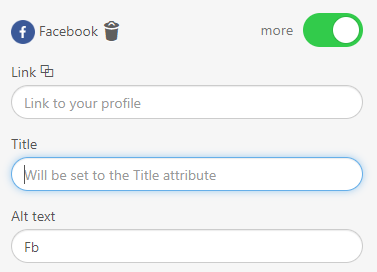
4. In the settings panel, next to the social media icon, toggle the More button to start working with this particular social network.
5. Insert respective URL links, and enter the title and alt text for the social icon.
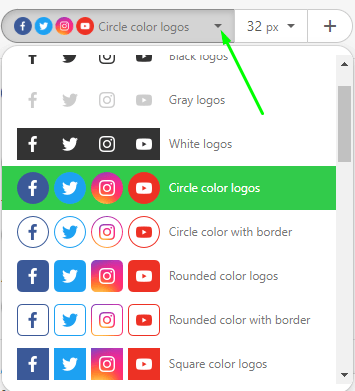
6. Set the style for these icons.
7. Set their size, paddings, and indents between the icons.
You can go back to editing or save the design step.