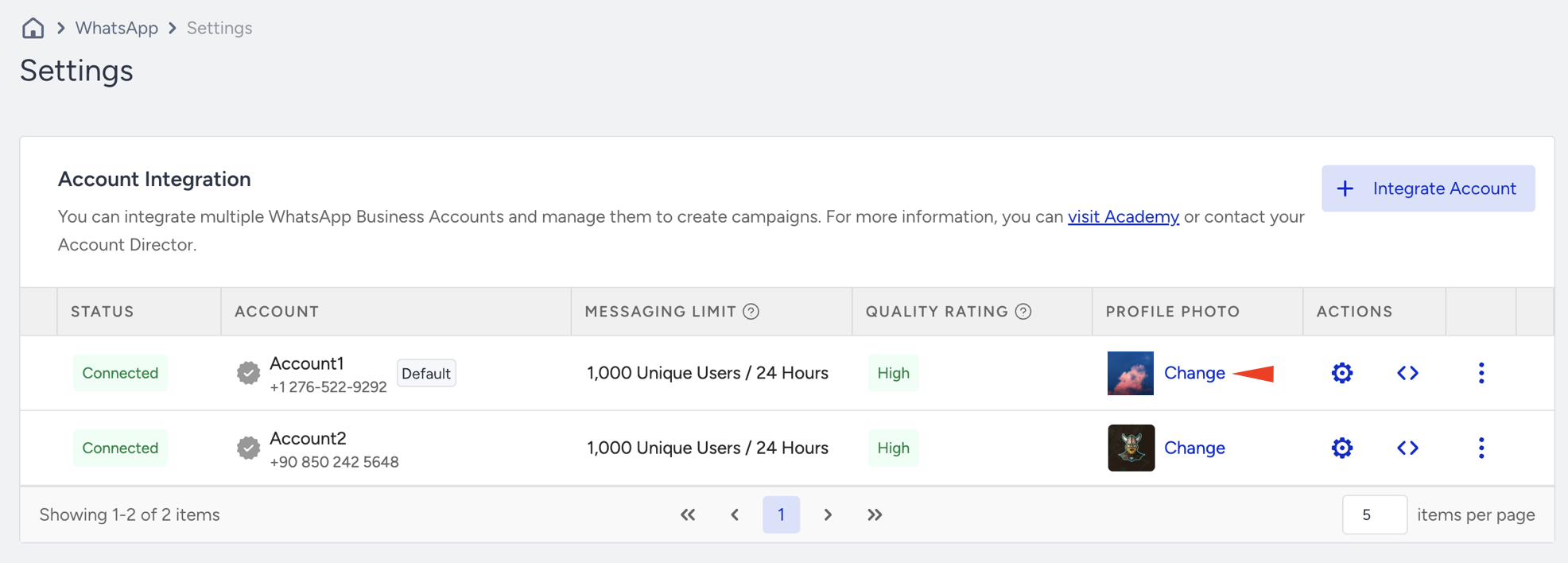
WhatsApp Account Hub, also known as your WhatsApp Business account manager, shows connection status and settings and is a centralized tool that lets you easily check and manage related information for your WhatsApp accounts. It includes features such as an Official Business Account (OBA) application and status tracking, phone quality rating visibility, messaging limit management, and profile picture updates.
To reach the WhatsApp Account Hub, navigate to WhatsApp > Settings.
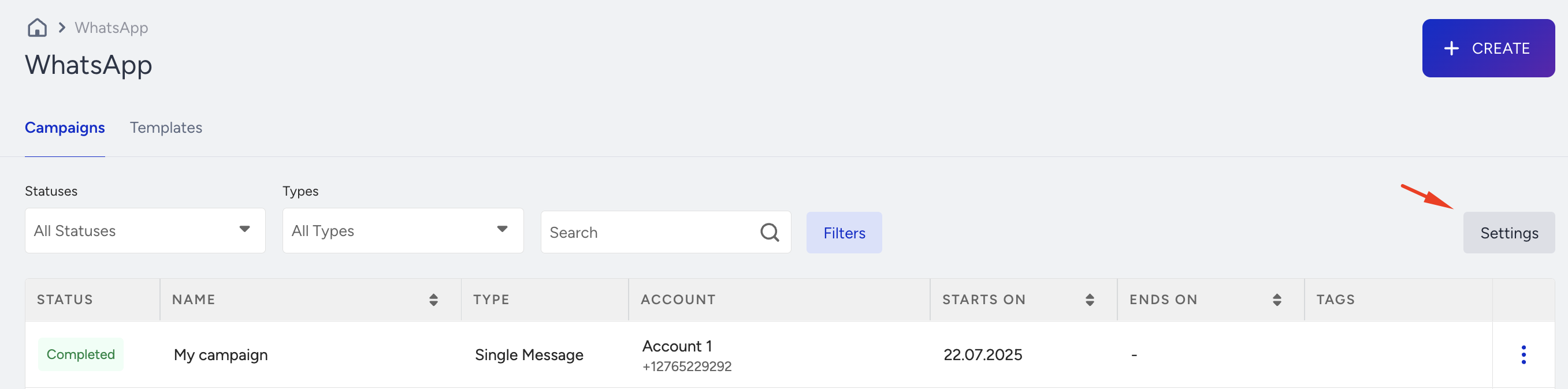
You will land on the Account Hub, where you can integrate multiple WhatsApp Business Accounts and manage them to create campaigns.
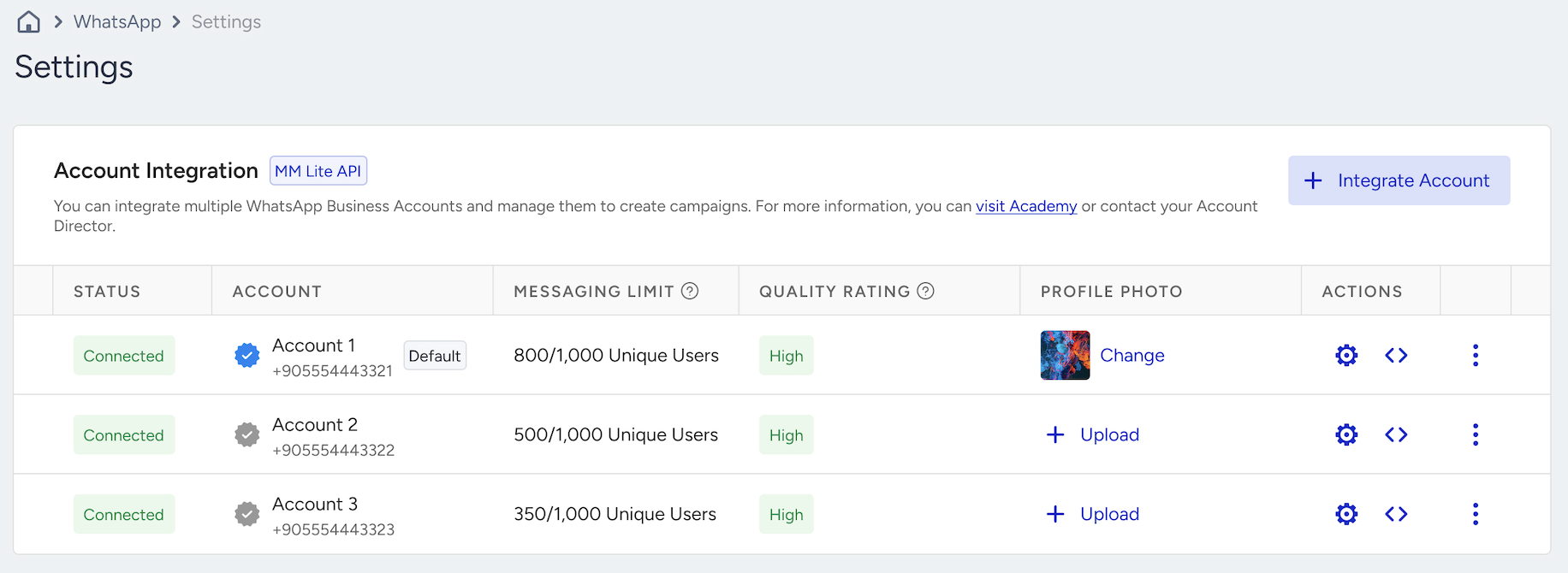
In this article, the topics listed below are covered:
Integrate Account
To add multiple phone numbers, click the +Integrate Account button. You’ll need to complete the integration process individually for each number.
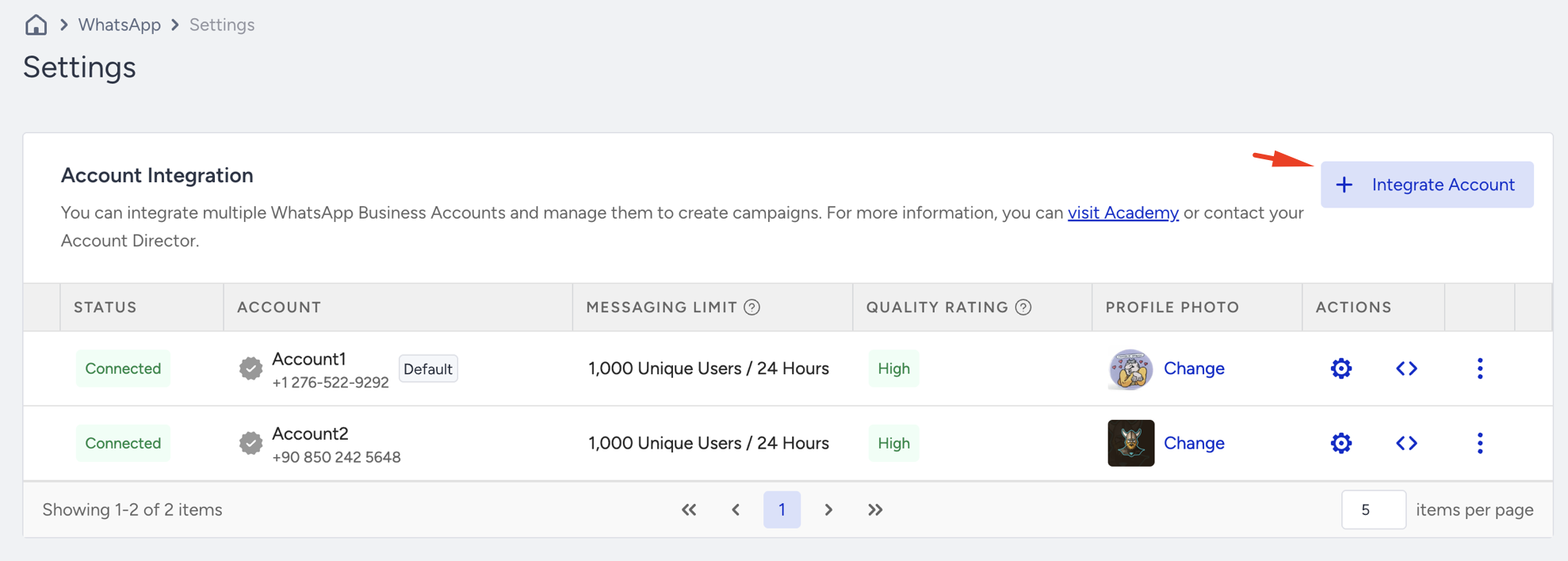
Refer to Multi-Number Support on a Single Panel for WhatsApp for further information.
Under the Actions column, you can configure messaging preferences, keywords, auto-replies, short URLs, and API settings for each account.
Refer to Settings for further information on the configurations in the Actions column.
Phone Number Status
You can monitor the connection status of the phone number associated with your WhatsApp account, and it can be in one of the following states:
Connected: This indicates that the number operates as expected and can send and receive messages without any issues.
Flagged: When your quality rating drops to a low state, your number enters the flagged phase. You cannot upgrade messaging limit tiers during this phase. If message quality improves to a medium or high state within seven days from when your status was flagged, it will return to Connected. If not, it will still be returned to Connected, but may be placed in a lower messaging limit tier.
Restricted: Once you reach your messaging limit, your number enters the restricted phase. In this phase, you cannot send any notification messages until the 24-hour window resets. Nevertheless, you can still respond to messages initiated by customers.
Pending: This status means that your number is awaiting connection or activation.
Offline: When your number is offline, it is unable to send or receive messages. In such cases, it is advisable to contact the Insider One team for assistance.
Display Name
The WhatsApp Business display name is the name of your business that appears on your WhatsApp Business profile. When you add a new phone number to your WhatsApp Business account in the Meta Business Manager, you assign it a display name.
If you submit your business name for business verification and it is verified, you will receive one of the following outcomes:
If your display name is approved, you can see it in your InOne panel.
If you encounter any issues with your display name, you can check Meta's display guidelines to quickly find the right one.
Refer to the Additional Requirements for WhatsApp Business Account (WABA) Setup for further details on Meta's Display Name requirements.
Set the Display Name
On the Embedded Sign-up screen, you can define your WhatsApp Business Profile display name.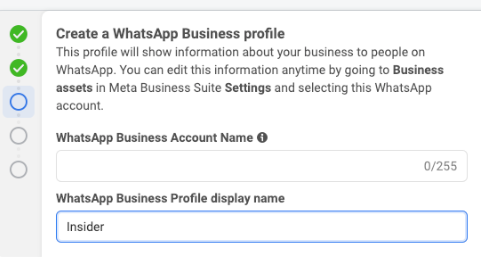
You can check the display name in the Account column after submitting it.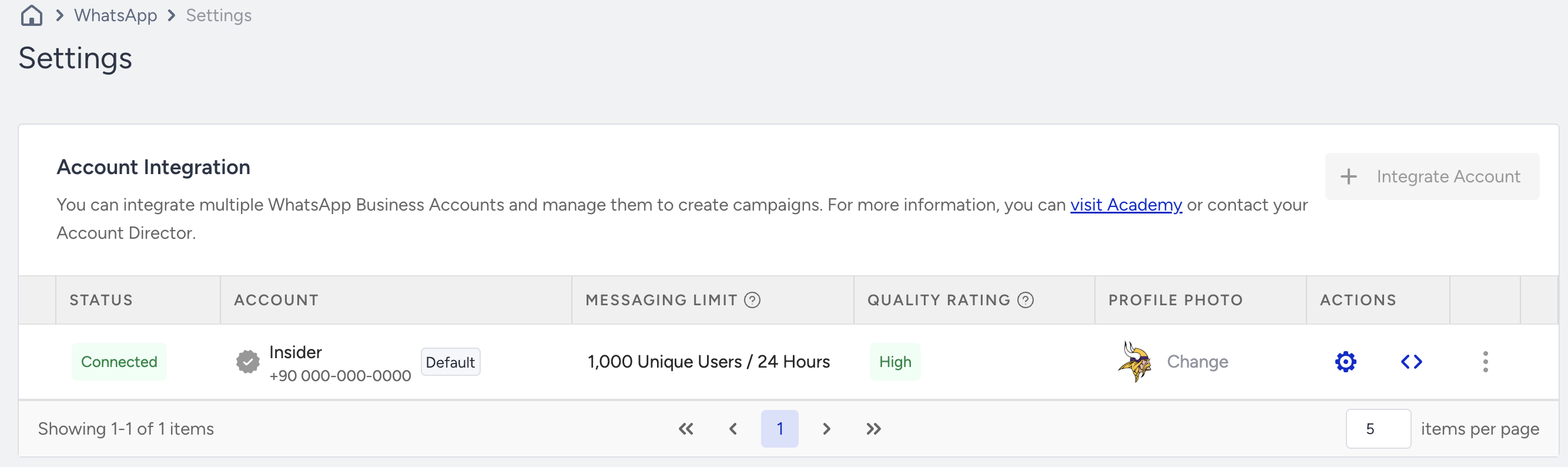
To change your display name, visit Meta's article.
Display Name Selection Guideline
Principle | Examples |
|---|---|
Compliance with policies | A display name should not violate WhatsApp Commerce and Business policies. An example of a store that sells a variety of sporting goods:
Within your company, you may have separate WhatsApp Business accounts for different divisions; only those divisions that are compliant with WhatsApp’s Commerce policy may have a WhatsApp Business account. |
Accurate representation of your business | A display name should represent:
A display name should not be:
An organization with a government affiliation needs the WhatsApp team's approval. |
Consistency with external branding | A display name must have consistent branding with external sources, such as a company's website or marketing. What would be accepted and not accepted for a business named Fresh Produce Cold Pressed Juices, below:
|
Clear relationship with your business | If the relationship between your company and the brand is not obvious, indicate the relationship using “by [company name].”
If the display name represents a business that the company is working with (if the business is an agency, distributor, partner, or parent company), then the relationship between the business represented in the display name and the end-client business must be evident in both parties’ business websites. |
Messaging Limit
WhatsApp applies a messaging limit to prevent any misuse of the channel. Messaging limits determine how many unique users you can send messages to daily. It does not limit the number of messages you can send, but the number of users. It also does not apply to messages sent in response to a user-initiated message within a 24-hour period.
Quality Rating
Your quality rating is a rating based on the recent messages that your customers have received over the past seven days. This rating is determined by the feedback from your customers, such as recent blocks, your phone number, and other reporting issues. The Quality rating column displays the quality states, including:
High quality
Medium quality
Low quality
If your quality rating reaches a low state or if there's a change in your phone number status, you'll receive an email and a notification in Business Manager as a warning from Meta. Your status will then change to Flagged or Restricted:
Flagged: This status is triggered when the quality rating reaches a low state. Upgrading messaging limit tiers isn't possible during the Flagged phase. If the message quality improves to a high or medium state within seven days from when your status was moved to Flagged, it will return to Connected. If the quality rating doesn't improve, your status will still return to Connected, but you'll be placed in a lower messaging limit tier.
Restricted: This status comes into play when you reach your messaging limit. During the Restricted phase, you won't be able to send any notification messages until the 24-hour window is reset. However, you can still respond to any messages initiated by customers.
Improve the quality rating
If phone quality is medium or low, or your account status is flagged, you might have received negative comments from your customers.
Meta assesses phone quality based on customer feedback. What does this mean?
Customers may exhibit various reactions to the campaigns sent. For instance, they can open the message, click on it, or send a reply. In addition to the negative implications of these actions, there is also the possibility of customers blocking the business. Users can express their preference not to receive further messages by selecting one of the reasons below. 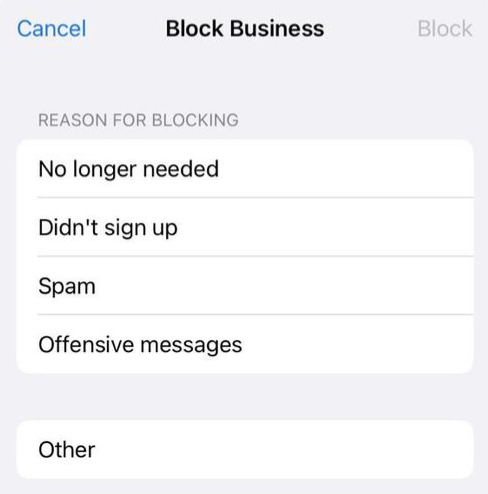
Actions to reduce block rates
Verify WhatsApp opt-ins for uploaded users
If you've uploaded customers via CSV and set WhatsApp opt-in manually to true, consider sending a double opt-in message to ensure users who haven't submitted consent are covered.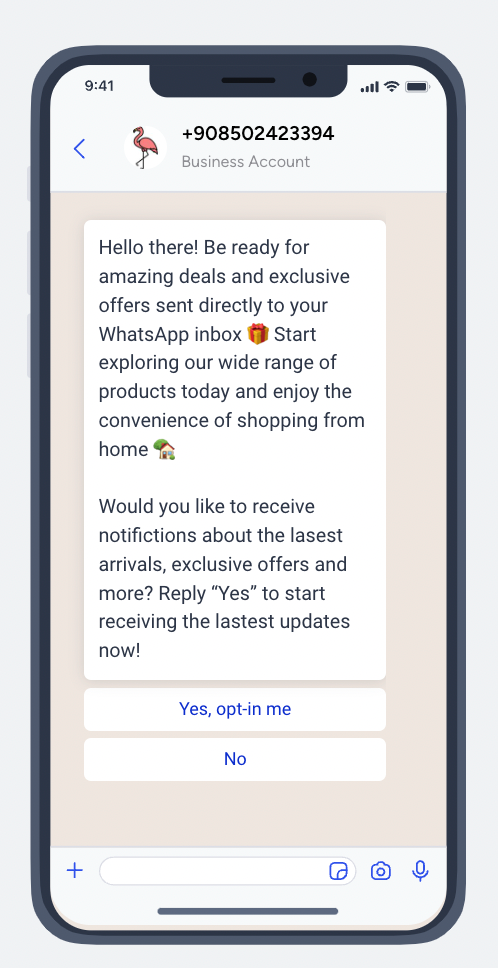
Add the unsubscribe keyword to the campaign
If users can choose "no longer need" or "spam" as a reason, you need to set the unsubscribe method. So you can reduce this block rate.
The unsubscribe keyword is used to collect messages with opt-out keywords. Once you've determined the unsubscription keyword, you can configure it via Settings.
When you create a template, add the unsubscribe keyword to the footer and customize the message.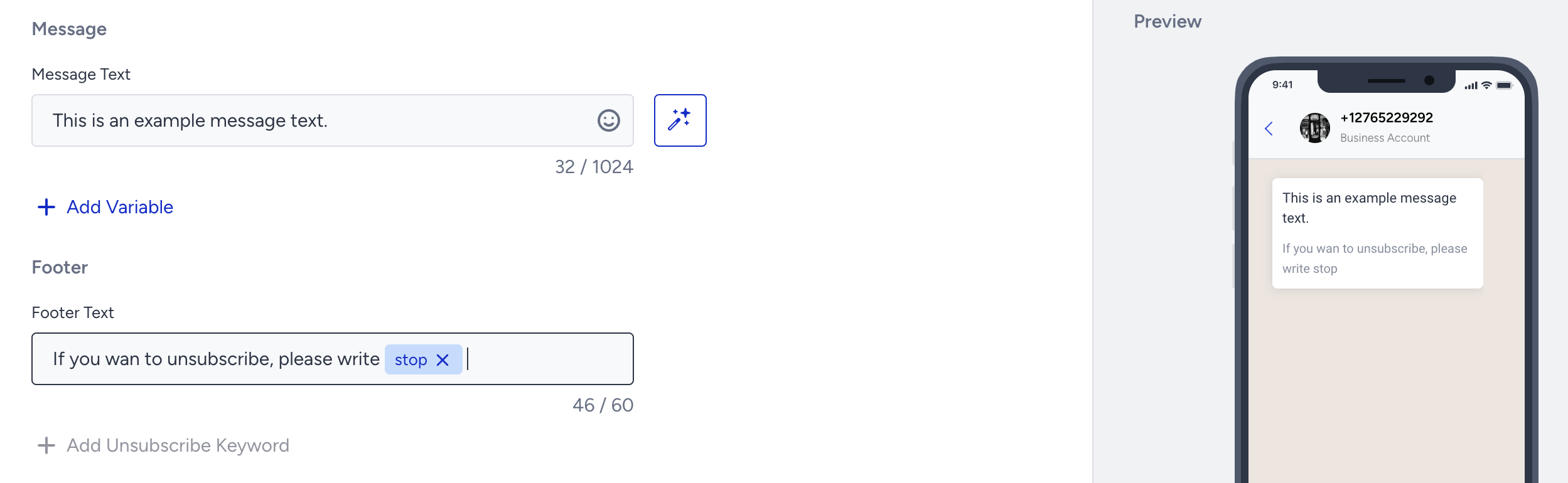
Segment engaged users
Easily segment customers with positive interactions, or engaged users, by tracking events such as WhatsApp Click, WhatsApp Delivered, and WhatsApp Reply. You can consider using WhatsApp Read to reach a broader audience.
For example, you can segment users who have opened a WhatsApp message at least once in two months. It's also possible to refine this segment using WhatsApp Click and Reply events.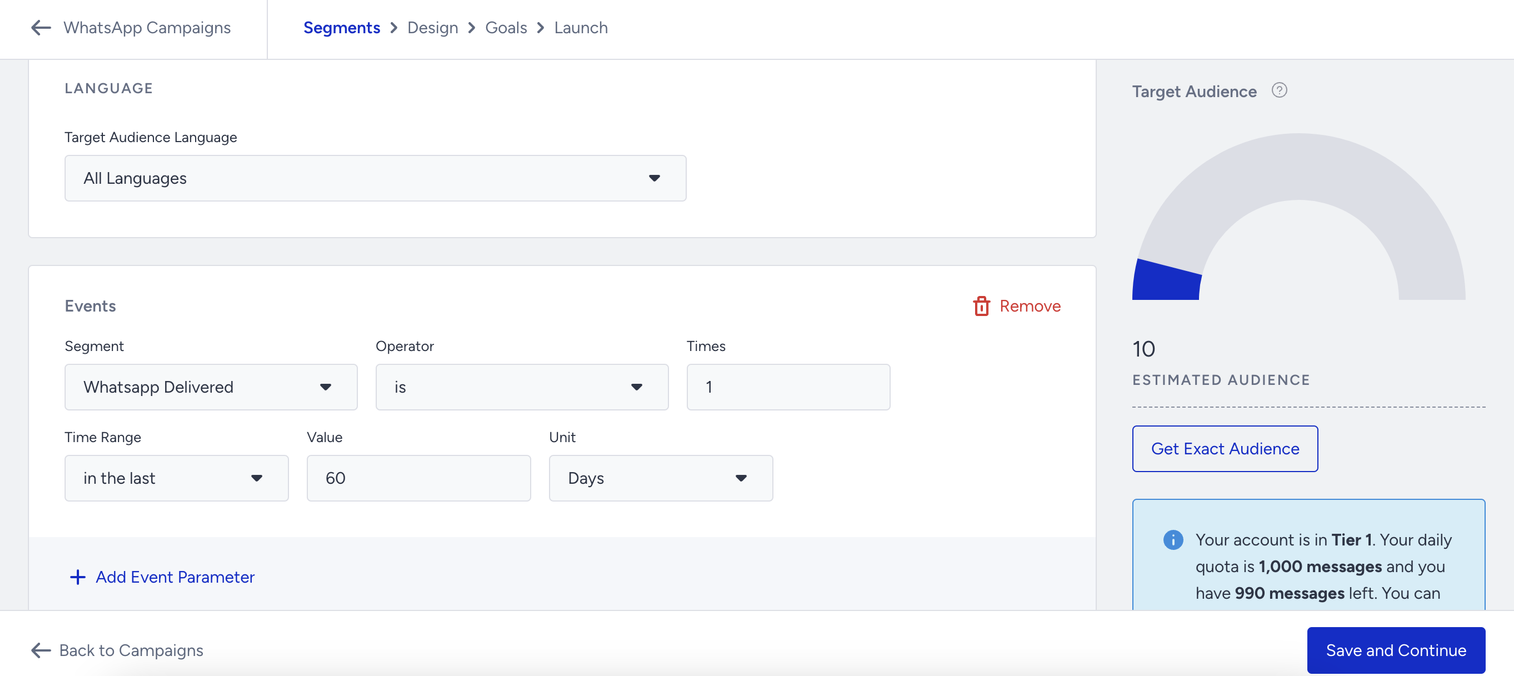
Increase positive feedback with engaged users
In a scenario where your account status is flagged and phone quality is low:
You have already sent a campaign to the customers who have opted in. However, not all may provide positive responses.
Focus on improving phone quality. You can get your target smaller with segmentation. Until this improvement occurs, selectively send messages to engaged customers with positive interactions to avoid potential restrictions on your account.
Request an Official Business Account
To initiate the Blue Checkmark Approval Application process, you can conveniently navigate to Meta directly from Insider One's InOne panel.
To obtain Blue Checkmark Approval, you can refer to the Official WhatsApp Business Account article.
It's important to emphasize that the verification process is entirely under Meta's control and is not influenced by Insider One.
You can refer to Meta's article for further information.
Upload or edit your profile photo
To update your WhatsApp profile photo and display the changes in your WhatsApp account,
1. Click the +Upload button under the Profile Photo on the Integration page.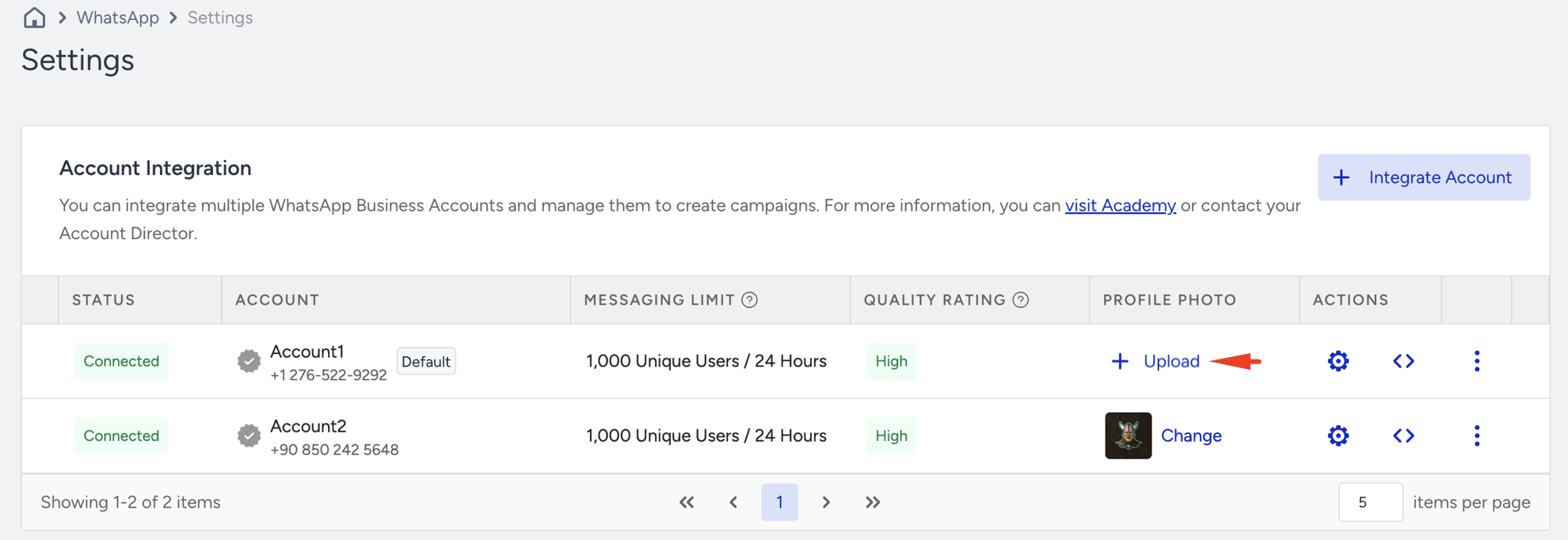
2. Upload the image from your device.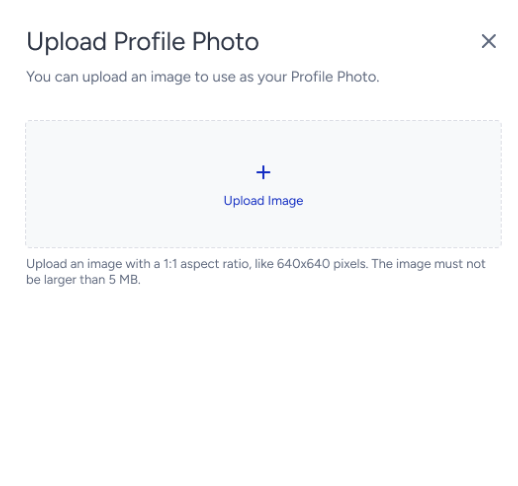
3. After you successfully upload your profile picture in WhatsApp and preview it, click the Upload button.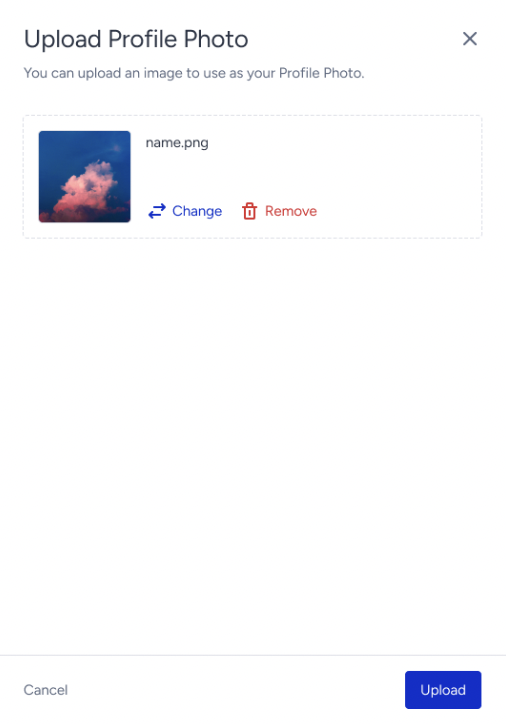
4. Your updated profile picture will be displayed to your WhatsApp contacts. If you want to change it, click Change under Profile Photo and follow the same steps.