Version history lets you track changes in your design created with the Drag & Drop Editor. It helps you restore any autosaved version to a previous state.
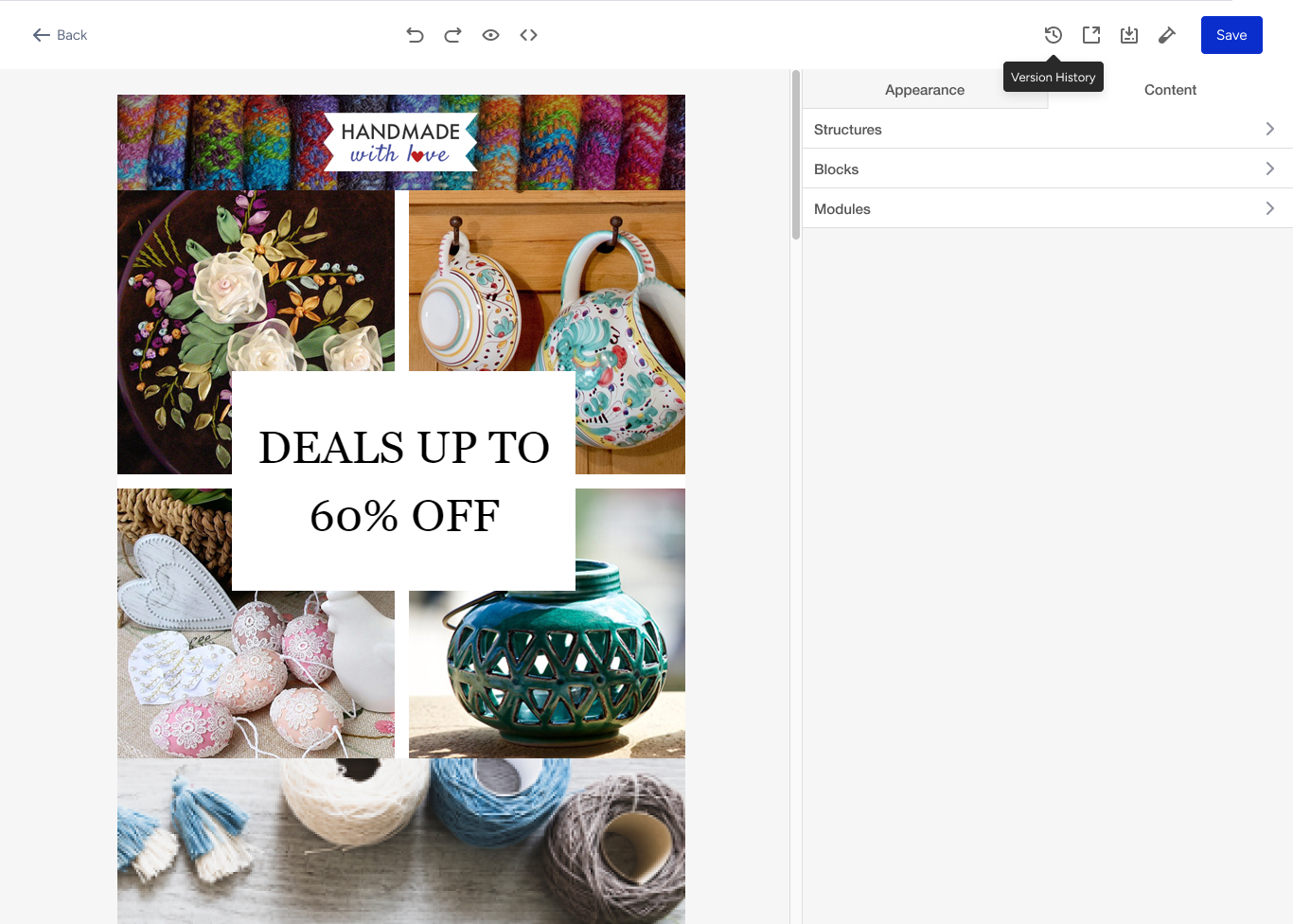
The version history button is located on the top bar next to the Export HTML button. Once you click the version history button, the version history modal opens.
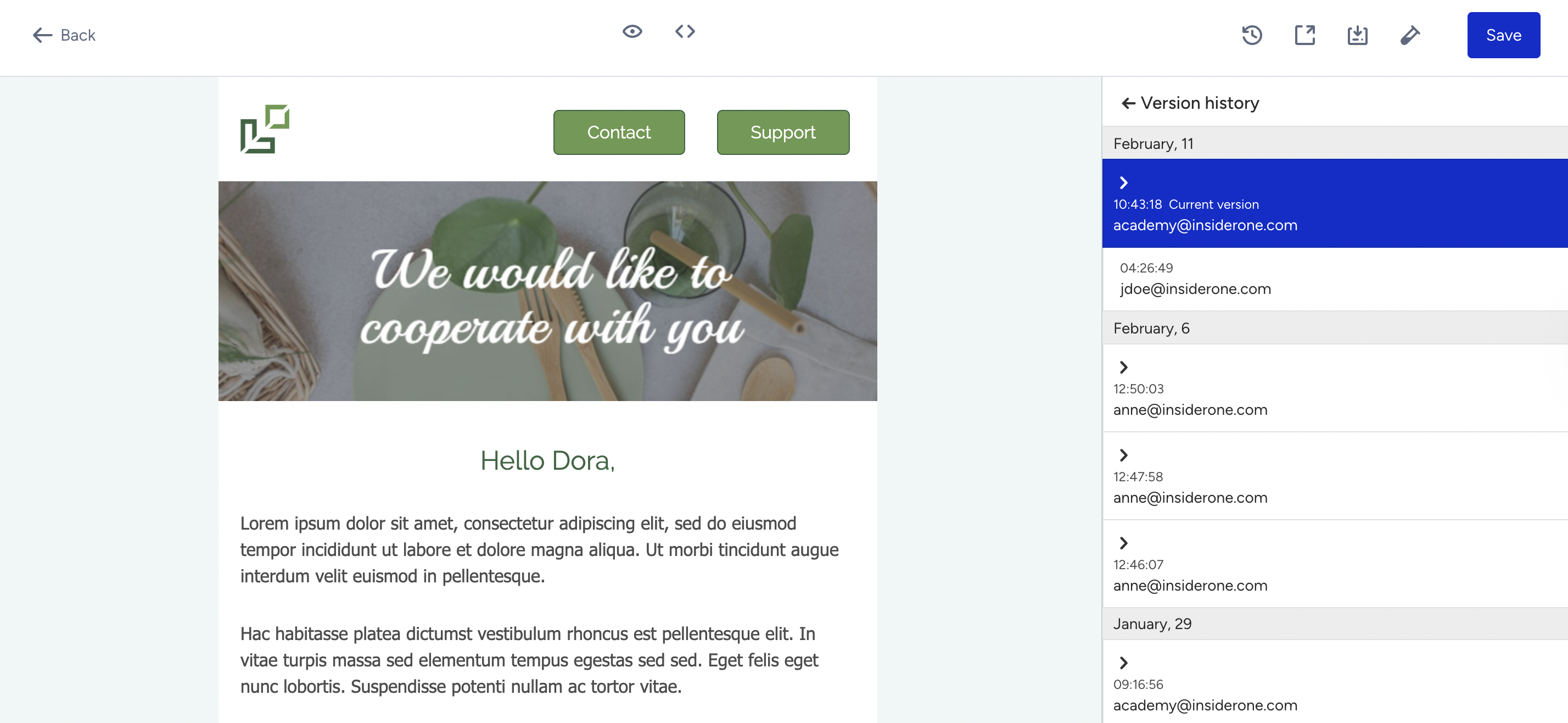
The email design will not be editable since it will be a preview. Only the scroll function will be working in that area.
Version history saves every change instantly and creates a version for that change. Users can also see details such as when these versions were saved and who made the changes. You can see the Restore button in the cell after clicking on the cell. Once a specific version is being restored, you can see the preview of that specific version.
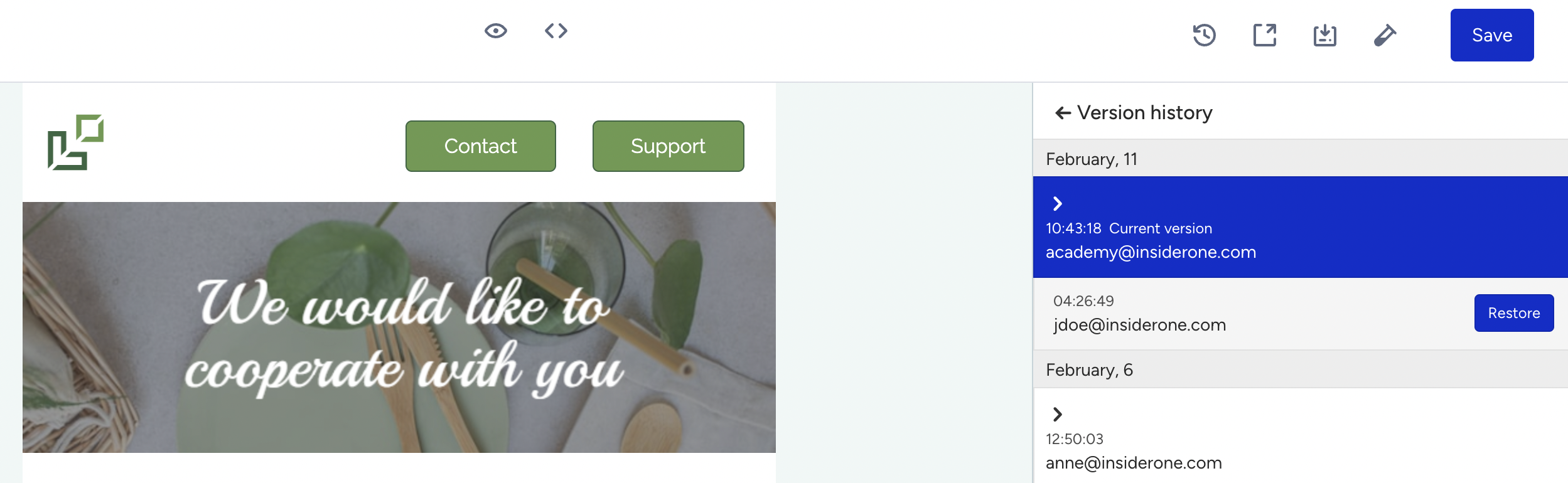
After clicking the Restore button, the page and the Restore button turn to a loading state. When an incorrect version is restored, you can click the previous version to revert.
After the version loads, a success or error toaster is displayed. If the version is not restored successfully, you can see the toaster error on the same page.

If the version is restored successfully, the history modal will be closed, and the default modal will appear.

When opening the version history modal again, you can see the new restored version located at the top with the restored time stamp.