Since groups and roles define what you are authorized to do within your account, they also affect how you view analytics. In larger companies, different departments often have distinct goals and promotion criteria, and they might want to track campaigns and their performance by region or team. For example, as a member of Group A, you will only have visibility for analytics linked with Group A. If a member of Group B shares analytics of a campaign link that belongs to Group B with you, as a member of Group A, you will not be able to view the link; instead, you will be redirected to the Web Push listing page.
Account administrator access
An account administrator can view all Web Push campaign levels and overall analytics in Insider One's InOne panel.
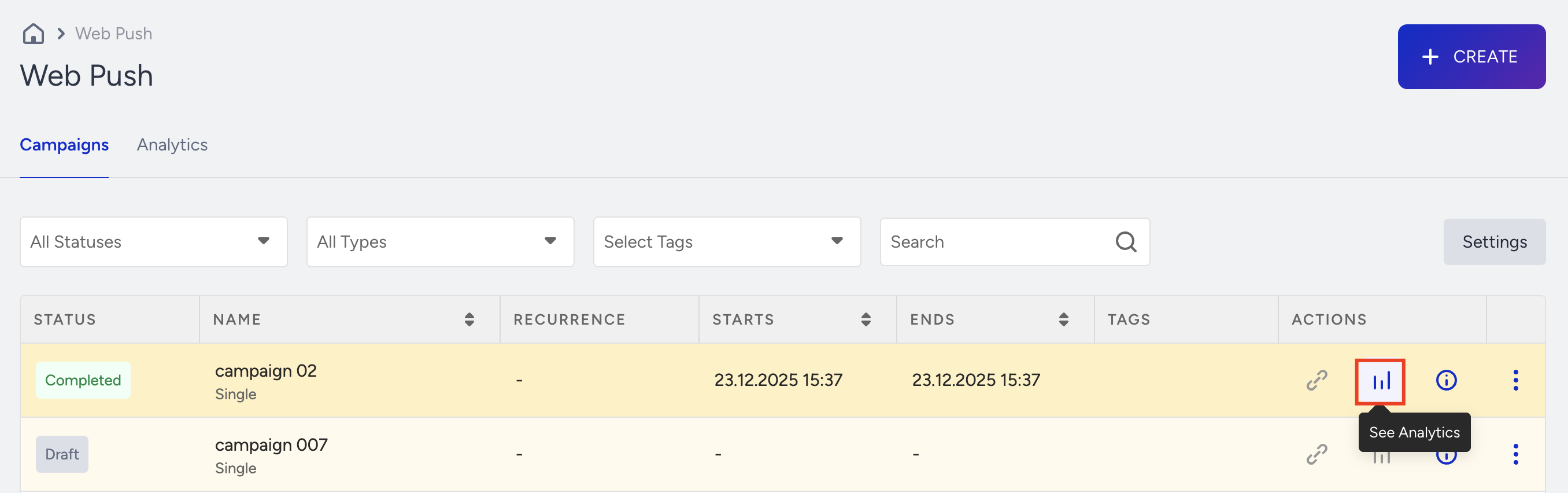
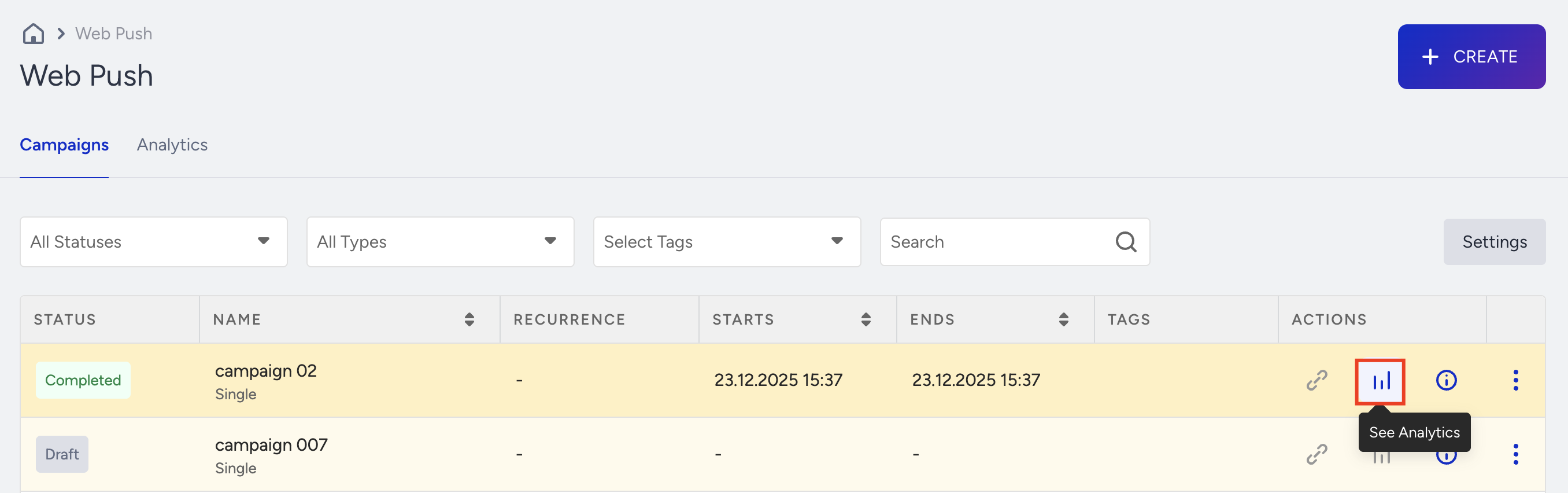
To view campaign-level analytics, click the Analytics button next to the campaign.
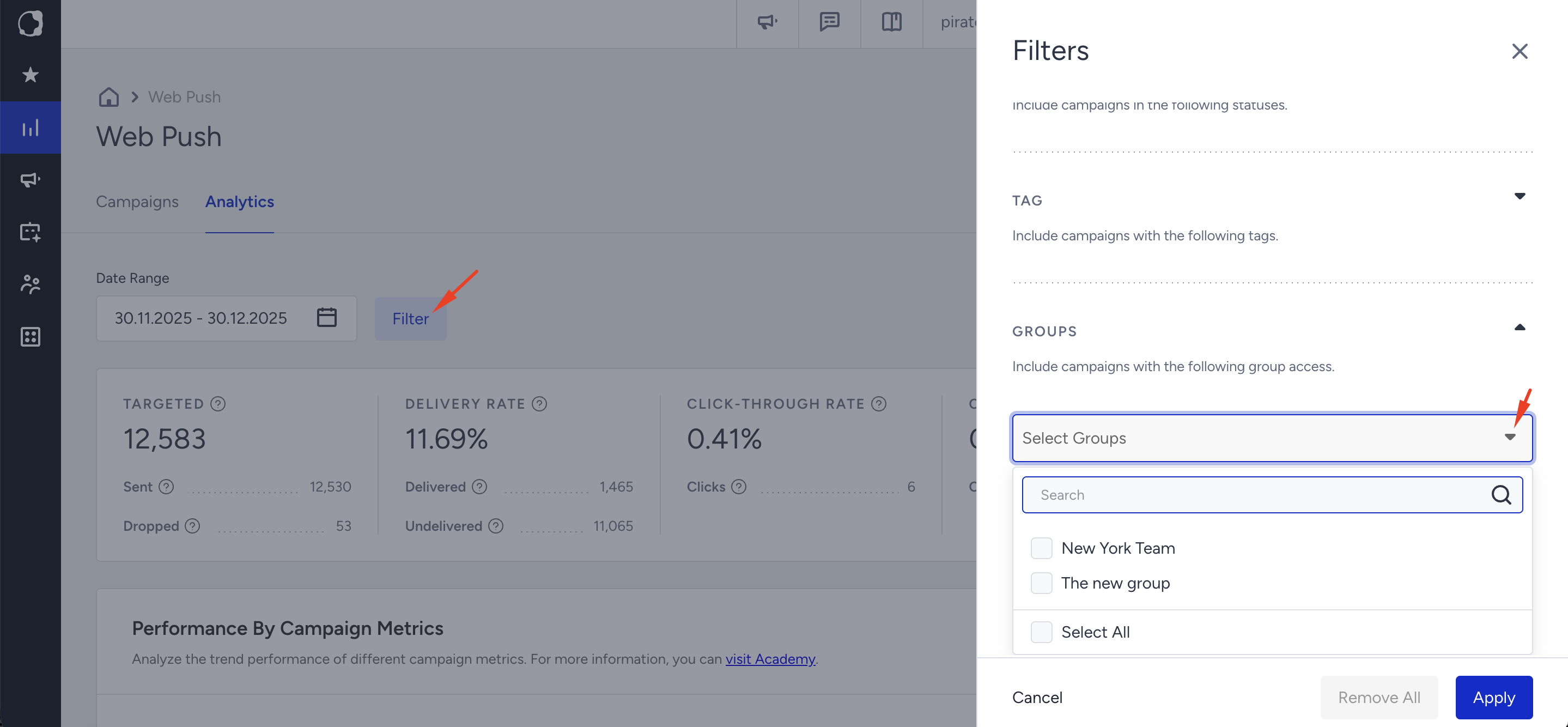
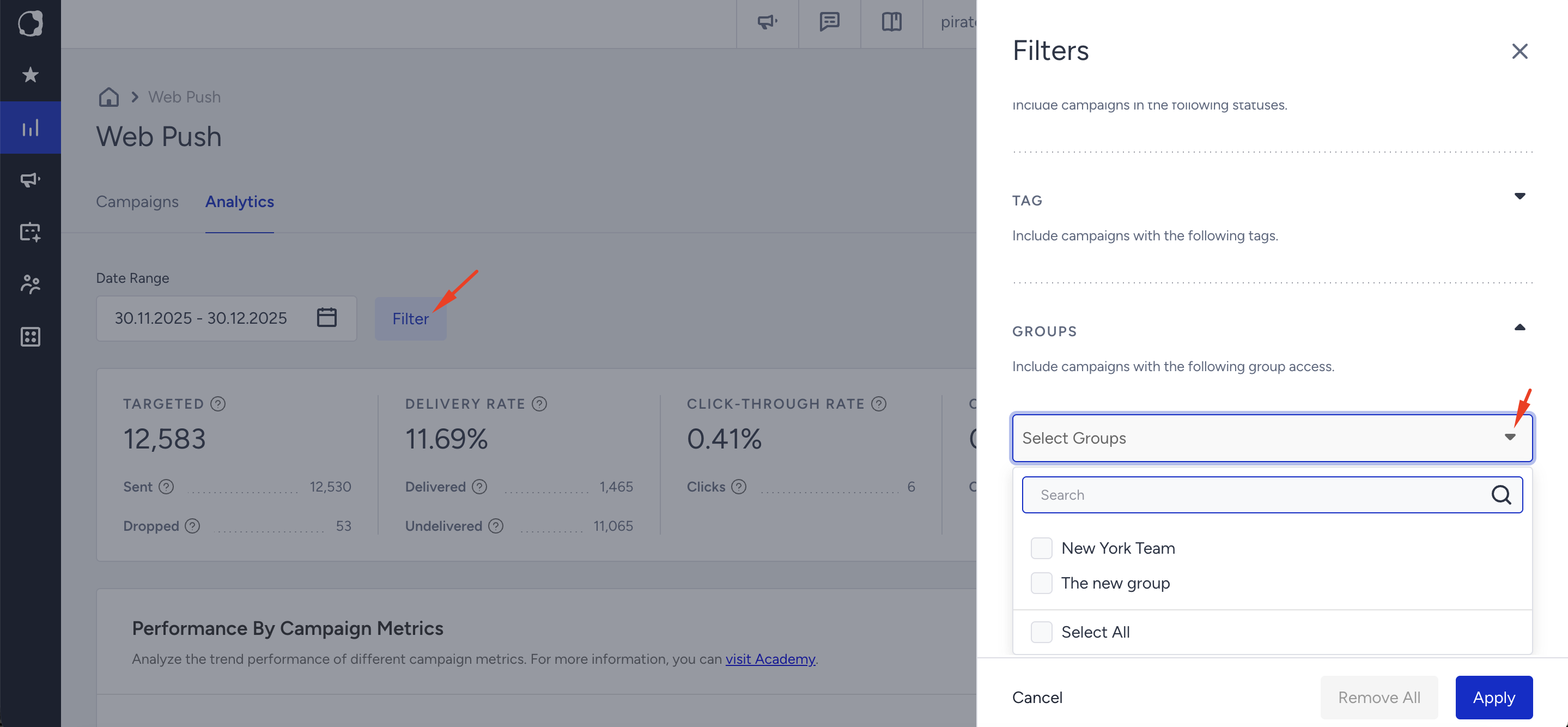
To view overall analytics, navigate to Reports > Web Push Analytics. When you land on the analytics page, as an account administrator, you will see the analytics for all Web Push campaigns on your InOne panel. To filter specific groups, click the Filter button and select the ones you want to include in your analytics.
Group administrator and member access
A group administrator and group members can view the analytics of campaigns that are visible to them, as well as campaigns that are available to every user in Insider One's InOne panel.
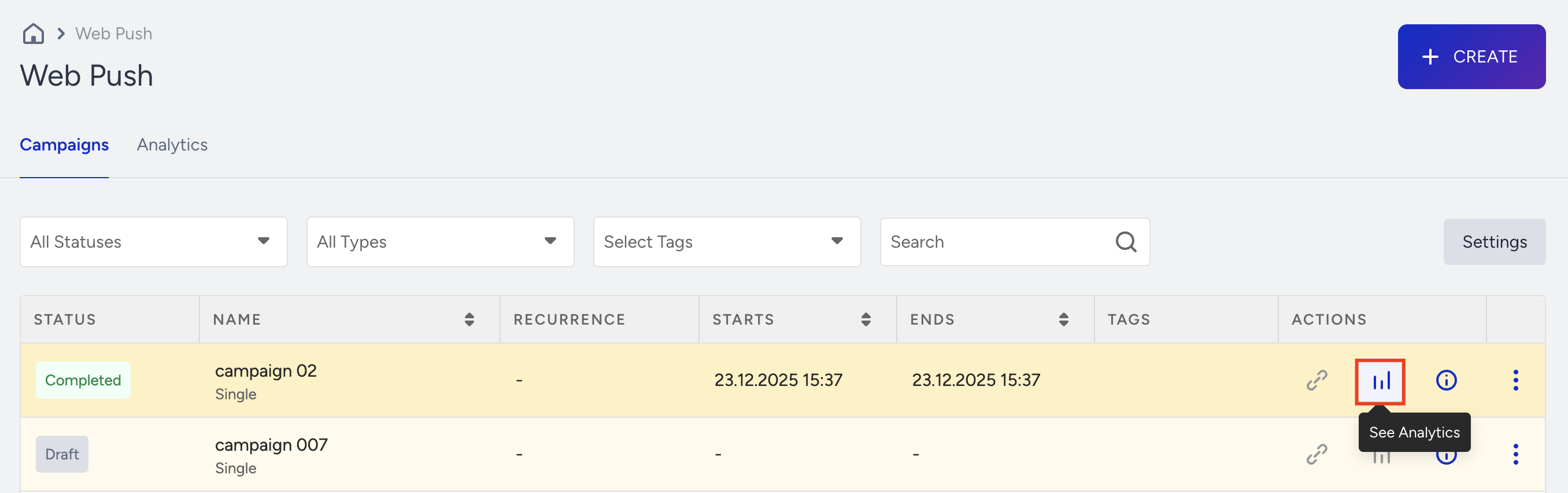
To view campaign-level analytics, click the Analytics button next to the campaign.
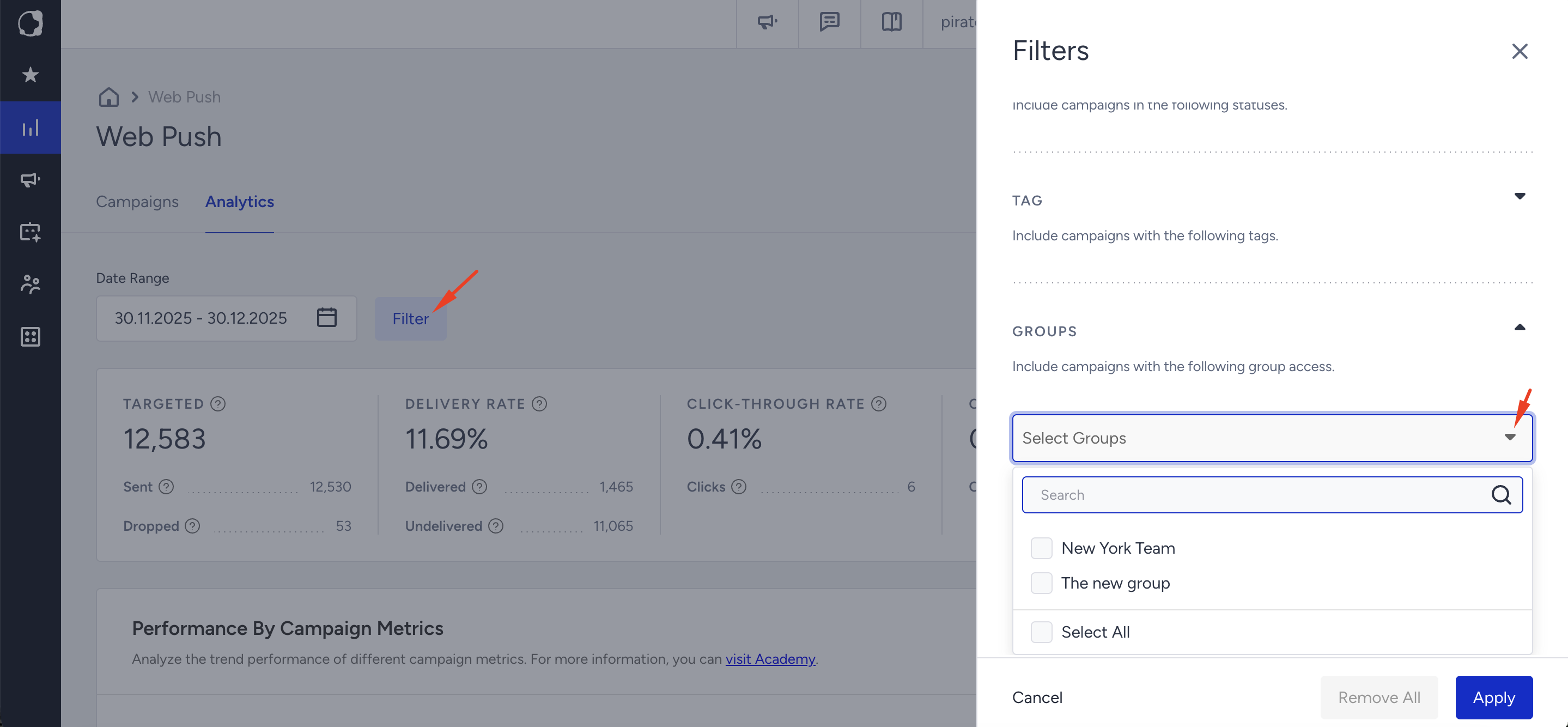
To view overall analytics, navigate to Reports > Web Push Analytics. When you land on the analytics page, as a group administrator or group member, you will see the analytics that belong to all Web Push campaigns of the groups you are linked with and campaigns that are visible to every user on your InOne panel. To filter specific groups, click the Filter button and select the ones you want to include in your analytics view.
Unassigned user access
As an unassigned user, you can view all Web Push analytics regardless of the groups to which they belong.
To view campaign-level analytics, click the Analytics button next to the campaign.
To view overall analytics, navigate to Reports > Web Push Analytics. When you land on the analytics page, as an unassigned user, you will see the analytics for all Web Push campaigns on your InOne panel. To filter specific groups, click the Filter button and select the ones you want to include in your analytics.