You can gain a better understanding of Mobile App Templates individually through Template Store Campaign-Level Analytics. You can observe the overall metrics for each Mobile App campaign. In addition, you can view campaign outcomes, along with detailed breakdowns of variations and more detailed distributions of click metrics.
This dashboard consists of the following sections:
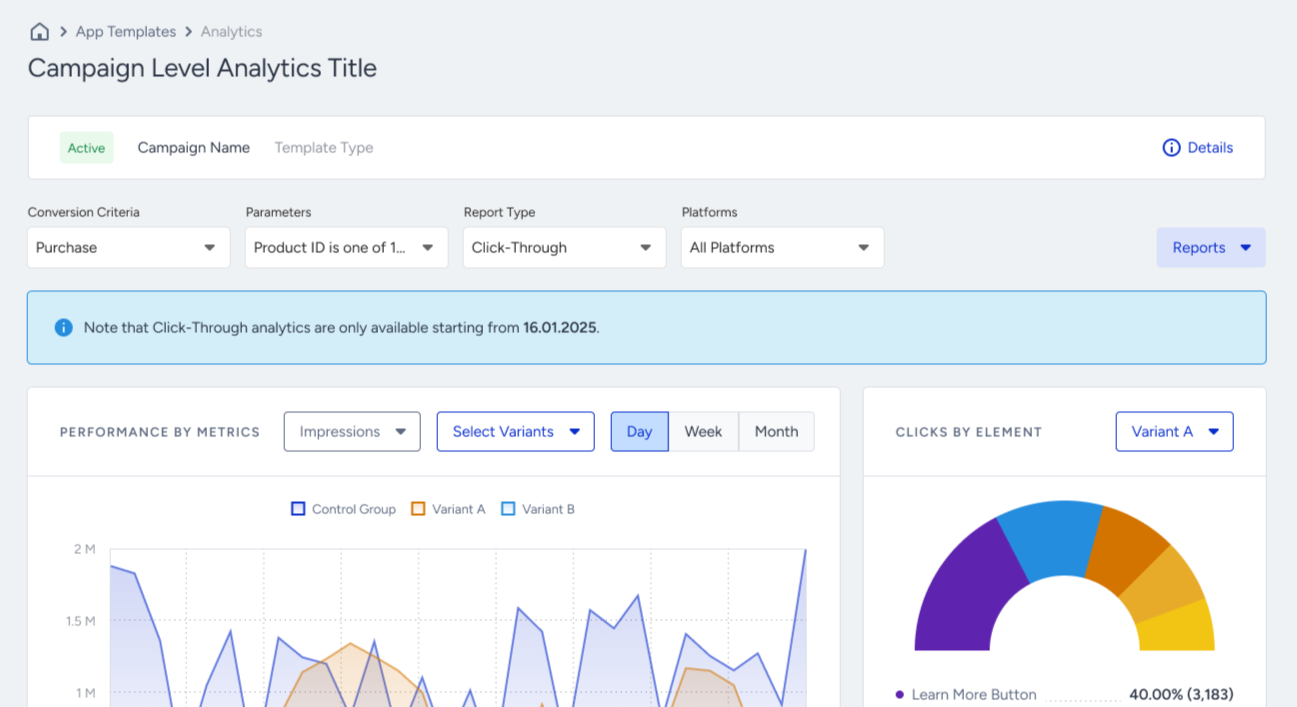
Campaign Information
The first section on the page is Campaign Information. You can check the details of the campaign like Created On, Re-Eligibility Duration, Segments, Rules, etc., when you click Details next to the row.
Pre-filters
You can refine the results using pre-filters. All of them are selected by default when you first land on the page. However, you can change these selections at any time.
Goals and Parameters
You can choose events and their parameters to calculate your conversion. It calculates the conversion over the event related to the campaign you selected.
Campaigns without this selected event as a campaign goal will not appear here.
Report Type
You can view your report as click-through or view-through.
Platform
3 different options are available under the platform, which are All Platforms, iOS, and Android. Then, you can see results based on your device platform selection.
Date Range
You can check the specific date ranges to narrow down your results. Metric data for a campaign changes together with the date range you pick.
Summary Metrics
You can see the summary metrics located after the pre-filters. These metrics are important for App Templates, providing a holistic view of your campaign, and they change based on the filters you apply.
Impressions
Impressions refer to the number of times that users viewed your campaign. In total, you will observe the sum of the impressions of the different variants, excluding impressions from the control group.
Incremental Conversion
Incremental Conversions are the extra conversions that come from the campaign's variations.
Conversion Rate
Conversion Rate is the percentage of Conversions to Impressions.
Conversions
Conversions are the number of successful goal achievements, adding up the counts from all the different variations.
CR Uplift
Conversion Rate Uplift (CR Uplift) is the percentage of the Conversion Rate difference between the variant and the control group.
Revenue by Currency
Revenue is the total value of purchases made by users who engaged with the variations. It sums up the value of revenue across all variations and is presented in the main currency. To view revenues in other currencies, you can click on "Revenue Breakdown".
You can also observe your results on the graphs. You can see the performance by metrics and clicks by elements.
Performance by Metrics
On this graph, you can see 3 different metrics which are Impressions, Conversions, and Incremental Conversions.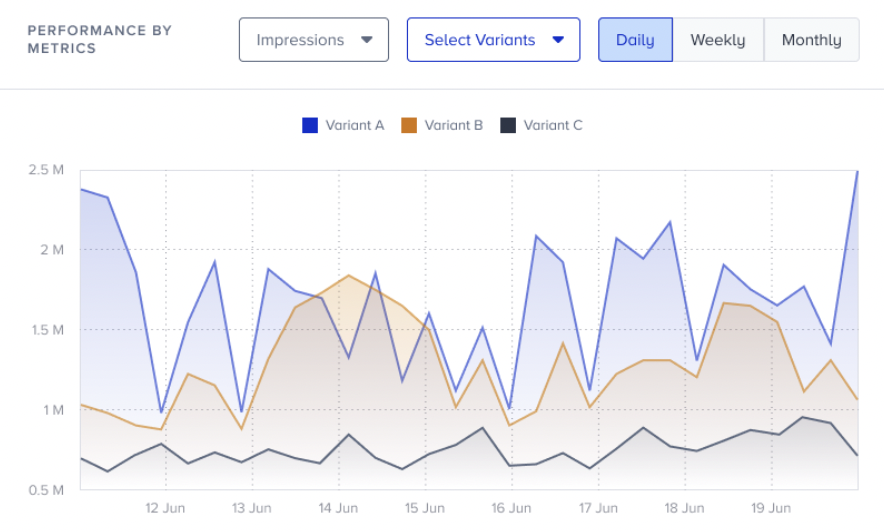
You can see and compare those metrics as you want. You can select the metric from the dropdown menu to see its trend. You can also observe the graph on a daily, weekly, or monthly basis. It shows you the results with the date range selected on the top right.
Clicks by Elements
You can view the click distributions of the elements in your template in this chart. You will only see the buttons used in the campaign.
App templates have several click actions and buttons. Users click on these areas and actions to respond to the templates. The clicks metric shows the number of times any button is clicked by the user in the campaign. You can see the Clicks by Elements insights on the graph, and also export them.
Only elements that have an action assigned are counted as clicks. Elements set to No action are treated as non-interactive; they are excluded from the Clicks by Elements breakdown and are not added to the campaign's click count. If you change an element's action to No action, its clicks are no longer counted from that point on.
To collect clicks individually for different elements, your minimum SDK versions(s) should be as follows:
iOS - 12.7.3
Android - 13.8.0
Flutter - 3.5.0
React Native - 5.5.0
Click distribution in SDKs lower than these may not be available. You should update your SDK, and the user should also update their application to the latest version by store.
If you have previously created app templates, the click distribution might not be available due to feature changes and improvements on the templates. If you relaunch your app template campaign, the click distribution will be reflected in the analytics.
To get your report with click insights for each template, click the Reports > Export button.

After the export report has been downloaded from the panel, the report will be saved in your local device in .xlsx format.
The report will have 4 different sheets: Overall Analytics, Campaign Metrics, Interaction Metrics, and Revenue Metrics. You can view the click details in Interaction Metrics.
In your enhanced templates, the total number of clicks for each button directly on the campaign detail page provides a quick overview of user engagement. Additionally, you can preview elements with images, making it easier to visualize and track the impact of each element.
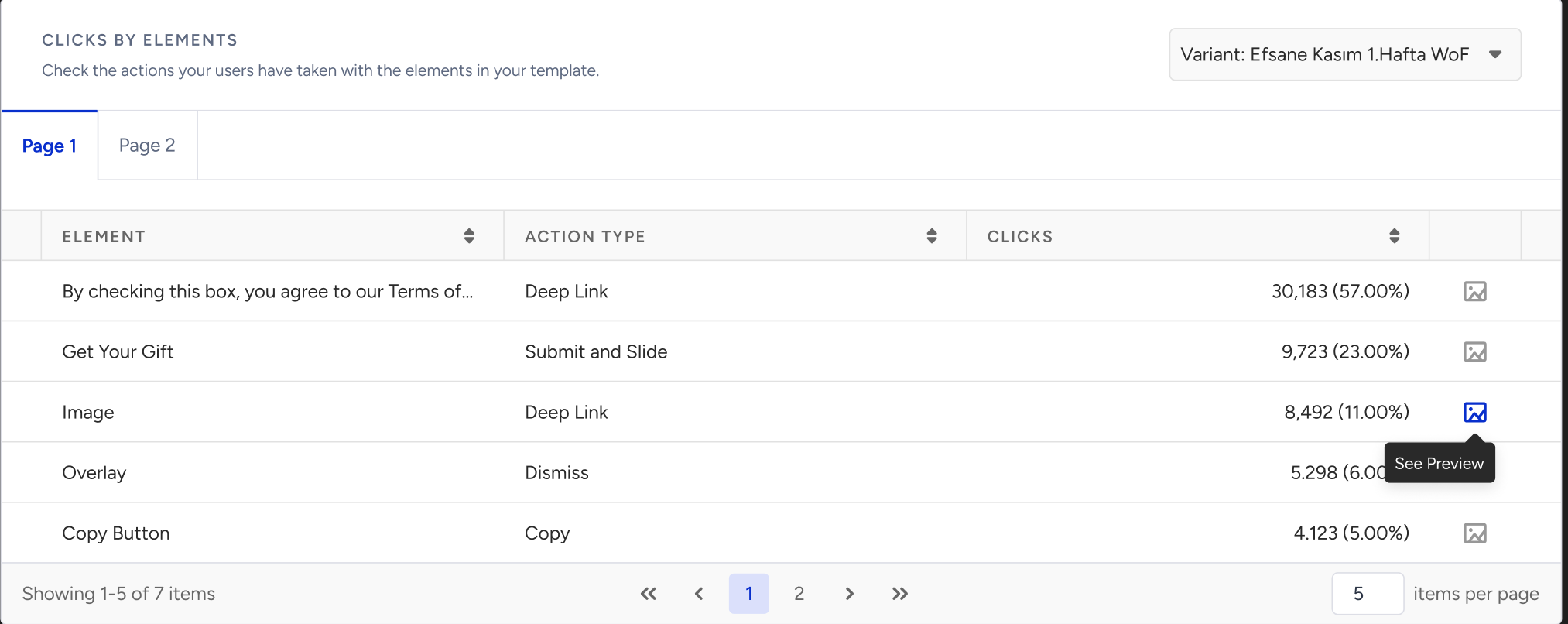
All click data will be sent to UCD as events, ensuring accurate tracking and easier integration with other systems.
You can segment users based on click data to create better-targeted campaigns and more personalized user experiences.
.png)
The click data is also incorporated into the lead report. This allows user-based (and overall) click tracking, making it easier to measure campaign impact.

The Clicks by Elements data is available as of December 17, 2024.
InApp
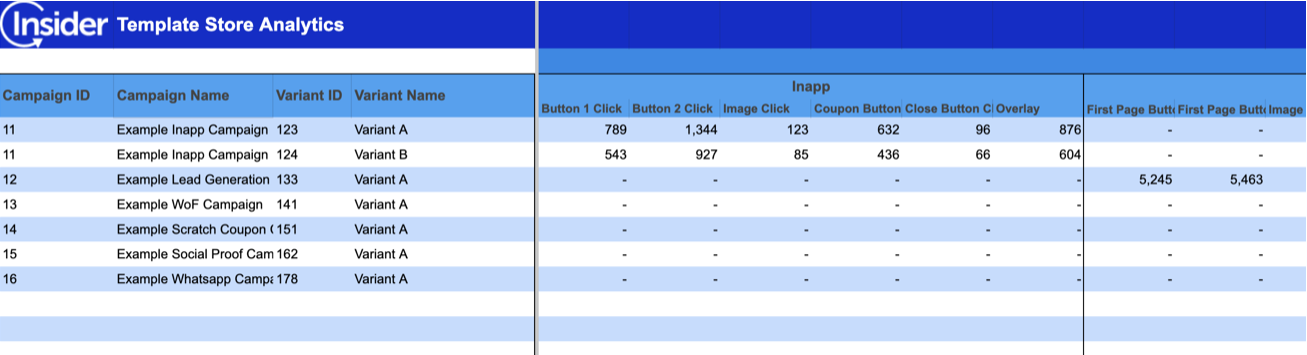
The InApp template can have click distribution for its overlay, close buttons, image, copy button, button 1, and button 2.
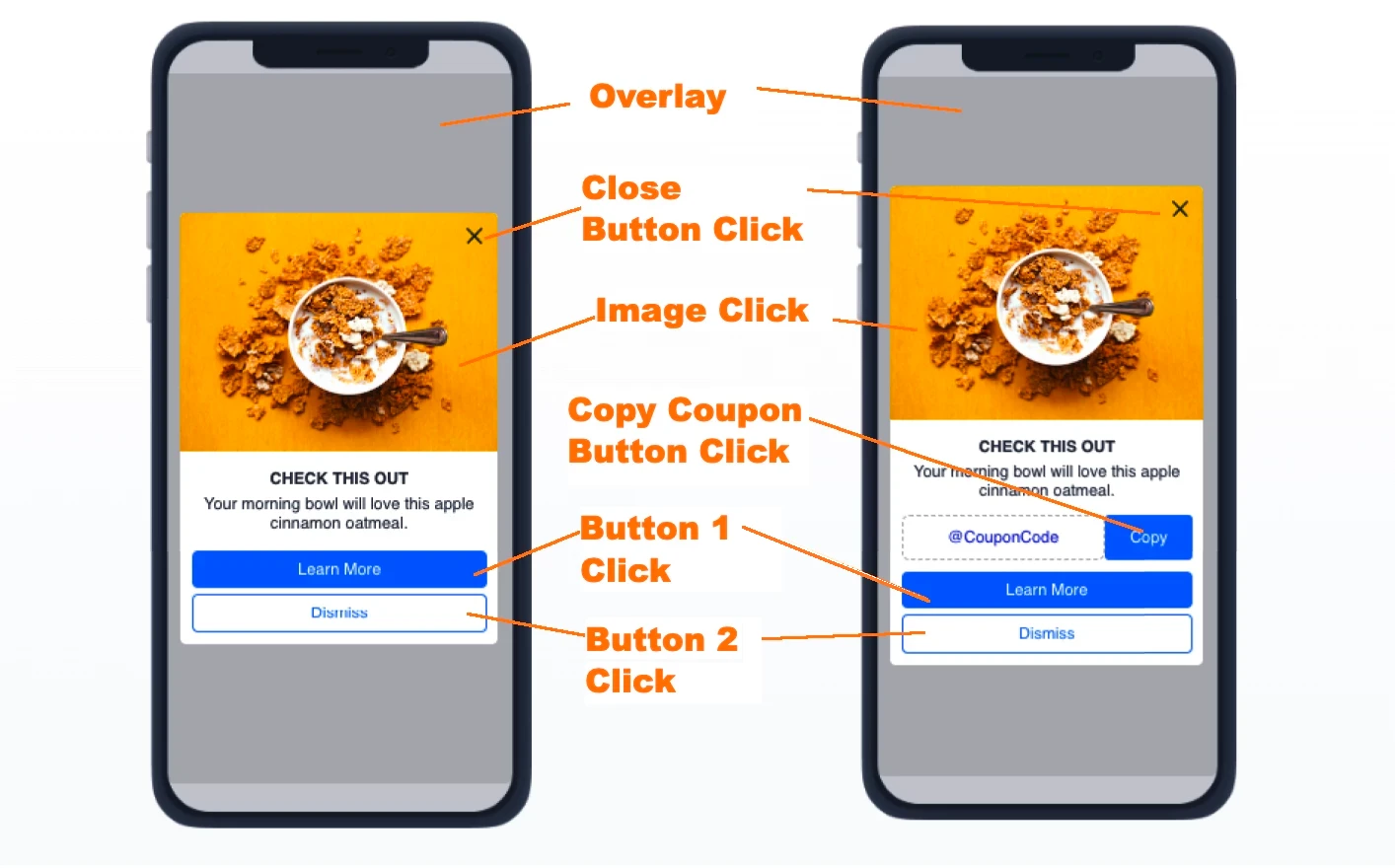
When you download your report, you can also see the clicks for each element individually.
Lead Generation
The Lead Generation template can have click distribution for its overlay, close button, image, copy button, button 1, and button 2.
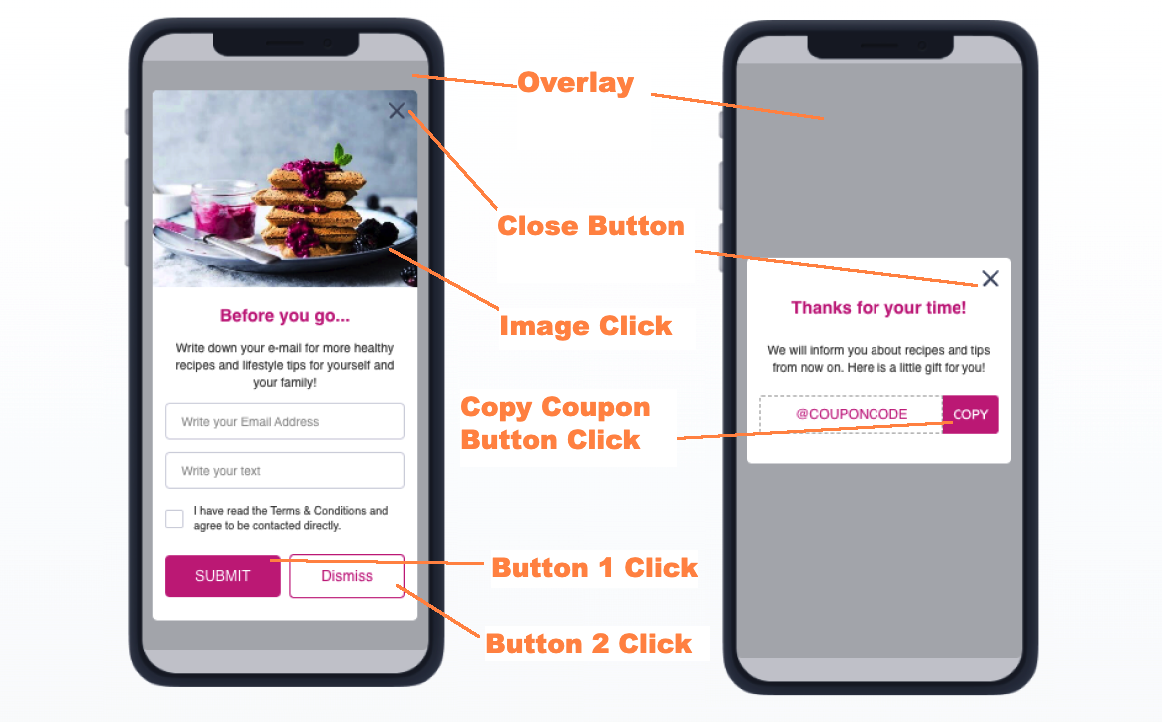
When you download your report, you can also see the clicks for each element individually.
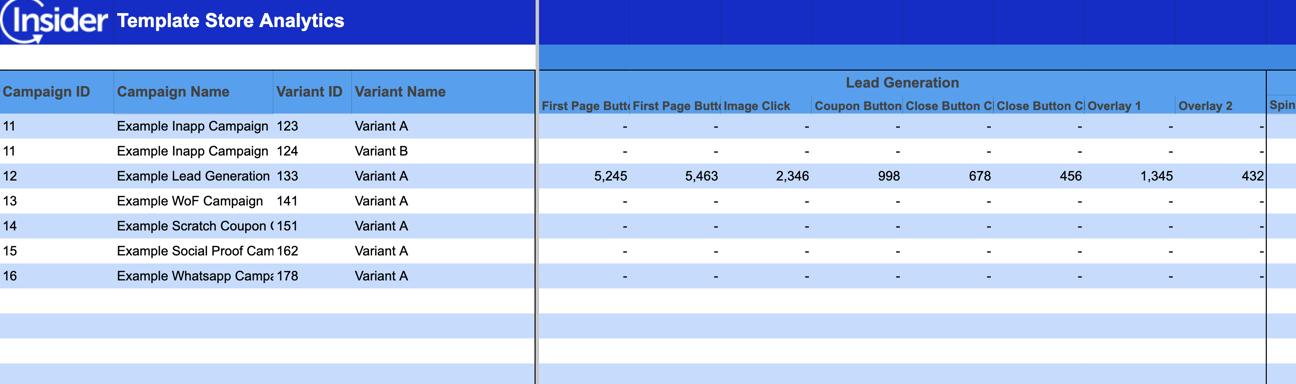
Wheel of Fortune
The Wheel of Fortune template can have click distribution for its close button, copy button, spin button, and secondary button.
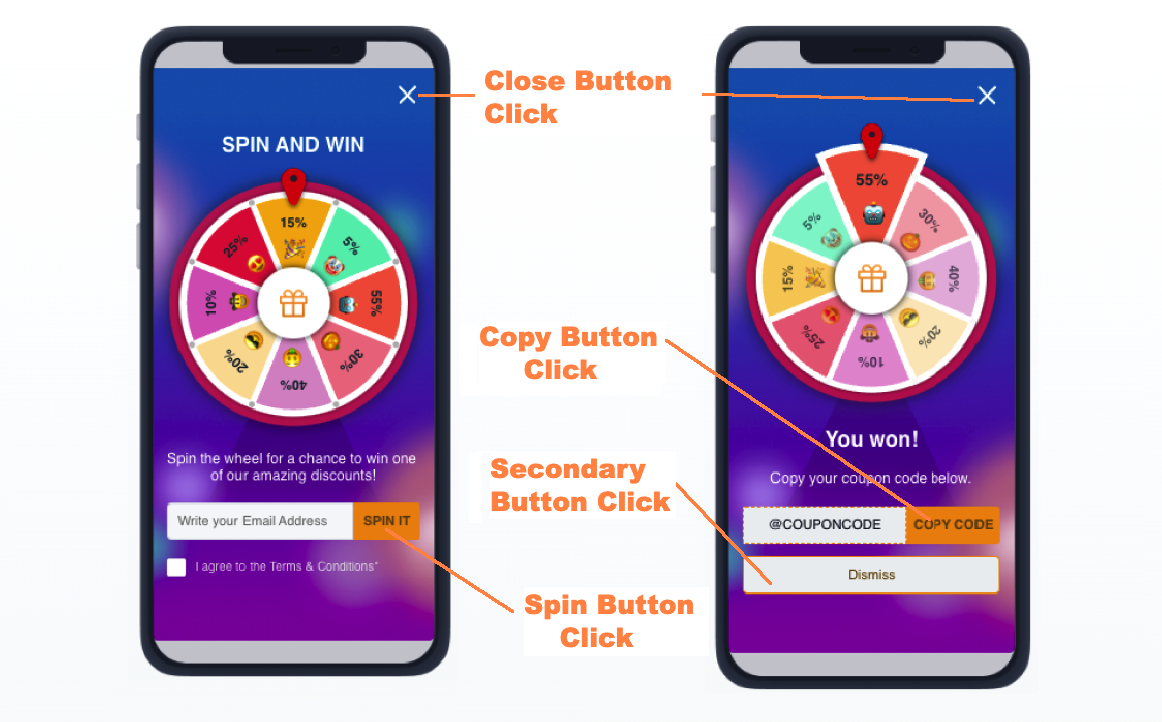
When you download your report, you can also see the clicks for each element individually.

Scratch Coupon
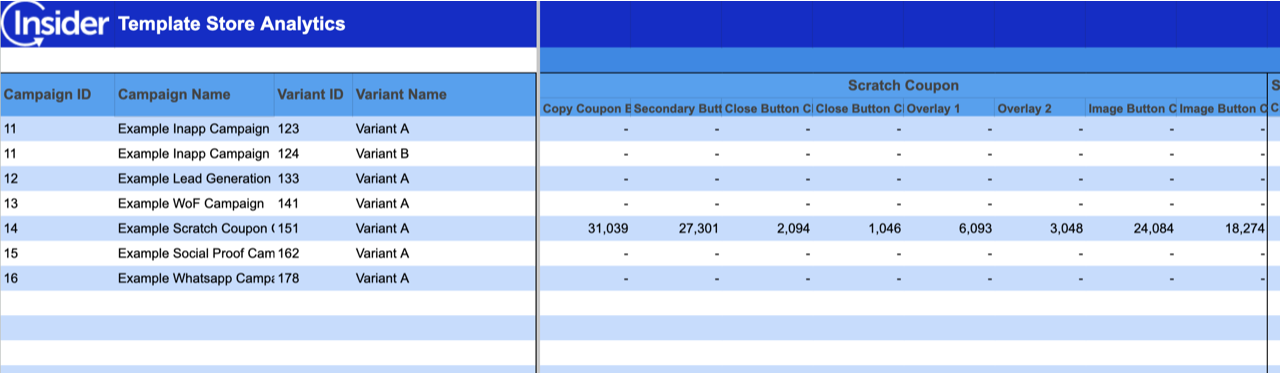
The Scratch Coupon template can have click distribution for its overlay, close button, image, copy button, and secondary button.
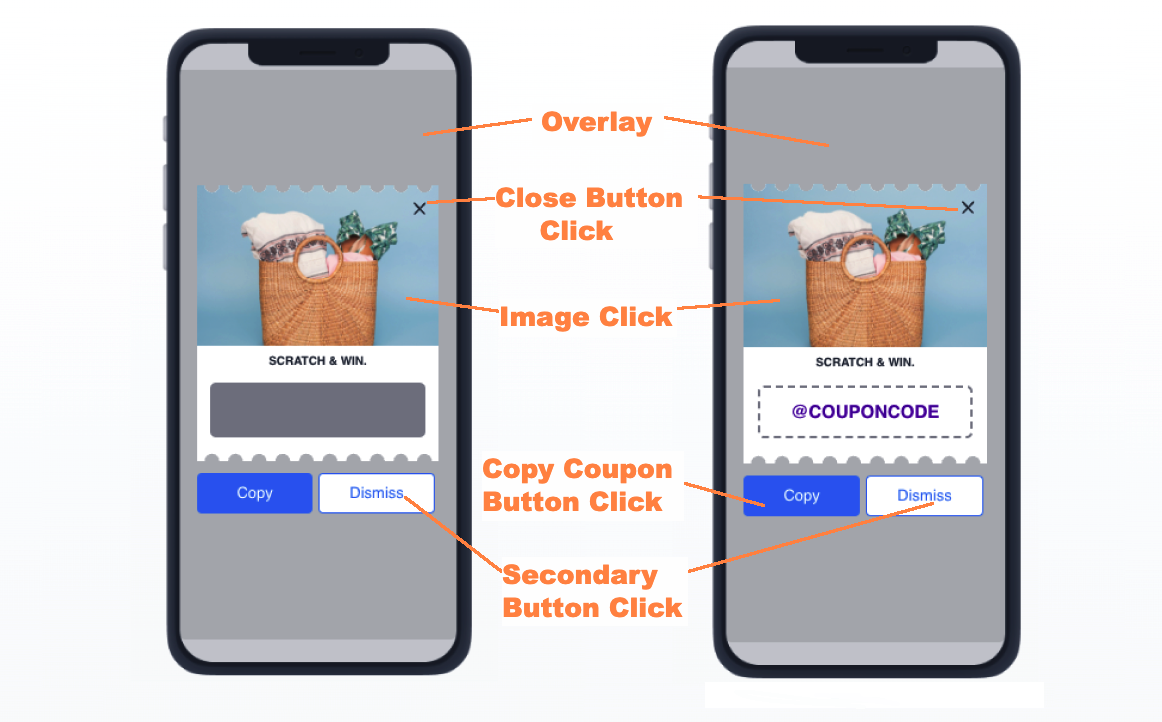
When you download your report, you can also see the clicks for each element individually.
WhatsApp Trigger
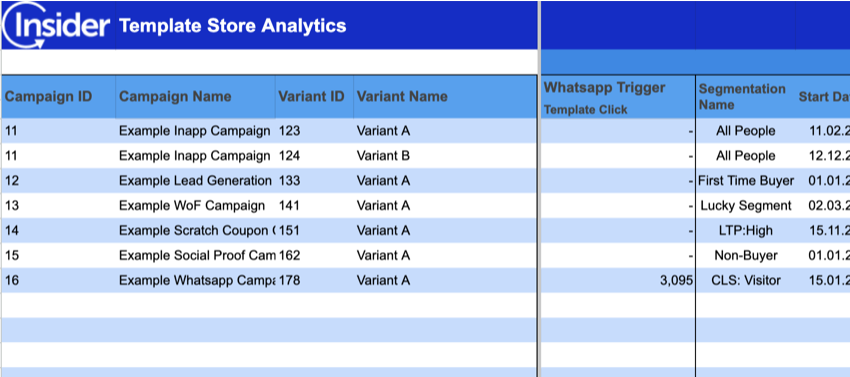
The WhatsApp Trigger template can have clicks for the template itself.
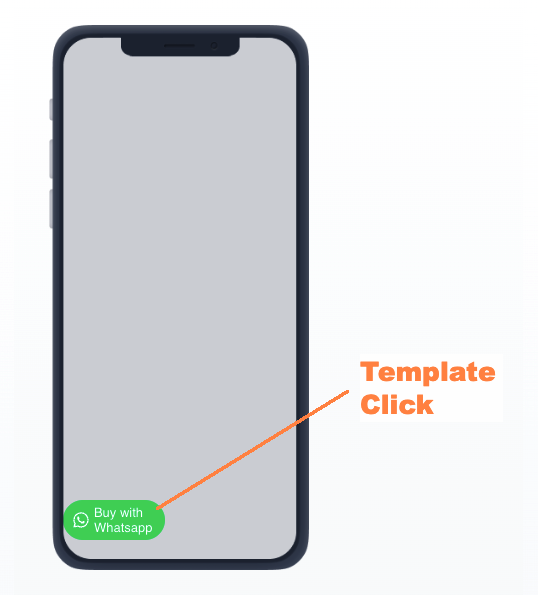
When you download your report, you can see the clicks for this element.
Social Proof
The Social Proof template can have clicks for the close button.
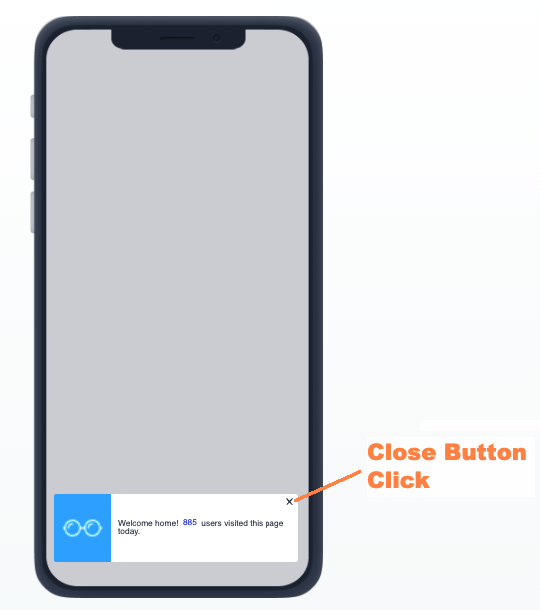
When you download your report, you can see the clicks for this element.

If you configure the button action as Push Permission, you can track the button clicks but not the push permissions. Once the user clicks the call-to-action, they will be redirected to the app settings where the app template analytics cannot track any actions.
Campaigns Table
On the campaigns table, you can select metrics from the dropdown menu, and these metrics are presented in breakdowns for each variant. 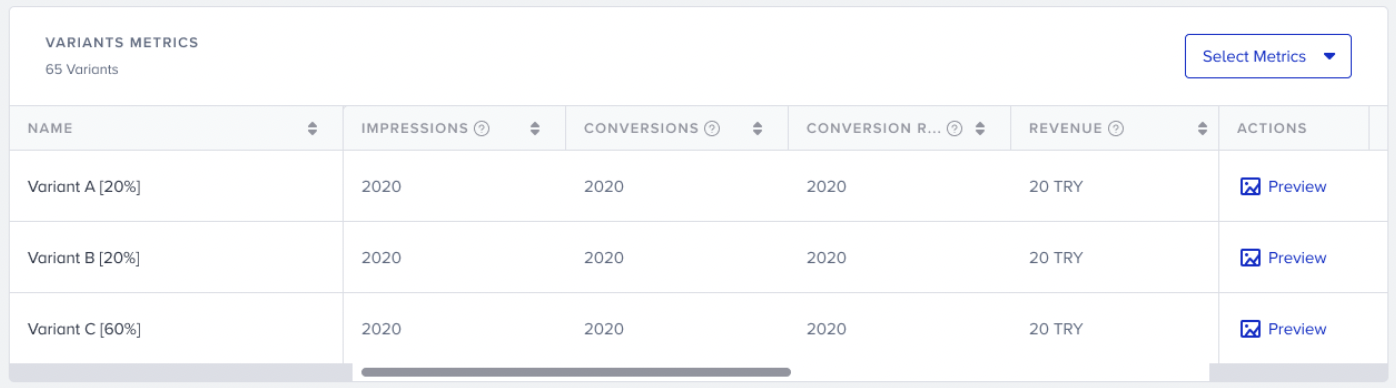
Metric Calculations
Metric | Formula |
|---|---|
Current Status | Passive/Test/Active |
Starts On | dd/mm/yyyy |
CR Uplift | Var (CR) / CG (CR) - 1 |
Control Group Impressions | Number of CG impressions |
Variation Group Impressions | Number of Var impressions |
Incremental Conversions | Var (Conv) - (Var (Imp) x CG (CR)) |
Control Group Conversion Rate | CG (Conv) / CG (Imp) |
Variation Group Conversion Rate | Var (Conv) / Var (Imp) |
Control Group Revenue | Revenue gained by the control group |
Variation Group Revenue | Revenue gained by variation group |
Control Group Conversions | Number of purchases gained through CG Some clarifications:
It counts as 1 conversion disregarding the number of purchased items.
If I made 2 separate purchases within the specified time (conversion period), Insider One counts it as 2 conversions. For example, If you have an add to cart goal and add 3 different items to the basket after logging in, it will be 1 impression and 3 conversions. |
Variation Group Conversions | Number of purchases gained through Var |