Tag Management brings tag creation and management into a single central page across Insider One products. You can create tags, rename them, merge similar tags into one, and delete tags you no longer need. You can also assign a tag to multiple items at once: campaigns, segments, events, attributes, expressions, and aggregates, or update its existing connections without opening each record separately.
You can also see where each tag is used on the Tags page. You can view every connected item and review the impact before confirming a destructive action, such as deleting a tag. Shared naming and validation rules keep tags consistent across products. Together, these capabilities help teams keep their tag structure clear and manageable as the number of campaigns, channels, and brands they work with grows.
Admin, Collaborator, and Editor roles can create, edit, and delete tags; all other roles can view tags but not change them.
How it works
To access Tag Management, navigate to Components > Tags. The page lists every tag in your panel with its name, creator, creation date, and usage.
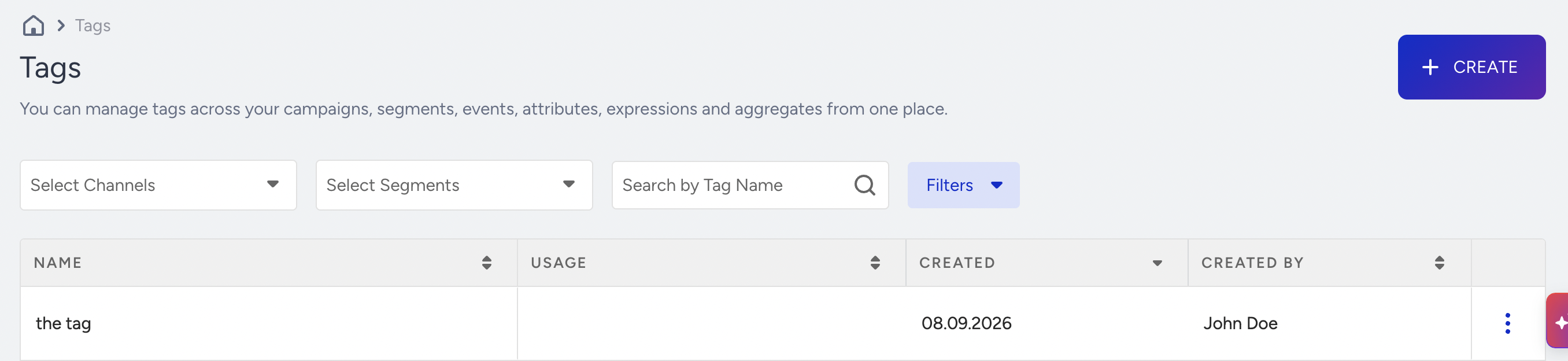
Usage shows what a tag is connected to, one chip per item kind: "6 campaigns", "3 segments", "1 event".
Search finds a tag by name. Every column sorts, and the list is paged; search, filters, and sort order apply across the whole table, not just the page on screen.
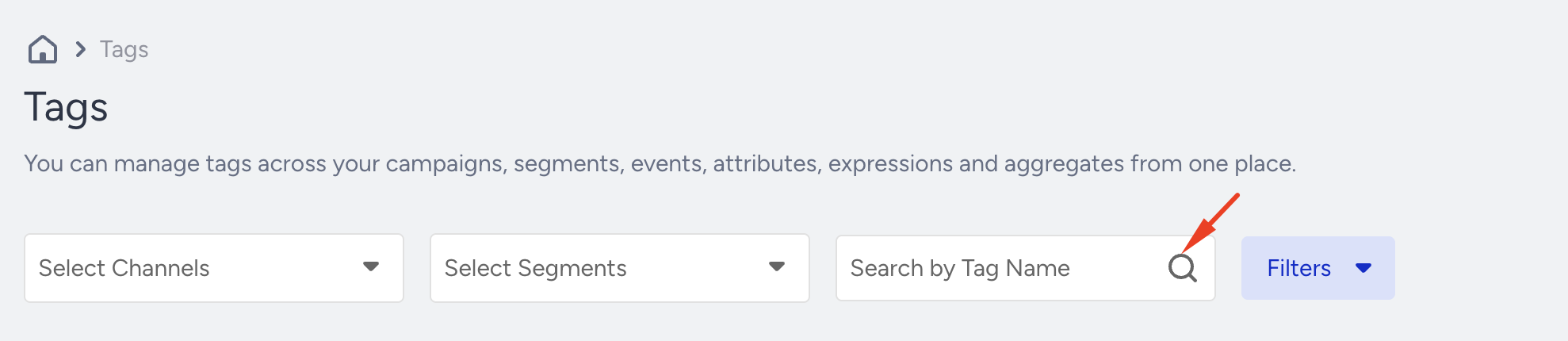
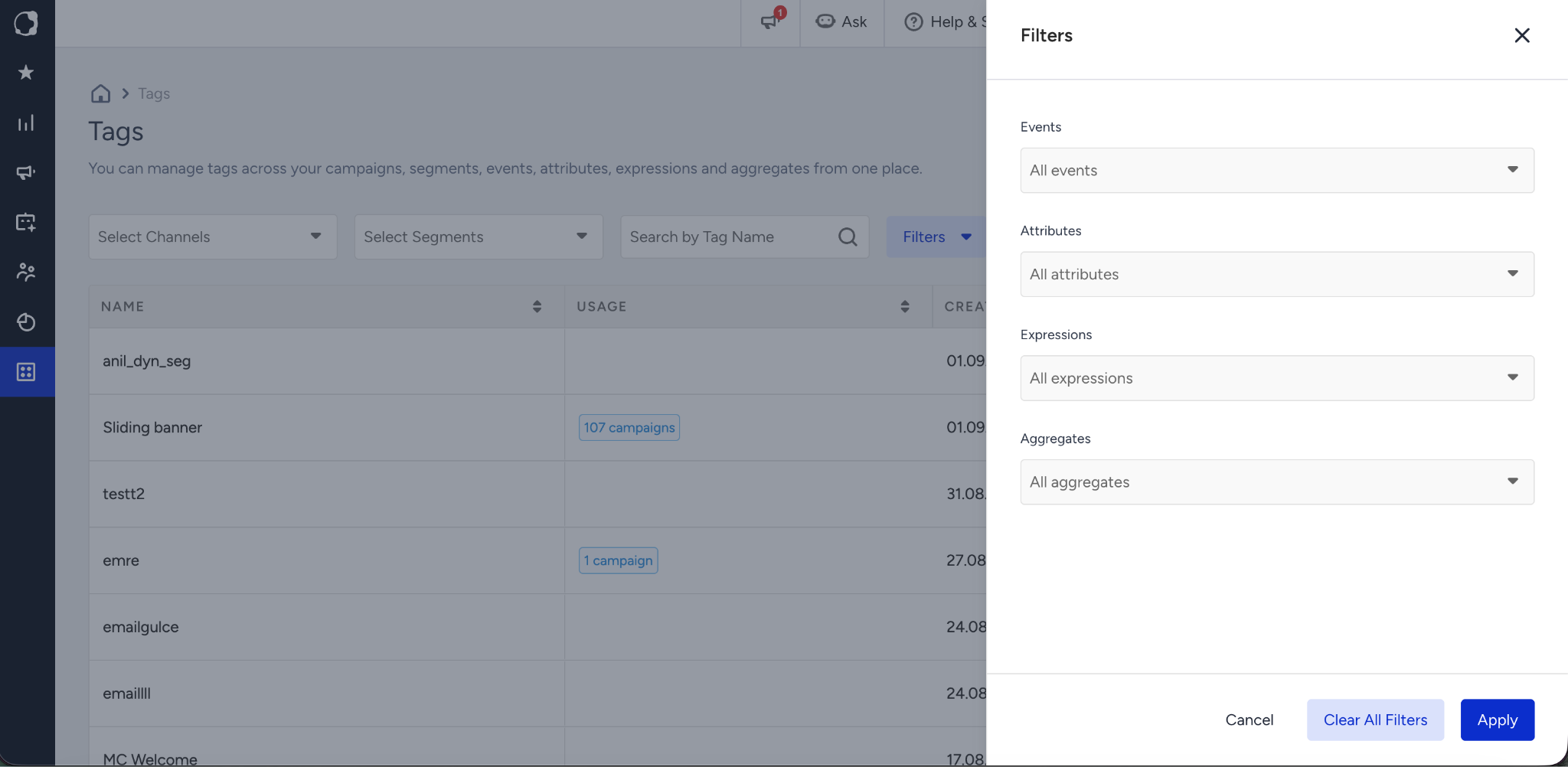
Filter channel and segment type from the toolbar. Events, attributes, expressions, and aggregates are filtered from the Filters drawer and take effect on Apply. Active filters appear in the Applied Filters bar; Clear All Filters resets them.
Create a tag
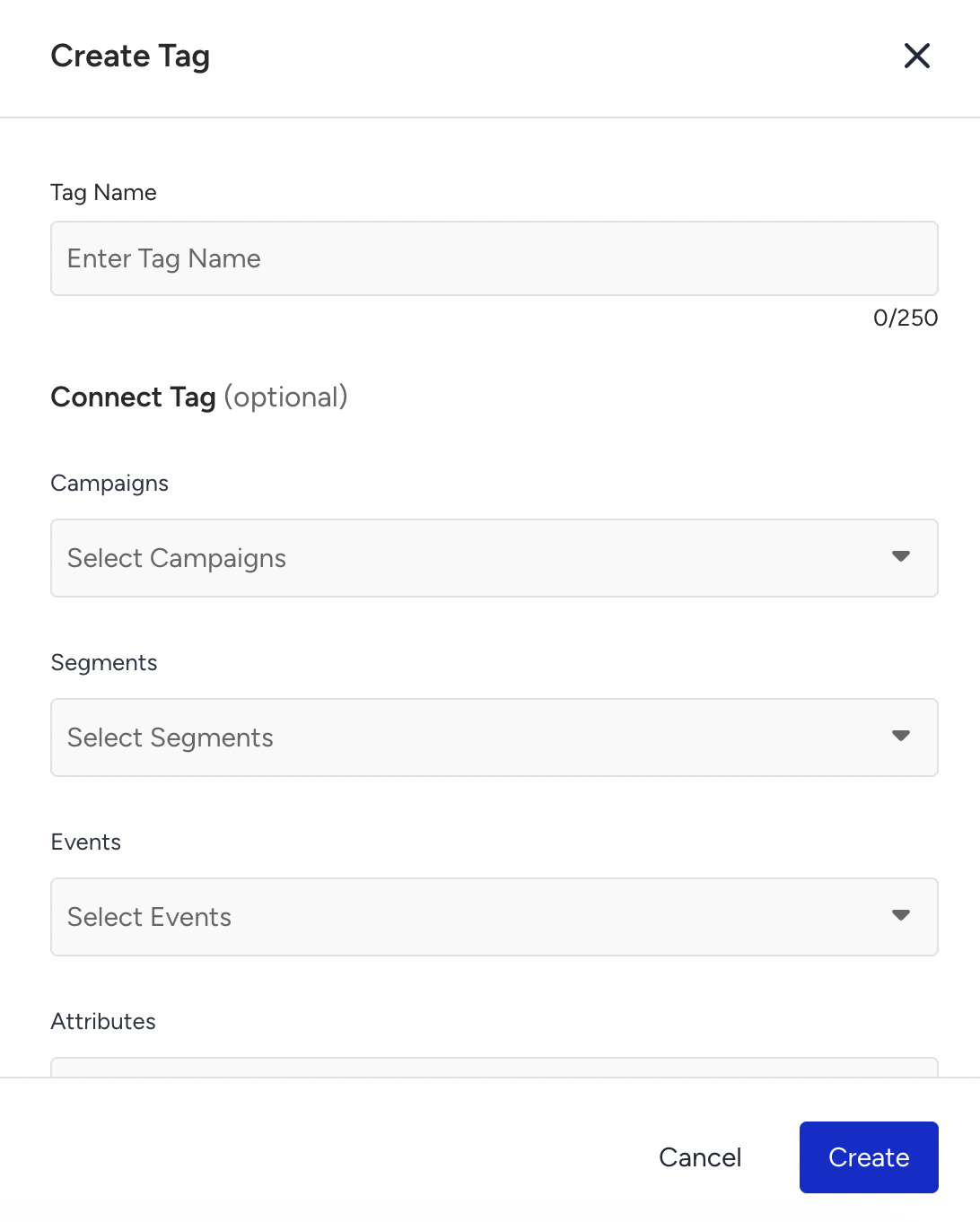
To create a tag, click Create on the listing page.

Enter a name in Tag Name.
Naming rules:
You can enter a name up to 250 characters, using letters, numbers, spaces, hyphens and underscores. Non-Latin alphabets are supported; emoji and angle brackets are not. Names must be unique across the panel, ignoring capitalization.
Expand Connect Items and select what the tag applies to. Separate pickers cover Campaigns, Segments, Events, Event Parameters, Attributes, Expressions, and Aggregates. Campaigns are grouped by channel and searchable by name or id. An item already at its tag limit appears disabled.
You can also create a tag without connecting anything and attach items later.
Click Create.
Each item can carry up to 100 tags.
Find where a tag is used
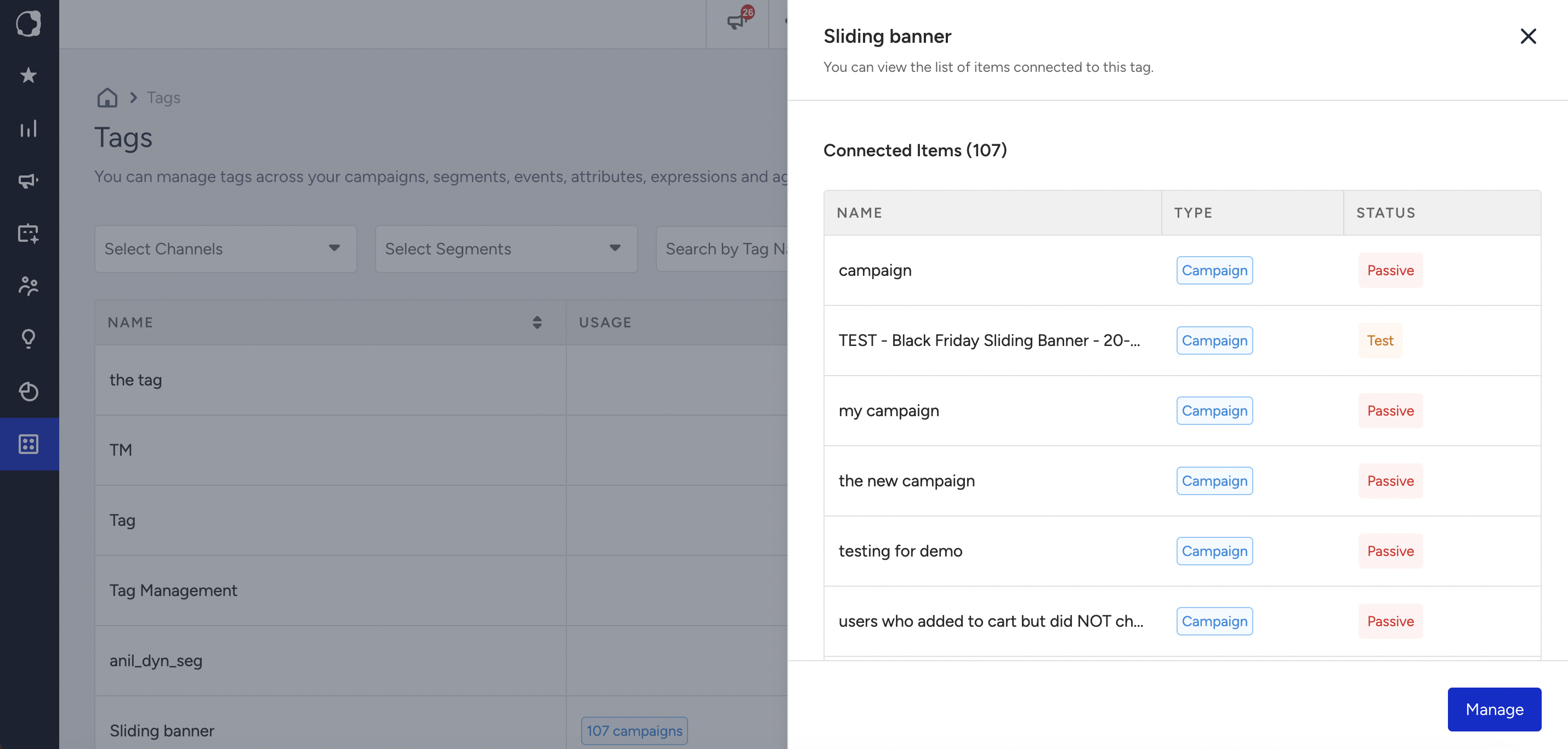
Click anywhere on a tag's row to open the Connected Items panel. It lists every connected record with its Name, Type, and Status. Clicking any of them opens it in a new tab: a campaign opens in its campaign builder, and other records open their own page where they have one, or their catalog list where they don’t.
Change what a tag is connected to
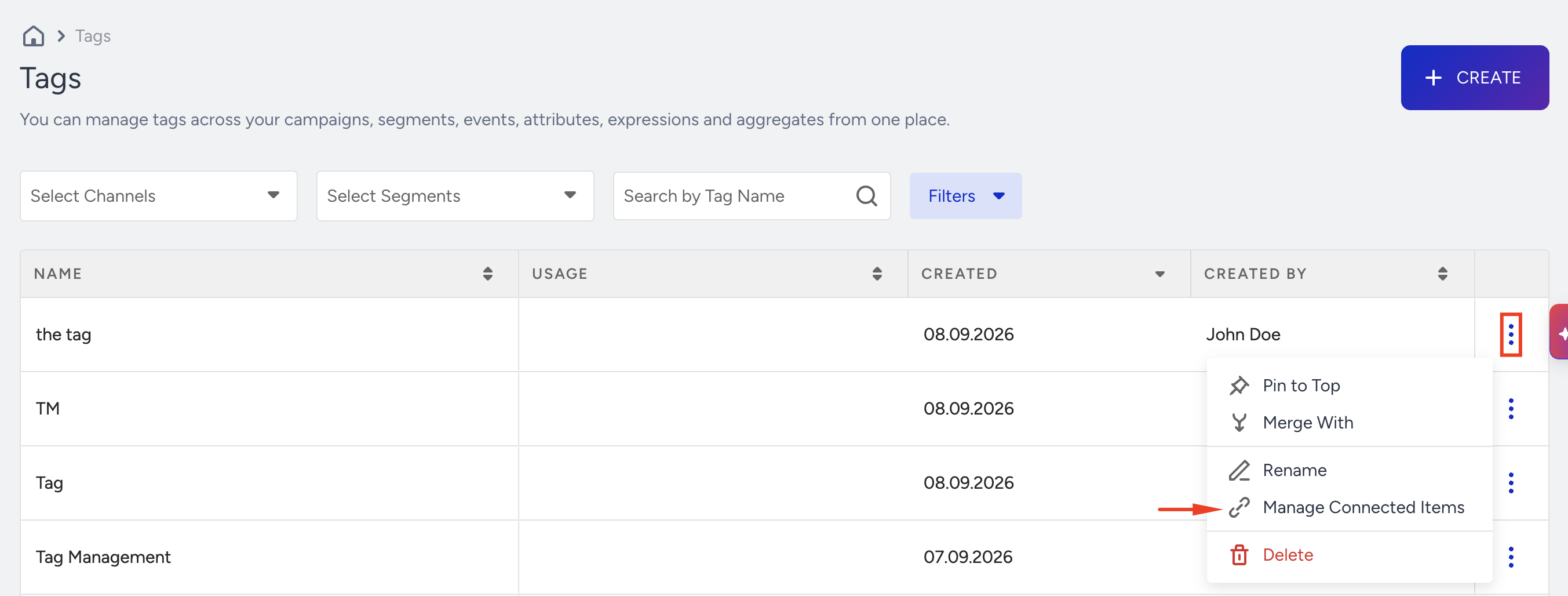
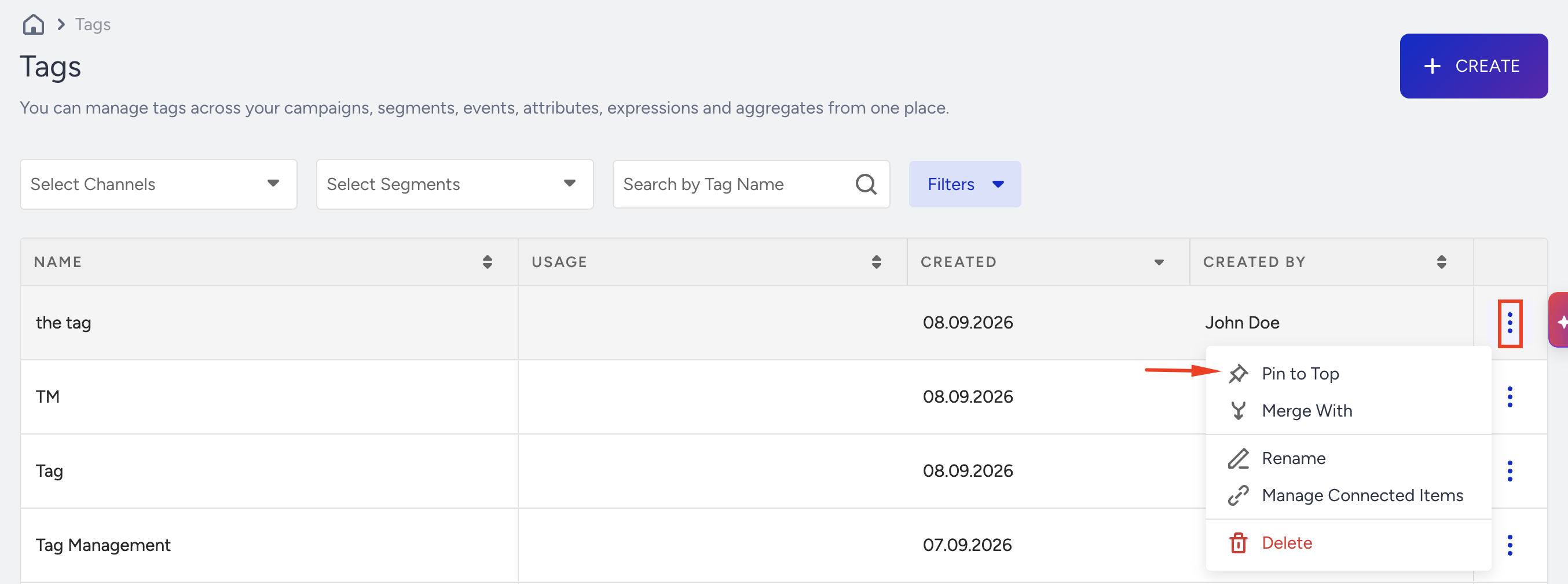
Choose Manage Connected Items, or Manage in the Connected Items panel.
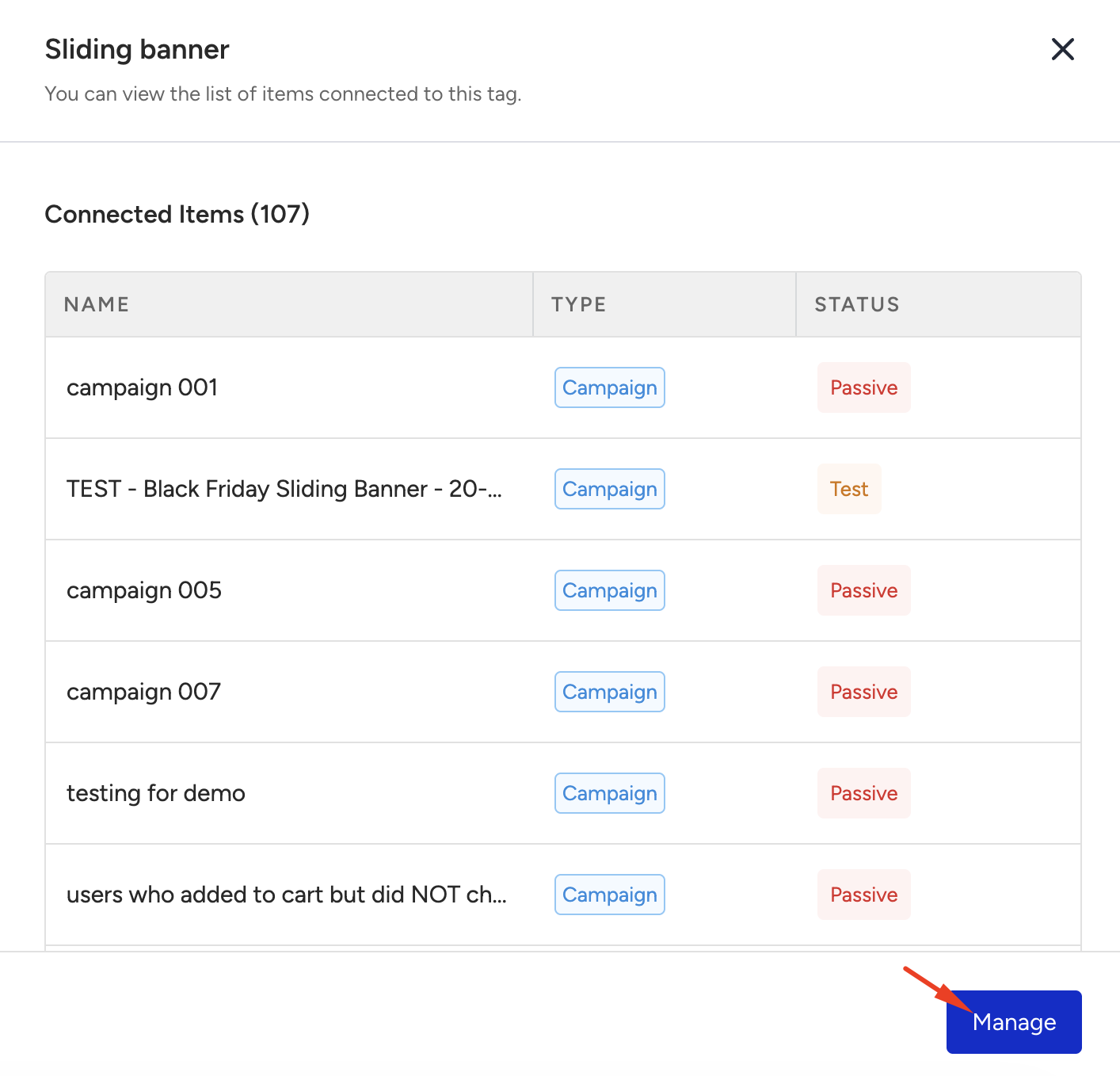
The same pickers open with existing connections shown as removable chips. Add or remove items, then Save.
This is how you tag many records at once; add thirty campaigns to a tag in one save, rather than opening thirty campaigns.
Rename a tag
Choose Rename from the tag's menu, enter the new name, and save.
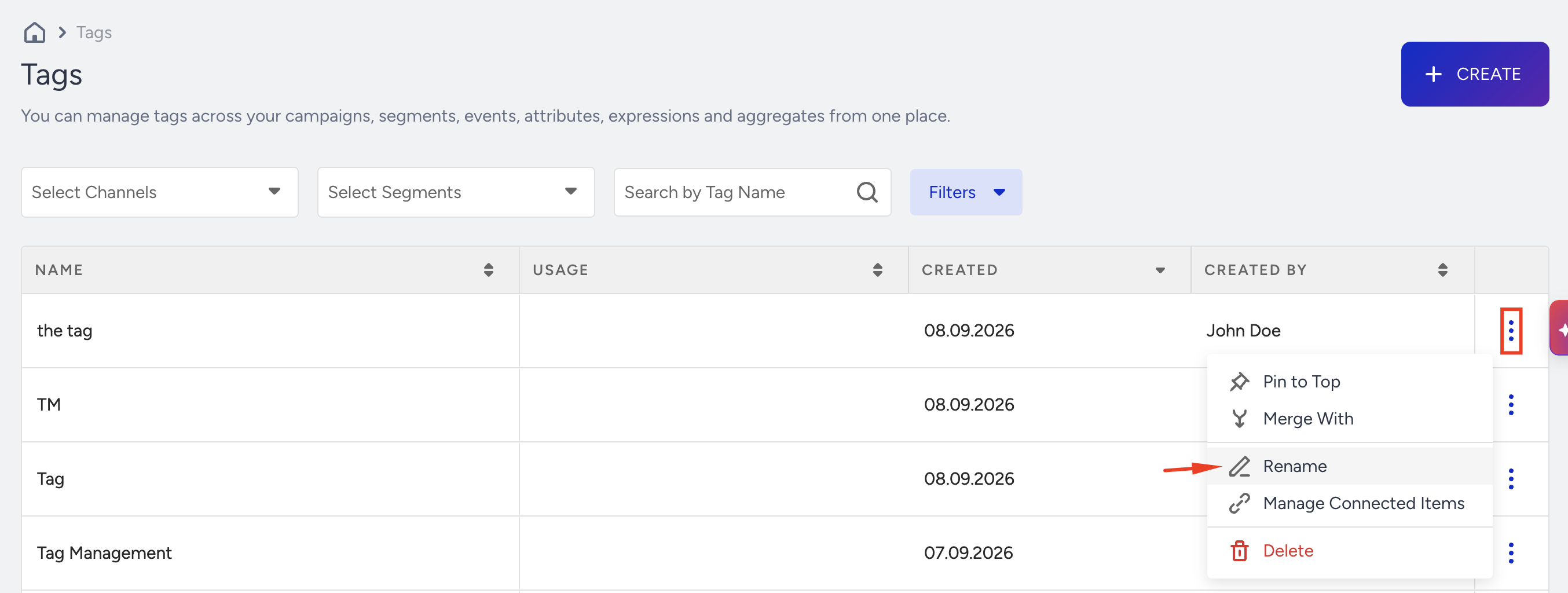
The rename reaches everywhere the tag is attached: there is one tag object and every product references it.
Renaming to a name that already exists is blocked; to make two tags into one, merge them.
Merge tags
Merging combines duplicate tags such as "Black Friday", "black friday", "BF" into one, moving their connections onto the tag you keep.
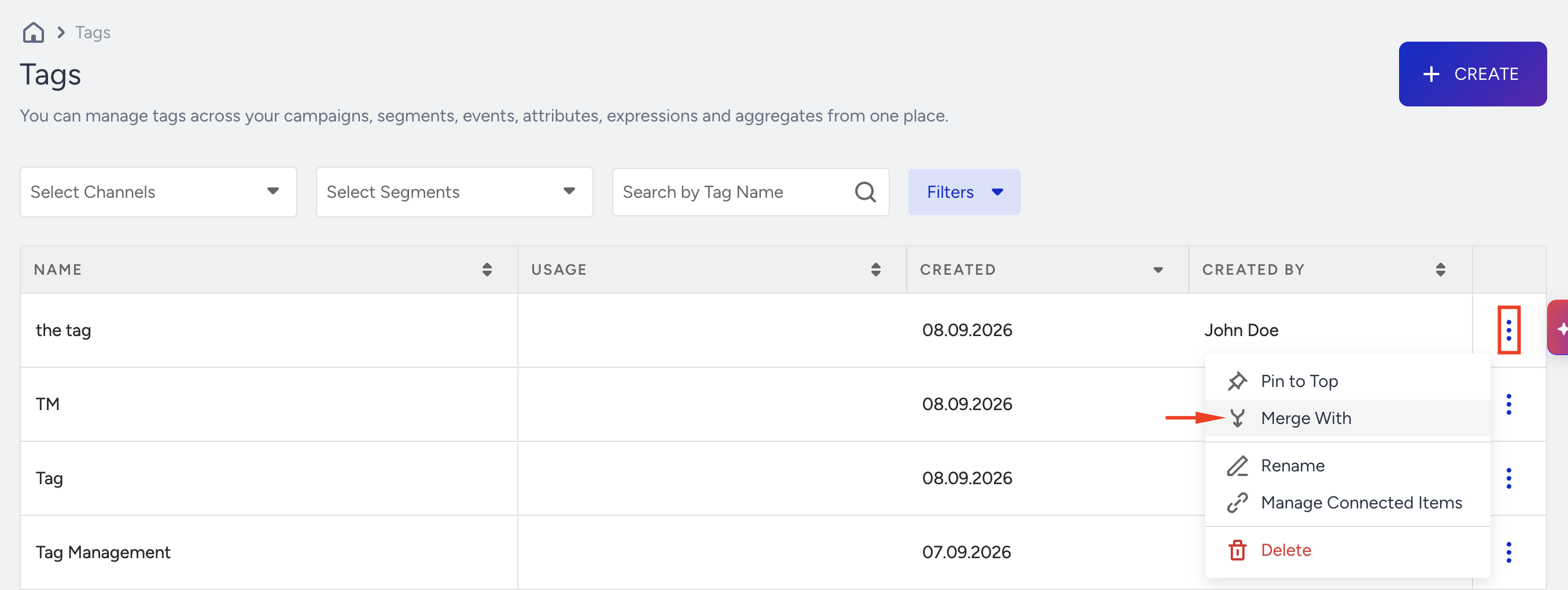
Open the menu on the tag you want to keep and choose Merge With. It opens with the tag you're merging into already selected.
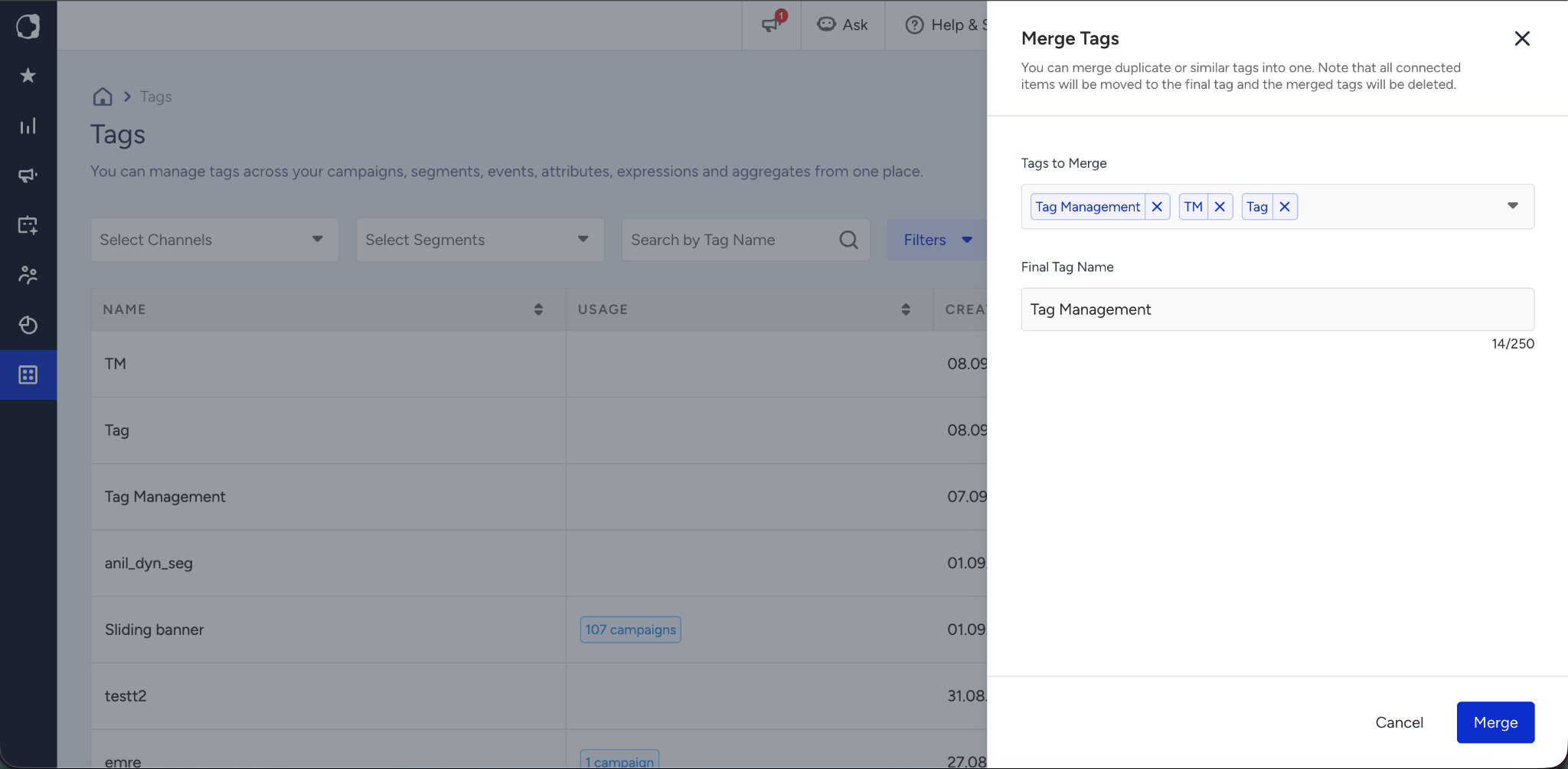
Add the other tags under Tags to Merge; you must select at least two tags in total. Each option shows what it is connected to. If you remove the tag you started from, the first tag still selected becomes the one that survives.
Set the Final Tag Name. It is pre-filled with the name of the tag you started from and follows the same naming rules as creating a tag, so you can correct a typo here rather than renaming afterward.
Click Merge.
A summary above the button previews what the surviving tag will hold, counting an item attached to more than one of these tags only once. It does not appear when the merged tags have nothing connected between them.
The connections move onto the surviving tag and the merged tags are deleted. Merging cannot be undone.
Delete a tag
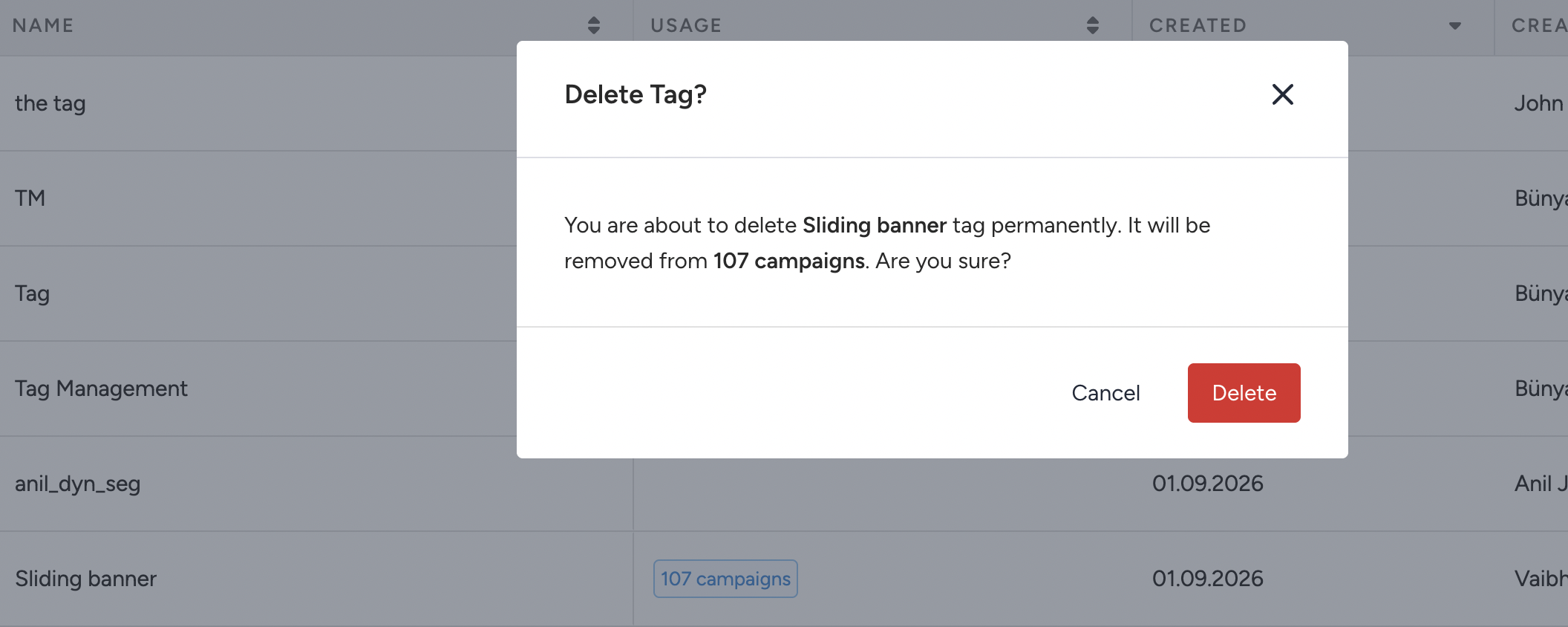
Choose Delete from the tag's menu. The confirmation names every item the tag will be removed from, broken down by kind:
“You are about to delete Summer Sale tag permanently. It will be removed from 6 campaigns, 3 segments, 2 events, 1 attribute, 2 expressions, and 1 aggregate. Are you sure?”
If anything fails along the way, nothing is deleted.
Pin a tag
Choose Pin to Top from the tag's menu. Pinned tags sort to the top of the list in yellow, and you can pin up to three.
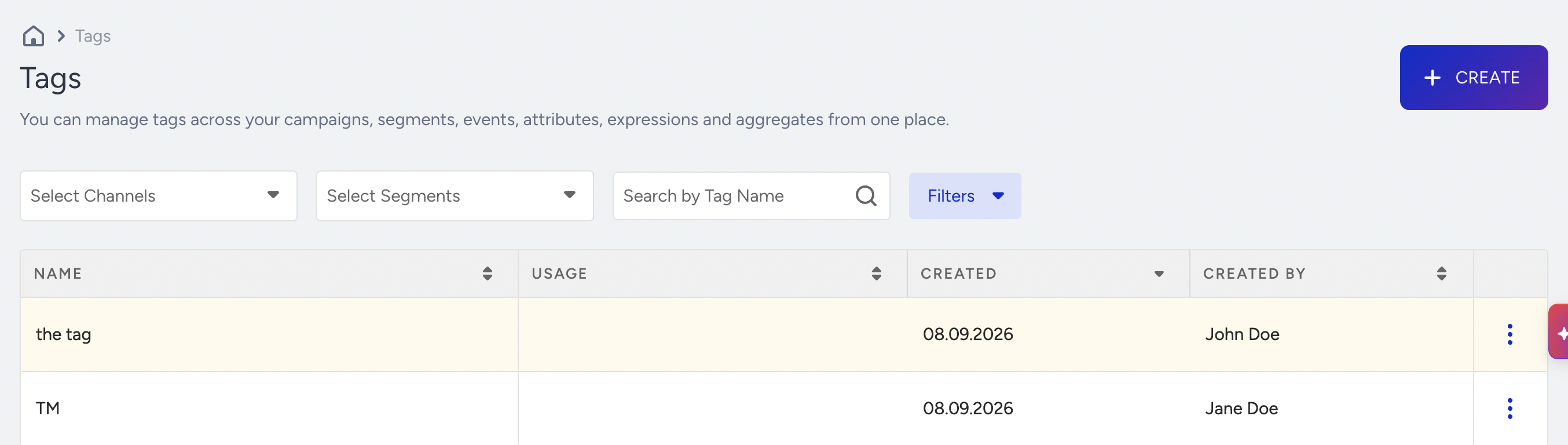
Pinning is panel-level: it survives a reload and everyone in the panel sees the same pinned tags.
Tag while you build a campaign
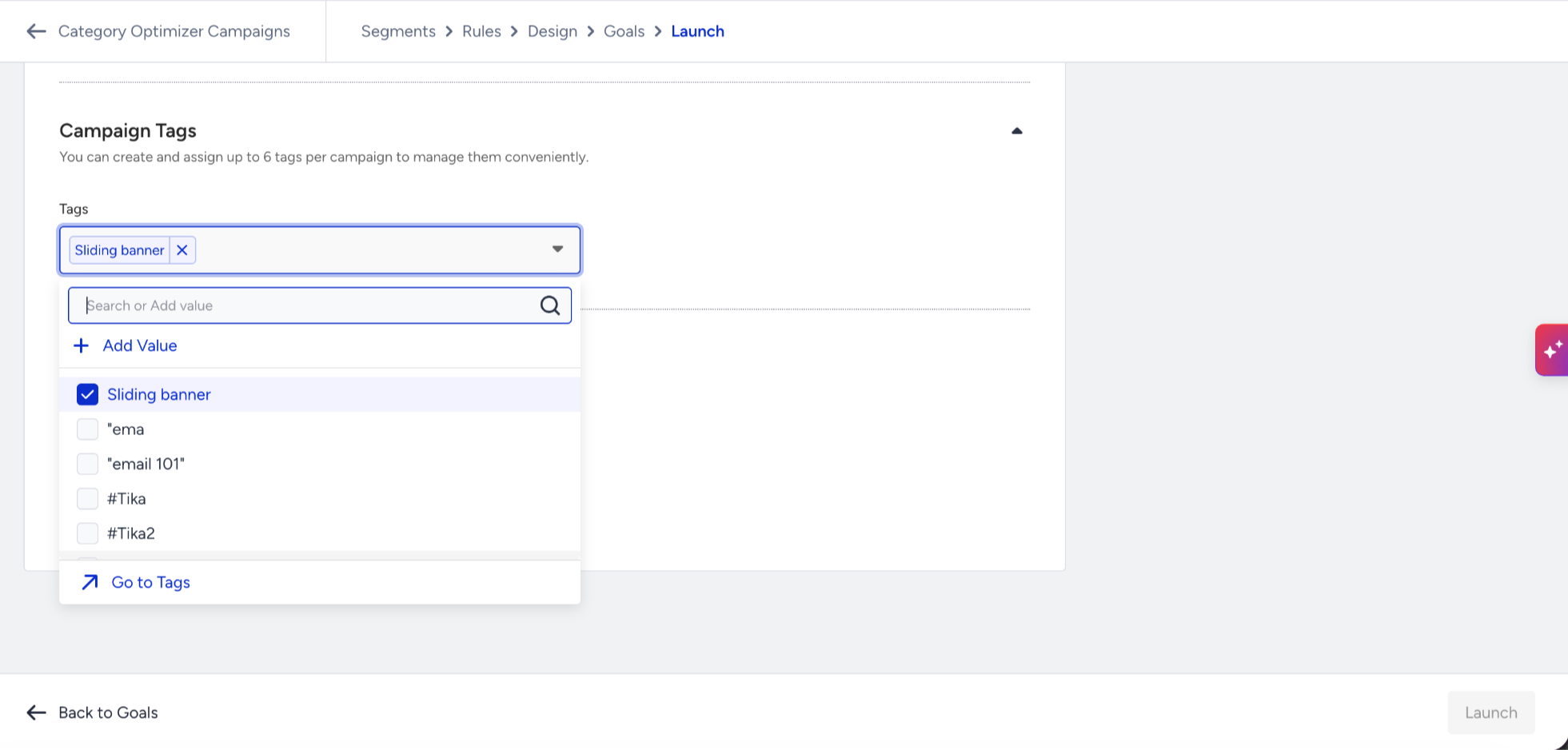
The tag picker in a campaign's Launch step and the Edit tags action on the campaign listing both still work, including inline tag creation. They follow the same rules as the Tag Management page. A Go to Tags link takes you to the Tag Management page when you need to manage a tag, not just attach one.