Suggested reading: Managing Email Suppressions
The Unsubscribe Groups segment allows you to segment users based on whether they belong to a specific unsubscribe group. This helps ensure your Email campaigns respect user preferences and comply with suppression requirements, avoiding sending emails to recipients who opted out of certain types of content.
Requirements
The Unsubscribe Groups feature must be enabled for your account.
At least one unsubscribe group must be defined for your email campaigns.
Steps to exclude or include recipients
To exclude or include a group of unsubscribed recipients:
Create your new email campaign as usual and go to the Recipients step.
Select Standard Segments > Unsubscribe Groups.
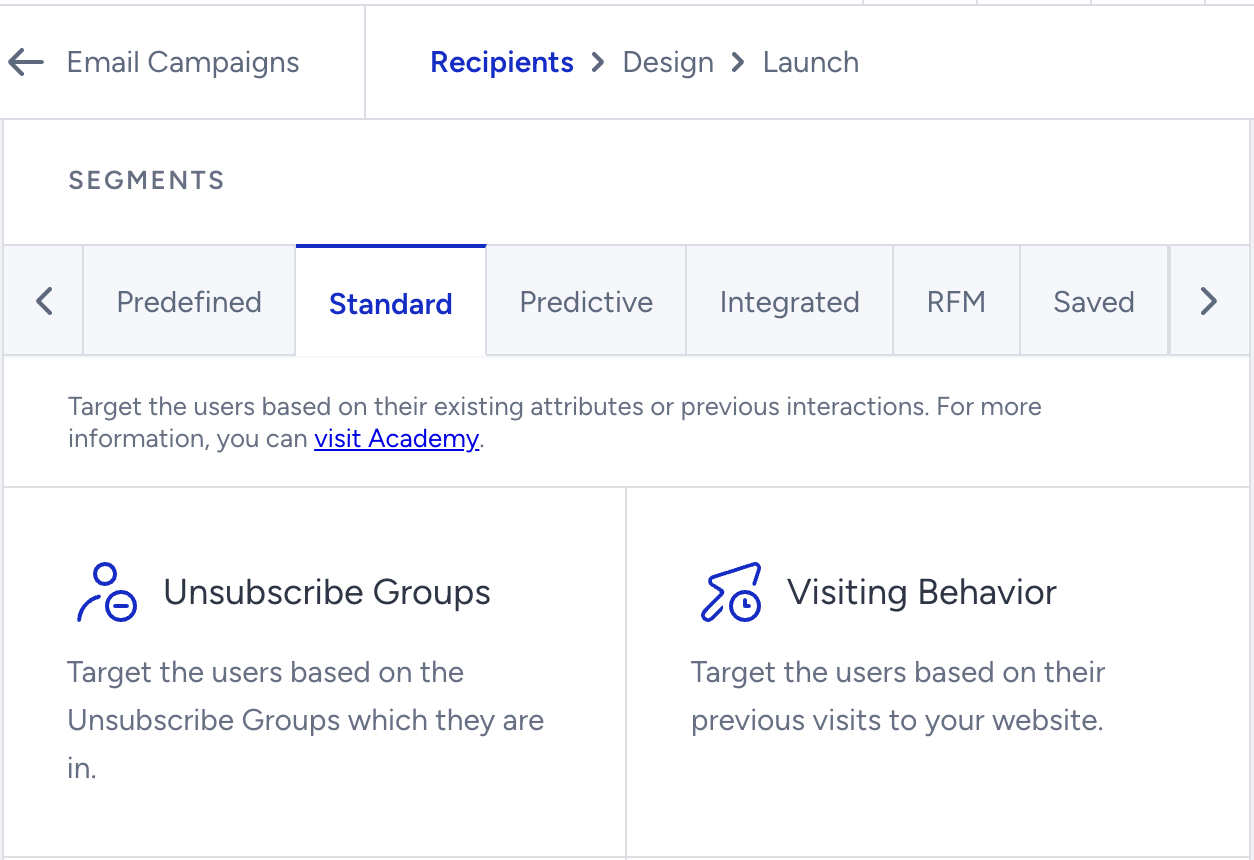
Choose an operator from the following:
include: Targets users in a specific unsubscribe group.
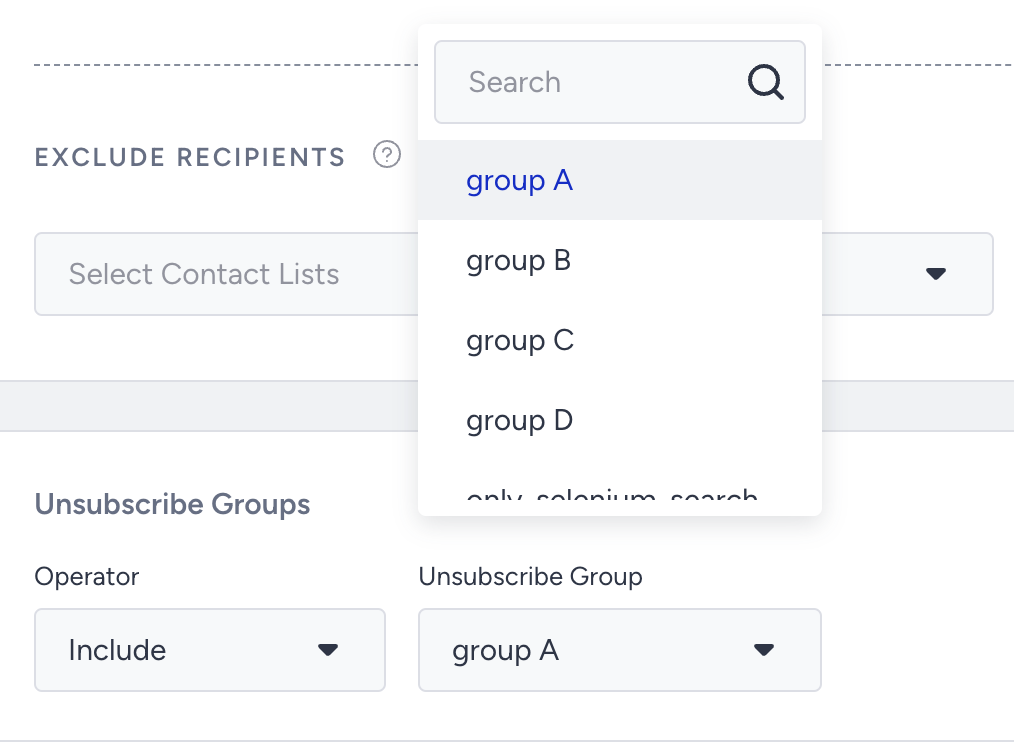
exclude: Excludes the users in a specific unsubscribe group from the recipients.
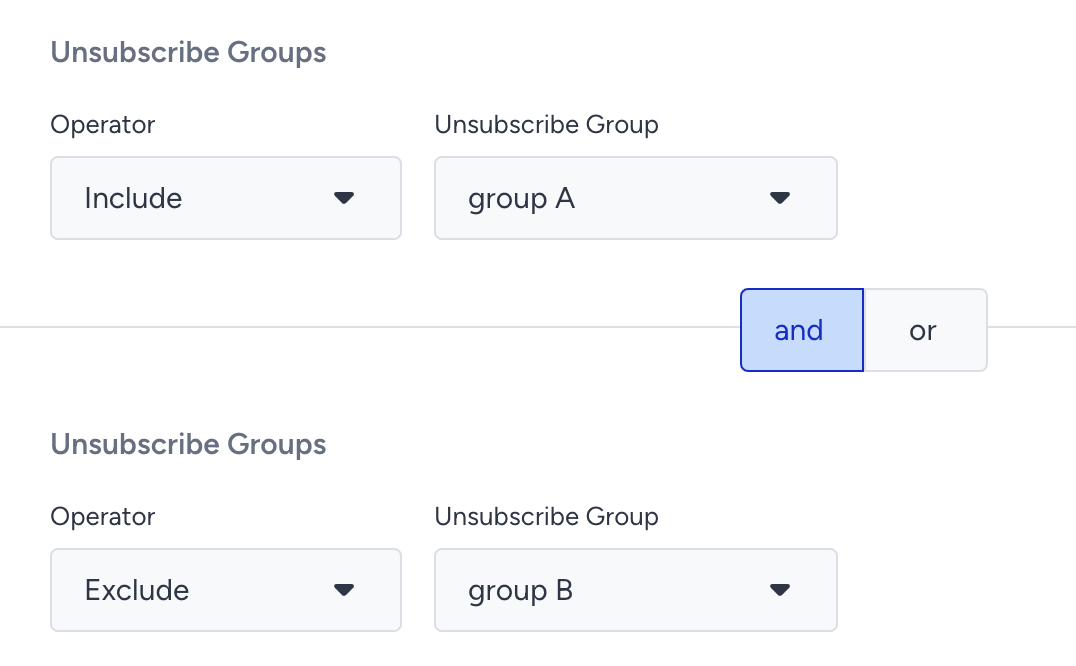
For example, if you have an unsubscribe group of users who unsubscribed from your monthly newsletter campaigns, you can use the include operator to retarget these users with a promotional email announcing that you will give out coupon codes in your monthly newsletters, and encourage them to resubscribe. If you send a monthly newsletter campaign, you can use the exclude operator to exclude this group of unsubscribed users.
Select your unsubscribe group that matches your campaign's strategy to include or exclude your users, and save this step to continue designing your email campaign.