Data Comparisons allow you to compare the values of two attributes directly within segmentation. Instead of relying on static thresholds, this capability enables you to evaluate relationships between attributes, resulting in more precise and context-aware audience definitions.
By comparing attributes against each other, you can build high-accuracy segments that better reflect real business conditions and performance gaps.
Use case
In some scenarios, segmentation based on fixed values is not sufficient. You may need to understand whether a profile is underperforming, meeting expectations, or falling short of its calculated potential.
For example, consider a platform that works with merchants. Each merchant has:
Active Listing Count: the number of listings currently active
Potential Listing Count: the number of listings the merchant could have based on internal calculations
One business objective is to increase the Active Listing Count by engaging merchants who are below their potential.
Using Data Comparison, this logic can be expressed directly in segmentation as:
Potential Listing Count > Active Listing Count
This approach allows you to target only merchants who have room to grow, without manually calculating differences or maintaining dynamic thresholds.
How to compare attribute values
To create a segment using Data Comparison:
Navigate to the Dynamic Segment creation page.
Under the Standard tab, locate the Data Comparison segment box.
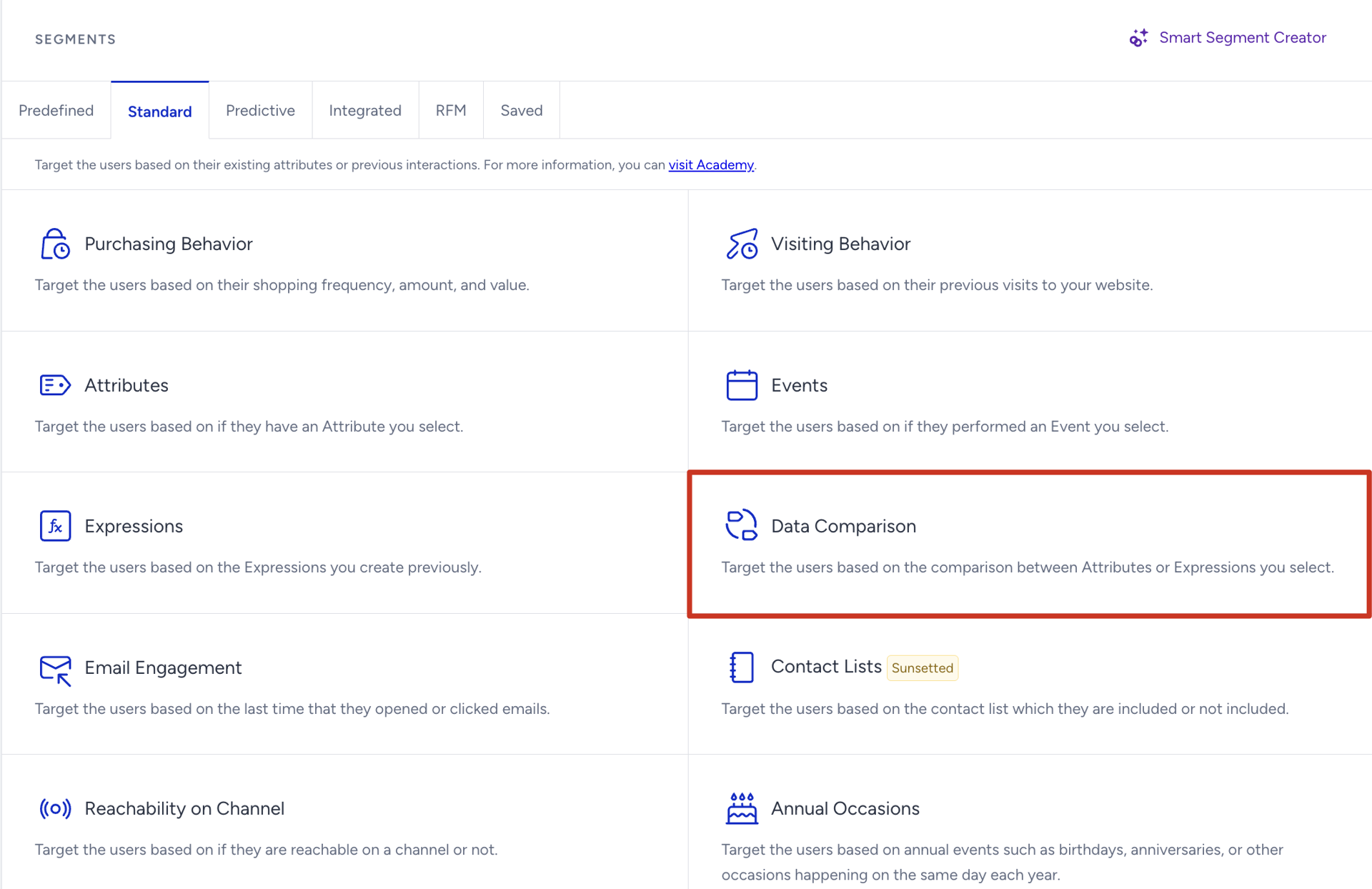
Click the box to view the list of available attributes, and select two attributes to compare and define the comparison logic (for example, greater than or less than).
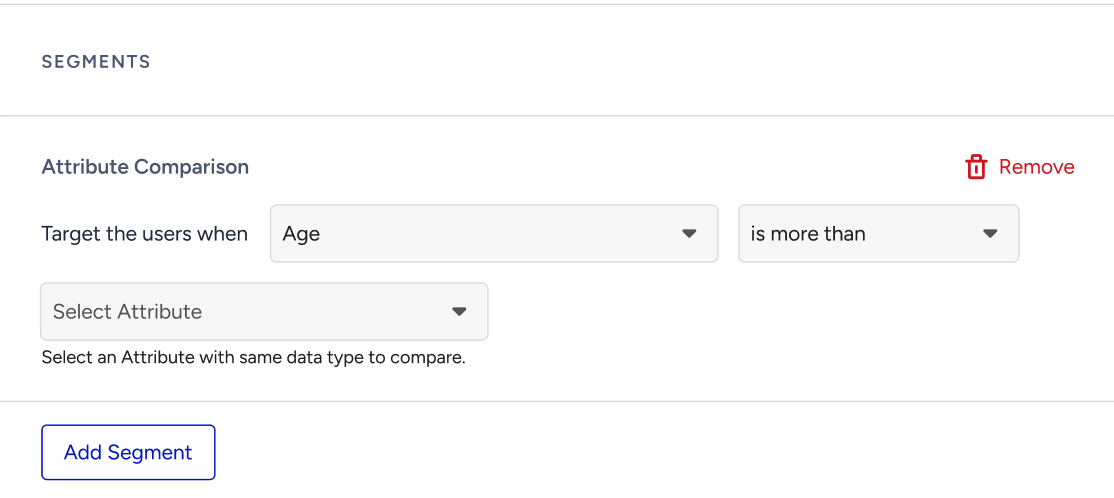
Only attributes with a number data type are currently available for comparison.
Save the segment to generate an audience that satisfies the defined condition.
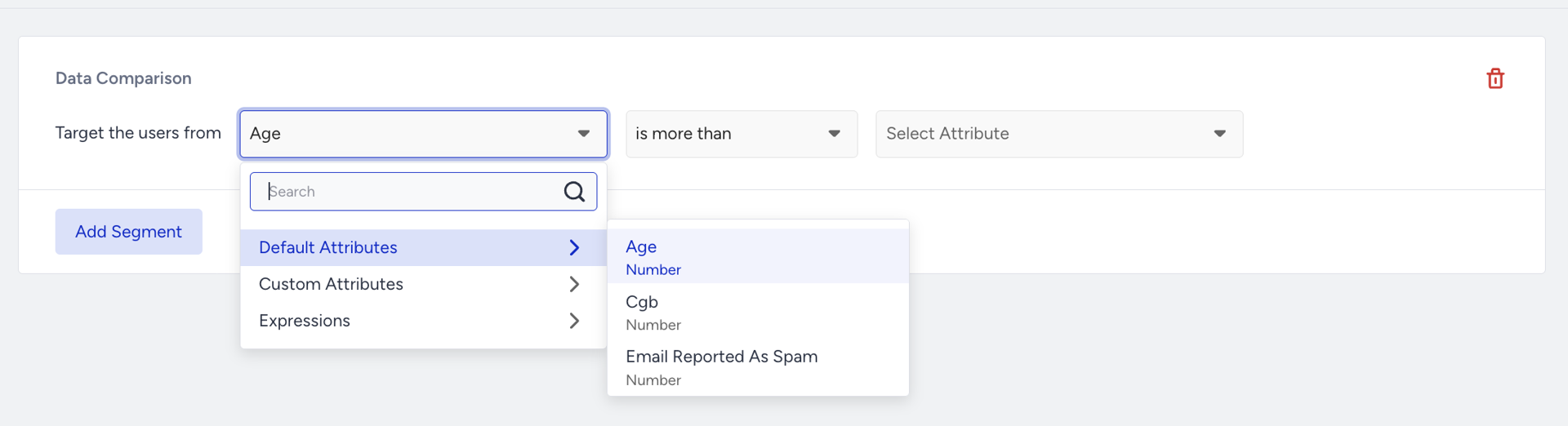
Only number-type attributes and number-based expressions can be compared.
Comparisons between other data types (string, boolean, date, etc.) are not supported at this time.