SMS, short for 'Short Messaging Service,' is a service used to send text messages to users. With SMS, you can reach your users anywhere in the world, at any time, even when they are offline.
To start using the SMS product, you need to configure the settings on the Insider Onboarding Center page.
Before the SMS integration

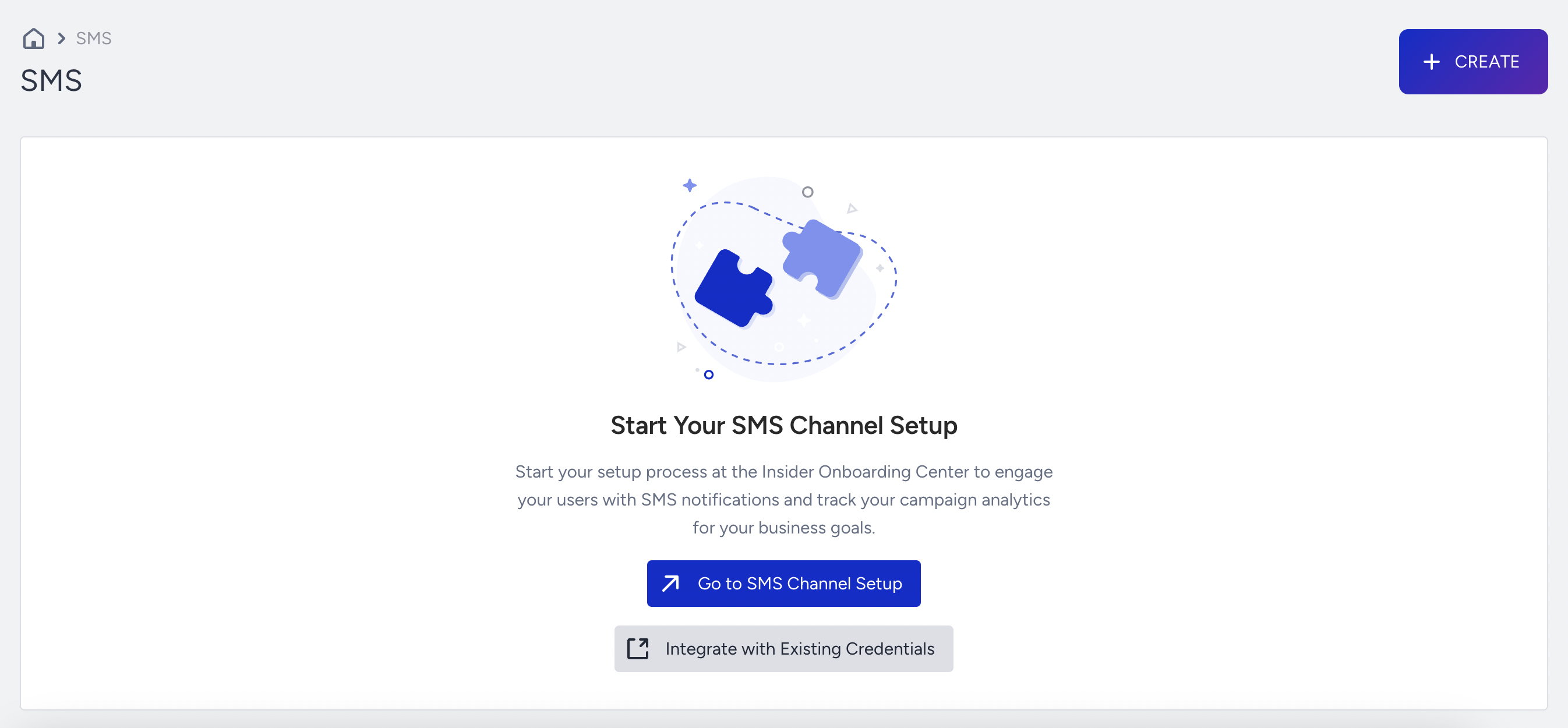
When you visit the SMS listing page before you complete the settings in the Insider Onboarding Center, you see the redirection to the SMS Channel Page. To proceed, click the Go to SMS Channel Setup button to access the Insider Onboarding Center, or alternatively, navigate to Components > Insider Onboarding Center.
You also see that the Create button is enabled. While your configuration step is in progress, you can still create SMS campaigns and save them in Draft status. When you complete the integration, you can launch your campaigns.
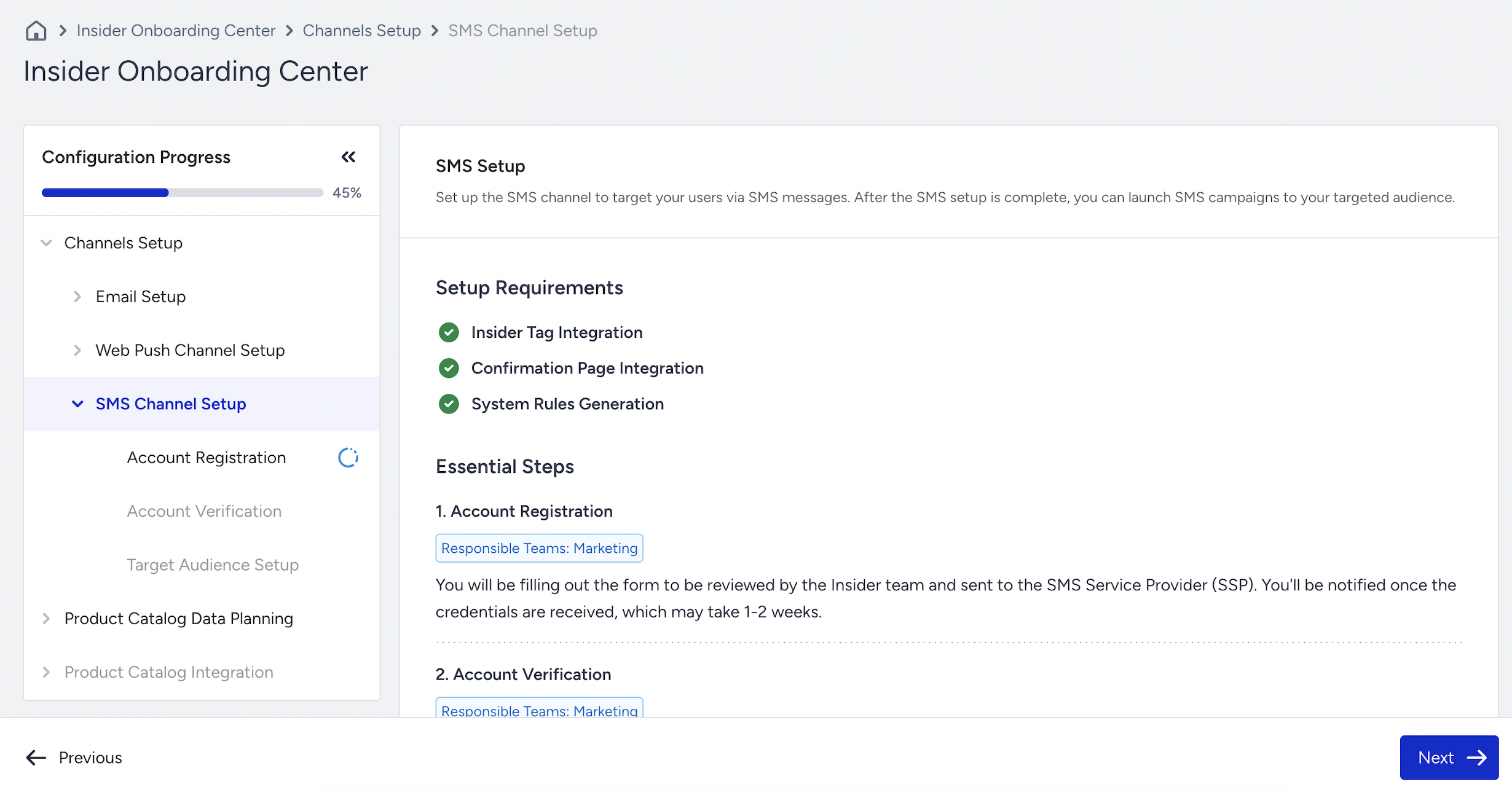
Account Registration
The account registration process is the first essential step in integrating the SMS channel. You fill out the required form with accurate information and send it for approval. Once the form is submitted, the Insider One team evaluates it.
If you enter any information incorrectly and/or incompletely during this process, the Insider One team rejects it. You need to re-enter the information accurately and completely before resubmitting it for approval.
The account registration process will be completed once you successfully complete the Service Provider step.
Account Verification
After the account registration, you need to send a test SMS to verify the system’s ability to send messages. You need to enter phone numbers into the designated fields and verify that the message is received.
When you receive the test message, confirm it, click the Next button, and proceed to the following step.
Target Audience Setup
In the Target Audience Setup step, you need to create at least one segment to launch campaigns using the SMS product. This segment is critical to finalizing the onboarding process.
You can either create a new segment or manage a lead collection process through pre-existing templates. Once this step is complete, the status will change to "Ready to Use," and the SMS onboarding process can be finalized.
Click the Go to Saved Segment button to create a new segment or the Go to Web Templates button to manage a new lead collection process. You can expand the arrow to see the guidelines about the process.