Smart Segment is a feature that helps you automatically create segments with artificial intelligence (AI). It detects the prompt you type and converts it into a segment. Thus, you can create a segment suitable for the target audience you want in a shorter time.
This guide aims to answer the following questions:
- How does the Smart Segment Creator work?
- How can I create a segment on Smart Segment Creator?
- What should I take into consideration while using the Smart Segment Creator?
How does the Smart Segment Creator work?
First, you submit your use case, specifying the type of segment you want to create along with a prompt. OpenAI processes your use case, breaks it down into segments, and generates them using the trained data and segmentation rules. In the final stage, Sirius AI analyzes the created segments and, if they meet the criteria, displays them on the front end.
Before creating a segment
Before creating your segment, you should write a well-defined prompt and submit it.
What is a prompt?
A prompt is a single message that you need to write to explain your use case in detail in Smart Segment Creator.
Writing a prompt
Writing a precise prompt and clearly defining the use case for segmentation is crucial. Clearly and concisely specifying the target audience will help prevent any confusion for the AI, leading to more accurate results.
Suppose you define your target audience clearly and outline the events and attributes you want to filter, as shown in the example. In that case, you can significantly improve the accuracy of the results.
You can see some example prompts for Smart Segment Creator below.
Example 1
Users who have added products to their carts at least once in the last week.
Example 2
I want to create a segment to target users who have visited the website in the last 2 months.
Example 3
Users who visited the website in the last 21 days and have not made a purchase.
How to create a segment
1. Navigate to Architect to create a journey. 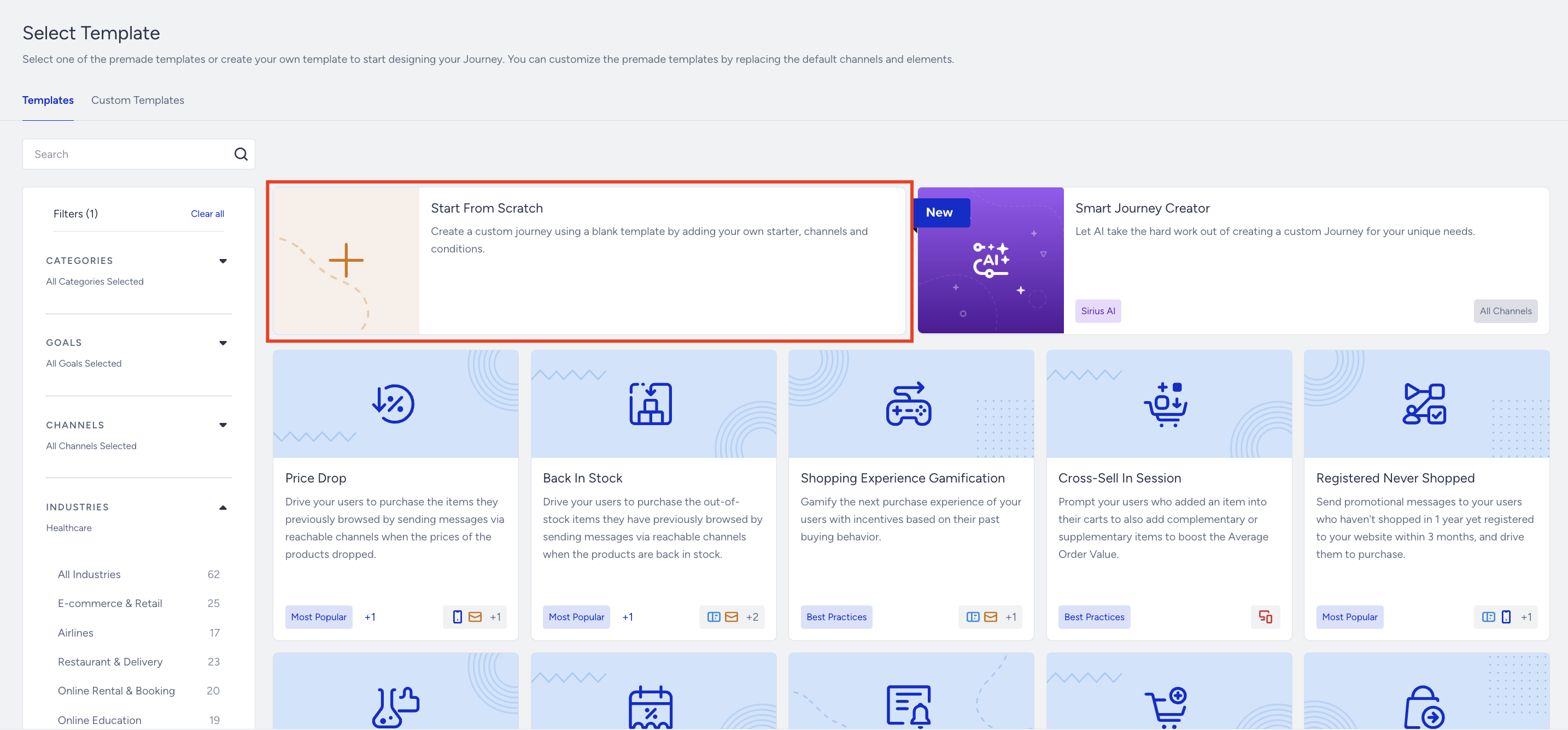
2. Select the starter element that will best match your use case. 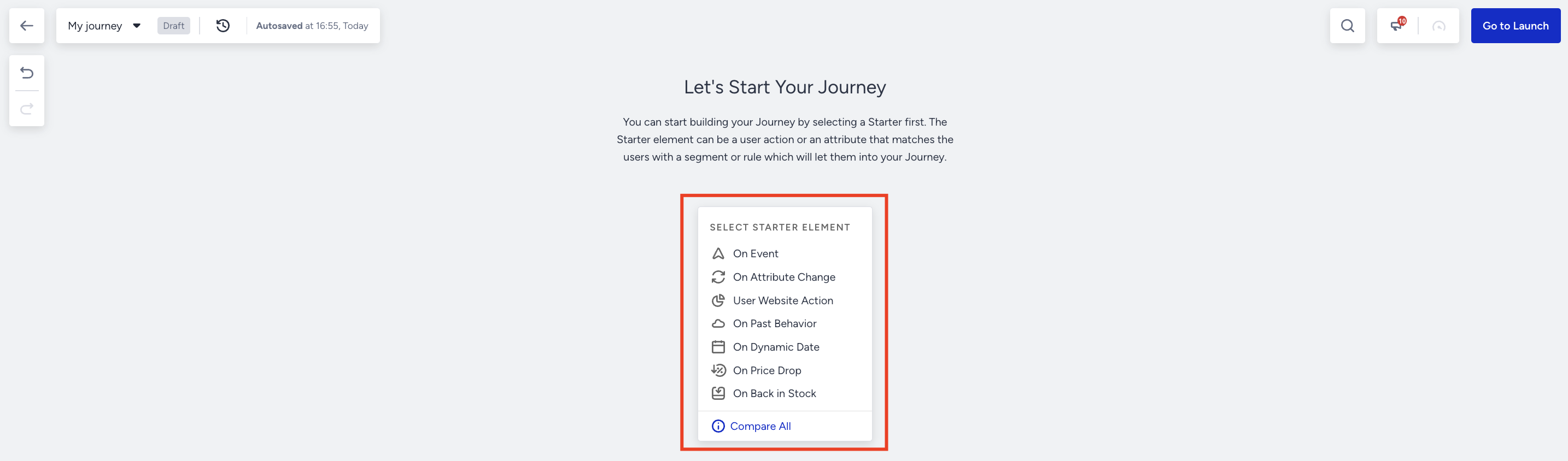
3. Click on the starter element. In the Segments stage, click the Smart Segment Creator button where the segmentation package is available. You will reach the chatbot screen, where you will write the segment you want to create. 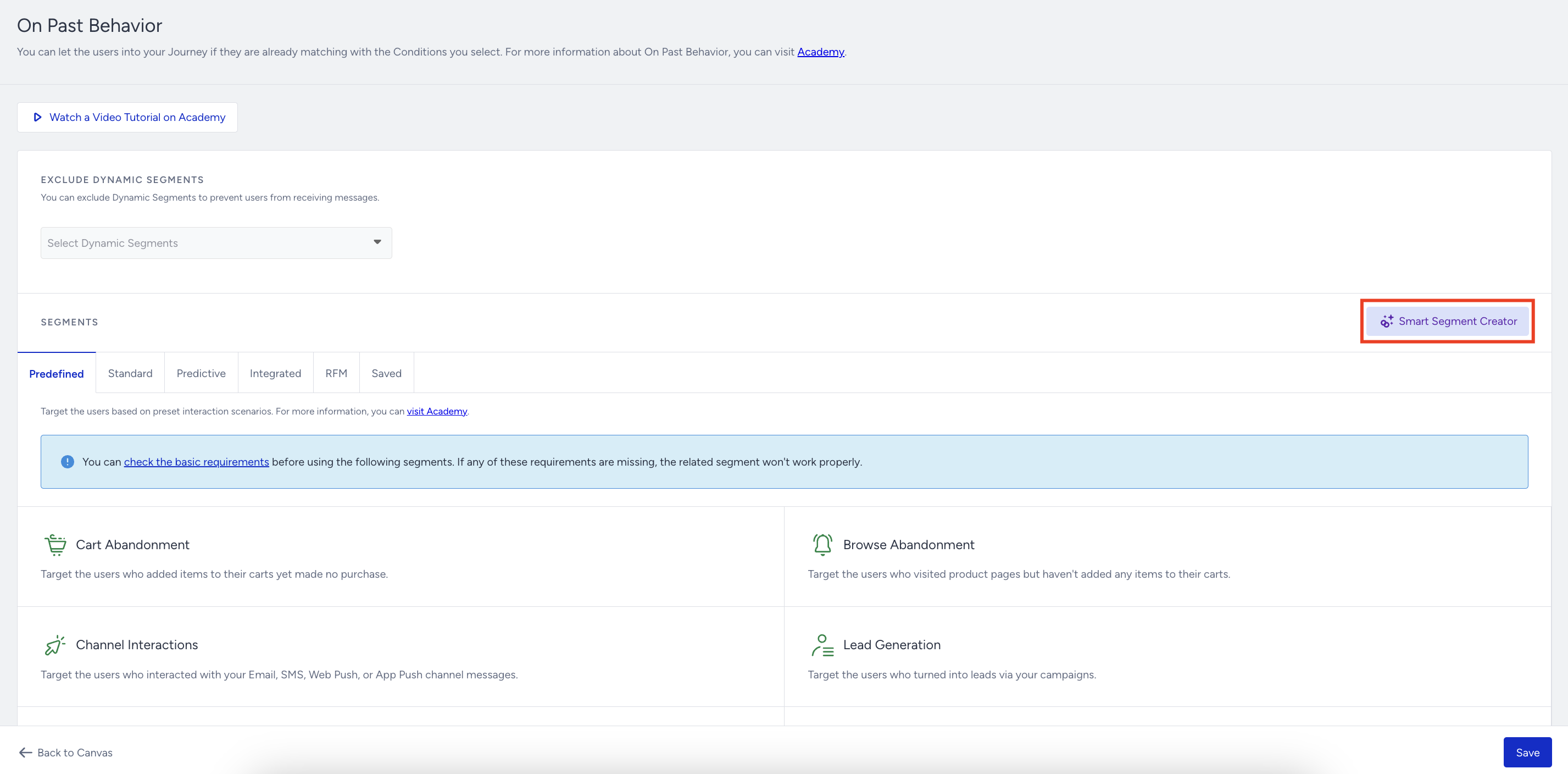 4. Define the segment you want to create in a single prompt.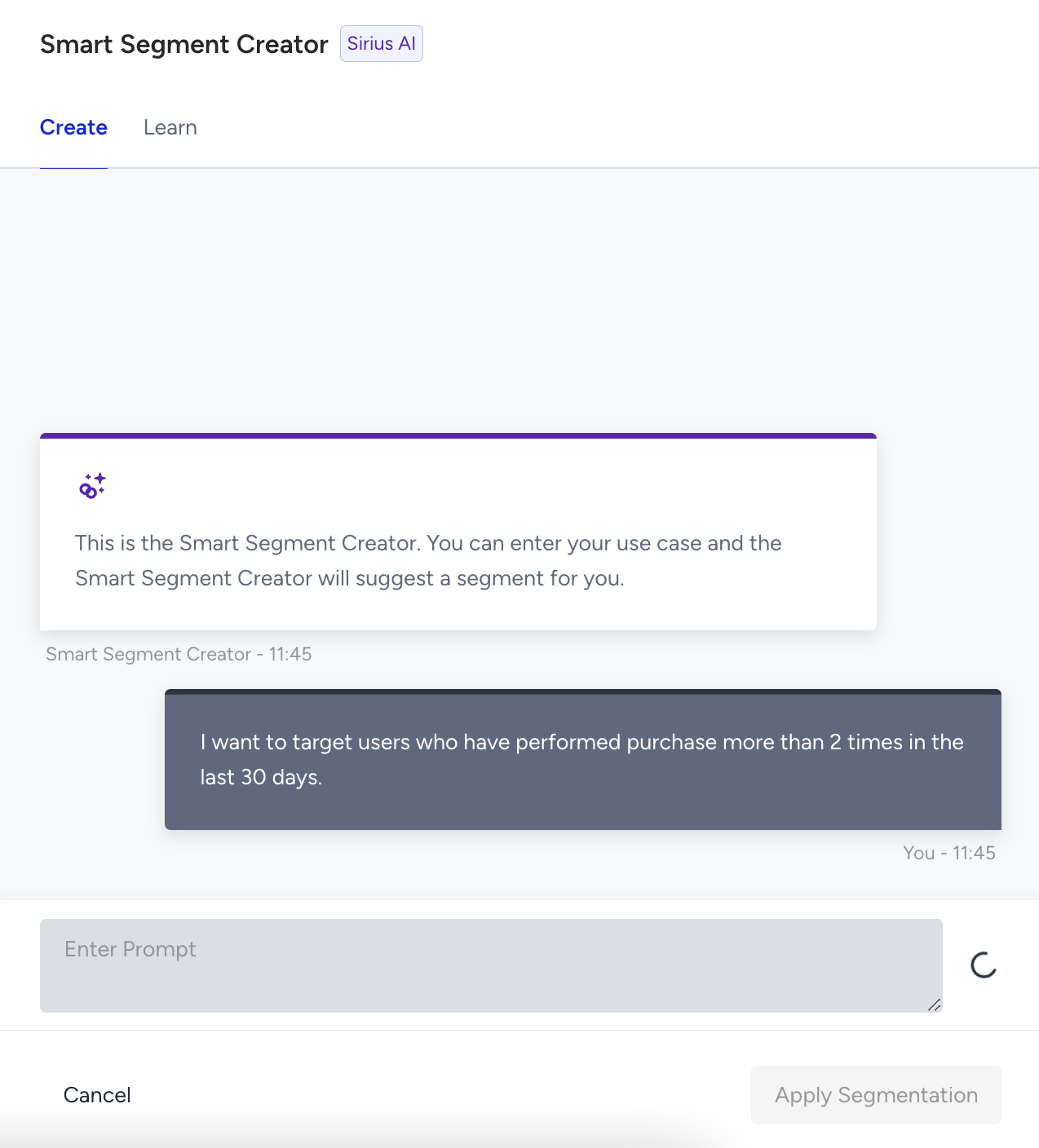
5. You can see that the Smart Segment Creator will create the segment for you. 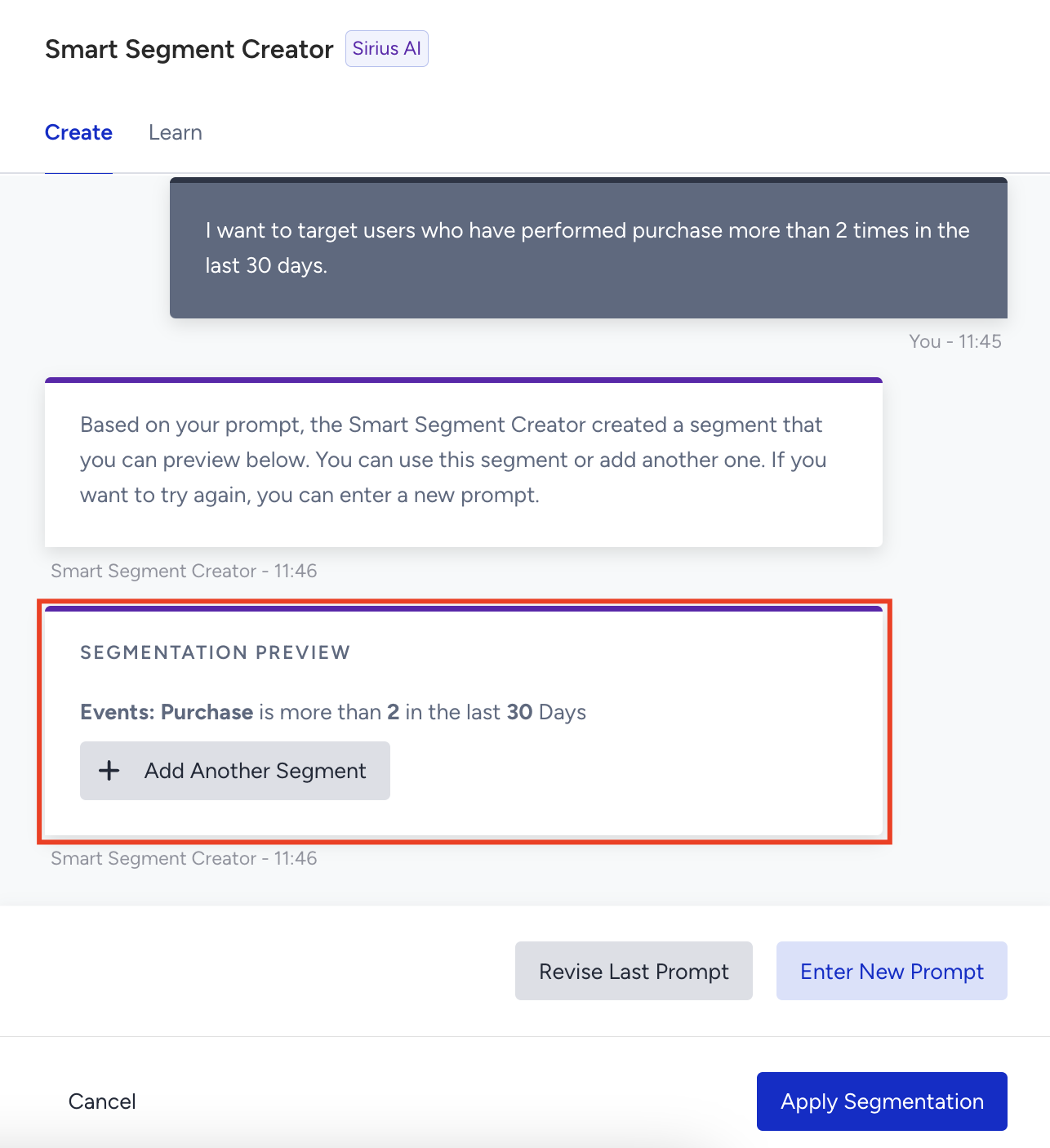
- If you want to update the prompt you wrote, click the Revise Last Prompt button and resubmit your prompt.
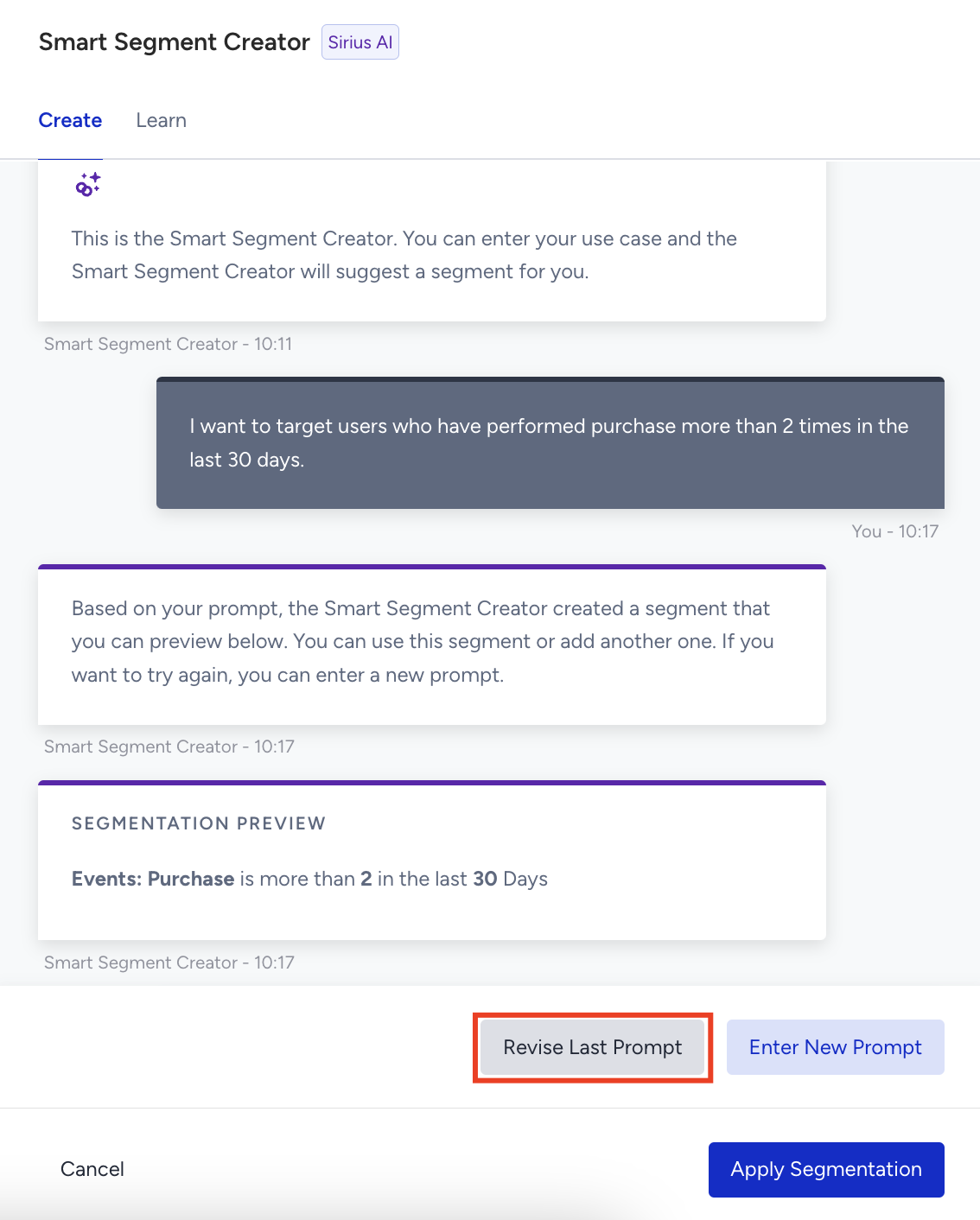
- To create a new segment, click the Enter New Prompt button to submit your prompt.
6. If you want to add a segment, you can click the "+ Add Another Segment" button and define the segment you want to add with the prompt. 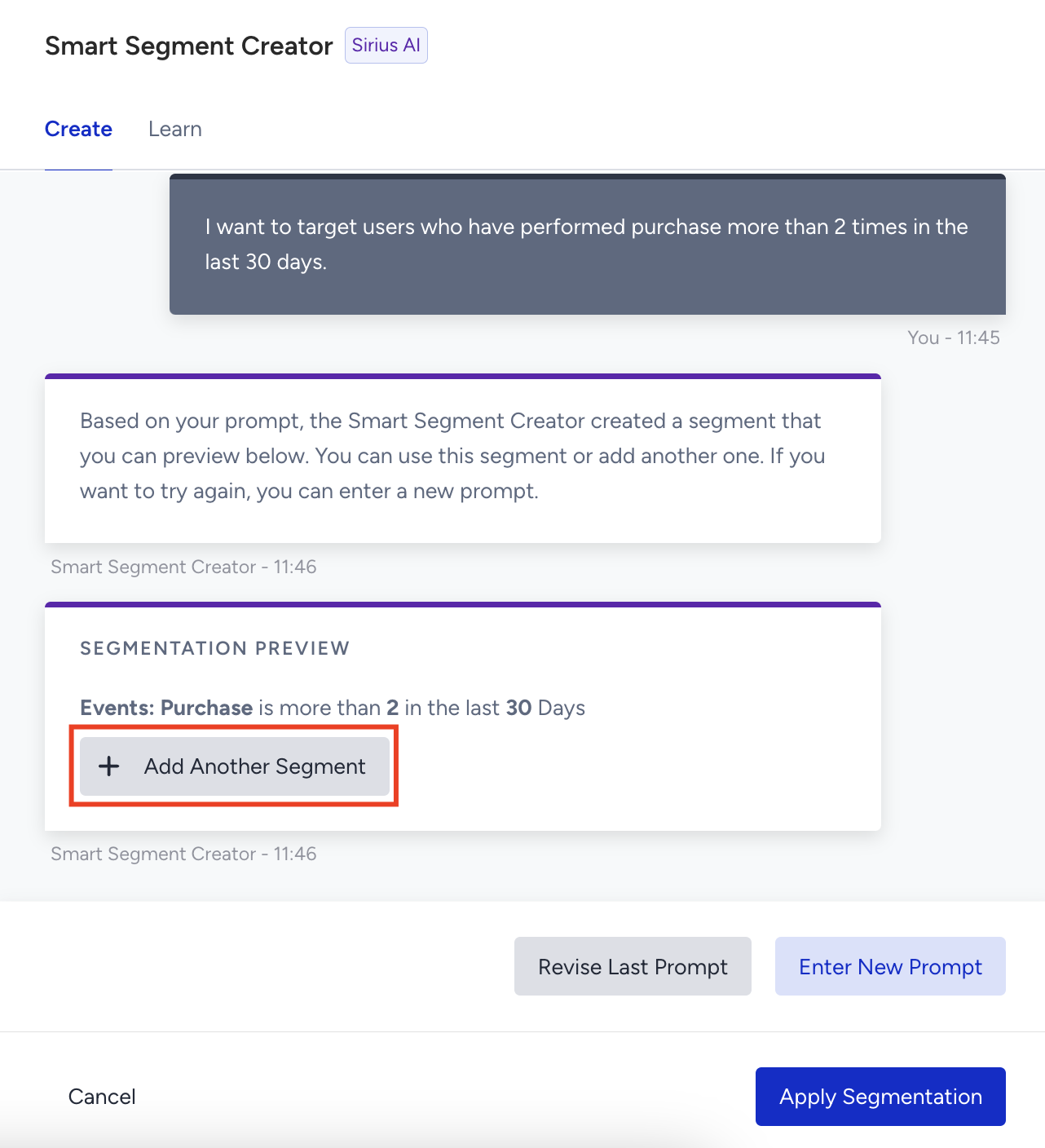
7. Enter your prompt for the new segment you want to add, and you will see the new segment added in the chatbot.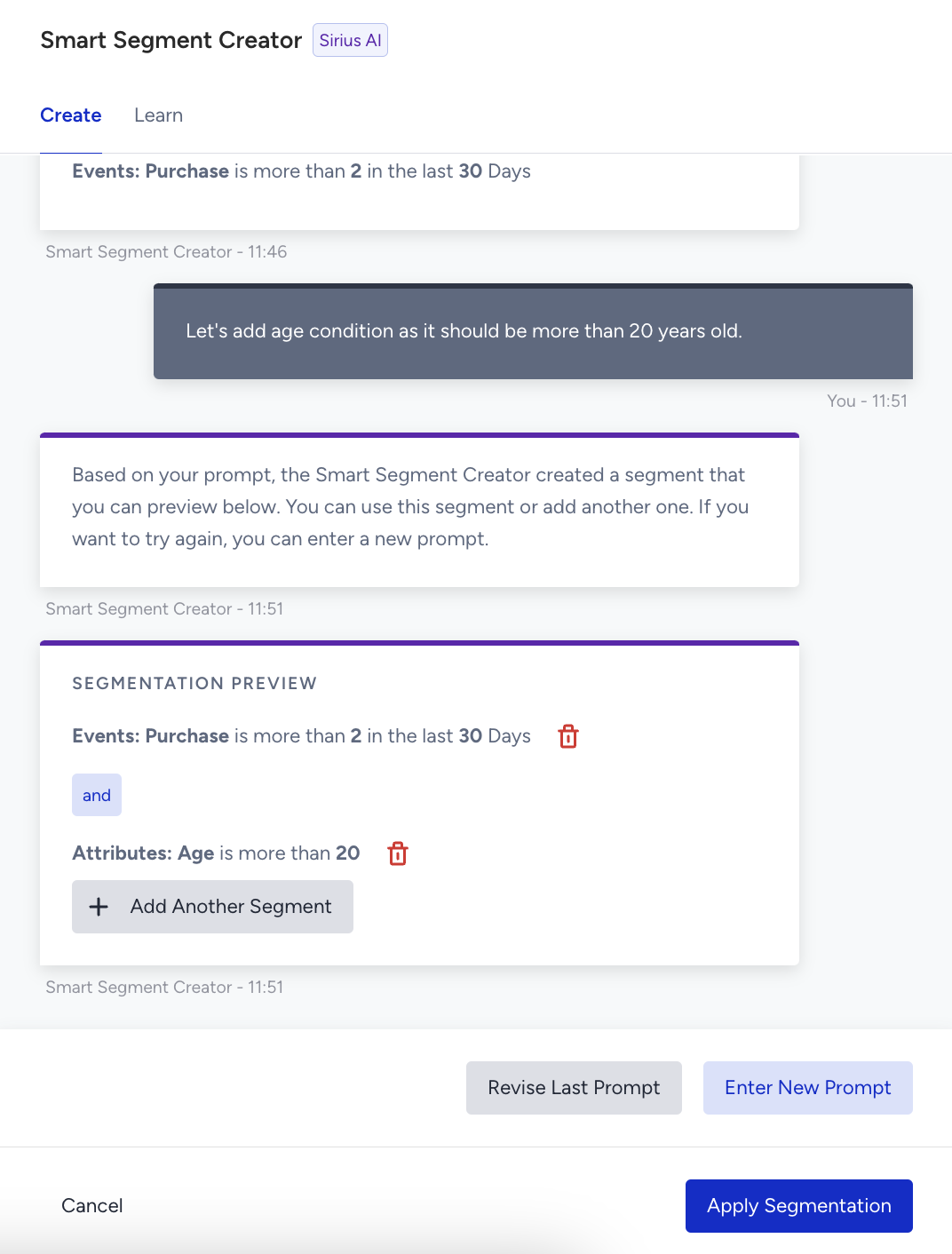
8. To confirm the segment, click the Apply Segmentation button. 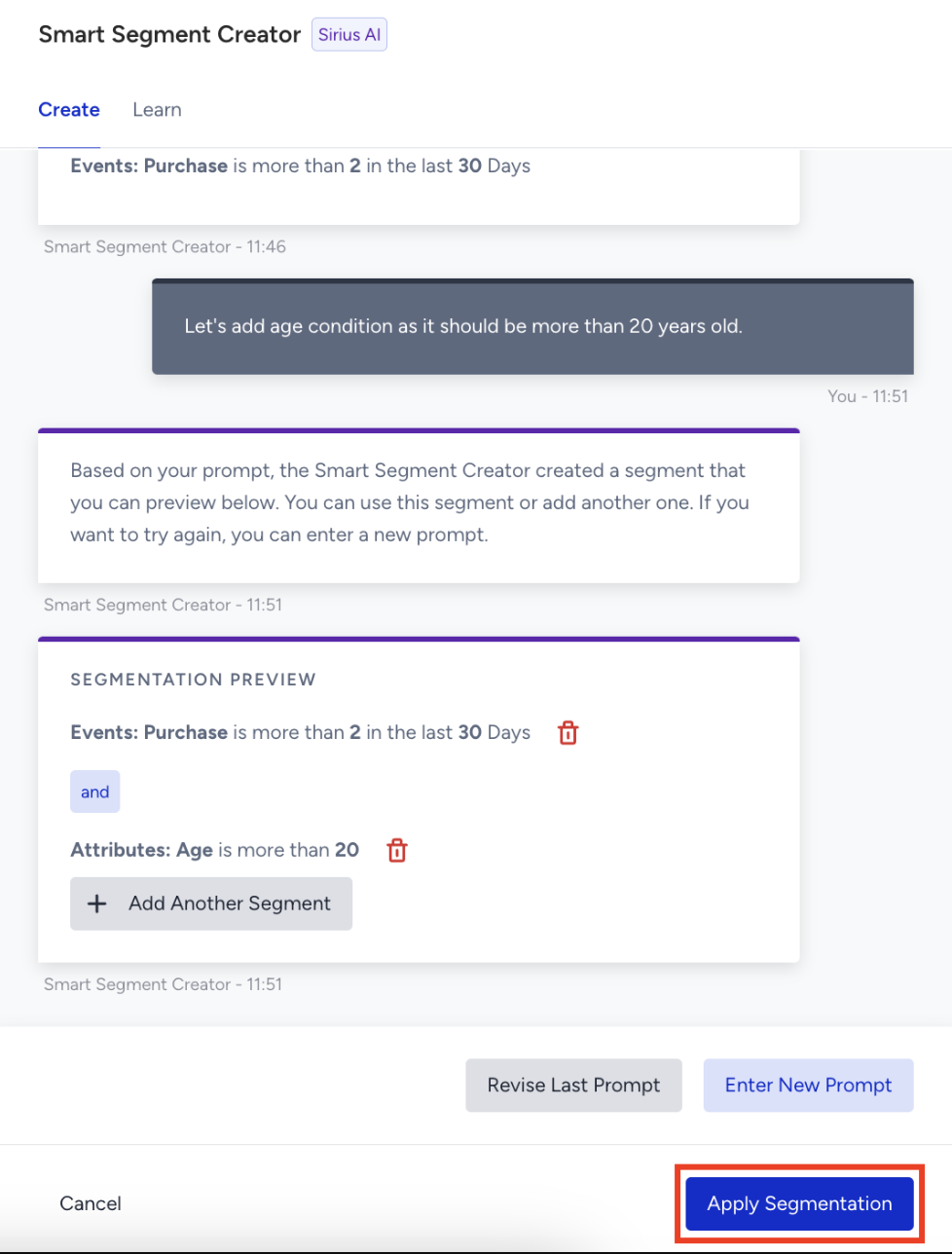
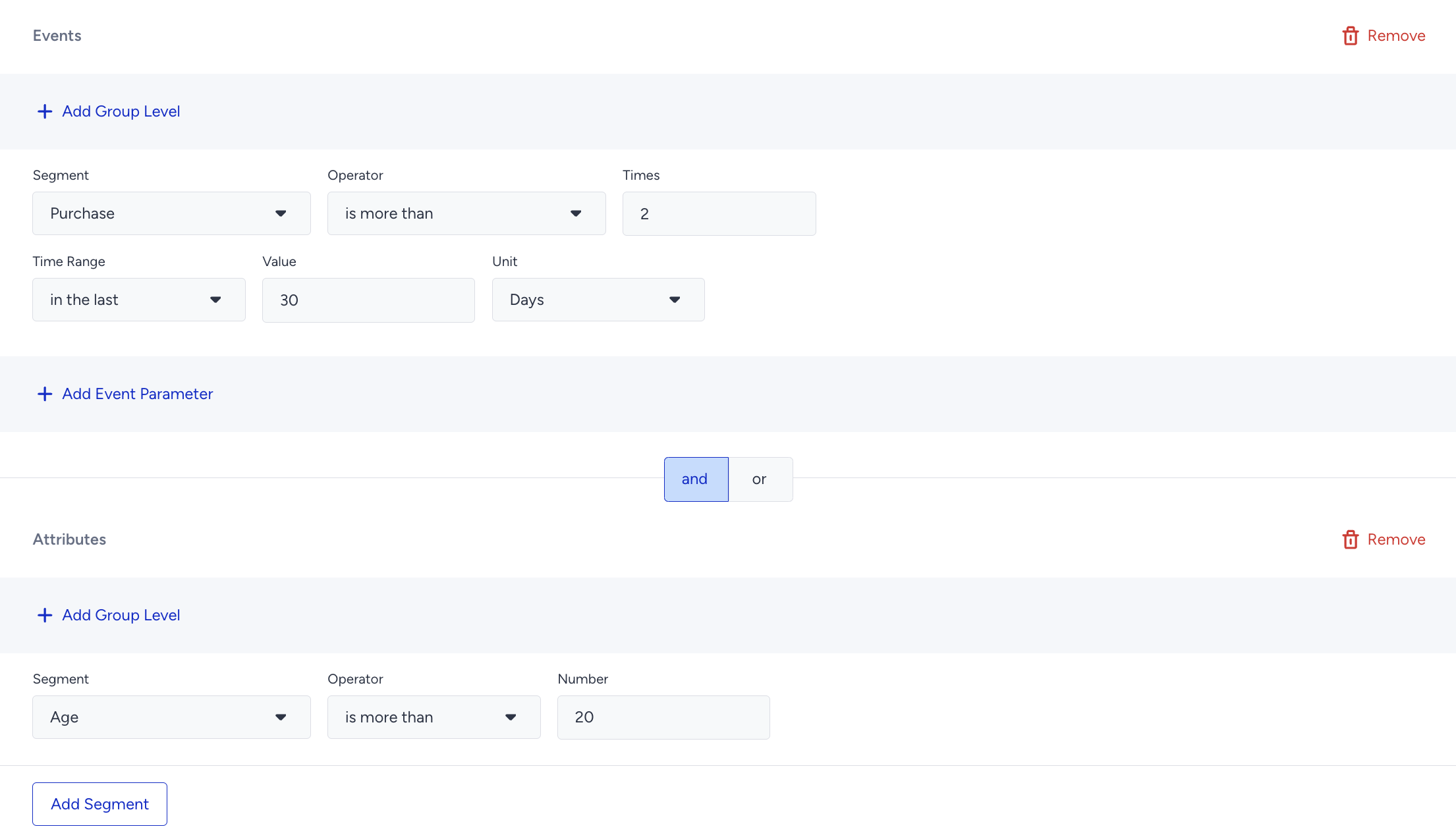
9. It is all done. You will see the segments created by the Smart Segment Creator.
Caution List
While using Smart Segment Creator, Insider One recommends you consider the following:
- This is not a traditional chatbot, as it does not support continuous conversation or respond to commands to alter the journey.
- If you submit a prompt in a language other than English, OpenAI will still process it and create your journey. However, OpenAI performs optimally in English.
- Since custom data is not yet supported for creating smart segments, providing relevant use cases with custom data will help set clearer expectations and better define the target audience.