Meal delivery is a convenience-driven and preference-sensitive vertical where customers expect both variety and personalization. Buying behavior typically falls into three patterns: habitual (weekly reorders of favorite meals), goal-oriented (plans focused on weight loss, healthy eating, or dietary restrictions), and occasion-based (special dinners, busy weekdays, or family gatherings).
Customer decisions are influenced by dietary needs, taste preferences, and time constraints. Recommendations in this space should focus on inspiring meal discovery, simplifying choices through personalization, and adapting to user routines. Done well, this not only drives higher engagement and repeat orders but also strengthens loyalty and lifetime value.
What you can achieve with Smart Recommender
Dynamic meal discovery on the homepage
Highlight trending dishes, seasonal picks, or new arrivals—such as “Summer Light Bites” or “Protein-Packed Meals”—to inspire exploration and keep users engaged.
Reordering made easy for regulars
Showcase meals customers previously enjoyed so they can quickly re-create favorite orders with a single click.
Cross-sell sides, drinks, and desserts to boost AOV
On product or cart pages, recommend add-ons like smoothies, snacks, or desserts to naturally increase average spend.
Catch users before churn with crave-worthy recaps
Re-engage inactive customers by highlighting their past favorites alongside new alternatives tailored to their preferences.
Intelligent add-ons at checkout
Surface last-minute extras such as sauces, protein boosts, or desserts right before checkout to maximize order value.
Taste affinity-based personalization
Leverage attribute affinity to recommend meals by cuisine type (e.g., Thai, Italian), dietary need (e.g., gluten-free, keto), or convenience factor (e.g., ready in under 15 minutes).
Built-in A/B testing across the journey
Continuously optimize by testing different strategies, widget placements, and visual designs to find what best drives reorders, upsells, and loyalty.
Walkthrough: Boosting AOV with Complementary Meal Add-Ons
One of the most effective ways to increase Average Order Value (AOV) in meal delivery is by recommending complementary items like sides, snacks, or drinks that pair naturally with the main dish. Because many customers order with a clear goal—such as a quick lunch, a family dinner, or a healthy plan—well-timed suggestions can raise both order value and satisfaction.
In this example, we’ll walk through how to set up an A/B test on meal detail pages, comparing two cross-sell strategies:
One recommends drinks as the upsell option.
The other recommends desserts.
By running these strategies side by side, you can determine which type of complementary item—Beverages or Desserts—drives a greater lift in AOV among high-intent shoppers.
1. Create your Recommendation Strategy
It's time to create your first recommendation strategy. Navigate to the Recommendation Strategies and click Create.
Select your page type as Product Detail Page.
Select your algorithm as Purchased Together to recommend relevant add-ons that frequently accompany the selected meal.
Enter the number of products you want to recommend.
Exclude the recently purchased products in the last 4 weeks to keep your customer engaged.
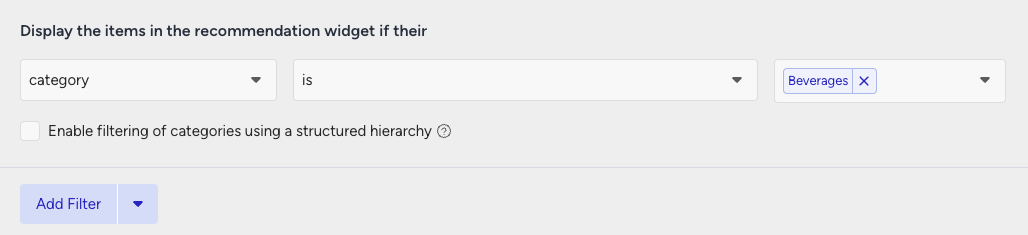
Add a filter for the category attribute to display recommendations from the “Beverages” category.
Then, create your second strategy that you want to test against.
Select your page type as Product Detail Page.
Select your algorithm as Purchased Together.
Enter the same number of products to recommend.
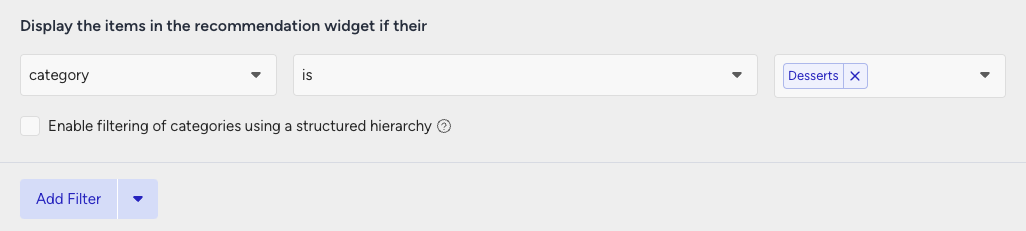
Apply a filter for Category + is + Desserts to target sweet treats.
2. Launch your campaign
Now, launch your first campaign using your strategies.
Go to the Web Smart Recommender page and click Create.
Select your integration method for the widget.
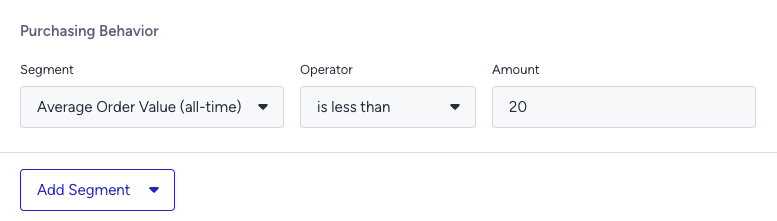
On the Segments step, pick the audience.
For this test, you can target users with an AOV below a specific threshold (e.g., under 20 USD) using Purchasing Behavior filters.
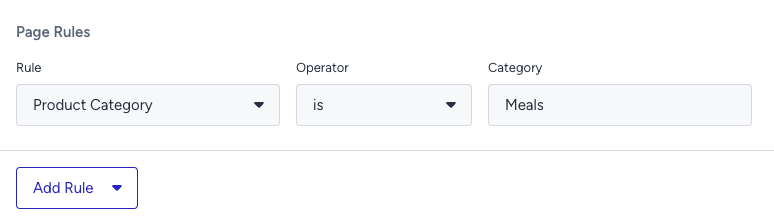
On the Rules step, set the widget to appear on meal product detail pages only.
On the Design step:
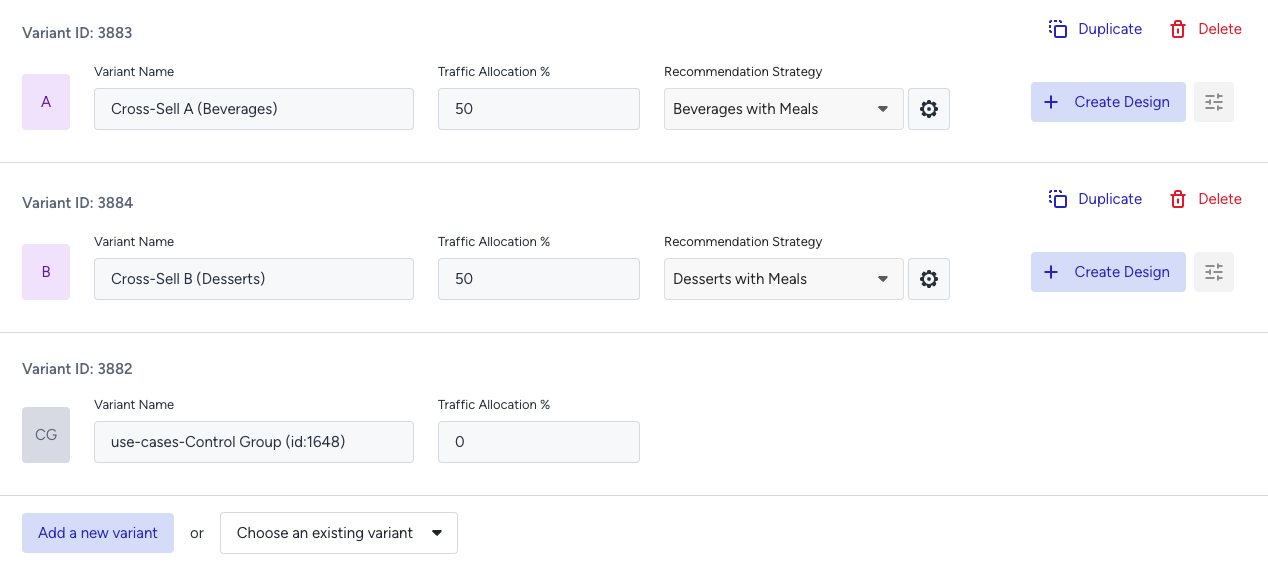
Assign your two strategies to the variants.
Assign traffic allocation for each variant.
Now you’re ready to design your widget. Click Edit Design to open the Advanced Product Card Designer. Here, you can customize your product cards however you like.
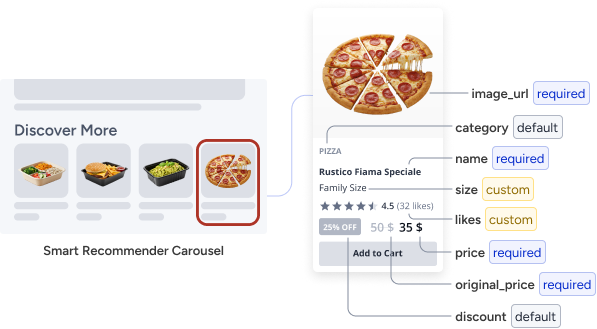
Make sure all the attributes you want to display are included in your product catalog. If you need to show more information on your product cards, you can create custom attributes from Product Attributes page.
After finalizing your campaign design, the next step is to select the locales and stores where you want the campaign to appear.
Once your targeting is set:
Review the campaign details.
Confirm that all settings match your objectives.
Click Launch to activate your first campaign.
3. Track your campaign metrics
You’ve launched your campaign—great work! Now it’s time to track its performance.
Go to the Smart Recommender Analytics page.
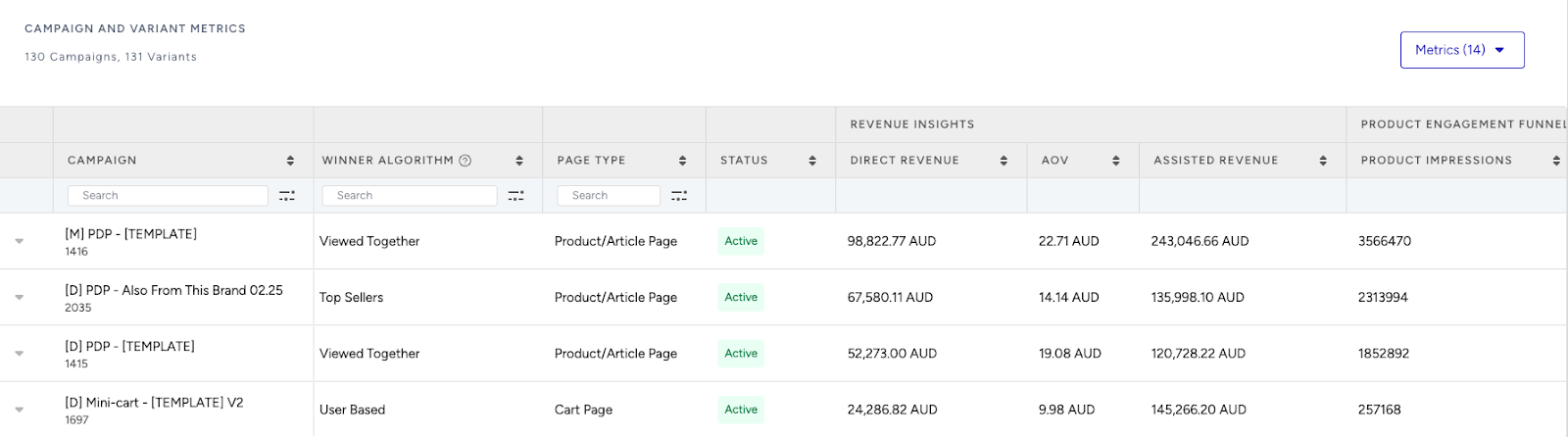
Locate your campaign under the Campaign and Variant Metrics table. Once the experiment duration ends, click your campaign name.
Compare key metrics, including Direct Revenue, Average Order Value (AOV), and Conversion Rate.
You can see which product category—beverages or desserts—led to higher AOV for low-spending customers.
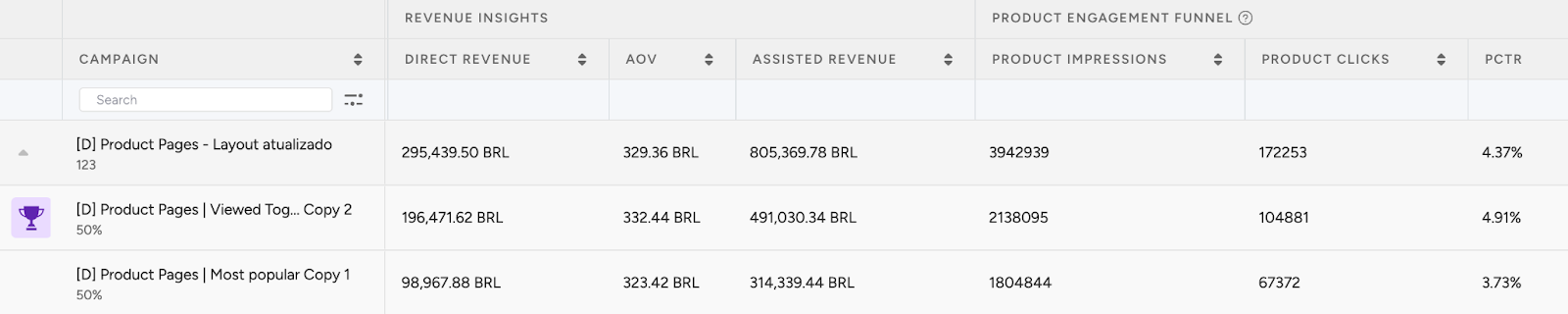
If one variant is clearly winning, adjust the traffic allocation to 100%. This ensures the best-performing strategy receives all traffic and maximizes impact.
You can test further add-on categories like protein boosts, soups, or sauces to refine your upsell approach and maximize impact.
4. Optimize your campaigns
Once your campaigns are live and running, it’s time to review results and apply data-driven improvements.
Go to the Smart Recommender Analytics page.
Evaluate campaign performance based on engagement metrics.
Track Engagement Funnel Metrics: Understand how users interact with your recommendations at every step. View product impressions, clickthrough rate, add-to-cart rate, and conversion rate for each campaign to pinpoint where you’re driving engagement and where there’s room to improve.

Compare Campaign and Variant Performance: Use the Campaign and Variant Metrics table to review key KPIs like AOV, Conversion Rate, and Direct Revenue. Identify which strategies are delivering the best results and refine or scale your winning variant accordingly.
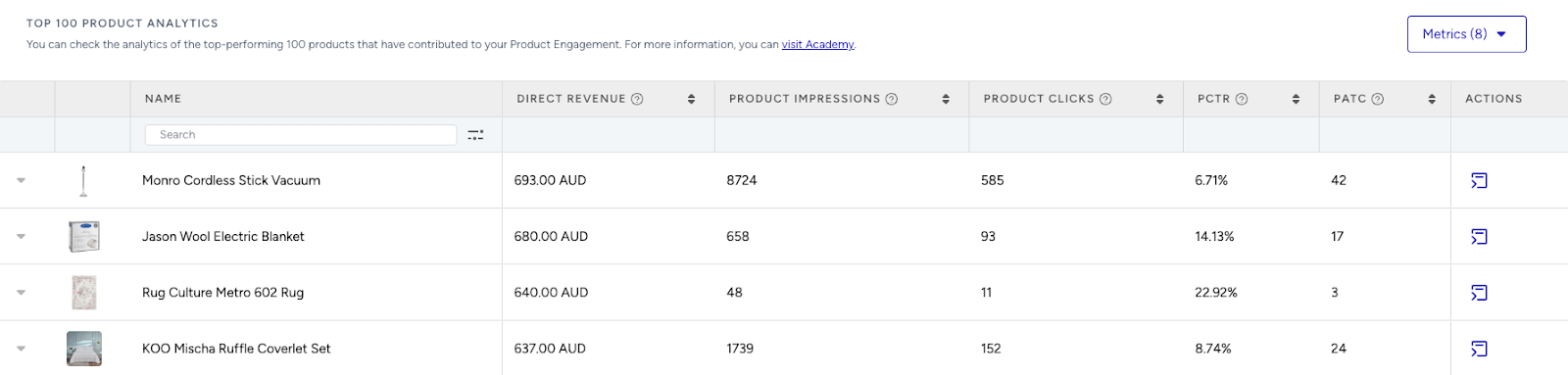
Analyze Product-Level Impact: Visit the Top 100 Product Analytics to see which products are performing well within your campaigns. Consider giving extra visibility to low-performing but strategic items by highlighting them in future recommendation widgets.
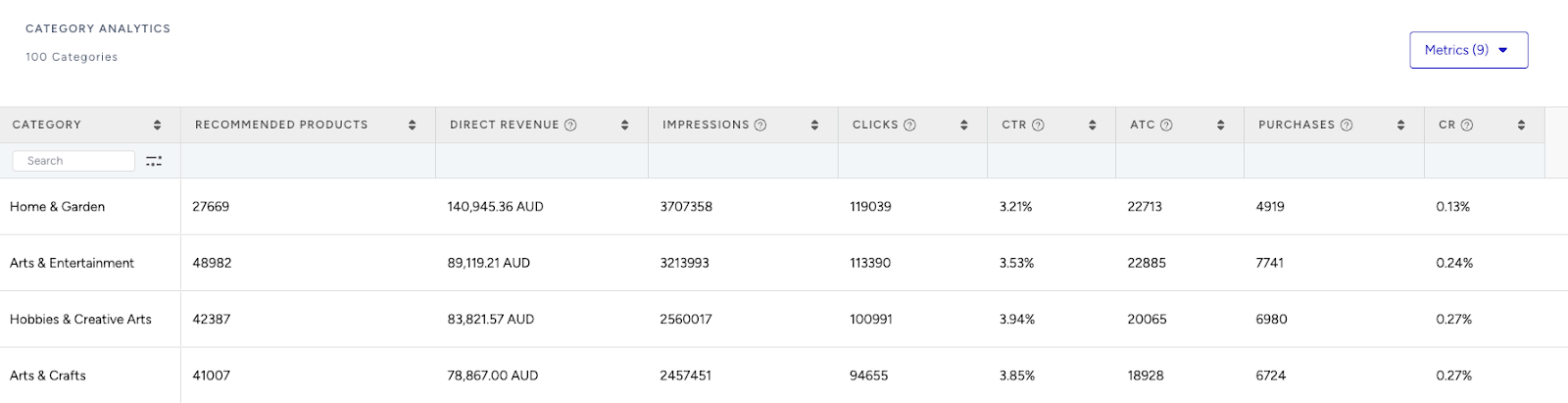
Review Category Trends: Use the Category Analytics view to assess which product categories drive the most conversions. You can prioritize high-performing categories to maximize conversions or spotlight underperforming categories to help boost their visibility and performance.
Use cases based on the page types
Home Page
Seasonal menus
Create a strategy with the Most Popular algorithm to highlight top-visited meals on your homepage.
Enable the “Enhance recommendations based on Attribute Affinity” toggle to personalize suggestions based on your customer’s dietary preferences and cuisine affinities.
Add season + is + summer filter to your strategy to display seasonal offerings like salads, light bowls, or smoothies.
To filter your recommendations based on the season, create a new custom attribute from the Product Attributes page and add taste information for your products.
After creating your strategy, A/B test widget visuals using seasonal imagery (e.g., fresh greens for spring or cozy tones for fall) or test different placements (top of homepage vs. under hero banner) to see what drives higher engagement.
Meal sets for first-time users
Help new users explore by recommending bundles like Intro to Keto, Family Dinner Essentials, or Plant-Based Week Starter tailored to their preferences.
Create a strategy with the Top Sellers algorithm.
Add a category + is + Meal Sets filter to your strategy to show ready-made sets for first-time visitors.
Set segments for new visitors to target users who are early in their journey.
To recommend bundles, create a custom attribute called Bundle ID on the Product Attributes page. Assign the same Bundle ID (e.g., Dinner Bundle 01, Keto Bundle 02 ) to all items in the bundle. Then, use the Bundle ID attribute in your filters to recommend other products from the same bundle.
A/B test different headline options like “Top Selling Menus” vs. “Your First Meal Order, Sorted” to see which increases conversions most effectively.
Recently viewed meals
Re-engage returning users by reminding them of dishes or bundles they explored during previous visits.
Create a strategy with the Recently Viewed algorithm to surface meals a user has shown interest in.
Set segments for returning users.
Apply a filter as category + is not one of + Beverages, Sauces, etc. to not recommend add-ons on your homepage.
You can A/B test Recently Viewed with User-Based algorithms to see which recommendation method drives better results among repeat customers.
Product Detail Page
Real-time browsing trends
Boost discovery by showing meals that are frequently viewed right after the current one by other users—like recommending Zucchini Noodle Bowl or Thai Curry after a visitor checks out a Vegan Stir Fry.
Create a strategy with the Real-Time User Engagement algorithm to surface trending follow-up meals.
Add a category + matches the item they're currently viewing filter to your strategy to show recommendations from the same category.
Use widget headlines, such as “Customers Also Viewed” or “Not this one? Try These”, to capture attention.
More from this cuisine
Encourage deeper browsing by recommending additional meals from the same cuisine, such as more Mediterranean dishes or Korean-inspired options.
Utilize the Trending Products algorithm to highlight popular meals from the same cuisine.
Add filters: cuisine_type + matches the item they're currently viewing and category + matches the item they're currently viewing. Connect the filters with an OR operator to broaden recommendations while keeping them relevant.
You can use widget titles like (e.g., “More From This Cuisine”) to boost engagement through familiarity.
To filter your recommendations based on the cuisine type, create a new custom attribute from the Product Attributes page and assign cuisines (e.g., Mediterranean, Italian, Chinese etc.) to your products
Category Page
Trending in this diet type
Support meal decisions with popular dishes trusted by others following the same dietary plan.
Use the Trending Products algorithm to recommend favorites within the viewed category.
Apply category + contains the currently viewing category’s attribute to keep the meal recommendations highly relevant.
If your category type is hierarchical, enable the “Expand the category filter to include recommendations from the next category if there aren't enough products to display.” checkbox to make sure recommendations are shown even though there aren’t enough products to recommend from the category the user is visiting.
Enable “Enhance recommendations based on Attribute Affinity” to personalize based on each user’s ordering and browsing patterns.
Discounted meals of this category
Help budget-conscious shoppers by showing discounted meals within the current category—like Keto, Gluten-Free, or High-Protein.
Use the Highest Discounted algorithm to surface meals with the best deals.
Add a category + matches the currently viewing category’s attribute filter to ensure relevance.
Keep Attribute Affinity disabled to prioritize meal value rather than personalization.
Add visual labels such as “20% Off” or “Limited Time Offer” to product cards. Test top vs. bottom placement on the page to see which draws more conversions.
Cart Page
Complete your meal
Encourage users to add practical extras like side salads, soups, snacks, or drinks to round out their order.
Use the Most Popular algorithm.
Apply a filter: category + is one of + Side Dishes, Drinks, Snacks, Desserts to ensure a mix of useful, high-frequency add-ons.
Turn off Attribute Affinity to recommend practical and high-utility items across all carts.
Try out different headlines like “Don’t Forget Your Sides” or “Round Out Your Meal” to see which nudge improves basket size most.
Boost to free delivery
Encourage shoppers to top up their cart to qualify for free shipping or meet a minimum delivery threshold.
Use the Checkout Recommendation algorithm with a spend threshold (e.g., 40 USD).
No filters needed—Attribute Affinity is optional depending on how tailored you want the upsell.
Add urgency messaging like “Top up to 40 USD more for free delivery!” to highlight the incentive. If you don’t offer free delivery, you can use the Purchased Together algorithm instead to recommend complementary items that still improve AOV.