Furniture is a considered, high-investment category where shoppers rely on visual inspiration, dimensions, materials, and aesthetic compatibility. Buying behavior is shaped by both practical needs and the emotional connection people feel with their personal spaces.
Effective recommendations should:
Guide discovery and inspire browsing.
Surface matching or complementary pieces to complete a look.
Help users plan full room setups with confidence.
Personalization is essential in this category, as tailored recommendations build trust and encourage higher-value purchases as well as cross-category exploration.
What you can achieve with Smart Recommender
Personalized picks for every room
On the homepage, showcase recommendations based on preferred room types, styles, or color tones—for example, Modern Living Room ideas or Bedroom Makeovers.
Complete the look on product pages
Encourage full-room shopping by highlighting complementary pieces (e.g., a coffee table and lamp alongside a sofa).
Boost confidence with style alternatives
Display alternate styles or colors of the product being viewed to help design-savvy users find the perfect fit.
Inspire with best-selling pieces
Feature top-performing products across categories to guide undecided shoppers and first-time buyers.
Continue the journey seamlessly
Welcome returning users with recently viewed items on the homepage so they can easily pick up where they left off.
Relevant add-ons at checkout
Suggest accessories such as rugs, side tables, or lighting that match cart items to lift average order value (AOV).
Affinity-based room and style suggestions
Personalize experiences by factoring in room preferences, favored materials, and style trends like Scandinavian, Minimalist, or Rustic.
Test and optimize for design-led categories
Run A/B tests on widget visuals, product card details, and placement—critical in a design-focused vertical like furniture.
Walkthrough: Cross-Selling Full Room Sets
In furniture, shoppers are often furnishing an entire space rather than buying a single item. Recommending complementary products that help complete a room setup can both increase Average Order Value (AOV) and enhance the customer experience.
In this example, we’ll walk through how to create a cross-sell campaign on sofa product pages—testing whether recommending coffee tables or rugs is more effective at lifting AOV.
By setting up two separate strategies—one recommending coffee tables and the other recommending rugs—you’ll be able to run an A/B test and identify which category performs best. Let’s walk through the setup.
1. Create your Recommendation Strategy
It's time to create your first recommendation strategy. Navigate to the Recommendation Strategies and click Create.
Select your page type as Product Detail Page.
Select your algorithm as Purchased Together to recommend suitable products for cross-selling.
Enter the number of products you want to recommend.
Exclude the recently purchased products in the last 4 weeks to keep your customer engaged.
Add a filter for the category attribute to display recommendations from the “Coffee Tables” category.
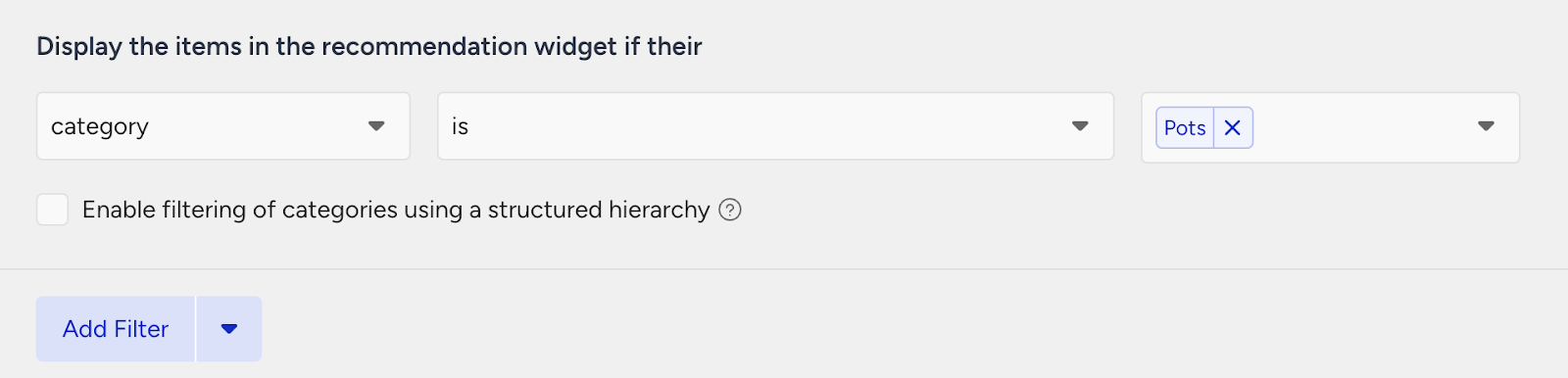
Add another filter as style + matches the item they’re currently viewing.
To filter your recommendations based on the room type, create a new custom attribute from the Product Attributes page and add style (e.g, Scandinavian, Minimalist, or Rustic.) information for your products.
Then, create your second strategy that you want to test against.
Select your page type as Product Detail Page.
Select your algorithm as Purchased Together to recommend suitable products for cross-selling.
Enter the number of products you want to recommend.
Exclude the recently purchased products in the last 4 weeks to keep your customer engaged.
Add a filter for the category attribute to display recommendations from the “Rugs” category.
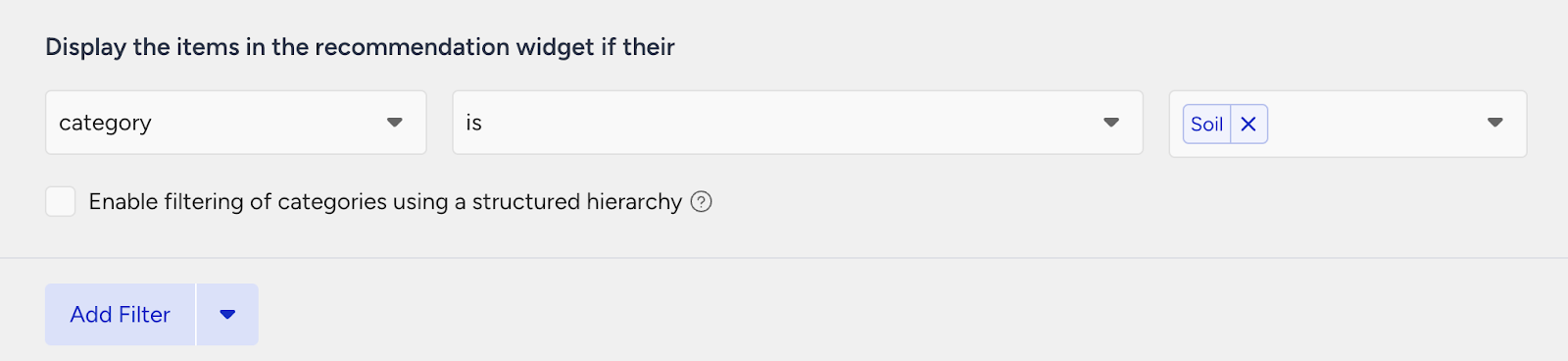
Add another filter as style + matches the item they’re currently viewing.
2. Launch your campaign
Now, launch your first campaign using your strategies.
Go to the Web Smart Recommender page and click Create.
Select your integration method for the widget.
On the Segments step, pick the audience.
For this example, you can select customers with a low AOV under Purchasing Behavior and set your threshold.
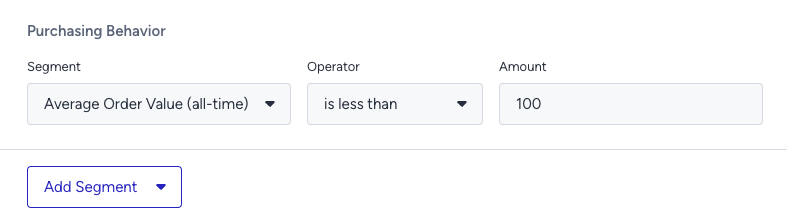
On the Rules step, decide where and when to show your campaign.
Use Page Rules to target the product detail pages of sofa products.
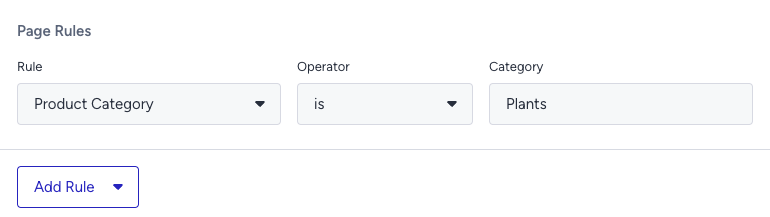
On the Design step:
Assign your two strategies to the variants.
Assign traffic allocation for each variant.
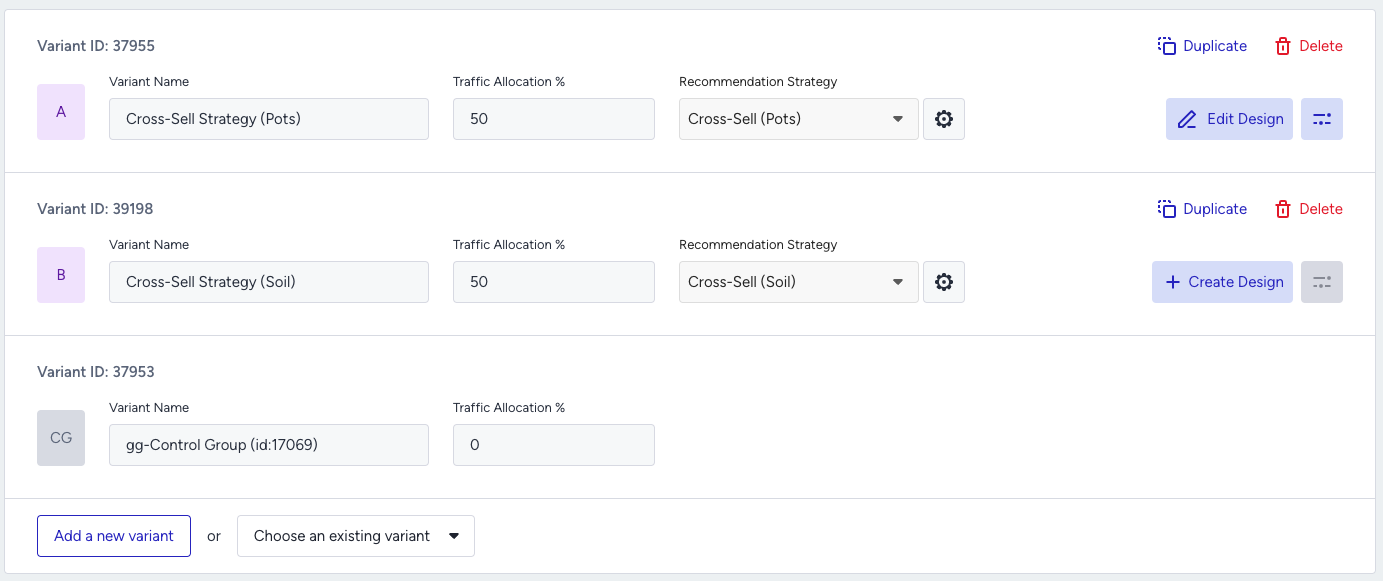
Now you’re ready to design your widget. Click Edit Design to open the Advanced Product Card Designer. Here, you can customize your product cards however you like.
Make sure all the attributes you want to display are included in your product catalog. If you need to show more information on your product cards, you can create custom attributes from Product Attributes page.
After finalizing your campaign design, the next step is to select the locales and stores where you want the campaign to appear.
Once your targeting is set:
Review the campaign details.
Confirm that all settings match your objectives.
Click Launch to activate your first campaign.
3. Track your campaign metrics
You’ve launched your campaign—great work! Now it’s time to track its performance.
Go to the Smart Recommender Analytics page.
Locate your campaign under the Campaign and Variant Metrics table. Once the experiment duration ends, click your campaign name.
Compare key metrics, including Direct Revenue, Average Order Value (AOV), and Conversion Rate.
You can see which product category—coffee tables or rugs—led to higher AOV for low-spending customers.
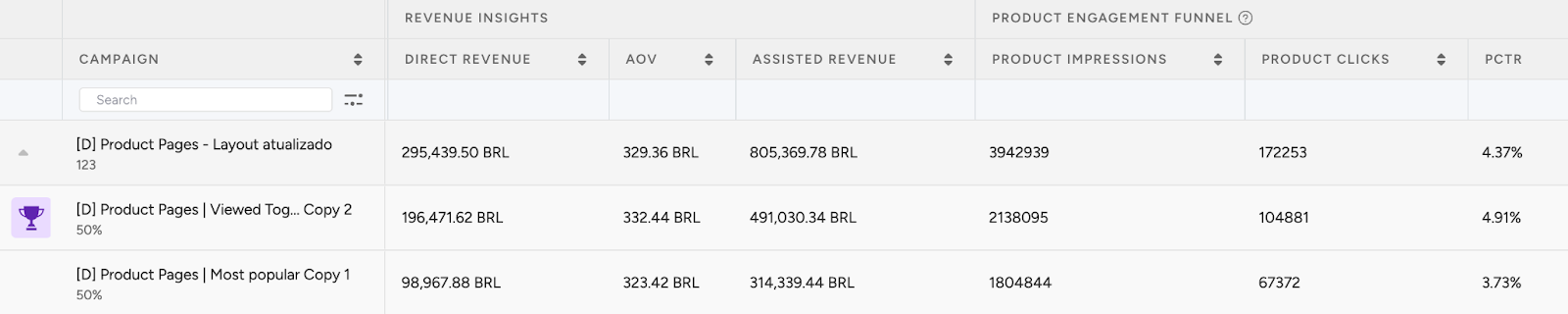
If one variant is clearly winning, adjust the traffic allocation to 100%. This ensures the best-performing strategy receives all traffic and maximizes impact.
You can also test and compare additional cross-sell strategies by adjusting the rules and filters based on other product categories to discover which combinations drive the most value.
4. Optimize your campaigns
Once your campaigns are live and running, it’s time to review results and apply data-driven improvements.
Go to the Smart Recommender Analytics page.
Evaluate campaign performance based on engagement metrics.
Track Engagement Funnel Metrics: Understand how users interact with your recommendations at every step. View product impressions, clickthrough rate, add-to-cart rate, and conversion rate for each campaign to pinpoint where you’re driving engagement and where there’s room to improve.

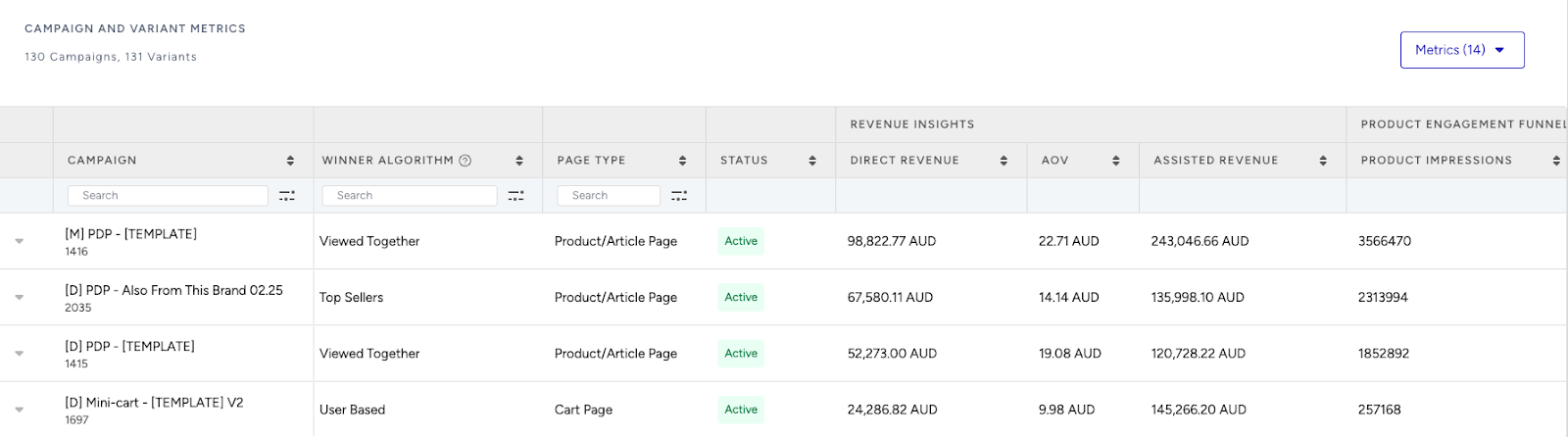
Compare Campaign and Variant Performance: Use the Campaign and Variant Metrics table to review key KPIs like AOV, Conversion Rate, and Direct Revenue. Identify which strategies are delivering the best results and refine or scale your winning variant accordingly.
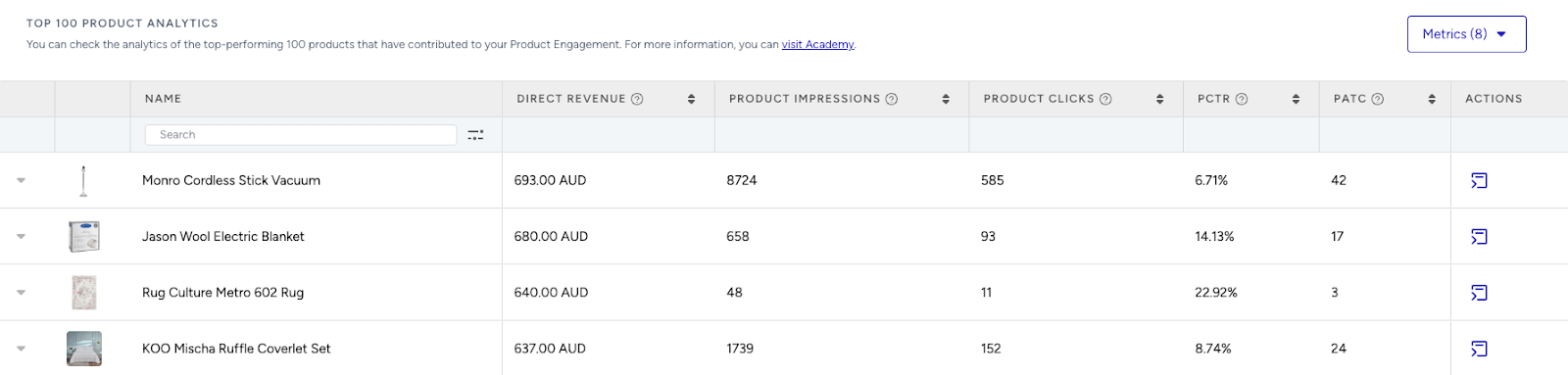
Analyze Product-Level Impact: Visit the Top 100 Product Analytics to see which products are performing well within your campaigns. Consider giving extra visibility to low-performing but strategic items by highlighting them in future recommendation widgets.
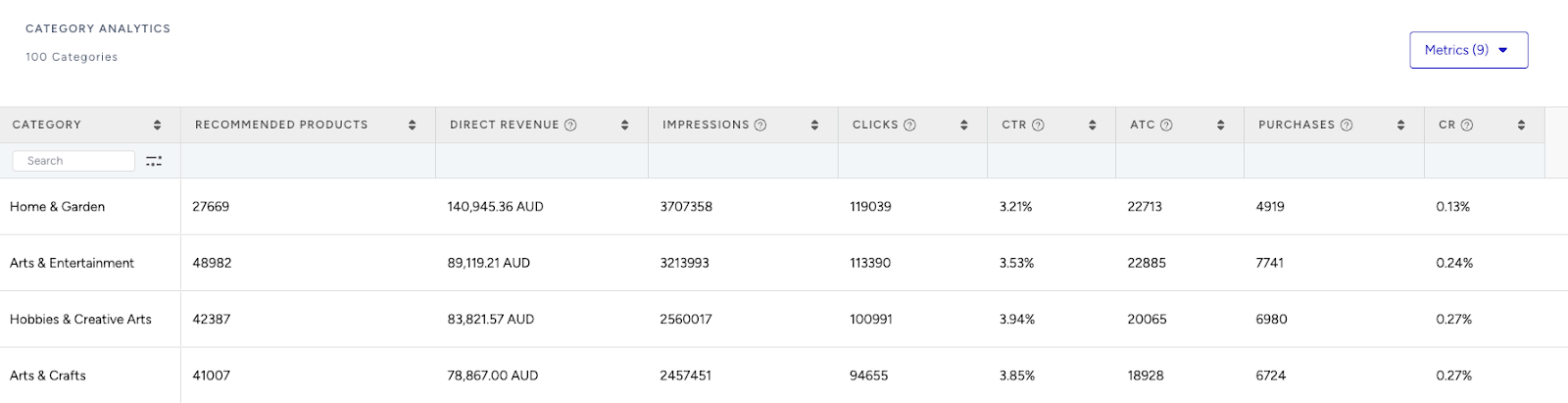
Review Category Trends: Use the Category Analytics view to assess which product categories drive the most conversions. You can prioritize high-performing categories to maximize conversions or spotlight underperforming categories to help boost their visibility and performance.
Use cases based on the page types
Home Page
Seasonal refresh picks
Inspire customers with timely collections, such as Summer Outdoor Sets or Cozy Winter Living Rooms, that resonate with seasonal lifestyle shifts.
Create a strategy with the Most Popular algorithm to highlight furniture pieces gaining traction this season.
Enable the “Enhance recommendations based on Attribute Affinity” toggle to personalize recommendations based on your customer’s affinities.
Add Season + is + Summer filter to promote items ideal for the current season, such as patio furniture, hammocks, or light fabric sofas.
To filter your recommendations based on the season, create a new custom attribute from the Product Attributes page and insert your catalog products accordingly.
A/B test widgets with seasonal visual cues—like warm tones for summer or cozy textures for winter—and test widget placements (hero area vs. mid-scroll) for performance.
Room starter inspirations
Help users design an entire room with bundled inspiration, such as Living Room Essentials or Minimalist Bedroom Setups.
Create a strategy with the Top Sellers algorithm to surface best-selling collections or pieces from popular room sets.
Add Category + is + Starter Sets or Room Type + is + Living Room filters to target appropriate product groups.
Set a segment filter for new users or those browsing room pages for the first time.
To recommend sets, create a custom attribute called Set ID on the Product Attributes page. Assign the same Set ID (e.g., Living Room Set, Bedroom Set) to all items in the kit. Then, use the Set ID attribute in your filters to recommend other products from the same set.
A/B test headers like “Build Your Dream Living Room” vs. “Your Room. Ready in 3 Clicks.” to drive engagement.
Recently viewed items
Re-engage returning shoppers with items they’ve explored before, like sofas, nightstands, or office chairs.
Create a strategy with the Recently Viewed algorithm to resurface these items.
Exclude already purchased products to avoid redundancy and boost conversion rates.
Segment for returning users to ensure the strategy targets the right stage in the funnel.
Try A/B testing with the User-Based algorithm to evaluate which drives more conversions on repeat visits.
Recently Viewed and User-Based are personalized algorithms that rely on a user's past behavior. To use them effectively, ensure your segments are set to returning users.
Product Detail Page
Complete the looks
Showcase complementary items that match the current piece, such as throw pillows, rugs, or coffee tables that go with the viewed sofa.
Create a strategy with the Purchased Together algorithm to recommend items commonly bought with the currently viewed product.
Filter by Category + is one of + Rugs, Coffee Tables, Side Tables, Cushions.
Keep affinity off to prioritize purchase behavior patterns over style preferences.
Use headlines like “Customers Often Add These” to encourage upselling and cross-selling.
Real-time style trends
Surface what other users are exploring after viewing similar furniture, such as trending chairs, after browsing desks.
Create a strategy with the Real-Time User Engagement algorithm.
Exclude recently purchased products.
A/B test attention-grabbing titles like “Trending Right Now” or “Hot Picks”.
More for your living room/bedroom/outdoor area
Encourage deeper discovery within the same room or furniture type.
Use the Trending Products algorithm.
Add filters:
Room Type + matches the item they're currently viewing.
Category + contains the currently viewing category's attribute.
Use the OR connector to expand recommendation logic.
Use attractive widget titles, like “More from This Category” or “Must-Haves.”
Create a custom “Room Type” attribute (e.g., Living Room, Dining Room, Office) in the Product Attributes page to support this logic.
Category Page
Deals on furniture in this category
Appeal to bargain hunters by highlighting deals in the specific furniture category.
Create a strategy with the Highest Discounted algorithm.
Add filter Category + matches the items in their currently viewing category (e.g., highlight discounted beds when on the beds category page).
Turn off attribute affinity to prioritize value.
Enhance product cards with discount badges, such as “-30%” or “Limited Offer.” Run A/B tests for widget placement (top vs. bottom of the page).
Best sellers in this category
Help users make confident choices by showcasing what’s popular among others in the same category.
Create a strategy with the Trending Products algorithm.
Apply Category + contains the currently viewing category's attribute filter.
If you’re using hierarchical categories (e.g., Living Room > Seating > Sofas), enable the "Expand category filter to next level" checkbox to increase the product coverage.
Keep “Enhance recommendations based on Attribute Affinity” toggle on to personalize recommendations based on style or color preferences.
Cart Page
Finish the set
Encourage customers to complete their room set by recommending matching side tables, lamps, or décor items.
Create a strategy with the Most Popular algorithm.
Add filter:
Category + is one of + Lighting, Side Tables, Wall Décor, Accessories.
Leave attribute affinity off to surface functionally complementary pieces rather than personalized aesthetics.
A/B test headers like “Complete the Look” vs. “Don’t Forget These Final Touches.”
Boost to free shipping
Increase AOV by encouraging customers to reach your free shipping threshold with attractive add-ons.
Create a strategy with the Checkout Recommendation algorithm with a spend threshold (e.g., 500 USD for furniture).
No filters required, attribute affinity is optional.
Display a visual indicator, such as “Top up to 500 USD for Free Delivery!” with products priced just under that amount.
Alternatively, use the Purchased Together algorithm to display complementary products that naturally increase order value.