Books and publishing are a content-rich vertical where user preferences vary widely based on genre, author affinity, reading history, and personal interests. Book purchases are often influenced by mood, recommendations, reviews, and past favorites. Personalized recommendation systems are key to supporting discovery, encouraging binge-reading behavior, and fostering long-term engagement.
What you can achieve with Smart Recommender
Genre-based discovery journeys
Help readers explore stories similar to their tastes by recommending books in the same genre, theme, or author style across product and category pages.
Trending now to spark curiosity
Highlight viral reads, award-winners, or books “Trending on BookTok” using real-time engagement data to create urgency and delight.
Personalized recommendations based on reading history
Tailor recommendations using declared interests or behavioral data, such as recommending cozy mysteries to a user who frequently browses detective fiction.
Re-engage dormant readers with new releases
Bring back lapsed customers by promoting fresh releases from authors or genres they previously explored.
Upsell with bundles & series completion
On the cart page, recommend next books in a series or companion titles to boost AOV and reading satisfaction.
A/B testing to refine reader engagement
A/B Testing to Refine Reader Engagement: Experiment with algorithms, layout, and messaging like “Bestsellers in Fantasy” vs. “New Releases You Might Like” to optimize performance.
Walkthrough: Boosting conversion by recommending bestsellers from genre vs. author
Readers often discover new books through what’s trending, whether it’s within a genre they enjoy or from an author they already trust. This walkthrough tests two strategies on the Product Detail Page:
One recommends books from the same genre
The other recommends books by the same author
In this example, we’ll see which inspires more clicks and conversions
1. Create your Recommendation Strategy
It's time to create your first recommendation strategy. Navigate to the Recommendation Strategies and click Create.
Select your page type as Product Detail Page.
Select your algorithm as Purchased Together to recommend suitable products for cross-selling.
Enter the number of products you want to recommend.
Exclude the recently purchased products in the last 4 weeks to keep your customer engaged.
Add a filter as “Genre + matches the item they’re currently viewing” to display recommendations from the same genre as the user is currently viewing.
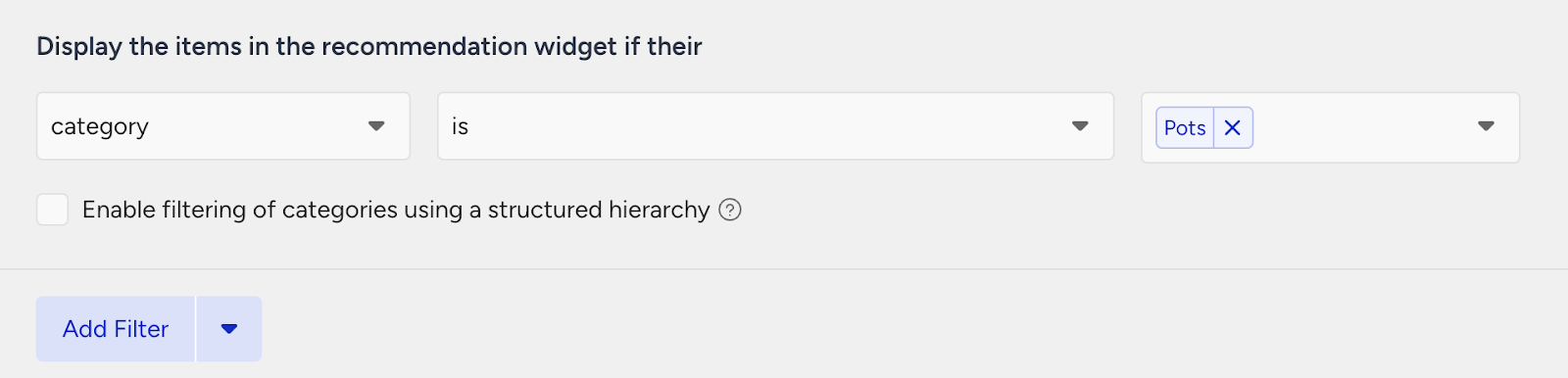
Quick tip:
Create a custom attribute called Genre on the Product Attributes page, and assign genre values to your products. This allows you to filter recommendations based on genre.
Then, create the second strategy that you want to test against.
Select your page type as Product Detail Page.
Select your algorithm as Purchased Together to recommend suitable products for cross-selling.
Enter the number of products you want to recommend.
Exclude the recently purchased products in the last 4 weeks to keep your customer engaged.
Add a filter as “Author + matches the item they’re currently viewing” to display recommendations from the author, same as the user is currently viewing.
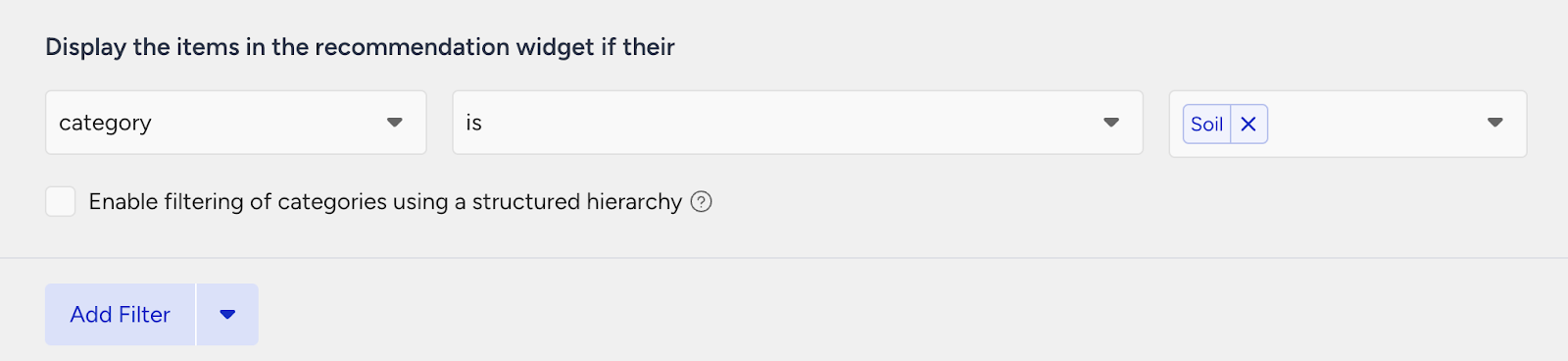
Quick tip:
Create a custom attribute called Author on the Product Attributes page, and assign genre values to your products. This allows you to filter recommendations based on genre.
2. Launch your campaign
Now, launch your first campaign using your strategies.
Go to the Web Smart Recommender page and click Create.
Select your integration method for the widget.
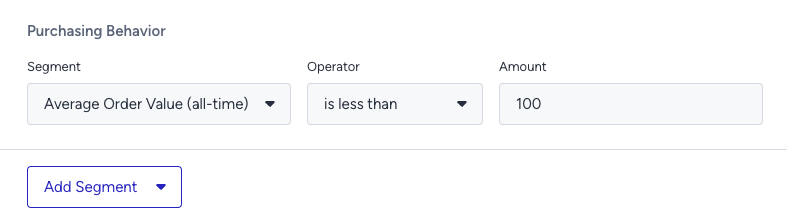
On the Segments step, pick the audience.
For this example, you can select customers with a low AOV under Purchasing Behavior and set your threshold.
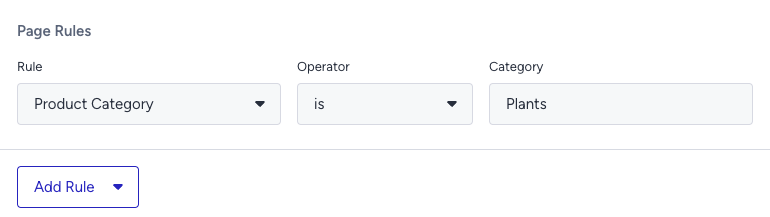
On the Rules step, decide where and when to show your campaign.
Use Page Rules to target product detail pages specifically for book products. This ensures the campaign only appears on pages that include key attributes like author or genre, and avoids showing on pages where these are missing.
On the Design step:
Assign your two strategies to the variants.
Assign traffic allocation for each variant.
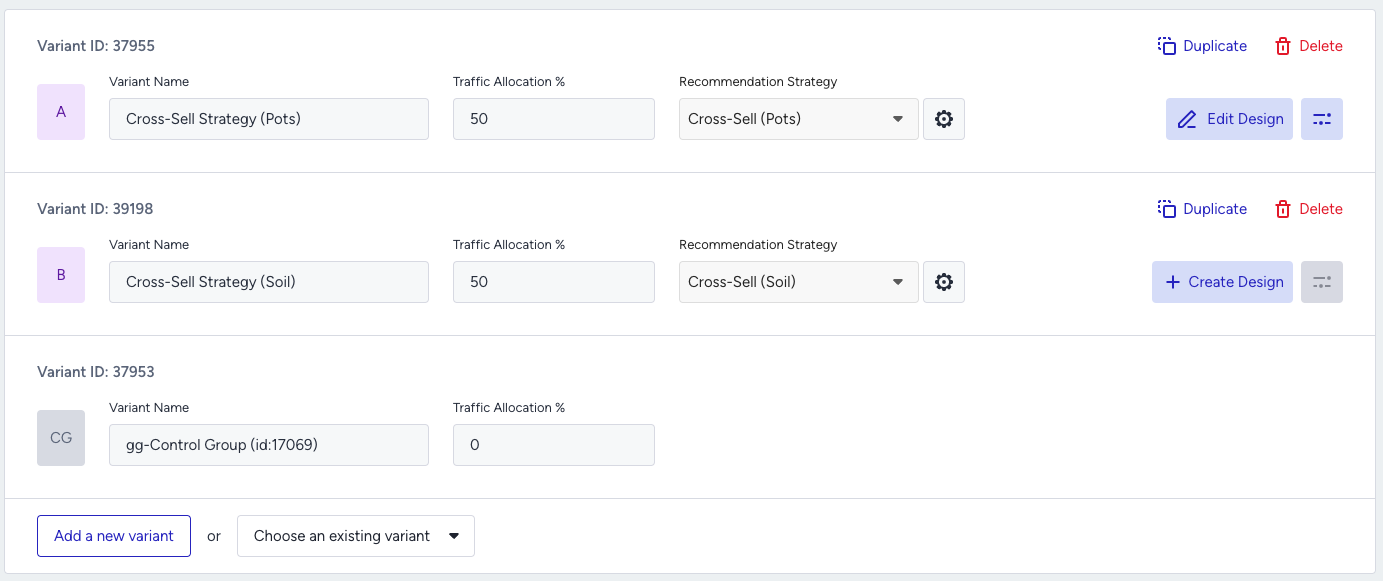
Now you’re ready to design your widget. Click Edit Design to open the Advanced Product Card Designer. Here, you can customize your product cards however you like.
Make sure all the attributes you want to display are included in your product catalog. If you need to show more information on your product cards, you can create custom attributes from Product Attributes page.
After finalizing your campaign design, the next step is to select the locales and stores where you want the campaign to appear.
Once your targeting is set:
Review the campaign details.
Confirm that all settings match your objectives.
Click Launch to activate your first campaign.
3. Track your campaign metrics
You’ve launched your campaign, great work! Now it’s time to track how it’s performing.
Go to the Smart Recommender Analytics page.
Locate your campaign under the Campaign and Variant Metrics table. Once the experiment duration ends, click your campaign name.
Compare key metrics, including Direct Revenue, Average Order Value (AOV), and Conversion Rate.
You can see which recommendation strategy—genre or author—led to higher AOV for low-spending customers.
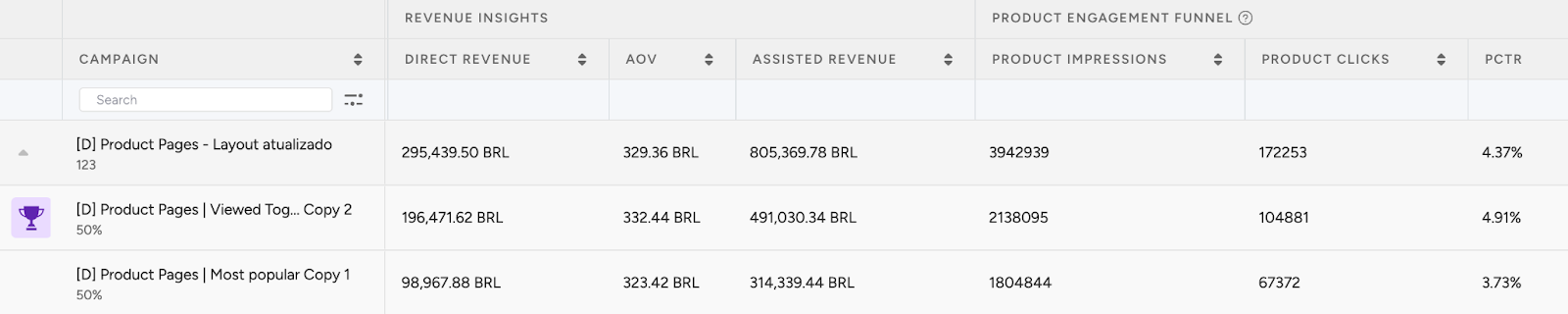
If one variant is clearly winning, adjust the traffic allocation to 100%. This ensures the best-performing strategy receives all traffic and maximizes impact.
You can also test and compare additional cross-sell strategies by adjusting the rules and filters based on other product categories, such as pairing moisturizers or SPF products across other skincare categories.
4. Optimize your campaigns
Once your campaigns are live and running, it’s time to review results and apply data-driven improvements.
Go to the Smart Recommender Analytics page.
Evaluate campaign performance based on engagement metrics.
Track Engagement Funnel Metrics: Understand how users interact with your recommendations at every step. View product impressions, click-through rate, add-to-cart rate, and conversion rate for each campaign to pinpoint where you’re driving engagement and where there’s room to improve.

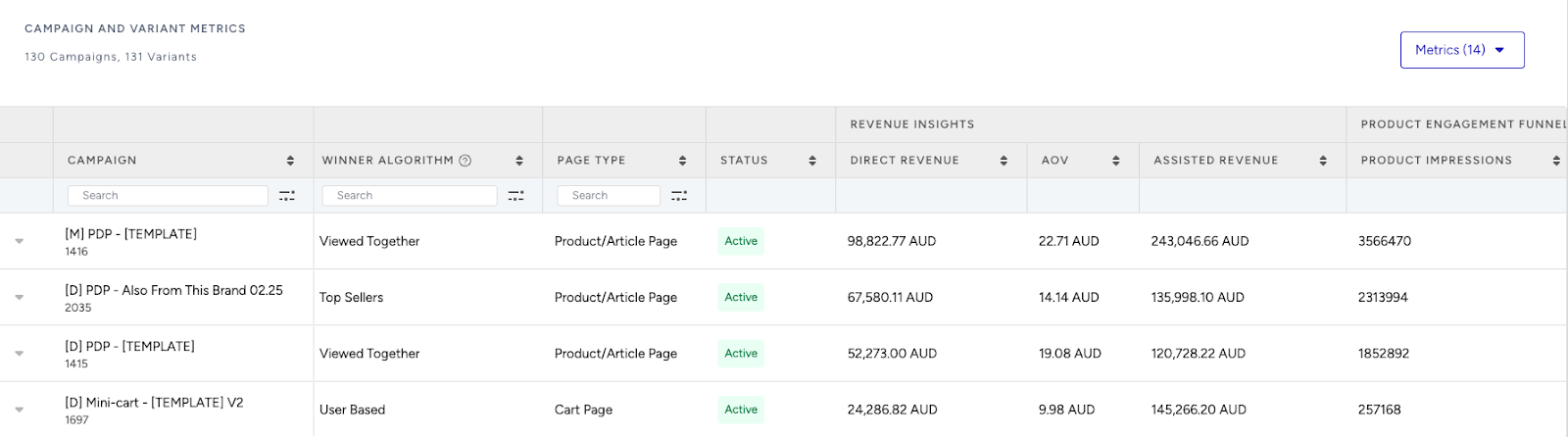
Compare Campaign and Variant Performance: Use the Campaign and Variant Metrics table to review key KPIs like AOV, Conversion Rate, and Direct Revenue. Identify which strategies are delivering the best results and refine or scale your winning variant accordingly.
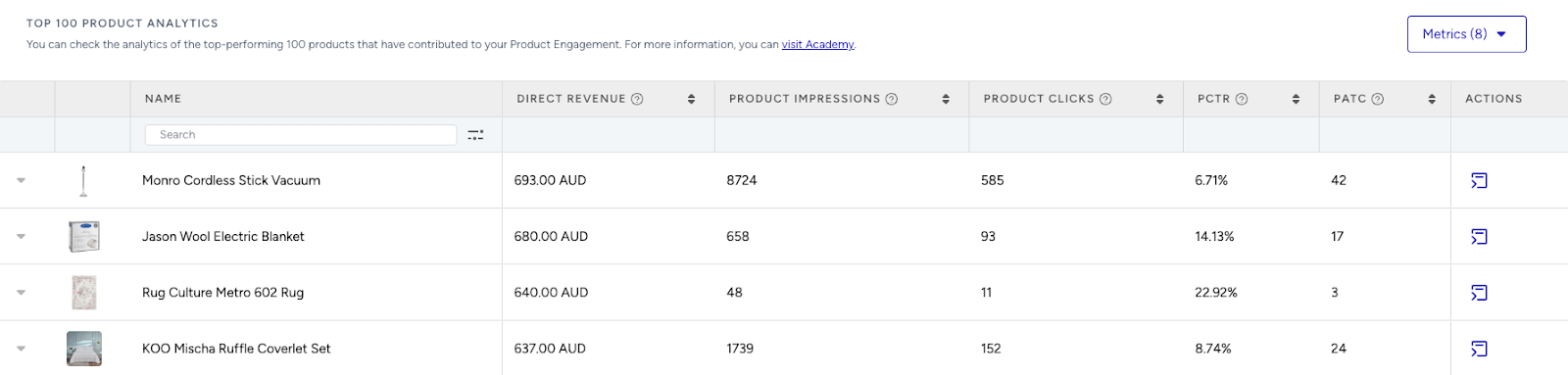
Analyze Product-Level Impact: Visit the Top 100 Product Analytics to see which products are performing well within your campaigns. Consider giving extra visibility to low-performing but strategic items by highlighting them in future recommendation widgets.
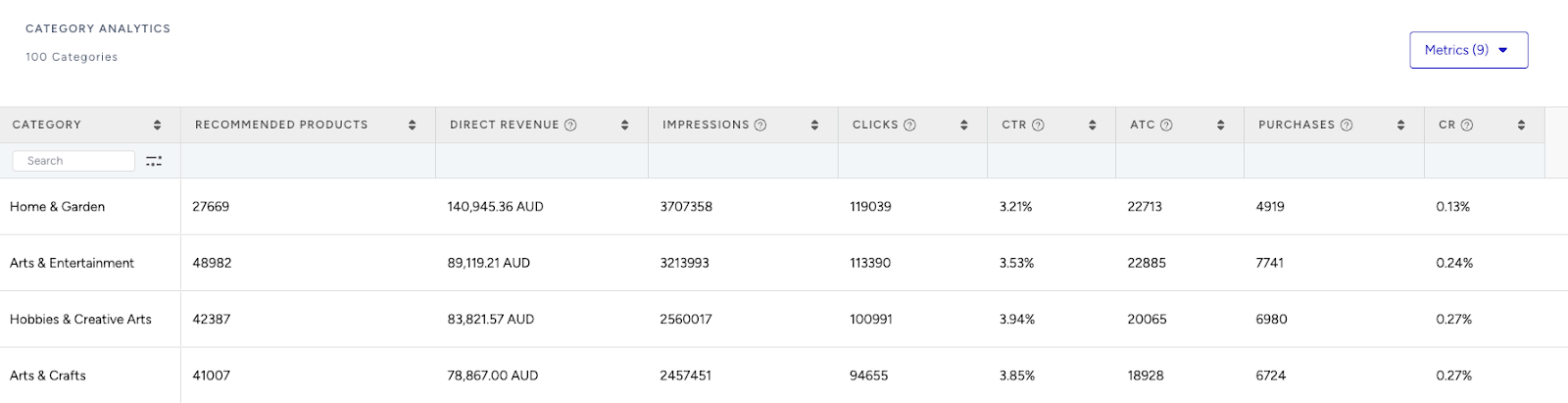
Review Category Trends: Use the Category Analytics view to assess which product categories drive the most conversions. You can prioritize high-performing categories to maximize conversions or spotlight underperforming categories to help boost their visibility and performance.
Use cases based on the page types
Home Page
New Arrivals for You
Re-engage dormant readers by highlighting newly released books in their favorite genres or by beloved authors, such as spotlighting a newly released historical fiction novel for someone who frequently reads World War II-era stories.
Create a strategy with the New Arrivals algorithm to showcase recently published titles.
Enable the “Enhance recommendations based on Attribute Affinity” toggle to tailor suggestions based on author, genre, or series preferences.
Segment your campaign for returning users to ensure recommendations align with their past behavior.
A/B test different widget placements (top vs. middle of the homepage) to optimize for click-through or scroll depth.
Starter routines for readers
Welcome new visitors by offering beginner-friendly reading sets, such as Book One of popular trilogies, highly-rated debut novels, or curated collections like “Essential Reads for Fantasy Fans.”
Create a strategy using the Top Sellers algorithm to surface proven titles for newcomers.
Segment your campaign to new or low-engagement users.
A/B test different themes (genre-specific starter kits vs. universal classics) to find what converts best.
Recently viewed books
Re-engage returning browsers by reminding them of books they viewed earlier, such as that thriller they nearly added to cart last session.
Use the Recently Viewed algorithm to resurface previously explored titles.
Exclude books the customer has already purchased.
Segment your campaign for returning visitors.
A/B test Recently Viewed vs. User-Based algorithm to see which better nudges conversions.
Recently Viewed and User-Based are personalized algorithms that rely on a user's past behavior. To use them effectively, ensure your segments are set to returning users.
Quick tip:
Ensure your catalog includes enough metadata (author, genre, publication year) to personalize deeply. Create the relevant custom attributes from the Product Attributes page and ingest these fields for every product to filter accordingly in your strategies.
Product Detail Page
Readers also explored
Encourage discovery by showcasing books that others viewed alongside the current title, such as showing mystery novels frequently browsed after a psychological thriller.
Use the Real-Time User Engagement algorithm to recommend books viewed in the same session.
Exclude books the user already purchased.
Use widget titles like “Readers Also Explored” or “Next on Everyone’s List” to drive curiosity.
More from this author/genre
Boost relevance by recommending other popular books by the same author or within the same genre.
Use the Trending Products algorithm.
Apply filters:
Author + matches the item they’re currently viewing
Genre + matches the item they’re currently viewing
Use an OR connector to maximize discovery.
Quick tip:
Add custom attributes like Series Name or Genre to fine-tune results (e.g., recommend “high fantasy” instead of just “fantasy”).
Customize widget titles such as “More from Agatha Christie” or “Explore More in Historical Fiction.”
Category Page
Bestsellers in this genre
Inspire browsing readers by showing trending or top-rated books in the genre they're currently exploring.
Use the Top Sellers algorithm.
Apply Category + contains the category they’re currently viewing as a filter.
If your categories are nested (e.g., Books > Fiction > Fantasy > Urban Fantasy), enable the “Expand the category filter to include recommendations from the next category if there aren't enough products to display.” checkbox to make sure recommendations are shown even though there aren’t enough products to recommend from the category the user is visiting.
Turn on the Attribute Affinity toggle to prioritize books similar to users’ reading patterns.
Test different titles such as “Must-Reads in Sci-Fi” vs. “What’s Hot in This Genre.”
Discounted reads & deals
Help budget-conscious readers find the best book deals within the genre they're browsing.
Use the Highest Discounted algorithm.
Apply Category + matches the category they’re currently viewing as a filter.
Turn Attribute Affinity off to keep the spotlight on savings.
Add discount badges like “30% Off” or “Bestseller Under $10” to draw attention. A/B test widget placement for visibility (top vs. bottom of category pages).
Cart Page
Complete your reading list
Increase AOV by recommending related books—like a second book in the series, a companion novel, or a non-fiction title related to a fiction book in the cart.
Use the Most Popular algorithm.
Apply filters like Series Name + matches items currently in their cart OR Category + is one of + Accessories, Magazines, Electronics.
Keep Attribute Affinity off to avoid over-personalization at this stage.
Use widget titles like “Don’t Miss These Sequels” or “Readers Also Added.” You can also try A/B testing related book recommendations against add-on items on the cart pages to see which strategy boosts the most AOV.
Boost to free shipping
Encourage upsell by suggesting popular, low-cost books that help customers reach the shipping threshold.
Use the Checkout Recommendation algorithm and set a spend threshold (e.g., $50).
Filters optional, but consider limiting to books under a certain price.
Use messaging like “You’re just $6 away from free shipping!” or “Add one more for free delivery.” Alternatively, use Purchased Together to recommend high-probability add-ons.