You cannot make any changes to External Platform Integrations without having either an Administrator or an Editor with PII access in InOne. Refer to User Roles for further information.
This guide explains how to set up the SurveyMonkey integration in InOne. Once configured, InOne automatically retrieves new survey responses from your SurveyMonkey account on a scheduled basis and syncs them to Insider One as user profile attributes and/or behavioral events.
The table below summarizes the key capabilities and behavior of the integration.
Capability | Details |
|---|---|
Auth method | OAuth 2.0 |
Data flow | SurveyMonkey to Insider One |
Sync behavior | Incremental: only new responses since the last run |
Sync modes | Attributes only, Events only, or both |
Scheduling | Configurable |
Requirements
Before you start the setup, make sure you have the following information ready. This will help you complete the configuration without interruptions.
Information | Notes |
|---|---|
SurveyMonkey Client ID | From the SurveyMonkey Developer Portal under My Apps. |
SurveyMonkey Client Secret | From the same app entry as the Client ID. |
Region |
|
Survey | The specific survey whose responses you want to sync. Only one survey per integration instance. |
The SurveyMonkey app must have the following scopes:
responses_read,surveys_read. The integration reads response data only; it does not submit or modify surveys.
Step 1: Create a new integration
Navigate to InOne > Components > Integrations > External Integrations.
Search for "SurveyMonkey" and select it.
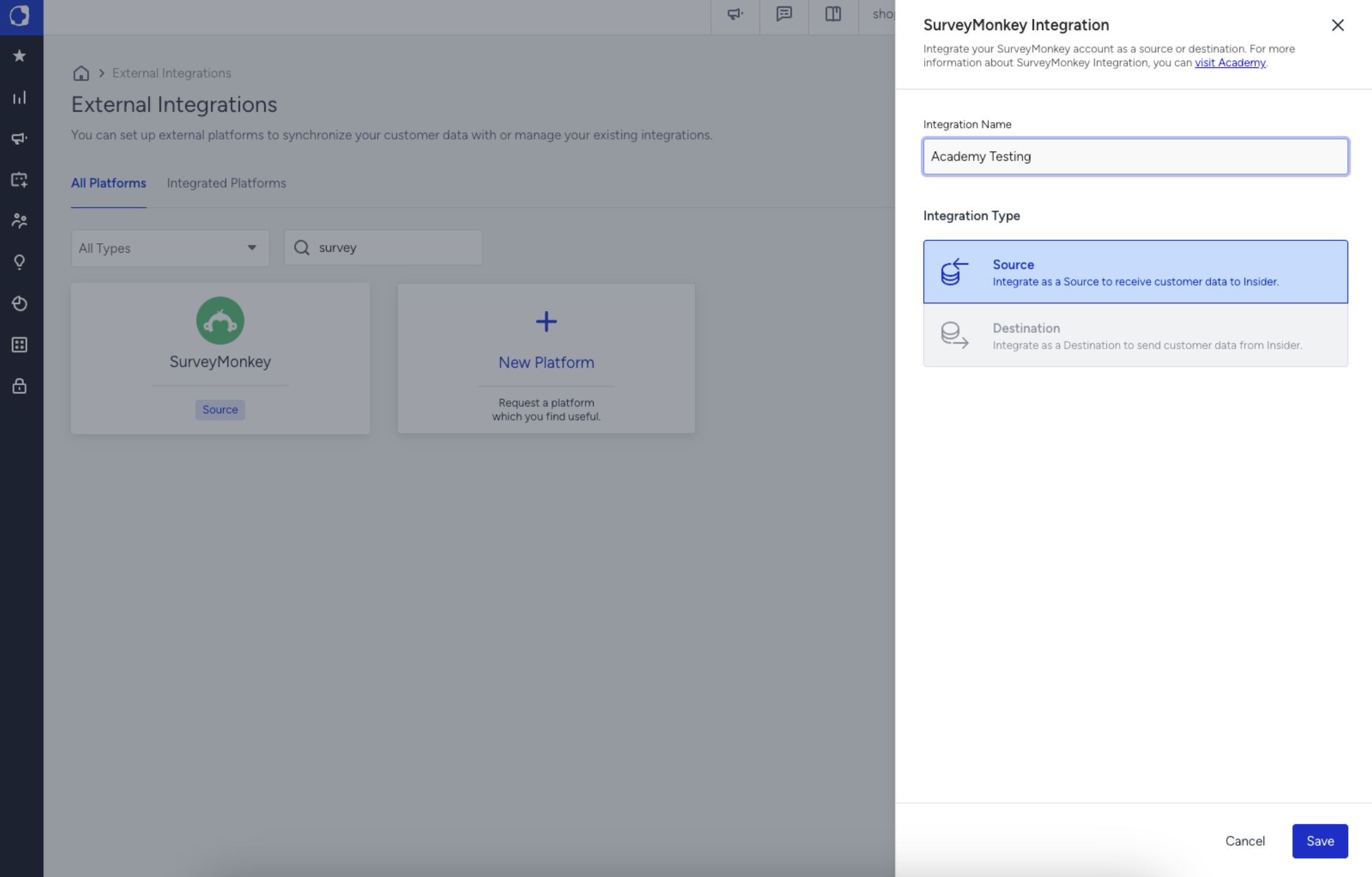
Give the integration a unique name and click Save.
Step 2: Set up SurveyMonkey App
SurveyMonkey uses an API key for authentication. To connect your SurveyMonkey account, you should first set up your SurveyMonkey app.
Log in to your SurveyMonkey account.
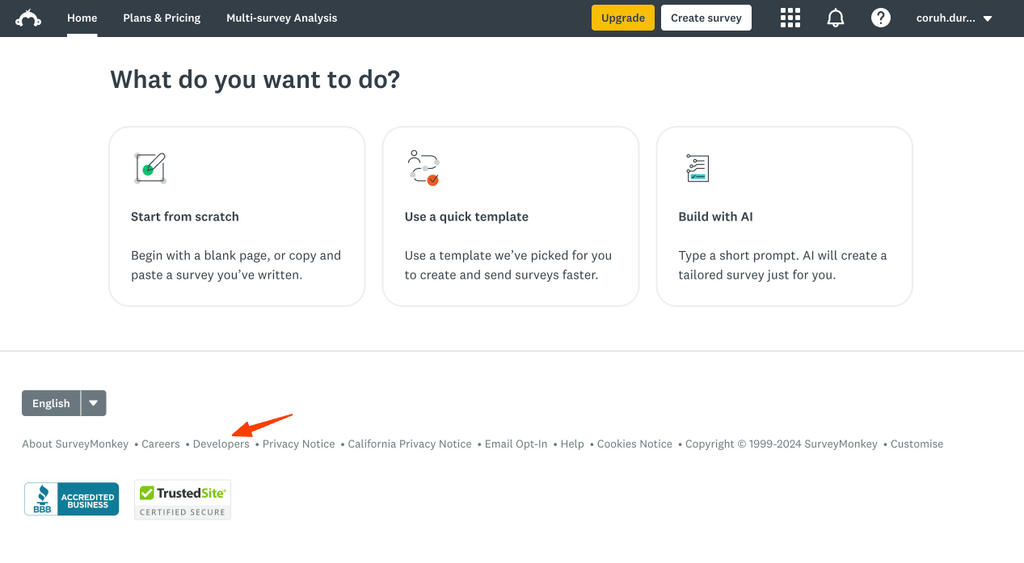
Go to the Developers module inside SurveyMonkey and click Developers.
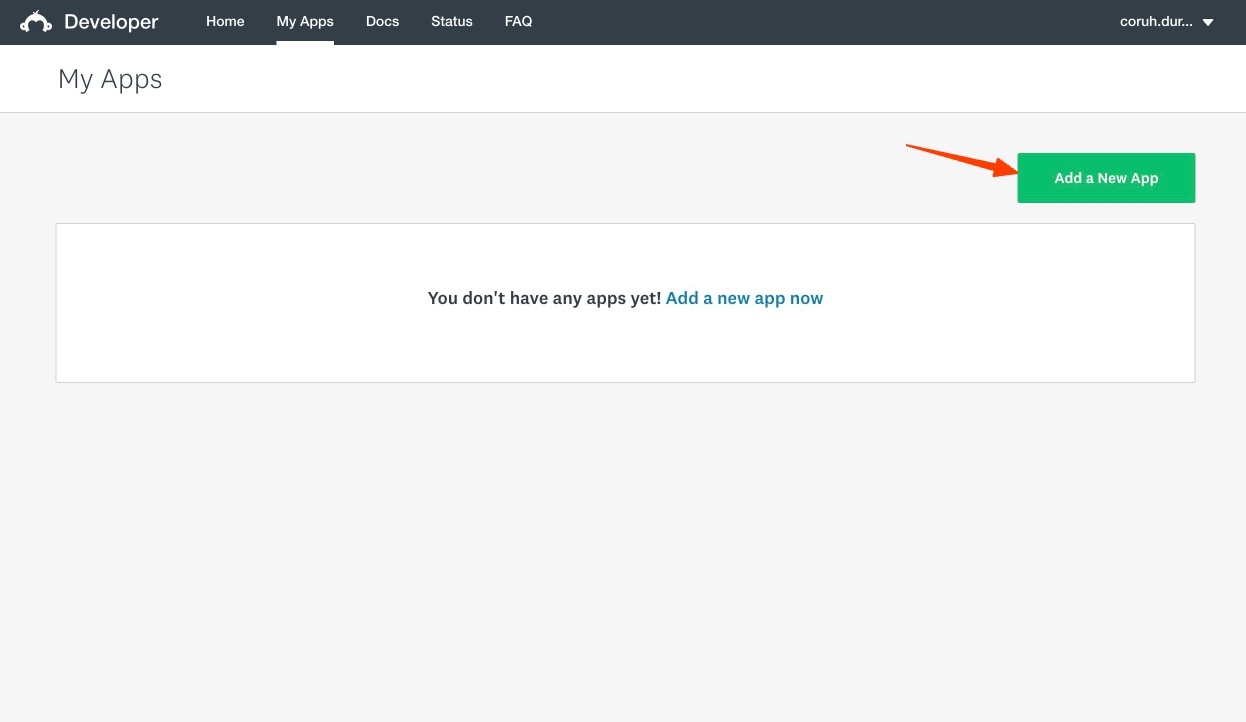
Click the Add a New App button.
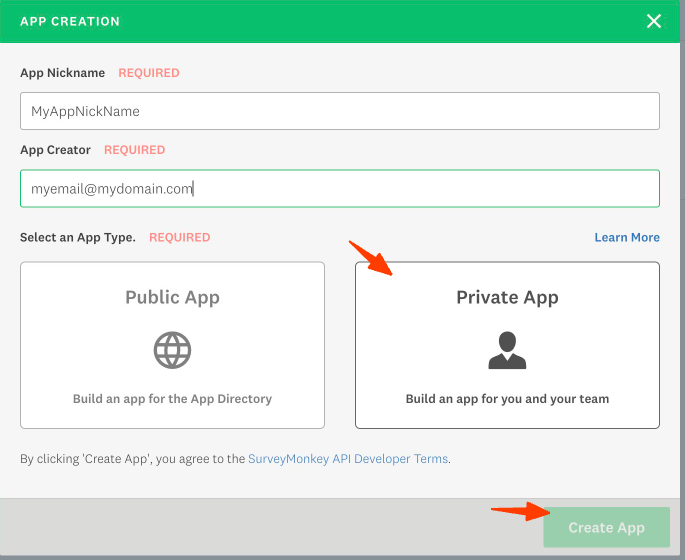
Enter a nickname and email for your app, select Private App, and click the Create App button.
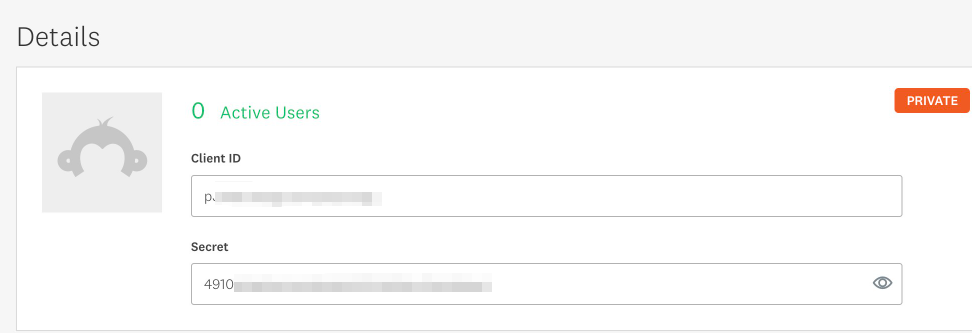
Get the Client ID and Secret.
Go to the Settings tab, enter the OAuth Redirect URL, and click the Submit Changes button.
The Auth URL ishttps://oauth2.connect.insiderone.com/callback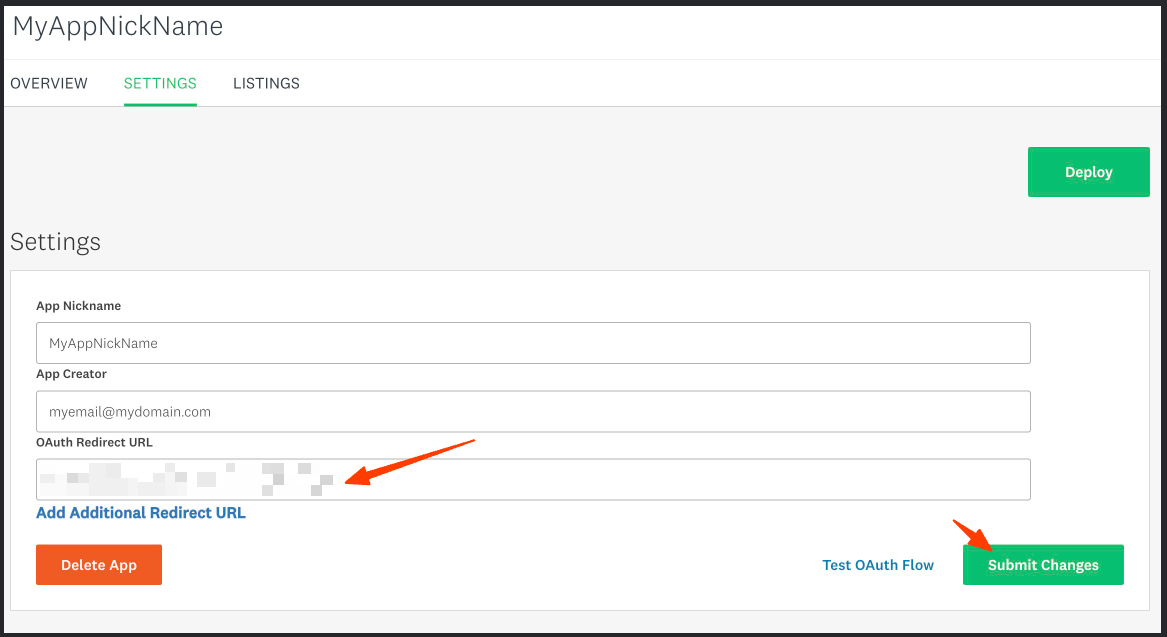
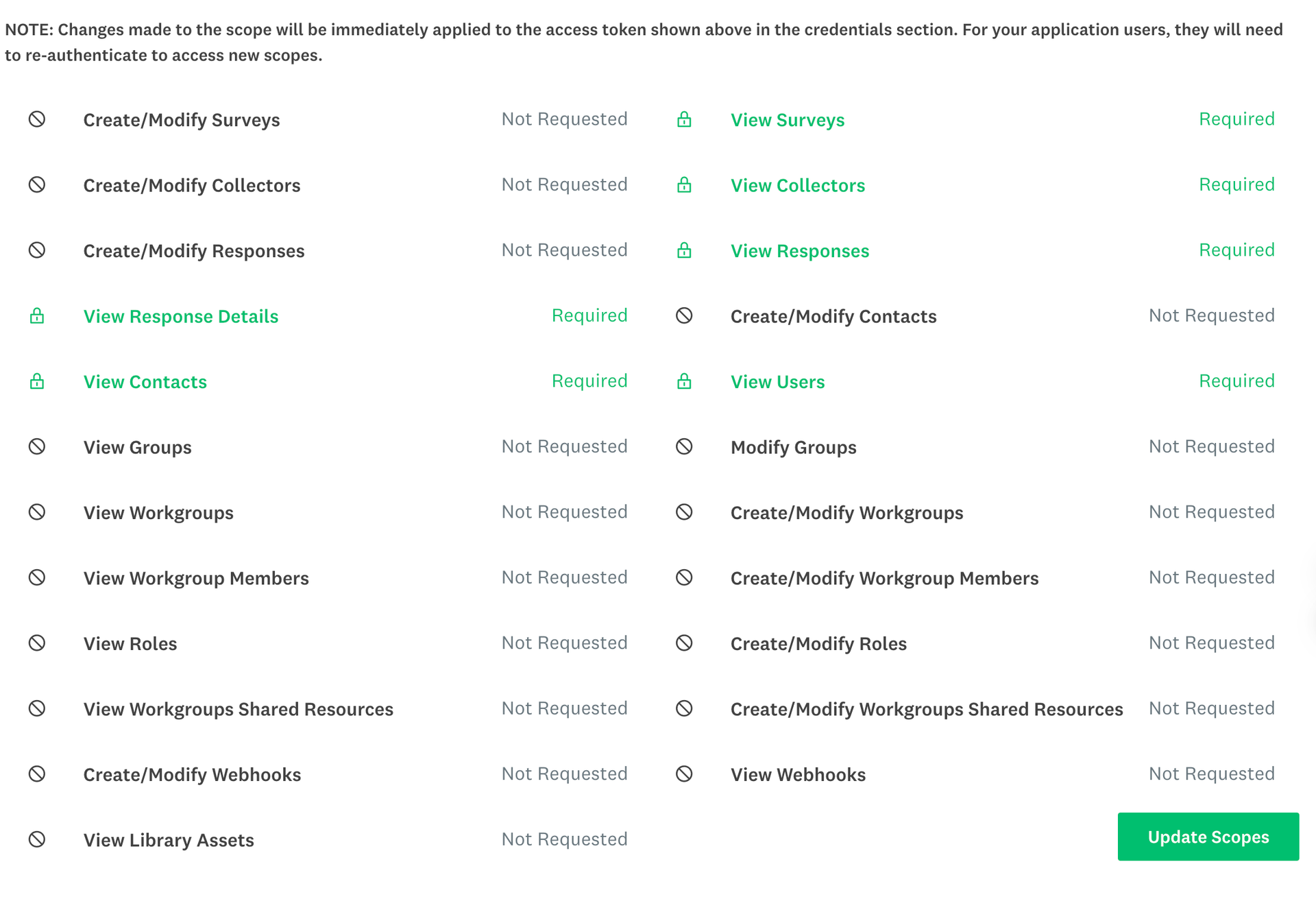
Scroll down to the scopes, select the ones below, and click the Update Scopes button.
View Surveys
View Collectors
View Responses
View Response Details
View Contacts
View Users
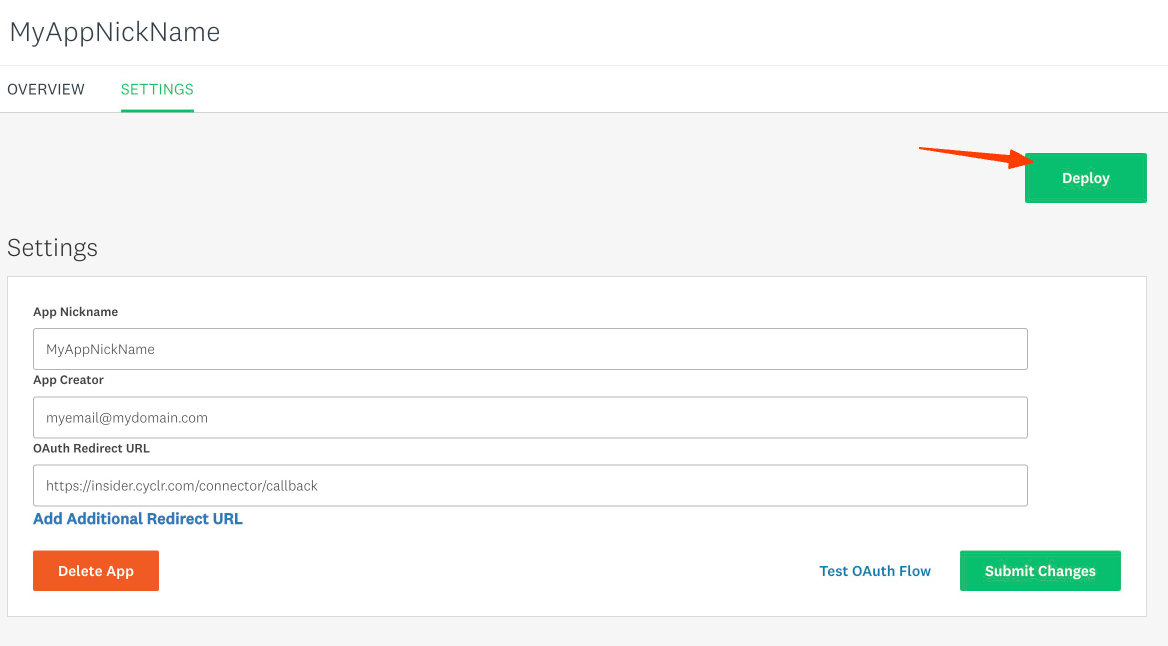
Scroll up and click the Deploy button to deploy your app.
Go back to the External Integrations page and validate your authentication.
Field | Description |
|---|---|
Region |
|
Client ID | OAuth Client ID from your SurveyMonkey app registration. |
Client Secret | OAuth Client Secret from your SurveyMonkey app registration. |
Click Connect. A browser pop-up opens for SurveyMonkey OAuth authorization. After completing the login, close the pop-up. The status indicator turns green to confirm the connection.
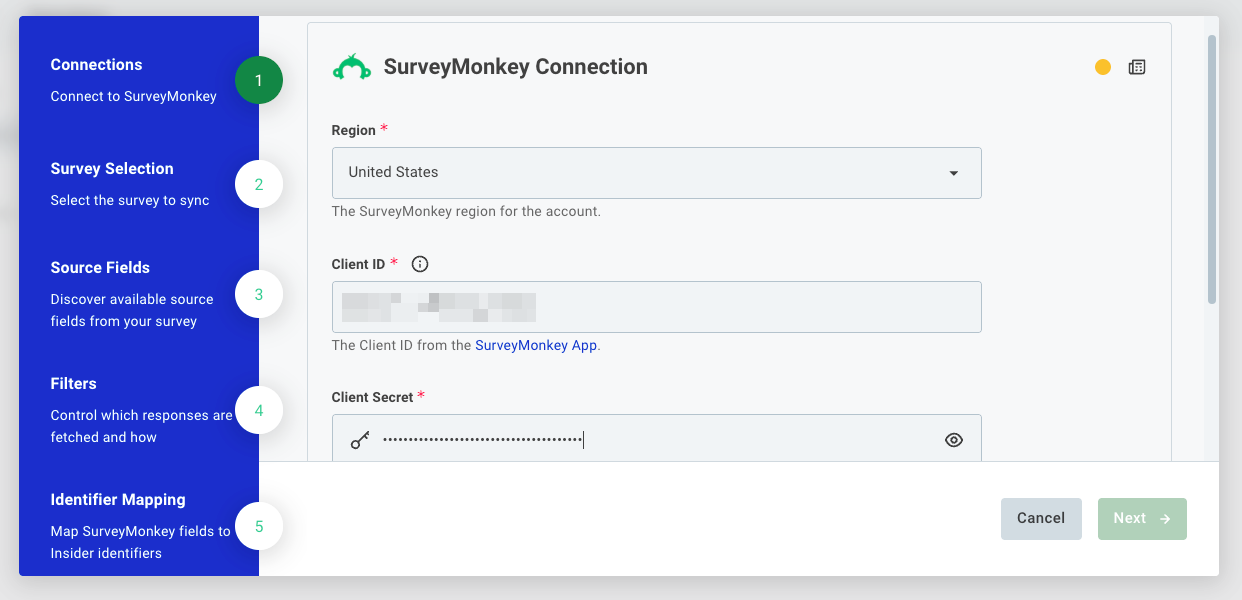
Click Next to proceed.
Step 3: Survey selection
Select the survey whose responses you want to sync. The dropdown is populated from your connected SurveyMonkey account.
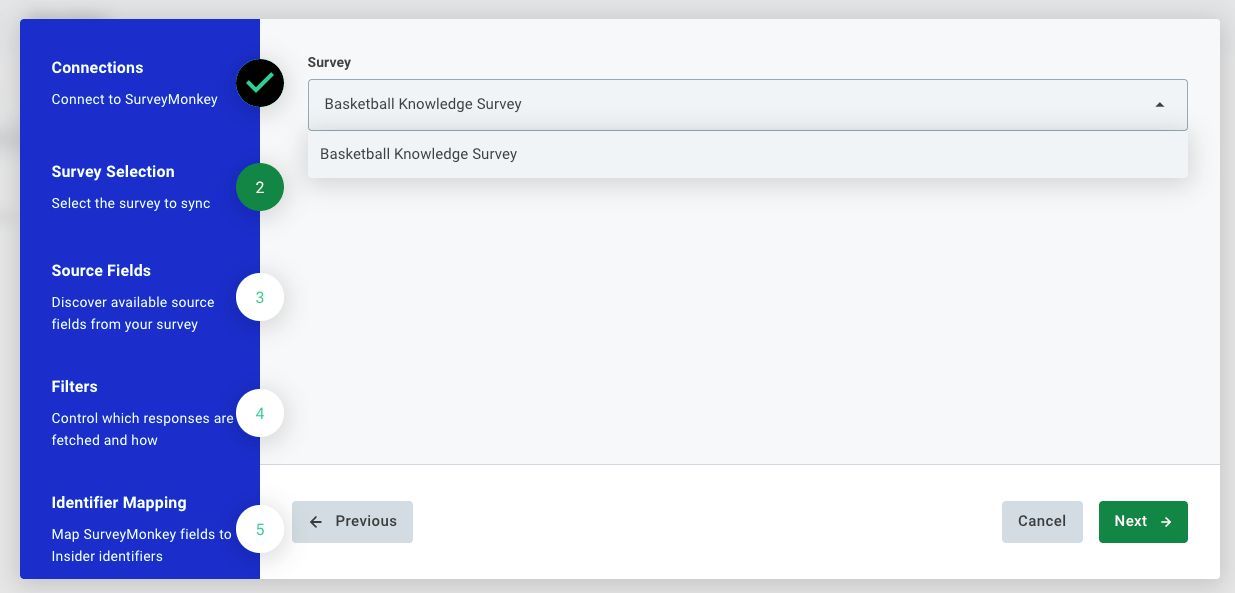
Each integration instance syncs one survey. To sync multiple surveys, create separate integration instances.
Click Next when done.
Step 4: Source Fields
Select which survey question fields should be available for mapping in the following steps. Only fields added here can be used in identifier, attribute, and event mappings. This step can be automatic depending on your app and metadata.
Click Next when done.
Step 5: Filters (Optional)
Optionally filter which responses are processed. For example, filter by response status (completed only) or by a specific answer value.
Leave this step blank to process all responses without filtering.
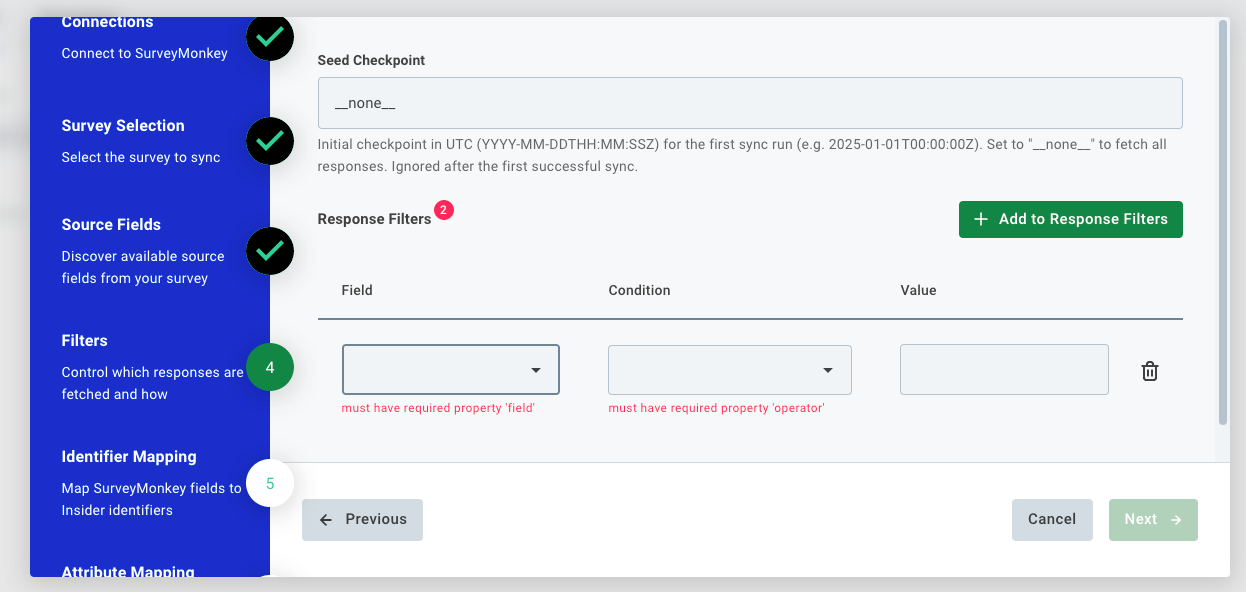
Click Next when done.
Step 6: Identifier Mapping
Map survey response fields to Insider One identifier types. At least one mapping is required. Responses with no valid identifier value are skipped.
Field | Description |
|---|---|
Identifier Type | The Insider One identifier type: Email Address, Phone Number, UUID, or any custom identifier. |
Source Field | The survey question field providing the identifier value. Must be a field selected in Step 4. |
Click Next when done.
Step 7: Attribute Mapping
Map survey response fields to Insider One user profile attributes.
Column Mappings: Each row maps a survey question answer to an Insider One attribute. The answer value is written to the matched user profile.
Fixed Value Mappings: Sets a static value on every synced response.
Common use: set survey_completed to true, or tag responses with the survey name.
Click Next when done.
Step 8: Event Mapping (Optional)
Enable event sending by checking Map events. One event is sent per survey response.
Field | Description |
|---|---|
Event name source | Fixed value: every response triggers the same event type (e.g., |
Timestamp source | Processing time: uses the sync execution time. From column: reads the timestamp from a response field, which is useful for historical imports. |
Step 9: Event Parameter Mapping (Optional)
Active only when event mapping is enabled. Maps survey response fields or fixed values to event parameters (e.g., survey_id, score, nps_rating).
Step 10: Sync Options
Field | Default | Description |
|---|---|---|
Schedule |
| Cron expression (UTC) for polling frequency. Default is every 6 hours. |
SurveyMonkey Page Size | 100 | Responses per API request. Maximum is |
Error Handling | Skip failed record | Skip: continues processing if one response fails to transform. Abort: stops the entire sync on the first error. |
Skip Hook | Off | Suppresses Architect journey triggers for all users upserted in this run. Recommended for large historical backfills. |
Fast Fail on Upsert Error | Off | Stops the sync on the first failed upsert batch to Insider One. Leave Off unless you need strict all-or-nothing behavior. |
Phone Number Settings | — | Normalizes phone values to E.164 format. |
Identifier Settings | — | Controls behavior when an identifier fails validation. |
Click Finish to save and activate the integration.
Troubleshooting
Symptom | What to check |
|---|---|
OAuth connection fails | Verify Client ID and Client Secret. Confirm the SurveyMonkey app has |
Survey not visible in dropdown | The connected account must be the owner or have View Results access for the survey. |
No responses synced | Check that responses exist after the last sync checkpoint. If this is the first run, responses submitted before the integration was created may not be fetched. Use the seed checkpoint setting in Step 5 to extend the lookback. |
Responses missing fields | Confirm the required survey questions are added in Source Fields (Step 4). Only selected fields are available for mapping. |
Identifier mapping failing | SurveyMonkey responses may not always include the respondent's email. Verify the survey was sent to known contacts whose email is captured in |
Sync aborts on transform error | If Error Handling is set to Abort, a single malformed response stops the run. Switch to Skip to continue processing remaining responses. |
Frequently Asked Questions
Q: Does this sync all historical responses or only new ones?
A: Only responses submitted after the last successful sync run are fetched. The integration is fully incremental. To backfill historical responses, contact Insider support to adjust the seed checkpoint.
Q: Can I sync responses from multiple surveys?
A: Each integration instance handles one survey. Create a separate instance for each survey you need to sync.
Q: Can I send both attributes and events from the same survey?
A: Yes. Configure both Attribute Mapping (Step 7) and Event Mapping (Step 8) in the same integration. Both will be processed on each run.
Q: What happens if a respondent submits multiple responses to the same survey?
A: Each response is processed independently. If the respondent's identifier maps to the same Insider One profile, the profile is updated with the most recent response data. Events are fired once per response.
Q: Is the respondent's email always available?
A: Only if the survey was distributed to known contacts via SurveyMonkey's contact list. Anonymous survey links do not capture respondent emails.
Q: Will syncing trigger Architect journeys?
A: By default, yes. Enable Skip Hook in Sync Options (Step 10) to suppress journey triggers for all users in a run.