You cannot make any changes to External Platform Integrations without having either an Administrator or an Editor with PII access in InOne. Refer to User Roles for further information.
After launching your App Templates and App Push campaigns successfully, you can send InApp seen events for app templates and click events for app push campaigns to your Google Analytics 4 (GA4) account.
To start sending your Insider One events to GA4, you should complete the following steps:
GA4 Configuration
You will need your GA4 Measurement ID and API Secret Value from your GA4 account to complete this integration. To get these values:
1. Navigate to Admin > Data Collection and Modification > Data Streams.
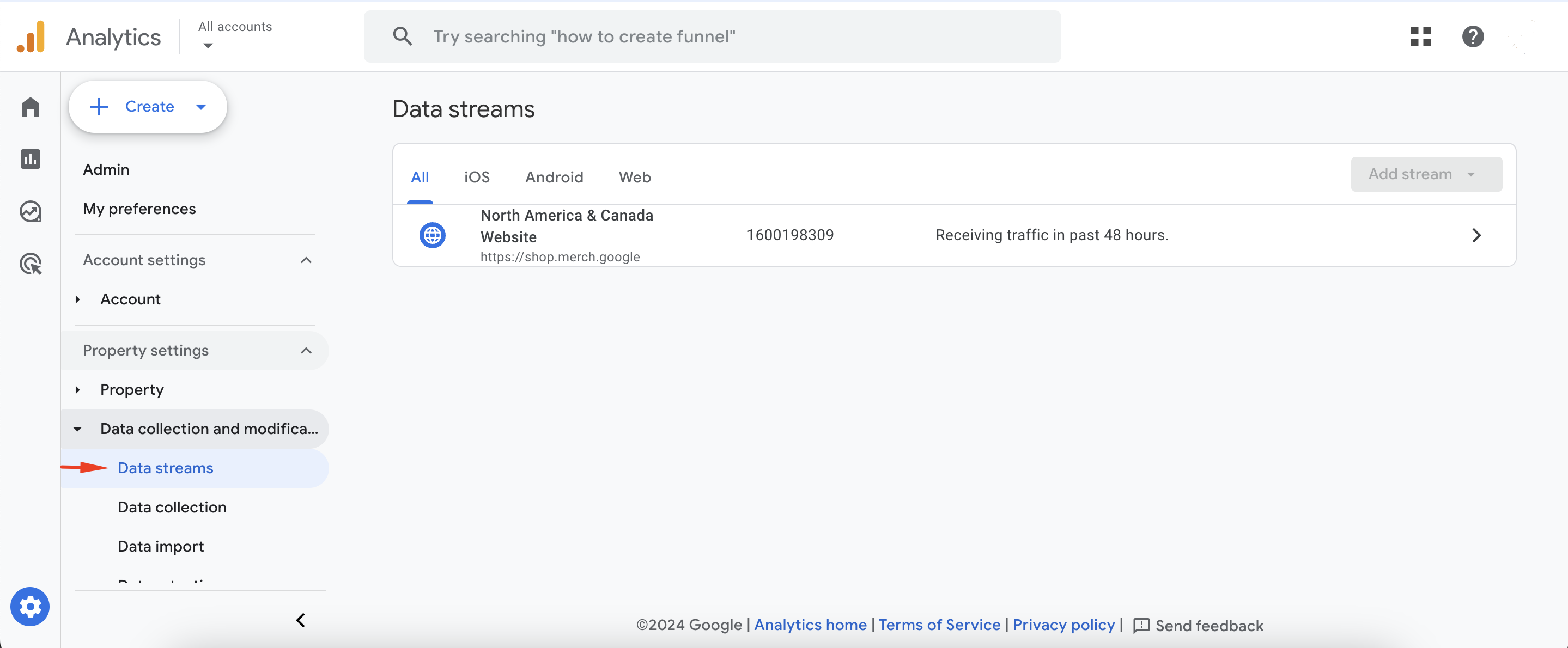
2. Click the stream you want to send events to.
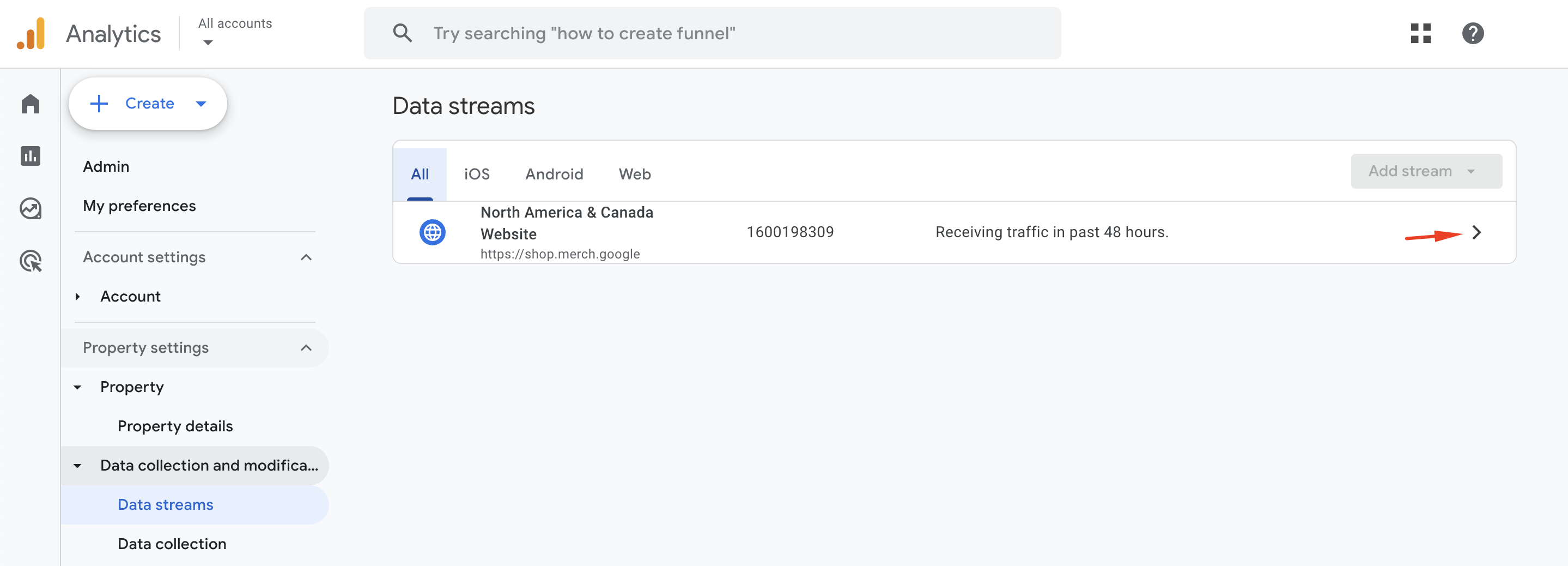
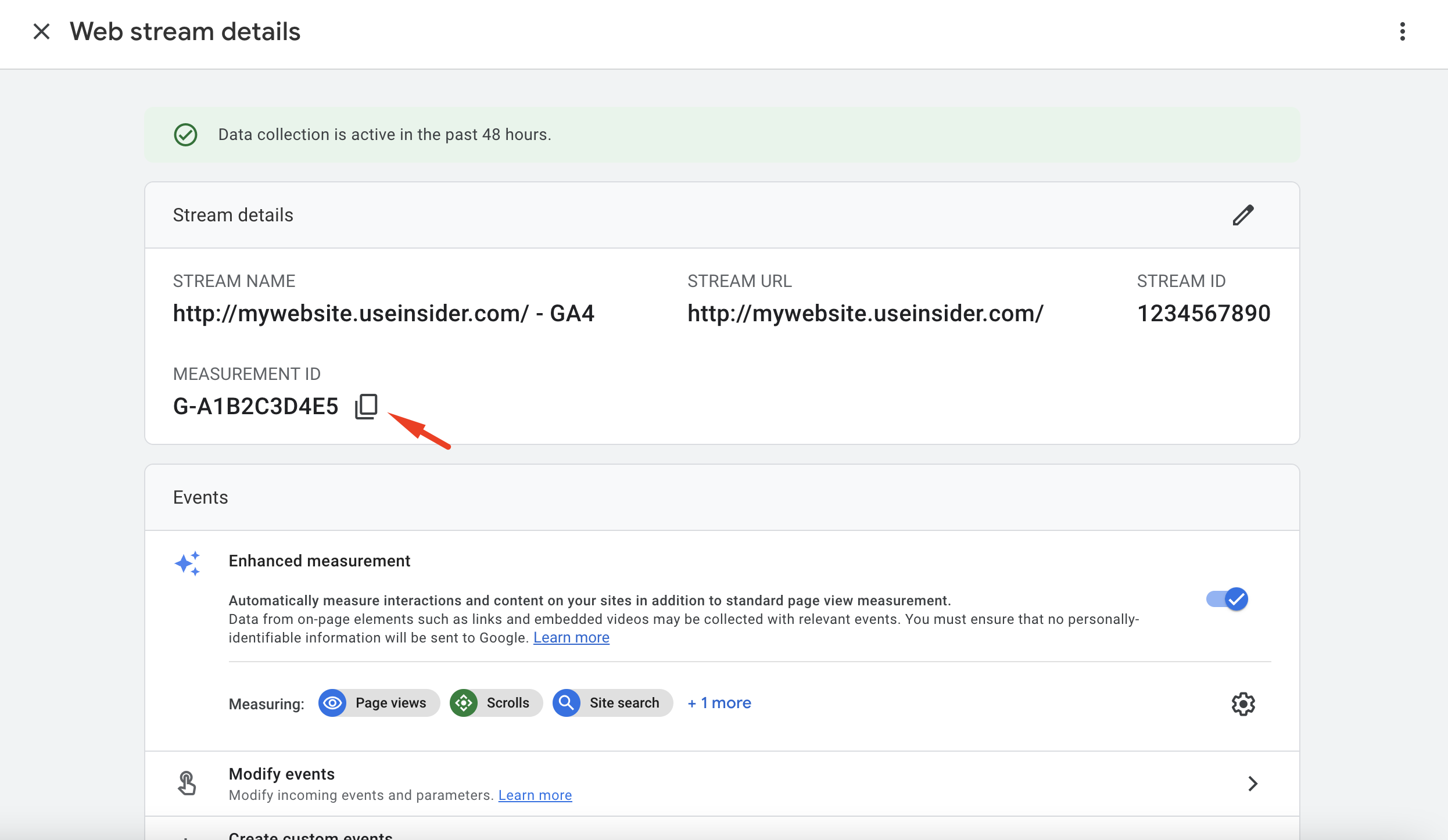
The InApp and App Push data are sent from Insider One's web service to Google Analytics 4, and the data is fed to the web stream. That's why you should get the web stream measurement ID.
3. Copy the Measurement ID, and save it to add it to your InOne panel later.
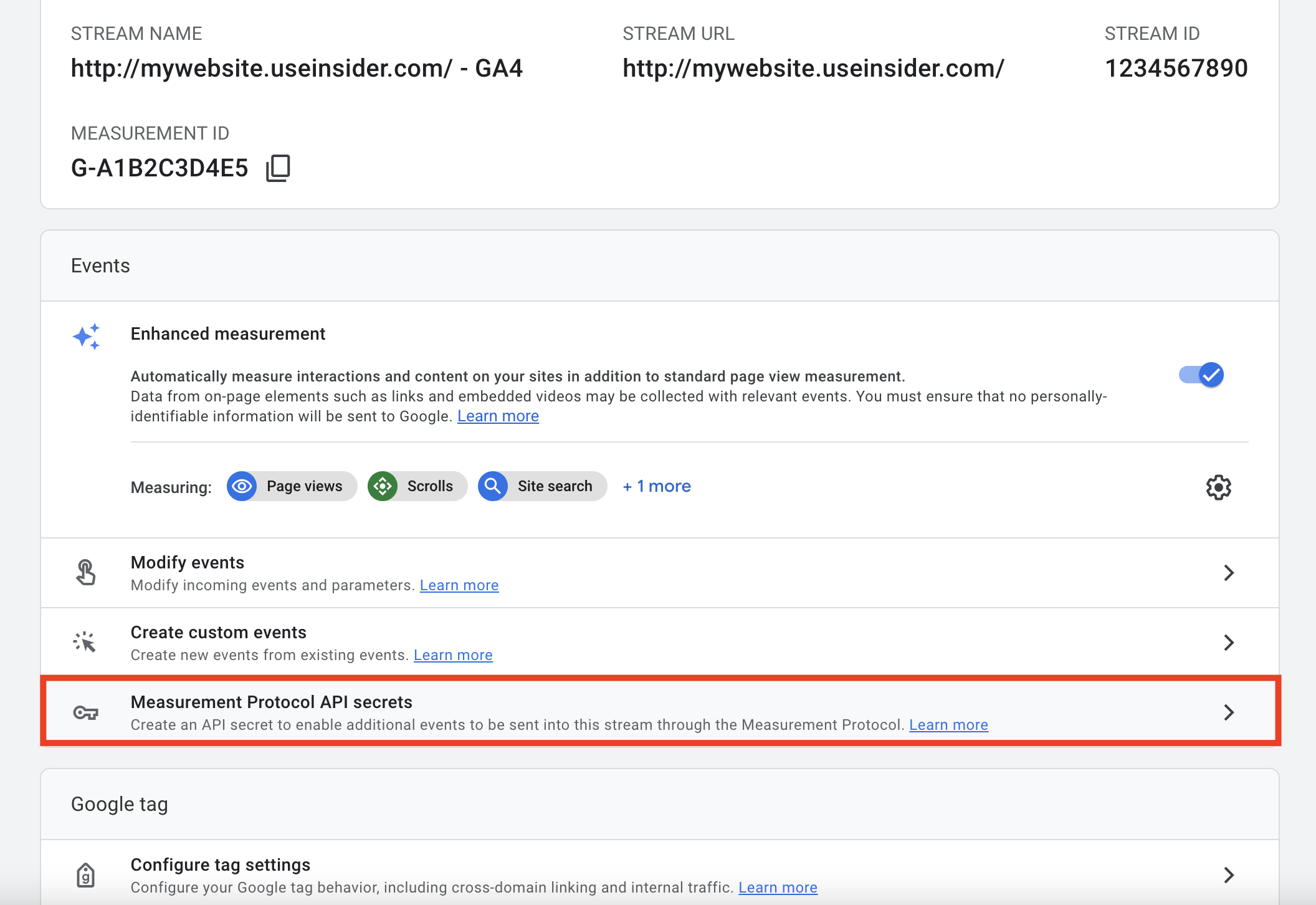
4. Scroll down in the same window to go to Measurement Protocol API Secrets to create a secret key.
5. Click the Create button.
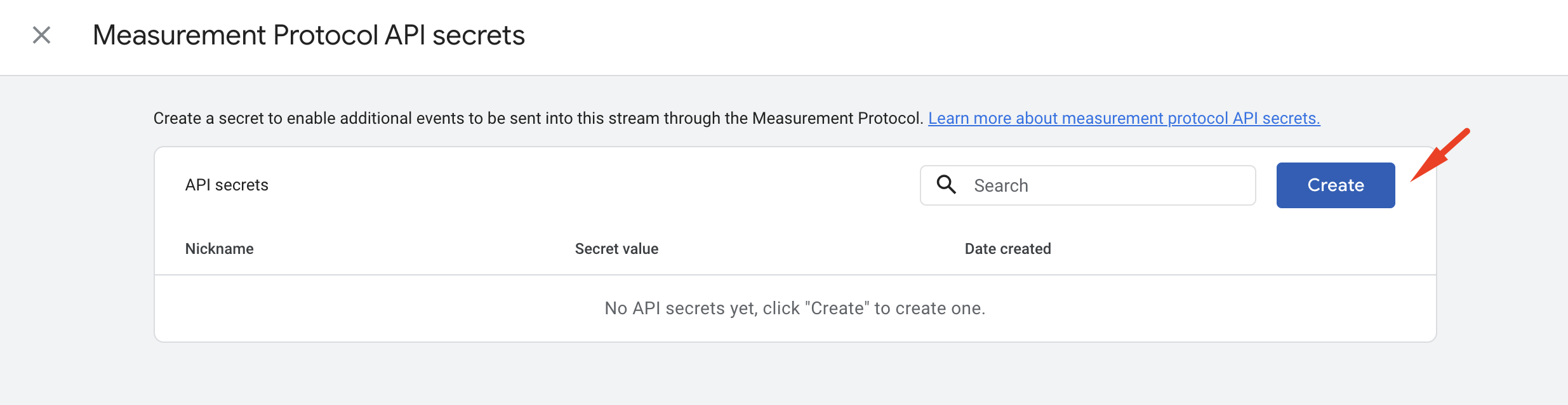
6. Add any nickname to your API secret, and click the Create button.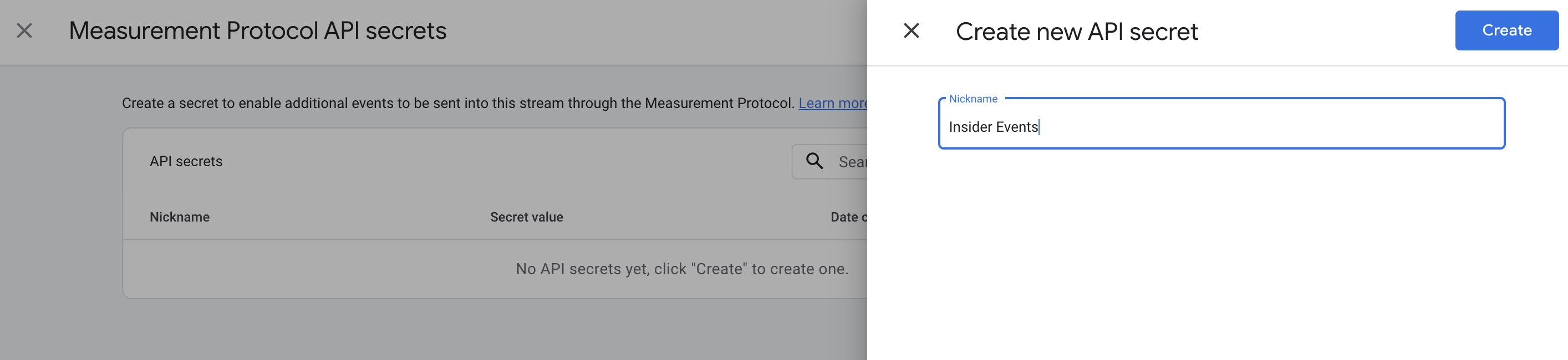
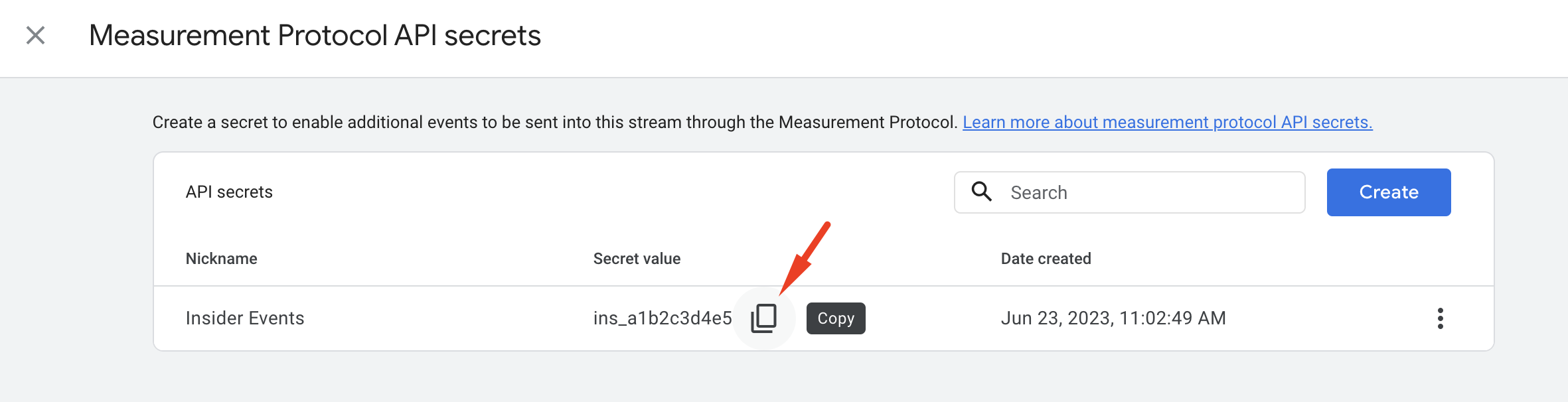
7. Copy the secret value, and save it to add it to your Inone panel.
InOne Settings
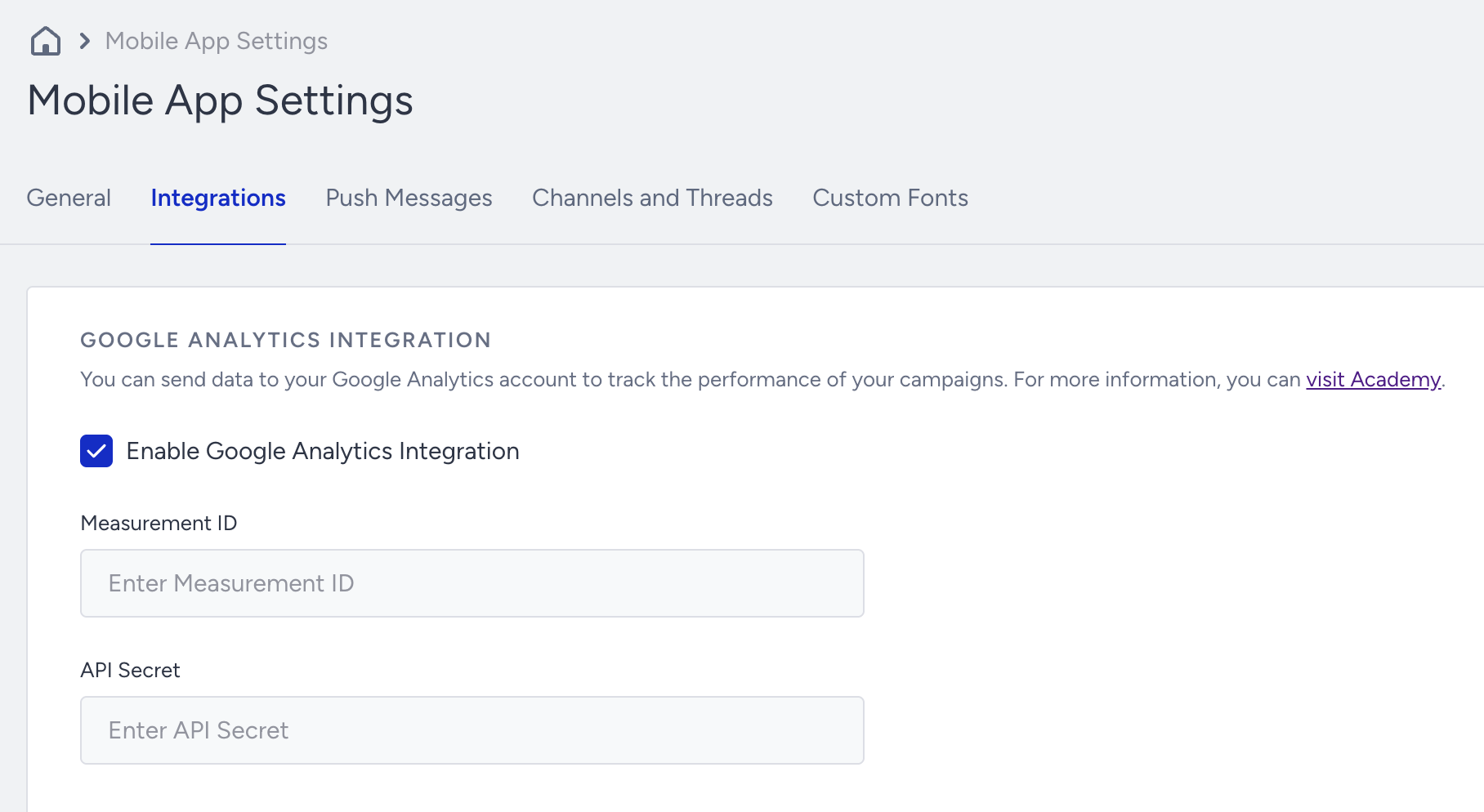
You need to add the GA4 Measurement ID and API Secret Value you saved in the previous step to your Mobile App Settings. To add these values:
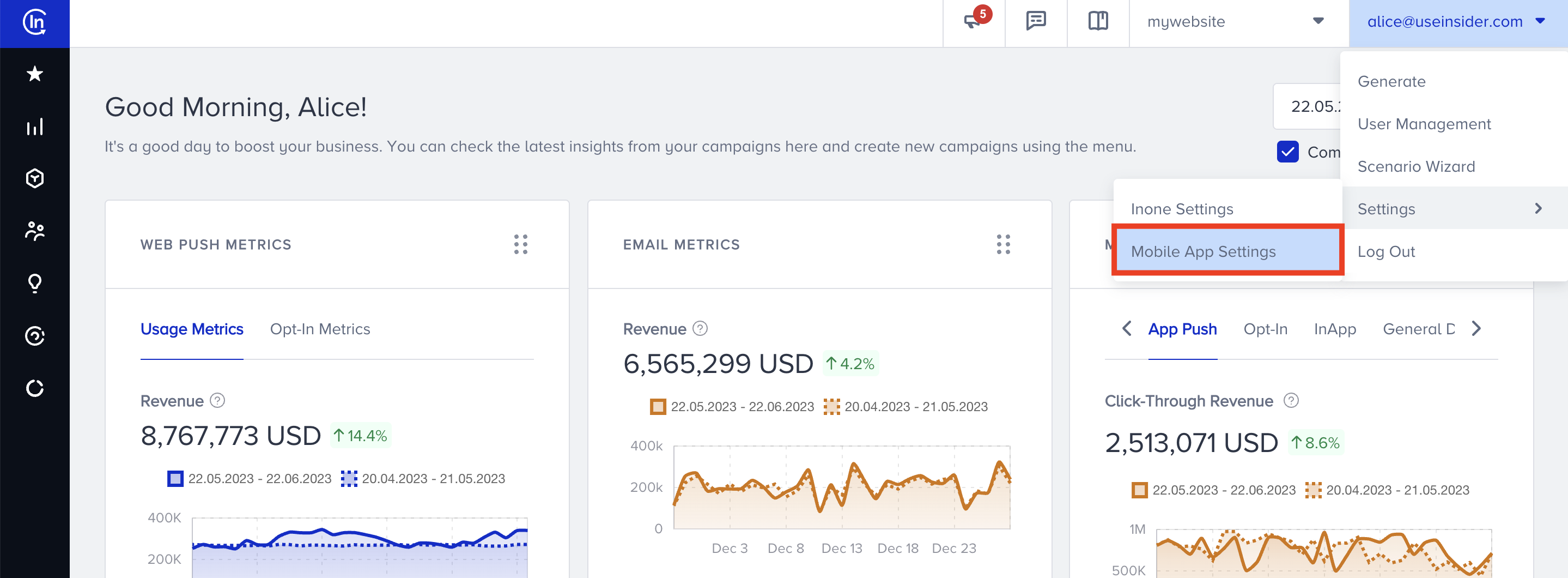
1. Go to your Inone > Settings > Mobile App Settings.
2. Go to the Integrations tab. Mark the Enable Google Analytics Integration checkbox. Paste the measurement ID and secret value you copied from your Google Analytics 4 account to the Measurement ID and API Secret fields.
After completing this configuration, you can test your events on your GA4 account.
After the integration is completed, it takes about 1 hour for the data flow to start. That's why you may not see any data stream if you start testing before the data flow starts.
Testing Events
Once you complete your integration, you can test your integration following these steps:
1. Go to your app to view your live app templates or receive an app push to trigger some events on your campaigns, such as clicks, closes, etc.
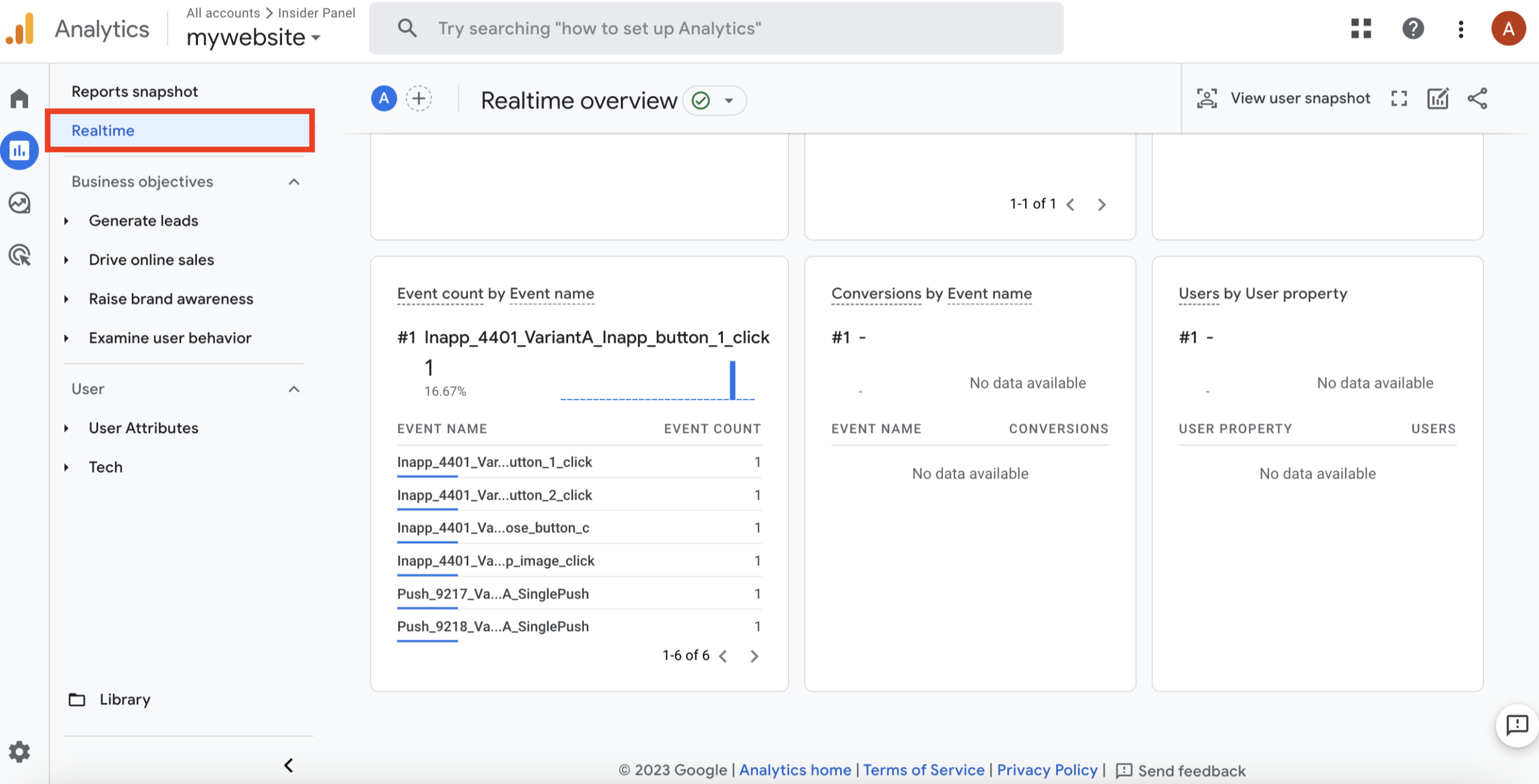
2. On your GA4 account, you can view your events in Realtime or Reports.
You should launch your app templates and app push campaigns to see the respective events on GA4.
To send the click event of an element in an app template, you should assign an Action to the respective element.
Realtime
(1).png)
Reports
On both pages, you can see your InApp seen and click events from your app template and App Push campaigns.
The event name can include the campaign type, push type, variant ID, variant name, template element, and the event itself. For example, if you click the close button in Variant A with 4372 ID of your InApp campaign, the event name would be Inapp_4372_VariantA_Inapp_close_button_click.
For enhancedtemplates, the event structure is Inapp_{inappID}{variantID}{elementID}. You can get the InApp ID from the listing page, variant ID and element Id from the Details modal.
To get a better understanding of all events you can send from app templates to your GA4 account, see the list below.
App Template Events
Event | Description |
|---|---|
Wp_btn | Click on the WhatsApp Trigger button |
WoF_SPin_btn | Click on the Spin button on Wheel of Fortune |
WoF_copy_btn | Click on the Copy button on Wheel of Fortune |
WoF_pg1_cl_btn | Click on the Close button on the Page 1 on Wheel of Fortune |
WoF_pg2_cl_btn | Click on the Close button on the Page 2 on Wheel of Fortune |
WoF_sec_btn | Click on the secondary button on Wheel of Fortune |
SCR_copy_btn | Click on the Copy button on Scratch Coupon |
SCR_pg1_cl_btn | Click on the Close button on the Page 1 on Scratch Coupon |
SCR_pg2_cl_btn | Click on the Close button on the Page 2 on Scratch Coupon |
SCR_pg1_ovl | Click on the Overlay on the Page 1 on Scratch Coupon |
SCR_pg2_ovl | Click on the Overlay on the Page 2 on Scratch Coupon |
SCR_sec_btn | Click on the secondary button on Scratch Coupon |
SCR_pg1_img_btn | Click on the Image on the Page 1 on Scratch Coupon |
SCR_pg2_img_btn | Click on the Image on the Page 2 on Scratch Coupon |
SP_cl_btn | Click on the Close button on Social Proof |
Inapp_btn_1 | Click on the Button 1 on InApp |
Inapp_btn_2 | Click on the Button 2 on InApp |
Inapp_img | Click on the Image on InApp |
Inapp_copy_btn | Click on the Copy button on InApp |
Inapp_cl_btn | Click on the Close button on InApp |
Inapp_ovl | Click on the Overlay on InApp |
LG_sub_btn | Click on the Submit button on Lead Generation |
LG_copy_btn | Click on the Copy button on Lead Generation |
LG_pg1_cl_btn | Click on the Close button on the Page 1 of Lead Generation |
LG_pg2_cl_btn | Click on the Close button on the Page 2 of Lead Generation |
LG_pg1_ovl | Click on the Overlay on the Page 1 of Lead Generation |
LG_pg2_ovl | Click on the Overlay on the Page 2 of Lead Generation |
LG_btn_2 | Click on the Button 2 on Lead Generation |
LG_img | Click on the Image on Lead Generation |