Modules help you create email campaigns much faster. You can create modules for elements that don't change often, such as the logo, header, menu, and contact information, so that you can reuse them in your other email campaigns later.
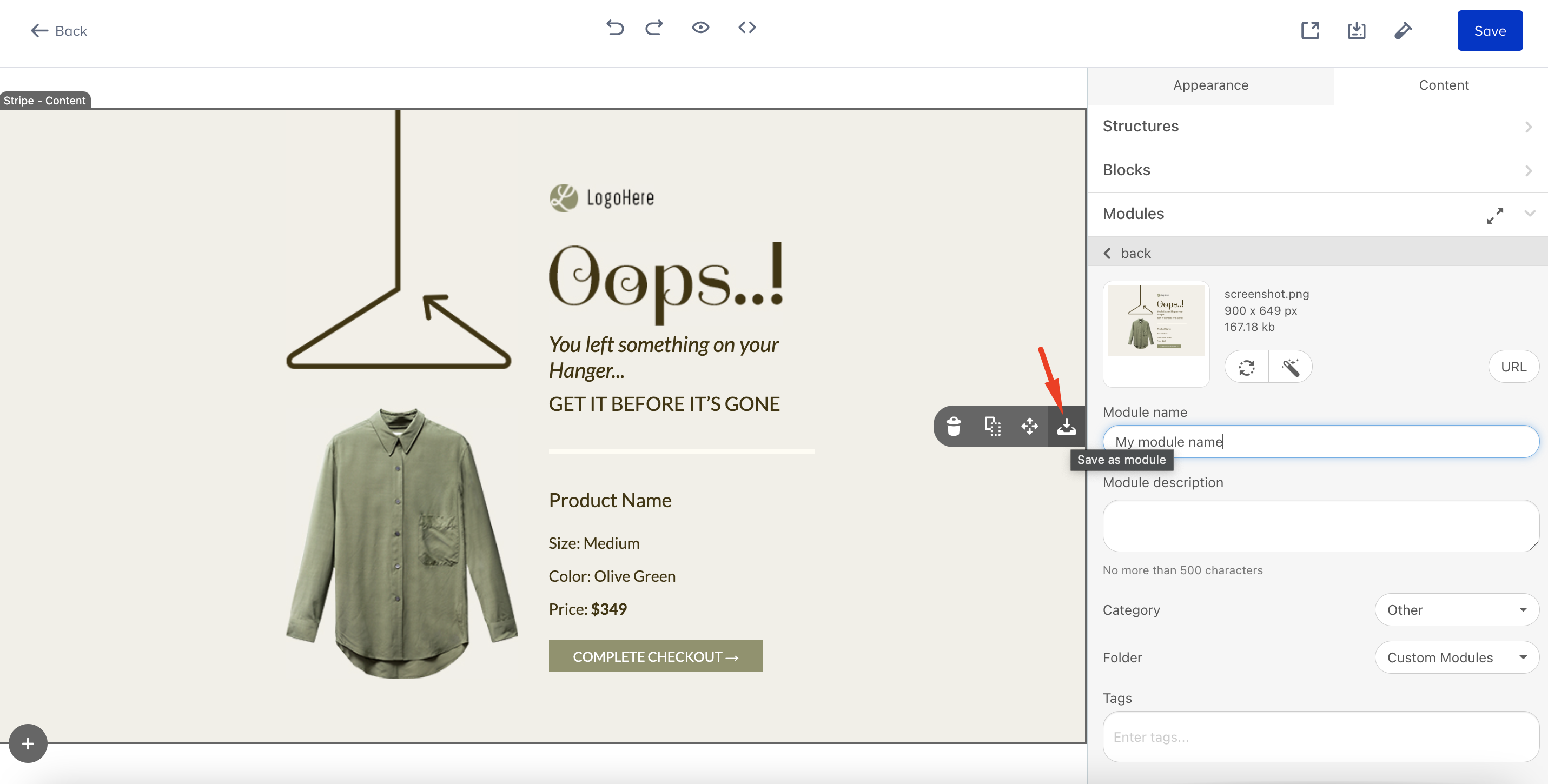
You can create modules and save them under Custom Modules. To save content modules:
1. Click the Save as module button to save your module under Custom Modules.
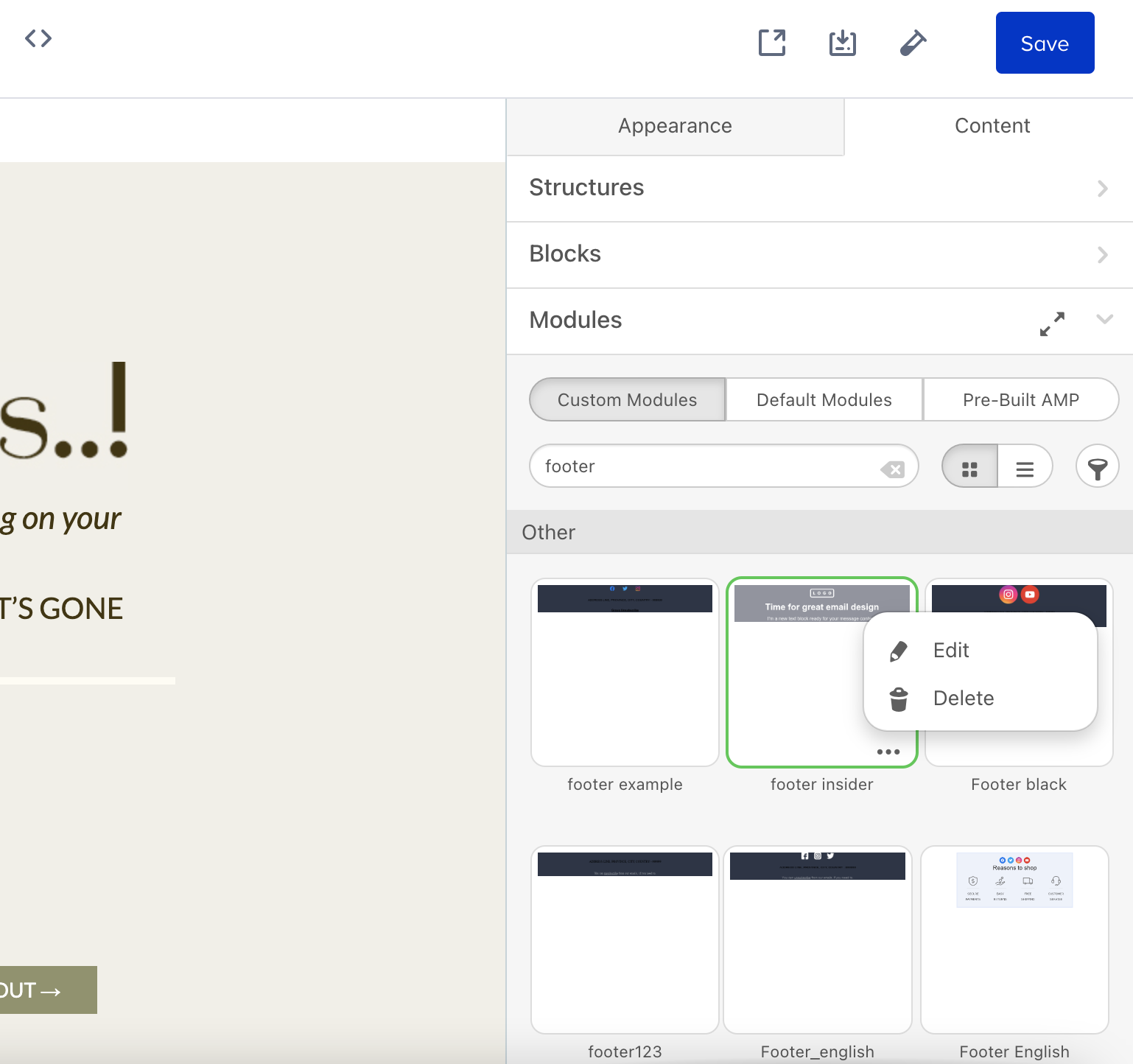
The saved modules are listed in Modules > Custom Modules.
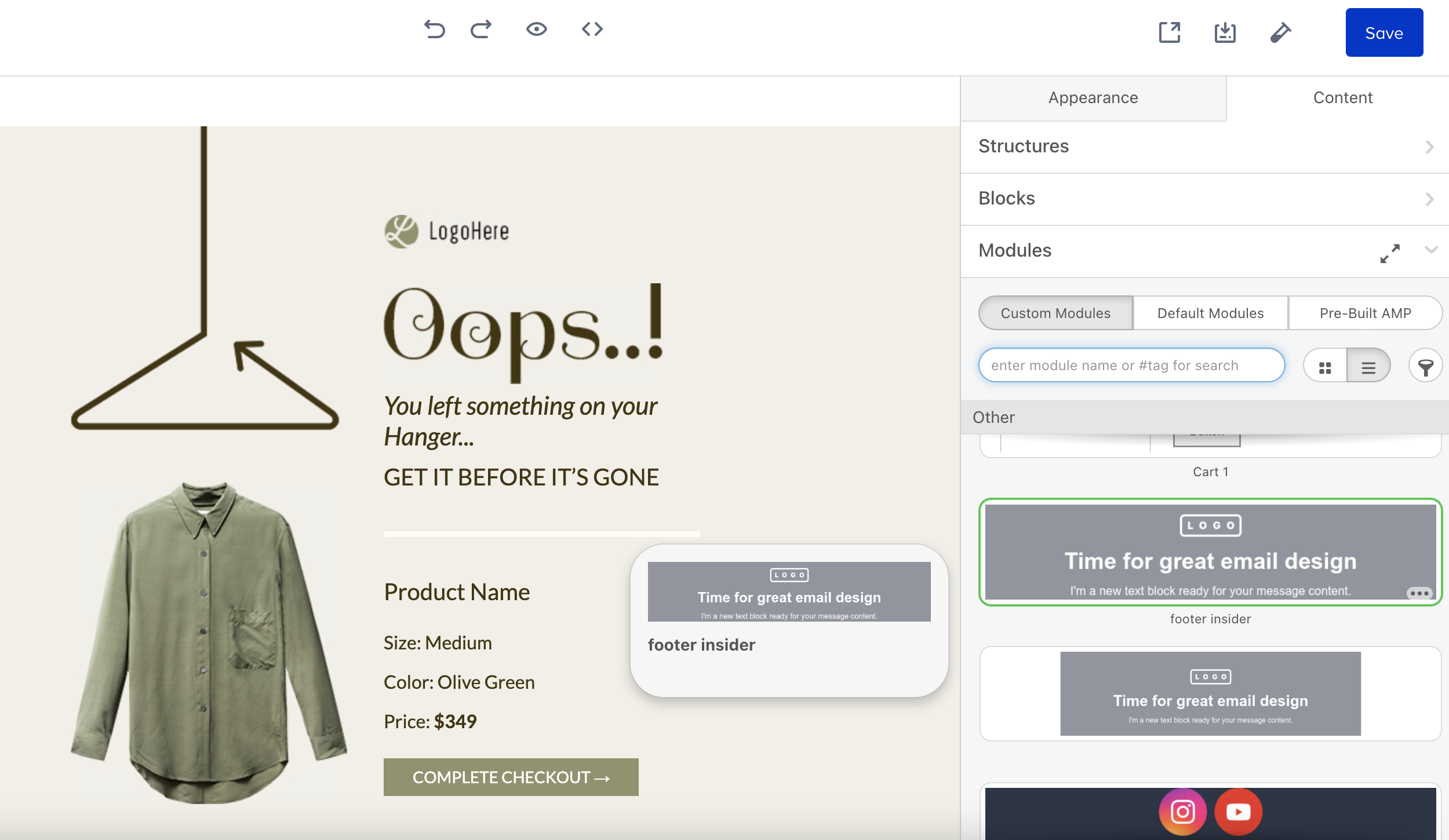
2. Once you save a module, you can search for it by its name or tag.
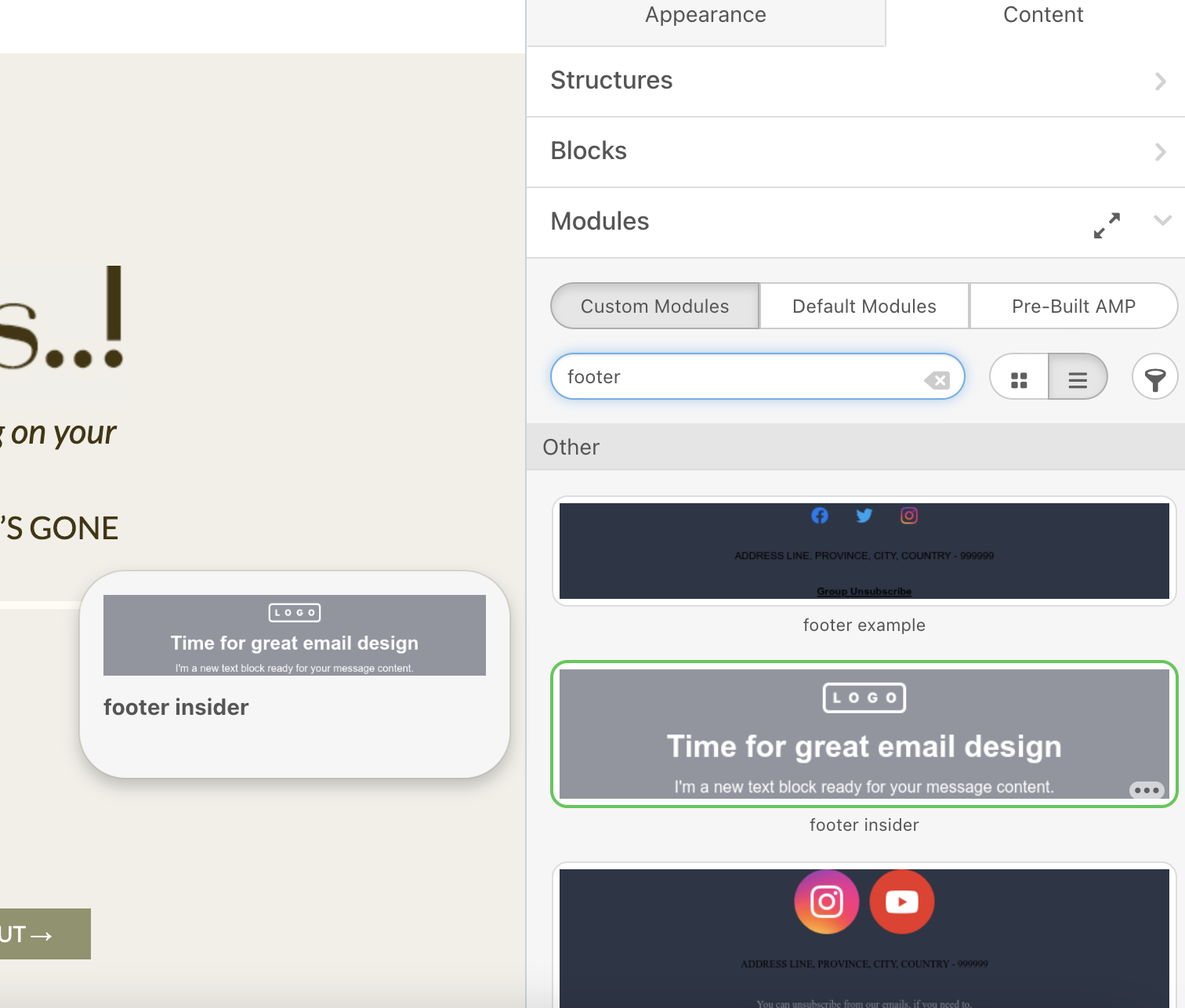
3. You can view the modules in tiles or a list.

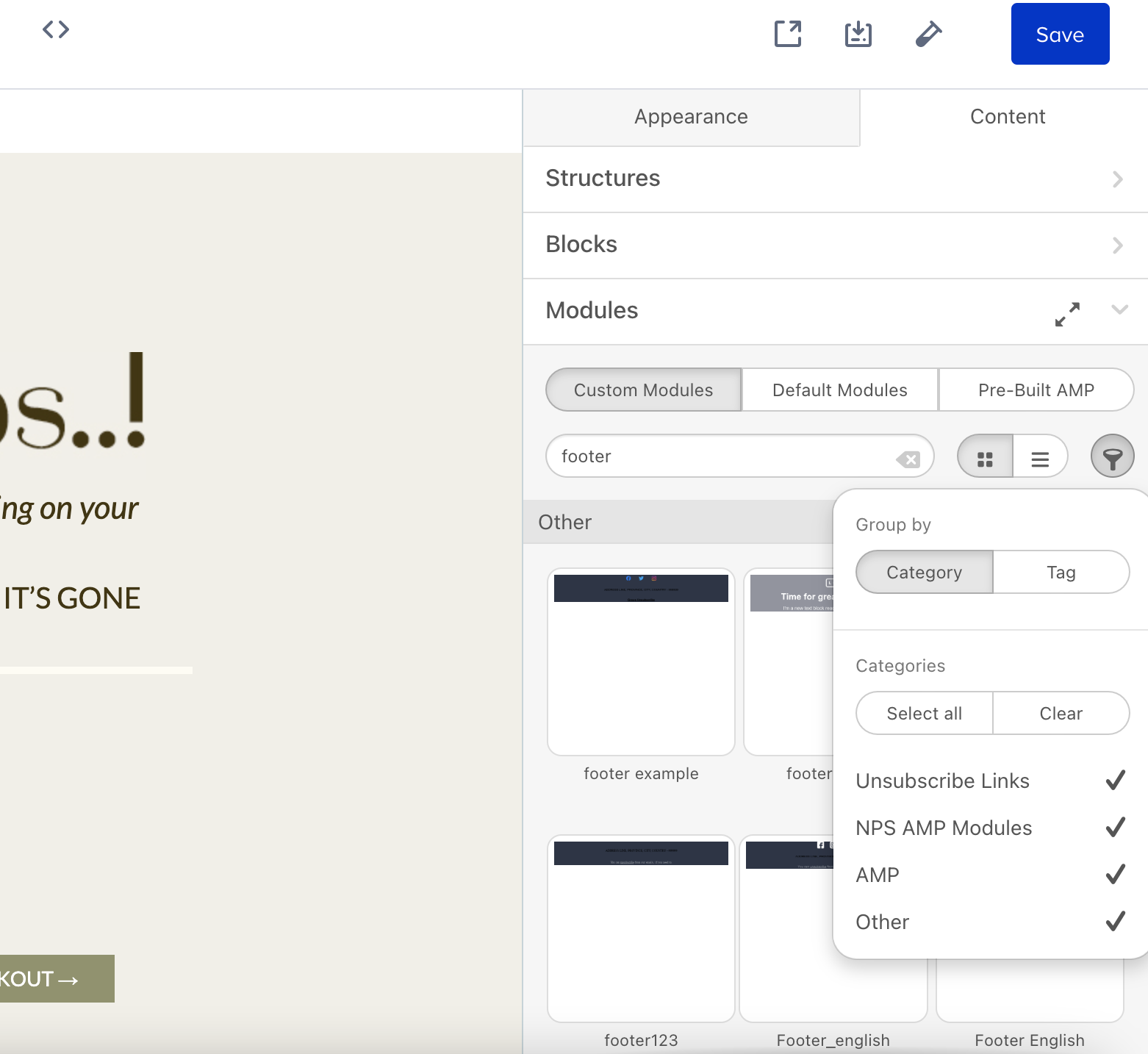
4. You can filter or group the modules for better categorization.
5. You can click the menu on the module to edit or delete your module.
6. Once you click the Edit button, you can change the image path, module name, module description, category, and tags. You can also change and edit the image.
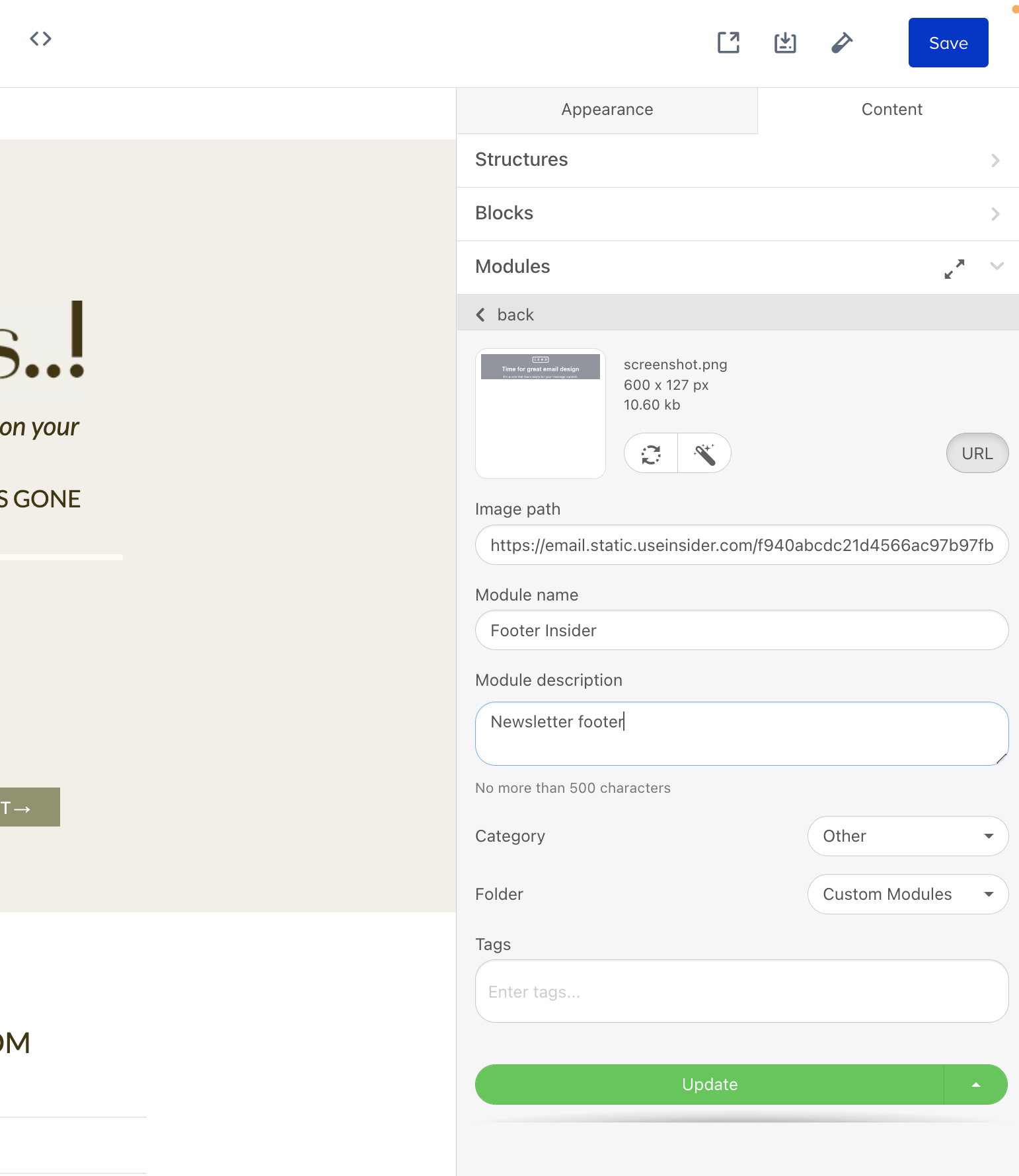
After you edit and click Update, the module in the original campaign will be updated. The campaigns with the same name but an old version will not be updated directly.