User information is sent to Insider One from multiple sources, including mobile apps, websites, internal systems, and third-party tools. This data is the foundation of nearly all Insider capabilities, such as:
Creating and updating audiences
Personalizing messages and experiences
Measuring conversions and campaign performance
Because these features rely on continuous data flow, any interruption, even for a short period, can cause serious issues. When data stops arriving, audiences may fail to update, campaigns may underperform, and reports may become inaccurate or misleading.
Insider One’s alert mechanism automatically detects:
Missing data
Abnormal volume changes
Volume threshold breaches
This lets you identify and resolve data issues before they affect your campaigns, personalization, or reporting.
Why Set Up Validation Rules?
Validation rules let you define what normal looks like for your most critical data points: events, event parameters, and attributes. Insider One checks continuously against your rules and creates an error card in the Validation Report the moment something falls outside your expectations.
Without validation rules, data problems are typically discovered only after they have already affected campaigns, audiences, or reporting. Validation rules provide a proactive monitoring layer, so issues surface before they cause downstream damage.
Define Rules
To receive Missing Data alerts, you must first define Missing Data rules.
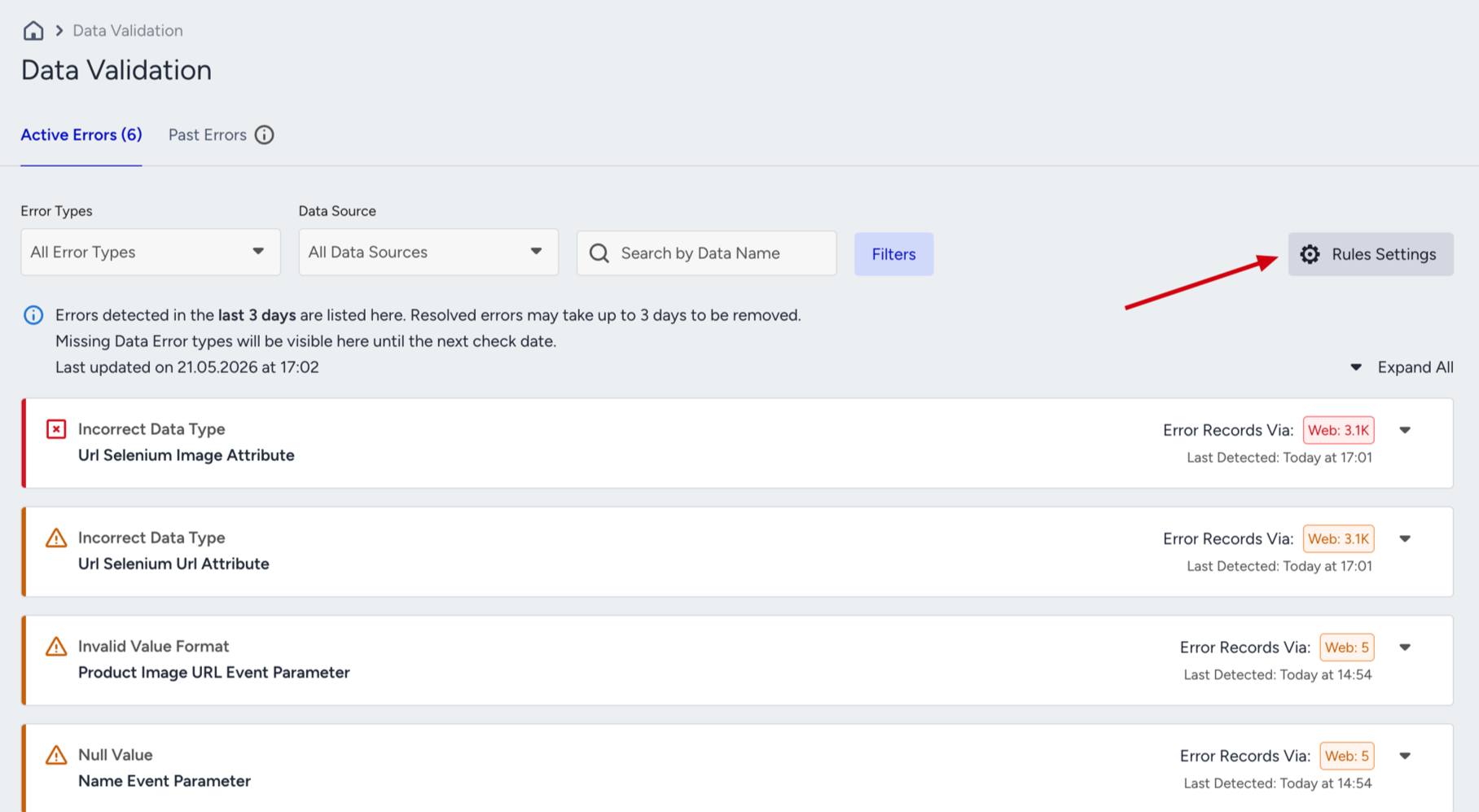
In the Validation Report step, click Rules Settings to start creating your Missing Data rules.
At the top of the screen, use the Define validation rules for dropdown to select the data point you want to monitor. This can be an event, an event parameter, or an attribute.
Once you have selected a data point, add one or more rule conditions. Each rule condition operates independently and triggers an error when its specific condition is met.
You can mix rule types on the same data point. For example, you can apply a Missing Data rule and an Abnormal Volume Change rule to the same event.
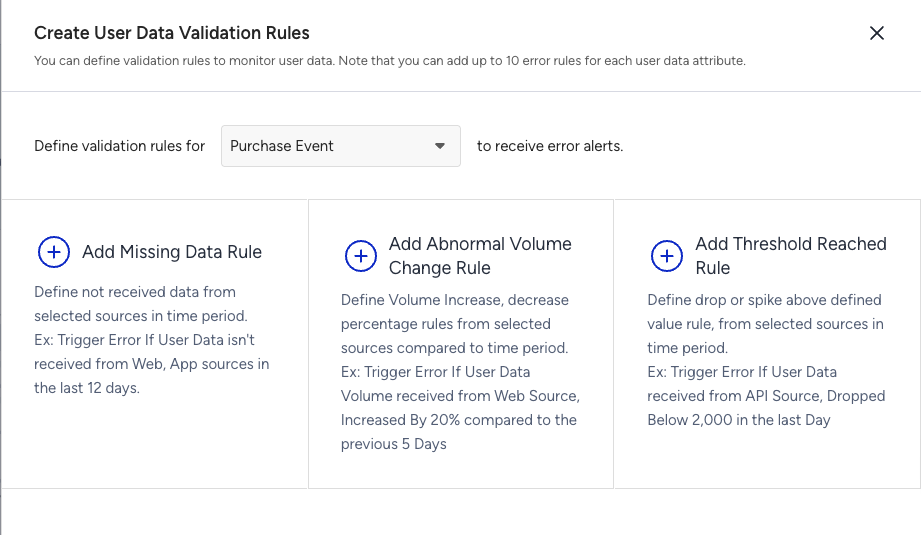
Rule types
Missing Data
A Missing Data rule triggers an error when Insider One stops receiving a selected data point entirely within a timeframe you define.
When to use: Use this rule for data points that must arrive regularly — such as a Purchase event, an email attribute, or a key user property. If the data goes silent, you are alerted immediately.
How to configure:
Select the Data Sources you expect this data to come from, for example, Web, App, or both.
Set the Expected Timeframe, which is the number of days within which Insider should receive at least one instance of this data.
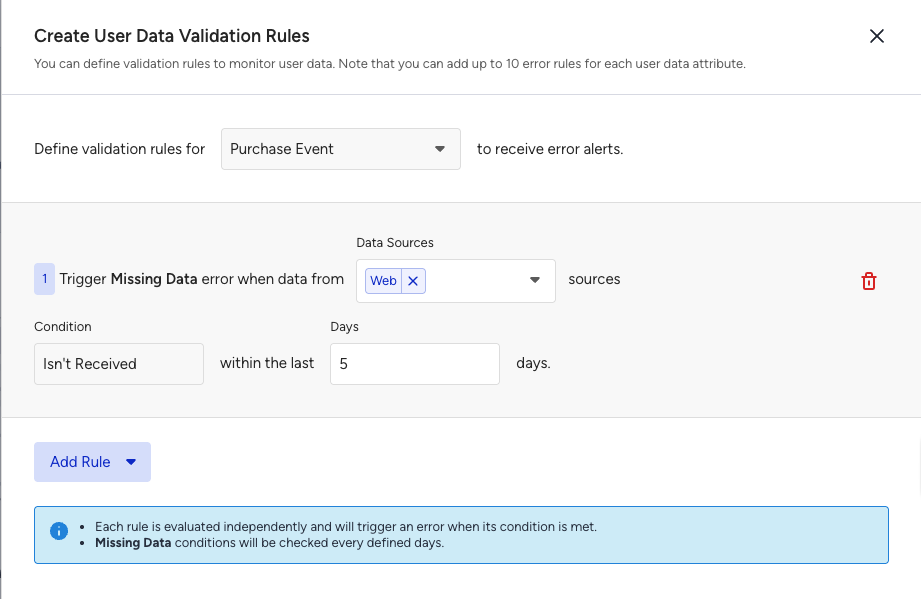
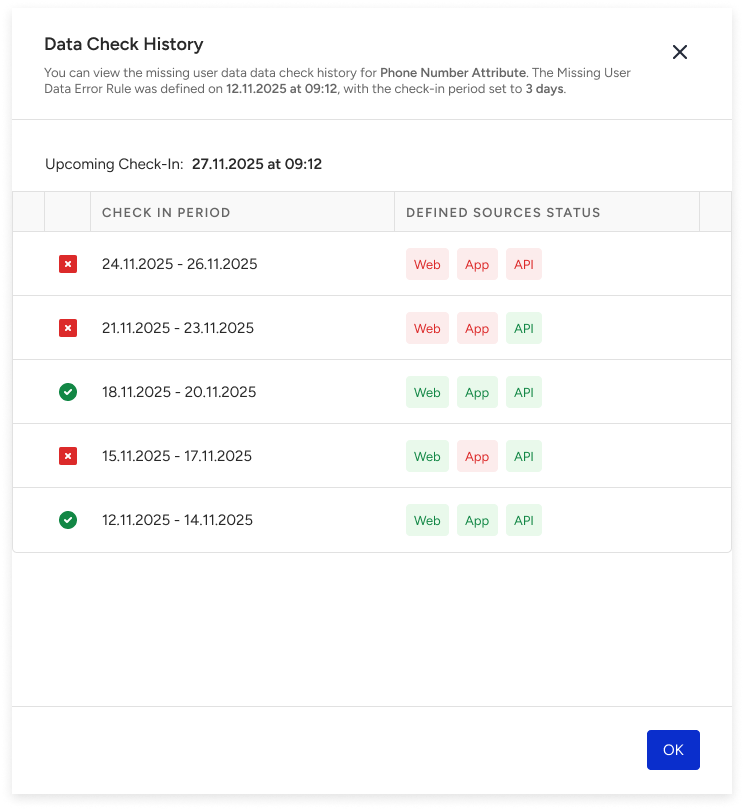
Example: A Missing Data rule is set for the Phone Number attribute with data sources set to Web and App and an expected timeframe of 2 days. If Insider One receives no Phone Number attribute from either source within that 2-day window, a Missing Data error is triggered.
Once an error is created, the system continues to check within the same timeframe and alerts you again if the issue persists.
Abnormal Volume Change
An Abnormal Volume Change rule triggers an error when the volume of a selected data point changes by more than a percentage you define, compared to a previous period you specify.
Unlike Missing Data, this rule detects problems where data is still arriving, but at abnormal levels. For example, a Purchase event that normally averages 10,000 per day suddenly drops to 250, or a Login event unexpectedly spikes due to a duplicate integration.
How to configure:
Set the Condition: Choose whether to trigger on a decrease or an increase.
Enter the Volume %: The percentage change that should trigger the alert, for example, 50%.
Set the Days: The comparison window.
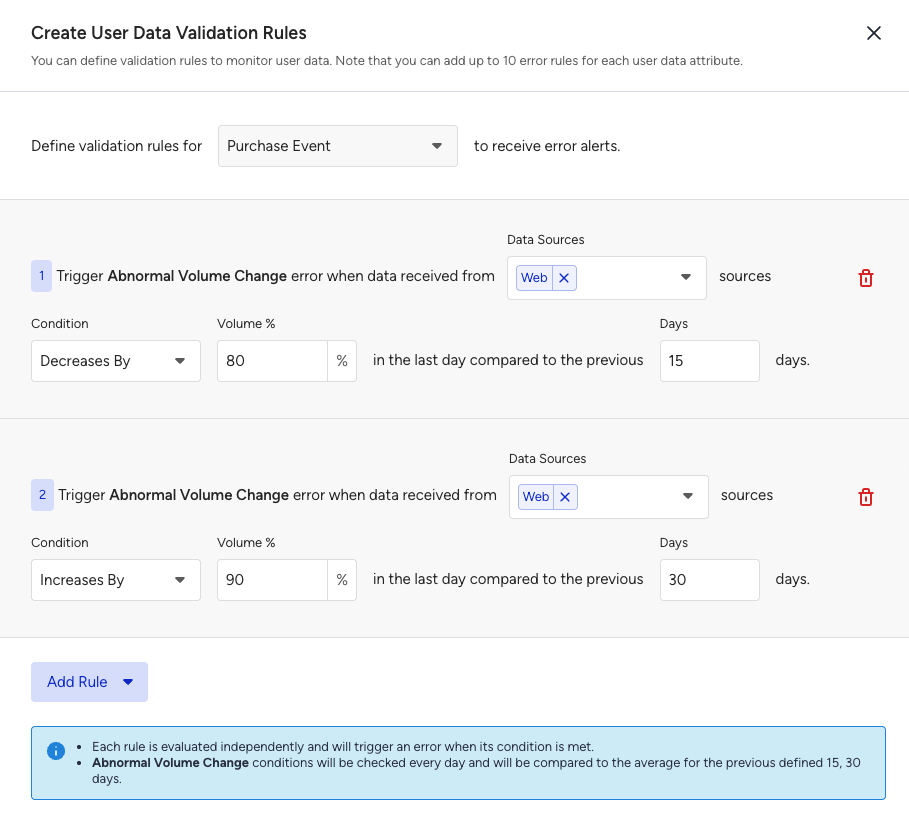
Conditions are checked daily and compared with the average volume over the defined comparison period.
Tip:
Short comparison windows of 1 to 2 days are sensitive to natural fluctuations and may produce false-positive alerts. Set the comparison window to reflect how frequently you normally send that data.
Volume Threshold Reached
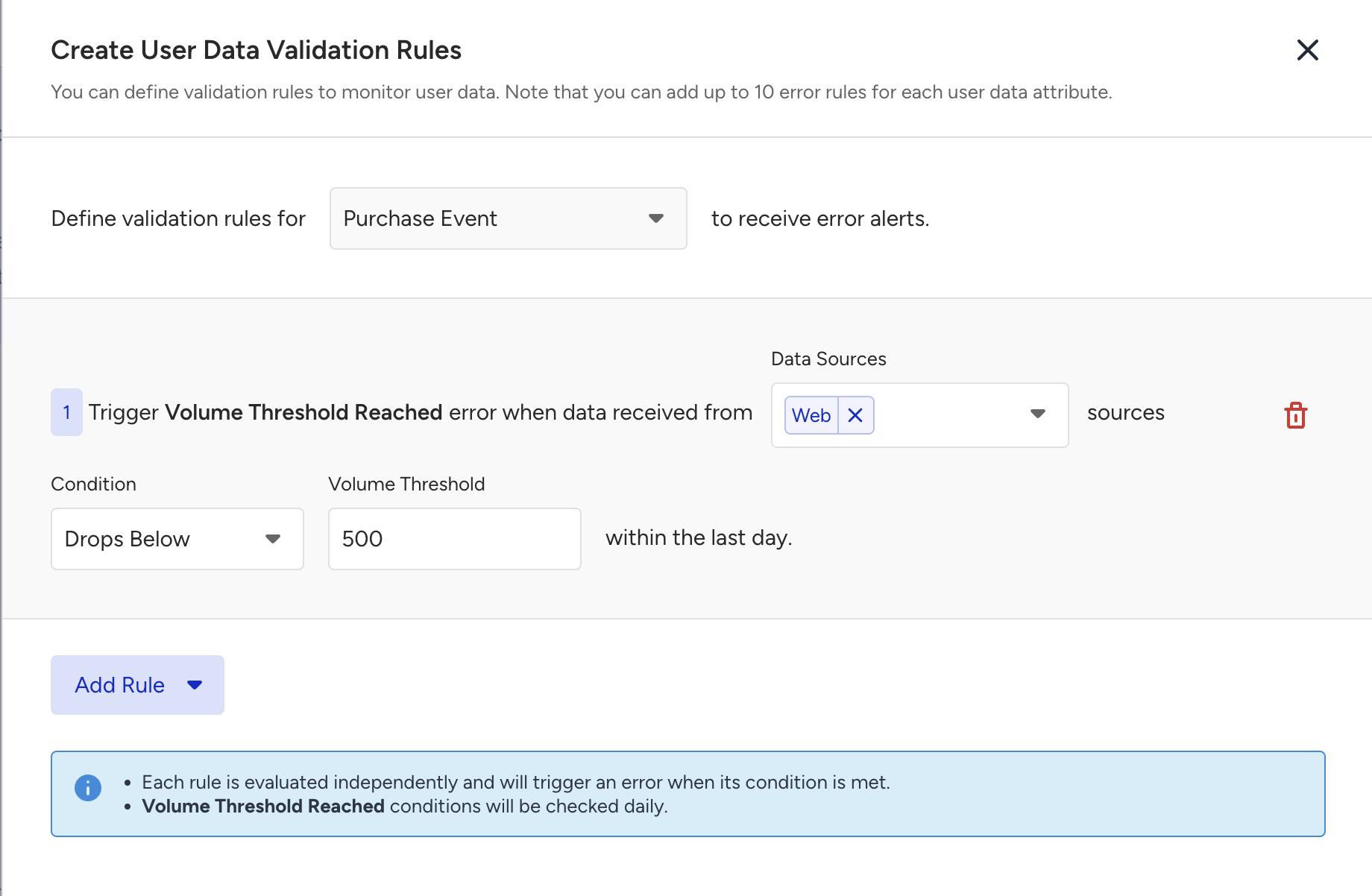
The Threshold Reached rule triggers an error when the total volume of a selected data point crosses an absolute number you define, regardless of historical trends.
When to use: Use this rule when you know a specific count that would indicate a problem. For example, if a Purchase event should never drop below 500 in a single day, set a Drops Below 500 condition; you will be alerted immediately if it does.
How to configure:
Set the Condition: For example, Drops Below or Exceeds.
Enter the Volume Threshold: The absolute count that, when crossed, triggers the alert, for example, 500.
Conditions are checked daily against the volume from your selected sources within the last day.
Email Notification Setup
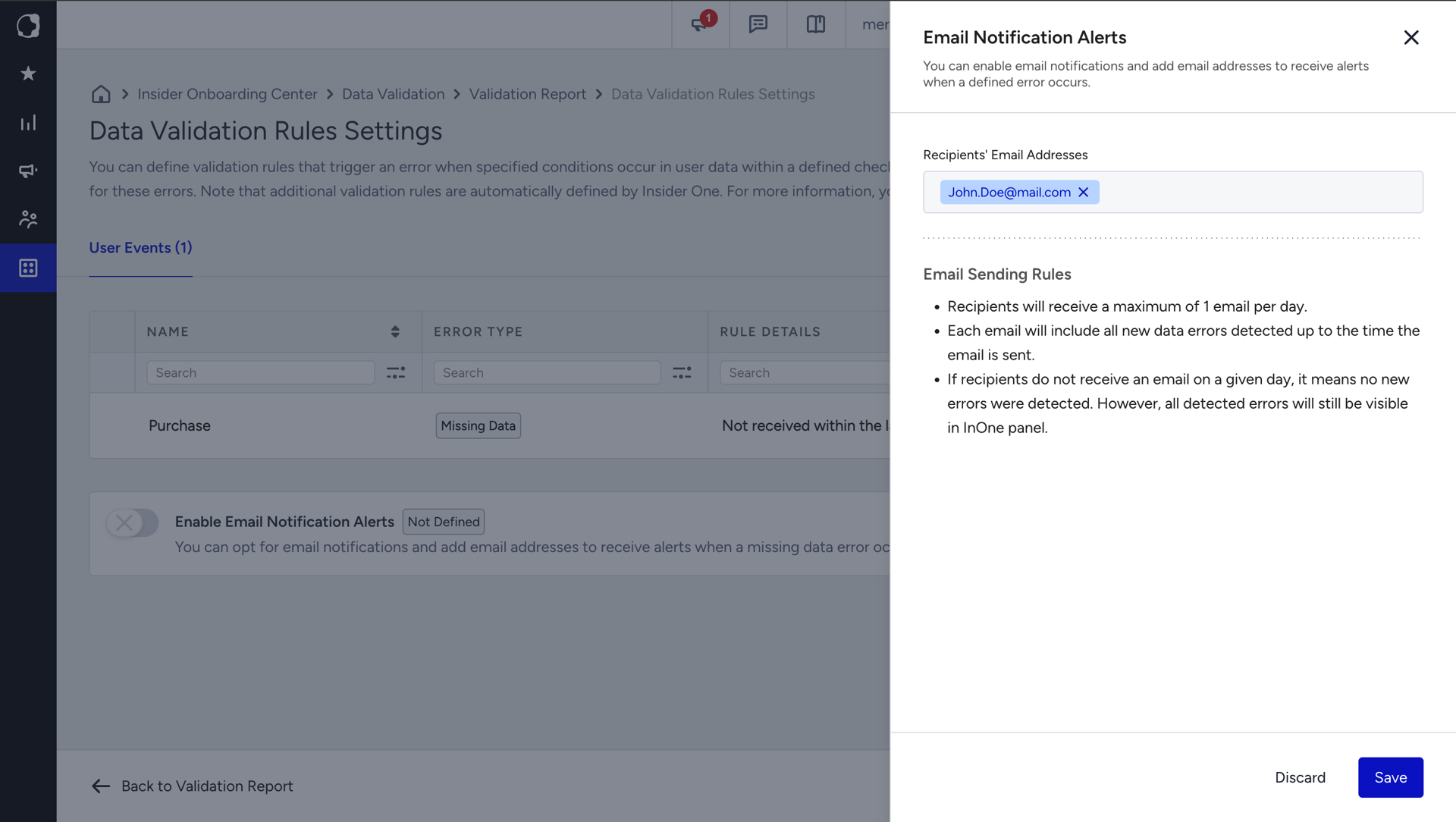
Enable email notifications to receive alerts when any validation rule triggers an error. Toggle on Enable Email Notification Alerts and enter up to 5 email addresses.
Configuration checklist
Before saving a rule, confirm the following three fields are complete:
Data point selection
Choose events, event parameters, or attributes that are critical to your business, specifically those that would cause problems for campaigns, audiences, or reporting if Insider One stopped receiving them. Avoid monitoring data points that are not yet fully integrated, as incomplete sources may trigger unnecessary alerts.
Data source selection
Select only the sources you expect this data to come from. If a Purchase event is sent only from the Web, select Web only. Selecting a source that is not yet integrated may trigger false alerts.
Timeframe or threshold
Set the expected timeframe or threshold to reflect your actual data rhythm; how frequently the data normally arrives and how long it can stop flowing before it becomes a real problem.
Once you complete all three fields (data, source, timeframe), your rule is ready.
Error cards and investigation
When Insider One detects an anomaly matching your configuration, an error card appears in the Validation Report.
Click the error card to view error details. From the detail view, two actions are available:
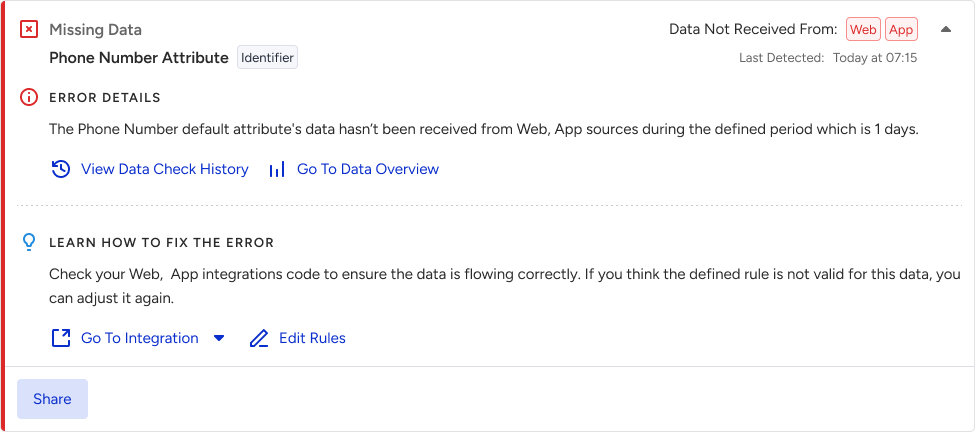
Go To Data Overview: Navigates to a page showing how many instances of the data point were received from each source. Use this to identify which source stopped sending or changed volume.
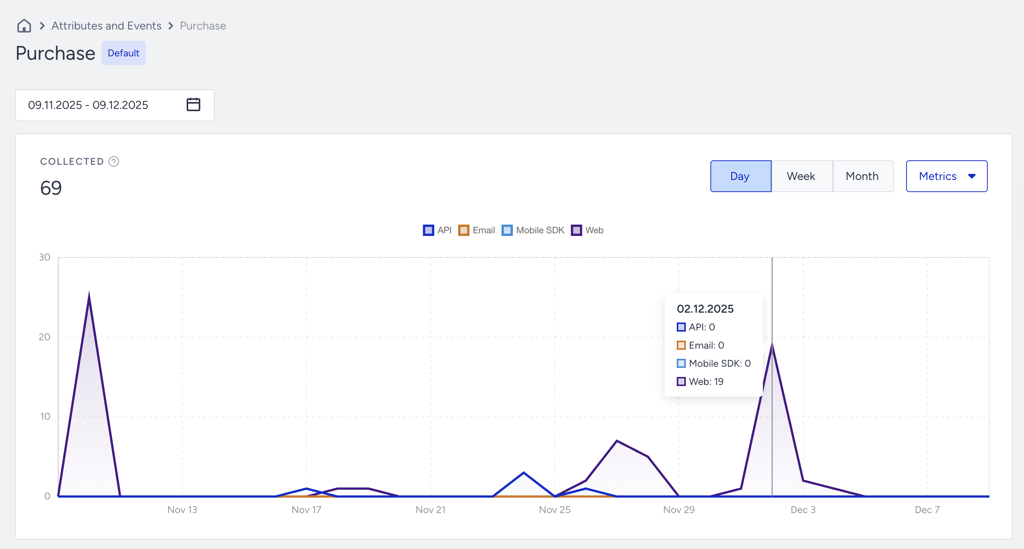
View Data Check History: Opens a drawer showing the historical record of the selected data point, including which data came from which source during which periods. Use this to understand when the issue started and whether it has occurred before.