Recommendation and Eureka Setup Guide

Prev Next

Recommendation Setup

The Recommendation Setup Guide helps you with key configurations, such as Product Variant Exclusion, Dynamic Value Configuration, and Recommendation Algorithms Configuration, before launching your Smart Recommender Campaigns.

You need to mark all steps as completed to proceed to the next step.

You can go to the Recommendation Algorithms and Settings page to configure these settings.

Eureka Setup

Until you complete the Eureka Setup in the Onboarding Wizard, you won’t be able to take any actions on the Eureka or Merchandising pages. Attempting to access these pages will automatically redirect you to the Onboarding Wizard, where you must finish the Eureka setup for at least one locale before proceeding.

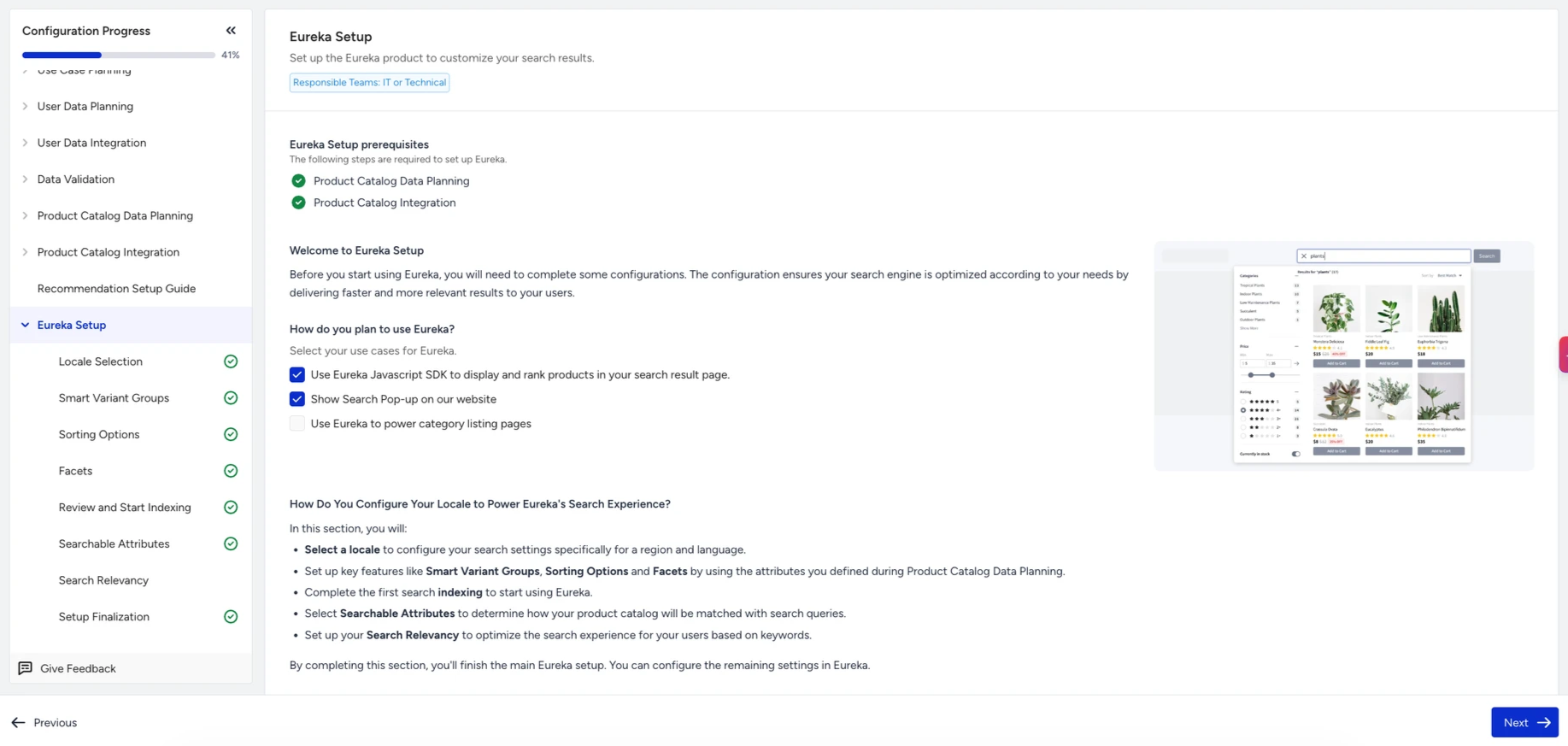
Once you complete Product Catalog Data Planning and Product Catalog Integration in the Onboarding Wizard, the Eureka Setup stage will guide you through the configuration process.

In this stage, you will:

  • Select a locale for your catalog.

  • Configure key search features, including:

  • Smart Variant Groups

  • Sorting Options

  • Facets

  • Searchable Attributes

  • Run the first Search Indexing to initialize your search experience.

This step ensures that Eureka is fully aligned with your catalog structure and ready to deliver personalized, intent-based product search results.
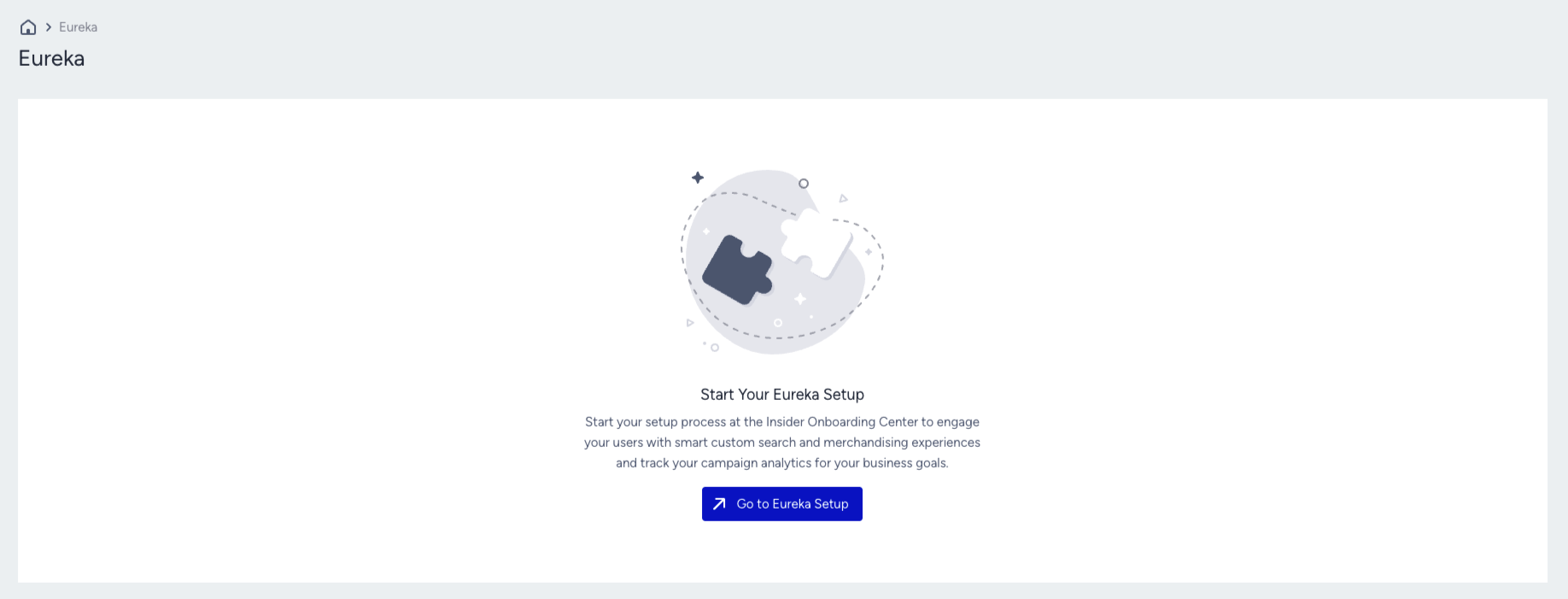
Navigate to Components > Insider Onboarding Center > Eureka Setup to get started.

Locale Selection

The first step in Eureka Setup is selecting the locale you created during Product Catalog Data Planning.

  • You can only select locales where Product Catalog Integration has been completed.

  • If your integration method is XML or if you created only one locale during Data Planning, the system will automatically pre-select the locale.

  • Any additional locales must be configured for Eureka outside of the Onboarding Wizard.

Smart Variant Groups

Smart Variant Groups enable you to group product variants under a shared group code, resulting in a cleaner and more intuitive shopping experience.

  • To use this feature, your product catalog must include the group_code default attribute.

  • When you select “Yes, enable Smart Variant Groups”, products with the same group code will be displayed as a single grouped item.

  • You can define Distinctive Attributes (e.g., color, size) so that variants are displayed based on those attributes, while all other attributes remain grouped within the same product.

This setup helps reduce duplicate listings, simplifies navigation for users, and enhances product discovery efficiency.

Sorting Options

Sorting defines how search results are ordered for users.

  • Relevancy is always enabled across all feed management types.

  • If the Feed Management Type is Stock-Revenue-based, the following sorting options are automatically available:

    • Price: Low to High

    • Price: High to Low

    • Most Discounted First

You can further customize sorting by:

  • Activating or deactivating available options.

  • Renaming labels to match your brand’s tone.

  • Changing the order in which sorting options appear.

  • Adding product attributes as new sorting criteria.

This flexibility ensures search results align with both user preferences and business objectives.

Facets

Facets are attributes that enable users to filter and refine search results. The attributes you selected as facets during Product Catalog Data Planning will automatically appear in the Facets table.

From this table, you can:

  • Reorder facets to prioritize the most relevant filters.

  • Edit labels and styles to match your website’s design and tone.

  • Add new facets if additional attributes become important.

  • Remove existing facets that no longer serve your business needs.

Facets play a crucial role in enhancing product discoverability, enabling users to quickly find what they’re looking for.

Review and Start Indexing

Eureka requires indexing to deliver accurate and optimized search results. During indexing, the product catalog data is structured according to your search engine settings (sorting, facets, and Smart Variant Groups).

Before starting, carefully review the summary of your setup:

  • Selected locale

  • Smart Variant Groups configuration

  • Sorting options

  • Facets

We highly recommend you review your Eureka Setup with the Insider One team before proceeding.

To begin, click Confirm and Start Indexing.

  • Once indexing starts, you cannot make further changes to Locale Selection, Smart Variant Groups, Sorting Options, or Facets.

  • Indexing usually takes around 30 minutes to complete.

  • To proceed to the next step, the indexing process needs to be completed.

Searchable Attributes

Searchable Attributes define which product attributes are included in your site search. The attributes you selected during the Data Planning stage are listed here.

From this section, you can:

  • Add new attributes to expand search coverage.

  • Edit or remove existing attributes to fine-tune search behavior.

The Insider One team reviews all selected attributes to ensure optimal performance. When adding new attributes, providing a brief reason for inclusion helps the development team evaluate and maintain efficiency.

After indexing, you can verify search behavior by reviewing results on the Searchable Attributes page in the Eureka section.

Setup Finalization

Once you complete all required steps, your Eureka Setup is finished and the selected locale is ready to use.

To continue, click Go to Eureka Settings. From there, you can:

  • Configure any remaining Eureka settings.

  • Set up additional locales beyond the one completed in the Onboarding Wizard.

This final step ensures your search experience is fully aligned with your catalog and ready for optimization.