Product Catalog Settings empower you to effortlessly customize and fine-tune the product catalog integration on your end, saving you time and eliminating the need for external assistance or support. Thanks to these settings, you gain full control over the configuration process, ensuring a seamless and efficient setup tailored to your specific requirements.
On the Product Catalog Settings page, you will view and configure:
Navigate to Components > Product Catalog Management > Catalog Settings for your configurations.
Locales
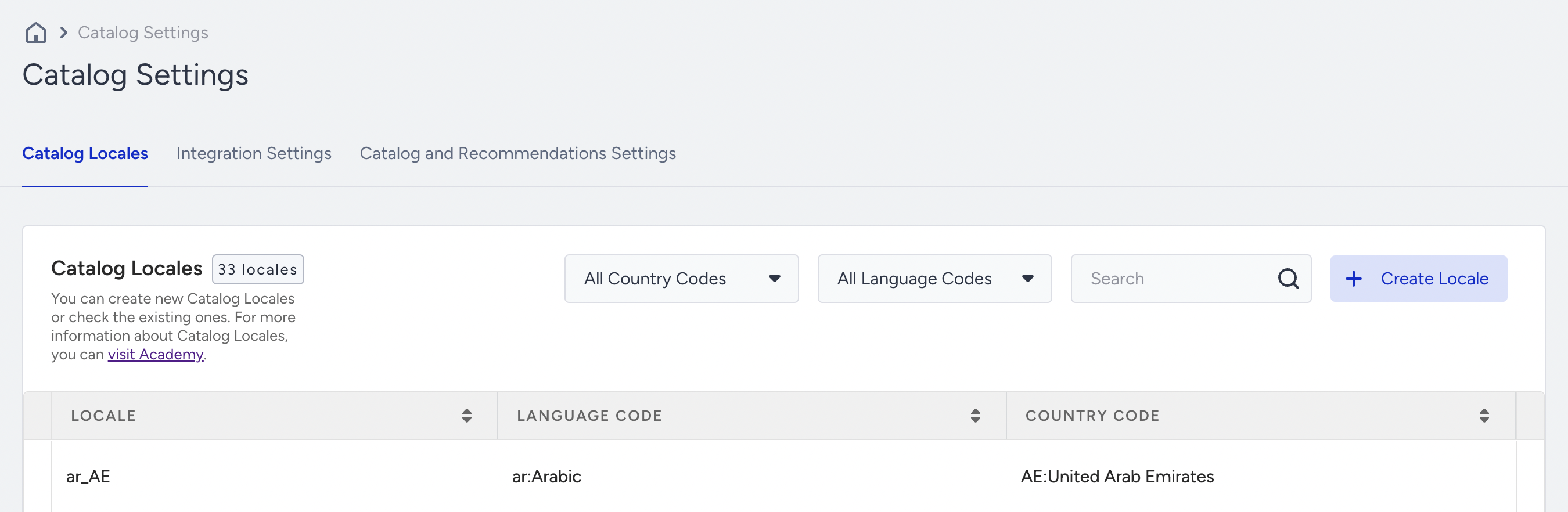
You can view and manage all the locales and stores you have created. Creating a locale and store is critical in efficiently organizing and managing your product catalogs. You can create a maximum of 300 locales along with your associated stores.
Integration Settings
Integration Method
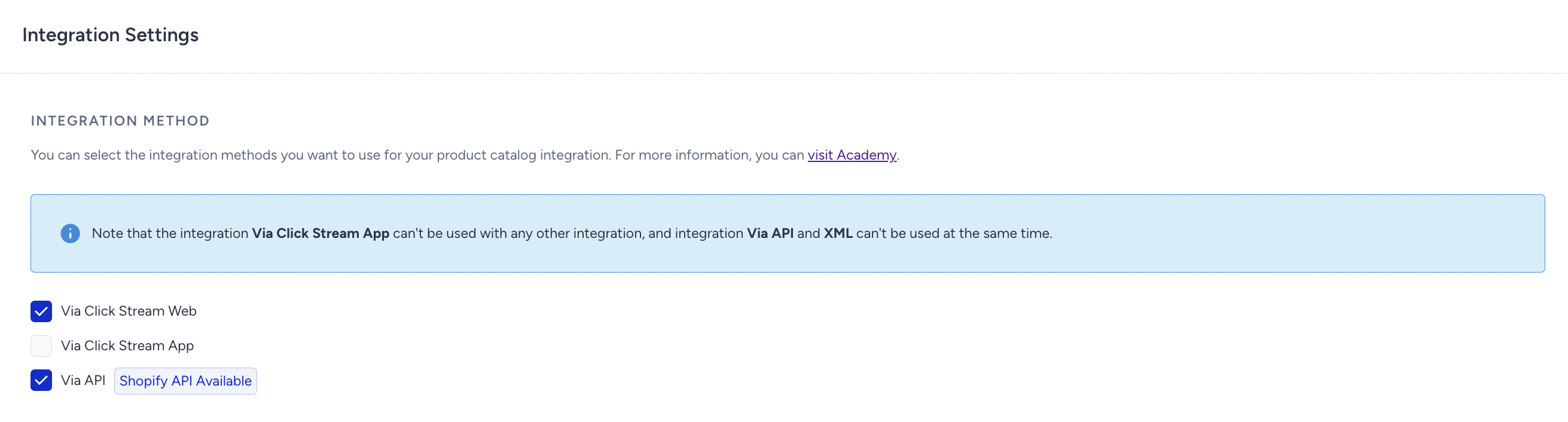
You can select the sources for your product catalog integration. This means you get to choose and tailor the source of your product information, giving you control over the integration process.
Product Hit Check
The Product Hit Check feature allows you to monitor product views within a specified time range, providing insights into engagement and popularity. If a product receives no views during the selected period—ranging from 1 to 72 hours—the system automatically marks it as "Out of Stock" and removes it from recommendations.
The Product Hit Check automation keeps your product listings dynamic, ensuring they accurately reflect real-time interest and availability.
Product Catalog Feed Type
Changing the Feed Management Type affects the information required in your catalog. Please note that modifying this can affect your catalog setup. Ensure your catalog integration stays unaffected when you change the Feed Management Type. It's all about ensuring a smooth transition without disrupting your catalog's functionality.
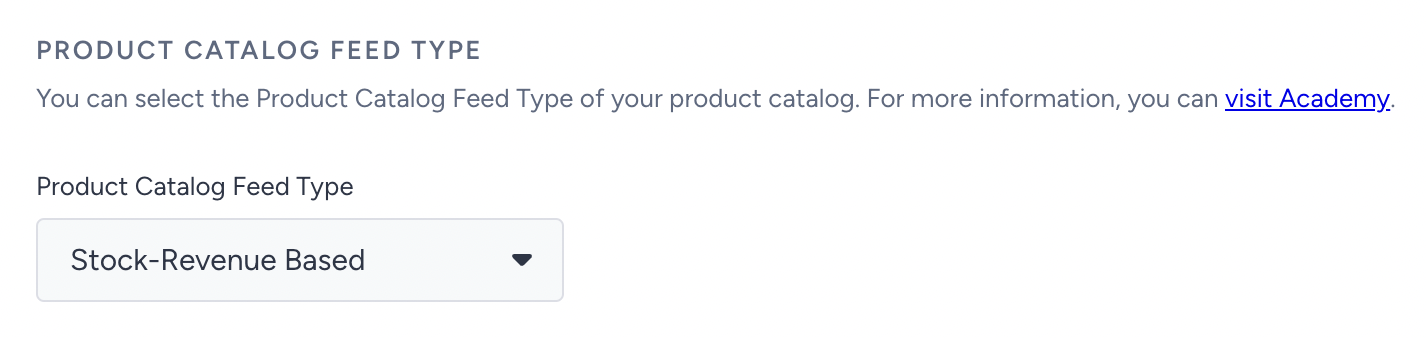
- Stock-revenue-based feed is for ecommerce websites that sell tangible products, including price information and stock availability.
- Published time based feed is for you if you have products mostly in article form, and if the product’s published time is one of the important attributes to you, since you care about showing updated articles in your Smart Recommender widget.
- Start-end time based feed is for you if you have products that are available at certain times on your website.
- Availability-based feed is for you if you have product stock (availability) information on your website.
Catalog and Recommendations Settings
Product Variant Exclusion
Products sharing the same group code in the catalog are considered variants. For instance, shoes available in size seven and size eight might have different item IDs but belong to the same group. To exclude variants from recommendations, enable the Exclude Variants toggle.

Dynamic Value
Dynamic values are used to filter recommended products in real time based on the context of the page a user is viewing. For more details on filtering options, refer to Smart Recommender Strategy Settings.
Two ways are available to obtain dynamic values:
Using System Rules
Dynamic values are retrieved directly from your website. If the campaign is on a product page, the getCurrentProduct() system rule extracts the relevant attribute value, and for category pages, the getCategories() system rule retrieves the category value.
Matching the Product ID
Dynamic values are determined based on the Product ID of the item a user is viewing. The system retrieves the necessary attribute value from your product catalog using the collected Product ID.