Suggested reading:
After completing data planning, proceed to the Product Catalog Integration step. You will find the available Product Catalog Integration options on this page.
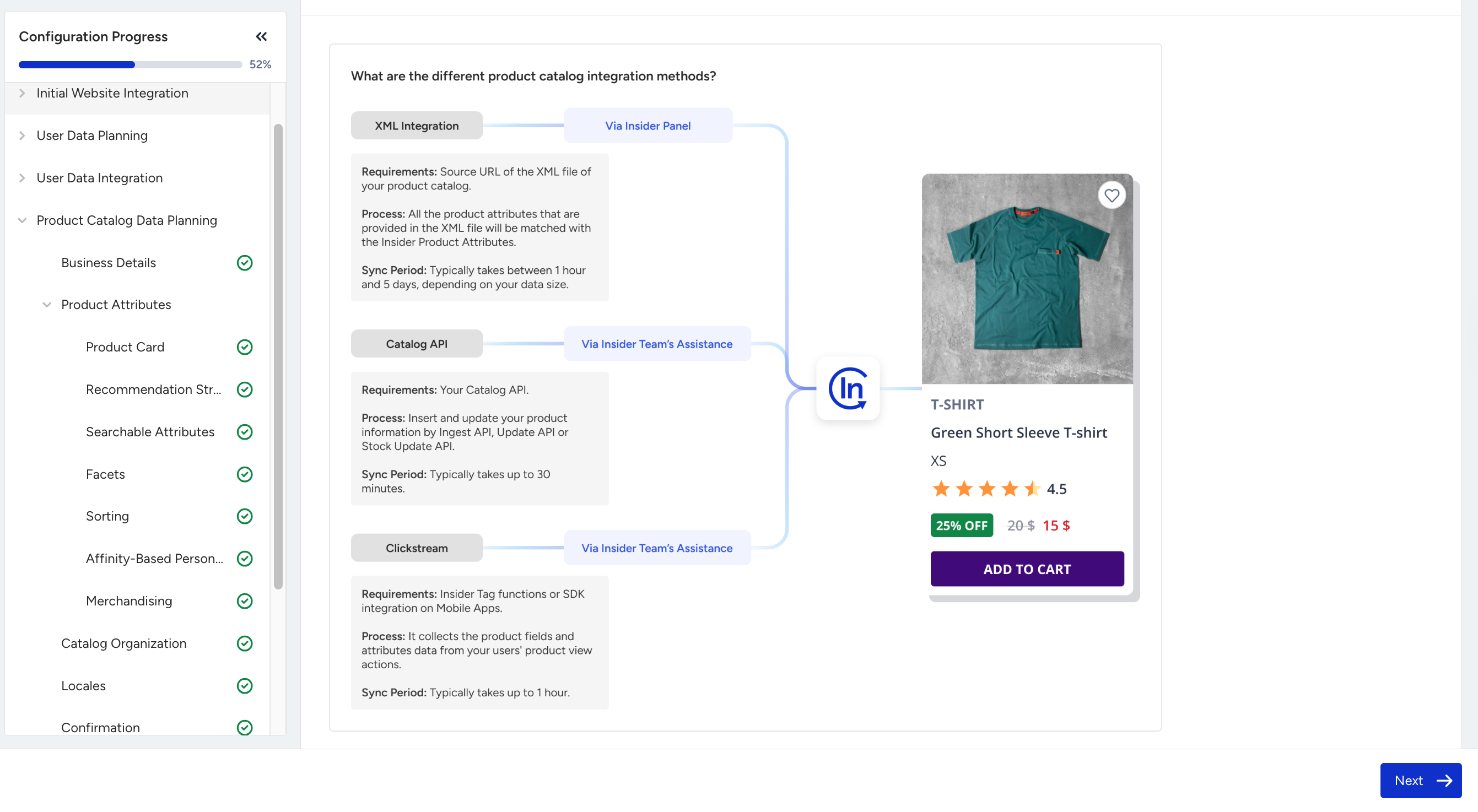
You need to choose your integration method.

Notes on Product Catalog Integration:
Only XML integration can be completed through the Product Catalog Integration Wizard.
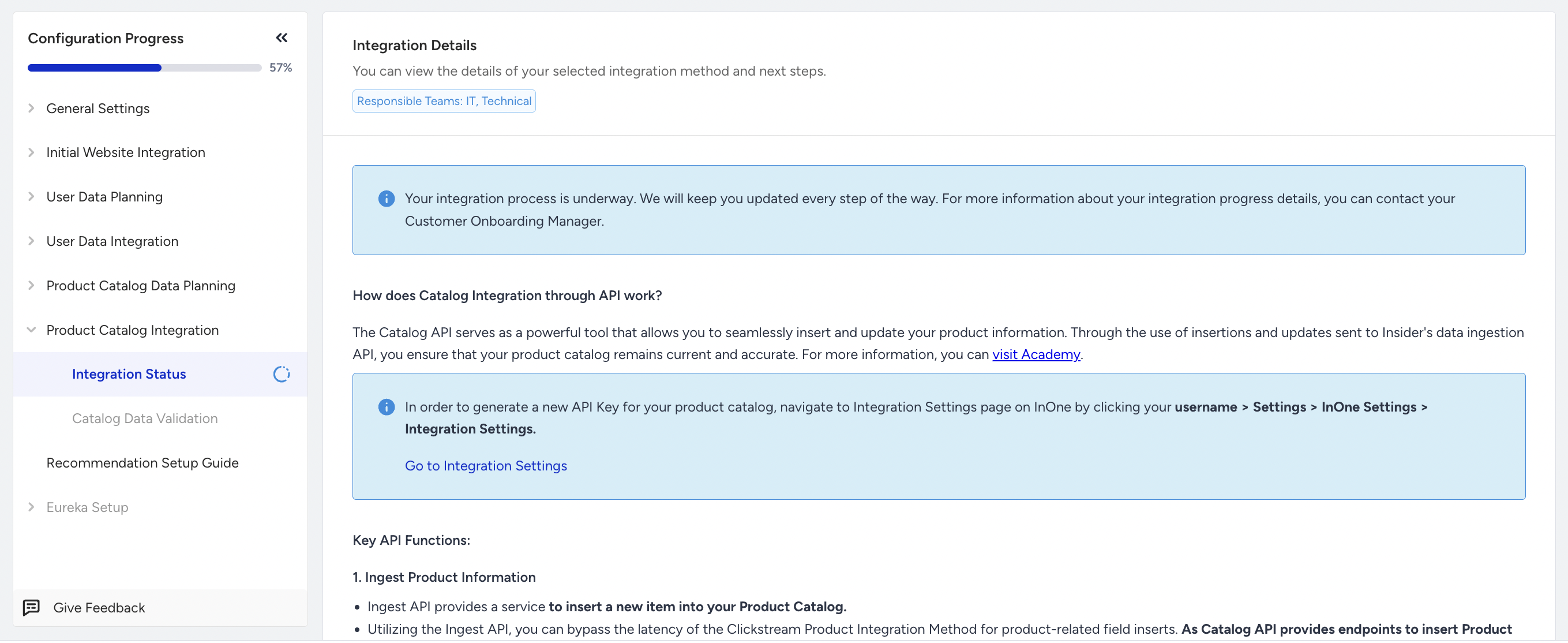
If you are using Clickstream, the integration will be activated on the Catalog Settings page. It is recommended to contact the Insider One team to confirm whether the Clicksteam Integration is complete before proceeding to the next step.
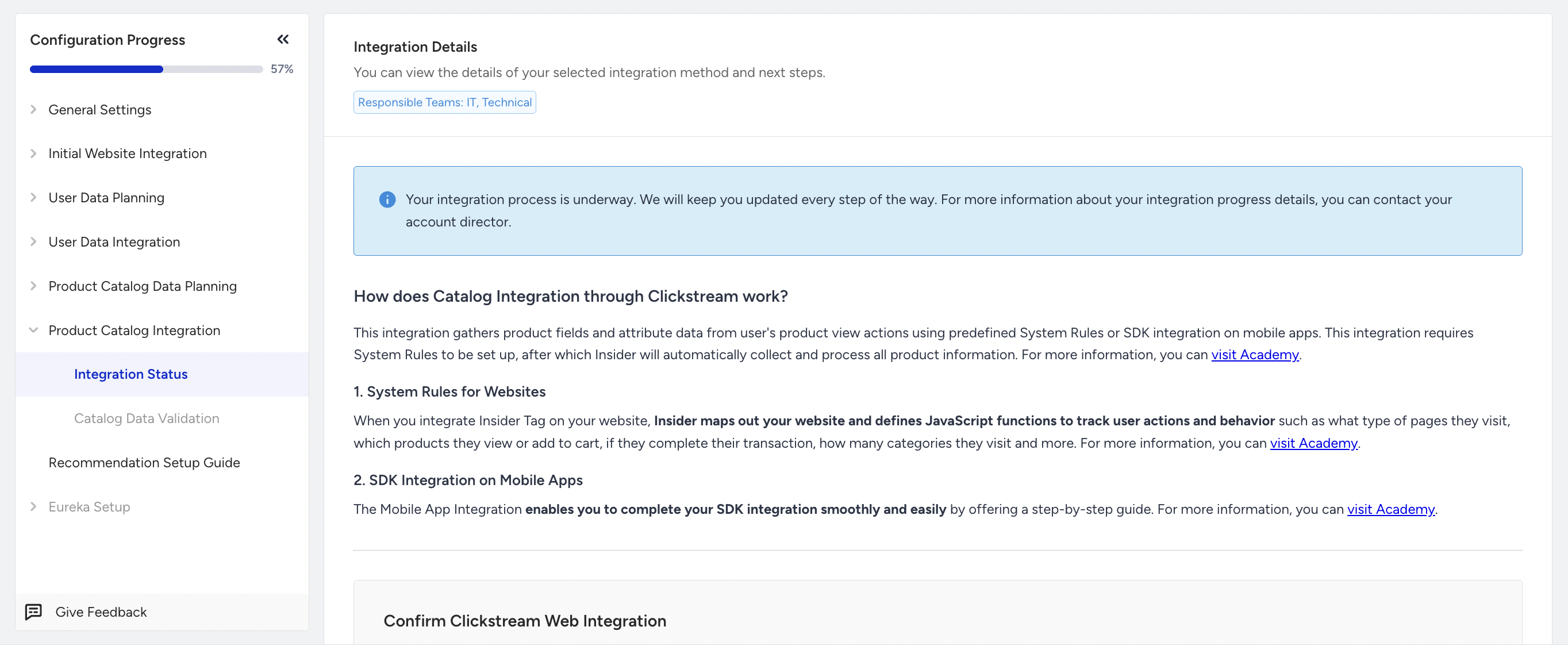
If you are using the Catalog API, you will complete the integration yourself. You can view the steps required on the Integration Details page. It is recommended to communicate with the Insider One team to review the Catalog API Integration before proceeding to the next step.
XML Integration Setup
If you are using XML integration, you can proceed to configure it. In this step, you will name the XML integration and choose the XML file type.
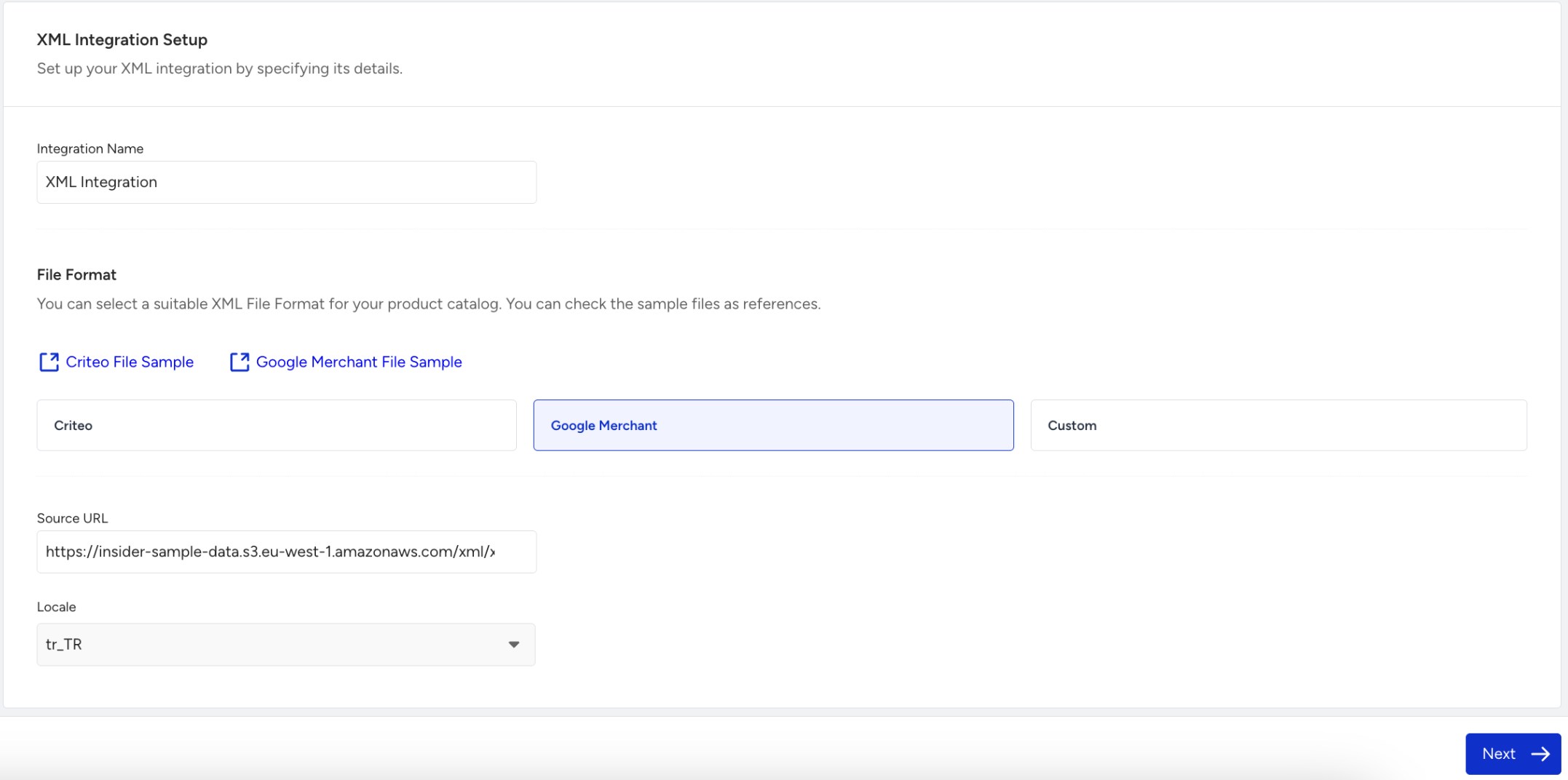
Each XML integration requires an identifier name.
The XML format can be Criteo, Google Merchant, or Custom. For Criteo and Google Merchant, example XML files are provided on the page.
You will also need to add the source URL of the XML file.
XML integrations must be configured at the locale/store level. Select one of the created locales/stores from the data planning step.
XML Integration Settings
In this step, you will complete the XML integration settings, including the URL, locale, product tag, and sync period.
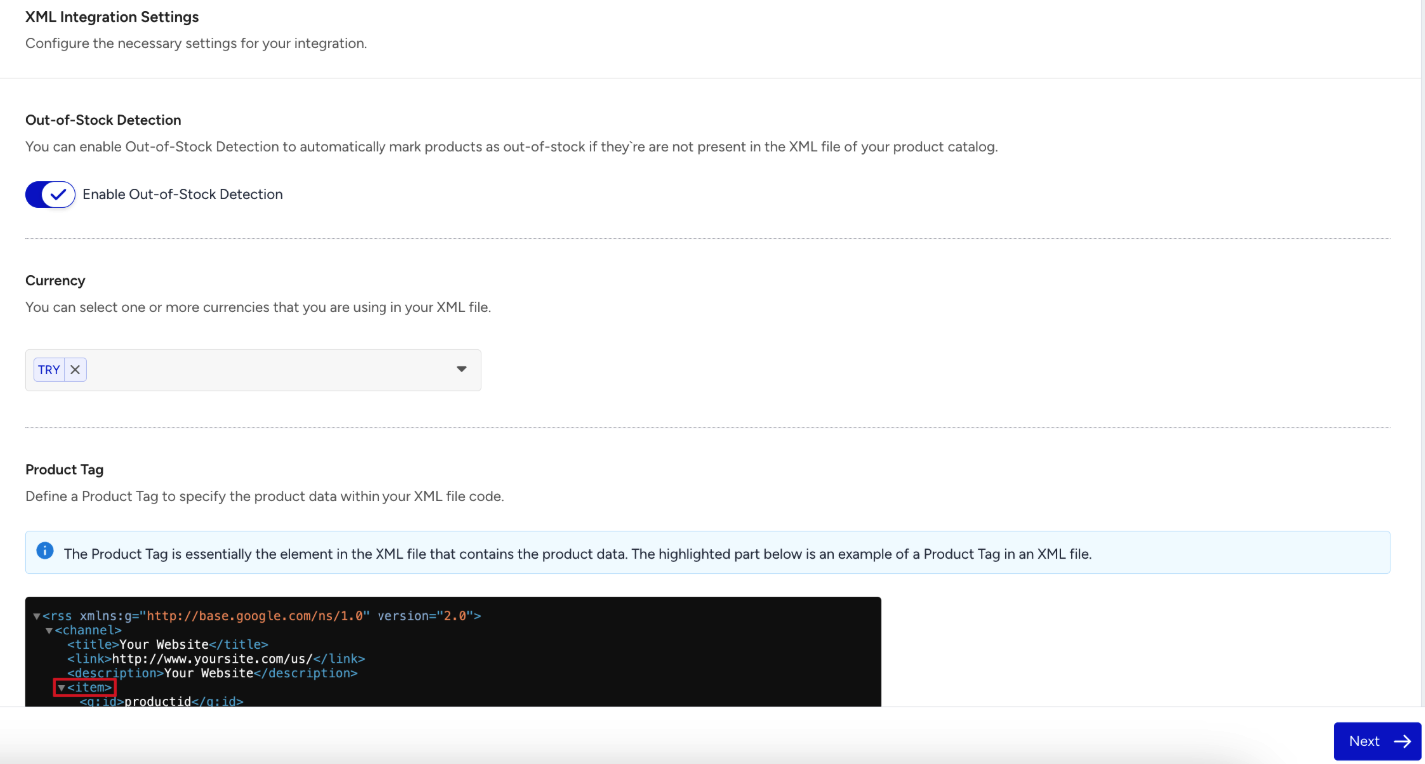
If you don't send out-of-stock information in the XML file, enable the out-of-stock detection toggle.
An XML file can store multiple currencies. Select all the currencies that are ingested via the XML.
For many XML files, the standard product tag is "item." However, if the integrated XML file uses a different product tag, you must enter that tag.
Additionally, select the sync period for the XML file.

XML File Access Authorization
This step is optional; click the Next button to skip it if token authentication isn't required.
When integrating your product catalog with Insider One via XML, you may need to set up access authorization if your XML file is protected and not publicly accessible.
To enable secure access, you can use Header Keys and Header Values (e.g., API keys or tokens). These credentials allow Insider One’s system to fetch your XML file safely, ensuring that only authorized systems can access your product data.
How to set it up
Go to the Access Authorization section in your XML integration settings.
Click Add Header Values.
Enter the required Header Key and Header Value.
If multiple headers are needed, click Add Header Value again for each additional pair.
By setting this up, you ensure Insider One’s connection to your catalog works smoothly, keeping product data secure, up to date, and accessible only by authorized requests.
Product Attributes Mapping for XML
Successful catalog integration relies on a clear mapping of your inventory's metadata to the Insider One platform. At the core of this integration are Product Attributes, the specific data points (such as product_id, price, or category) that define your items. By correctly identifying and formatting these attributes, you ensure that Insider One can parse your data accurately for recommendation and segmentation engines.
Once the XML file is accessible, you must map the values in your XML with the product attributes defined during your Data Planning step.
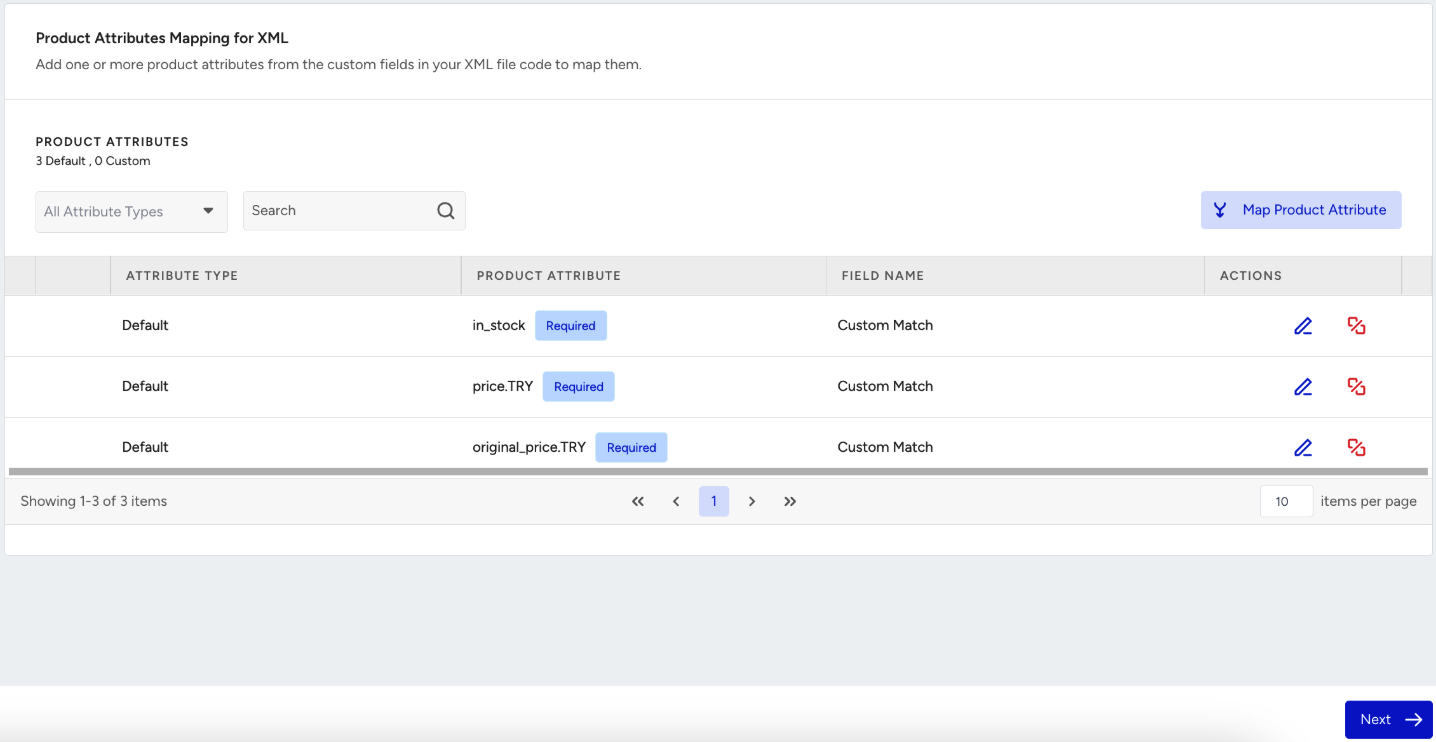
The existing functionalities on the XML Integration page will be preserved. Additionally, the system will automatically generate price-related attributes based on your selected currencies.
XML Integration Details Confirmation
The final step in the Catalog Integration is to confirm. You see all the selections made in the previous steps in a summary form:
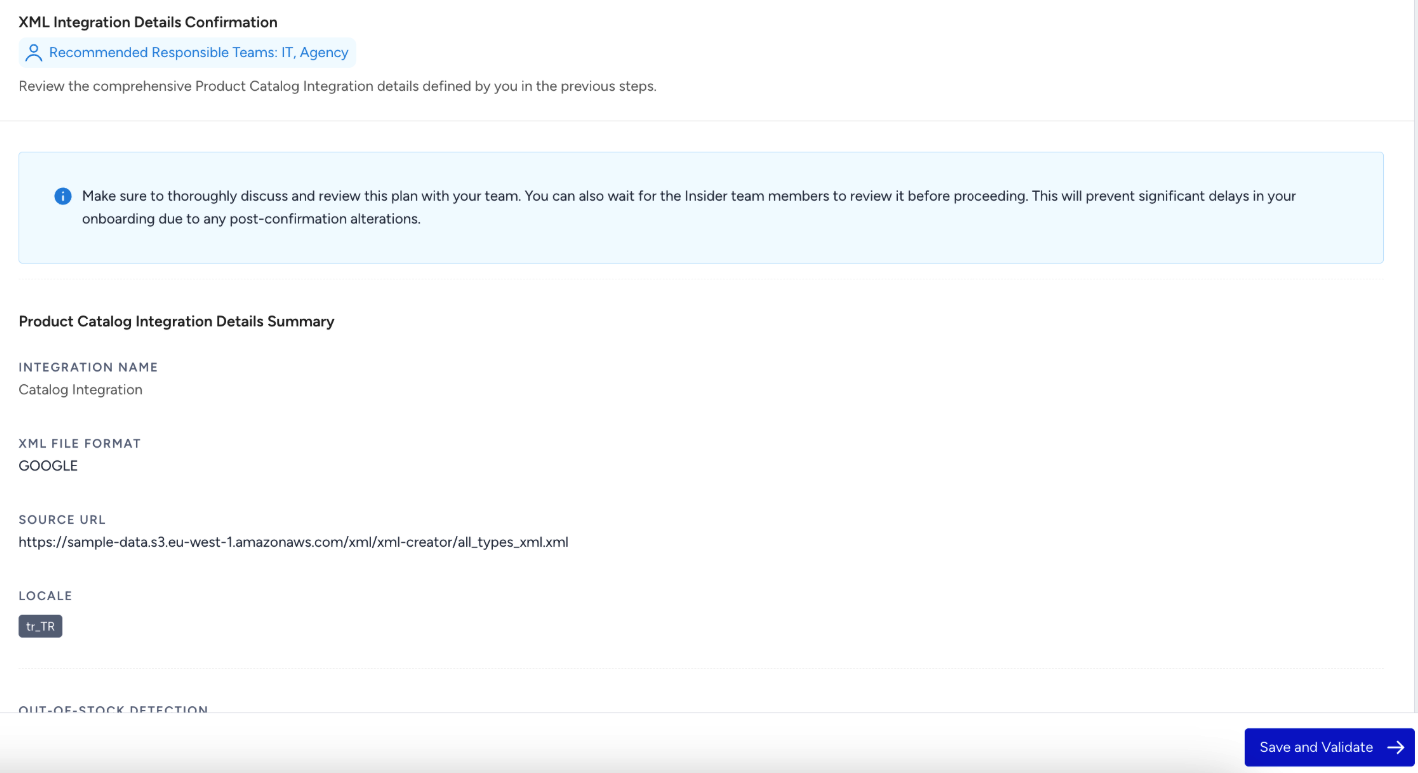
Integration Name
XML file format
XML URL
Locale
Out-of-stock detection
Product tag
Sync-time interval
Header values
Product attributes mapping
Control and confirm the configurations.
Integration Status
After confirming the Product Catalog Integration, the integrated XML will be validated and activated. To successfully complete the Catalog Integration part, integrating a validated XML file is required. Once all steps in the Data Planning and Catalog Integration parts are completed, the XML validation will be processed.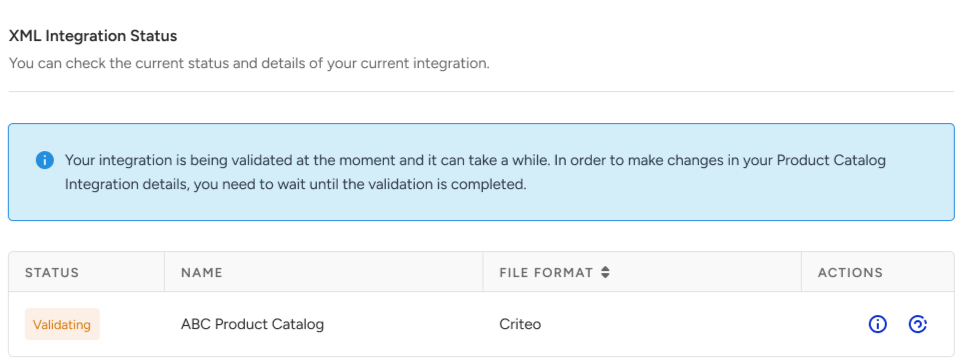
If the XML file is not validated, you can update the Product Catalog Data Planning and Product Catalog Integration steps. If the XML file is validated, you can proceed to the next step to view the summary from the Insider One Product Catalog.
Catalog Data Validation
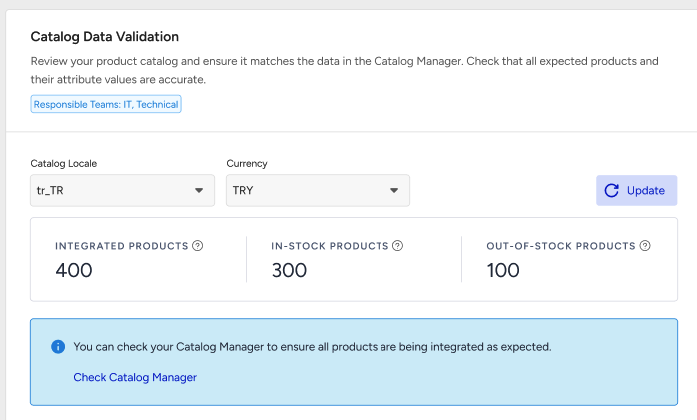
This is the last step of the Product Catalog Integration. In this step, you will see a summary of your Insider One Product Catalog.
You need to select a Catalog Locale and Currency to view Integrated Products, In-Stock Products, and Out-of-Stock Products. When the Feed Management Type is selected as Published-Time Based or Start-End-Time Based, In-Stock Products and Out of Stock Products aren’t shown. To view the product catalog in detail, click Check Catalog Manager.
Product Attributes Data
Planned Product Attributes represent the number of product attributes you selected during the Product Catalog Data Planning step in the Onboarding Wizard.
Product Attributes with Values refers to how many of those planned attributes actually contain values for at least one product in your catalog.
For example:
Planned Product Attributes: 20
Product Attributes with Values: 15
Attributes without data: 5
This means 5 of your selected attributes cannot be used in Smart Recommender or Eureka, since they contain no product data.
To monitor completeness, you can check the Product Attribute Usage Rate, which shows the percentage of products in your catalog that include each attribute. This helps you quickly identify underutilized attributes and ensure your catalog is optimized for personalization and recommendations.

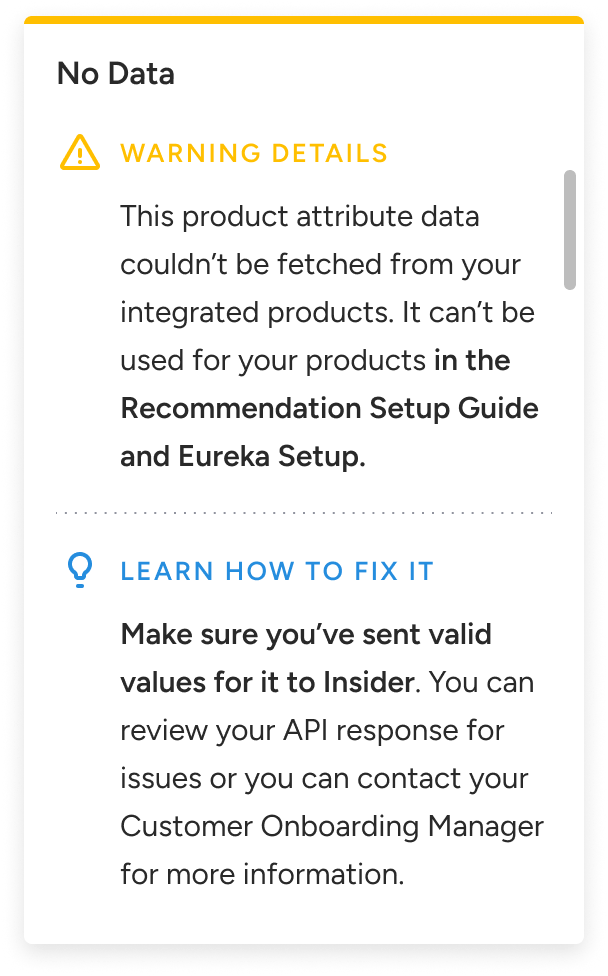
In the Product Attributes Data section, you can review all product attributes that currently contain no data. If you still plan to use these attributes for Smart Recommender or Eureka, follow the suggested fixes provided in the platform.
When you hover over the “No Data” chip next to an attribute, Insider One will display the recommended way to resolve the issue.
Before setting up Eureka and Smart Recommender, make sure that:
Your Insider One Product Catalog includes the expected number of products, with accurate counts for in-stock and out-of-stock items.
The planned product attributes you intend to use in Eureka and Smart Recommender contain sufficient data.
Once these conditions are met, you need to confirm your Product Catalog Data to proceed with the setup. We recommend you review your Product Catalog Data with the Insider One team before final confirmation. This ensures accuracy, prevents gaps in personalization, and avoids setup issues later.
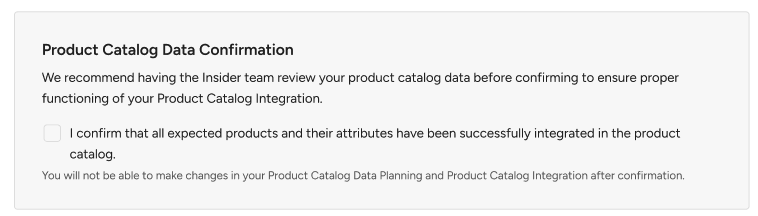
You will not be able to make any changes to Product Catalog Data Planning or Product Catalog Integration once you confirm your Product Catalog Data
After confirming your Product Catalog Data, the Product Catalog Management section will become visible and available for use.