The Widgets tab lets you add interactive elements, such as games, quizzes, surveys, and clickable layouts, to an email by describing what you want in an AI chat inside the editor. The editor generates the widget for you. Widgets are powered by AMP for Email, with HTML and static fallbacks for clients that don't support AMP.
Widgets are supported only in the latest Drag & Drop Editor. You can find them under the Modules section. They are not supported in the legacy Drag & Drop Editor.
You can add a Widgets tab under the Modules panel and describe the widget you want in a conversational AI chat instead of building it block by block.
You can generate each widget in three versions automatically (an AMP-powered interactive version, an interactive HTML version, and a static fallback image), so the email still displays correctly in email clients that don't support the richer versions.
You can cover common gamification and survey formats: games, quizzes, feedback forms, and clickable layouts.
Use cases
Widgets are best used where a small interaction adds value that a static block can't deliver. Below are some examples:
Scratcher (scratch card): A cover layer hides part of the email; the recipient "scratches" it away inside the inbox to reveal what's underneath. Typically used for discount codes, promo codes, or special offers, revealing the offer through a small action makes it feel like a surprise rather than a plain announcement.
Poll (in-email survey): The recipient answers a question with a single tap without leaving the inbox; this requires no landing page or extra steps. Use it to ask readers whether they prefer short highlights, detailed guides, or case studies. It takes one tap, so response rates are higher than link-based surveys, and it helps subscribers feel heard.
Image puzzle (gamification): The recipient rearranges pieces to complete an image directly in the email. Once solved, the full picture appears, along with a hidden reward or message. Turns passive reading into active engagement and keeps the recipient in the email until completion.
The main benefit across all widget types is engagement. Recipients spend more time in the email, remember the message better, and are more likely to act on it.
Configure widgets
1. Open a template in the Drag & Drop Editor.
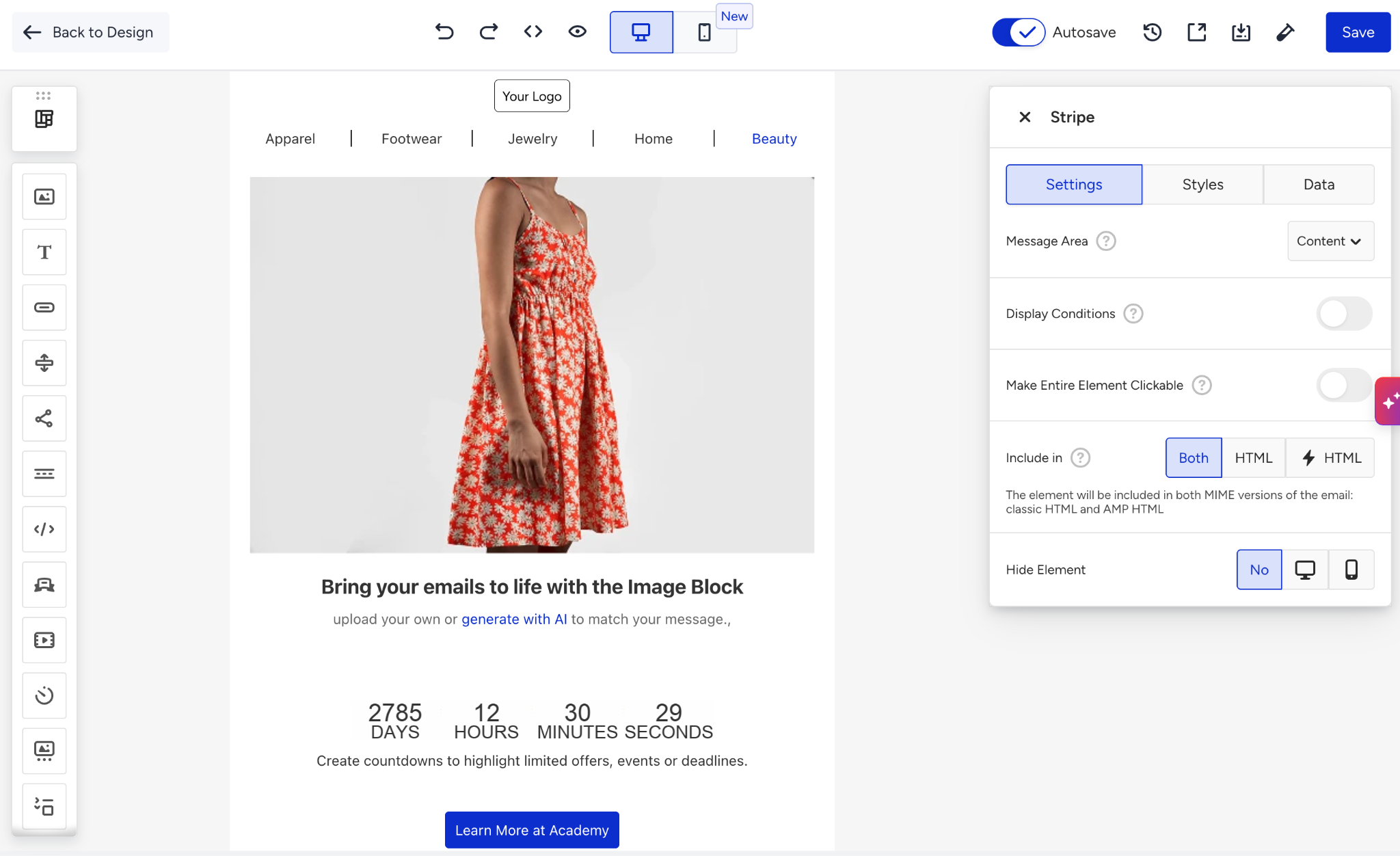
2. In the Modules panel, choose the Widgets tab.
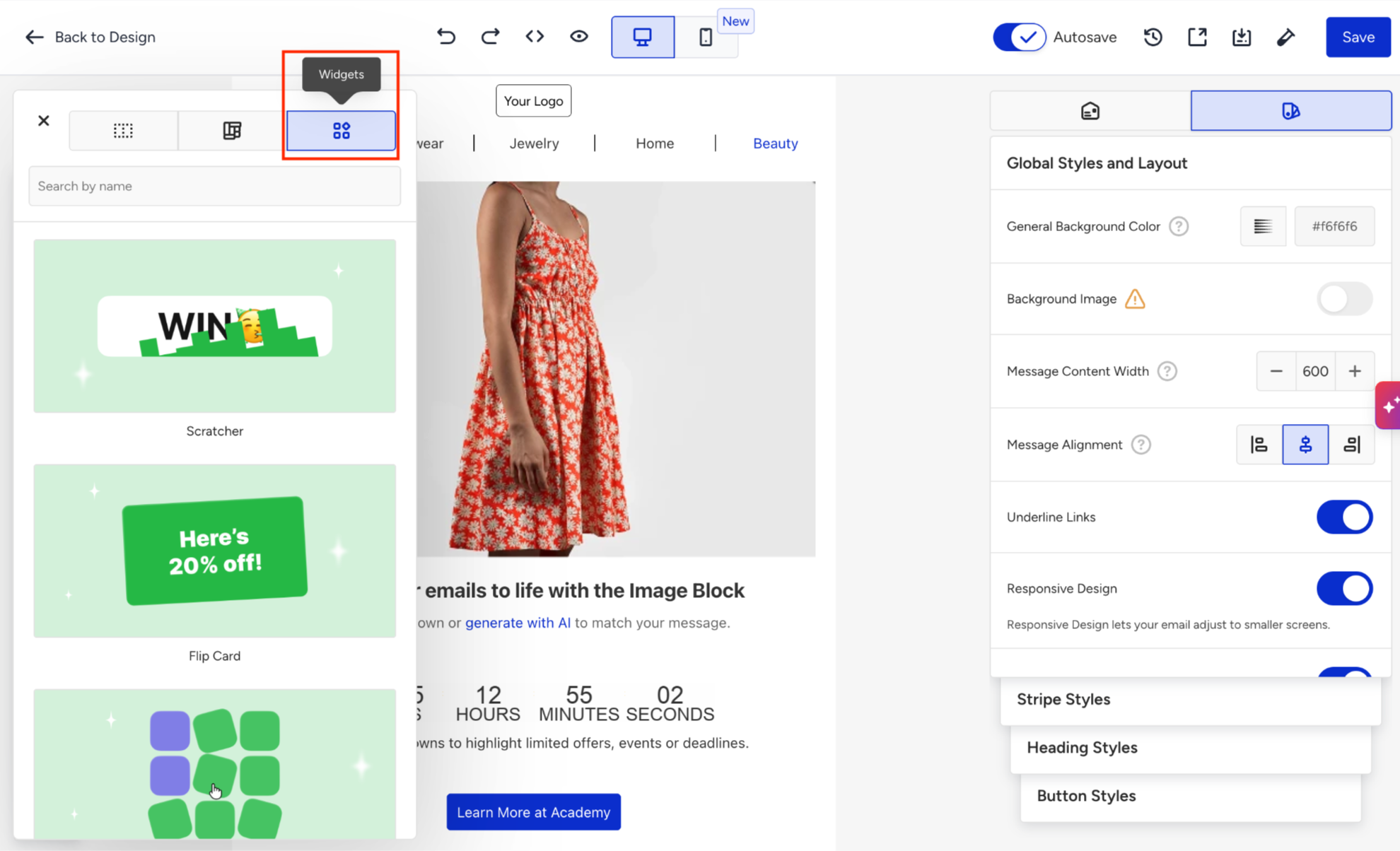
3. You can choose and add ready-made widgets.
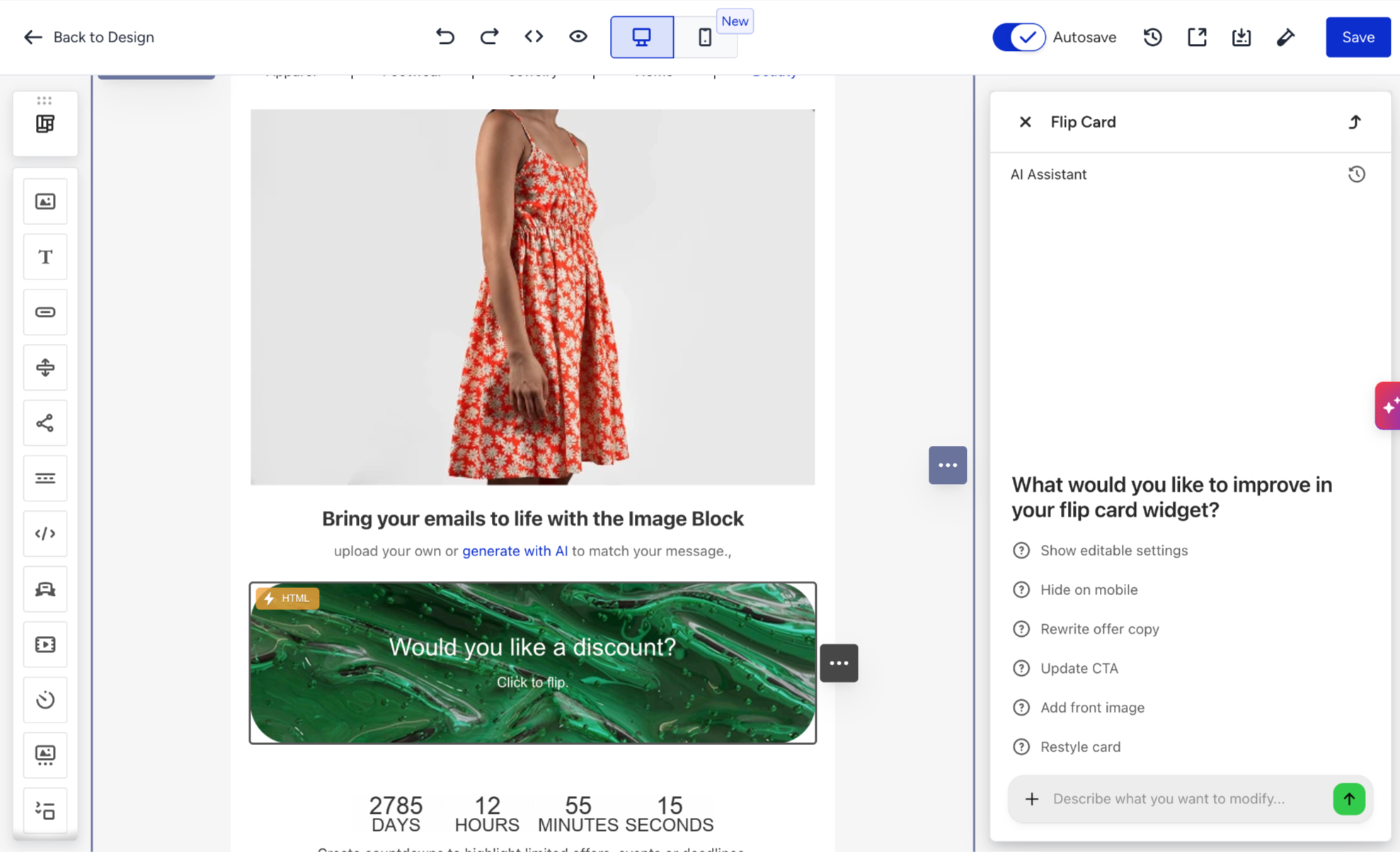
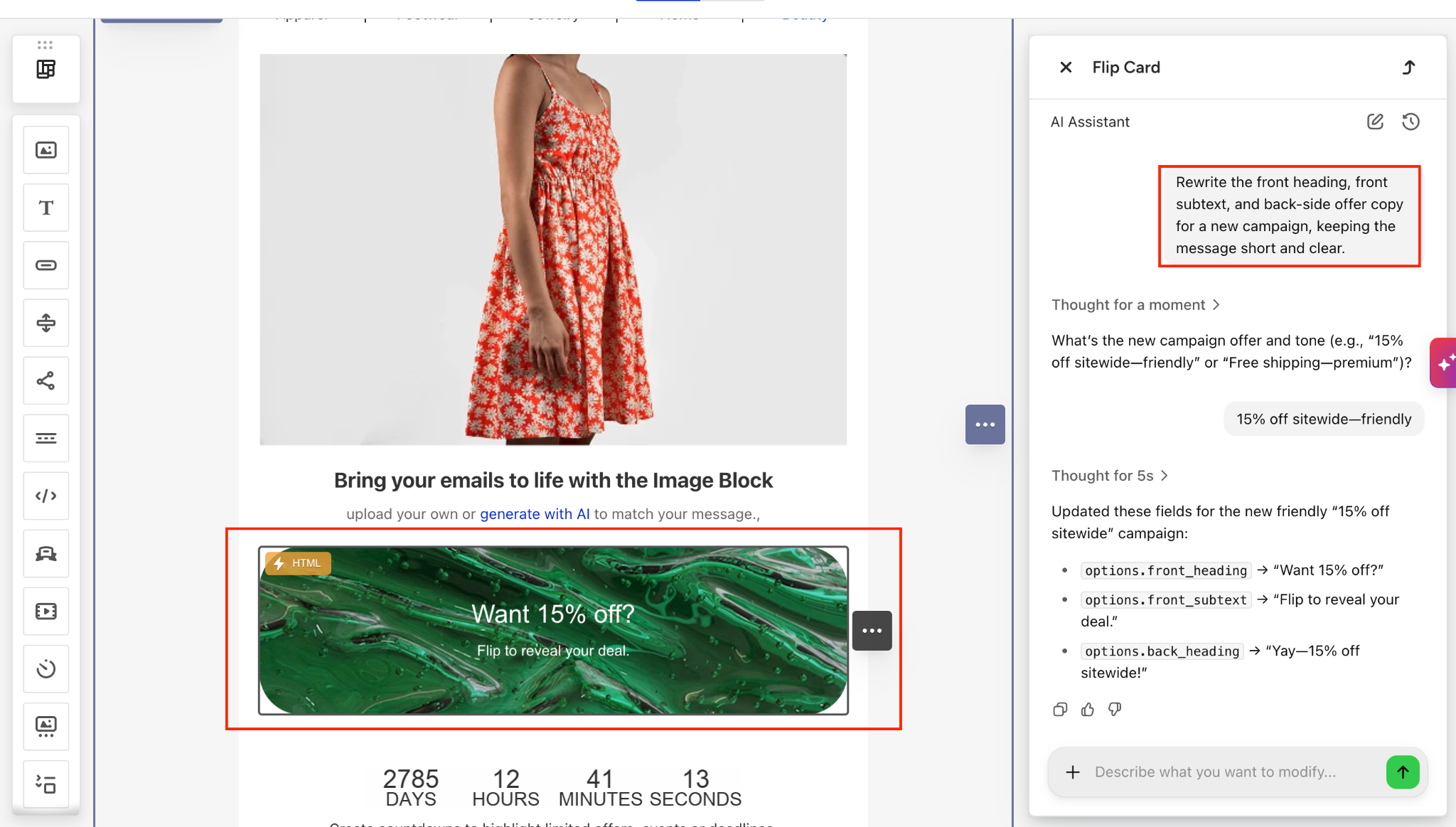
4. Use the AI chat to customize or improve the selected ready-made widget (e.g., change the front heading of the widget).
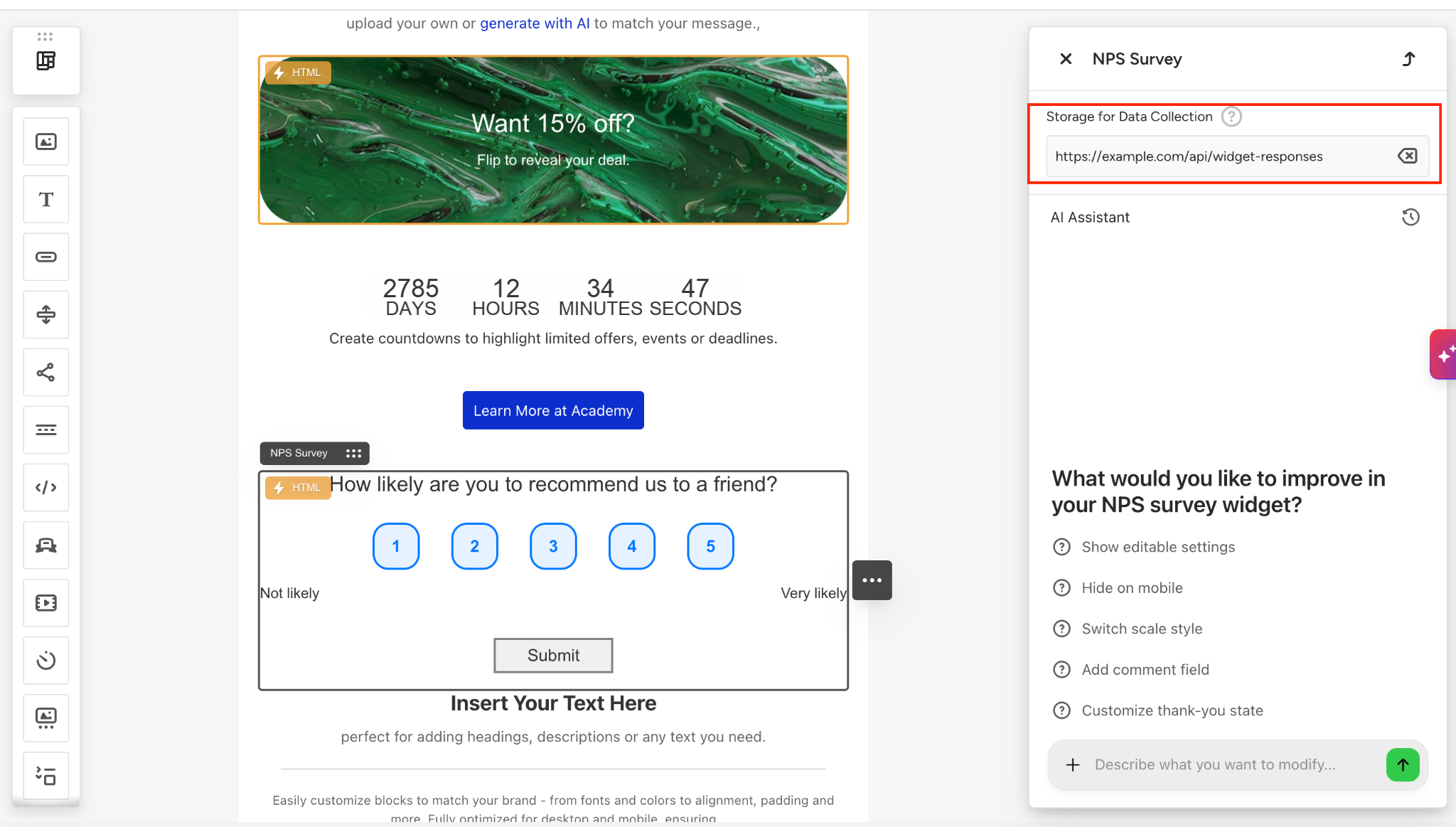
5. Configure data collection. If your widget collects responses, use the Storage for Data Collection section to define where the submitted data will be sent. Enter the endpoint URL of the data collection service that will receive and store the responses.
Make sure the endpoint URL is valid and available. If the endpoint cannot receive the submitted data, widget responses will not be collected.
6. Review the generated widget and add it to your template.
Keep in mind
Email client support
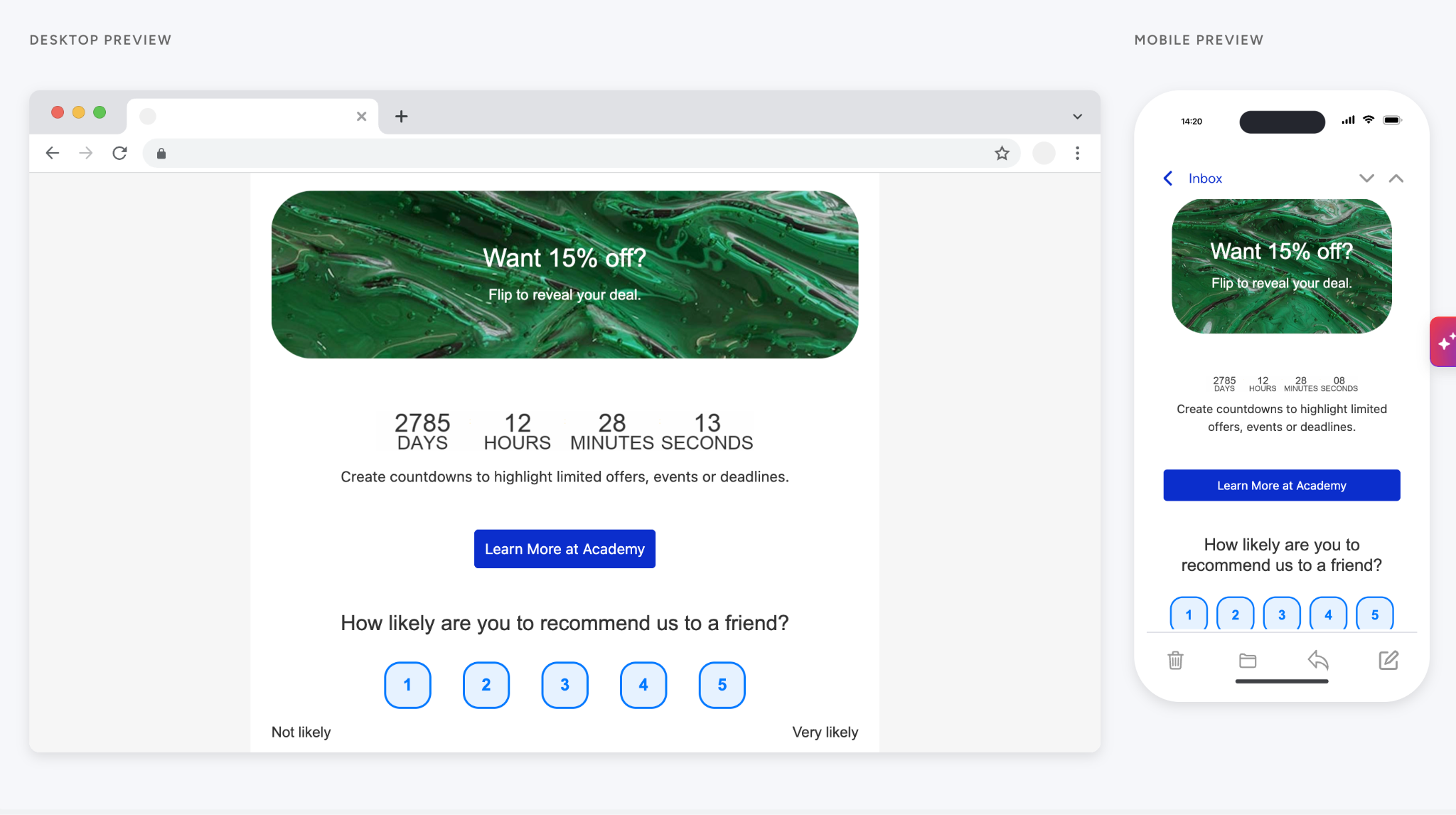
Widgets rely on AMP for Email, which is rendered only by Gmail, Yahoo Mail, and Mail.ru. Other clients, including Apple Mail and Outlook (which dropped AMP in 2020), show the interactive HTML or static fallback version. Recipients always see a polished result, but the level of interactivity depends on their email client.
Sender requirements
Gmail renders AMP only from sender addresses registered with Google and passing SPF, DKIM, and DMARC. Refer to AMP for Email for current client and sender requirements.
Data collection needs an endpoint
Widgets that collect responses (e.g., poll, puzzle, quizzes, feedback forms) require a valid data collection endpoint; otherwise, responses are lost.
Image assets are not generated
Image-based widgets such as the Puzzle need a hosted image URL; the AI chat does not create the image.
Content is edited via AI chat
Texts, CTAs, colors, options, and final messages are changed by describing the change in the chat, not through a settings panel.
Test in a real inbox
Send a test to Gmail to verify the interactive version and to a non-AMP client (e.g., Outlook) to check the fallback.