You must stick to a unified design style across all elements in the email. You set font colors for the copy and forms, button fonts and colors, link colors, container padding, line spacing, email background color, content background color, and email width.
The following general settings apply to the whole email design.
- Background color
- Message settings
- Underline links
- Responsive design
- Right to left text direction
- Custom list styles
- Default structure padding
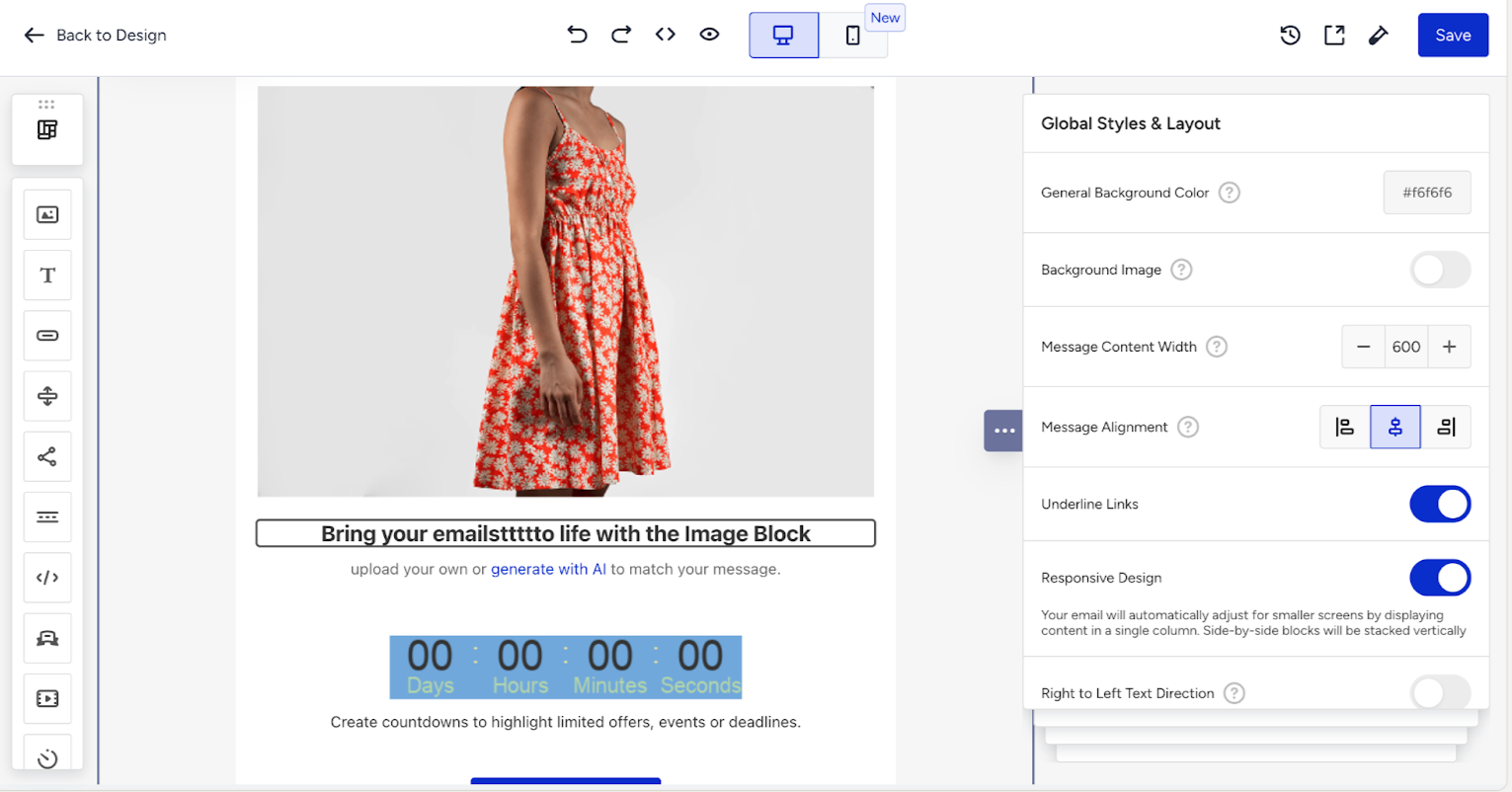
Background color
You can set the "General Background color" of the whole email template as well as the "Background image".
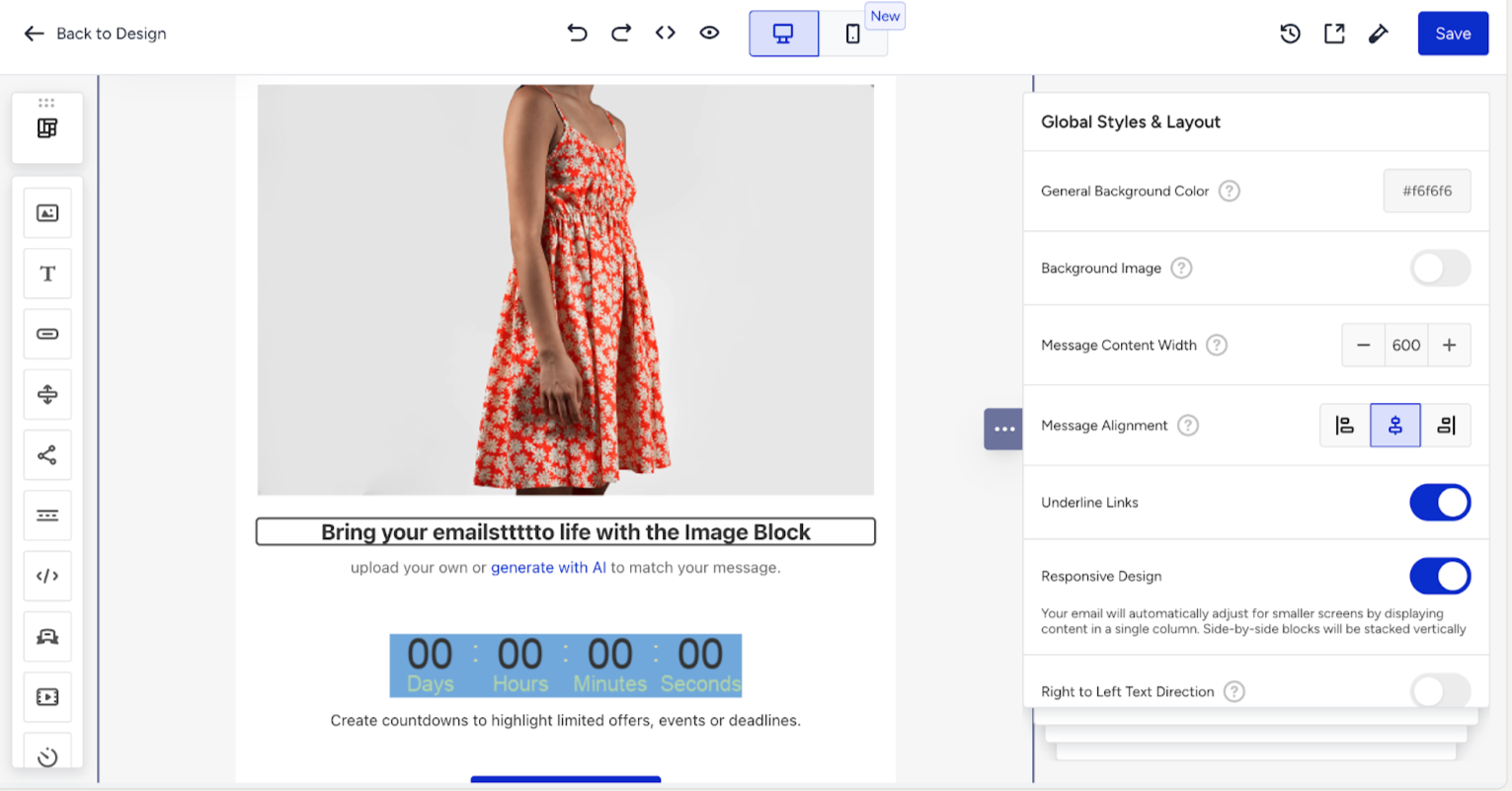
- General Background Color is the background color applied to the entire email message area. The background color will cover the entire message area if the email is opened on a desktop device. While on mobile devices, it is hidden.
- Background Image is the image that will be applied to the email message over its background. To do this, select an image of the correct size and specify its position in the editor's settings panel.
- Background Image Repeat applies your image to the entire email message, regardless of length.
Message settings
- You can modify the Message Content width, which is 600px by default. Today, this is the most standard size among all email clients. Also, you can set any size between 320px and 900px.
- You can adjust the Message alignment to left, center, or right.
Underline links
This setting helps you enable or disable links underlining for the entire email template;
Responsive design
Enabling this option may help to improve mobile display. However, the results may vary on different devices.
If this toggle is disabled, then the mobile version of your email message will look like the desktop one.
Right to left (RTL) text direction
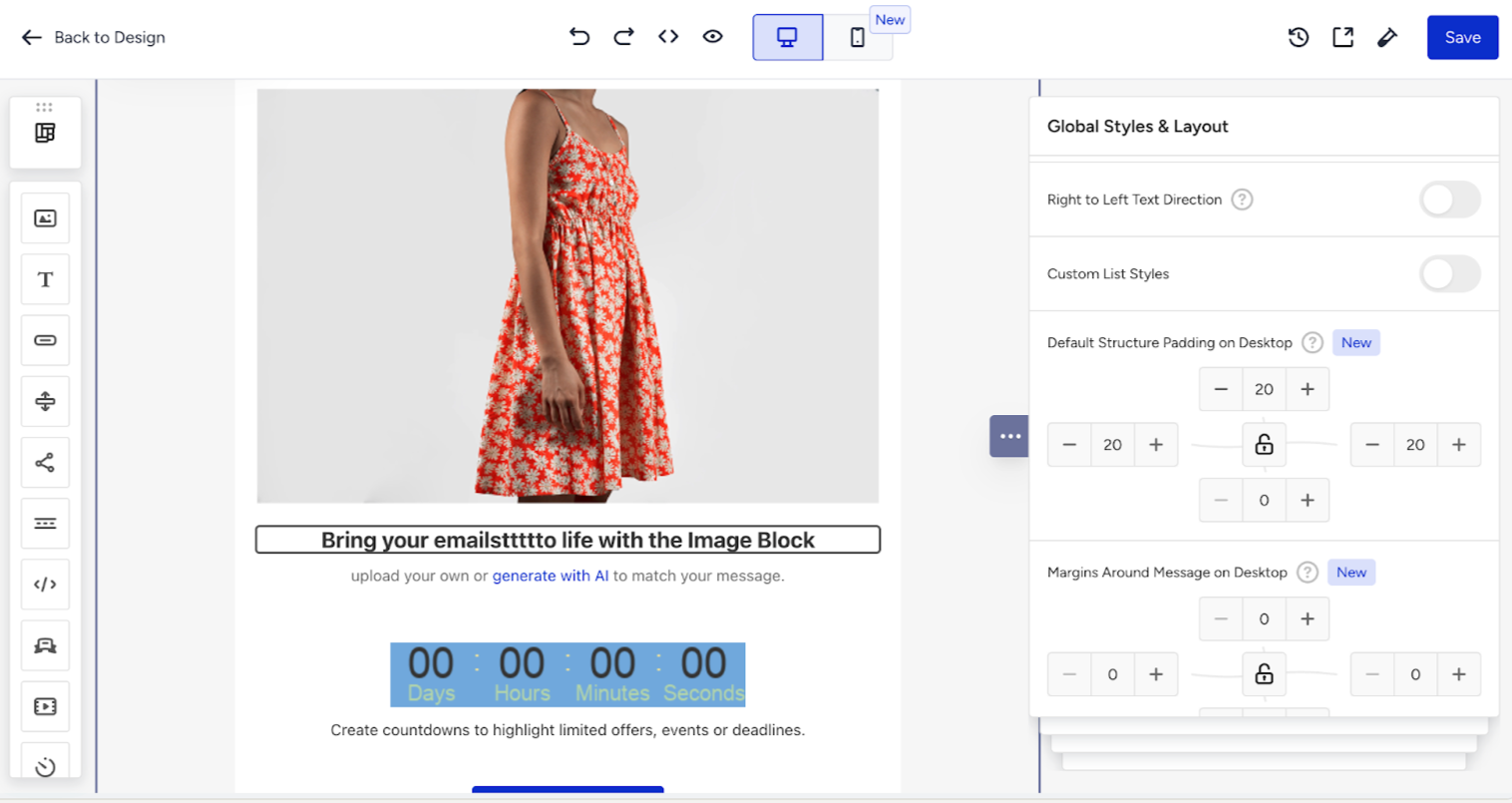
This option allows you to write texts from right to left. This setting is designed for emails in Arabic, Urdu, and other languages that use the RTL script. You can enable this option to make your texts, including numbers and punctuation, readable to people worldwide.
Custom list styles
You can adjust the left indent, add more space to the bottom of the list, add space above and below the list, and change the color of the bullet.
Default structure padding
This setting applies to the new structures added to the email from the Content tab or new rows. You can also set up margins around your message.