Imagery is the basis of all emails. No matter how compelling your copy is, there should definitely be images, as they appeal to emotions by showing the products at their best.
Emails with images are easier to read and perceive. Images have a positive impact on brand awareness and increase customer engagement.
There are three major image formats: PNG, JPG, and GIF.
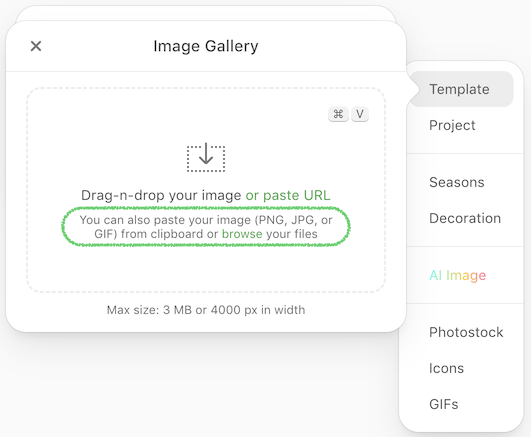
- PNG: If you need to add an image with sharp edges, a logo, or one with a transparent background, this format should be your first choice. The PNG format also preserves image quality regardless of its size and color saturation.
- JPG: Use this format if you want your images to retain their colors. However, please be advised that the JPEG format will significantly reduce your image's quality.
- GIF: This format works great when your email service provider doesn't have video support and you still need to include a certain action in your email. However, GIFs have a significant disadvantage: they do not render colors as brightly as JPEGs.
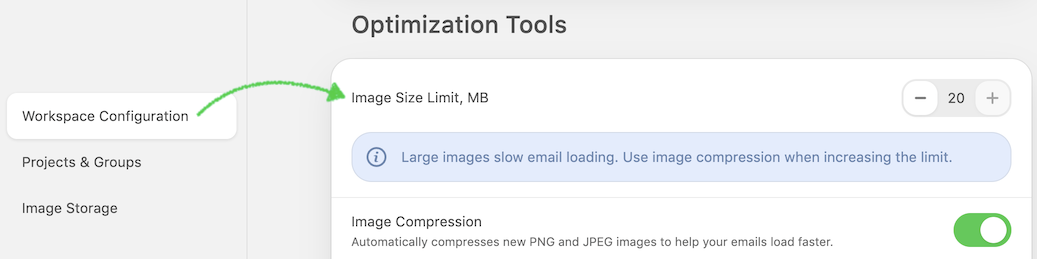
You canupload images with a maximum size of 20 Mb. In case you set up Image Size Limit 3 Mb (and less), the width image limit will be 4000 px.
Add images to your email
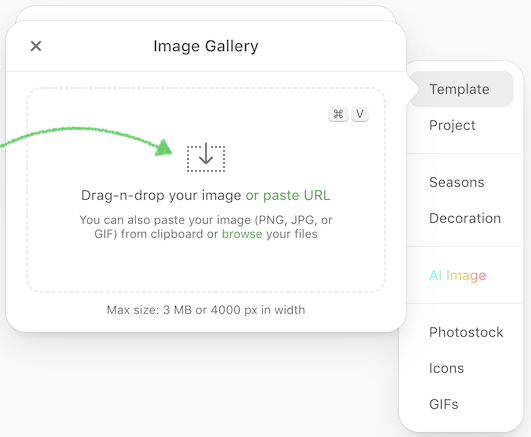
Dropping/uploading an image
Here, you can drag and drop the image you are about to use for your email template or upload it from your computer.
Pasting an external URL
If you do not have the image saved to your computer, you are welcome to insert a link to this image on the web.
Click the Enter URL and paste the link to your image in the External link field.
If you will use this image just once, in the dropdown menu, and choose the Leave as External option.
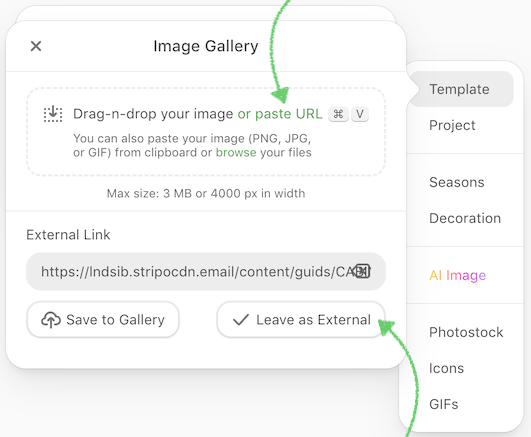
If you will use this image for other email campaigns, click the Project tab above, insert the link, and choose the Save to Gallery option.
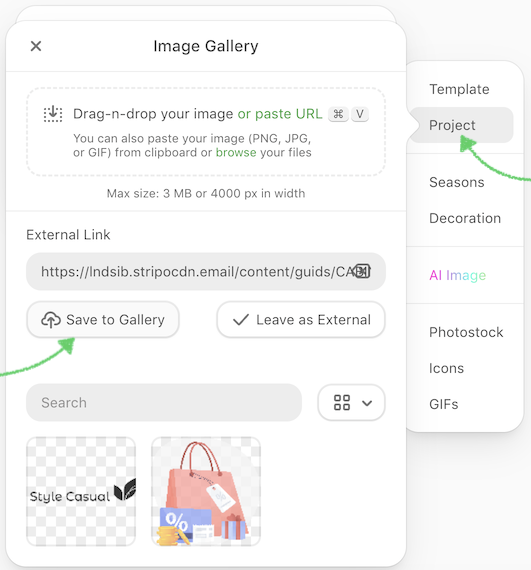
Using images from the personal gallery
As shown in the example above, your images are stored in your personal gallery when you upload them. You just need to switch to the "Email" (or "Template" if it’s an email message) tab.
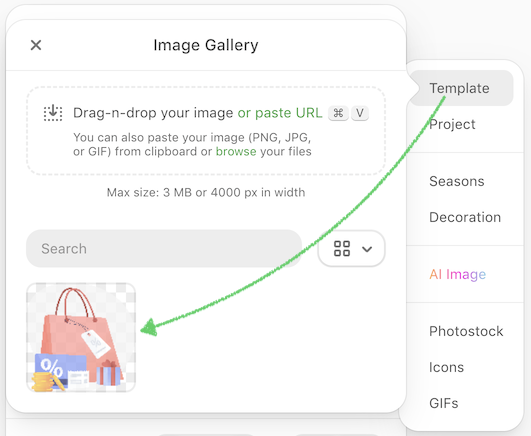
Images here are sorted by date, from the most recent → the oldest. If the list of images is too long, you may search by their name.
To use one in your current email template, click the selected image, and it will automatically appear.
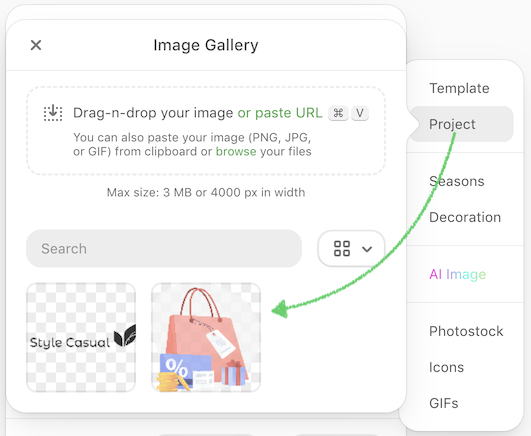
If you put an image in the Project folder, you will see it available in all email messages and templates for that project. You can save an image here if you will it in many email messages and templates within a current project:
If you don't have the necessary images, the email editor provides a selection of ready-to-use images in the predefined collections:
- Seasons: Contains images for holidays and seasonal events like Christmas, Halloween, Black Friday, and more.
- Decoration: A collection of backgrounds, patterns, and thematic illustrations for email design.
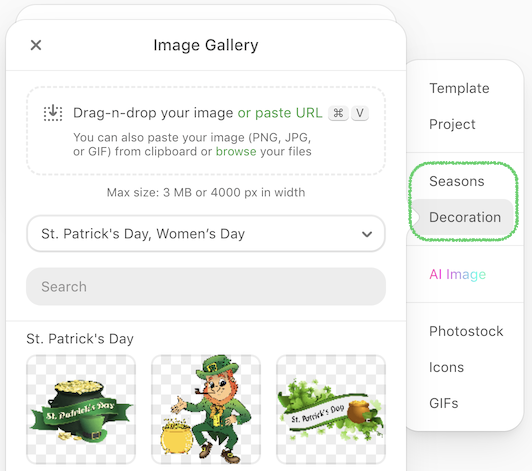
You can refine your search within these collections using filters (e.g., category, style, or color theme).
The email editor also connects to multiple free stock image providers, allowing you to access:
- Photos: High-quality visuals from Pixabay, Pexels, and Unsplash.
- Icons: A variety of vector icons from Iconfinder.
- GIFs: Animated and static stickers from GIPHY.
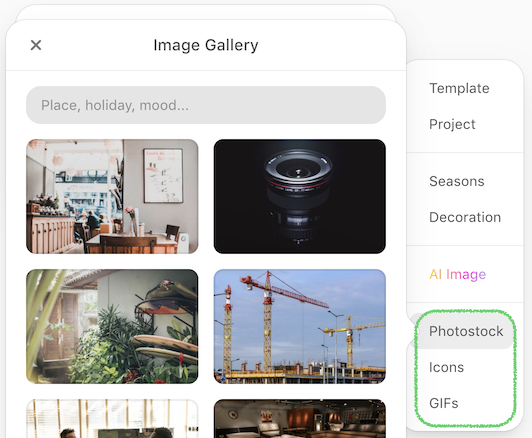
Use the search bar to find relevant images by entering keywords like "business," "summer," or "sale."
Use AI-generated Images in the image block
In the editor, select the Image block and drag it into your template.
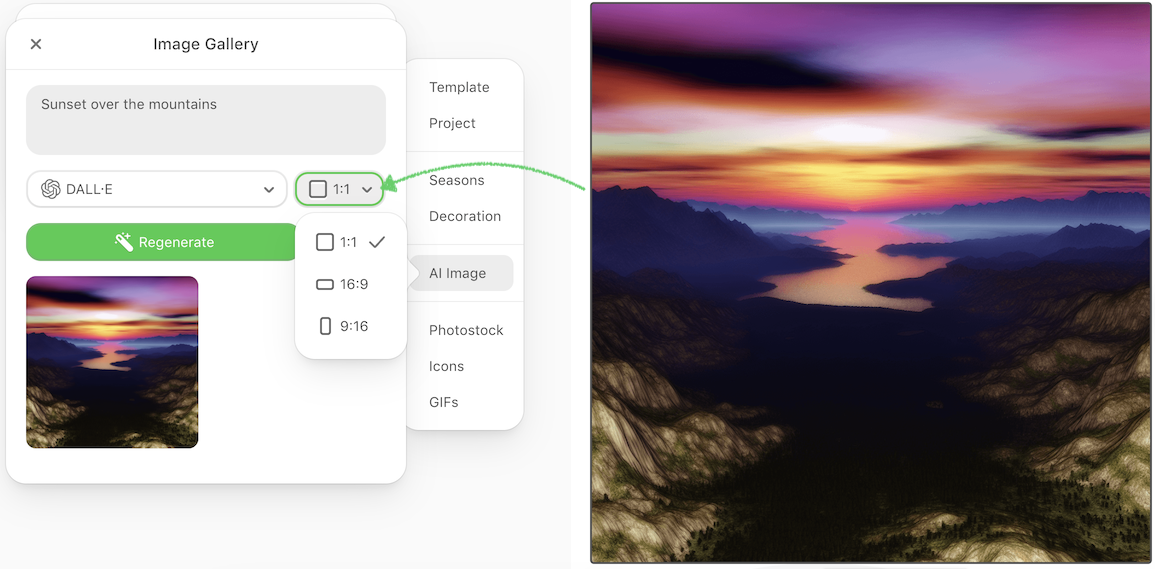
In the block settings, choose AI Image Generator, enter a text prompt (e.g., "sunset over mountains"), and generate the image.
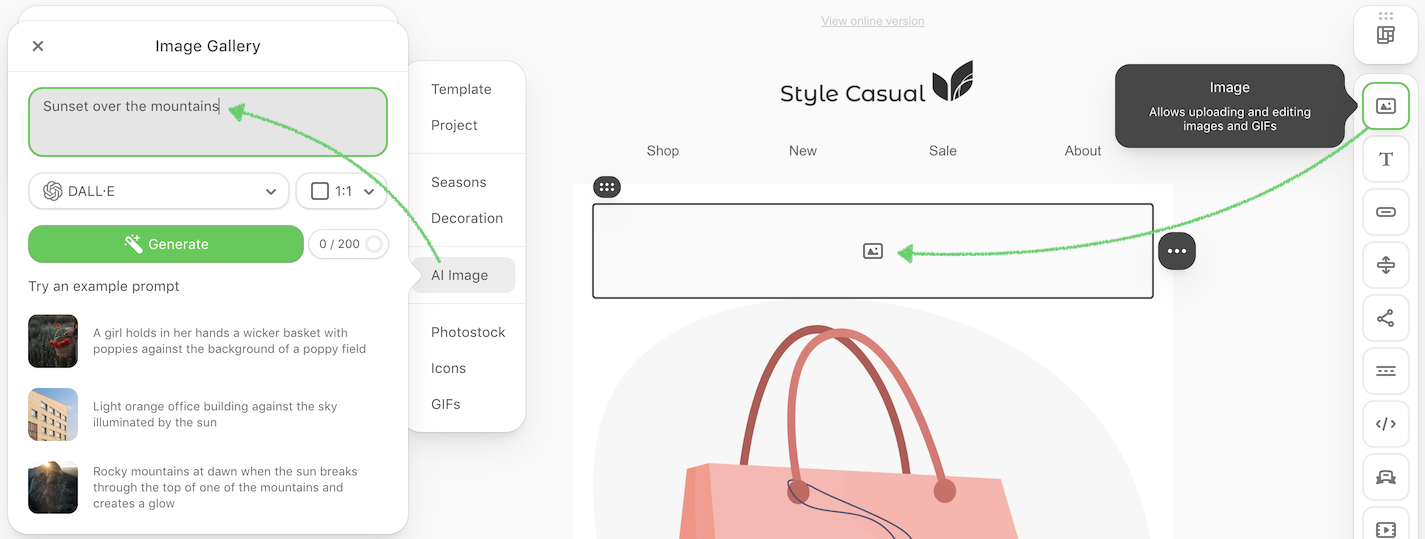
Once the image is generated, you can either Regenerate it or adjust the image size and alignment as needed.