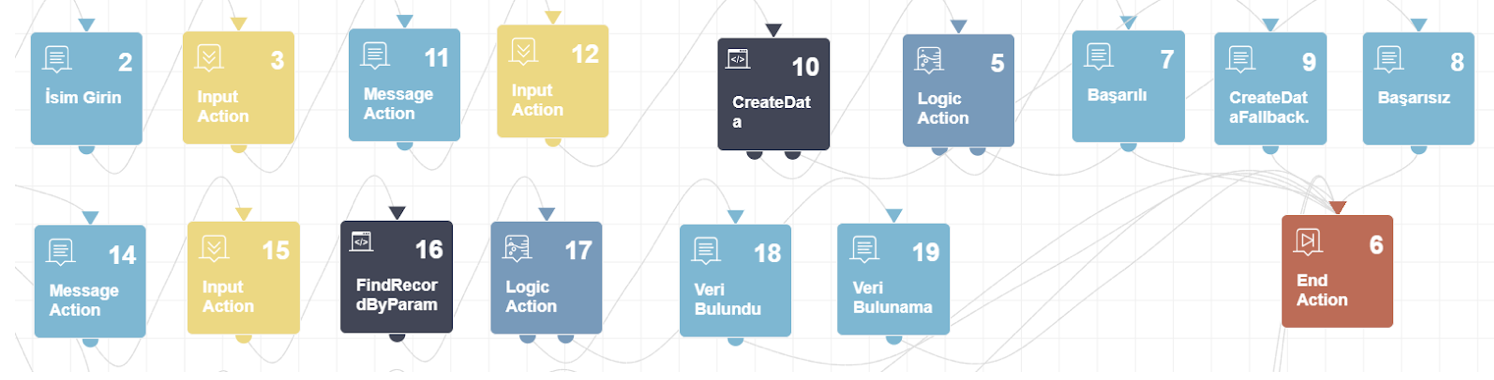
Suggested reading: Integrate Code Station
You can create your code block for Code Station from scratch or integrate a template. One of these templates is the Airtable template.
Requirements
Before starting the integration of Airtable in the Code Station module, ensure all requirements below are met. Once completed, follow the steps for Airtable integration.
1. You need to create an Airtable file. You can follow the steps explained in Airtable's guide to create a file.
2. You should generate a token in your Airtable file. To generate it:
Click on your profile on Airtable and go to the Developer Hub.
.png)
Click the Create New Token button.
.png)
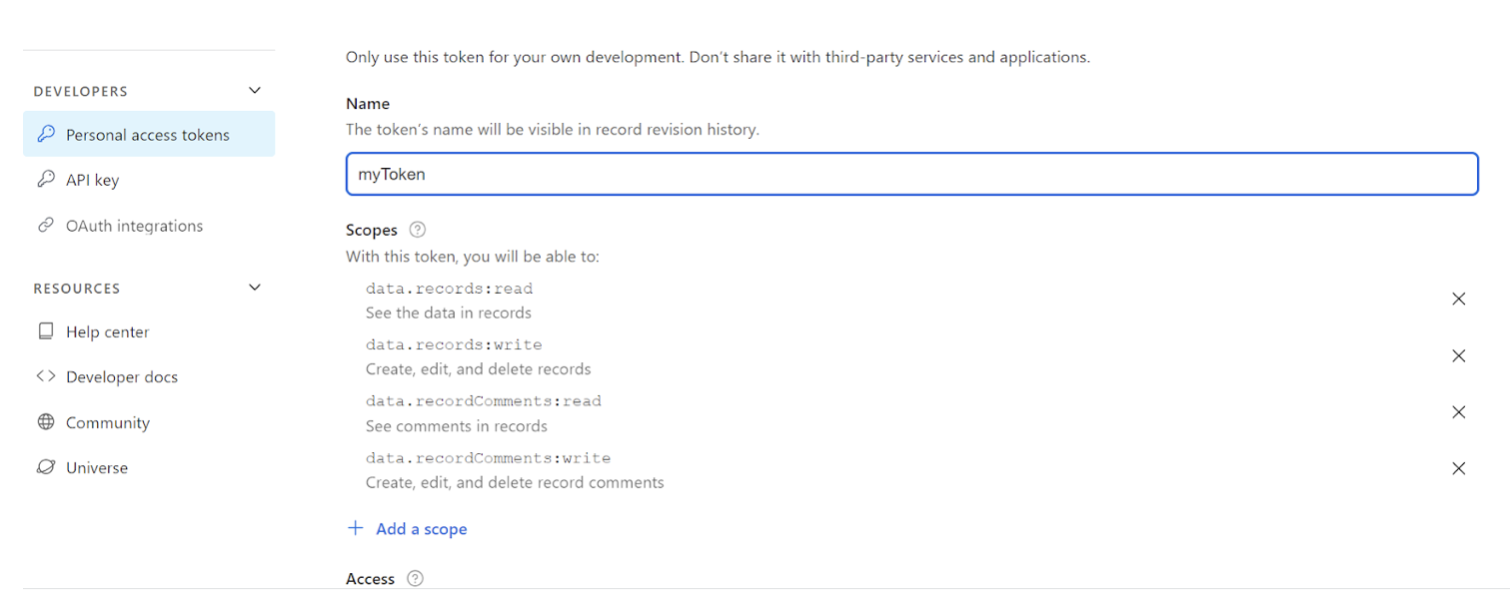
Add "read" and "write" scopes under your token, and click the Create button at the bottom of the page.
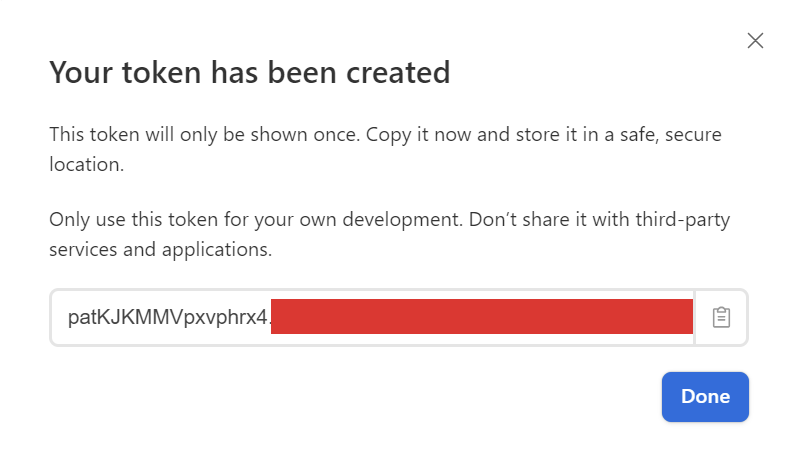
Your token has been generated. You will use this token when you create your Secret Key.
3. You should create a Secret Key for your Code module. Three parameters are available for the Secret Key:
baseId: You can find your Airtable file’s baseID from the URL.

tableName: You can find your Airtable file’s tableName from the URL.

apiKey: Your apiKey is the token that you have created in the previous step.

4. After collecting this information, navigate to Companies > Your Company > Code Station > Secret Manager.
5. Click the Add Secret button, add the baseID, tableName, and apiKey information as properties, and click the Add Secret button.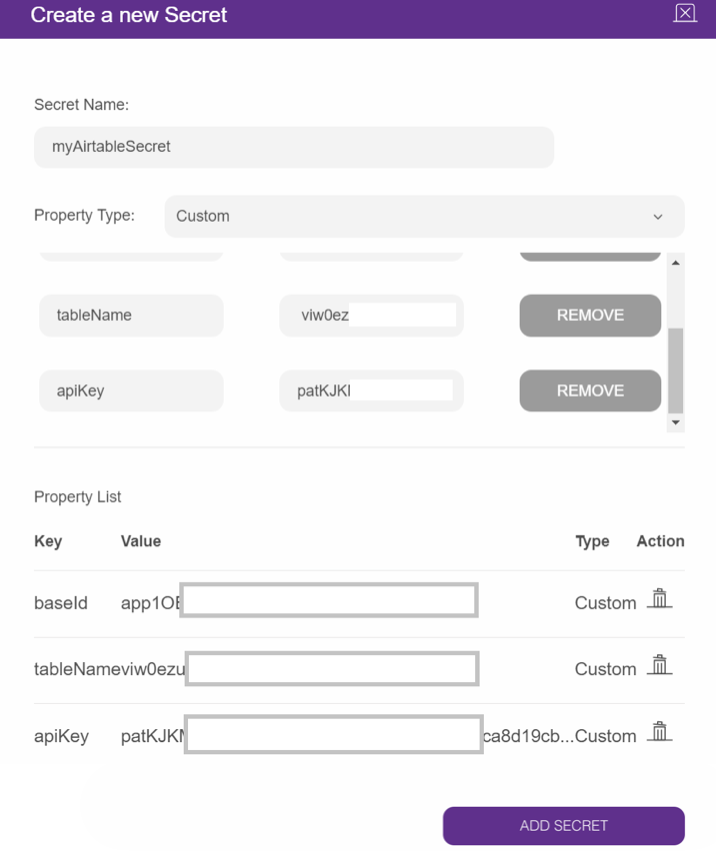
Create an Airtable Code Station module
Before creating the Airtable Code Station module, decide which method you will use in the map and determine the required inputs and outputs for that method. You can check the methods table below:
Methods | Purpose | Input/s | Output/s |
|---|---|---|---|
Retrieve all data | To add all parameters to the params object. | isSuccess (true|false) | |
Create record | To save the input value received from the bot under the specified title. | airtable_params_<key> | isSuccess (true|false) |
Find record by params | To find the data that corresponds to the input value received from the bot. | airtable_params_<key> | isFound (true|false) |
Update record by params | To update the data corresponding to the input value received from the bot. | airtable_search_<key> | isUpdated (true|false) |
After you decide on your method, you can start creating your Airtable Code Station module.
Navigate to Companies > Your Company > Code Station. Click the Add Code Block button.

Click the Select button for the Create from Template option.
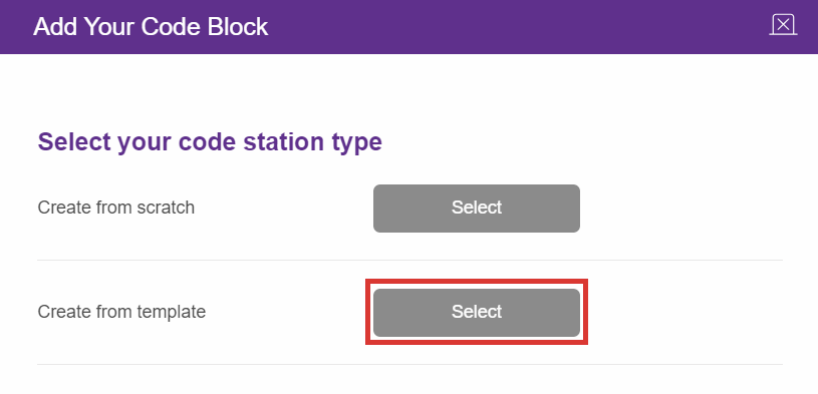
Click on the Select button for Airtable integration.

Select the relevant template (method) and secret key. Click the Add Code Block button.
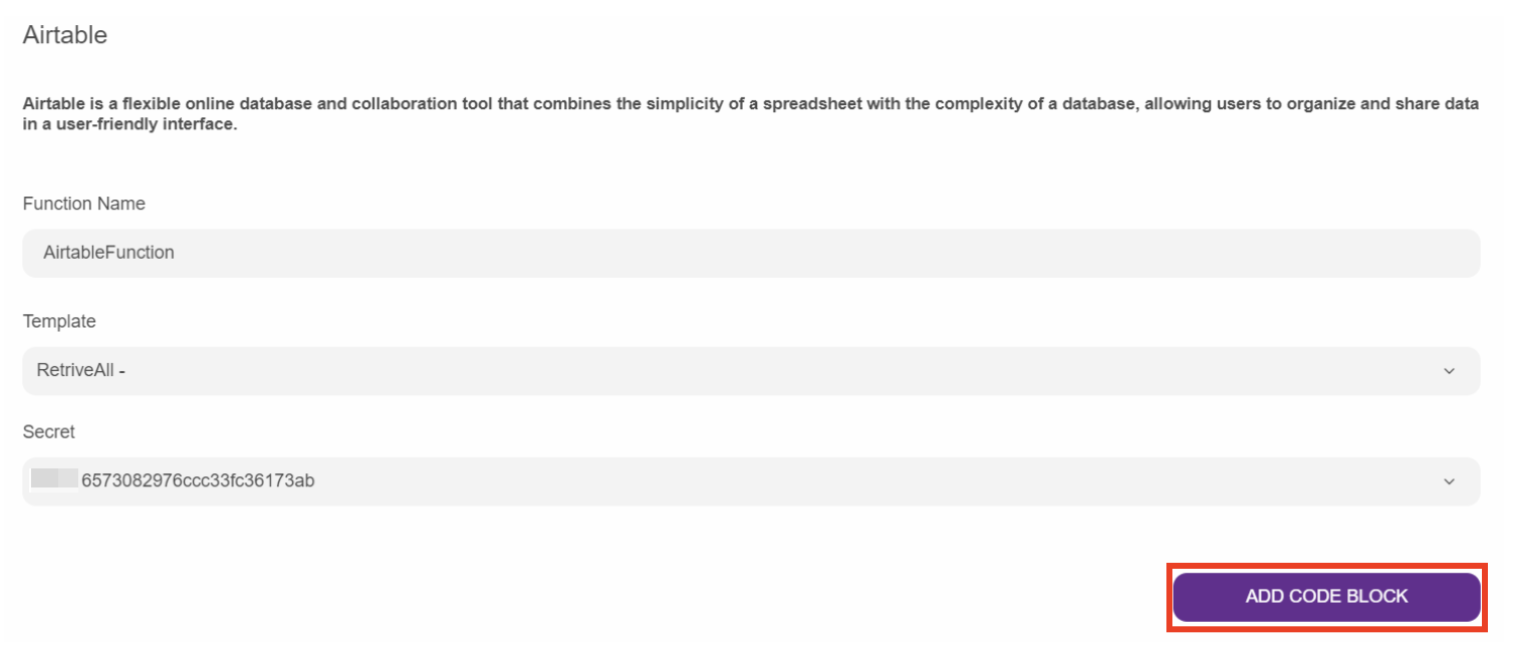
Now, you can use the Airtable template in your map.